Tap the three dots and choose "Save to Camera Roll," or use screen recording if the download is unavailable.
I’ve helped creators and regular users for years figure out how to save Instagram Reels to camera roll in clean, reliable ways. This guide explains every practical method—from Instagram’s built-in options to safe screen recording and vetted third-party tools—so you can save videos legally, with good quality, and without surprises. Read on for step‑by‑step instructions, troubleshooting tips, legal notes, and honest lessons from hands‑on experience.

Why save Instagram Reels to camera roll?
Saving Reels to your camera roll gives you offline access, easy reposting, and a backup for edits. You can reuse clips for other platforms, make edits in video apps, or archive moments you love.
Benefits include:
- Quick offline playback without internet.
- Easy import into editors for trimming, color, or audio changes.
- Backups for content you created or want to keep.
Knowing how to save Instagram Reels to camera roll helps you control your content. It also reduces dependence on Instagram’s app and its changing features.

Legal, privacy, and copyright considerations
Saving a reel doesn’t change ownership. The creator keeps copyright unless they explicitly grant permission to reuse the video. Always respect the creator’s rights.
Practical rules:
- Ask permission before reposting or monetizing someone else’s Reel.
- Credit the original creator when sharing outside Instagram.
- Avoid removing watermarks or digitally altering attribution without consent.
If you plan to use saved reels commercially, get written permission. This protects you and shows professional respect for creators.
How to save Instagram Reels to camera roll — step‑by‑step methods
Below are the most reliable ways to save Instagram Reels to camera roll, with clear steps for iPhone and Android, plus alternatives when direct download isn’t available.
Save your own Reel (best quality)
- Open Instagram and go to your profile.
- Tap the Reel you want to save.
- Tap the three dots (options).
- Choose Save to Camera Roll or Save Video.
This preserves the original upload quality and audio. Use this when you own the Reel.
Save a Reel before posting (draft)
- When creating a Reel, tap the Share screen.
- Choose Save Draft or Save to Camera Roll before posting.
- Alternatively, use the Save option in the editor to keep a high‑quality local copy.
Saving before posting prevents Instagram compression and keeps your edit intact.
Save others’ Reels when Instagram allows downloading
- Open the Reel from another user.
- Tap the three dots.
- If you see Save Video, tap it to save to your camera roll.
Note: This option appears only if the creator enabled downloads. If it’s missing, try the methods below.
Screen recording (iPhone)
- Enable Screen Recording in Control Center (Settings > Control Center > add Screen Recording).
- Open Control Center and start recording.
- Play the Reel in full screen with sound.
- Stop recording. Trim the video in Photos for clean start and end.
Screen recording is reliable and keeps audio. Expect slightly lower quality than the original file.
Screen recording (Android)
- Swipe down to access Quick Settings and tap Screen Record (or use a built‑in recorder app).
- Start recording, then play the Reel full screen.
- Stop and trim the clip using your Gallery or an editor app.
Steps vary by Android skin and OS version, but modern phones include native recorders.
Use a trusted third‑party website or app
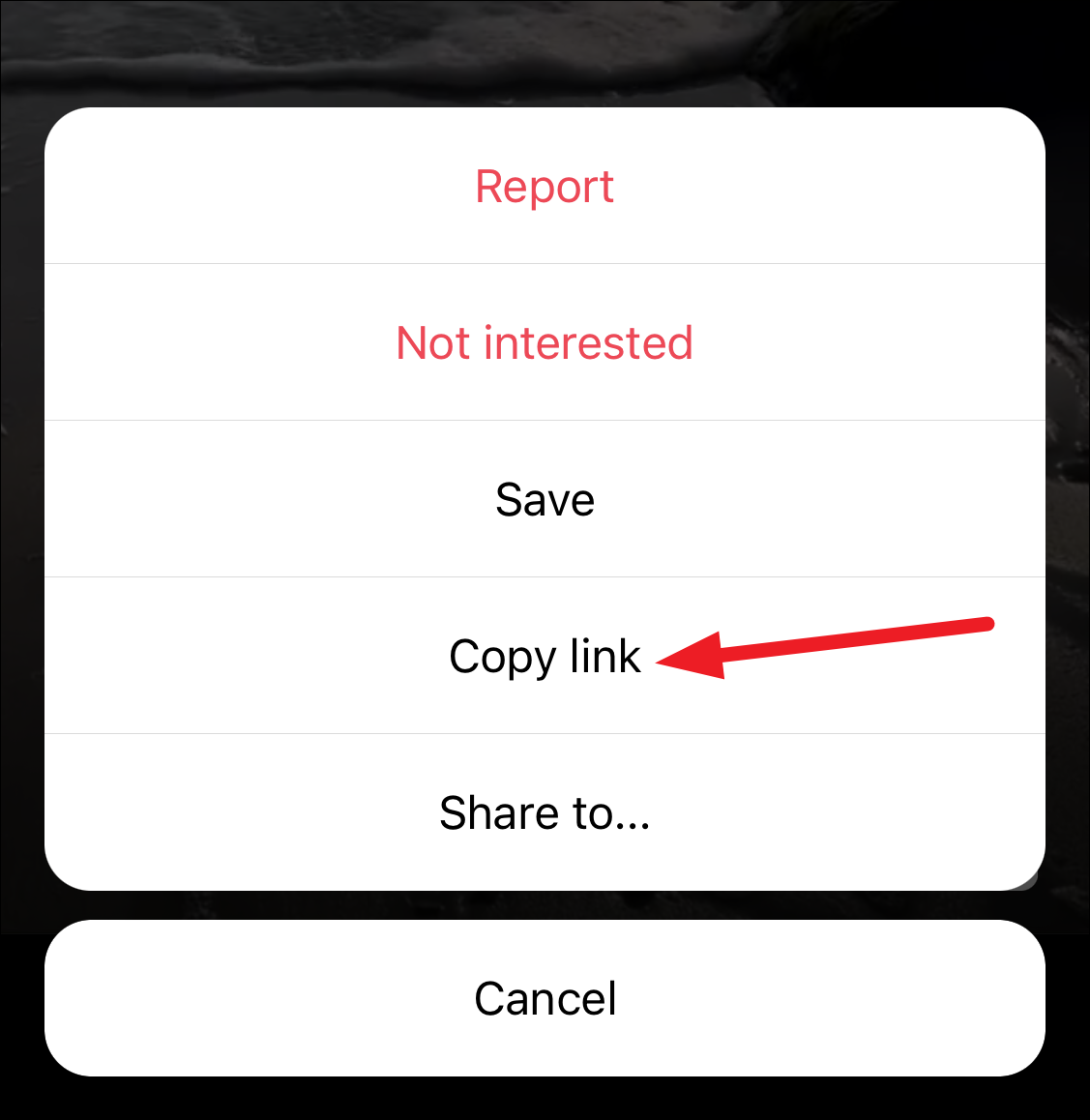
- Copy the Reel link: Tap the three dots > Copy Link.
- Paste the link into a reputable downloader website or app.
- Download the file and save to your camera roll.
Choose well‑known tools and avoid suspicious apps. Third‑party tools can change; protect your personal data and device.
Use messaging apps or reposters as a workaround
- Share the Reel via Instagram’s Share > Direct Message to yourself.
- Open the message in a browser or save from the chat if the platform permits downloads.
- Some repost apps let you paste links and retrieve a downloadable file.
These tricks work sometimes, but they may compress the media. Always verify quality before editing.
After using any of these methods, check your Photos or Gallery app for the saved file. If audio is missing, make sure the phone was not on silent and that app permissions for microphone or system audio were set correctly when recording.

Troubleshooting and quality tips
If you can’t save a Reel, try these fixes and tips.
Common issues and solutions:
- Missing Save Video option: Creator disabled downloads or Instagram removed the feature for that content. Use screen recording with permission.
- Muted or no audio: Ensure system audio is on. On iPhone, long‑press the screen recording button and enable Microphone Audio if needed.
- Poor quality after download: Download the original if it’s your Reel. For others, prefer reputable downloader tools or record at the highest resolution possible.
- Watermarks and credits: Some downloaders add watermarks. Pick tools that respect creator attribution, or ask the creator for a watermark‑free file.
Best practices:
- Trim recordings immediately to remove extra frames.
- Use an editor app to stabilize or enhance color if compression impacted quality.
- Keep file names organized with dates and creator names for easy retrieval.

Quick questions you might have (PAA‑style)
What’s the cleanest way to save a Reel I posted?
- Save directly from your Reel using the three dots > Save to Camera Roll. That keeps the best quality.
Can I record Reels with system sound only?
- On iPhone, turn off Microphone Audio in Screen Recording to capture system audio only. On Android, select internal audio if the recorder supports it.
Are third‑party downloaders safe?
- Some are safe, many are not. Use popular, well‑reviewed tools and avoid apps that request unnecessary permissions.

Personal experience, lessons, and best practices
I save reels for clients and my own brand work. Early on I relied on random downloader sites and learned the hard way about quality loss and ads. Now I follow this approach:
- Always try the native save first for best quality.
- If downloading someone else’s content, ask permission and get a direct file when possible.
- Use my phone’s screen recorder as a reliable fallback.
- Keep an organized folder labeled with creator name and date to avoid copyright confusion later.
Mistakes to avoid:
- Don’t assume saved means free to reuse. Ask for rights.
- Don’t install unknown apps that request accessibility or storage access without reason.
- Don’t ignore audio settings; I once recorded an entire clip muted and had to re‑record.
These practices keep my workflow clean and legally safe. They’ll help you too.
Frequently Asked Questions of how to save instagram reels to camera roll
How do I save my own Instagram Reel to my camera roll?
Open the Reel, tap the three dots, and choose Save to Camera Roll or Save Video. This saves the original file quality.
Why can’t I find the Save Video option on someone else’s Reel?
The creator may have disabled downloads, or Instagram removed the option for that content. Use screen recording only with permission.
Will saving a Reel remove it from Instagram?
No. Saving to your camera roll only creates a local copy. The original Reel stays on Instagram unless you or the creator delete it.
Is it legal to save someone else’s Reel?
Saving for personal use is generally okay, but reposting or commercial use requires permission. Always credit and get consent when needed.
Does screen recording reduce video quality?
Yes, screen recording can slightly degrade quality compared to the original file, but modern phones record at high resolutions that are often acceptable.
Can I save Reels without audio?
Yes. Turn off microphone recording on screen recorders or mute system audio during recording to capture video without sound.
Conclusion
Learning how to save Instagram Reels to camera roll gives you control over your content and makes editing and sharing easier. Use native save options when possible, ask for permission before using others’ content, and rely on screen recording or trusted tools only when needed. Start by testing the native save flow on a short Reel, organize saved files clearly, and practice respectful reuse. If this guide helped, try saving one Reel now and leave a comment with your experience or questions.

Everett Ashford is a tech reviewer at mytechgrid.com specializing in SSDs, cameras, TVs, earbuds, headphones, and other consumer electronics. He provides honest, data-driven reviews based on hands-on testing and real-world performance analysis. Everett simplifies complex tech details to help readers make smart, confident buying decisions.