To stop pixelation on TV, check signal strength, cables, antenna placement, internet speed, and device settings first.
TV pixelation can turn a clear movie, sports game, or local news broadcast into a blocky mess. The good news is that this problem is often easy to fix once you find the weak link. In this guide, you will learn how to stop pixelation on TV, identify the real cause, and prevent it from returning.
What TV Pixelation Means
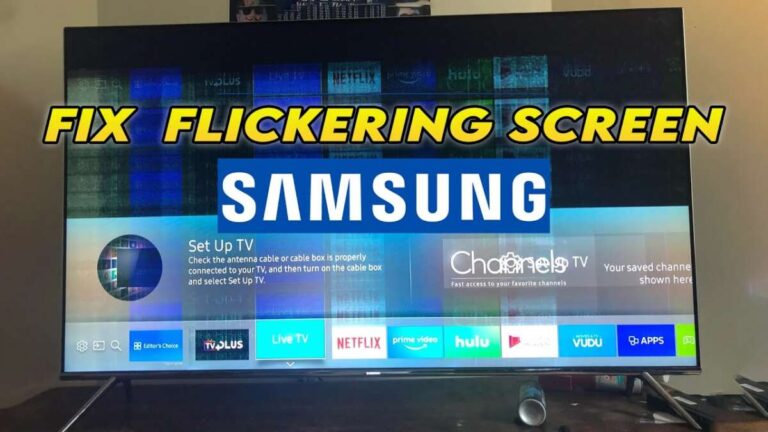
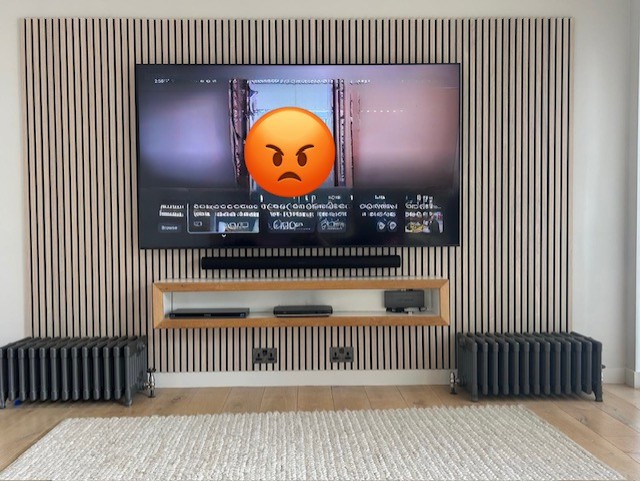
TV pixelation happens when the picture breaks into small blocks, freezes, skips, or briefly loses detail. It is most common with digital cable, satellite, antenna, and streaming services.
Digital video needs a steady flow of data. When that flow becomes weak or interrupted, the TV cannot rebuild the full image. Instead of showing a smooth picture, it displays missing data as square blocks or broken shapes.
Think of the picture as a puzzle. If a few pieces go missing, your TV fills the gaps with rough blocks until the signal returns.
Common signs include:
• Small square blocks across the screen
• A picture that freezes for a few seconds
• Audio that cuts out with the video
• Pixelation on only one channel
• Pixelation during rain, wind, or storms
• A message such as “No signal” or “Weak signal”
• Streaming video that becomes blurry before it stops
The cause matters because the solution depends on the TV source. A weak antenna signal needs a different fix from slow Wi-Fi or a failing HDMI cable.
The Main Causes of TV Pixelation
The first step in learning how to stop pixelation on TV is finding where the signal becomes weak. The problem may begin outside your home, at the wall outlet, inside the cable, or in the TV itself.
Weak antenna signal
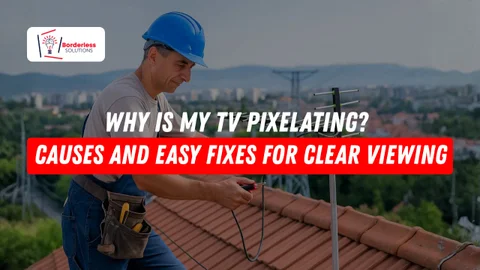
Over-the-air TV depends on signal strength from nearby broadcast towers. Buildings, hills, trees, and distance can weaken that signal. Indoor antennas are especially sensitive to walls, metal objects, and nearby electronics.
Antenna pixelation may appear on one local channel but not another. It may also change when you move the antenna a few feet.
Loose or damaged coaxial cable
A coaxial cable carries the signal from an antenna, cable outlet, or satellite box to your TV. A loose connector can cause signal loss. A bent, crushed, or old cable can also create interference.
Check both ends of the cable. The connector should fit tightly but should not be forced. Replace cables with visible damage, rust, or loose connectors.
Splitters and extra connections
Every splitter can reduce signal strength. A setup with several splitters may leave too little power for the TV, especially when the original signal is already weak.
Older splitters may also support a limited frequency range. This can affect cable, antenna, or MoCA equipment.
Cable or satellite service trouble
Sometimes the fault is not inside your home. A damaged street line, maintenance work, local outage, or bad signal at the provider’s equipment can cause pixelation.
If several channels show the same problem, check your provider’s outage page or contact support. Tell the agent whether the issue affects one TV or every TV in the home.
Slow or unstable internet
Streaming services use internet data to deliver video. A speed test may show good download speed, yet the connection can still have high latency, packet loss, or short drops.
This can cause pixelation, buffering, blurry video, and sudden quality changes. Wi-Fi congestion is common in apartments, busy homes, and areas with many nearby networks.
Overheating devices
Cable boxes, streaming sticks, satellite receivers, and game consoles need airflow. When a device overheats, it may freeze, restart, or produce video errors.
Keep the device out of closed cabinets when possible. Remove dust from vents and avoid stacking warm devices on top of one another.
Faulty HDMI cable or port
An HDMI cable does not usually create classic broadcast pixelation, but it can cause sparkles, flashes, dropouts, or a black screen. A damaged port can produce similar symptoms.
Try another HDMI cable and another port. Use a certified cable that supports the resolution and refresh rate your equipment needs.
TV hardware or software problems
A faulty tuner, outdated software, or damaged processing board can also affect the picture. If the same issue appears with several sources, the TV may need service.
Before assuming the TV is broken, test a different input. This simple check can save you from buying a new television unnecessarily.

How to Stop Pixelation on TV: Quick Fixes
Use these steps in order. Start with simple checks before changing advanced settings or buying new equipment.
1. Restart the full TV setup
Turn off the TV, cable box, satellite receiver, modem, and router. Unplug each device for about 60 seconds. Then reconnect the modem and router first, followed by the source device and TV.
This clears temporary software errors and refreshes the connection. It is one of the easiest answers to how to stop pixelation on TV.
2. Check every cable
Inspect the coaxial and HDMI cables. Tighten coax connectors by hand and make sure HDMI plugs sit fully inside their ports.
Do not bend cables sharply behind the TV. A sharp bend can damage the inner shielding and weaken the signal.
3. Test another channel or app
Change to several channels. If only one channel pixelates, the broadcaster or provider may have a channel-specific problem.
Open a different streaming app if you use a smart TV. If Netflix works but another app pixelates, the issue may be with that service rather than your TV.
4. Test another TV
If possible, connect the same antenna, cable outlet, or streaming device to another TV. This helps separate a source problem from a television problem.
If both TVs pixelate, focus on the signal, cables, splitter, antenna, or provider. If only one TV has trouble, inspect that TV’s input, software, and hardware.
5. Update the TV and streaming device
Open the settings menu and check for software updates. Updates can fix playback errors, tuner problems, and compatibility issues.
Do not unplug a device during a firmware update. An interrupted update can cause a more serious fault.

How to Stop Pixelation on TV With an Antenna
Antenna users often solve pixelation by improving placement rather than buying a stronger antenna. A larger antenna cannot always overcome a poor location.
Try these steps:
- Move the antenna near a window or exterior wall.
- Place it as high as possible.
- Keep it away from metal shelves, speakers, routers, and large appliances.
- Rescan for channels after moving it.
- Aim a directional antenna toward the broadcast towers.
- Test the signal at different times of day.
- Remove unnecessary splitters and extensions.
- Check outdoor cables for water damage.
Use your TV’s signal meter if it has one. Look for signal quality, not just signal strength. A strong signal with heavy interference may still produce pixelation.
An amplifier can help when cable loss is the problem. It cannot repair a poor signal, remove all interference, or create a signal where none exists. In some cases, an amplifier makes the picture worse by increasing noise and overload.
Weather can also affect reception. Heavy rain, snow, and strong wind may move an outdoor antenna or block a weak signal. If pixelation happens only during severe weather, inspect the antenna mount and outdoor connections.

How to Stop Pixelation on TV From Cable or Satellite
Cable and satellite systems need a clean path from the provider to the receiver. A small signal problem can affect only some channels, especially high-frequency channels.
Start by checking the coaxial cable from the wall to the box. Remove any unnecessary splitter and connect the box directly to the wall outlet for testing.
You should also check:
• Loose wall plates
• Damaged coaxial connectors
• Water near outdoor cable connections
• Old splitters
• Multiple unused cable outlets
• A satellite dish that moved in high wind
• Snow, ice, or leaves blocking a satellite dish
• A cable box that feels unusually hot
If the problem affects every channel, contact your provider. Ask them to check signal levels and error counts at the box. These readings can reveal noise, poor downstream power, or return-path problems that you cannot see from the TV menu.
If only one channel pixelates, record the channel name and the time. This information helps customer support identify a local or network issue.
Do not open a cable box, satellite receiver, or outside service panel. These devices may contain sensitive parts, and provider equipment may be unsafe or restricted for customer repair.

How to Stop Pixelation on TV While Streaming
Streaming pixelation usually comes from unstable internet, not the screen itself. A service may lower video quality when it detects slow or changing bandwidth.
Try the following:
• Restart the modem and router.
• Move the router closer to the TV.
• Use a 5 GHz Wi-Fi band when nearby.
• Use a 2.4 GHz band when the TV is far away or behind walls.
• Connect the TV with Ethernet when possible.
• Pause large downloads and cloud backups.
• Disconnect devices you do not use.
• Update the streaming app.
• Clear the app cache if the TV supports that option.
• Lower the video quality for a short test.
A wired Ethernet connection is often more stable than Wi-Fi. It is especially useful for 4K video, live sports, and homes with many connected devices.
Internet speed needs vary by service and video quality. Many providers recommend about 5 Mbps for HD video and about 15 Mbps for 4K video per stream. These are general targets, not guarantees. Network congestion, Wi-Fi interference, and data limits can still cause trouble.
Run a speed test near the TV if possible. Compare the result with the service’s recommended speed. Also look for sudden drops rather than focusing only on the highest number.
In my troubleshooting experience, people often blame the TV when the real issue is a crowded Wi-Fi network. A large download, video call, or game update can quietly take enough bandwidth to make live video unstable.

TV Settings That May Improve the Picture
Picture settings usually do not fix a weak signal. However, the right settings can make compression artifacts less noticeable and prevent unnecessary processing.
Try these adjustments:
Turn off excessive noise reduction
Noise reduction can soften fine detail. On some TVs, it may make compressed video look smeared or unnatural. Set it to Low or Auto first.
Use the correct picture mode
Cinema, Movie, or Standard mode often gives a more natural image than vivid mode. Vivid settings can make blocks and edge artifacts easier to notice.
Check the source resolution
Set your cable box, streaming device, or game console to Auto when available. A forced resolution may create scaling problems.
Turn off motion features for testing
Motion smoothing does not usually cause pixelation, but it can make streaming defects more visible. Turn it off temporarily while testing the source.
Check the TV’s signal information
Many TVs show signal strength, signal quality, resolution, and connection details. Write down these values before and after a change.
Do not change several settings at once. Make one adjustment, watch the same content, and compare the result. This approach makes the true fix easier to identify.

How to Tell Whether the TV Is at Fault
You may need professional repair when pixelation appears with every source. Test the TV with:
• A built-in streaming app
• An HDMI device
• An antenna or cable channel
• A different HDMI port
• A different HDMI cable
If only one source pixelates, the TV is probably working correctly. If every source shows blocks, lines, flashes, or color errors, the TV hardware may be failing.
A damaged display panel often shows permanent lines, dark spots, or fixed areas of discoloration. These symptoms are different from signal pixelation, which usually changes or disappears.
Check the TV warranty before paying for repair. For an older budget TV, replacement may cost less than a panel repair. For a large premium TV, a technician may find a smaller and more affordable board or power issue.
Never remove the back cover unless you are trained to work with electronics. TVs can hold dangerous electrical charges even after being unplugged.
Mistakes to Avoid When Fixing TV Pixelation
Some common fixes waste money or hide the real problem.
• Do not buy an amplifier before testing the signal. An amplifier can worsen an already overloaded signal.
• Do not replace the TV before testing the cables and source device.
• Do not assume a fast internet plan guarantees stable streaming. Wi-Fi quality still matters.
• Do not use several cheap splitters in a row. Each connection can reduce signal quality.
• Do not place a router inside a cabinet or behind large metal objects.
• Do not ignore outdoor cable damage after storms. Water can travel inside coaxial cable.
• Do not keep changing picture settings when the signal is dropping. Settings cannot restore missing data.
• Do not rely only on a single speed test. Test at different times if the problem comes and goes.
One lesson I have learned from signal troubleshooting is to change as little as possible at first. A simple direct connection often reveals more than a long list of random settings changes.

When to Contact a Professional
Contact your TV, cable, satellite, or internet provider when basic checks do not solve the problem. Ask for help if the issue affects multiple TVs or appears across many channels.
Professional help is also wise when:
• Outdoor cables are damaged
• An antenna mount has moved
• A satellite dish may be misaligned
• The wall outlet may be faulty
• You smell burning near a device
• The TV repeatedly shuts down
• Pixelation appears with every input
• The problem continues after a factory reset
Give the technician clear information. Explain when the issue began, which channels or apps are affected, whether weather changes it, and what you already tested.
A clear description can reduce repair time. It also helps prevent unnecessary replacement of working equipment.
How to Prevent TV Pixelation
After you fix the problem, a few habits can help keep the picture stable.
Keep cables straight and supported. Replace old coaxial cables when the connectors loosen or the shielding becomes damaged.
Give routers, cable boxes, and streaming devices space for airflow. Dust the vents with a soft, dry cloth and avoid placing equipment in direct sunlight.
For antenna systems, check the outdoor connections once or twice a year. Look for corrosion, cracked weather seals, and loose mounts.
For streaming, use Ethernet for the TV if it is practical. If you use Wi-Fi, place the router in an open, central area and keep large metal objects away from it.
Save your TV model, device model, provider details, and cable types. This small record makes future troubleshooting faster and less frustrating.
Frequently Asked Questions About How to Stop Pixelation on TV
Why does my TV pixelate on only one channel?
One channel may have a broadcast or provider problem, or that channel may use a weaker frequency. Check other channels and contact the provider if the issue continues.
Can a bad HDMI cable cause TV pixelation?
A bad HDMI cable can cause sparkles, flashes, dropouts, or a black screen. Test another certified cable and a different HDMI port to confirm the cause.
Does a TV amplifier fix pixelation?
An amplifier can help when a good antenna signal becomes weak through long cable runs or splitters. It cannot fix interference or a missing signal, and it may worsen an overloaded connection.
Why does my TV pixelate during bad weather?
Rain, wind, snow, and storms can weaken antenna or satellite reception. Strong wind may also move an antenna or satellite dish, while water can damage outdoor connectors.
Can slow internet cause pixelation on a smart TV?
Yes. Slow or unstable internet can cause blurry video, blocky images, buffering, and freezes. Use Ethernet or improve Wi-Fi placement to test the connection.
Should I reset my TV to fix pixelation?
A reset may help if the problem comes from software or incorrect settings. It will not fix a weak antenna signal, damaged cable, provider outage, or slow internet.
How do I know if my TV tuner is failing?
A failing tuner may cause problems on many broadcast channels while other inputs work normally. Test another source and contact a qualified technician if the issue remains.
Conclusion
Learning how to stop pixelation on TV starts with finding the source of the problem. Check the signal, cables, splitters, antenna position, internet connection, source device, and TV inputs in that order.
Restart the equipment, test one change at a time, and avoid buying an amplifier or replacement TV too soon. If several devices show the same issue, contact your provider or a qualified technician for signal testing.
Use these steps the next time your picture breaks into blocks, and you can often restore a clear image without expensive repairs. If this guide helped, explore more TV troubleshooting resources and share your experience in the comments.

Everett Ashford is a tech reviewer at mytechgrid.com specializing in SSDs, cameras, TVs, earbuds, headphones, and other consumer electronics. He provides honest, data-driven reviews based on hands-on testing and real-world performance analysis. Everett simplifies complex tech details to help readers make smart, confident buying decisions.