Transfer the operating system to an SSD by cloning or clean-installing for faster boot and performance.
I’ve migrated many systems and helped others speed up their PCs by showing exactly how to transfer operating system to ssd. I will walk you through why it helps, what to prepare, step-by-step cloning and clean install methods, post-transfer tweaks, and common fixes. Read on for clear, practical steps and tips based on real-world experience so you can finish this upgrade with confidence.
Why move your OS: speed, responsiveness, and reliability
Upgrading to an SSD is one of the biggest single improvements you can make to an older PC. The OS boots faster, apps launch instantly, and background tasks run more smoothly. Learning how to transfer operating system to ssd lets you keep all settings and apps or start fresh for a clean system.
Solid state drives use flash memory. That means no moving parts and much lower latency than hard drives. For many users, the result feels like a brand new machine. Knowing when to clone and when to clean install helps you choose the fastest, safest path.
What you need before you start
Preparation prevents lost data and wasted time. Follow these steps before attempting how to transfer operating system to ssd.
- Make a full backup of your current system to an external drive or cloud storage.
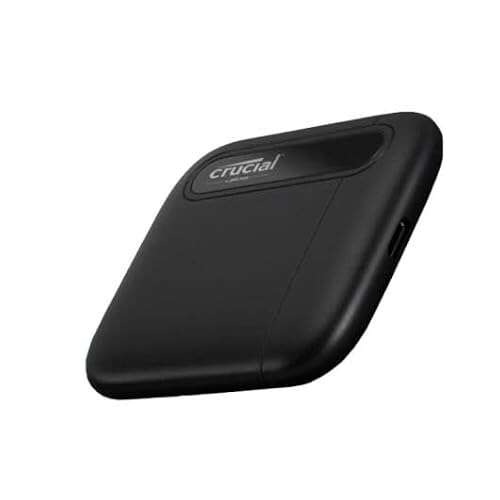
- Choose an SSD with enough capacity for your OS, apps, and some free space. Leave 15–25% free.
- Gather tools: a SATA or NVMe adapter, screwdriver, and cloning or imaging software.
- Note whether your PC uses UEFI or Legacy BIOS. This affects boot setup and cloning options.
Confirm drive compatibility. Laptops may need a particular form factor. Desktop PCs often accept 2.5-inch SATA or M.2 NVMe drives. If you skip prep, you risk boot failures or activation troubles.

Methods: cloning vs clean install — pros and cons
There are two main routes for how to transfer operating system to ssd: direct cloning or a fresh clean install. Each has clear benefits.
- Cloning keeps your OS, apps, and settings as-is. It’s faster and convenient.
- Clean install gives a fresh start. It removes bloat and old driver conflicts.
- Imaging allows you to move the OS while keeping a backup image for rollback.
Pick cloning if you want a quick switch and minimal reconfiguration. Pick clean install if you want maximum stability and a lean system. I often recommend cloning for short-term upgrades and clean installs for big version changes.
Step-by-step: cloning your Windows OS to an SSD
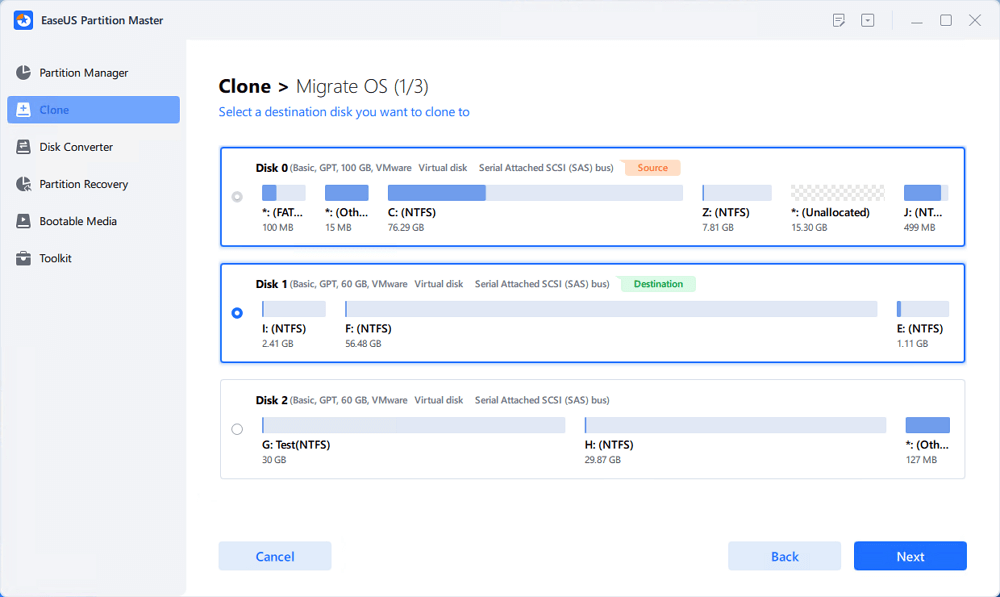
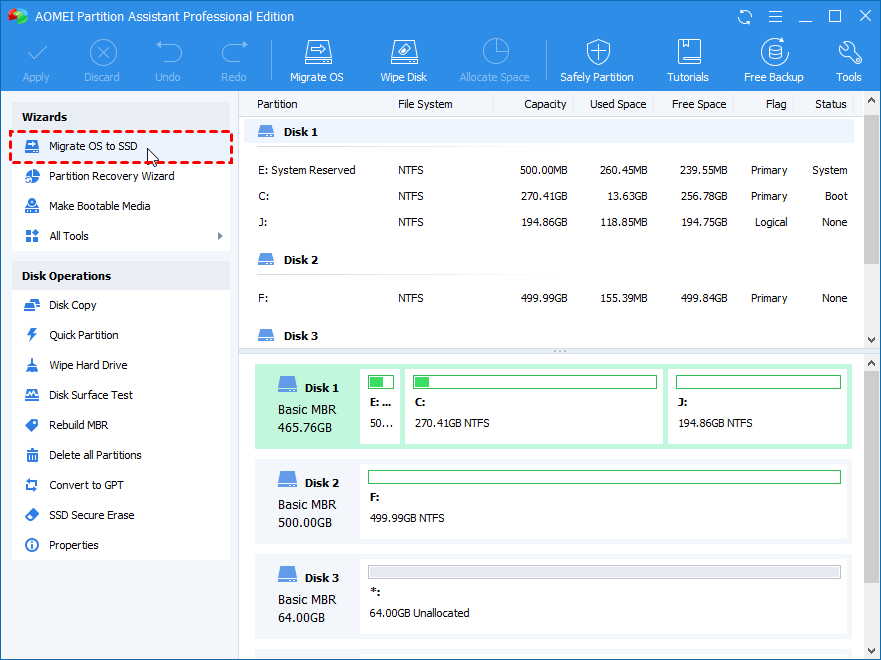
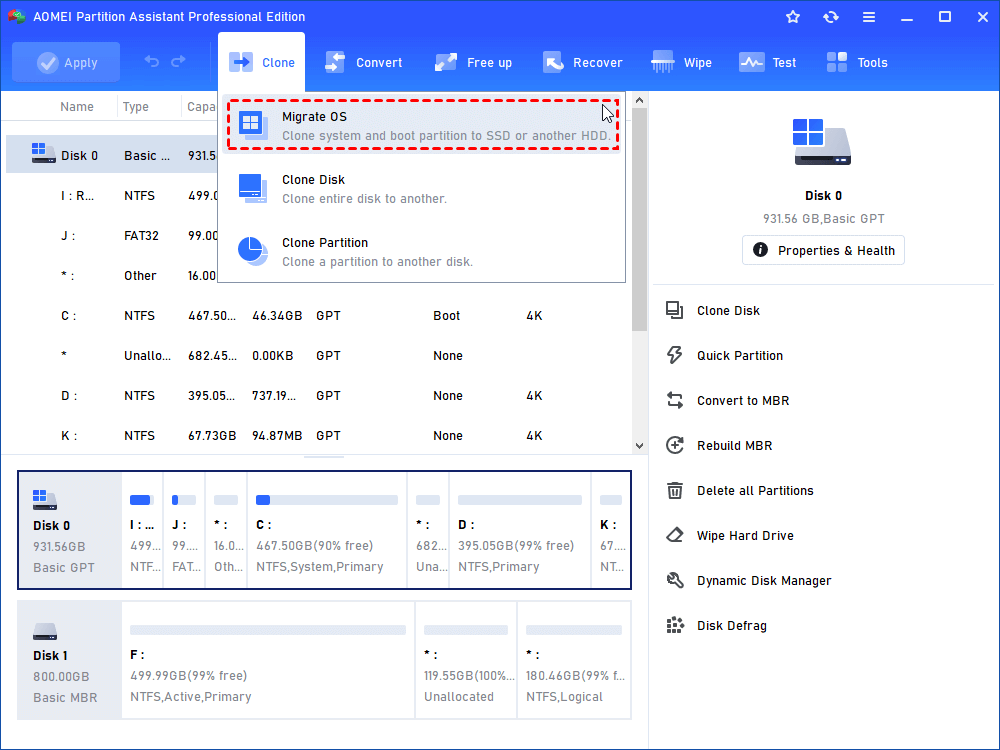
Cloning is the most common way to transfer an existing OS to a new drive. Here’s a reliable workflow for how to transfer operating system to ssd by cloning.
- Back up your system.
- Connect the SSD via an internal port or external adapter.
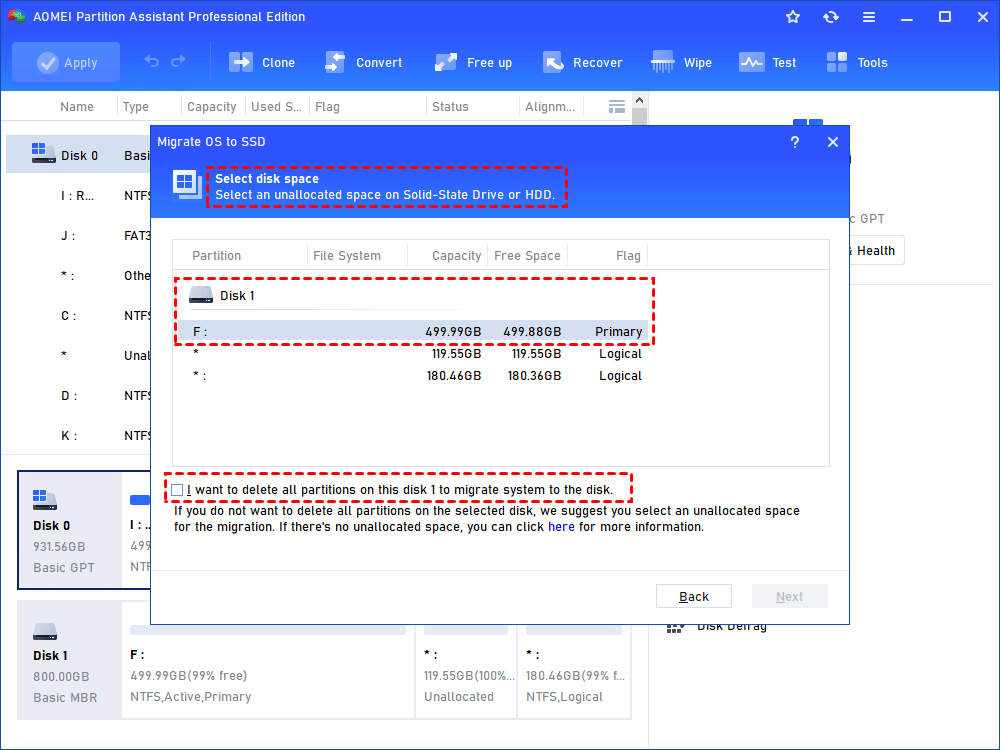
- Initialize the SSD in Disk Management (use GPT for UEFI systems).
- Use cloning software to clone the system partition and boot partition. Choose “copy all” or “system clone.”
- After cloning, power off and swap the old drive with the SSD or change boot order in BIOS.
- Boot from the SSD. Confirm Windows starts and all apps run.
- Delete any leftover old partitions and expand the SSD partition if needed.
Small tips: enable AHCI in BIOS before cloning whenever possible. If you cloned from a 1 TB HDD to a 500 GB SSD, shrink the source partition first so it fits. If UEFI/GPT is used, ensure the EFI partition is cloned.

Step-by-step: clean install to an SSD
A clean install is cleaner and often faster overall. Use this approach when you want a fresh system.
- Create a bootable USB installer for your OS.
- Connect the SSD and power on to boot the USB installer.
- During setup, delete old system partitions on the SSD and choose the unallocated space for installation.
- Complete installation, then install chipset and storage drivers from the vendor site.
- Migrate user files from backup and reinstall apps selectively.
A clean install removes legacy cruft. It may take longer because you must reinstall programs and restore settings. But it often yields a more stable, faster system.
Post-transfer checklist: optimize and secure your SSD
After you transfer, a few tweaks make the SSD last longer and run better. Use this checklist after learning how to transfer operating system to ssd.
- Enable TRIM (Windows usually does this automatically).
- Ensure AHCI mode is active in BIOS for SATA SSDs.
- Turn off disk defragmentation for the SSD; leave scheduled TRIM.
- Verify partition alignment for best performance.
- Reinstall or update storage drivers and firmware.
- Move large, write-heavy folders (like downloads) to a secondary drive if available.
- Keep regular backups, since SSD failure can still occur.
These small steps protect performance and extend SSD life. I once skipped alignment and saw lower write speeds, so I now always check alignment after cloning.
Troubleshooting common issues
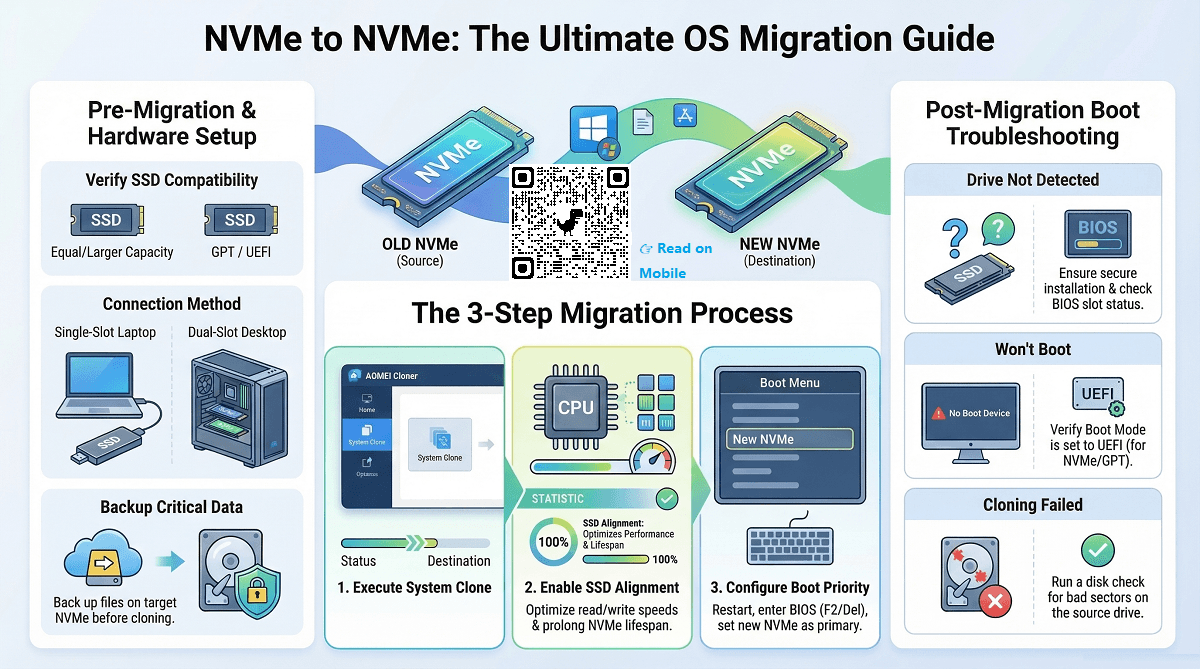
If something goes wrong during how to transfer operating system to ssd, these fixes help resolve common problems quickly.
- PC won’t boot: check boot order and ensure the SSD contains the EFI/boot partition.
- Activation issues: sign in with your Microsoft account and run activation troubleshooter.
- Slow performance: confirm AHCI is enabled and TRIM is active; update SSD firmware.
- Missing drivers: install chipset, NVMe, or SATA drivers from the manufacturer site.
- Space mismatch after cloning: resize partitions or re-clone after shrinking source partitions.
If you still can’t boot, reconnect the old drive, boot to it, then troubleshoot cloning settings. I’ve recovered systems this way several times.
Personal experience, tips, and mistakes to avoid
I’ve moved dozens of systems to SSDs for friends and clients. Here are lessons that saved time and headaches.
- Always make a backup first. One failed clone ruined a weekend until I restored from backup.
- Use a stable cloning tool and verify checksums when possible.
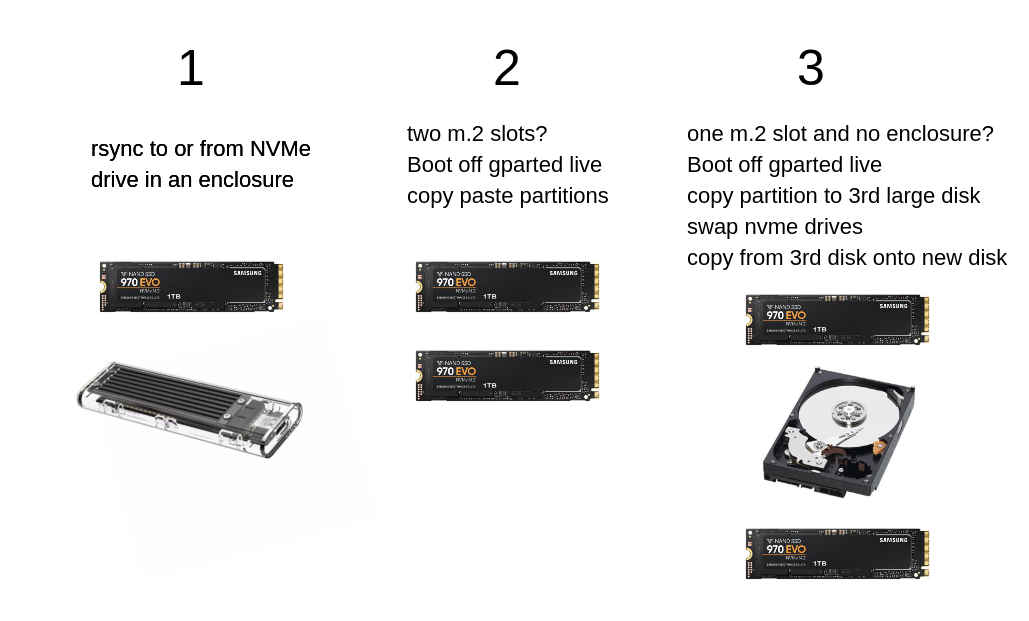
- If using a laptop with one drive bay, use a USB-to-SATA adapter for the clone, then swap drives.
- Don’t rush firmware updates; read the vendor’s notes before updating.
- After migrating, test boots and run a disk benchmark to confirm expected speeds.
Treat the migration like a small project. Plan an hour for cloning and another hour to test and tweak. That buffer saves stress and gives time to fix surprises.
Costs, benefits, and limitations
Moving your OS to an SSD is generally worth the cost. Here’s how to weigh the pros and cons when planning how to transfer operating system to ssd.
- Benefits include much faster boot times, lower app load times, and longer battery life on laptops.
- Costs are higher per gigabyte than HDDs and vary by interface and brand.
- Limitations include finite write endurance, though modern SSDs last many years for typical use.
- Consider NVMe for top performance or SATA SSD for a budget-friendly boost.
For most users, the speed increase pays back in daily productivity. I recommend budgeting for a reputable SSD with some extra capacity.
Frequently Asked Questions of how to transfer operating system to ssd
How long does it take to transfer an OS to an SSD?
Transfer time depends on the amount of data and connection speed. Cloning a few hundred gigabytes over SATA takes 20 minutes to a few hours; NVMe is usually faster.
Will my Windows activation remain after cloning?
Activation often transfers if the hardware signature is unchanged, especially with a linked Microsoft account. If activation fails, use the activation troubleshooter or re-enter your product key.
Can I transfer an OS from MBR to GPT or Legacy BIOS to UEFI?
Yes, but it requires extra steps like converting disk formats and ensuring an EFI partition is present. A clean install is simpler if you need to switch boot modes.
Do I need to enable AHCI before cloning?
Enabling AHCI before cloning avoids driver issues and gives better performance on SATA SSDs. If you enable AHCI after cloning, Windows may need a registry tweak or boot repair.
Is cloning better than a clean install?
Cloning is faster and keeps your setup intact. A clean install is better for removing old issues and achieving a leaner system. Choose based on your time and desire for a fresh start.
Conclusion
Moving your operating system to an SSD brings a clear and immediate performance boost. Whether you clone to keep your environment or perform a clean install for a fresh start, following the steps above will reduce risk and speed the process. Back up first, pick the right method, optimize after the transfer, and test boots and drivers. Take action now: pick an SSD, plan your backup, and try the transfer. Share your results or questions below and subscribe for more practical upgrade guides.

Everett Ashford is a tech reviewer at mytechgrid.com specializing in SSDs, cameras, TVs, earbuds, headphones, and other consumer electronics. He provides honest, data-driven reviews based on hands-on testing and real-world performance analysis. Everett simplifies complex tech details to help readers make smart, confident buying decisions.