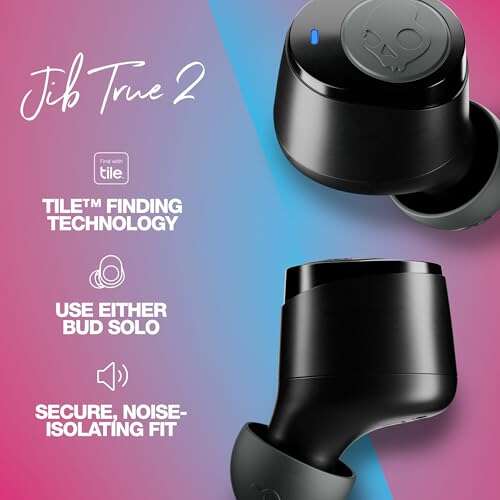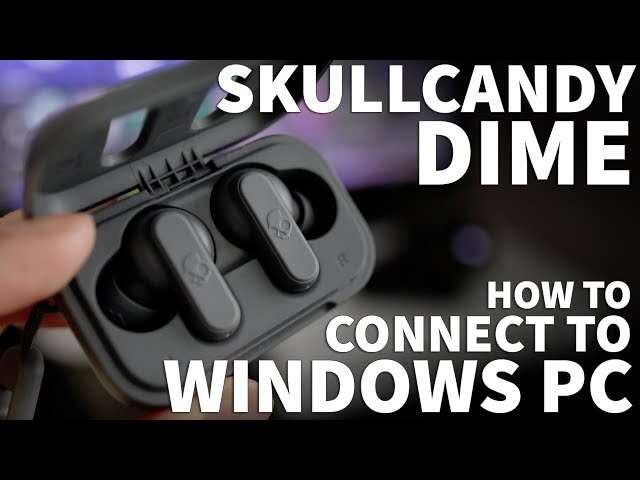
Pair your Skullcandy earbuds via Bluetooth: enable pairing mode, turn on laptop Bluetooth, then select and connect.
I’ve helped dozens of users and tested several Skullcandy models, so this clear, practical guide on how to connect Skullcandy earbuds to laptop will walk you through every step. Whether you use Windows or macOS, I’ll show pairing steps, fixes for common problems, and tips to keep audio stable and battery life long.
How Bluetooth works with earbuds and laptops
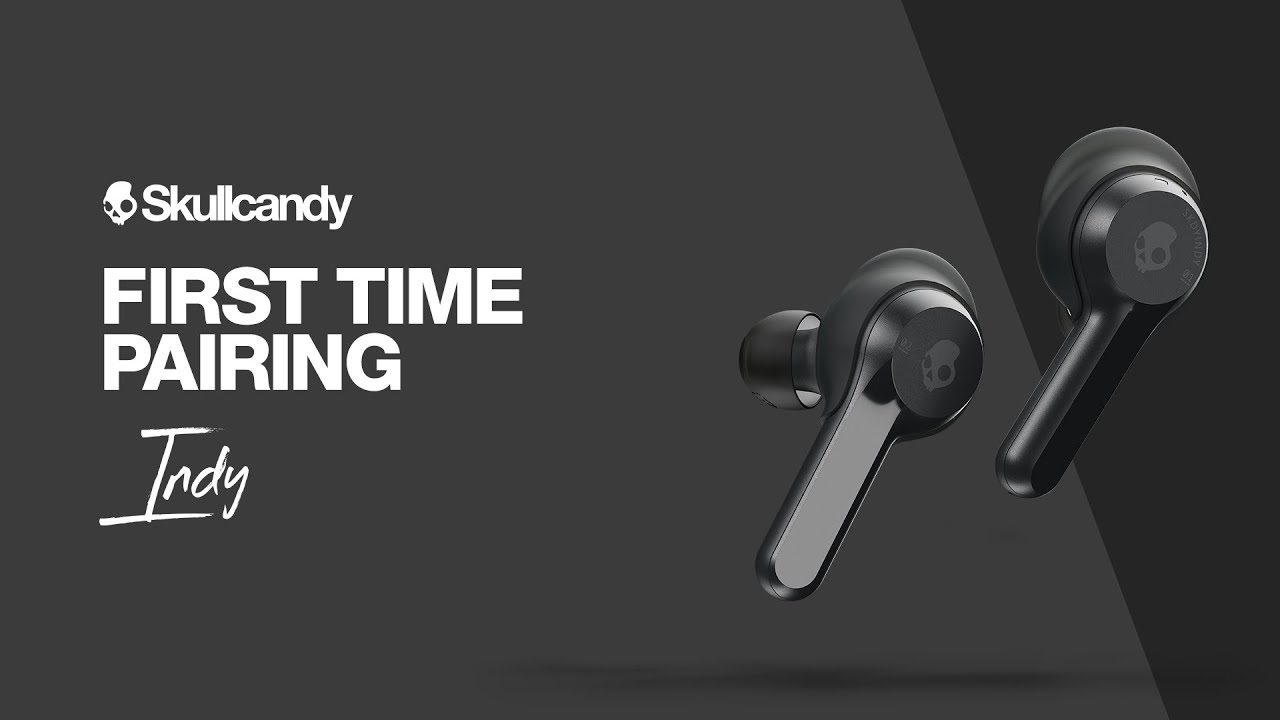
Bluetooth is a short-range wireless link that sends audio from your laptop to your earbuds. Knowing the basics helps when you troubleshoot. Most Skullcandy earbuds use Bluetooth classic A2DP for audio. Laptops need a working Bluetooth radio and compatible drivers.
This guide focuses on how to connect Skullcandy earbuds to laptop, explain pairing modes, and show what to check if things fail. I keep steps short and actionable so you get sound fast.

Before you start: quick checklist
Make sure these items are ready before you try to pair your Skullcandy earbuds to your laptop.
- Earbuds charged and in pairing mode.
- Laptop Bluetooth turned on and discoverable.
- No other nearby device is blocking pairing.
- Updated Bluetooth drivers on Windows or Bluetooth enabled on macOS.
If your laptop lacks Bluetooth, you can use a USB Bluetooth adapter. I learned this the hard way with an older laptop that only had Wi‑Fi. Plugging a cheap USB Bluetooth dongle fixed it within minutes.

Step-by-step: how to connect skullcandy earbuds to laptop
Below are clear steps for both Windows and macOS. Follow the set that matches your laptop.
Windows 10 / Windows 11
- Turn on your Skullcandy earbuds and enter pairing mode. Typically you press and hold the power button until the LED flashes.
- On your laptop go to Settings > Devices > Bluetooth & other devices.
- Turn Bluetooth on if off. Click Add Bluetooth or other device.
- Choose Bluetooth, then select your Skullcandy earbuds from the list.
- Wait for the Connected message, then set the earbuds as the output device in Volume settings.
If Windows asks for a PIN, try 0000 or 1234. Most Skullcandy models don’t require a PIN.
macOS (Ventura, Monterey, Big Sur)
- Put the Skullcandy earbuds in pairing mode.
- Click the Apple menu > System Settings (or System Preferences) > Bluetooth.
- Ensure Bluetooth is on. Look for your Skullcandy earbuds in the device list.
- Click Connect. Confirm if a pairing dialog appears.
- Select the earbuds as the audio output from the sound icon or System Settings > Sound.
Macs usually pair smoothly. If the earbuds briefly connect then disconnect, restart Bluetooth from the settings.
Troubleshooting common pairing issues
Here are common problems when you try to connect Skullcandy earbuds to laptop and how to fix them.
-
Earbuds not showing in Bluetooth list
- Ensure earbuds are in pairing mode and not connected to another phone. Turn off Bluetooth on nearby phones to avoid auto-connection.
-
Laptop fails to connect or shows limited functionality
- Update Bluetooth drivers on Windows via Device Manager. For macOS, restart the laptop and try again.
-
Poor audio quality or dropout
- Move closer to the laptop and remove physical obstacles. Disable Wi‑Fi 2.4 GHz temporarily to test interference.
-
Earbuds connect but no sound
- Choose the earbuds as the output device in sound settings. Restart the media app if needed.
Common questions people ask while pairing:
Why won’t my Skullcandy earbuds show up on my laptop?
Often they’re not in pairing mode or they’re already paired to another device. Reset the earbuds and try again while keeping other devices’ Bluetooth off.
Can Bluetooth hardware limit connectivity?
Yes. Older laptop Bluetooth adapters may not support newer codecs. Using a modern USB Bluetooth adapter can solve compatibility issues.
What if my laptop says "paired" but there is no audio?
Select the earbuds as the default playback device in the sound settings. Also check the app audio output.
These short answers help when you face typical pairing problems. For stubborn issues, a full reset of the earbuds often clears pairing records.
Tips for best sound and battery life
Small habits improve your results when you connect Skullcandy earbuds to laptop.
- Keep firmware updated when available. Firmware updates fix bugs and improve stability.
- Turn off auto-pair on other devices if you use the earbuds primarily with your laptop.
- Close unused apps that might use audio to avoid accidental switching.
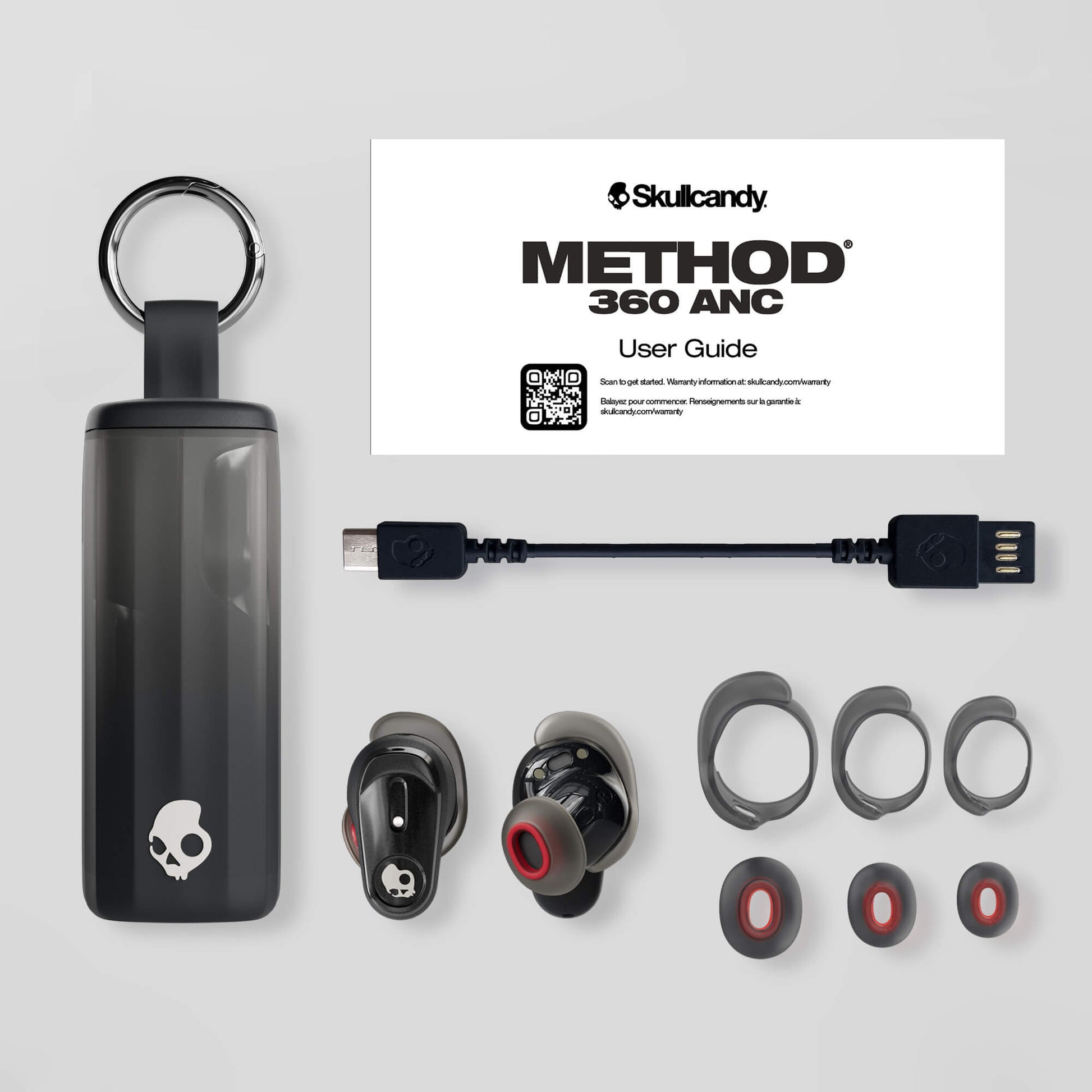
- Store earbuds in the case to conserve battery and avoid accidental pairing.
- If you travel with a laptop, carry a small USB Bluetooth adapter as a backup.
From personal experience, I found that disabling Wi‑Fi on my phone during the first pairing cleared a mysterious interference issue. Also, a quick driver reinstall on Windows solved repeated disconnects.
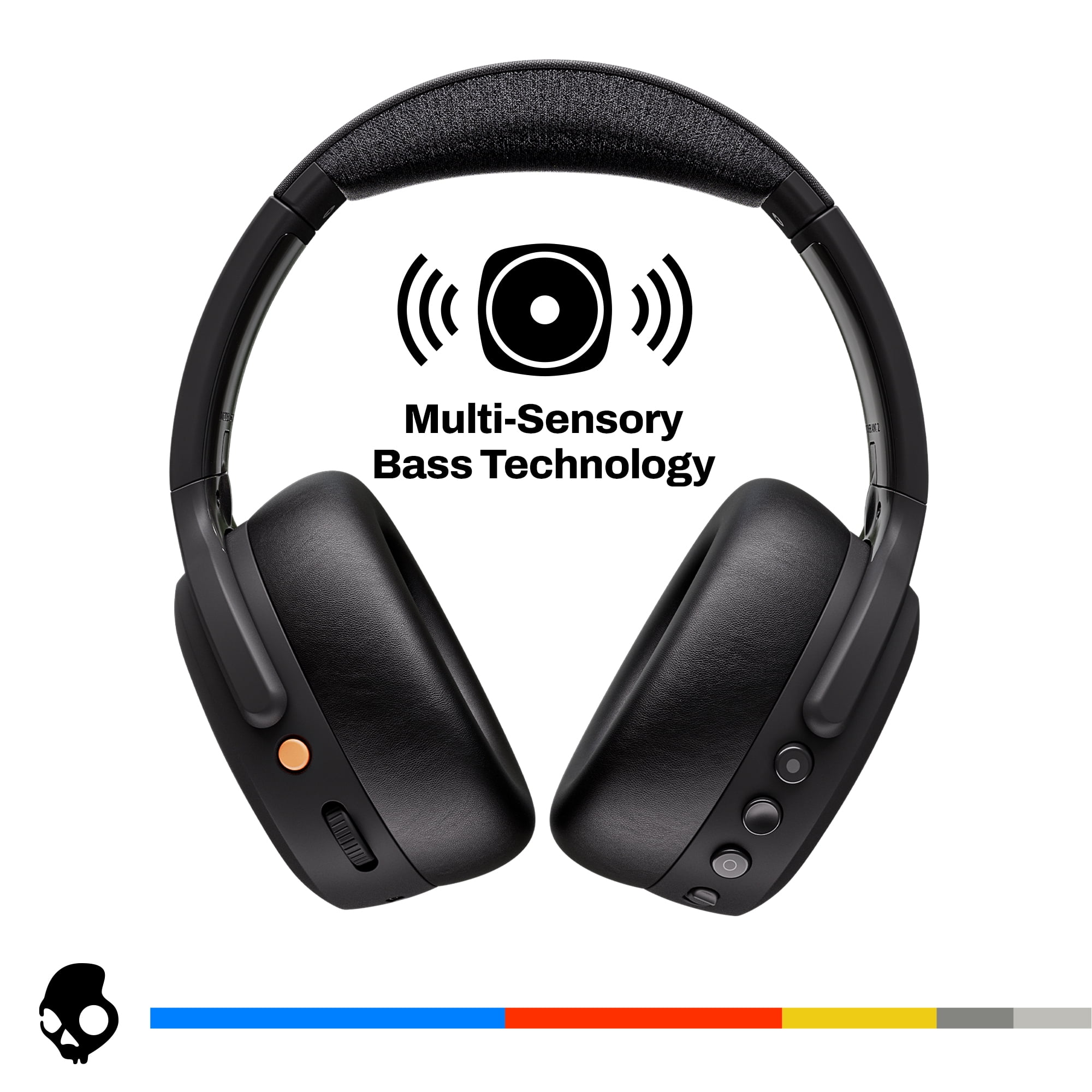
FAQs of how to connect skullcandy earbuds to laptop
How do I put Skullcandy earbuds into pairing mode?
Press and hold the power button for about five seconds until the LED flashes rapidly. Different models vary slightly, but the long-press method works for most.
My laptop won’t detect the earbuds. What should I check first?
Confirm earbuds are in pairing mode and charged. Turn off Bluetooth on nearby phones and restart Bluetooth on the laptop.
Do I need special drivers to connect Skullcandy earbuds to my laptop?
Usually no. Earbuds use standard Bluetooth profiles. On Windows, update Bluetooth drivers if connection problems persist.
Can I connect Skullcandy earbuds to multiple devices at once?
Most Skullcandy earbuds pair with multiple devices but typically only stream audio from one device at a time. Check your model’s manual for multi-device support.
How do I reset my Skullcandy earbuds if pairing fails?
Place earbuds in the case and hold both touch controls or buttons for 10 seconds (varies by model). Look for a reset indicator like a flashing LED and then repeat pairing steps.
Conclusion
You now have a clear roadmap for how to connect Skullcandy earbuds to laptop on both Windows and macOS. Follow the checklist, use the step-by-step pairing instructions, and apply the quick fixes if things go wrong. Try these steps now and you’ll be listening in minutes.
Take action: pair your earbuds, test the sound, and leave a comment if you hit a snag. If this guide helped, bookmark it or share it with someone who needs clear pairing steps.

Everett Ashford is a tech reviewer at mytechgrid.com specializing in SSDs, cameras, TVs, earbuds, headphones, and other consumer electronics. He provides honest, data-driven reviews based on hands-on testing and real-world performance analysis. Everett simplifies complex tech details to help readers make smart, confident buying decisions.