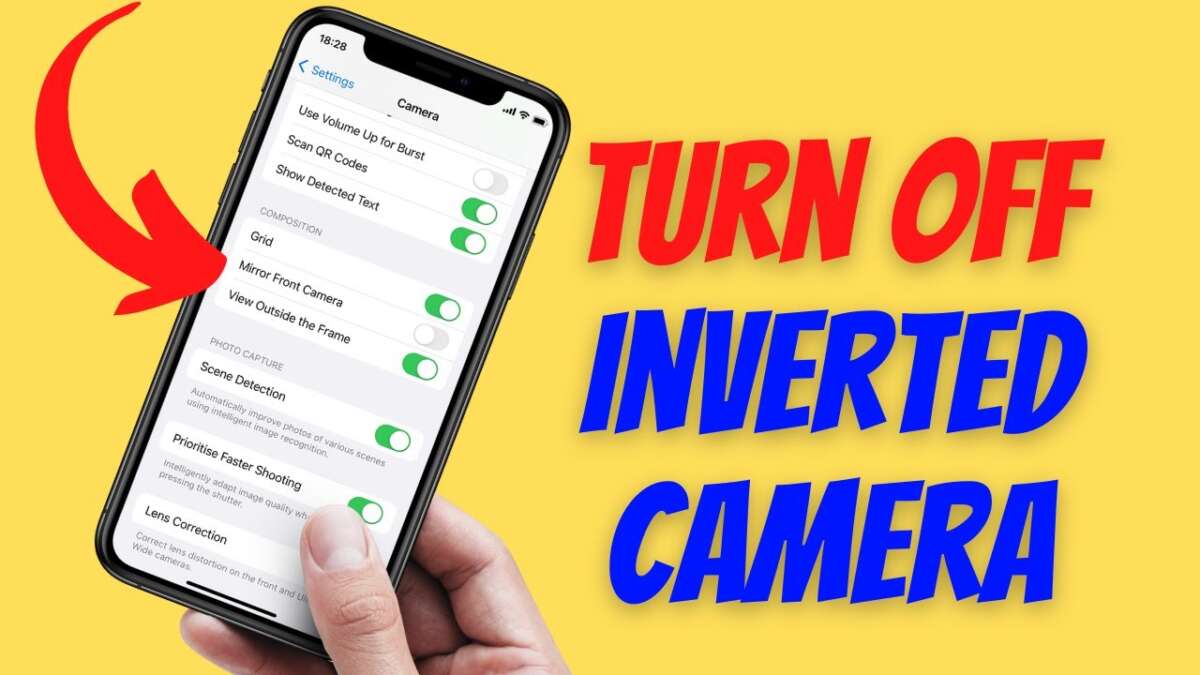
Flip the camera back by disabling vertical flip or rotation in your camera or app settings.
I’ve fixed inverted webcams, phones, and action cams for clients and friends. In this guide I explain clear, step-by-step ways to turn off inverted camera views on Windows, macOS, Android, iPhone, DSLRs, action cams, and security cameras. You’ll learn why cameras invert, how to fix it fast, and how to avoid the issue later — all based on hands-on troubleshooting and testing.

Why your camera might be inverted
An inverted camera shows an upside-down image. This can happen because of a software setting, a driver or app bug, a camera “flip” option, or because the camera is mounted upside down and set to rotate the output.
Common causes:
- Camera or app flip/rotate option enabled.
- Driver or firmware bug after an update.
- Camera physically mounted inverted and auto-rotate applied.
- Video processing tools (OBS, virtual cameras) applying a vertical transform.
Understanding the root cause makes fixing it quick. I usually start by checking the app settings, then the device driver or camera firmware. This method narrows down the problem fast.

Quick checklist before you change settings
Run this checklist first. It saves time and prevents unintended changes.
- Restart the device and the app showing the inverted view.
- Check the in-app camera settings for flip, rotate, or orientation options.
- Try a different app to confirm the issue is device-wide or app-specific.
- Update the camera driver, system firmware, or app.
- Verify physical mounting: ensure the camera isn’t mounted upside down.
Do these checks before deep troubleshooting. They often solve the issue in minutes.

How to turn off inverted camera on Windows 10/11
Follow these steps to fix an inverted webcam on Windows.
- Open the Camera app. Look for settings (gear icon). Turn off any "Flip", "Rotate", or "Mirror" options.
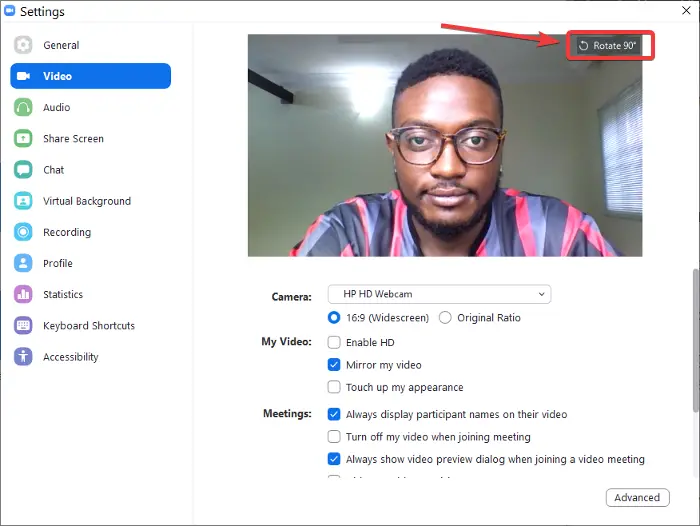
- In video apps (Zoom, Teams, Skype) check video settings. Disable any "Rotate 180°" or "Vertical Flip" options.
- Use Device Manager: open Device Manager > Imaging devices or Cameras > right-click your camera > Update driver or Roll back driver if the issue started after an update.
- Check graphics control panels: Intel, NVIDIA, or AMD control panels sometimes apply display transforms. Open the control panel and check for rotation or display transform options.
- If using OBS or virtual camera software, remove vertical transforms: in OBS, right-click the video source > Transform > Flip Vertical.
If a driver update broke the view, rolling back often fixes it. I fixed several laptops by rolling back a webcam driver after a Windows update introduced vertical flips.
How to turn off inverted camera on macOS
macOS rarely flips webcams by itself, but apps can.
- Check the app first: in FaceTime, Zoom, or Photo Booth, open preferences and look for rotate or flip settings. Disable vertical flip.
- Quit and relaunch the app. If the problem persists, test with another app to isolate the issue.
- Check virtual camera software (e.g., OBS, Snap Camera). Remove any vertical transforms in the app’s source settings.
- Reset SMC or NVRAM if system-level video issues appear after macOS updates. These resets can clear odd hardware behaviors.
I once resolved a flipped external webcam by reopening Photo Booth and toggling the camera source. Small app-level settings are often the culprit.

How to turn off inverted camera on Android
Phones can show inverted images if an app misreads sensor data or if camera settings are wrong.
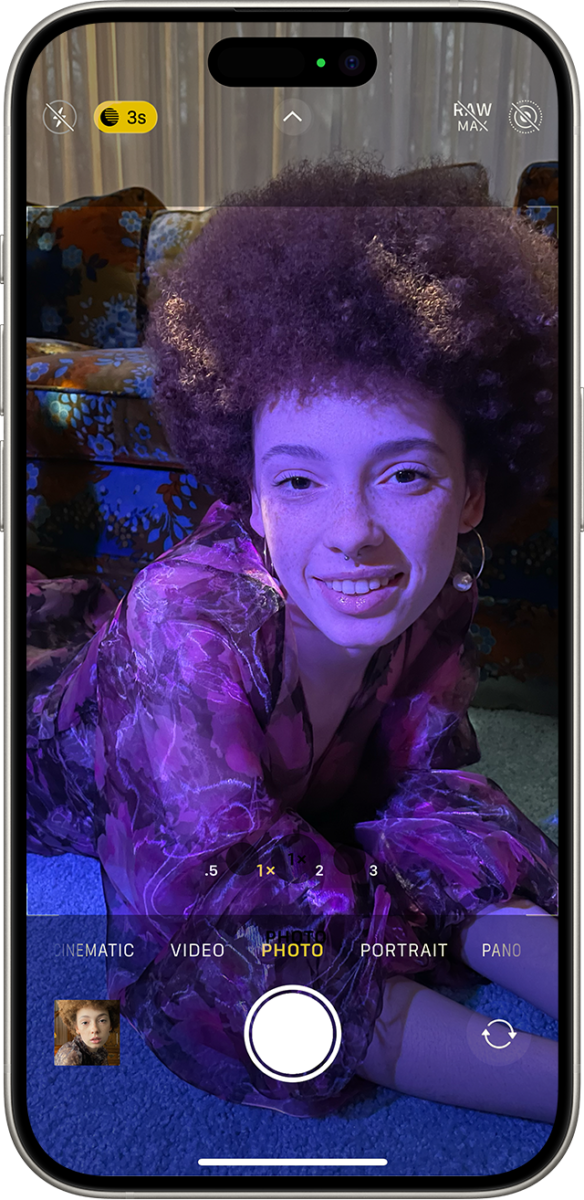
- Open the Camera app and tap the rotate or flip icon. For selfie vs rear cameras, use the camera switch button correctly.
- In video calling apps, open video settings and disable "Rotate Device" or any vertical flip option.
- Clear app cache or data if only one app shows the issue. Settings > Apps > [app name] > Storage > Clear cache.
- Restart the phone and check for system updates. If the camera is inverted after an update, try safe mode to rule out third-party apps.
If you use a third-party camera app, check its settings. I fixed my friend’s inverted selfie by switching to the phone’s default camera and updating the app.

How to turn off inverted camera on iPhone
iPhones rarely invert images, but apps or accessory hardware can cause upside-down video.
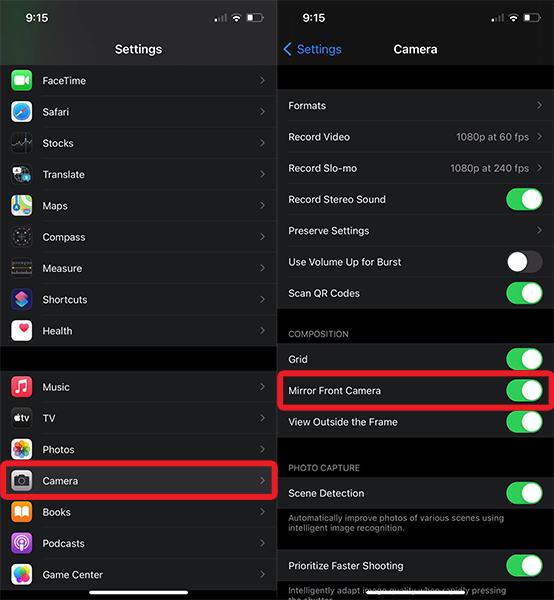
- In Camera app, toggle between front and back camera. There’s no vertical flip option by default.
- For FaceTime, Zoom, or other apps, open in-app video settings and disable any flip or rotate option.
- Restart the iPhone, update iOS, and update the app. A quick update often fixes odd behavior.
- Check accessories: third-party mounts or external webcams can send rotated output. Use the accessory’s app to change orientation.
I’ve seen accessory webcams default to upside-down output; their mobile app had a simple rotate option that fixed the view.

How to turn off inverted camera on DSLRs and mirrorless cameras
Live view or HDMI outputs can sometimes appear inverted. Here’s what to check.
- Look in camera menus for “Display rotation,” “HDMI output,” or “Image flip.” Set these to normal or disable vertical flip.
- For custom functions, search for “mirror/flip” settings and turn off vertical flip.
- If using an external monitor or capture card, check the monitor or capture software for a flip/rotate option.
- Update the camera firmware if inversion started after a firmware change.
When I used a mirrorless camera for streaming, the HDMI feed was upside down until I disabled the camera’s vertical flip in the menu. It was a quick menu fix.
How to turn off inverted camera on action cams, GoPro, and security cameras
Action cams and CCTV systems include orientation options in apps and web interfaces.
- GoPro and action cams: open the device settings in the native app. Disable any “Rotate” or “Orientation” settings that flip the image. For older models, check Protune and video settings.
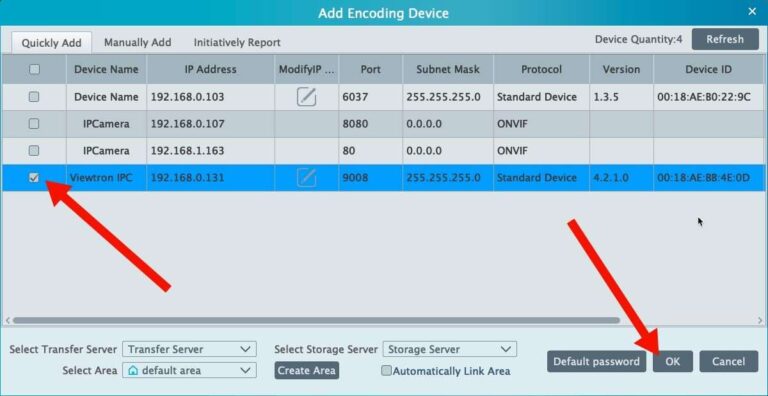
- Security cameras / NVRs: log into the camera’s web interface or mobile app. Look for “Image Settings,” “Rotate,” or “Flip.” Disable vertical flip or set rotation to 0°.
- If a camera is mounted upside down, many apps include a “mounting” option to correct output. Use it rather than physically remounting if you prefer.
- Update firmware. Security cameras frequently push fixes that resolve orientation bugs.
I once adjusted an outdoor PoE camera remotely by changing its web interface rotation setting. That saved a ladder trip and fixed the issue immediately.
Troubleshooting steps and advanced tips
If the basic fixes don’t work, try these steps.
- Test another app: If the camera appears correct in one app and inverted in another, the issue is app-level.
- Reinstall the app: Uninstall and reinstall video apps to clear corrupted settings.
- Check virtual camera chains: If you use virtual cameras or filters, remove them temporarily. They often apply transforms.
- Use manufacturer support and firmware updates: Manufacturers sometimes document rotation fixes in release notes.
- Factory reset camera settings as a last resort to restore defaults safely.
I recommend documenting changes you make. That helps you reverse them if a setting does not produce the expected result.
PAA-style common questions
What’s the difference between mirrored and inverted camera views?
- Mirrored flips left and right. Inverted flips the image vertically (upside down). They need different fixes.
Can a driver update cause an inverted camera?
- Yes. Drivers or firmware updates can introduce rotation bugs. Rolling back or updating again often fixes it.
Is upside-down video dangerous for streaming?
- It isn’t dangerous but it looks unprofessional and can confuse viewers. Fix it before important calls or streams.
Why does my phone camera invert only in one app?
- That usually means the app uses its own camera pipeline and applies a transform. Clear the app cache or check its settings.
Can physical mounting affect orientation?
- Yes. If a camera is mounted upside down, the app may auto-rotate or include a mounting correction option you must disable.
Frequently Asked Questions of how to turn off inverted camera
How do I stop my webcam from displaying upside down?
Check the camera or app settings and disable any flip or rotate option. Update or roll back the camera driver if the problem began after an update.
My camera is inverted only in Zoom. What should I do?
Open Zoom settings > Video and uncheck any rotation or enable the correct camera source. If needed, disable virtual camera plugins that might apply transforms.
Can I permanently fix inverted camera issues?
Yes. Fix the setting in the camera firmware, app, or driver and save changes. For mounts, set the camera output to the correct orientation or remount it.
Why does OBS show my webcam upside down?
In OBS, right-click the source, go to Transform, and choose Flip Vertical to toggle it off. Ensure no other filters apply vertical transforms.
Will updating firmware or drivers help with inverted cameras?
Often yes. Updates can restore correct orientation. If an update causes the issue, roll back until a stable fix is released.
My phone shows inverted selfie only during calls. Why?
Calling apps can use separate camera pipelines. Clear the app cache, check in-app video settings, or update the app to fix it.
How can I tell if the issue is hardware or software?
Test the camera in multiple apps and on another device. If it’s inverted across apps and devices, hardware or firmware is likely; otherwise it’s software.
Conclusion
Fixing an inverted camera is usually a simple settings change. Start with the app, then check drivers, firmware, and physical mounting. My practical tip: test the camera across two apps first to find where the flip originates. That step saves time and keeps you from changing the wrong settings.
Take action now: run the quick checklist, try the platform-specific steps that match your device, and leave a comment about your device model if you need targeted help. If this guide helped, subscribe or share to help others fix their inverted camera quickly.

Everett Ashford is a tech reviewer at mytechgrid.com specializing in SSDs, cameras, TVs, earbuds, headphones, and other consumer electronics. He provides honest, data-driven reviews based on hands-on testing and real-world performance analysis. Everett simplifies complex tech details to help readers make smart, confident buying decisions.