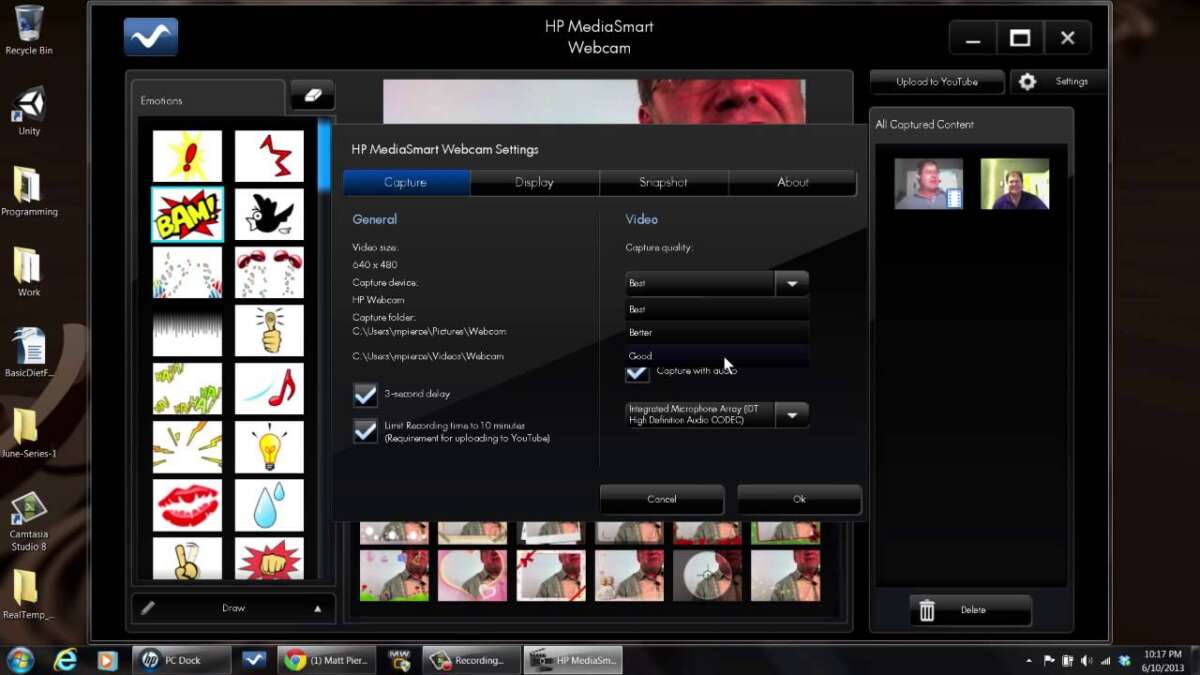
Open your camera app or enable the webcam in your system settings and drivers.
I’ve helped hundreds of people and fixed dozens of laptop webcams. This guide shows exactly how to turn on my camera on my laptop across Windows, macOS, and Linux. You’ll get step-by-step actions, common fixes, privacy tips, and real-world lessons I learned from troubleshooting webcam problems. Read on and you’ll be able to see your camera working in minutes.
Overview: Why you need to know how to turn on my camera on my laptop
Knowing how to turn on my camera on my laptop saves time and stress. Video calls, online exams, and recording need the webcam to work. Problems can come from settings, drivers, or hardware. This guide helps you find the root cause fast and fix it.

Quick checklist before you begin
• Confirm the camera is not covered.
• Check for a physical webcam switch or privacy shutter.
• Close apps that might be using the camera already.
• Make sure your laptop has up-to-date system updates.
• Have admin access ready if you need to change settings or drivers.

How to turn on my camera on my laptop: Windows 10 and 11 step-by-step
-
Open the Camera app
• Click Start and type Camera.
• Launch the Camera app to see if the webcam turns on. -
Check app permissions
• Go to Settings > Privacy & security > Camera.
• Toggle Camera access for the device and allow apps to use it. -
Use Device Manager to enable the camera
• Right-click Start and open Device Manager.
• Expand Cameras or Imaging devices.
• Right-click the webcam and choose Enable device if it’s disabled. -
Update or roll back drivers
• In Device Manager, right-click the camera and choose Update driver.
• If a recent update broke the camera, choose Properties > Driver > Roll Back Driver. -
Look for a hardware switch or function key
• Some laptops have Fn + F-key or a physical slider.
• Toggle it to enable the camera. -
Test with another app
• Try Zoom, Teams, or a web camera test page to confirm.
• If the Camera app works but others don’t, check app-specific permissions.
How to turn on my camera on my laptop on Windows often ends up being a permissions or driver issue. These steps solve most cases.

How to turn on my camera on my laptop: macOS step-by-step
-
Open an app that uses the camera
• FaceTime or Photo Booth will trigger the camera.
• If prompted, allow the app to use the camera. -
Check Camera permissions
• Go to System Settings (or System Preferences) > Privacy & Security.
• Select Camera and enable access for the app you want to use. -
Force quit conflicting apps
• Quit apps that might hold the camera (browser tabs, meeting apps).
• Re-open the app you want to use. -
Restart the camera process
• On M1/M2 Macs, rebooting often resets internal camera services.
• If the camera light never turns on, reboot the Mac. -
Update macOS and apps
• Apple system updates include camera fixes and driver updates.
• Keep apps updated too.
How to turn on my camera on my laptop on macOS usually means granting camera access or rebooting a hung service.

How to turn on my camera on my laptop: Linux step-by-step
-
Check camera device nodes
• Open a terminal and run ls /dev/video* to find camera devices.
• If you see /dev/video0, the system detects the camera. -
Test with a camera app
• Install and run Cheese or GUVCView to test the feed.
• If it shows video, permissions are fine. -
Check permissions and groups
• Ensure your user is in the video group: sudo usermod -aG video yourname.
• Log out and log back in after changing groups. -
Use v4l2 tools for diagnostics
• Install v4l-utils and run v4l2-ctl –list-devices to list the camera.
• Use v4l2-ctl –stream-mmap to test streaming. -
Check kernel modules and drivers
• Use dmesg | grep -i camera or dmesg | grep -i video to see driver messages.
• If the driver is missing, look for a distro package or kernel update.
How to turn on my camera on my laptop in Linux can require group changes or driver installs. These checks cover most scenarios.
Common problems and troubleshooting when trying to turn on my camera on my laptop
• Camera shows black screen
• Close other apps, update drivers, or test with a different app.
• “No camera found” error
• Check Device Manager (Windows) or System Report (Mac). Enable the device or reinstall drivers.
• Camera light on but no video
• Check app permissions and test with built-in Camera or Photo Booth.
• App says camera in use by another process
• Restart the laptop. On Windows, use Task Manager to end stuck processes.
• Low video quality or shaky image
• Update drivers, clean the lens, and ensure good lighting.
PAA-style questions you might search:
• Why won’t my laptop camera turn on?
• Often it’s a permission, driver, or hardware shutter issue. Check settings and drivers first.
• How do I switch on my laptop camera for Zoom?
• Enable camera access in system settings and choose the correct camera in Zoom’s Video settings.
I once spent an hour troubleshooting a webcam that would not start. The fix was simple: a privacy slider on the top of the laptop had been closed. Lesson: Always inspect the hardware first before diving into software fixes.
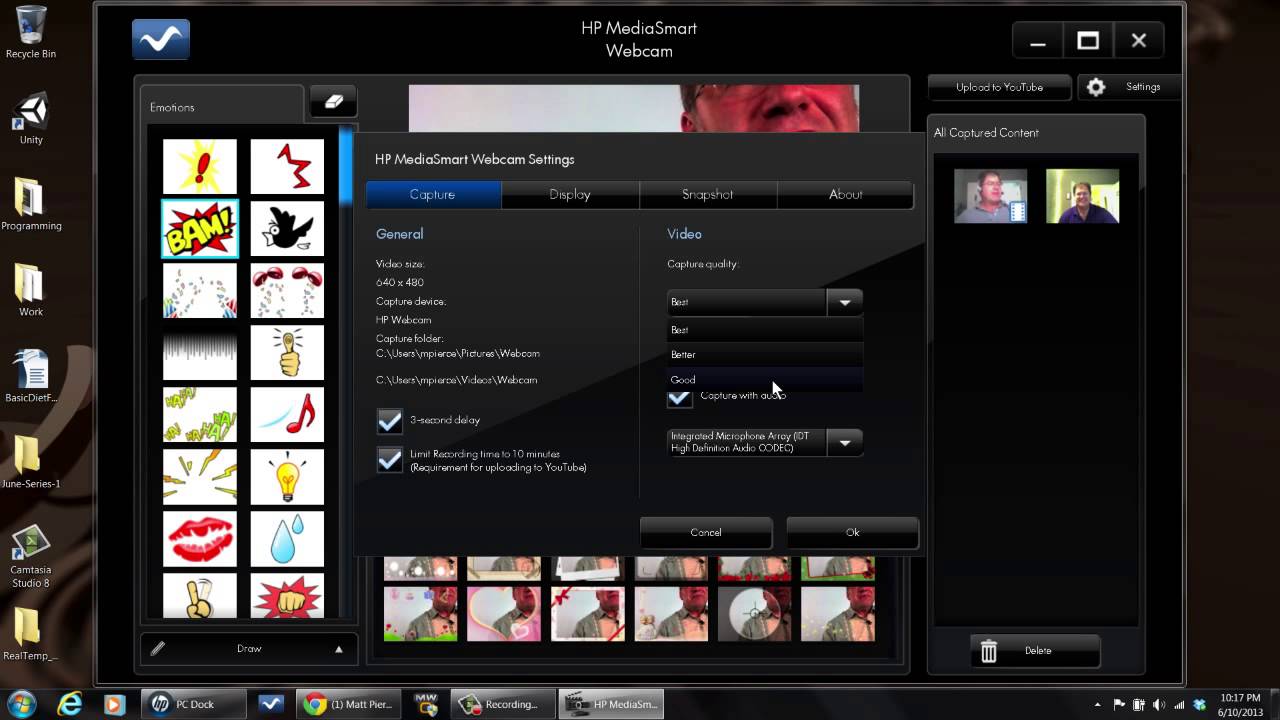
Privacy, security, and best practices for camera use
• Check app permissions regularly. Revoke access for apps you do not trust.
• Cover the webcam when not in use with a physical shutter or sticker.
• Keep your OS and camera drivers updated to patch security issues.
• Avoid using unknown camera utilities that request wide permissions.
• Use antivirus and malware scans if the camera turns on unexpectedly.
Treat camera access like a door key. Only give it to apps you trust. This protects privacy and prevents surprise recordings.
Tips and quick fixes I learned from real use
• Reboot first. Many camera problems clear after a restart.
• Test the camera with a simple, built-in app before blaming third-party apps.
• Keep a small microfiber cloth in your bag to clean the lens.
• If you upgrade the OS, check the webcam driver right after the update.
• Make a short checklist to run before a call: cover off, permissions on, app selected, lighting good.
I once guided a client through a job interview where the camera failed. We switched to a phone and then fixed the laptop camera after the call. Have a backup plan for important meetings.
Frequently Asked Questions of how to turn on my camera on my laptop
How do I know if my laptop camera is enabled?
Check the Camera app or device list. On Windows, open Device Manager and see if the camera is enabled under Cameras.
Why does my camera say “access denied”?
Your OS likely blocked app permissions. Go to Privacy settings and enable camera access for the app.
What if the camera is not listed in Device Manager or System Report?
The camera may be disconnected or the driver missing. Check hardware switches and reinstall or update the driver.
Can a physical cover stop the camera software from turning on?
Yes. If a shutter or sticker covers the lens, the camera may show black video even though it’s on.
How do I test the webcam quickly?
Open the built-in Camera app (Windows), Photo Booth or FaceTime (Mac), or Cheese (Linux) to verify the feed.
Do I need admin rights to enable the webcam?
Often yes for driver installs and device changes. Some permission toggles can be done without admin access.
Will updating the OS fix a broken camera?
It can. Updates fix driver and service bugs. But if it’s hardware, updates won’t help.
Conclusion
You now have clear, step-by-step ways to turn on my camera on my laptop across Windows, macOS, and Linux. Start with the hardware check, then permissions, and finish with drivers and updates. Try the simple fixes first and use the troubleshooting list if issues persist.
Take action now: run the quick checklist before your next video call. If one method fails, work through the steps here and leave a note below about what worked for you.

Everett Ashford is a tech reviewer at mytechgrid.com specializing in SSDs, cameras, TVs, earbuds, headphones, and other consumer electronics. He provides honest, data-driven reviews based on hands-on testing and real-world performance analysis. Everett simplifies complex tech details to help readers make smart, confident buying decisions.