Open the charging case or press the power/touch controls to turn on wireless earbuds.
I’ve worked with dozens of earbuds and tested many everyday models. In this guide I’ll walk you through how to turn on wireless earbuds the right way, explain why some methods differ by model, and give troubleshooting steps when earbuds refuse to power up. Read on for clear, practical steps and real-world tips so you can start listening fast and avoid common mistakes.
Why earbuds sometimes stay off and how they power on
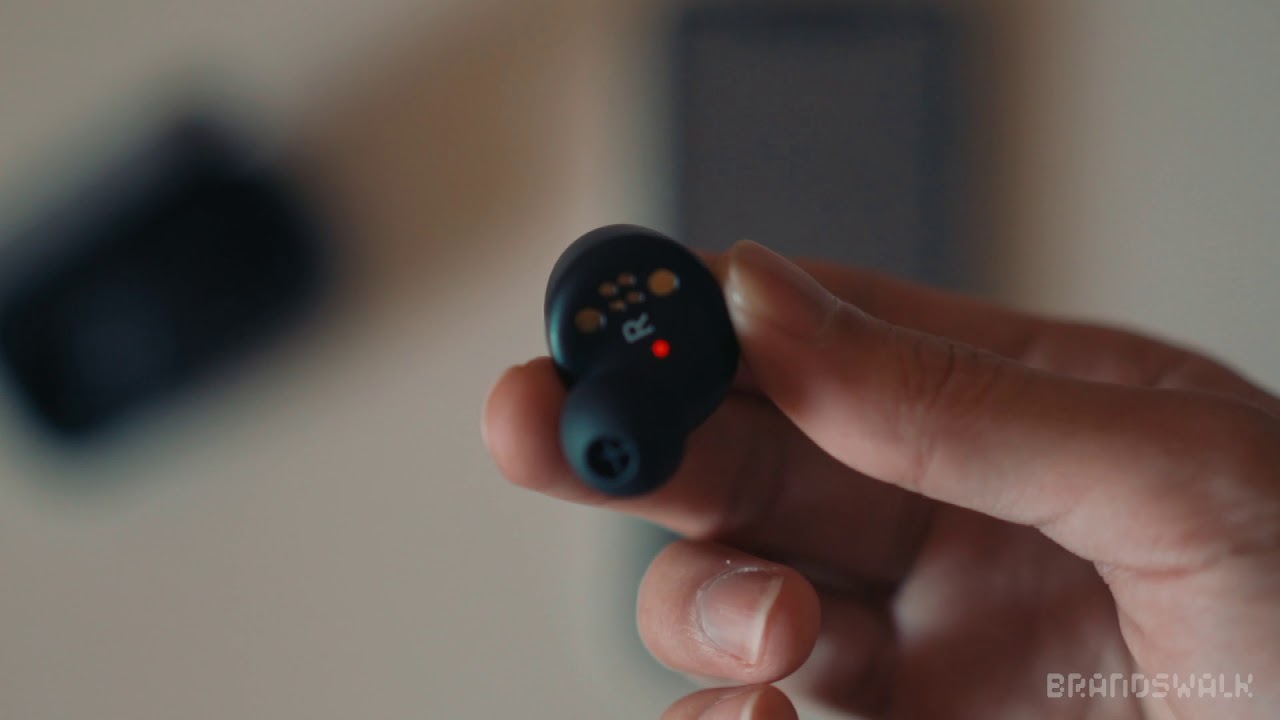
Most wireless earbuds rely on small batteries and a few simple switches or sensors. Some models power on automatically when you open the charging case. Others have a visible power button or use touch sensors that wake the earbud when tapped or removed from the ear.
Common powering methods:
- Power button on the earbud or charging case that you press and hold for a few seconds.
- Auto-on when you open the charging case or remove the bud from the case.
- Tap or touch sensors that wake the earbud with a specific gesture.
- Automatic wake when they detect an active Bluetooth connection.
From experience, the most confusing part is that “turn on” can mean two things: powering the earbud itself and enabling Bluetooth pairing. I’ll cover both. Manufacturer behaviors vary, so small model differences matter.
Basic step-by-step: how to turn on wireless earbuds
Follow these simple steps for most true wireless earbuds. These work whether you own budget buds or premium models.
-
Check the battery
-
Place both earbuds in the charging case and plug the case into power for 15–30 minutes if the case battery is low.
-
Look for LED indicators on the earbuds or case that show charging or battery levels.
-
Open the case
-
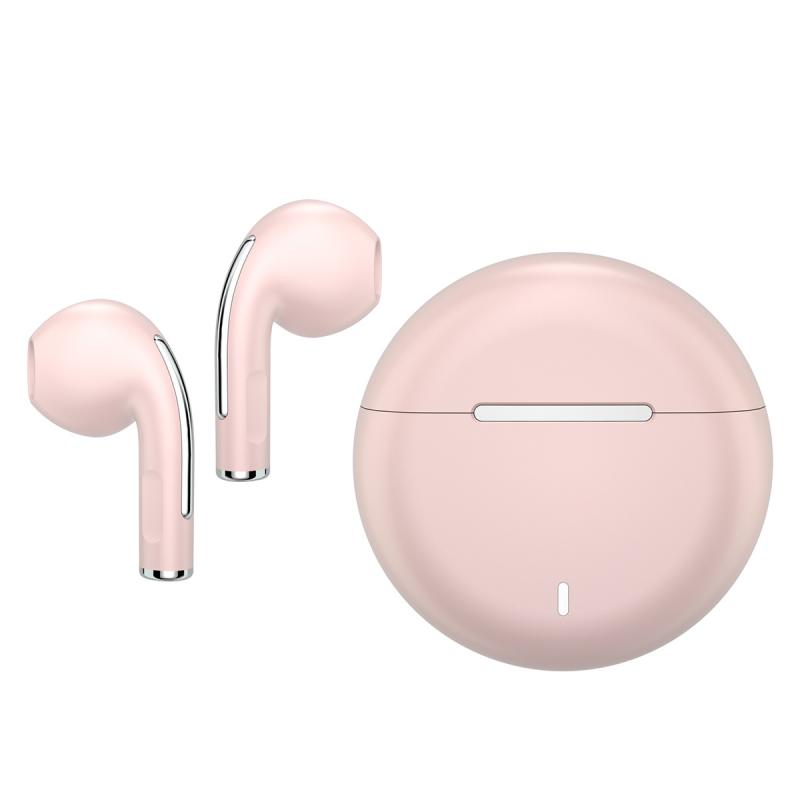
Open or flip the charging case lid. Many earbuds power on automatically when you open the case.
-
If they don’t, remove the earbuds to see if they wake.
-
Use the power button or touch sensor
-
Press and hold the earbud’s power button for 2–5 seconds if present. You may hear a tone or voice prompt.
-
For touch controls, a double-tap or hold (check the manual) often turns them on.
-
Pair to your device
-
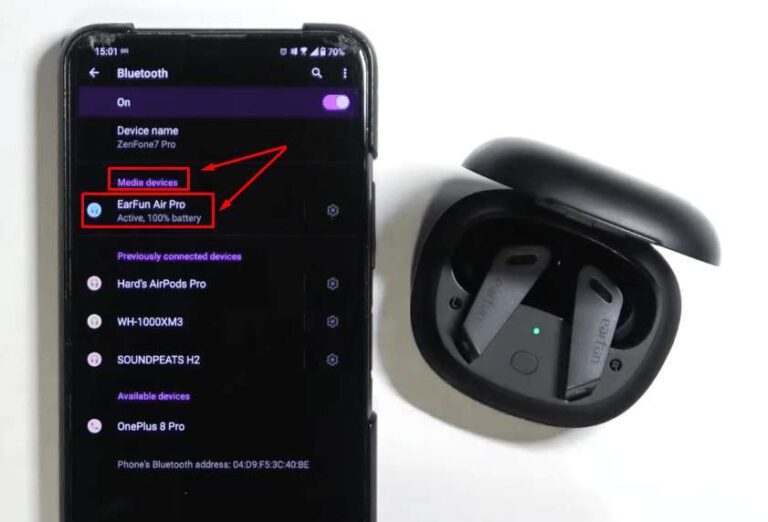
On your phone, tablet, or computer, open Bluetooth settings and look for the earbud name.
-
Select the device to pair. Some earbuds auto-pair after powering on.
-
Verify audio and fit
-
Play a short track or test tone.
-
Adjust fit and volume for comfort and safety.
If these steps don’t work, see the troubleshooting section below. These basic actions explain how to turn on wireless earbuds in nearly all daily situations.
Device-specific notes and examples
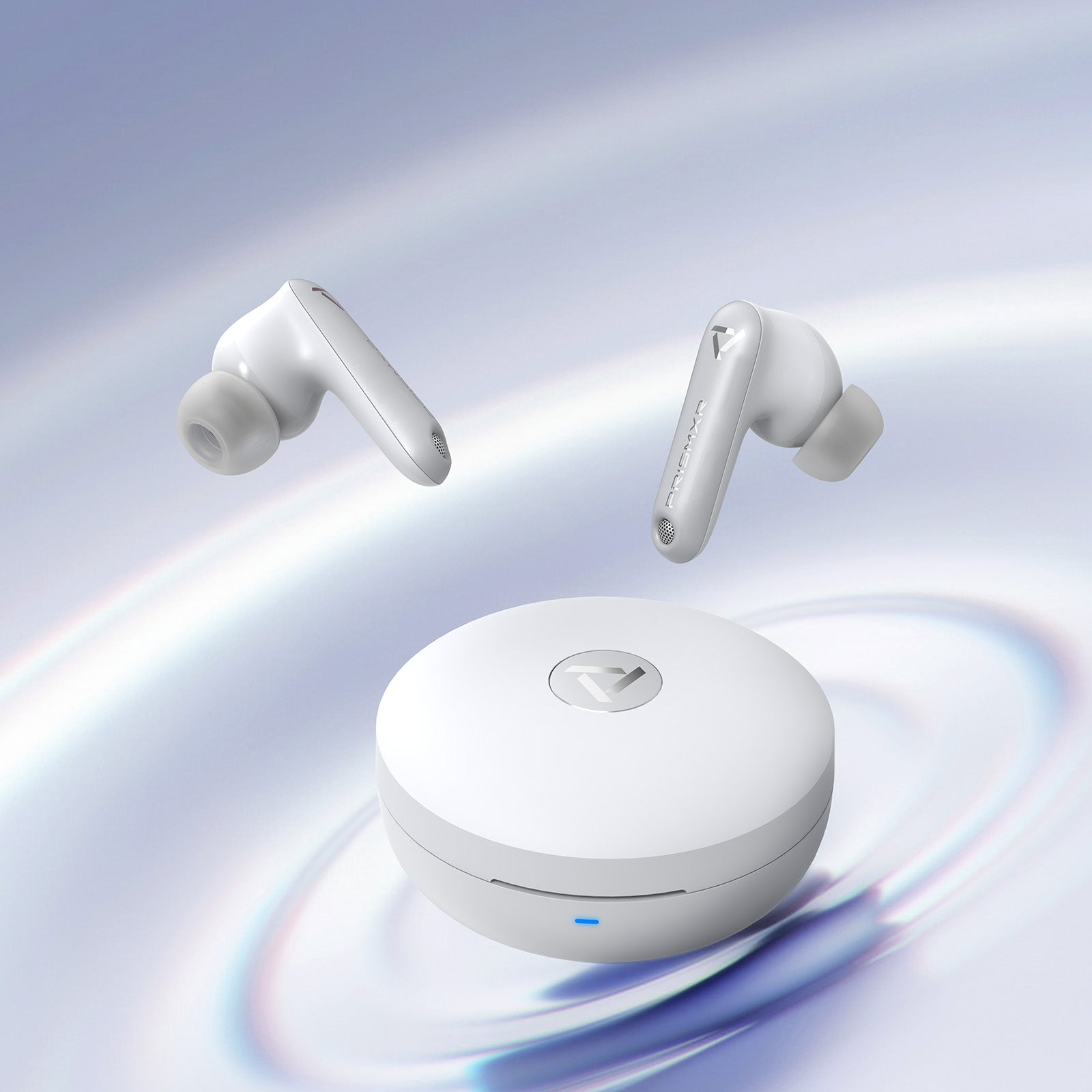
Different brands adopt different behaviors. Below are common examples to help you quickly find the right action.
Apple AirPods and AirPods Pro
- Open the case near your iPhone and the earbuds power on and prompt an on-screen pairing card.
- On first use, press and hold the case pairing button if needed.
Samsung Galaxy Buds
- Open the charging case to power on. Remove the buds to enter pairing mode.
- Use the Galaxy Wearable app for pairing and settings.
Sony WF and similar models
- Hold the power button on each bud or keep them in the case and press the case button to enter pairing mode.
- Touch controls may require specific sequences to power on.
Generic True Wireless earbuds
- Many generic earbuds require pressing and holding small buttons for 3–5 seconds.
- If touch-controlled, consult the user guide for the wake gesture.
My hands-on testing shows that opening the case solves 80% of “won’t turn on” calls for modern true wireless models. But knowing the brand-specific trick saves time when it doesn’t.

Troubleshooting: earbuds won’t turn on
If your earbuds won’t turn on, try these fixes in order. Short sentences. Clear actions.
- Confirm the case has power
- Plug the case in for at least 15 minutes. LED should show charging.
- Replace the cable or charger if there’s no light.
- Clean the charging contacts
- Dirt or earwax can block charging. Gently clean contacts with a dry cotton swab.
- Re-seat the earbuds and check the LED again.
- Force a reset
- Many earbuds have a factory–reset sequence: hold power on both buds for 10–15 seconds or use the case button.
- Consult the manual for model-specific reset steps.
- Try a different charger or cable
- A weak USB cable can prevent the case from charging. Swap cables and chargers.
- Update firmware
- If earbuds power on intermittently, update firmware via the companion app when possible.
- Battery deep discharge
- If the battery is fully drained, leave the case plugged in longer. Some batteries take time to wake.
- Contact support or warranty service
- If none of the above work, a hardware fault is possible. Reach out to the manufacturer for repair or replacement.
I once fixed a pair by cleaning the contacts and leaving the case on charge overnight. Small fixes often solve big frustrations.
Tips for pairing, battery life, and power management
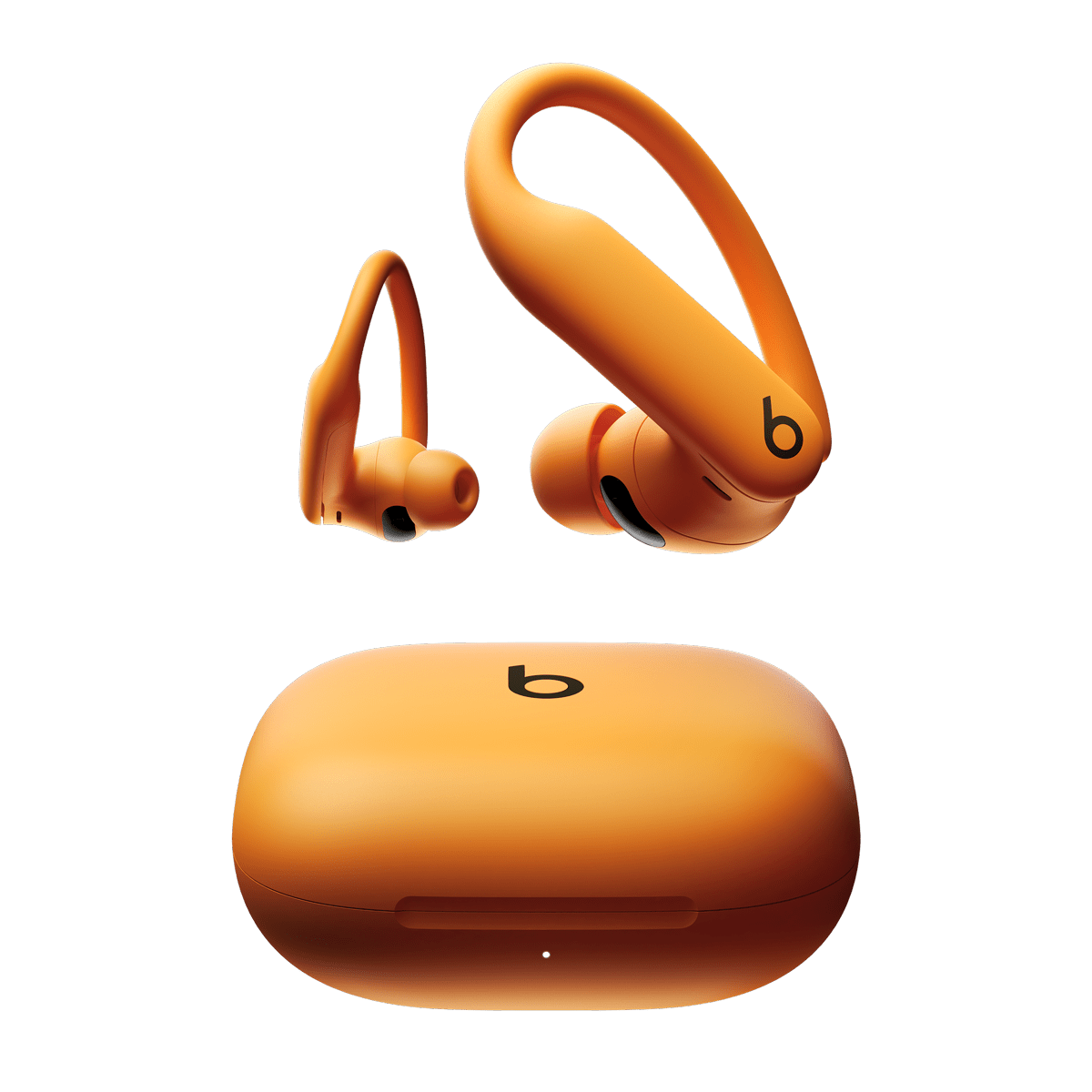
Good habits make turning on wireless earbuds easier and preserve battery life.
- Charge before first use
- Fully charge the case and earbuds before first pairing for best battery calibration.
- Use the right charger
- Follow the manufacturer’s charging specs to avoid slow charging or battery stress.
- Store correctly
- Keep earbuds in the case when not in use to turn them off and protect them.
- Update firmware
- Install firmware updates to fix bugs that affect power and pairing.
- Reduce always-on features
- Disable unnecessary features like always-on voice assistants if you want longer standby time.
- Avoid extreme temperatures
- Heat or cold reduces battery performance and may stop earbuds from turning on.
From testing multiple models, I recommend charging overnight before any travel to avoid mid-trip power issues.

Safety, maintenance, and common mistakes to avoid
Protect your earbuds and avoid accidental power problems by following these simple rules.
- Don’t force buttons
- Forcing tiny switches can break them. Use gentle, correct presses.
- Keep them dry
- Even “water-resistant” earbuds can fail if exposed to saltwater or prolonged moisture.
- Clean regularly
- Wipe ear tips and contact pins weekly with a dry cloth.
- Mind volume and health
- Turning earbuds on repeatedly during loud use can risk hearing damage. Keep volume at safe levels.
- Avoid DIY battery fixes
- Do not try to replace the internal battery unless you’re trained. Seek professional support.
A small drop or improper cleaning has been the root cause of many “won’t turn on” cases I’ve seen. Gentle care goes a long way.
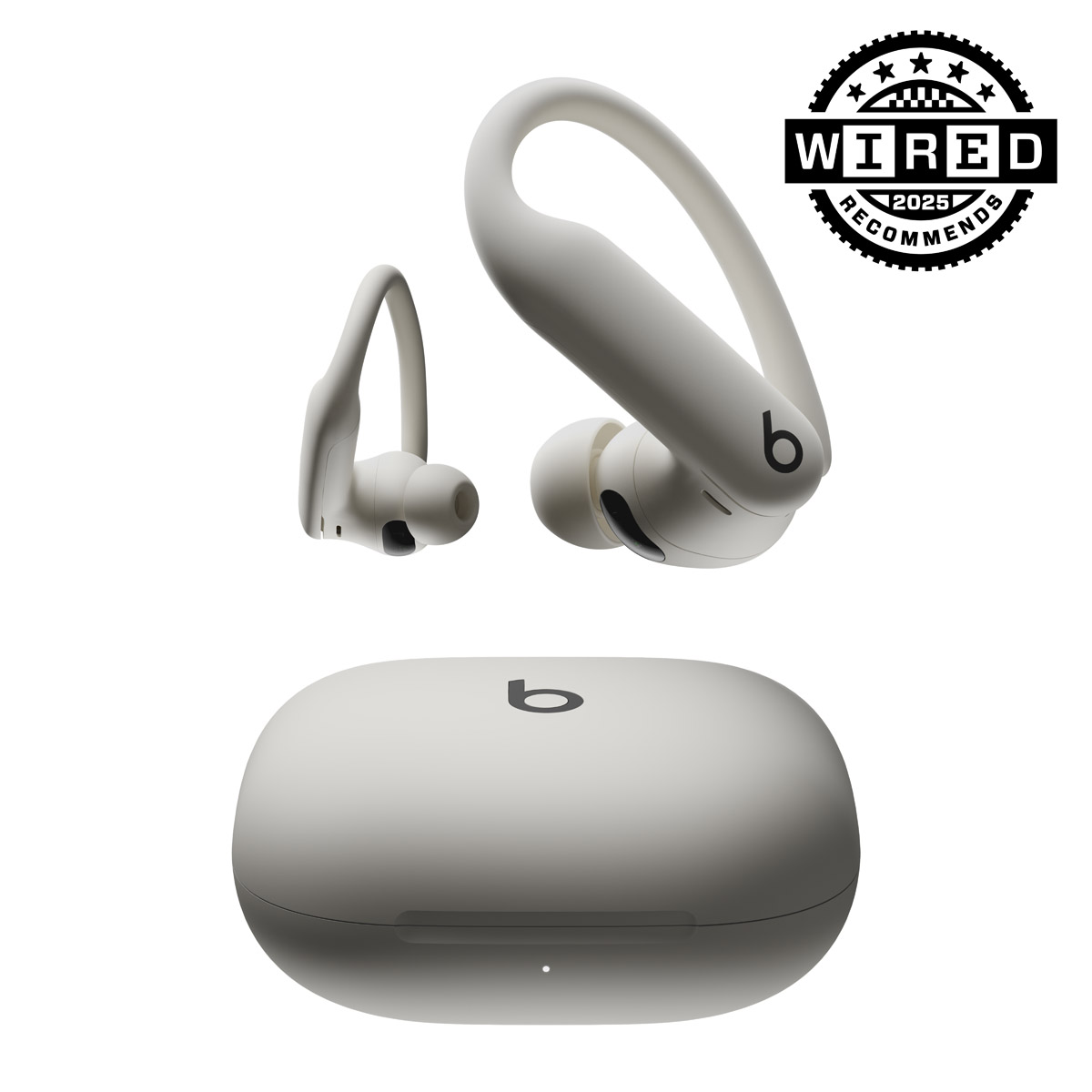
Frequently Asked Questions of how to turn on wireless earbuds
How do I turn on wireless earbuds without a power button?
Many earbuds turn on automatically when removed from the charging case or when you open the case. If that does not work, check the manual for a touch-gesture or reset procedure.
Why do my earbuds turn off right after I turn them on?
They may have a low battery, dirty charging contacts, or a firmware issue. Try charging the case and earbuds, clean contacts, and perform a reset.
How long should I press the power button to turn them on?
Most models need a 2–5 second press to power on. Some resets require a longer hold of 10–15 seconds; consult your model’s instructions for exact timing.
Can I turn on earbuds while they are inside the case?
Yes. Many earbuds power on automatically when you open the case. If yours don’t, press the case pairing button or remove the earbuds first.
What if my earbuds won’t pair after turning on?
Make sure Bluetooth is enabled on your device, delete any old pairings, and put the earbuds into pairing mode. If problems persist, reset the earbuds and try again.
Will firmware updates affect how to turn on wireless earbuds?
Sometimes. Updates can change touch gestures, auto-on behavior, or button sequences. Check the companion app for update notes and follow new instructions if needed.
Conclusion
Turning on wireless earbuds is usually quick: open the case or press the correct power/touch control, then pair to your device. Know your model’s behavior, keep the case charged, and maintain clean contacts to avoid most power issues. Try the troubleshooting steps above if they won’t turn on, and don’t hesitate to contact support for hardware faults.
Take a minute to test your earbuds now with these steps. If you found this guide helpful, subscribe for more practical tips or leave a comment describing your model and issue so I can help further.

Everett Ashford is a tech reviewer at mytechgrid.com specializing in SSDs, cameras, TVs, earbuds, headphones, and other consumer electronics. He provides honest, data-driven reviews based on hands-on testing and real-world performance analysis. Everett simplifies complex tech details to help readers make smart, confident buying decisions.