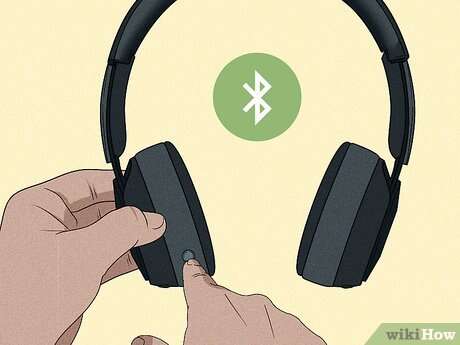
Press and hold the power button for two to five seconds until the indicator light turns on or you hear a tone.
Learning how to turn wireless headphones on is usually simple, but button labels, touch controls, charging cases, and automatic power features can make the process confusing. This guide explains the steps for popular headphone types, common problems, safety tips, and what to do when your headphones seem unresponsive.

How to Turn Wireless Headphones On
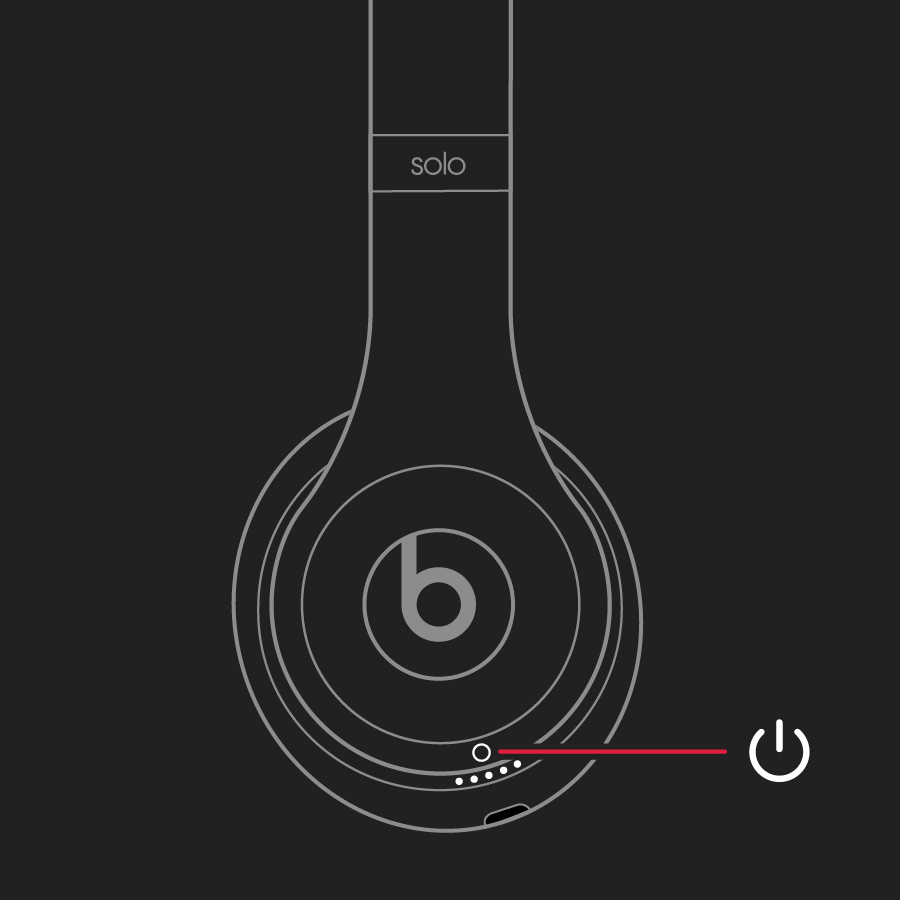
Most wireless headphones turn on when you press and hold the power button. The button may show a power symbol, a Bluetooth icon, or a small circle with a line through it.
Follow these steps:
- Remove the headphones from their charging case if they are true wireless earbuds.
- Find the power button on the earcup, neckband, or control panel.
- Press and hold the button for two to five seconds.
- Watch for a flashing or steady LED light.
- Listen for a startup tone or voice message.
- Open your phone’s Bluetooth settings if you also need to connect them.
A blue, white, or green light often means the headphones are on. A flashing blue light may mean they are ready to pair. Light colors vary by brand, so the user manual remains the best source for exact meanings.
When people ask how to turn wireless headphones on, the main mistake I see is a quick tap instead of a long press. A short press may pause music, answer a call, or do nothing at all.

How to Turn Wireless Headphones On by Type
Wireless headphones do not all use the same controls. Over-ear headphones, earbuds, and neckband models may have different startup methods.
Over-ear and on-ear headphones
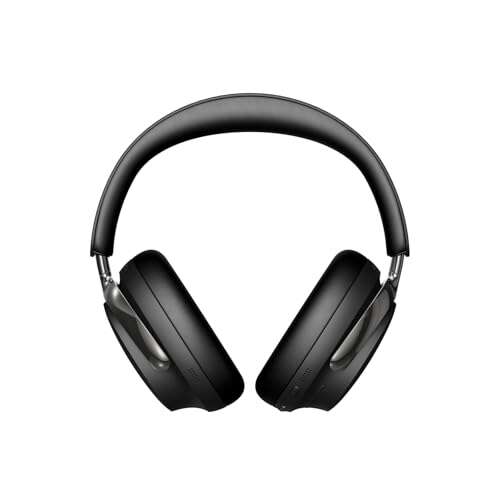
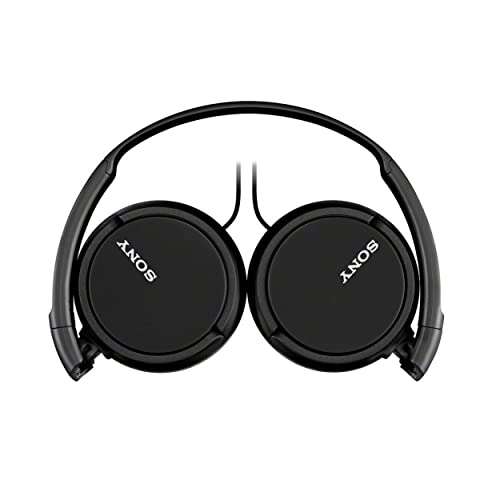
Most full-size wireless headphones have a physical power button on one earcup. Press and hold it until the indicator light appears or a voice prompt says “Power on.”
Some models use a sliding switch instead. Move the switch to the power position and wait for the startup sound.
True wireless earbuds
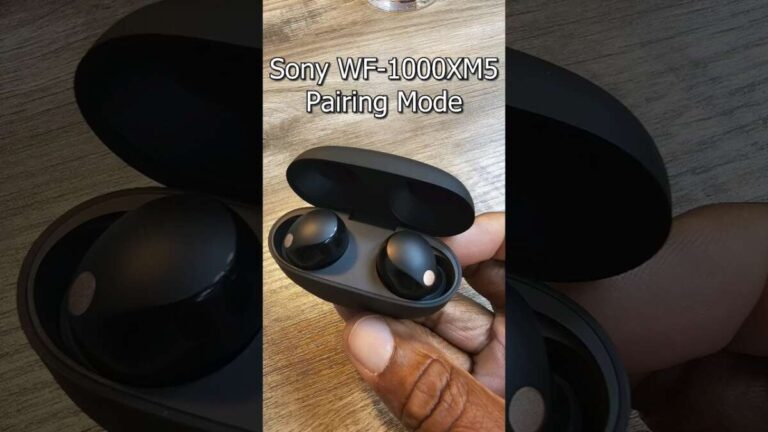
True wireless earbuds often turn on when you open the charging case or remove them. If they do not wake up, place both earbuds in the case, close the lid, and open it again.
Some earbuds require you to touch and hold both controls for a few seconds. Others use one earbud as the main control, so check the included instructions before pressing both sides.
Neckband headphones
Neckband headphones usually have a small power button on the control module. Press and hold it for two to five seconds. The light may sit near the volume buttons or inside the remote section.
Wireless gaming headsets
Gaming headsets often have a larger power button. Hold it until the status light turns on. Some models also need a wireless USB receiver connected to the console or computer before sound will play.
Knowing your headphone type makes how to turn wireless headphones on much easier because each design uses slightly different controls.
How to Turn Wireless Headphones On Without a Power Button
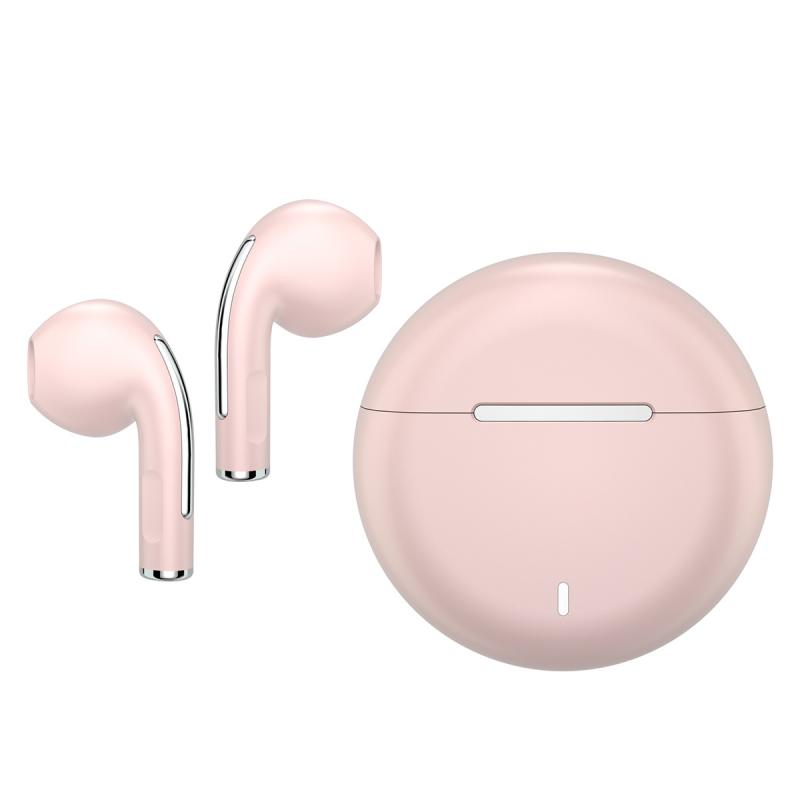
Some modern earbuds have no visible power button. They rely on the charging case, touch controls, or motion sensors.
Try these methods:
• Open the charging case and remove the earbuds.
• Place the earbuds in your ears and tap each touch panel once.
• Touch and hold the control area for two to five seconds.
• Charge the case before trying again.
• Check the companion app for a manual power or wake option.
Many earbuds do not have a true manual “off” state. Instead, they enter a low-power sleep mode when placed in the case. Removing them from the case wakes them automatically.
If the earbuds stay connected while inside the case, clean the charging contacts. Dust or skin oil can prevent the earbuds from sitting correctly, which may stop them from charging and powering down.
How to Tell Whether Wireless Headphones Are On
Your headphones may be on even if you do not hear a sound. Look for several signs instead of relying on one signal.
Common signs include:
• A light near the power button turns on.
• You hear a startup tone or voice prompt.
• Your phone lists the headphones as available in Bluetooth settings.
• The headphones appear in the brand’s mobile app.
• Touch controls respond when you tap or press them.
• The charging case shows a change in its battery light.
A flashing light often indicates pairing mode, while a steady light may show that the headphones are powered on or connected. Some brands use red for low battery, amber for charging, and green or white for a full charge.
Bluetooth settings can also help. On an iPhone, open Settings, then Bluetooth. On an Android phone, open Settings, then Connected devices or Bluetooth. A visible device name does not always prove that the headphones are powered on, but it usually means they are awake and broadcasting a signal.

How to Turn Wireless Headphones On and Pair Them
Turning headphones on and pairing them are two separate steps. Powering on starts the headphones, while pairing creates a connection with your phone, tablet, computer, or TV.
Use this process:
- Turn on the headphones.
- Press and hold the Bluetooth or power button until the light flashes.
- Open Bluetooth settings on your device.
- Select the headphone name from the device list.
- Confirm the pairing request if one appears.
- Play audio to test the connection.
The first connection may take longer than later connections. After pairing, many headphones reconnect automatically to the last device they used.
If the headphones connect to the wrong device, turn Bluetooth off on nearby phones, tablets, or computers. This is a common issue in homes, offices, and cars where several saved devices are within range.

What to Do When Wireless Headphones Will Not Turn On
If learning how to turn wireless headphones on has not solved the problem, the battery is the first thing to check. A completely drained battery may show no light and produce no sound.
Try the following steps:
• Put the headphones on charge for at least 15 to 30 minutes.
• Test a different charging cable and wall adapter.
• Clean the charging port with a dry, soft brush.
• Check whether the charging light appears.
• Hold the power button for 10 to 15 seconds to force a reset.
• Remove the earbuds from the case and place them back inside.
• Try the manufacturer’s reset process.
Do not use water, metal tools, or sharp objects inside the charging port. These can damage the contacts or create a short circuit.
A frozen control system can also cause the problem. A long press or factory reset may restore operation, but a reset can erase saved Bluetooth connections. You may need to pair the headphones again afterward.

How to Turn Wireless Headphones On When the Light Is Not Working
A broken or hidden LED does not always mean the headphones are dead. Some models turn off the indicator after a few seconds to save power or reduce distractions.
Press and hold the power button, then check whether your phone detects the headphones. You can also listen for a startup tone, try the volume buttons, or open the manufacturer’s app.
If there is no light, sound, app response, or Bluetooth signal after charging, inspect the cable and charging port. The battery may be deeply discharged, damaged, or too old to hold power.
Lithium-ion batteries naturally lose capacity over time. Heat, repeated deep discharge, and long-term storage at zero percent can shorten battery life. If the headphones become unusually hot, swell, smell strange, or make crackling sounds, stop using them and contact the manufacturer.
How to Turn Wireless Headphones On While Charging
Some wireless headphones work while charging, but others disable Bluetooth during charging. This behavior depends on the design and firmware.
Connect the charging cable, wait a few minutes, and press the power button. If the headphones do not turn on, they may be designed to charge only while powered off.
For safety, use the recommended cable and a reliable USB power source. Avoid damaged cables and very hot locations. Charging times vary, but many headphones provide several hours of use after a short charge.
True wireless earbuds usually cannot play while inside the charging case. Remove them after the case has provided enough power, then try how to turn wireless headphones on again.
Common Mistakes to Avoid
Small mistakes can make working headphones seem broken. Avoid these common problems:
• Pressing the power button for less than one second.
• Holding the wrong button, such as volume up or noise control.
• Trying to power on earbuds while they remain misaligned in the case.
• Assuming a flashing light always means a full battery.
• Forgetting that the headphones are connected to another device.
• Using a damaged charging cable.
• Resetting the headphones before checking the battery.
• Storing headphones in extreme heat or cold.
In my experience helping people troubleshoot Bluetooth accessories, the most useful habit is to check power, charging, and connection in that order. This simple sequence prevents unnecessary resets and saves time.
How to Turn Wireless Headphones On With Touch Controls
Touch controls can be hard to recognize because they do not move like physical buttons. Look for a flat panel, logo, or smooth area on the earbud or earcup.
Place one finger on the control surface and hold it for several seconds. Avoid tapping repeatedly because that may change tracks, activate a voice assistant, or reject a call.
If touch controls do not respond, make sure the earbuds are charged and dry. Sweat, rain, gloves, and dirt can interfere with capacitive touch sensors.
Some brands let you change startup and control actions in their app. The app may also show the battery level and explain the meaning of each light pattern.
Battery and Care Tips for Wireless Headphones
Good care makes powering on more reliable and helps protect battery life.
• Charge the headphones before storing them for a long period.
• Keep the charging port and contacts clean and dry.
• Store earbuds in their case when not in use.
• Avoid leaving headphones in a hot car.
• Use the correct charger and cable.
• Install official firmware updates when practical.
• Do not force a cable into the charging port.
• Replace the battery only through a qualified service provider.
Headphone batteries are consumable parts. Their capacity declines with age, so an older model may need more frequent charging even when it turns on normally.
Manufacturers may also change button functions through firmware updates. If the controls behave differently after an update, check the current digital manual or support page for your model.
Frequently Asked Questions About How to Turn Wireless Headphones On
How long should I hold the power button?
Hold the power button for about two to five seconds. If nothing happens, try holding it for 10 to 15 seconds to activate a possible forced restart.
Why will my wireless headphones not turn on?
The battery may be empty, the charging cable may be faulty, or the headphones may need a reset. Charge them for at least 15 minutes and look for a charging light before trying again.
Do wireless earbuds turn on automatically?
Many earbuds turn on when you open the case or remove them. Some models require a touch-and-hold gesture, especially if the case battery is low.
How do I know if my wireless headphones are on?
Look for an indicator light, startup sound, voice prompt, or Bluetooth listing. You can also test the controls or check the manufacturer’s app.
Can I turn on wireless headphones without Bluetooth?
Yes. Bluetooth is not required to power on the headphones. However, you need a wireless connection, wired cable, or compatible transmitter to hear audio.
Why do my headphones connect but have no sound?
The device may be sending audio to another output, or the headphone volume may be low. Check the active audio output, increase the volume, and disconnect other Bluetooth devices.
How do I turn off wireless headphones?
Press and hold the power button until you hear a shutdown tone or see the light turn off. For earbuds, place them in the charging case and close the lid if the model supports automatic power-off.
Conclusion
Learning how to turn wireless headphones on usually takes one long press, a charged battery, and a quick look at the status light. Earbuds may wake when removed from their case, while over-ear and neckband models normally use a physical power button.
If your headphones do not respond, charge them, check the cable, clean the contacts, and try a reset only when necessary. Use the model’s manual or official app for exact light codes and control settings. Try these steps with your headphones today, and share your model or troubleshooting experience in the comments.

Everett Ashford is a tech reviewer at mytechgrid.com specializing in SSDs, cameras, TVs, earbuds, headphones, and other consumer electronics. He provides honest, data-driven reviews based on hands-on testing and real-world performance analysis. Everett simplifies complex tech details to help readers make smart, confident buying decisions.