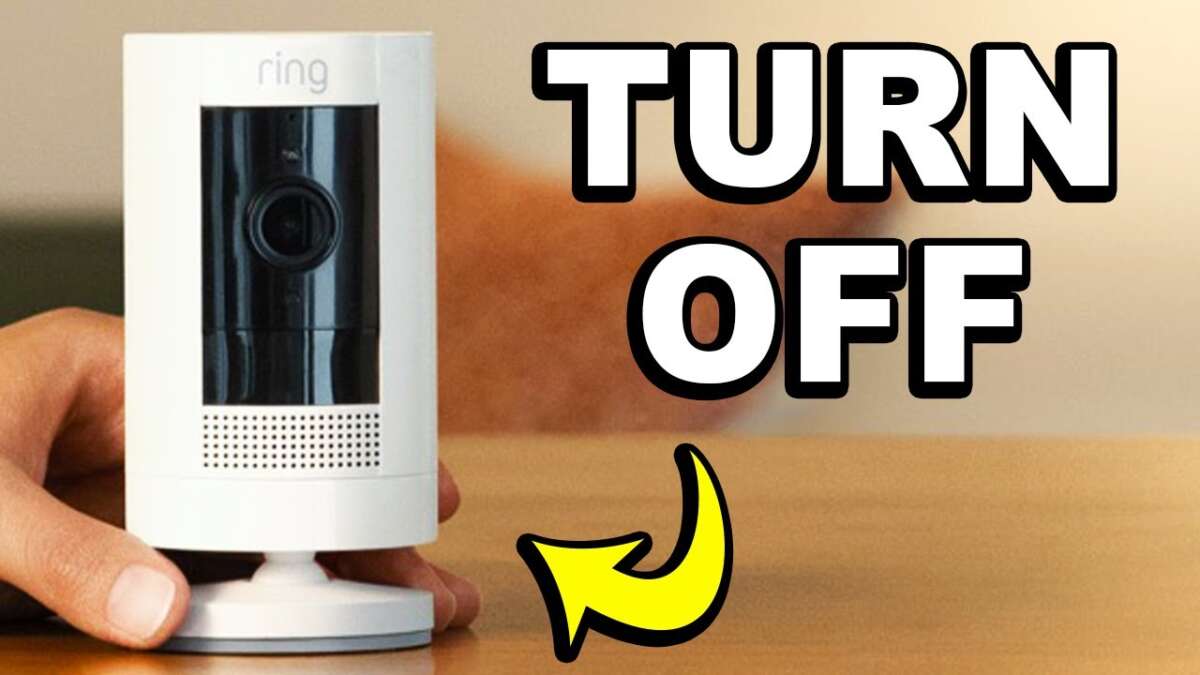
Open the Ring app, select the camera, then choose Remove This Device to disconnect.
I’ve managed dozens of Ring setups and removals for friends and clients. This guide walks you through how to disconnect Ring camera from account step by step, covers factory resets, shared-user removal, third-party unlinking, and troubleshooting. Read on to get it done fast and securely.

Why you might want to disconnect a Ring camera from an account
People disconnect a Ring camera for a few clear reasons.
You might be selling or giving away the device.
You may want to remove an old camera from a home account.
You may need to revoke access after a relationship change or staff turnover.
Knowing how to disconnect Ring camera from account helps protect privacy and avoids surprise alerts. It also ensures the new owner can set the device up cleanly. This section explains the motives so you pick the right removal method.
Before you start: what to check and prepare
Confirm you are the account owner or have owner permission.
Make sure the Ring app is updated on your phone.
Note the device name and location in the app so you remove the correct camera.
If you plan to transfer ownership, factory reset the camera after removing it from your account.
Uninstalling the app or deleting your Ring account does not always remove devices tied to that account. Knowing these facts avoids mistakes and data loss.

How to disconnect Ring camera from account — step-by-step using the Ring app
This is the most common and easiest method to disconnect Ring camera from account.
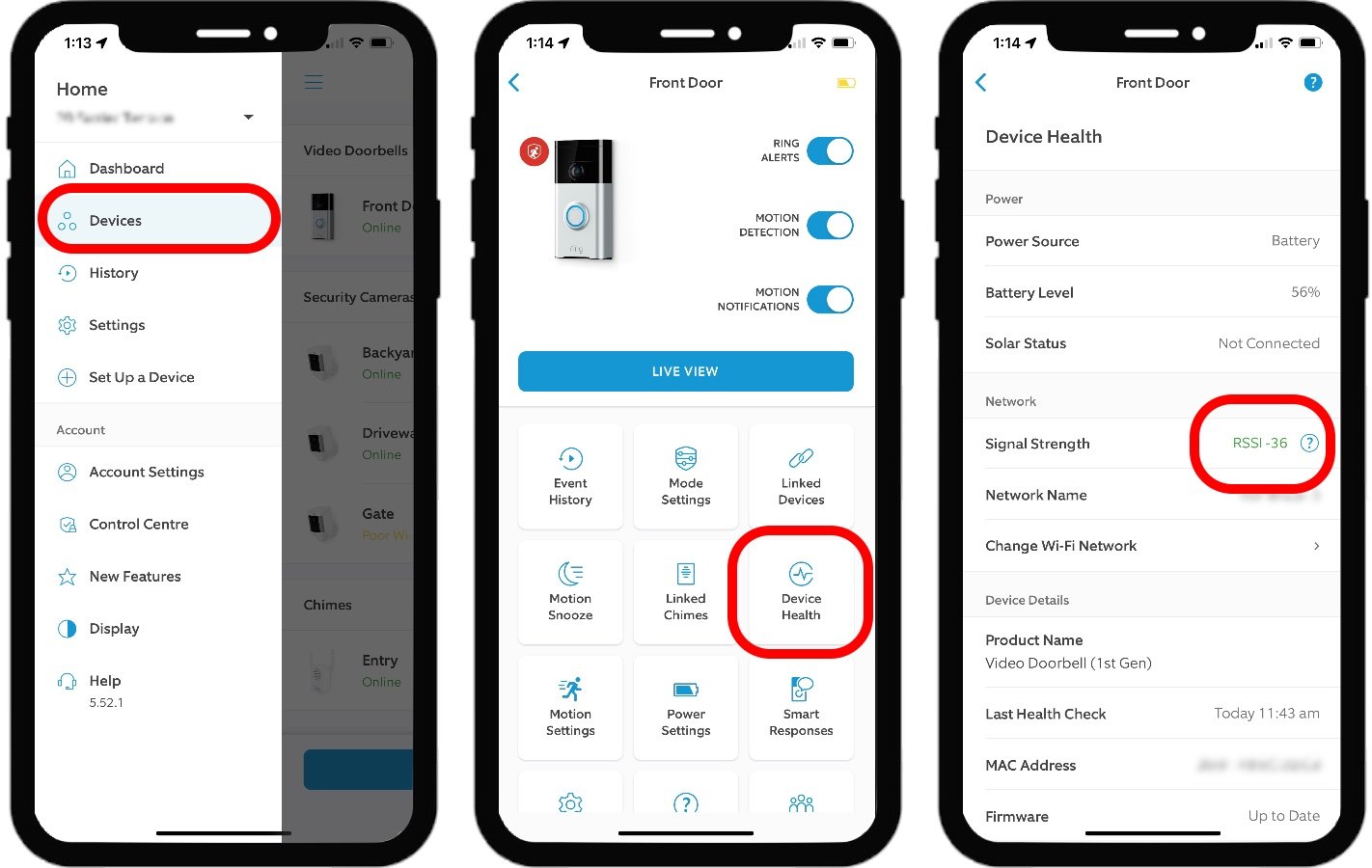
- Open the Ring app on your phone.
- Tap the three-line menu (top-left) and choose Devices.
- Select the camera you want to remove.
- Tap Device Settings, then General Settings.
- Scroll and choose Remove This Device or Remove Device from Account.
- Confirm the removal when prompted.
Once removed, the camera won’t send recordings or alerts to your account. If you plan to sell the camera, complete a factory reset afterward so the new owner can claim it.
How to disconnect Ring camera from account remotely (if you don’t have the camera)
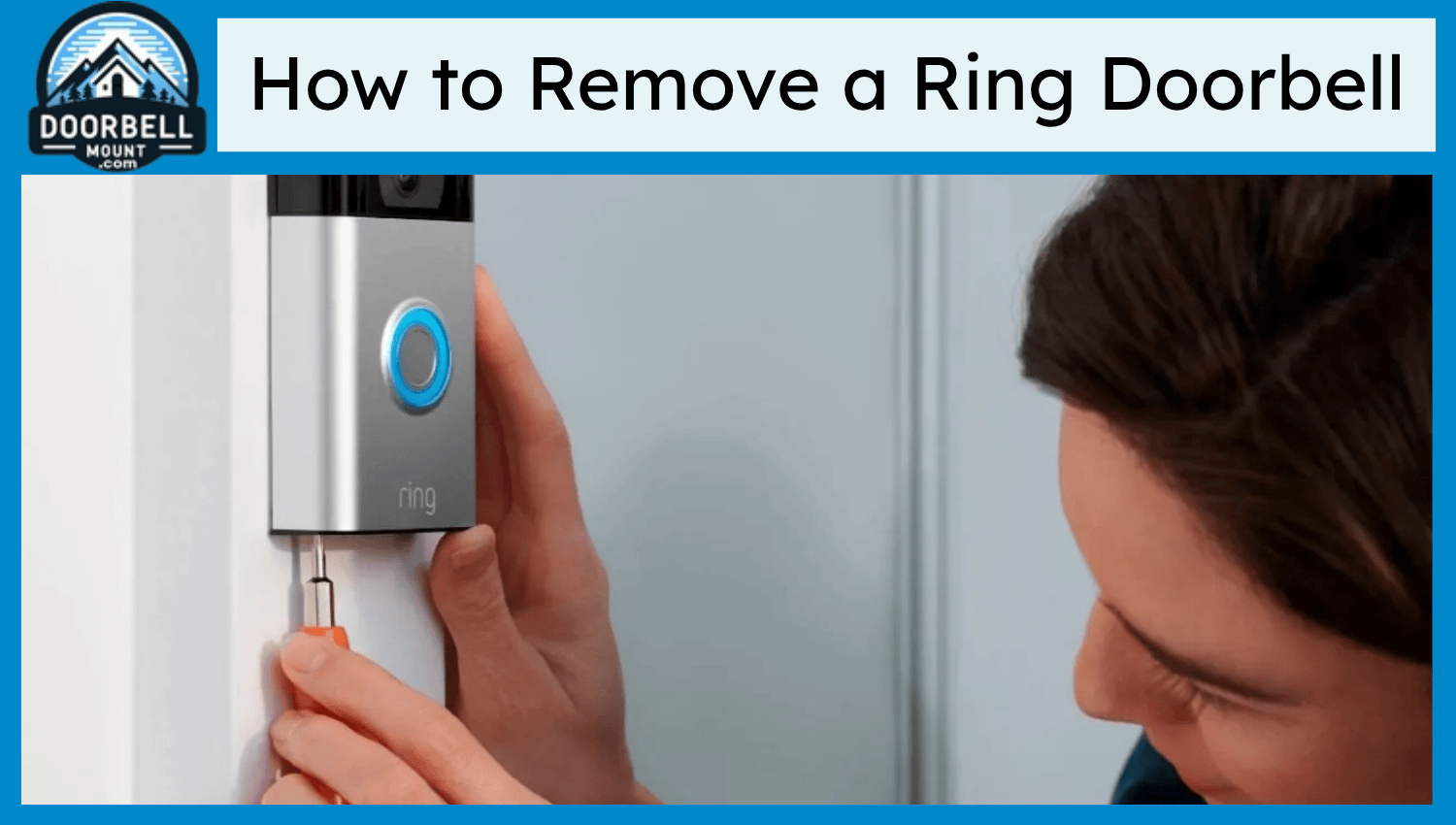
If you can’t access the camera physically, you can still remove it from your Ring account online.
- Use the Ring app or Ring web dashboard and sign in with your account.
- Navigate to Devices, locate the camera, and remove it as described above.
- If the camera is offline, removing it from the account still prevents data from being associated with you once it reconnects.
If you don’t have account access at all, contact the account owner. If the device is stolen or used without permission, contact Ring support for help securing your account.

Factory reset and transfer ownership: final steps to hand off a camera
Factory resetting is essential when you transfer or sell a camera. Reset clears Wi‑Fi settings and account links.
General factory reset steps:
- Locate the reset or setup button on the camera (often a small button on the back or side).
- Press and hold the setup/reset button for about 15 seconds. Timing can vary by model.
- Watch for LED flashes or the app prompt that indicates reset is complete.
- After reset, remove the device from your Ring account (if not already removed) so the new owner can claim it.
From my experience, most Ring models use a 15-second press for reset. If unsure, check the model’s quick guide or official instructions to avoid incomplete resets.
Unlinking Ring camera from third-party services (Alexa, Google, Smart Home)
Removing the camera from your Ring account does not always remove it from linked services.
Alexa:
- Open Alexa app.
- Go to Devices and find the Ring camera.
- Remove or disable the Ring skill or unlink the specific camera.
Google Home or other services:
- Open the service app.
- Remove linked Ring devices or unlink the Ring account from that service.
Double-check routines, doorbell announcements, and linked smart displays. Removing the device from every service stops live feeds and prevents accidental access.

Troubleshooting: common issues when disconnecting a Ring camera from account
Issue: Remove option is missing in the app
- Make sure you’re signed in as the account owner.
- Update the Ring app and restart it.
- Log out and log back in if the device list looks wrong.
Issue: Device remains listed after removal
- Wait a few minutes for cloud sync.
- If still listed, try removing it again or use the web dashboard.
- Contact support if the device stays tied to the account.
Issue: New owner can’t claim the device
- Ensure you fully removed the device and completed a factory reset.
- Confirm the device is online and in setup mode for the new owner.

Common quick questions (PAA-style)
Q: Will a factory reset remove the camera from my Ring account?
A: A factory reset clears the device settings but does not always unlink it from your account; remove the device in the app too.
Q: Can someone else remove my Ring camera without my password?
A: No. Only the account owner or someone with account credentials can remove devices; physical access alone does not let them unlink without reset and owner removal.
Q: If I delete my Ring account, does it remove all devices?
A: Deleting the account can remove device associations, but best practice is to remove devices first and factory reset them before deleting your account.

Personal experience: lessons, tips, and mistakes to avoid
I once helped a friend sell three cameras without resetting them. The buyer had trouble claiming the devices. We learned to always remove devices from the seller account and perform a factory reset in front of the buyer.
Tips I use every time:
- Remove the device from the app first, then factory reset.
- Keep the device’s original name noted so you don’t remove the wrong camera.
- Revoke shared users before selling or transferring ownership.
Avoid these mistakes:
- Don’t just uninstall the Ring app and assume the device is disconnected.
- Don’t skip unlinking from Alexa or other services.
Frequently Asked Questions of how to disconnect ring camera from account
How do I remove a Ring camera from my Ring account using the app?
Open the Ring app, go to Devices, select the camera, then Device Settings > General Settings > Remove This Device and confirm.
Will factory resetting my Ring camera automatically remove it from my account?
A factory reset clears device settings but may not unlink the device from your account. Always remove it in the app as well.
Can I disconnect a Ring camera remotely if it’s offline?
Yes. You can remove the camera from your account via the app or web dashboard even if the camera is offline; the change syncs once the device reconnects.
What should I do before selling or giving away my Ring camera?
Remove the device from your Ring account, factory reset the camera, and unlink any third-party services like Alexa.
How do I transfer ownership of a Ring camera to someone else?
First remove the device from your account, factory reset it, then let the new owner set it up with their Ring account.
Conclusion
Disconnecting a Ring camera from account is a quick process when you follow the right steps. Remove the device in the Ring app, perform a factory reset, and unlink third-party services to protect privacy and make transfers smooth. Take these steps now if you plan to sell, move, or secure your devices. If you found this guide useful, subscribe for more smart-home tips or leave a comment with your model and issue so I can help.

Everett Ashford is a tech reviewer at mytechgrid.com specializing in SSDs, cameras, TVs, earbuds, headphones, and other consumer electronics. He provides honest, data-driven reviews based on hands-on testing and real-world performance analysis. Everett simplifies complex tech details to help readers make smart, confident buying decisions.