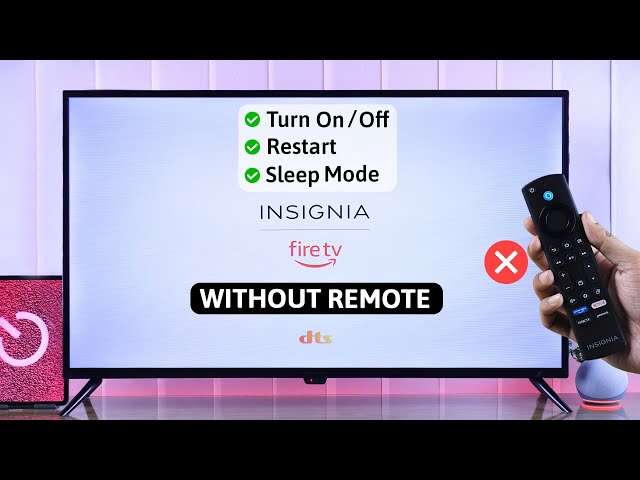
You can use an insignia TV without a remote through its buttons, a phone app, a universal remote, or HDMI controls.
Losing your remote does not mean losing access to your TV. I have seen many Insignia owners solve this problem with simple button controls, mobile apps, or a low-cost replacement remote. This guide explains how to use Insignia TV without remote, including how to turn it on, change inputs, adjust volume, connect to Wi-Fi, and control smart TV features.

How to use an Insignia TV without remote
The best method depends on your Insignia TV model. Some models use physical buttons on the frame, while Insignia Fire TV and Roku TV models can also work with official smartphone apps.
Try these options in this order:
- Use the physical buttons on the TV.
- Install the correct Insignia, Fire TV, or Roku mobile app.
- Use a universal remote.
- Control the TV through a connected device with HDMI-CEC.
- Connect a keyboard or mouse if your model supports it.
The TV buttons are the fastest option when you only need basic controls. A phone app is better when you need a full menu, keyboard, input selection, or smart TV features.
Find and use the buttons on your Insignia TV
Most Insignia TVs have a small button panel. The buttons may be on the back, bottom, side, or near the logo. Their exact location depends on the model and screen size.
Look for buttons labeled:
• Power
• Input or Source
• Menu
• Channel up and down
• Volume up and down
• Navigation arrows
• Enter or Select
Some newer TVs have only one multi-function button. This button may act like a joystick or control key.
Basic controls with physical buttons
Use the following steps:
- Press the Power button once to turn the TV on.
- Press Volume Up or Volume Down to change the sound level.
- Press Channel Up or Channel Down to move between channels.
- Press Input or Source to open the input menu.
- Use the arrow buttons to select HDMI, antenna, composite, or another source.
- Press Enter, Select, or the Power button to confirm your choice.
If your TV has one button, press it briefly to open the control menu. Press it again to move through options. Hold it down to select an option, if the screen shows that instruction.
The buttons may feel awkward at first. Think of them as a small control panel rather than a full remote. You can still start the TV and select a connected device, even when advanced settings are harder to reach.
Turn on an Insignia TV without a remote
To turn on an Insignia TV without remote control, connect the power cord firmly and press the physical Power button. Wait at least 10 seconds if the TV does not start at once.
If the light stays off, test the wall outlet with another device. Also check the power strip, surge protector, and TV power cable. A missing remote usually causes a control problem, not a power problem.

Use the Insignia TV mobile app
A smartphone can replace the remote if your Insignia TV supports a compatible app. The correct app depends on whether your TV runs Fire TV, Roku TV, or another smart TV platform.
Before using an app, make sure:
• The TV is powered on.
• Your phone and TV use the same Wi-Fi network.
• The TV has already connected to that Wi-Fi network.
• Your phone has Bluetooth or Wi-Fi enabled when the app requires it.
• You install the official app for your TV platform.
A phone app will not usually help if the TV is completely new and has never joined Wi-Fi. In that case, use the TV buttons, a temporary wired connection, or a physical remote first.
Control an Insignia Fire TV with your phone
Insignia Fire TV Edition models can usually work with the Amazon Fire TV mobile app. Follow these steps:
- Download the Fire TV app from the official app store on your phone.
- Connect your phone to the same Wi-Fi network as the television.
- Open the app and allow it to search for nearby Fire TV devices.
- Select your Insignia TV from the list.
- Enter the four-digit code shown on the television.
- Use the on-screen touchpad and keyboard to control the TV.
The Fire TV app can help you open streaming services, search for programs, adjust volume, and move through menus. It is also useful when typing passwords because the phone keyboard is much faster than a standard remote.
If the app cannot find your TV, restart both devices. Confirm that your phone is not using mobile data or a guest Wi-Fi network. Guest networks often prevent devices from seeing one another.
Control an Insignia Roku TV with your phone
For an Insignia Roku TV, install the official Roku mobile app. Then connect your phone and TV to the same wireless network.
- Open the Roku app.
- Select Devices.
- Choose your Insignia Roku TV.
- Tap Remote.
- Use the buttons shown in the app to control the television.
The Roku app can control volume, inputs, channels, streaming apps, and text entry. Some phones can also send photos, videos, or music to the TV through the app.
A key limitation is that the Roku app cannot find a TV that is not connected to the same network. If you changed your Wi-Fi name or password, you may need a physical remote to update the network settings.
What if the TV is not connected to Wi-Fi?
If your Insignia TV has no saved Wi-Fi connection, the mobile app may not work. This is one of the most common limits when learning how to use Insignia TV without remote.
You can try these solutions:
• Connect an Ethernet cable from your router to the TV, if the TV has an Ethernet port.
• Use the physical buttons to open network settings.
• Temporarily use a universal remote.
• Use a replacement remote to complete the first-time setup.
• Create a phone hotspot with the same network name and password as the old Wi-Fi network, if you know those details.
The hotspot method may work because the TV recognizes the familiar network. However, it can use mobile data quickly, so disable the hotspot after setup.

Use a universal remote with your Insignia TV
A universal remote is often the simplest long-term replacement. Many universal remotes support Insignia televisions, Fire TV Edition models, and common TV functions.
Choose a remote that clearly lists compatibility with your model or platform. Some basic remotes control power, volume, channels, and inputs. More advanced models may control streaming menus and connected devices.
Program a universal remote
The setup method varies by brand, but the general process is similar:
- Turn on the Insignia TV using its physical button.
- Press and hold the TV or Setup button on the universal remote.
- Enter the Insignia code listed in the remote manual.
- Press Power or another test button.
- Try volume, input, and menu controls.
- Save the code when the TV responds correctly.
If the first code does not work, try the next Insignia code in the manual. Some universal remotes use an automatic code search instead of a code list.
Keep the TV pointed toward the remote during setup. Infrared remotes need a clear path to the sensor. Remove objects that block the sensor near the lower edge of the screen.
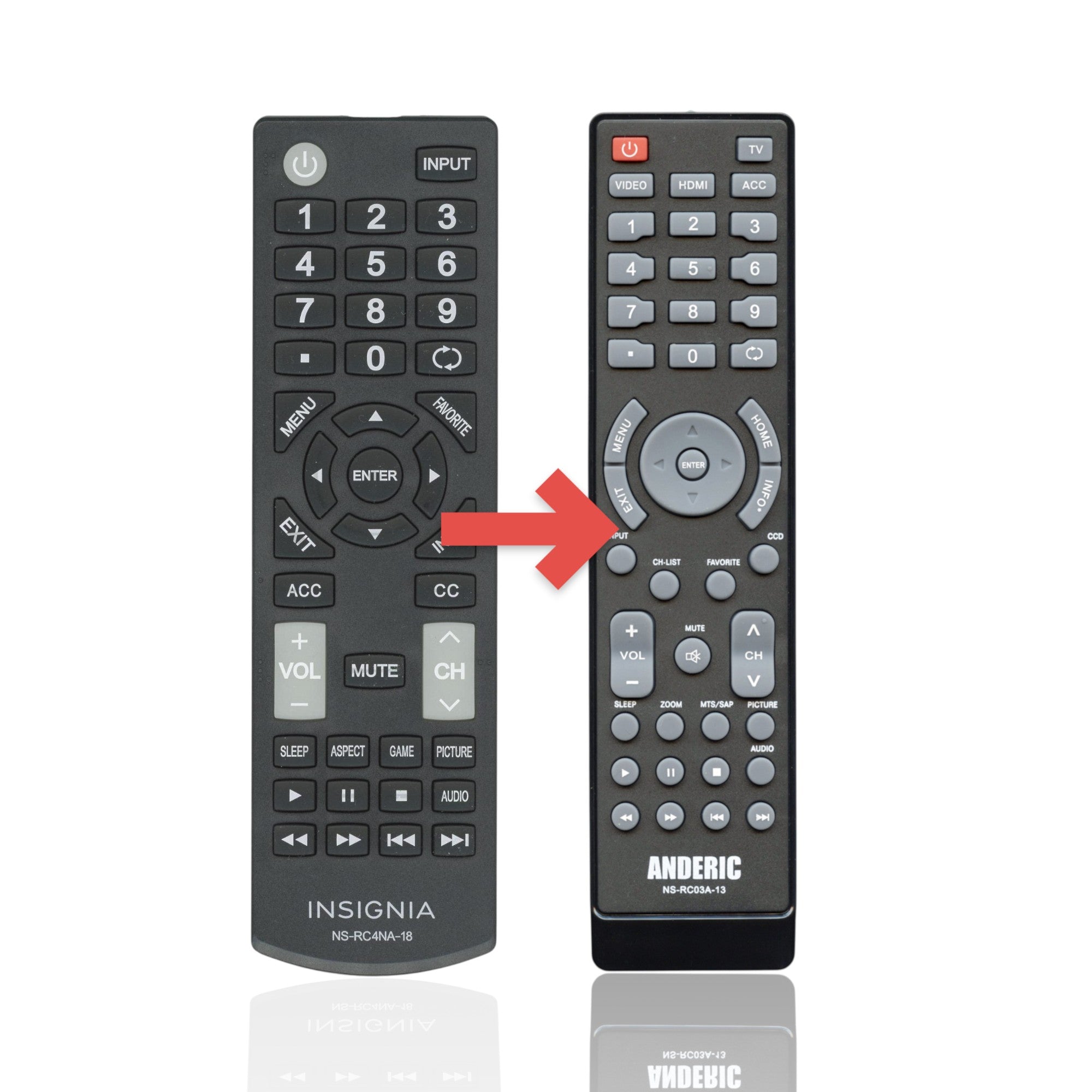
Choose the right type of replacement remote
There are several remote types:
• Basic infrared remote: Best for power, volume, channels, and input.
• Insignia replacement remote: Usually offers the closest match to the original.
• Fire TV remote: Best for Insignia Fire TV models.
• Roku remote: Best for Insignia Roku TV models.
• Programmable smart remote: Useful when controlling a TV, soundbar, and streaming box together.
Check the model number before buying. It is often printed on a label on the back of the TV. Using the wrong platform remote may control power but fail to open smart menus.

Control your Insignia TV through HDMI-CEC
HDMI-CEC allows compatible devices to send control commands through an HDMI cable. The feature may let you turn the TV on, switch inputs, or control volume with a streaming device remote.
Different brands use different names for HDMI-CEC. Insignia may list the feature as an HDMI-CEC setting, while connected devices may use names such as device control or system control.
This method works best when the setting was already enabled. If HDMI-CEC is off, you may need the TV buttons or a replacement remote to turn it on.
Use a streaming device
A connected streaming device may help you control the TV. Examples include:
• Amazon Fire TV Stick
• Roku streaming player
• Apple TV
• Google TV device
• Blu-ray player with HDMI control
Connect the device to an HDMI port and turn on both products. If HDMI-CEC is active, the device may switch the TV to the correct input and control the sound.
This does not give every TV function. You may still need a TV remote for picture settings, network changes, or a new input configuration.
Use a cable box or game console
Some cable boxes and game consoles can control basic TV functions. Enable their device control feature if available. Then test the power, input, and volume buttons.
This option is helpful when the TV is already connected to a familiar device. It is not a full replacement for the Insignia remote, but it can get you back to watching content quickly.

Use a keyboard or mouse
Some Insignia smart TVs accept a USB keyboard or mouse. Connect the device to a USB port on the TV and wait several seconds.
A keyboard may let you move through menus with arrow keys, Enter, Escape, and other commands. A mouse may move a pointer on certain smart TV systems, but support differs by model.
Bluetooth keyboards may work on some Fire TV models after pairing. However, pairing normally requires access to the settings menu, so a USB keyboard is more useful during an emergency.
Do not assume every keyboard or mouse will work. TV software has limited support compared with a computer. If the device does not respond, unplug it and try another USB port.

Change the input without an Insignia remote
Changing the input is one of the most common reasons people search for how to use Insignia TV without remote. You can usually do this with the physical Input or Source button.
Follow these steps:
- Press Input or Source on the TV.
- Wait for the input list to appear.
- Press Channel or Volume buttons to move through the list.
- Press the same button, Enter, or Select to confirm.
- Wait a few seconds for the connected device to appear.
On some models, the Volume buttons move through the input list and the Power button selects the option. Watch the on-screen instructions because the control pattern can differ.
If the input list does not appear, press the button briefly rather than holding it. A long press may turn the TV off or open another function.

Adjust picture and sound settings without a remote
Basic volume control usually works with the physical buttons. Advanced sound and picture settings are more difficult but may still be available through the TV button menu or a compatible app.
You may be able to adjust:
• Brightness
• Contrast
• Backlight
• Picture mode
• Sound mode
• Sleep timer
• Closed captions
• Screen size
• Audio output
Use the mobile app when possible because it provides clearer menu navigation. If you use physical buttons, move slowly and read the labels on the screen.
Closed captions may be especially important for viewers who rely on them. Look for Accessibility or Captions in the settings menu. On Fire TV and Roku TV models, the phone app can make these options easier to find.
Troubleshoot common problems
Even when you know how to use Insignia TV without remote, a few problems can block access. Most have simple causes.
The physical buttons do nothing
Check whether the TV has power. Unplug it for 60 seconds, plug it back in, and try again. Also look for a small button lock or child lock setting, although this is not present on every model.
If the buttons remain unresponsive, the control panel may have a hardware fault. A universal remote is the safest next step.
The phone app cannot find the TV
Make sure the phone and TV use the same Wi-Fi name. Turn off mobile data for a moment and avoid guest networks.
Restart the router, phone, and TV. If the TV lost its Wi-Fi connection, the app cannot control it until you restore network access.
The app connects but does not control volume
Some apps control smart menus but not external sound systems. If you use a soundbar or receiver, enable HDMI-CEC or use the soundbar’s own app.
Also check whether the TV sends sound through optical output, Bluetooth, or HDMI ARC. The active audio path determines which device controls the volume.
The TV turns on but shows no picture
Press Input or Source and select the HDMI port used by your streaming device. Then check that the HDMI cable is firmly connected at both ends.
Test another HDMI port if available. A blank screen can result from the wrong input, a loose cable, or a device that is asleep.
The TV is stuck on a setup screen
Use the physical buttons to move through the setup steps. If the screen asks for Wi-Fi details, a USB keyboard or temporary universal remote may make typing easier.
Do not reset the TV unless necessary. A factory reset removes saved networks, apps, accounts, and picture settings.
Mistakes to avoid
Learning how to use Insignia TV without remote is easier when you avoid a few common mistakes.
• Do not buy a Roku remote for an Insignia Fire TV model.
• Do not assume the phone app works without a shared Wi-Fi connection.
• Do not factory reset the TV before finding a way to complete setup.
• Do not hold the Power button for too long when trying to open the input menu.
• Do not block the infrared sensor when using a universal remote.
• Do not use an unknown remote code without checking the model instructions.
• Do not unplug the TV repeatedly while it is updating software.
One practical lesson from real-world TV troubleshooting is to solve the smallest problem first. If you only need to watch a game through an HDMI device, use the Input button rather than trying to rebuild the entire smart TV setup.
Keep the model number in your phone’s notes after you find it. That small step makes it much easier to order the correct replacement remote later.
When to buy a replacement remote
A replacement remote is worth buying when you need regular access to smart menus, network settings, apps, or accessibility features. It is usually more convenient than relying on the small buttons on the TV.
Before ordering, record:
• The exact TV model number
• Whether the TV is Fire TV, Roku TV, or another type
• The original remote model, if visible in the TV manual
• Whether you need voice search
• Whether you control a soundbar or streaming device
A genuine replacement remote is often the most reliable choice. A compatible third-party remote may cost less, but check its return policy and supported functions.
Voice remotes can be helpful, but they may require pairing. Basic infrared remotes usually work immediately for power, volume, and input functions.
Safety and privacy tips
Use only trusted mobile apps from official app stores. Avoid apps that ask for unusual permissions unrelated to remote control.
Never share your TV account password with a repair service unless it is necessary. If you sell or give away the TV, sign out of streaming accounts and perform a factory reset.
Keep the TV on a stable surface and avoid reaching behind a wall-mounted screen without help. If you smell burning, see damage, or notice repeated power failure, unplug the TV and seek qualified repair support.
Frequently Asked Questions About How to Use Insignia TV Without Remote
Can I turn on an Insignia TV without a remote?
Yes. Press the physical Power button on the TV, which is usually on the side, bottom, or back. If the TV has no power light, check the outlet, power cable, and surge protector.
Can I use my phone as an Insignia TV remote?
Yes, if the TV supports Fire TV, Roku TV, or a compatible smart TV app. Your phone and television normally must be connected to the same Wi-Fi network.
How do I change the input on an Insignia TV without a remote?
Press the Input or Source button on the television. Use the volume or channel buttons to choose an HDMI or other source, then press Enter, Select, or the Power button to confirm.
Can I use a universal remote with an Insignia TV?
Yes. Most universal remotes include Insignia codes or an automatic code search feature. Check whether the remote supports your specific Fire TV or Roku TV model before buying it.
Why cannot the Roku or Fire TV app find my Insignia TV?
The phone and TV may be connected to different networks, or the TV may not have saved Wi-Fi details. Restart both devices and avoid guest Wi-Fi networks, which can block device discovery.
Can I use a keyboard to control an Insignia TV?
Some Insignia smart TV models support a USB keyboard, and certain models may support Bluetooth keyboards. Support varies, so try a wired USB keyboard first if the TV has a USB port.
How do I use an Insignia Fire TV without its remote?
Use the physical TV buttons, the Fire TV mobile app, a compatible replacement remote, or an HDMI-CEC device. The mobile app works best when the TV is already connected to the same Wi-Fi network as your phone.
How do I connect an Insignia TV to Wi-Fi without a remote?
Try the TV’s physical buttons, a USB keyboard, a compatible mobile app, or a universal remote. If the TV has an Ethernet port, a wired connection may help you complete setup.
Conclusion
You can use an Insignia TV without remote control by starting with the physical buttons, then moving to the Fire TV or Roku app, a universal remote, HDMI-CEC, or a supported keyboard. The phone app offers the most control, but it usually needs the TV and phone on the same Wi-Fi network.
Check your TV platform and model before buying a replacement remote. With the right method, you can restore power, change inputs, adjust volume, and return to your favorite shows without replacing the television. Save your model number, try the simplest solution first, and share your experience or questions in the comments.

Everett Ashford is a tech reviewer at mytechgrid.com specializing in SSDs, cameras, TVs, earbuds, headphones, and other consumer electronics. He provides honest, data-driven reviews based on hands-on testing and real-world performance analysis. Everett simplifies complex tech details to help readers make smart, confident buying decisions.