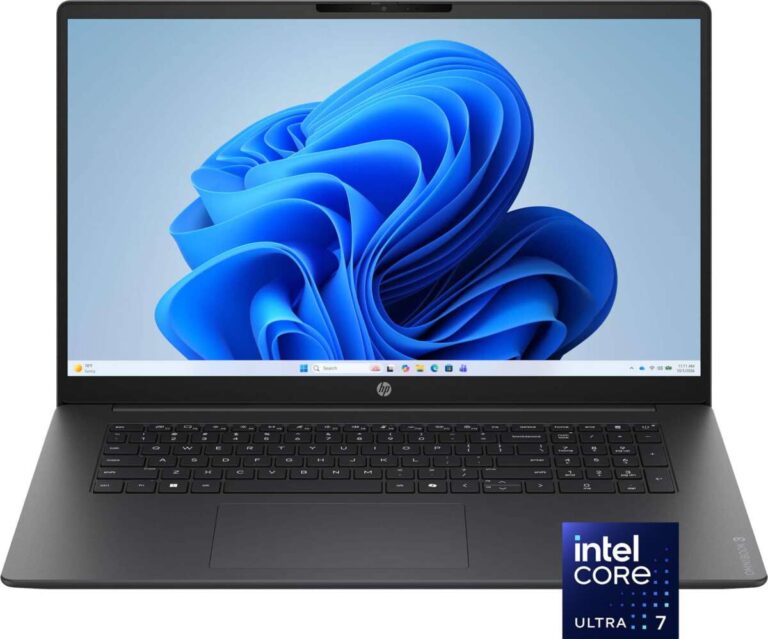
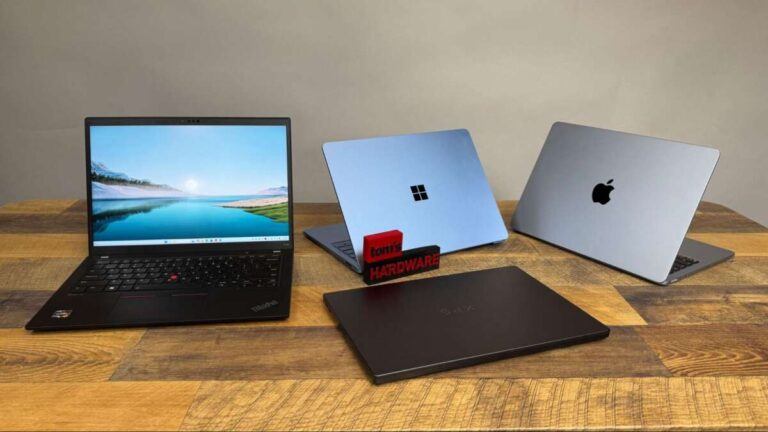
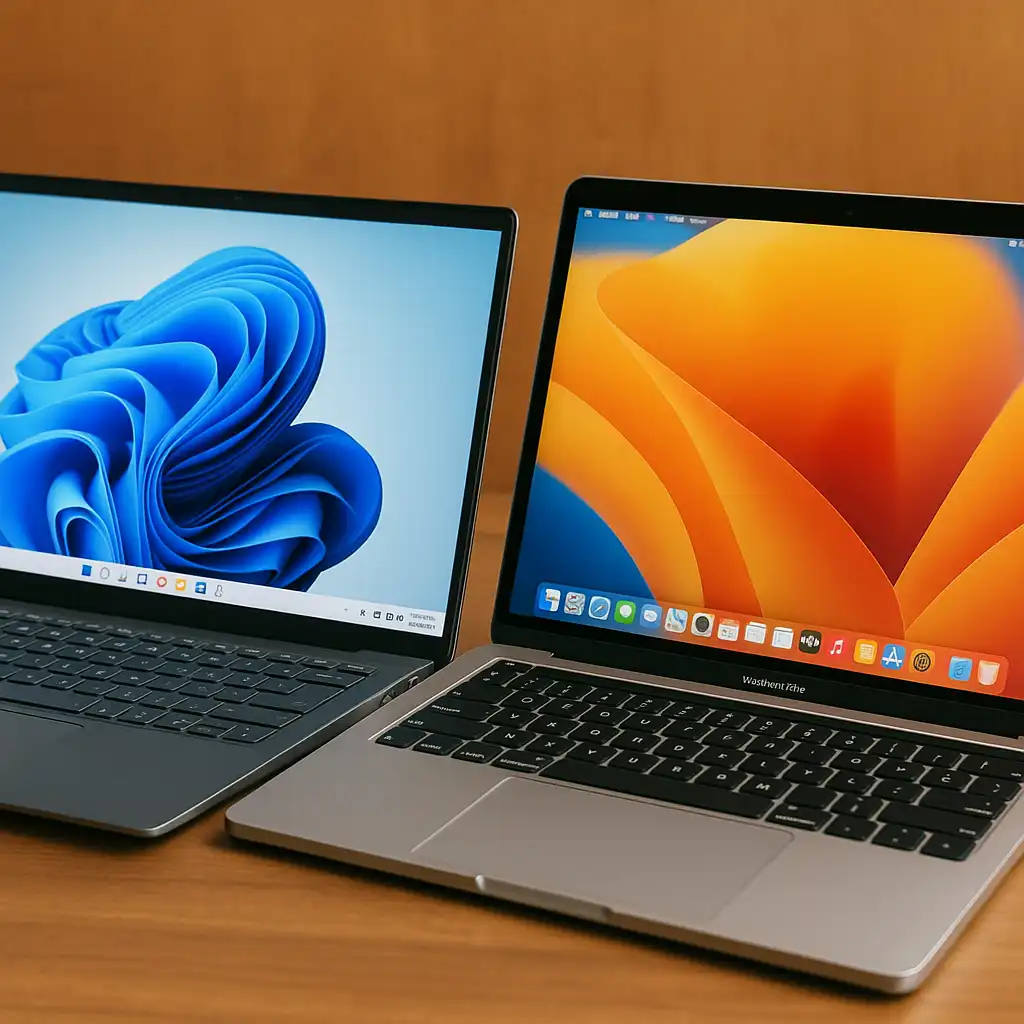
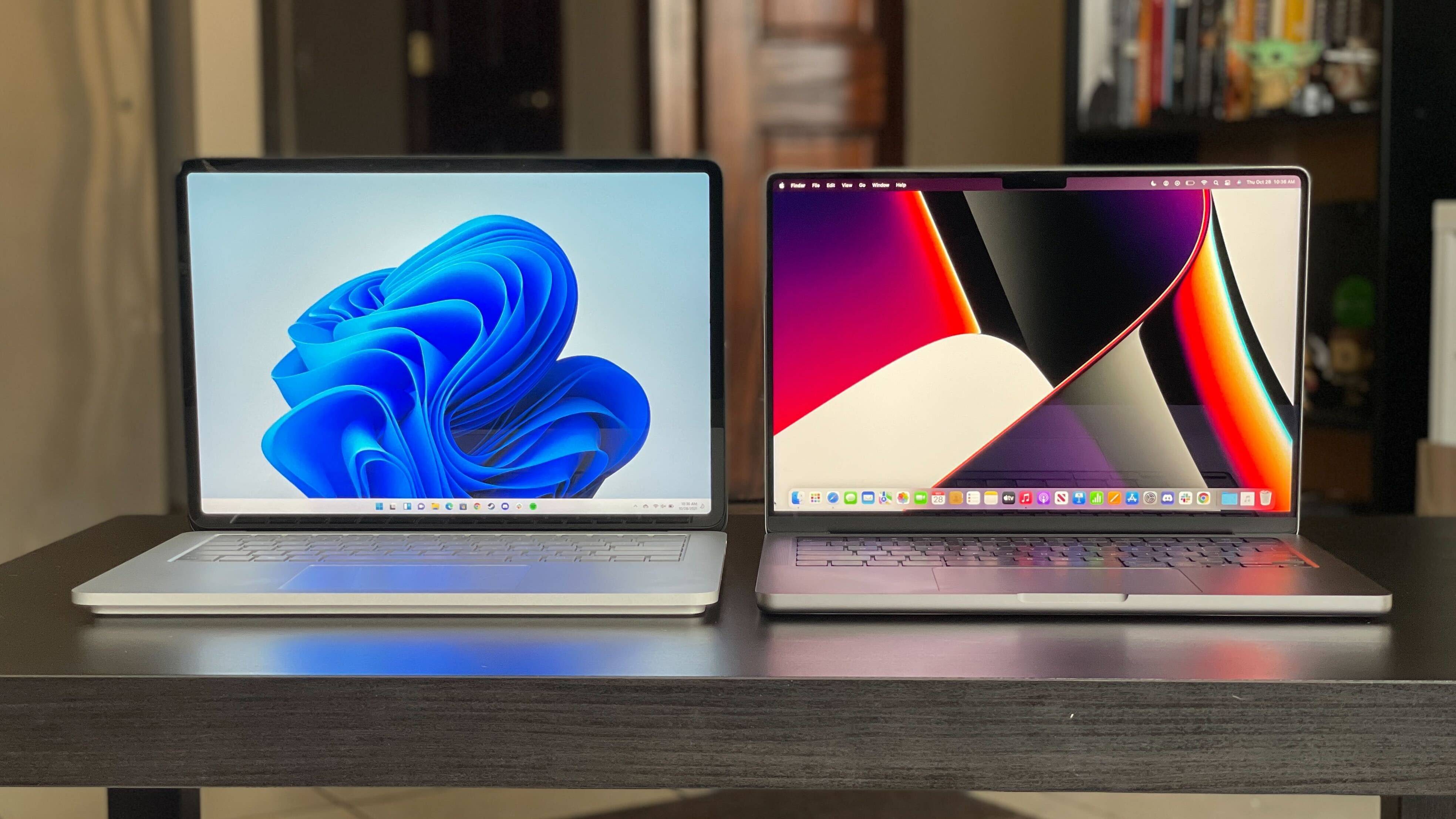
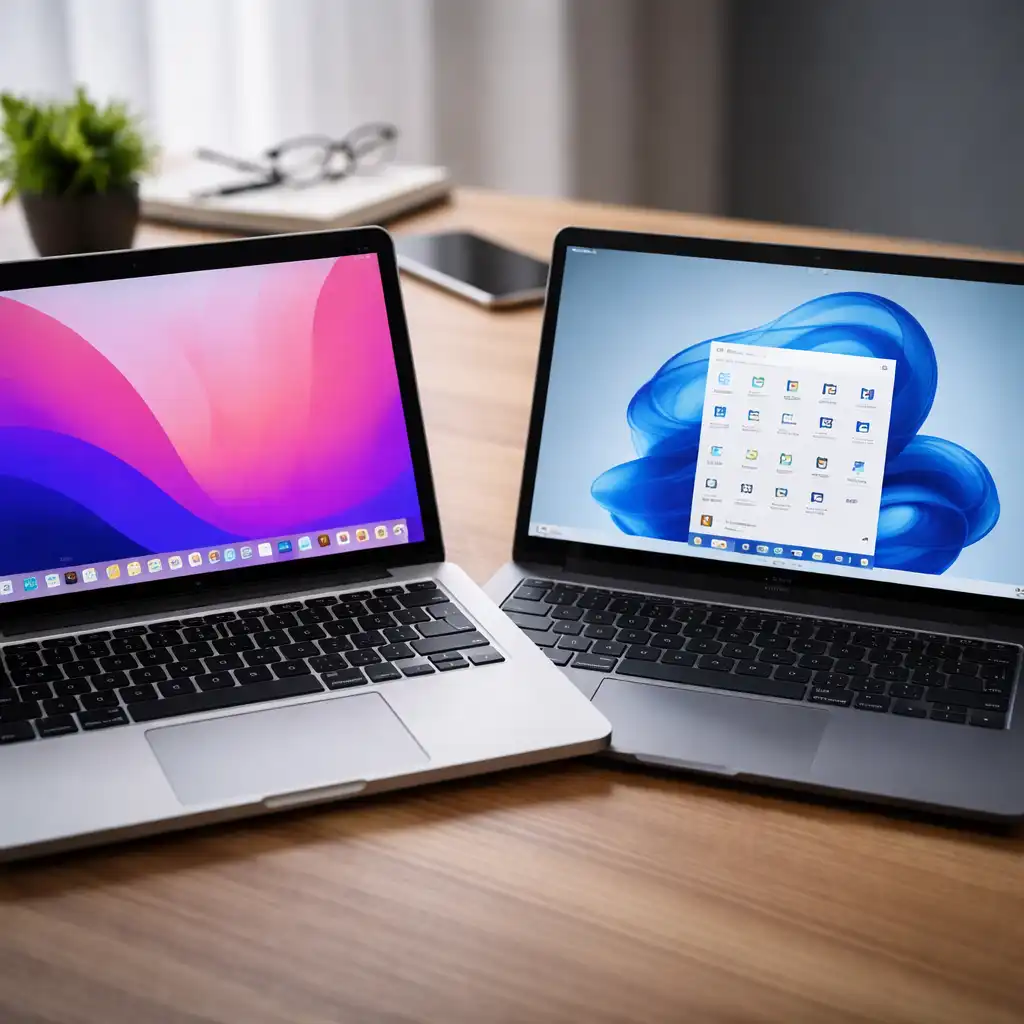
For shoppers in the United States, the main difference is the operating system: a MacBook runs Apple’s macOS, while a Windows laptop runs Microsoft Windows. That choice affects the apps you can use, the games you can play, the hardware you can buy, the way the laptop connects to your phone, and how much you may pay.
MacBooks are made only by Apple. Windows laptops come from brands such as Dell, HP, Lenovo, ASUS, Acer, Microsoft, and others. Neither option is best for every person. The right choice depends on your budget, work, school needs, favorite apps, gaming plans, and other devices.

MacBook vs. Windows laptop: the quick answer
A MacBook is often a strong fit if you want:
- A simple and consistent user interface
- Strong integration with an iPhone or iPad
- Long battery life on many current models
- Apple apps such as Final Cut Pro or Logic Pro
- A premium aluminum design
- A laptop that is easy to set up and use
A Windows laptop may be better if you want:
- More choice in price, size, and design
- Better support for PC gaming
- More ports or upgrade options
- Specialized business or engineering software
- A touchscreen or 2-in-1 design
- Easier access to low-cost laptops
- Compatibility with Windows-only programs
The biggest practical question is not which brand is better. It is which system supports the software, devices, and tasks you already use.
What is a MacBook?
A MacBook is Apple’s notebook computer. Current MacBook models use Apple-designed chips, such as the M-series chips, and run macOS.
Apple sells two main MacBook lines:
- MacBook Air: Thin, light, and aimed at everyday work, school, travel, and light creative tasks.
- MacBook Pro: Designed for heavier work, such as video editing, software development, music production, and large photo projects.
A MacBook includes Apple hardware, macOS, and built-in apps. Apple controls both the computer and the operating system. This can make the experience feel more consistent across models.
MacBooks also work closely with other Apple devices. For example, an iPhone can share its internet connection with a MacBook. You can also use features such as AirDrop, iCloud, Handoff, and iPhone message syncing when the devices and accounts meet Apple’s requirements.
That tight design has a trade-off. You get fewer hardware choices, and MacBooks often cost more than entry-level Windows laptops.
What is a Windows laptop?
A Windows laptop is a portable computer that runs Microsoft Windows. Unlike the MacBook, it is not made by one company.
Many companies build Windows laptops. These include:
- Dell
- HP
- Lenovo
- ASUS
- Acer
- Microsoft
- Samsung
- Razer
- Framework
Windows laptops range from basic models for web browsing to high-end workstations and gaming systems. Some have standard clamshell designs. Others have touchscreens, detachable keyboards, or hinges that let you use the laptop as a tablet.
This wide range is Windows’ main strength. You can choose a small, inexpensive laptop, a large gaming laptop, a business model with many ports, or a premium machine with a high-resolution screen.
The trade-off is variety. Two Windows laptops can look very different and offer very different quality. You must compare the exact model, processor, memory, storage, screen, battery, warranty, and build quality.

MacBook vs. Windows laptop: the main differences
The table below shows the most important differences for most U.S. buyers.
| Category | MacBook | Windows laptop |
|---|---|---|
| Operating system | macOS | Windows |
| Manufacturer | Apple only | Many brands |
| Price range | Usually midrange to premium | Budget to premium |
| Gaming | Smaller game library than Windows | Broadest PC game support |
| Hardware choice | Limited number of models | Very wide range |
| Apple device integration | Excellent with iPhone and iPad | Works with Apple devices, but with fewer built-in links |
| Touchscreens | Not offered on current MacBook models | Common on many models |
| 2-in-1 designs | Not available as a MacBook feature | Widely available |
| Software | Strong creative and general-use support | Strong business, technical, and gaming support |
| Ports | Varies by model; adapters may be useful | Varies widely; some models offer more ports |
| Repairs and upgrades | Often limited by model design | Depends on brand; some models are easier to service |
| File system | macOS file system and Apple tools | Windows file system and Microsoft tools |
These are broad trends, not rules for every laptop. A premium Windows laptop may have better battery life than a low-cost MacBook for a particular task. A MacBook may run some creative software faster than a Windows laptop at a similar price. Compare specific models when the decision is close.
Operating system: macOS vs. Windows
The operating system controls how you open apps, manage files, change settings, connect devices, and protect the computer.
macOS
macOS has a clean layout and a strong link to Apple services. Common tools include Finder for files, Spotlight for search, and System Settings for control options.
MacBooks also include Apple apps such as:
- Safari
- Messages
- FaceTime
- Photos
- iMovie
- GarageBand
- Preview
macOS is popular with many people who work in design, media, education, and software development. It can also run common apps from Microsoft, Google, Adobe, Zoom, Slack, and many other companies.
The main limitation is app compatibility. Some Windows-only business tools, games, and technical programs do not have a Mac version. A Mac may run some Windows software through tools such as virtualization, but performance and support can vary.
Windows
Windows 11 supports a broad range of hardware and software. It includes tools such as File Explorer, Windows Search, Microsoft Defender, and the Microsoft Store.
Windows is common in U.S. offices, schools, hospitals, government agencies, and small businesses. That can make it easier to use workplace systems or older programs.
Windows also offers more ways to adjust the computer. You can choose from different manufacturers, graphics chips, screen sizes, ports, keyboards, and cooling systems.
Windows has its own drawbacks. Updates can vary by computer maker. Some laptops include extra software that you may not need. The quality of the user experience depends more on the laptop brand and model.

Performance and battery life
Performance depends on the exact processor, memory, cooling system, software, and task. The operating system alone does not decide which laptop is faster.
Apple’s current MacBook chips are designed for strong performance and low power use. This can help many MacBook models run quietly and last for much of a work or school day. Battery life still changes with screen brightness, video calls, games, browser tabs, and connected devices.
Windows laptops cover a much wider performance range. A low-cost Windows laptop may be slow with many apps open. A premium Windows laptop with a modern processor can be very fast. A gaming laptop may deliver high graphics performance but use more power and make more fan noise.
When comparing battery claims, check the test conditions. Manufacturer estimates are not the same as a shared real-world test. Look for the exact model and workload rather than assuming one operating system always lasts longer.
For everyday work, compare:
- Processor model
- RAM capacity
- SSD storage
- Screen size and resolution
- Battery capacity
- Weight
- Charger size
- Cooling design
For demanding work, also compare graphics performance and sustained speed. A laptop may perform well for a short task but slow down during a long video export if its cooling system cannot remove enough heat.

Software and app compatibility
Software compatibility may be the deciding factor between a MacBook and a Windows laptop.
MacBooks support many popular apps, including Microsoft 365, Google Workspace, Adobe Creative Cloud, Zoom, and web-based tools. They also support Apple programs such as Final Cut Pro and Logic Pro.
Windows laptops support a large range of business, gaming, technical, and school software. They are often the safer choice when an employer, college, or professional program lists Windows as a requirement.
Before buying, check the official requirements for the apps you need. Pay close attention to:
- Operating system support
- Processor type
- RAM requirement
- Graphics requirement
- Plug-in support
- Peripheral support
- Subscription or license limits
- School or workplace access rules
Some MacBooks use Apple silicon chips rather than Intel processors. Most major apps now support Apple silicon, but older plug-ins, drivers, or specialized tools may need an update or compatibility layer.
A useful rule is simple: buy the platform your required apps support directly. Do not assume that a workaround will remain convenient for several years.

Gaming: Windows usually has the advantage
Windows is usually the better choice for PC gaming.
Windows supports a larger game library and a wider range of graphics hardware. It also offers more gaming laptops with dedicated graphics chips from companies such as NVIDIA and AMD. These chips can improve performance in demanding games.
Windows also supports more gaming accessories, game launchers, mods, and competitive gaming tools. Many games are built and tested first for Windows.
Mac gaming has improved in some areas, but the catalog remains smaller. Some popular games do not have a native macOS version. Compatibility tools may help with certain titles, but they can add setup steps or reduce performance.
A MacBook can still work well for casual games, Apple Arcade, browser games, and games with native Mac support. It is less suitable if your main goal is to play new AAA games, use mods, or build a high-performance gaming setup.

Design, screen, keyboard, and ports
MacBooks usually offer a consistent design. Many models use aluminum bodies, high-quality trackpads, and sharp displays. Apple controls the design across the product line, so the differences between models are easier to understand.
Windows laptops offer more variety. You can find:
- Small 13-inch models
- Large 16-inch models
- OLED screens
- Touchscreens
- High-refresh-rate gaming displays
- 2-in-1 hinges
- Built-in stylus support
- Number pads
- Business-focused keyboards
This variety helps you match the laptop to your work. It can also make shopping more complex.
Ports vary by model. Some MacBooks rely heavily on USB-C and may require a hub for HDMI, USB-A, Ethernet, or an SD card. Some MacBook Pro models include more built-in ports than MacBook Air models.
Windows laptops may include USB-A, USB-C, HDMI, Ethernet, an SD card reader, or a headphone jack. But do not assume a Windows laptop has every port. Check the exact specifications.
If you use external monitors, cameras, projectors, printers, or storage drives, list those devices before buying. Then confirm that the laptop supports the needed connection without an expensive adapter.

iPhone and Android integration
A MacBook is usually the easier choice for someone who already uses an iPhone.
Apple features can let you:
- Send and receive messages on the Mac
- Answer some calls from the Mac
- Move photos and files with AirDrop
- Copy and paste between Apple devices
- Use an iPhone as a webcam in supported situations
- Share an iPhone connection
- Continue some tasks across devices
These features depend on compatible hardware, current software, and the same Apple Account.
A Windows laptop can still work with an iPhone. You can use a web browser, cloud storage, Microsoft services, and other apps. The experience is simply less unified in some areas.
Windows laptops work well with Android phones through Microsoft’s Phone Link features, subject to device and software support. Some Android brands offer additional tools for file sharing and cross-device control.
The decision is straightforward for many people: choose a MacBook if your daily workflow centers on an iPhone and Apple services. Choose Windows if you use Android, Microsoft tools, or a mixed-device setup and want broad hardware choice.

Price and value
Windows laptops offer the broadest price range. In the United States, you can find basic Windows laptops at lower prices than most MacBooks. These models can handle web browsing, email, streaming, and light school work.
Low prices can bring trade-offs, such as:
- Less RAM
- Smaller storage
- Dimmer screens
- Shorter battery life
- Weaker build quality
- Fewer years of comfortable use
MacBooks often cost more at the starting point. They may offer strong build quality, fast storage, and good battery performance, but the upfront price is only one part of the cost.
When comparing value, include:
- Laptop price
- Charger and adapter cost
- Microsoft 365 or other software fees
- Warranty coverage
- Repair cost
- Storage needs
- Expected replacement date
- Accessories such as a dock, monitor, or case
A hypothetical example: a $600 Windows laptop may seem cheaper than a $1,000 MacBook. But if the Windows model has too little storage or memory for your work, you may spend more on accessories or replace it sooner. The lower purchase price does not always mean the lower long-term cost.
Do not assume that a higher price guarantees better value. Compare the exact features you will use.
Security, updates, and privacy
Both macOS and Windows include built-in security tools. Both can be safe when kept updated and used with strong account protection.
Security depends on more than the operating system. It also depends on:
- Software updates
- Password strength
- Multi-factor authentication
- App sources
- Browser habits
- Backup practices
- Device encryption
- Physical access to the laptop
Windows is a large target for malware because it is widely used. Microsoft Defender provides built-in protection, but it does not make unsafe downloads harmless.
MacBooks also face malware, scams, and phishing attacks. A Mac is not immune to security threats. Avoid unknown downloads, use trusted app sources, and install updates from official tools.
For either platform, set up automatic updates when practical. Use a password manager and multi-factor authentication. Keep a separate backup of important files. Cloud syncing is useful, but syncing is not always the same as a full backup.

Repairs, upgrades, and lifespan
Repair and upgrade options vary by model.
Many modern MacBooks have components that are tightly integrated into the main board. This can limit upgrades after purchase. Memory and storage choices may need to be made when you buy the computer.
Windows laptops range from easy-to-service business models to thin systems with limited access. Some brands provide service manuals and replacement parts. Others make upgrades difficult or may restrict which parts work correctly.
Check these details before buying:
- Can the RAM be upgraded?
- Can the SSD be replaced?
- Is the battery replaceable by a qualified repair shop?
- Are replacement parts available?
- Does the manufacturer publish repair information?
- How long does the company provide software updates?
- What does the warranty cover?
A laptop may last for many years if its processor, memory, storage, battery, and software support remain adequate. Actual lifespan depends on use and care.
Do not open a laptop while it is powered on or connected to power. If the battery is swollen, unusually hot, leaking, or damaged, stop using the device and contact the manufacturer or a qualified repair provider.

Which is better for students, work, and creative tasks?
For college and school
Either platform can work well for writing, research, video calls, and online learning. A MacBook may fit students who use an iPhone and prefer Apple’s interface.
A Windows laptop may be better if the school requires Windows-only software, offers Windows-based technical labs, or uses specialized engineering, business, or health tools.
Check the school’s technology requirements before buying. This step can prevent an expensive mistake.
For office work
Both platforms support common office tools. Windows may fit better in a company that depends on Windows management systems, specialized internal software, or Microsoft-only applications.
A MacBook may fit well in offices that use browser-based tools, Microsoft 365, Google Workspace, creative software, or Apple devices.
Ask your employer’s IT team about device support, security rules, and remote access before buying a personal work laptop.
For creative work
MacBooks are popular for photo, video, audio, and design work. Apple’s own creative apps and color-focused displays can appeal to creative users.
Windows may be better for creative work that needs a dedicated graphics card, certain 3D tools, specialized plug-ins, or a wider range of displays and accessories.
The specific app matters more than the logo on the laptop. Check the developer’s system requirements for the version you plan to use.

How to choose between a MacBook and a Windows laptop
Use this short decision process.
Choose a MacBook when:
- You use an iPhone and want close device integration.
- Your required apps support macOS.
- You prefer a small, consistent product range.
- You value a strong trackpad and simple setup.
- You do not need a touchscreen or 2-in-1 hinge.
- You are not buying mainly for PC gaming.
Choose a Windows laptop when:
- You need broad PC game support.
- Your school or employer requires Windows.
- You want more price and hardware choices.
- You need a touchscreen or convertible design.
- You need a dedicated graphics card.
- You rely on Windows-only software.
- You want more built-in ports or easier upgrades.
Before you buy, check five things
- Required software: Confirm that every essential app runs on the platform.
- Budget: Include adapters, software, accessories, and support.
- Performance: Match the processor, memory, and graphics hardware to your workload.
- Connections: Check ports for your monitor, camera, drive, printer, and other devices.
- Support: Review the warranty, repair options, and update policy.
The safest choice is the laptop that meets your real needs without forcing you to depend on workarounds.
Common mistakes to avoid
Buying by brand alone
A well-known brand can sell both strong and weak models. Compare the exact configuration.
Choosing too little memory
A laptop with limited memory may slow down when you open many browser tabs or large files. For heavier work, consider a model with more memory than the basic entry configuration.
Ignoring storage
Photos, videos, games, and creative projects can fill a small drive quickly. Check whether the storage can be upgraded later.
Assuming every app works everywhere
Check the official software requirements before you buy. This is especially important for games, engineering tools, business systems, and older programs.
Forgetting accessories
A thin laptop may need a USB-C hub, external monitor adapter, or special charger. Add those costs to your budget.
Treating cloud sync as a full backup
Cloud services can help protect files, but they may sync deletions or changes. Keep another backup for files you cannot replace.
Buying a gaming laptop for light work
Gaming laptops can be powerful, but they may be heavier, louder, and less portable. Buy one only if you need its graphics performance.

Frequently asked questions
Is a MacBook better than a Windows laptop?
Neither is always better. A MacBook may be better for Apple device integration, macOS apps, battery-focused portable use, and a simple product range. A Windows laptop may be better for gaming, specialized software, touchscreen designs, lower prices, and hardware variety.
Can a MacBook run Windows?
Some MacBooks can run Windows through virtualization software. Support depends on the Mac model, processor, Windows version, and virtualization tool. Performance may not match a native Windows laptop, especially for games or hardware-heavy programs.
Can a Windows laptop connect to an iPhone?
Yes. You can connect an iPhone to a Windows laptop for charging, file access in supported cases, cloud services, browser use, and some cross-device features. The experience may not match the built-in integration between an iPhone and MacBook.
Which lasts longer, a MacBook or a Windows laptop?
The exact model matters more than the operating system. A well-built laptop with enough memory, storage, and software support can last for years. Battery wear, repair access, updates, and workload all affect usable life.
Is a MacBook good for gaming?
A MacBook can handle games with native macOS support, browser games, and some other options. Windows remains the safer choice for a large PC game library, dedicated graphics options, mods, and competitive gaming.
Is a Windows laptop safer than a MacBook?
Neither is automatically safe. Both platforms need updates, strong passwords, multi-factor authentication, careful downloads, and backups. Security habits and software support matter greatly.
Bottom line
The difference between a MacBook and a Windows laptop starts with macOS versus Windows, but the choice affects much more than the screen and keyboard.
Choose a MacBook for a focused product line, close iPhone integration, and a simple macOS experience. Choose a Windows laptop for broader hardware choice, stronger PC gaming support, touchscreen options, specialized software, and more low-cost models.
Before buying, check your required apps, budget, ports, phone, games, and repair needs. Those answers usually make the right choice clear.

Everett Ashford is a tech reviewer at mytechgrid.com specializing in SSDs, cameras, TVs, earbuds, headphones, and other consumer electronics. He provides honest, data-driven reviews based on hands-on testing and real-world performance analysis. Everett simplifies complex tech details to help readers make smart, confident buying decisions.