On most Canon cameras with a CA setting on the mode dial, CA means Creative Auto. It is an automatic shooting mode that lets you change a few creative settings—such as background blur, image brightness, color tone, and flash use—without learning full manual exposure.
The exact controls depend on your Canon model. On newer cameras, Canon may use Creative Assist instead of the older Creative Auto name. If you see CA on the physical mode dial, consult the manual for your exact camera to confirm its function.
Quick answer
CA usually means Creative Auto. It is designed for people who want more control than Auto mode but do not yet want to set shutter speed, aperture, and ISO by hand.
It is not the same as:


- Chromatic aberration, a lens color-fringing problem
- Av mode, which gives you direct control of aperture
- M mode, which gives you full manual control
- Creative Assist, a newer Canon feature with a similar goal

What Creative Auto does
Creative Auto gives you a simple way to change the look of a photo while the camera still handles most technical settings.
Depending on the Canon model, CA may let you adjust:
- Background blur: Make the background softer or sharper
- Brightness: Make the photo lighter or darker
- Color tone or ambience: Make colors warmer, cooler, softer, or more vivid
- Drive mode: Choose single shooting, continuous shooting, or a self-timer
- Flash: Allow the camera to use flash or prevent flash use
- Picture style: Select a look such as Standard, Portrait, Landscape, or monochrome
Canon used the Creative Auto mode on several EOS Rebel DSLR cameras. The labels and menus can differ between models, so the controls on a Rebel T3i may not match those on a Rebel T7i or another EOS camera.
Background blur
The background blur control is often the most useful CA setting for beginners.
A blurred background can help a person, pet, or flower stand out. A sharper background works better when you want more of the scene to remain clear, such as in a family group photo or a landscape.
The camera may show this setting with words such as:


- Background: blurred ↔ sharp
- Background blur
- Aperture: open ↔ closed
The camera still chooses the final aperture and other exposure settings. You are asking for a visual result rather than selecting a precise f-number.
Brightness
The brightness control is similar to exposure compensation. It can make the image look lighter or darker while the camera remains in an automatic mode.
This is useful when:
- A snow scene looks gray instead of white
- A person standing near a bright window looks too dark
- The photo looks too bright under strong sunlight
The camera may display a scale or slider rather than a number such as +1 or -1 EV. This makes the setting easier to use, but it provides less direct control than the standard exposure-compensation control on more advanced modes.
Color and ambience
Some Canon cameras allow you to select an ambience or color effect in Creative Auto. The names may include options such as:
- Standard
- Vivid
- Soft
- Warm
- Cool
- Monochrome
- Intense
These settings change the appearance of the finished JPEG photo. They do not change the actual lighting in the scene.
If you shoot RAW, the original sensor data remains available for later editing. However, the preview on the camera may still show the selected picture style or color effect.

How to use CA mode on a Canon camera
The steps below apply to many Canon EOS cameras with a CA position on the mode dial. Menu names can vary, so treat them as a general guide.
1. Turn on the camera
Insert a charged battery and a memory card. Attach a lens that can focus normally, then turn on the camera.
2. Set the mode dial to CA
Turn the mode dial to CA or Creative Auto.
If the camera does not have a CA position, it may use A+, Scene Intelligent Auto, or Creative Assist for a similar beginner-friendly function.
3. Press Q or SET
Press the Q, Quick Control, or SET button. Canon uses different button layouts across its camera lines.
A control screen should appear. It may show icons for background blur, brightness, ambience, drive mode, and flash.
4. Choose the setting you want to change
Use the directional buttons, touchscreen, or main dial to select a control.


For a portrait, you might choose:
- More background blur
- Slightly warmer color
- Single-shot drive mode
- Flash off in good outdoor light
For a group photo, you might choose:
- A sharper background
- Standard color
- A self-timer
- Flash on if the group is in shade
5. Adjust the value
Move the slider or turn the dial. Watch the on-screen example if your camera provides one.
The preview is a guide, not a guarantee. Lens focal length, distance from the subject, subject distance from the background, and available light all affect the final result.
6. Focus and take the photo
Place the focus point over your subject. Half-press the shutter button to focus, then press it fully to take the picture.
Review the image. If the background is not blurred enough, move closer to the subject, use a longer focal length, or choose a stronger blur setting if available.
CA mode compared with other Canon shooting modes
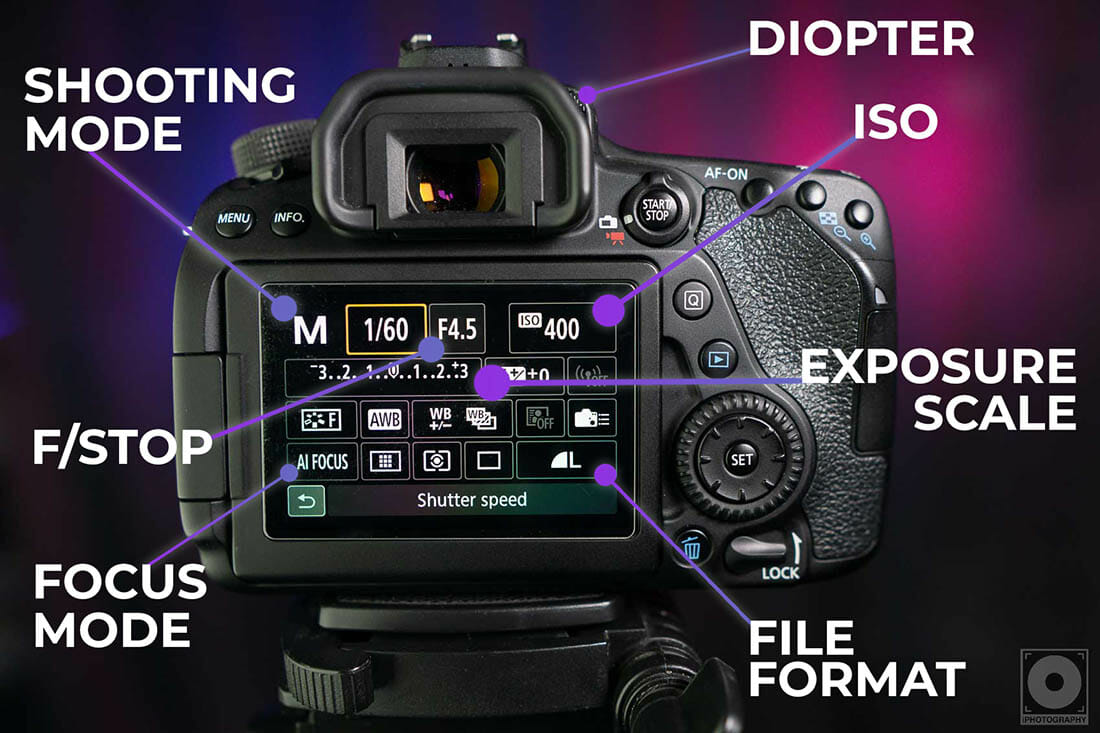
CA is best understood as a middle step between fully automatic shooting and traditional exposure control.
| Canon mode | Main purpose | How much control you get |
|---|---|---|
| Auto or Scene Intelligent Auto | Let the camera choose nearly everything | Very low |
| CA, or Creative Auto | Adjust simple creative effects | Low to moderate |
| P, Program AE | Camera selects exposure, while you control more settings | Moderate |
| Av, Aperture Priority | You choose aperture; camera sets shutter speed | High |
| Tv, Shutter Priority | You choose shutter speed; camera sets aperture | High |
| M, Manual | You choose shutter speed and aperture | Very high |
CA versus Auto
Auto mode is designed to keep the process simple. You point the camera, focus, and shoot.
CA adds creative choices. You can tell the camera that you want a softer background or a warmer look without needing to understand aperture or white balance first.
CA versus Av mode
Av mode gives you direct aperture control. This makes it more precise for controlling depth of field.
For example, you can choose f/2.8 or f/8 if your lens supports those settings. In CA mode, you normally choose a result such as “more blurred background,” and the camera decides the exact aperture.
Choose Av when:
- You want repeatable control over depth of field
- You understand how aperture affects exposure
- You need a specific f-number
- You are using a lens with a wide aperture
Choose CA when:
- You want a quick creative adjustment
- You do not want to manage exposure settings
- You are still learning aperture
CA versus M mode
Manual mode gives you full control over shutter speed, aperture, and often ISO. It is useful when you need consistent exposure or want to control motion blur precisely.


CA is easier, but it cannot give the same level of control. The camera may change exposure settings from one picture to the next as the light changes.
Why CA may not create the result you expect
Creative Auto does not override the laws of photography. A background may remain fairly sharp even when you select more blur.
The most important factors are:
Lens aperture
A wider aperture, represented by a smaller f-number, usually creates a shallower depth of field. A lens set to f/2 creates more blur than the same lens at f/11, all else being equal.
CA may select a suitable aperture, but the lens may limit what is possible.
Focal length
A longer focal length often makes background blur easier to see. A telephoto lens can separate a subject from the background more clearly than a wide-angle lens from the same position.
Subject distance
Move closer to the subject when you want more background blur. Do not move so close that the lens cannot focus.
Distance between the subject and background
A subject standing several feet in front of a wall will usually have a softer-looking background than a subject standing directly against that wall.
Available light
In low light, the camera may use a slow shutter speed or raise ISO. This can cause blur from camera movement or visible noise.
If the subject is moving, use a faster shutter speed or a mode that gives you more control, such as Tv or M.

What does CA mean if it appears in a photo-editing menu?
The abbreviation CA can have a different meaning outside the camera’s shooting mode.
In lens and photo-editing menus, CA may refer to chromatic aberration. Chromatic aberration is a color fringe that can appear along high-contrast edges, such as tree branches against a bright sky or a dark building against white clouds.
It may look like:
- Purple or green edges
- Red and cyan color fringes
- Colored lines around fine detail
Chromatic aberration is an optical effect, not a shooting mode. Canon software such as Digital Photo Professional may offer lens correction tools for it.


The meaning depends on where you see the letters:
- CA on the mode dial: Usually Creative Auto
- CA in a shooting menu: Often Creative Auto or a creative setting
- CA in a lens-correction or editing menu: May mean chromatic aberration
When in doubt, check the page for your camera model in Canon’s official US support and instruction-manual library.
Creative Auto and Creative Assist are not always the same
Canon has used different names for similar beginner-focused tools over time.
Creative Auto
Creative Auto is commonly marked CA on the mode dial of older Canon EOS DSLR cameras. It provides a small group of simple controls while the camera handles exposure.
Creative Assist
Creative Assist appears on some newer Canon cameras. It may be available through an A+ automatic mode, a Quick Control screen, or a menu option.
Creative Assist can provide controls such as:
- Brightness
- Background blur
- Color tone
- Contrast
- Saturation
- Monochrome effects
The camera body may not show the letters CA at all. A Canon mirrorless camera can offer Creative Assist without having a physical CA dial position.
This is why the camera model matters. The same abbreviation may be used casually by users, but Canon’s exact feature name and controls can differ.
Common mistakes when using CA mode
Expecting precise aperture control
CA is not a replacement for Av mode. The background-blur slider does not always tell you the exact aperture the camera will use.
If you need a precise aperture, switch to Av.
Assuming more blur always means a better photo
Too much blur can hide part of a subject. For a group photo, a very shallow depth of field may leave some people out of focus.
Use less blur when several subjects stand at different distances.
Forgetting that flash may be automatic
Depending on the camera and setting, the built-in flash may pop up or fire when the camera thinks it is needed.
If you do not want flash, select flash-off or use a mode that gives you direct flash control.
Using a slow shutter speed for moving subjects
CA may favor a wide aperture or higher ISO in dim light, but a moving subject can still appear blurred.
For sports, children, pets, or stage performances, Tv mode or a suitable scene mode may work better.
Treating a JPEG effect as a RAW change
Color and ambience controls can affect the camera’s JPEG rendering. A RAW file gives you more flexibility later, but the in-camera preview may not match the unprocessed RAW data.
Assuming every Canon camera has CA
Many Canon cameras do not include a mode labeled CA. Some use A+, Scene Intelligent Auto, Creative Assist, or other names.
Do not force a setting based on a general Canon guide. Use the manual for the exact camera model.
When should you stop using CA?
Move from CA to another mode when you need control that CA cannot provide.
Use Av when you want to control depth of field.
Use Tv when motion matters, such as freezing a runner or creating motion blur in a waterfall.
Use M when you need the same exposure across a series of images, such as for studio work or a panorama.
Use P when you want automatic exposure but more access to ISO, white balance, exposure compensation, and other controls.
CA is not a “wrong” mode. It is a useful learning tool. It helps you connect a visual goal—such as a blurred background—to the camera setting that creates it.

Frequently asked questions
Does CA mean camera aperture?
No. On a Canon mode dial, CA usually means Creative Auto, not camera aperture. Aperture is the opening inside the lens, and Av mode gives you direct control of it.
Is CA the same as Creative Assist?
No, although the two features serve a similar purpose. Creative Auto is often labeled CA on older Canon cameras. Creative Assist is used on some newer Canon models and may be found inside an A+ or automatic shooting mode.
Can I use CA mode for portraits?
Yes. Select more background blur, focus on the person’s eye, and keep some distance between the subject and the background. The result will depend on the lens, lighting, subject distance, and camera model.
Can CA mode blur the background with a kit lens?
Yes, but the amount of blur may be limited. Use the lens’s longest focal length, move closer to the subject, and place the subject farther from the background. A lens with a wider maximum aperture can create more blur, but CA does not require one.
Why does my Canon camera have no CA setting?
Your camera may use a different system. Look for A+, Creative Assist, Scene Intelligent Auto, or a similar automatic mode. Canon changed its menu and mode names across camera generations.
How do I confirm what CA means on my Canon camera?
Find the exact model name on the front, top, or bottom of the camera. Then open the camera’s manual through Canon USA Support and search for “CA,” “Creative Auto,” or “Creative Assist.” The model-specific manual is the final authority.
Final answer
On a Canon camera, CA usually means Creative Auto. It lets you adjust simple creative effects, including background blur, brightness, color, drive mode, and flash, while the camera manages most exposure decisions.
If CA appears in an editing or lens-correction menu, it may instead mean chromatic aberration. Check where the abbreviation appears and confirm the meaning in the manual for your exact Canon model.
For your next step, set the camera to CA, press Q or SET, and look for the background-blur and brightness controls. If the camera has no CA position, look for Creative Assist or an A+ automatic mode instead.

Everett Ashford is a tech reviewer at mytechgrid.com specializing in SSDs, cameras, TVs, earbuds, headphones, and other consumer electronics. He provides honest, data-driven reviews based on hands-on testing and real-world performance analysis. Everett simplifies complex tech details to help readers make smart, confident buying decisions.