For most people in the United States, the best laptop for AutoCAD is a Windows laptop with a modern Intel Core Ultra 7 or AMD Ryzen 7 processor, 32 GB of RAM, a 1 TB SSD, and a dedicated NVIDIA RTX graphics card. This setup handles 2D drafting, large drawings, 3D models, rendering, and multitasking without forcing you to upgrade soon.
If you only use AutoCAD for light 2D plans, you can spend less. If you work with Civil 3D, Revit, point clouds, large assemblies, or rendering, choose a mobile workstation with more memory and a professional GPU.
AutoCAD is not equally demanding in every task. Drawing simple floor plans is much easier than orbiting a large 3D model or rendering a detailed scene. Your best laptop depends on how you use the software.
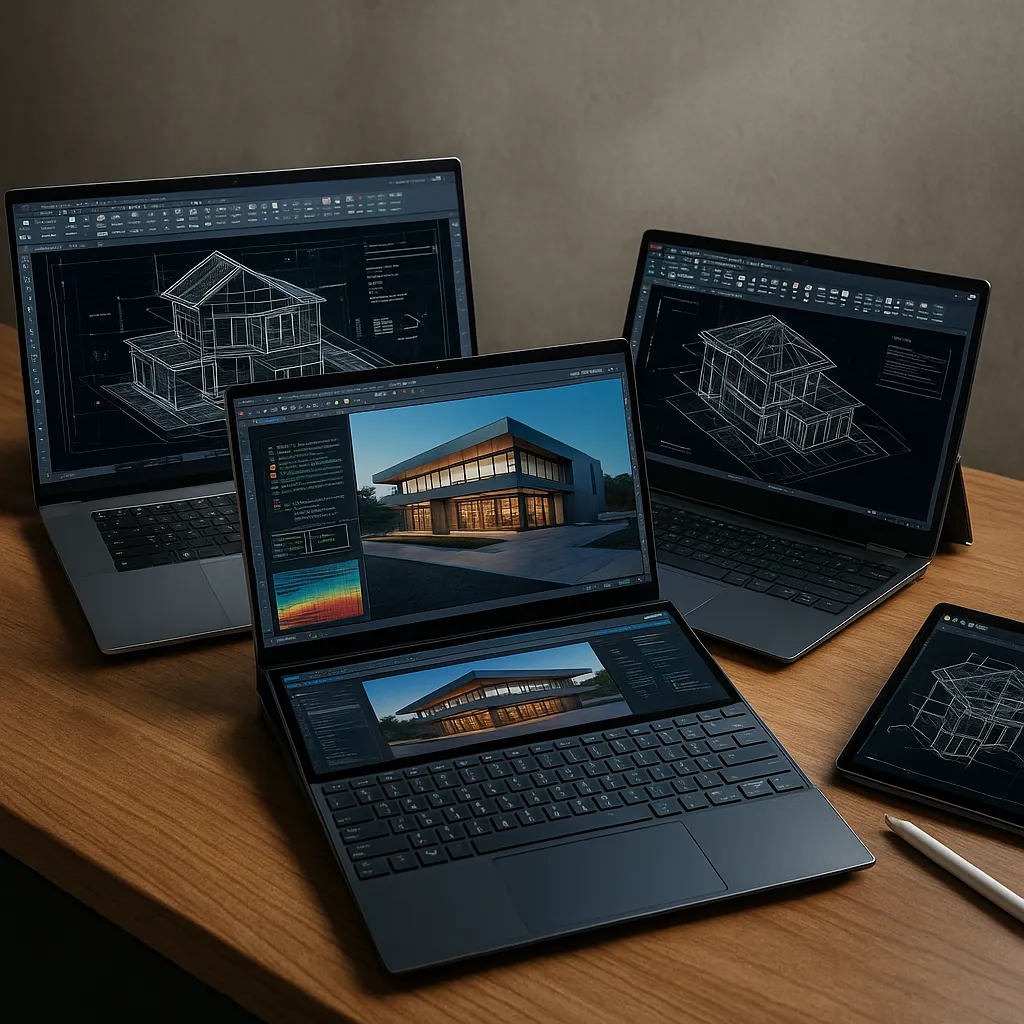
Quick answer: the best AutoCAD laptop by user type
The right choice depends on your drawings, budget, and need for mobility.
| User | Recommended laptop specification | Why it fits |
|---|---|---|
| Student or light 2D user | Core i5/Core Ultra 5 or Ryzen 5, 16 GB RAM, 512 GB SSD, integrated or entry RTX graphics | Handles plans, dimensions, and small files |
| Professional 2D drafter | Core Ultra 7 or Ryzen 7, 32 GB RAM, 1 TB SSD, RTX 4050 or better | Supports large files and daily multitasking |
| 3D designer | Core Ultra 7/Core Ultra 9 or Ryzen 7/Ryzen 9, 32–64 GB RAM, RTX 4060 or better | Gives smoother 3D view and faster renders |
| Civil or infrastructure user | Fast 8-core CPU, 32–64 GB RAM, 1 TB or 2 TB SSD, RTX 4060 or professional RTX graphics | Helps with large surfaces, point clouds, and linked files |
| Mobile workstation buyer | Lenovo ThinkPad P series, Dell Precision, or HP ZBook with certified professional graphics | Adds business support, upgrade options, and workstation features |
| Mac user | Recent Apple silicon MacBook Pro with at least 16 GB memory | Good for supported AutoCAD for Mac work, but has software limits |
These are practical buying targets, not strict AutoCAD requirements. Autodesk’s published requirements are lower for basic use. A laptop that meets the minimum may run AutoCAD, but it may feel slow with large drawings or other apps open.
What hardware does AutoCAD need?
AutoCAD benefits from a strong processor, enough memory, fast storage, and a capable graphics processor. Each part affects a different part of the work.
Processor: choose strong single-core speed
The CPU controls many common AutoCAD actions. Zooming, opening files, editing objects, and working with many commands often respond well to fast CPU cores.
Look for:
- Intel Core Ultra 7 or newer Core i7-class chips
- AMD Ryzen 7 processors
- At least six modern CPU cores
- A high sustained clock speed
- Good cooling in the laptop chassis
More cores help with rendering and other tasks that can run at the same time. However, buying a laptop only because it has the highest core count is not always wise. A fast eight-core chip may feel better in AutoCAD than a slower processor with more cores.
RAM: 16 GB is a floor for serious use
RAM holds your active drawing, software, browser tabs, and linked files. When RAM runs low, Windows uses the SSD as temporary memory. That can make the system feel much slower.
Use these targets:
- 16 GB: basic 2D drafting and student work
- 32 GB: the best balance for most professionals
- 64 GB: large 3D files, Civil 3D, point clouds, rendering, or several design apps at once
If the laptop has soldered memory, choose 32 GB from the start. Some thin laptops cannot be upgraded later.
Graphics card: integrated graphics can work, but dedicated graphics give more room
The GPU draws the model in the viewport. It matters more as your model becomes larger, more detailed, or more three-dimensional.
A dedicated NVIDIA GeForce RTX GPU is a practical choice for many buyers:
- RTX 4050: suitable for moderate 3D work
- RTX 4060: a strong middle choice for professional AutoCAD use
- RTX 4070 or higher: useful for heavy 3D work and rendering
- NVIDIA RTX professional graphics: worth considering when certified drivers and workstation support matter
Integrated graphics may be enough for simple 2D drawings. They can struggle with large 3D scenes, high-resolution displays, or several monitors.
AutoCAD does not turn every GPU task into a faster task. A powerful graphics card cannot fix a weak CPU, too little RAM, or poor cooling.
Storage: buy an SSD, not a hard drive
A solid-state drive makes Windows, AutoCAD, and drawing files open faster. It also has no moving parts.
A useful setup is:
- 512 GB SSD: workable for school or light use
- 1 TB SSD: better for professional work
- 2 TB SSD: useful for local project files, models, textures, and backups
Keep free space on the drive. A nearly full SSD can reduce performance and leave little room for temporary files.

Recommended AutoCAD laptop specifications
The table below gives a simple way to compare laptops before you buy.
| Part | Minimum practical target | Better long-term target |
|---|---|---|
| Operating system | 64-bit Windows 11 | Windows 11 Pro or supported Windows edition |
| Processor | Recent Core i5/Core Ultra 5 or Ryzen 5 | Core Ultra 7, Core i7-class, Ryzen 7, or better |
| Memory | 16 GB | 32 GB; 64 GB for heavy projects |
| Graphics | Modern integrated graphics or entry dedicated GPU | RTX 4050, RTX 4060, or professional RTX GPU |
| Storage | 512 GB NVMe SSD | 1 TB NVMe SSD |
| Display | 14-inch, 1920 × 1080 | 15- or 16-inch, 1920 × 1200 or higher |
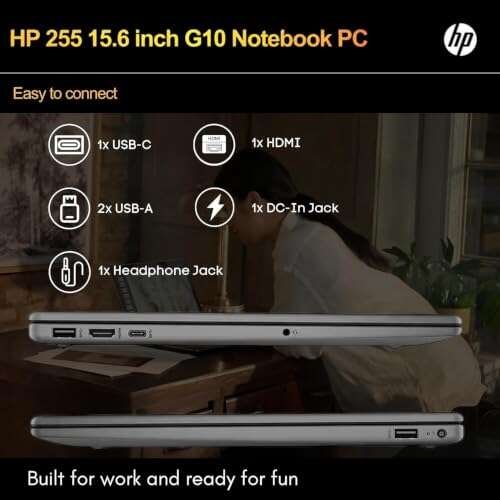
| Ports | USB-C and USB-A | USB-C, USB-A, HDMI, and a dock connection |
| Battery | Varies by model and workload | Larger battery with USB-C charging support |
| Warranty | One year | Three years with on-site or business support |
Autodesk’s official requirements should always be checked before purchase because supported versions can change. Requirements for AutoCAD 2025 may differ from later releases, and related products such as Civil 3D or Map 3D may have different needs.
The best AutoCAD laptop choices
There is no single best model for every buyer. The following types of laptops make sense for different users.
Best overall: a Windows performance laptop with RTX 4060 graphics
For most working users, choose a 15- or 16-inch Windows laptop with:
- Core Ultra 7 or Ryzen 7 processor
- 32 GB RAM
- 1 TB SSD
- NVIDIA RTX 4060 graphics
- A 16:10 display
- A reliable cooling system
This class gives you room for 2D drafting, moderate 3D work, meetings, web research, and other design software. It is often a better value than a premium workstation if you do not need certified drivers or advanced business support.
Examples may include performance models from Lenovo, Dell, HP, ASUS, Acer, and similar brands. Model names and internal parts change often, so compare the exact configuration rather than relying on the product family name.
Best mobile workstation: Lenovo ThinkPad P, Dell Precision, or HP ZBook
A mobile workstation is a strong choice for engineering firms, architects, consultants, and users who need business support.
Common benefits include:
- Professional NVIDIA RTX graphics
- ISV certification for selected design applications
- More repair and upgrade options
- Stronger docking support
- Business warranty plans
- Better keyboard and chassis durability on some models
A workstation can cost more and weigh more than a consumer laptop with similar raw specifications. Its value comes from support, stability, and professional features—not always from higher frame rates.
Consider a ThinkPad P1 or P16, Dell Precision, or HP ZBook with 32 GB of RAM and an NVIDIA professional GPU. Check the exact AutoCAD version and certified driver list before treating certification as a guarantee of better performance.
Best budget option: a 16 GB Windows laptop
Students and light 2D users can usually start with:
- Core i5, Core Ultra 5, or Ryzen 5
- 16 GB RAM
- 512 GB SSD
- Full HD or 1920 × 1200 display
- Integrated graphics or an entry-level dedicated GPU
Avoid very cheap laptops with 4 GB or 8 GB of RAM if you plan to keep the device for several years. They may run basic AutoCAD, but browser tabs, PDF files, and other programs can quickly use the remaining memory.
Best Mac option: a MacBook Pro with Apple silicon
AutoCAD for Mac supports recent Apple hardware, and a MacBook Pro can be a good fit for users who prefer macOS. Choose at least 16 GB of memory and enough storage for your projects.
The main limitation is software support. AutoCAD for Mac does not provide every Windows feature and toolset. Some firms also require Windows-only applications, plug-ins, add-ons, or workflows.
Before buying a Mac, confirm that your employer, school, clients, and plug-ins support AutoCAD for Mac. If you need Civil 3D, specialized Windows toolsets, or a Windows-only add-on, a Windows laptop is the safer choice.

Which screen, keyboard, and ports matter?
A good display can reduce eye strain and make drafting easier. A 15- or 16-inch screen gives more room for tool palettes and the drawing area than a small 13-inch panel.
Look for:
- A 16:10 aspect ratio
- At least 1920 × 1200 resolution
- Matte or low-glare coating
- 300 nits or more for indoor office use
- Accurate color if you also do visual design work
A 4K screen looks sharp, but it uses more power and can make interface elements harder to read. It may not improve AutoCAD work as much as more RAM or a better GPU.
Ports matter when you use a monitor, mouse, external drive, printer, or dock. USB-C, USB-A, HDMI, and Wi-Fi 6 or newer are useful targets. Check whether USB-C supports charging and video output; not every USB-C port does.
A comfortable keyboard and a precise touchpad also matter. AutoCAD users often rely on keyboard shortcuts, so a shallow or cramped keyboard can become frustrating during long sessions.
How much should you spend?
Your budget should follow the type of work, not the AutoCAD logo.
- Around $700–$1,000: suitable for students and basic 2D work
- Around $1,000–$1,700: strong range for most professional 2D and moderate 3D users
- Around $1,700–$3,000 or more: mobile workstations, 64 GB RAM, professional graphics, and heavier workloads
Prices vary by sales, region, warranty, and configuration. A discounted laptop with 32 GB of RAM can be a better purchase than a newer model with only 16 GB.
Also budget for a mouse, laptop stand, external monitor, docking station, and backup drive if you work from home. A laptop alone does not create a comfortable drafting setup.
Common buying mistakes
The most common mistake is buying by brand or processor name alone. The same laptop family may be sold with very different RAM, graphics, and cooling options.
Avoid these errors:
- Buying 8 GB of RAM for professional work
- Choosing a gaming laptop with weak battery life without checking the trade-off
- Assuming every RTX laptop has the same performance
- Buying a 4K display while ignoring RAM and cooling
- Choosing a thin laptop that cannot sustain performance under load
- Forgetting that AutoCAD add-ons may require Windows
- Relying on integrated graphics for large 3D models
- Failing to check whether RAM or storage can be upgraded
- Treating minimum system requirements as recommended specifications
- Storing the only copy of a project on the laptop
Keep at least two copies of important drawings. For work files, use a reliable backup process approved by your company or client. Cloud sync is useful, but it should not be your only backup.
How to test a laptop after purchase
Test the exact laptop during the return period. Use your normal files, not only a small sample drawing.
- Install the required AutoCAD version and updates.
- Open your largest typical drawing.
- Test pan, zoom, orbit, layer changes, and block edits.
- Open any linked references, PDFs, or point-cloud data you normally use.
- Run your usual plug-ins and scripts.
- Watch for heat, fan noise, stuttering, crashes, or display problems.
- Test the ports, dock, external monitor, and wireless connection.
- Check whether the laptop maintains performance while plugged in.
A successful test means your real files feel responsive, the laptop stays stable, and your required tools work. If the system slows after several minutes, it may have a cooling or power-limit issue rather than a weak specification on paper.
Frequently asked questions
Is 16 GB of RAM enough for AutoCAD?
Yes, 16 GB can be enough for basic 2D drafting and smaller files. Choose 32 GB if AutoCAD is part of your daily work or if you use Revit, Civil 3D, Photoshop, browsers, and PDF tools at the same time.
Is a gaming laptop good for AutoCAD?
A gaming laptop can be good for AutoCAD because it often includes a fast CPU, dedicated GPU, and strong cooling. It may have shorter battery life, more fan noise, and weaker business support than a mobile workstation.
Does AutoCAD need a dedicated graphics card?
No. Integrated graphics may handle simple 2D work. A dedicated GPU becomes more useful for 3D models, large drawings, multiple monitors, visual styles, and rendering.
Is a MacBook good for AutoCAD?
A MacBook can be good for AutoCAD for Mac if your workflow uses supported features. Check every plug-in, toolset, and related application before buying because some professional workflows require Windows.
Should I choose a laptop or desktop for AutoCAD?
Choose a laptop if you need to work at school, client sites, or different offices. Choose a desktop if you want the most performance per dollar, easier upgrades, and better cooling. A desktop also makes more sense for heavy rendering and very large models.
Key takeaways
- The best overall target is a Windows laptop with a Core Ultra 7 or Ryzen 7 CPU, 32 GB RAM, a 1 TB SSD, and RTX 4060-class graphics.
- A 16 GB laptop is fine for light 2D drafting but leaves less room for growth.
- A dedicated GPU helps most with 3D work and large models.
- Mobile workstations cost more but may offer better support, upgrade options, and professional graphics.
- Confirm Windows-only tools and plug-ins before choosing a Mac.
- Compare the exact configuration, cooling, warranty, and upgrade options—not just the laptop brand.
Conclusion
The best laptop for AutoCAD is the one that matches your drawings and software stack. For most US buyers, a well-cooled Windows laptop with 32 GB of RAM, a fast modern CPU, a 1 TB SSD, and RTX 4060-class graphics offers the strongest balance.
Students and light 2D users can save money with 16 GB of RAM and integrated graphics. Civil, architectural, and 3D users should move toward 64 GB of RAM, stronger graphics, and a mobile workstation when support and certified drivers matter.
Before you buy, check Autodesk’s current system requirements and test the exact model with your own files. That final check matters more than a high specification on a store page.
Sources checked
- Autodesk AutoCAD system requirements
- AutoCAD for Mac system requirements
- Autodesk AutoCAD product page
- Autodesk certified hardware information
System requirements, laptop configurations, prices, and supported software can change. Check the official Autodesk documentation for the specific AutoCAD release you plan to use.

Everett Ashford is a tech reviewer at mytechgrid.com specializing in SSDs, cameras, TVs, earbuds, headphones, and other consumer electronics. He provides honest, data-driven reviews based on hands-on testing and real-world performance analysis. Everett simplifies complex tech details to help readers make smart, confident buying decisions.