Introduction
For most musicians in the United States, the best laptop for music production is a 14-inch MacBook Pro with an Apple Pro-series chip, at least 24GB of unified memory, and a 1TB SSD. It offers strong CPU performance, low fan noise, long battery life, and reliable support for popular tools such as Logic Pro, Ableton Live, Pro Tools, FL Studio, and Native Instruments software.
That is not the best choice for everyone. A Windows laptop may be better if you use FL Studio, Cubase, Studio One, or specific Windows plug-ins. A MacBook Air can be a better value for beat makers, singers, and mobile producers who work on smaller projects.
The right choice depends on your DAW, plug-in library, track count, sample libraries, ports, budget, and need for travel. This guide explains those trade-offs in plain terms.
Quick Answer: Which Laptop Is Best for Music Production?
The MacBook Pro 14-inch with a Pro-series Apple silicon chip, 24GB or more of memory, and a 1TB SSD is the strongest all-around choice for music production.
Choose it if you:
- Produce large sessions with many software instruments.
- Use demanding effects and virtual instruments.
- Need quiet operation for vocal recording.
- Want long battery life.
- Use Logic Pro or a mix of Mac and cross-platform software.
- Plan to keep the laptop for several years.
The MacBook Air is the better value for light and medium workloads. A well-built Windows laptop with an Intel Core Ultra 7, AMD Ryzen 7, or similar processor may be the better fit for Windows-only software and broader hardware choice.
Best laptop choices by user
| User | Recommended laptop type | Suggested memory | Suggested storage |
|---|---|---|---|
| Beginner or mobile producer | MacBook Air or quality Windows laptop | 16GB minimum | 512GB minimum |
| Serious home producer | 14-inch MacBook Pro or premium Windows laptop | 24GB–32GB | 1TB |
| Film composer or large sample user | MacBook Pro or high-end Windows workstation | 32GB–64GB | 1TB–2TB |
| Live performer | Quiet, stable laptop with strong battery life | 16GB–32GB | 512GB–1TB |
| Logic Pro user | MacBook Air or MacBook Pro | 16GB–24GB | 512GB–1TB |
| Windows-only DAW user | Windows laptop with good cooling and ports | 16GB–32GB | 1TB |
The main rule is simple: buy the laptop that fits your largest expected project, not just your current project.
What Makes a Laptop Good for Music Production?
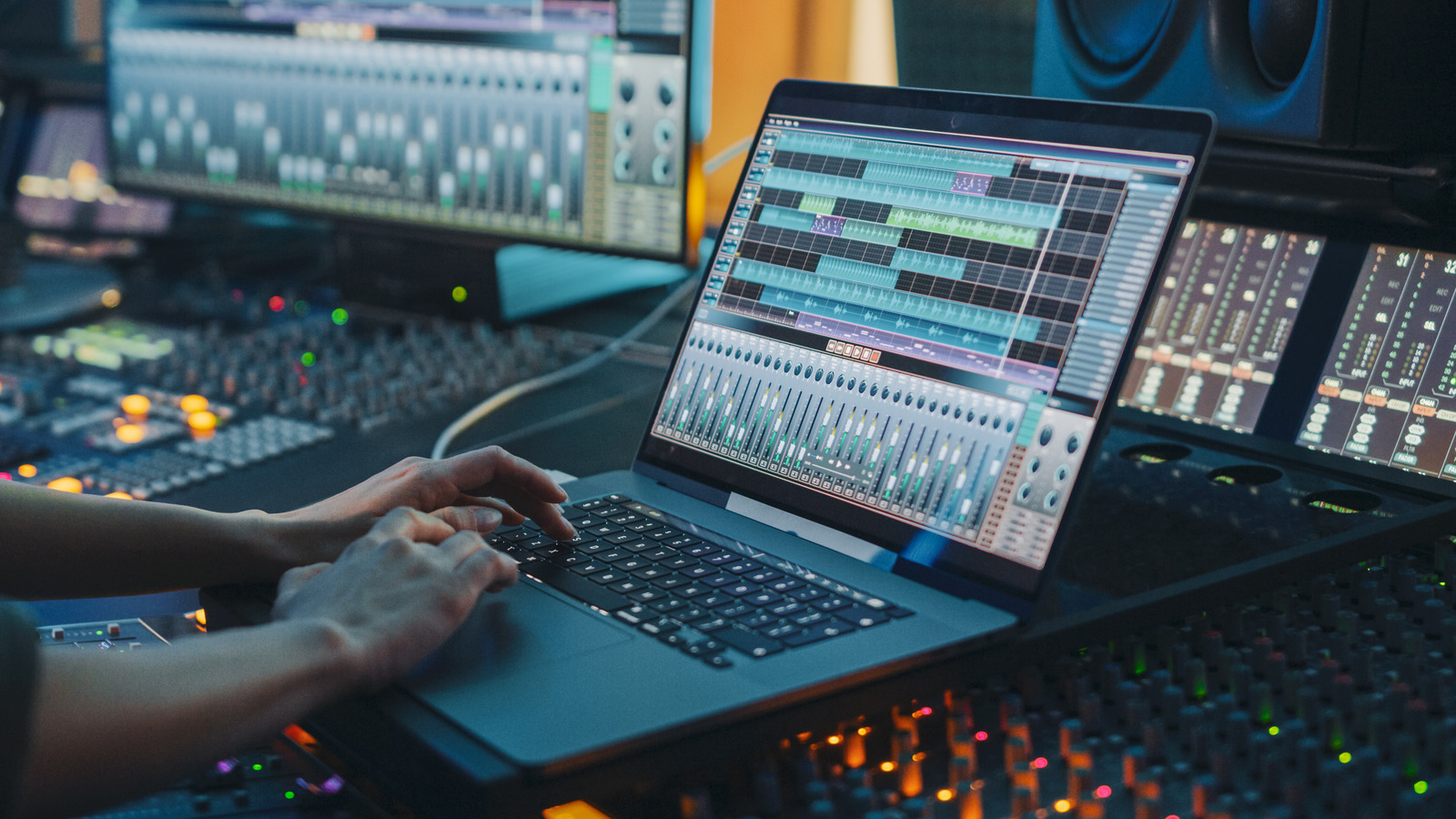
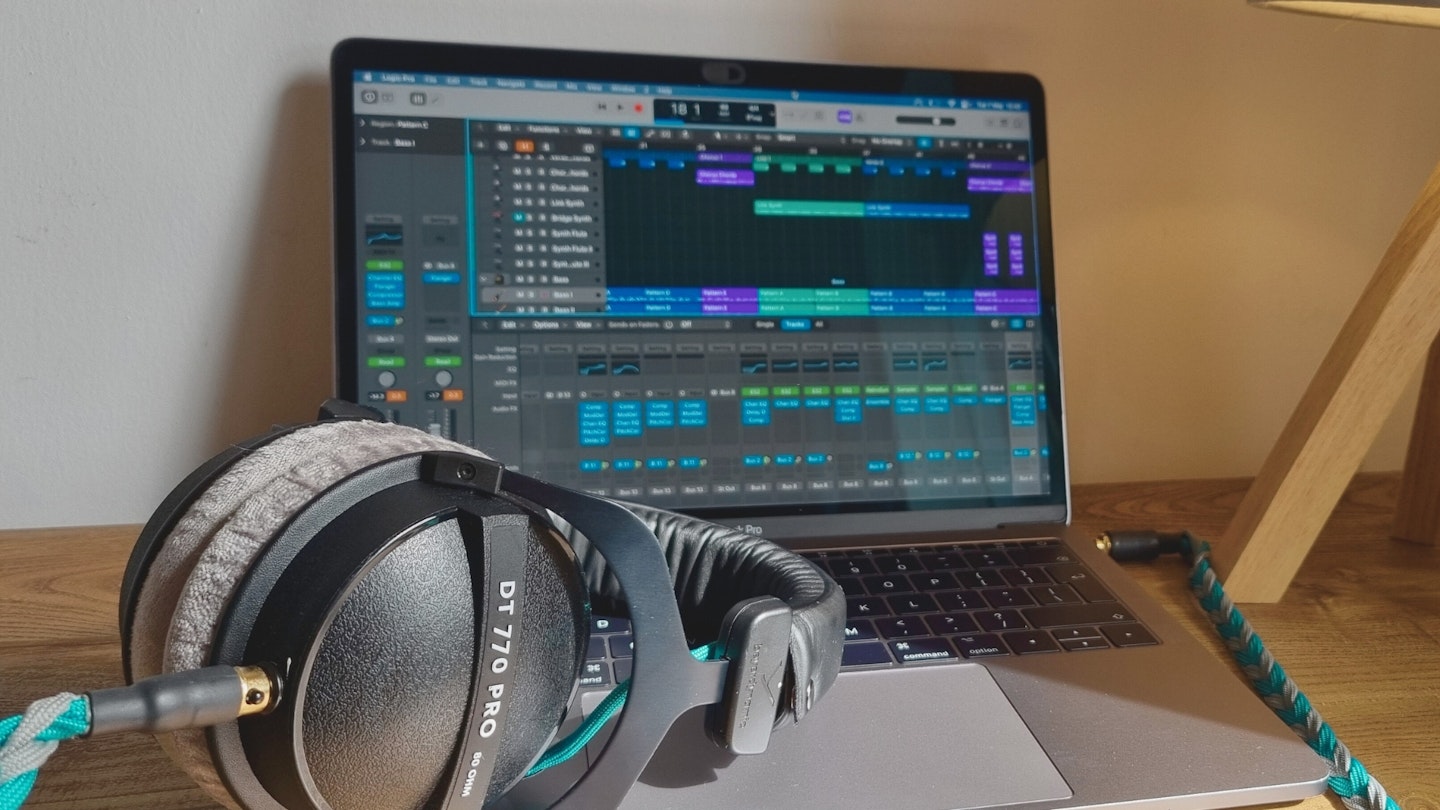
A music-production laptop must handle several jobs at once. It runs the DAW, processes audio effects, loads virtual instruments, streams samples from storage, and connects to an audio interface, MIDI keyboard, monitor, and external drives.
The most important parts are the processor, memory, storage, cooling system, ports, and operating system.
Processor: the main source of real-time performance
The processor, or CPU, handles many tasks in a music session. It calculates plug-in effects, virtual instruments, automation, and audio playback.
Music production often stresses the CPU in a different way than video editing. A video export can use many cores for a long, steady task. A DAW also needs fast response from individual CPU cores because audio must be processed before the next small block of sound is due.
Look for:
- A recent Apple silicon Pro or Max chip.
- Intel Core Ultra 7 or higher.
- AMD Ryzen 7 or Ryzen 9.
- Strong single-core and multi-core performance.
- Good cooling under sustained load.
Do not choose a laptop based only on the number of cores. A modern eight-core chip can outperform an older chip with more listed cores.
Memory: affects how many instruments you can load
RAM, also called memory, holds active software and sample data. More memory helps when you use large orchestral libraries, many plug-ins, or several apps at once.
Use these levels as a guide:
- 8GB: Avoid for a new music-production laptop.
- 16GB: Fine for beginners, beat making, recording, and moderate sessions.
- 24GB or 32GB: A strong choice for serious home production.
- 64GB or more: Useful for orchestral templates, sound design, and very large sessions.
Macs use unified memory. This memory is shared by the CPU and graphics system. It cannot usually be upgraded after purchase, so choose carefully.
Many Windows laptops also have memory that cannot be upgraded. Check the exact model before buying. Two laptops with the same name may have different memory options.
Storage: fast access and enough room
A solid-state drive, or SSD, makes the laptop feel fast. It helps with system startup, project loading, plug-in installation, and sample streaming.
For music production:
- 512GB: Usable for a small library.
- 1TB: The best starting point for most producers.
- 2TB or more: Helpful for large sample libraries and video work.
A 1TB drive does not provide a full 1TB of usable space. The operating system, applications, recovery files, and sample content use part of it.
Keep free space available. A nearly full drive can make file management harder and may affect some system tasks. You can place large sample libraries on a fast external SSD, but use a reliable cable and back up the drive.
Cooling and fan noise
A laptop can be powerful on paper but less useful if it gets hot and reduces its speed during long sessions.
Active cooling uses fans. Passive cooling uses the laptop body to shed heat. Fanless laptops are quiet, which helps during vocal recording, but they may reduce speed during long, heavy projects.
A laptop with fans is often the safer choice for:
- Large projects.
- Long mixing sessions.
- Film scoring.
- High track counts.
- Large software instruments.
Fan noise matters most when the laptop sits near a microphone. You can place the computer farther away, use a quiet interface setup, or record with the laptop in another room.
Ports and connections
Music work often needs more ports than office work.
Useful connections include:
- USB-C or Thunderbolt for audio interfaces and docks.
- USB-A for older MIDI devices and controllers.
- Headphone output.
- HDMI or DisplayPort for a second screen.
- SD card slot for sample or video workflows.
- Reliable Wi-Fi for downloads and licensing.
A laptop with only USB-C can still work well, but you may need a hub or dock. A cheap hub can create power, noise, or connection problems. Buy a good one and test it before an important session.

The Best Laptops for Music Production
The following recommendations focus on use case rather than brand loyalty. Prices and configurations change, so verify the exact model, memory, storage, warranty, and return policy before buying.
Best overall: 14-inch MacBook Pro with a Pro-series chip
A 14-inch MacBook Pro with an Apple Pro-series chip is the best overall choice for many producers in the United States.
It combines:
- Strong real-time CPU performance.
- Quiet operation during normal work.
- Long battery life.
- A high-quality screen.
- Built-in headphone output.
- Multiple high-speed ports.
- Support for Logic Pro and many professional audio applications.
The Pro model is a better long-term choice than the base MacBook Air for demanding projects because it has stronger sustained cooling and more memory options.
Choose at least:
- 24GB of unified memory.
- 1TB SSD storage.
- A Pro-series chip rather than the base chip if you use large sessions.
Its main limits are price, non-upgradable memory, and macOS compatibility. Some Windows-only tools and older plug-ins may not work without extra steps.
Best value for many producers: MacBook Air
The MacBook Air is a strong choice for beginners, songwriters, mobile producers, and people who record one or two performers at a time.
It is:
- Light.
- Quiet in normal use.
- Easy to carry.
- Strong enough for many Ableton Live, Logic Pro, GarageBand, and FL Studio projects.
- Less expensive than a MacBook Pro in similar sizes.
Choose 16GB of memory and a 512GB or 1TB SSD. If you plan to use large sample libraries or keep many applications open, 24GB is a safer option when available.
The main limit is sustained heavy work. Because the Air is designed for quiet, low-power use, it may slow sooner than a MacBook Pro during long, demanding sessions.
Best Windows choice: a premium laptop with Core Ultra 7 or Ryzen 7
Windows gives you more hardware choices and broader access to Windows-only software. A good Windows music laptop should use a recent Intel Core Ultra 7, Intel Core i7, AMD Ryzen 7, or better processor.
Look at models from established lines such as:
- Lenovo ThinkPad and Yoga performance models.
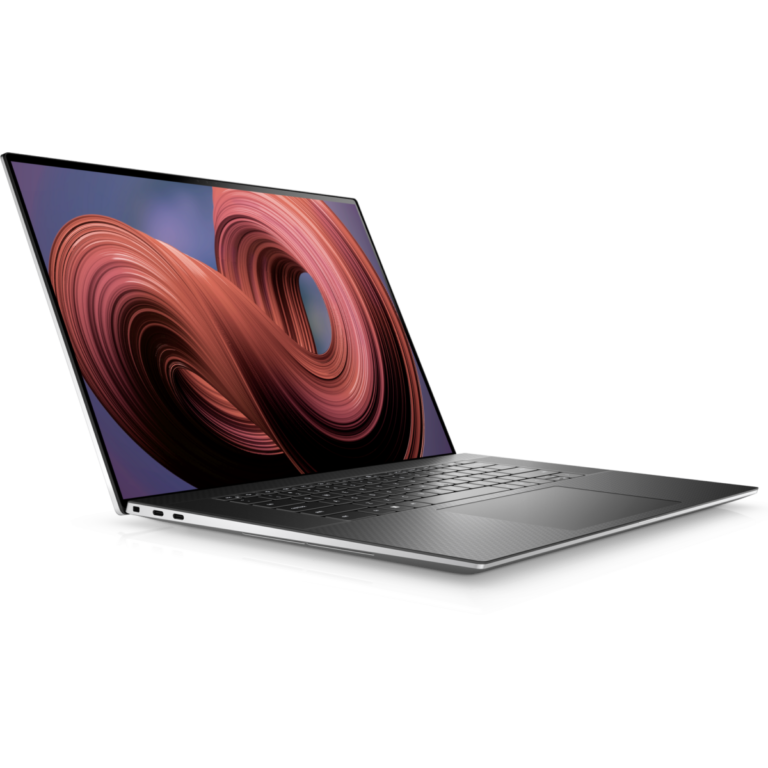
- Dell XPS and Precision models.
- ASUS ProArt and selected Zenbook models.
- HP ZBook and selected Envy models.
- Microsoft Surface Laptop models with suitable memory and ports.
The exact model matters more than the brand. Check:
- DPC latency reports or audio-interface compatibility.
- Fan behavior.
- The number and type of USB ports.
- Memory upgrade options.
- Driver support.
- Battery performance with your audio interface.
Windows laptops can offer excellent performance, but the experience varies more from model to model. Some gaming laptops are powerful yet loud, heavy, and poor on battery life. They can still work well in a studio if noise and portability are not priorities.
Best budget option: a 16GB laptop with a recent midrange processor
A budget laptop can handle music production if you avoid weak CPUs, 8GB memory, and slow storage.
Look for:
- 16GB RAM.
- A recent Core Ultra 5, Core i5, Ryzen 5, or Apple base chip.
- A 512GB SSD.
- A screen size of at least 13 inches.
- A reliable USB-C port.
- Good return support.
This setup is enough for recording vocals, guitars, podcasts, beats, and moderate mixes. You may need to freeze or bounce tracks when a project becomes large.
“Freeze” renders a track temporarily so the DAW uses less CPU. “Bounce” or “render” creates an audio file from a track or group of tracks. These tools let a modest laptop manage heavier sessions.
Best for large sample libraries: a 32GB or 64GB workstation
If you use orchestral libraries, piano collections, cinematic instruments, or large Kontakt templates, memory and storage become more important than a thin design.
Choose:
- 32GB as a practical starting point.
- 64GB for very large templates.
- 1TB internal storage.
- A fast external SSD for additional libraries.
- Strong cooling.
- A high-performance CPU.
A workstation-style MacBook Pro or Windows laptop is usually a better fit than an entry-level ultraportable.
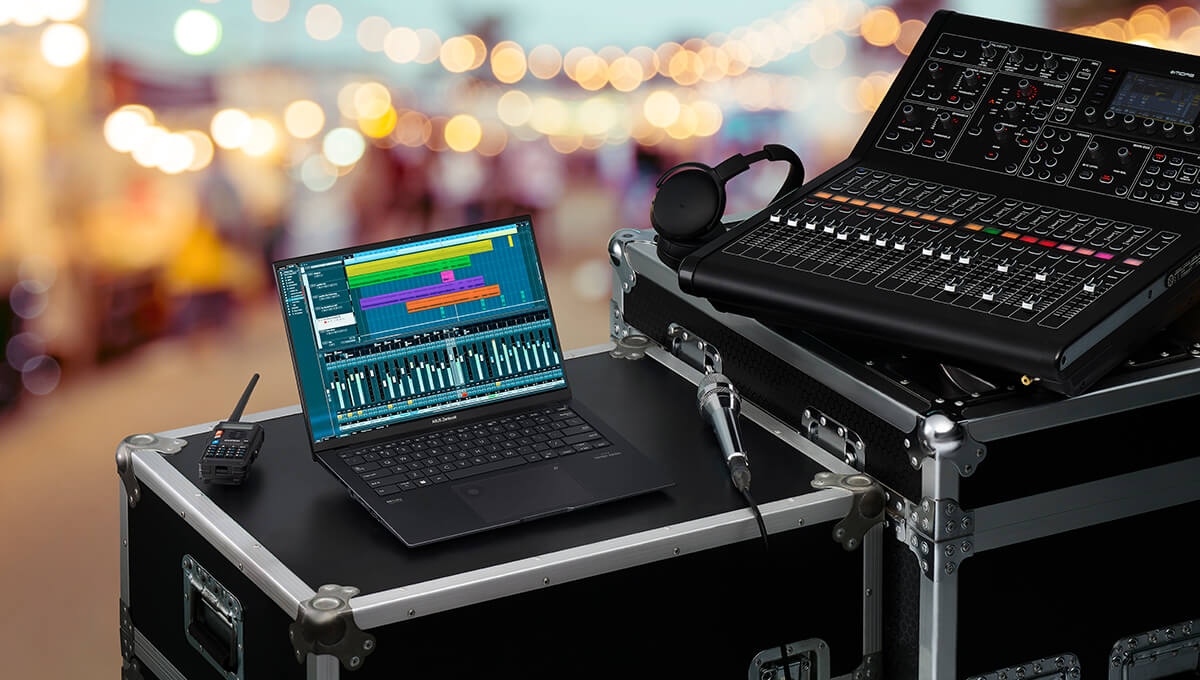
Mac or Windows for Music Production?
Both platforms can produce professional music. The better choice depends on your software, plug-ins, interface, and workflow.
Choose a Mac if you:
- Use Logic Pro.
- Want a quiet laptop with long battery life.
- Prefer a simple hardware range.
- Use many cross-platform plug-ins.
- Record in places where fan noise matters.
- Want strong integration with other Apple devices.
Macs use Apple silicon, which changed compatibility for some older plug-ins and applications. Many developers now provide native Apple silicon versions. Older tools may need Rosetta translation or may not work at all.
Before buying, check every critical plug-in maker’s support page.
Choose Windows if you:
- Use Windows-only software.
- Want more hardware choices.
- Need upgradeable memory or storage.
- Prefer a specific DAW workflow.
- Want to connect older devices without adapters.
- Need a laptop with a larger screen at a lower price.
Windows is not automatically less stable for audio. Stability depends on the laptop, drivers, background software, power settings, and interface support.
For either platform, update the operating system with care. Do not install a major update just before a paid session. Check your DAW and plug-in makers first.

How Much RAM, Storage, and CPU Do You Need?
Use your largest planned project as the test.
A producer who records vocals and guitar may need far less power than a composer who loads a full orchestra into a sample-based instrument.
A practical buying guide
| Workload | CPU level | Memory | Storage |
|---|---|---|---|
| Podcasts and basic recording | Recent midrange | 16GB | 512GB |
| Beat making and electronic music | Recent midrange or better | 16GB–24GB | 512GB–1TB |
| Full song production | Recent high-performance | 24GB–32GB | 1TB |
| Large virtual-instrument sessions | High-performance | 32GB–64GB | 1TB–2TB |
| Film scoring and orchestral work | Workstation level | 64GB preferred | 2TB or more |
These are planning ranges, not hard rules. A well-managed session can run on less. A poorly optimized session can overload a powerful computer.
A simple storage calculation
Suppose your laptop has a 1TB SSD. The system and applications may use roughly 150GB to 250GB, depending on the setup. If your sample libraries use 300GB and your projects use 100GB, you may have about 350GB to 450GB left for free space, backups, and future work.
This is why 1TB is often a better starting point than 512GB. If you already own large libraries, budget for a fast external SSD.
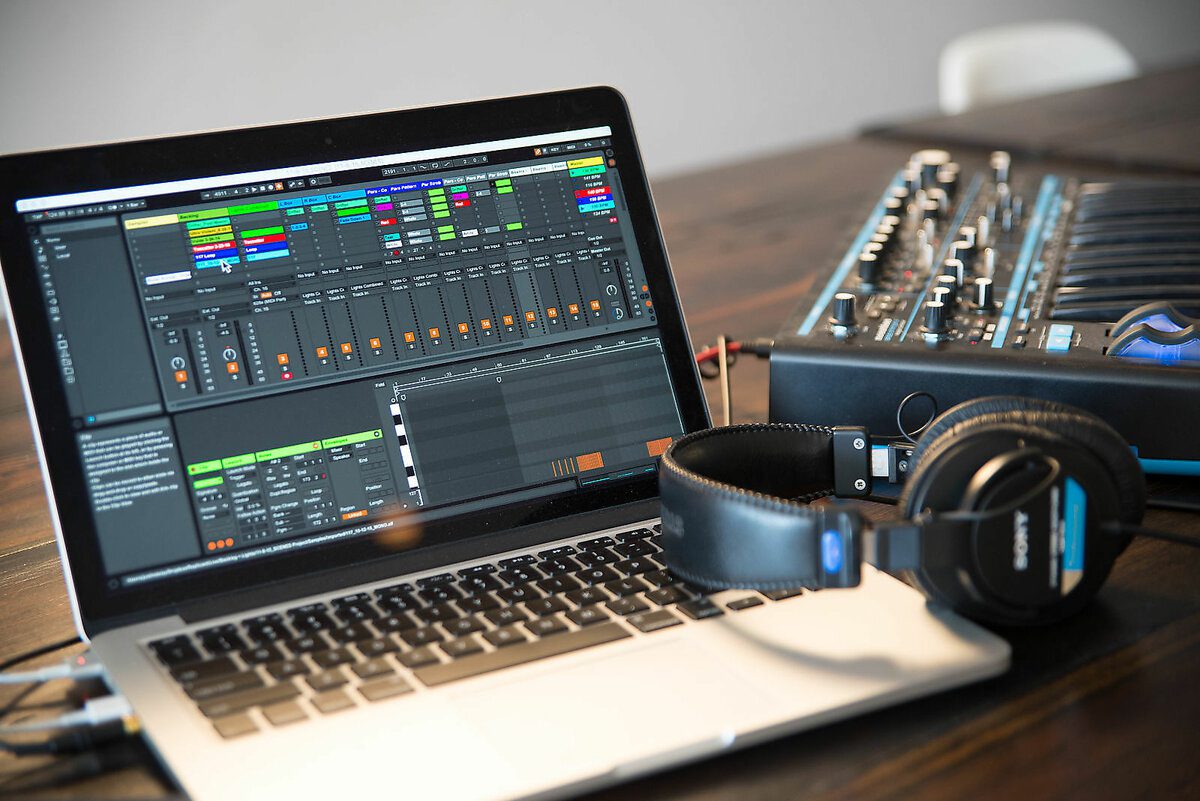
What Else Do You Need Besides the Laptop?
The laptop is only one part of a production system.
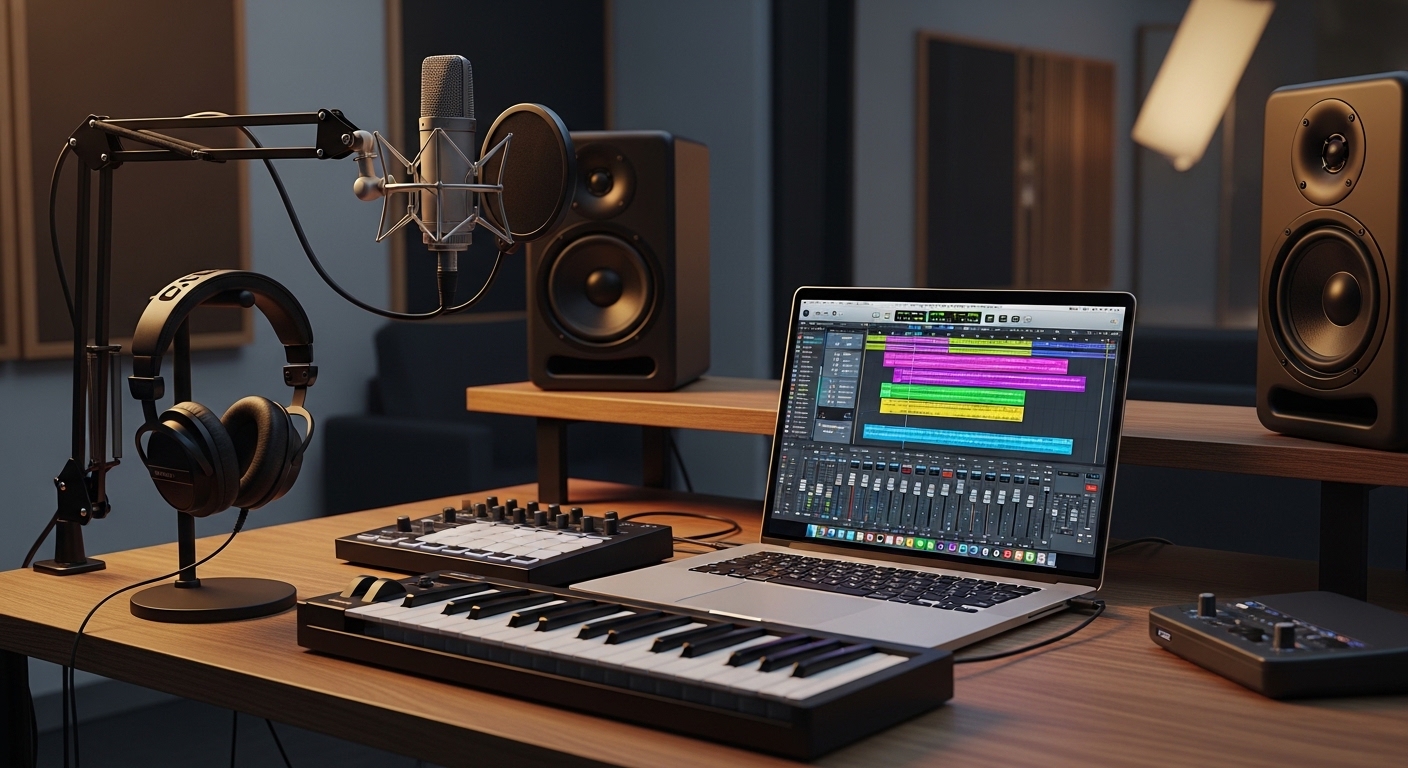
You may also need:
- An audio interface.
- Studio headphones or monitors.
- A MIDI keyboard.
- A microphone and stand.
- External SSD storage.
- A USB-C or Thunderbolt hub.
- Backup software or a second backup drive.
- A stable power adapter.
Audio interface compatibility
Your interface must support the laptop’s operating system. Check the manufacturer’s driver page before buying.
Class-compliant interfaces can work without a special driver, but you should still confirm support. Windows users should pay close attention to driver quality and buffer behavior.
A buffer is a small block of audio that the computer processes at a time:
- Lower buffer settings reduce monitoring delay.
- Higher buffer settings reduce CPU strain.
- Recording often benefits from a lower buffer.
- Mixing can use a higher buffer.
If you hear clicks, pops, or dropouts, first raise the buffer size and close unnecessary apps.
Backup your projects
A laptop is not a backup. Keep at least two copies of important projects, with one copy on a separate device.
A simple plan is:
- Save projects to the internal SSD while working.
- Copy completed sessions to an external drive.
- Keep another backup in a separate location or trusted cloud service.
Do not rely on a single external drive for your only copy of a song.
Common Laptop Mistakes Music Producers Make
The most common mistake is buying a laptop based on appearance or processor branding alone.
Avoid these problems:
Buying 8GB of memory
Eight gigabytes may run a basic DAW, but it leaves little room for large projects, browsers, sample libraries, and plug-ins. For a new laptop, 16GB is a more sensible floor.
Choosing too little storage
A 256GB or 512GB drive can fill quickly after installing a DAW, plug-ins, sample libraries, and project files. A 1TB SSD gives you more working room.
Ignoring ports
A laptop may look ideal until you need a hub for an interface, MIDI keyboard, drive, monitor, and charger. Count your connections before you buy.
Buying a loud gaming laptop for quiet recording
Gaming laptops can offer high performance, but their fans may become loud. That does not make them bad music computers. It means you should place the laptop away from the microphone or choose a quieter design.
Assuming every plug-in will work
Older plug-ins may fail after an operating system or processor change. Check compatibility for your DAW, interface, instruments, and effects before switching platforms.
Treating benchmark scores as the whole story
Benchmarks can compare chips under set conditions. They do not show every part of a music workflow. Driver support, cooling, fan noise, ports, and software compatibility also matter.
How to Set Up a New Music-Production Laptop
Set up the system before you start a major project.
- Install system updates carefully. Confirm that your DAW and key plug-ins support the update.
- Install the audio-interface driver. Use the official manufacturer site.
- Set the correct audio device in your DAW.
- Choose a starting buffer size. Try 128 or 256 samples for recording, then adjust.
- Install plug-ins in small groups. This makes it easier to find a problem.
- Create a project folder system. Keep audio, project files, samples, and exports organized.
- Set up automatic backups.
- Test a full session. Record, monitor, load instruments, and export audio.
- Keep the laptop cool and powered. Avoid blocking air vents.
- Do not change the system before an important session.
Signs that the laptop is working well
A suitable setup should:
- Play the project without clicks or dropouts.
- Record without distracting delay.
- Load your main instruments in a reasonable time.
- Stay stable during a long session.
- Keep enough free storage for new projects.
- Connect reliably to your interface and MIDI devices.
If the system struggles, raise the buffer, freeze tracks, close background apps, remove unused plug-ins, and check the interface driver before replacing the laptop.

Frequently Asked Questions
Is a MacBook Air powerful enough for music production?
Yes, a MacBook Air can handle recording, beat making, songwriting, and many medium-sized DAW sessions. Choose at least 16GB of memory. A MacBook Pro is a better fit for long sessions, large sample libraries, and heavy plug-in chains because it has stronger sustained cooling.
Is 16GB RAM enough for Ableton Live or Logic Pro?
16GB is enough for many projects. It may become limiting when you use large sample libraries, many software instruments, or several demanding plug-ins. Choose 24GB or 32GB if your budget allows and you plan to keep the laptop for years.
Do I need a gaming laptop for music production?
No. Gaming graphics performance does not directly improve most audio tasks. A gaming laptop can work well because it often has a strong CPU and cooling system, but it may be loud, heavy, and less efficient on battery.
Is Windows or Mac better for FL Studio?
FL Studio runs on both Windows and macOS. Windows offers more hardware choices and may be preferable if you use Windows-only plug-ins or tools. Mac may appeal to users who value quiet operation, battery life, and access to Logic Pro. Check Image-Line’s current system requirements for your version.
Can I use an external SSD for music production?
Yes. An external SSD is useful for projects, sample libraries, and backups. Use a fast, reliable drive and cable. Do not keep your only copy of a project on that drive.
How long should a music-production laptop last?
A good laptop may remain useful for several years, but the answer depends on project size, software updates, battery health, and repair options. Buying more memory and storage at the start can extend its practical life because many laptops cannot be upgraded later.
Final Recommendation
For most serious producers, the best laptop for music production is a 14-inch MacBook Pro with a Pro-series Apple silicon chip, 24GB or more of memory, and a 1TB SSD.
Choose a MacBook Air with 16GB or 24GB of memory if you want a lighter and less costly system for moderate projects. Choose a Windows laptop with a recent Core Ultra 7 or Ryzen 7 processor, 16GB–32GB of memory, and a 1TB SSD if your software or hardware works best on Windows.
Before you buy, check four things:
- Your DAW’s operating-system requirements.
- Compatibility for your most important plug-ins.
- The audio interface’s driver support.
- Whether the memory and storage can be upgraded.
The best laptop is not the one with the biggest specification list. It is the one that runs your largest sessions quietly, reliably, and with enough room for the music you plan to make.

Everett Ashford is a tech reviewer at mytechgrid.com specializing in SSDs, cameras, TVs, earbuds, headphones, and other consumer electronics. He provides honest, data-driven reviews based on hands-on testing and real-world performance analysis. Everett simplifies complex tech details to help readers make smart, confident buying decisions.