For most people in the United States, the 14-inch MacBook Pro with the M4 Pro chip is the best laptop with Thunderbolt. It has three Thunderbolt 5 ports, strong battery life, a sharp display, and enough power for work, coding, photo editing, and video production.
The best choice changes if you need Windows, gaming, a lower price, or a built-in business port. This guide compares the main options and explains what Thunderbolt can—and cannot—do.
Quick answer: The best Thunderbolt laptops
The right laptop depends on your work and the devices you plan to connect.
| Laptop | Best for | Thunderbolt version | Main strength | Main limit |
|---|---|---|---|---|
| 14-inch MacBook Pro with M4 Pro | Best overall | Thunderbolt 5 | High performance, battery life, and display quality | Higher price; macOS is not Windows |
| 16-inch MacBook Pro with M4 Pro or M4 Max | Heavy creative work | Thunderbolt 5 | More screen space and sustained power | Large and expensive |
| MacBook Air with M4 | Best value | Thunderbolt 4 | Light, quiet, and affordable for a Mac | Fewer ports and less sustained power |
| Lenovo ThinkPad P1 Gen 7 | Best Windows workstation | Thunderbolt 4 | Business features and workstation performance | Can become costly with upgrades |
| Lenovo ThinkPad X1 Carbon Gen 13 | Best portable Windows laptop | Thunderbolt 4 | Very light design and strong business features | Not ideal for demanding graphics work |
| Dell XPS 16 | Premium Windows productivity | Thunderbolt 4 | Large screen and fast Intel processor options | Limited port selection and high price |
Choose the MacBook Pro 14 if you want the strongest all-around Thunderbolt laptop. Choose the Lenovo ThinkPad P1 Gen 7 if you need Windows and professional graphics power. Choose the MacBook Air M4 if you want Thunderbolt at the lowest price among these premium choices.
Prices and configurations change often in the US. Check the maker’s current specification page before you buy.
What is Thunderbolt?
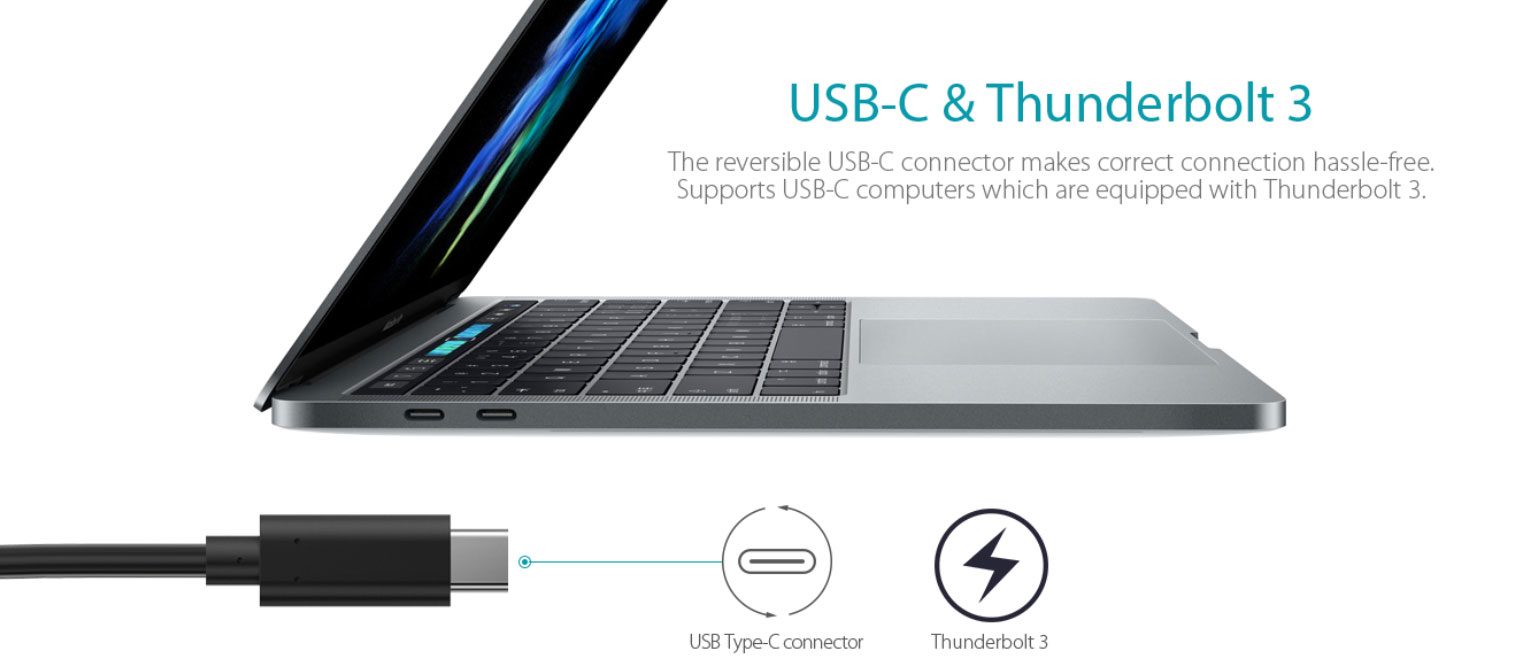
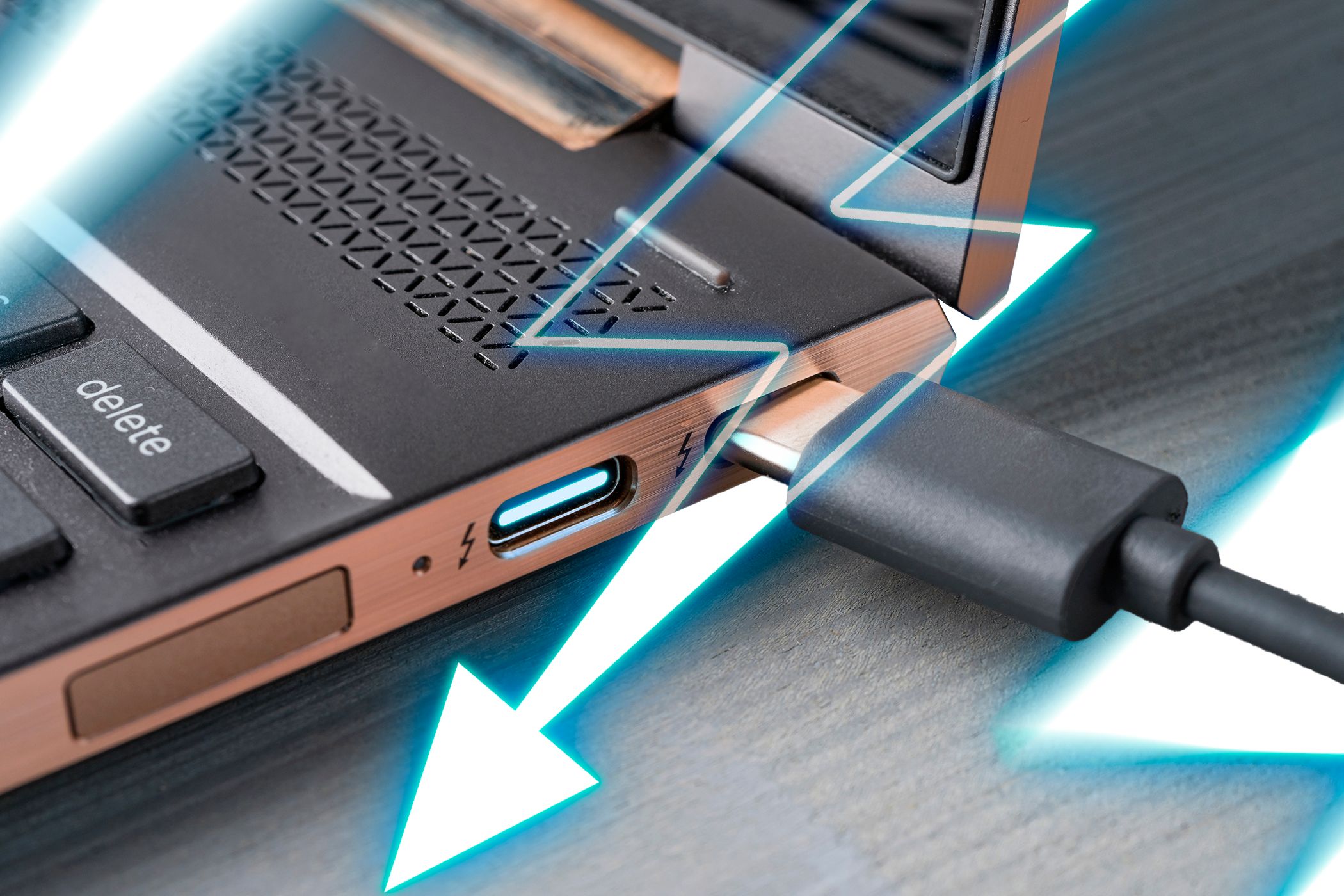
Thunderbolt is a high-speed connection standard that uses the USB-C port shape. It can carry data, video, and power through one cable.
A Thunderbolt port can connect to devices such as:
- External monitors
- Thunderbolt docks
- Fast solid-state drives
- Audio interfaces
- Capture cards
- Network adapters
- Some external graphics systems
- Professional storage arrays
Thunderbolt is not the same as USB-C. USB-C describes the shape of the plug and port. Thunderbolt describes the technology that may run through that port.
A USB-C port may support only charging and basic USB data. Another USB-C port may support USB4, DisplayPort, or Thunderbolt. Always check the laptop’s specifications.
Thunderbolt 4 versus Thunderbolt 5
Thunderbolt 4 offers up to 40 gigabits per second of connection bandwidth. Thunderbolt 5 raises the headline bandwidth to up to 80Gbps in both directions. It can also provide higher display bandwidth in some supported modes.
Thunderbolt 5 is useful when you plan to connect:
- Multiple high-resolution displays
- Very fast external storage
- A high-speed dock
- Large video files
- Several demanding devices at once
Thunderbolt 4 is still enough for many users. A single 4K monitor, keyboard, mouse, Ethernet adapter, and external SSD can work well through a Thunderbolt 4 dock.
The laptop, dock, cable, and device all affect the final result. A Thunderbolt 5 laptop does not make a Thunderbolt 4 dock run at Thunderbolt 5 speed.
Best overall: 14-inch MacBook Pro with M4 Pro
The 14-inch MacBook Pro with the M4 Pro chip is the best Thunderbolt laptop for most demanding users in the US.
Apple lists three Thunderbolt 5 ports on M4 Pro and M4 Max MacBook Pro models. These ports can connect to fast storage, displays, and docks. The laptop also includes an HDMI port, an SDXC card slot, a headphone jack, and a MagSafe charging port.
The M4 Pro model is a strong middle ground. It is much faster than a basic thin laptop, but it is less costly and lighter than the largest professional configurations.
Why it stands out
The MacBook Pro combines four useful traits:
- Thunderbolt 5: Better headroom for fast storage and multi-display setups.
- Strong battery life: Apple silicon models are well suited to mobile work.
- High-quality display: The Liquid Retina XDR display supports HDR work and smooth motion.
- Quiet operation: The laptop can handle many everyday tasks without loud fan noise.
The 14-inch size also works well for travel. It gives you a larger screen than a small ultraportable without the bulk of a 16-inch workstation.
Who should buy it?
The MacBook Pro 14 is a good fit if you:
- Edit photos or video
- Use large development tools
- Run virtual machines or containers
- Work with external SSDs
- Need two or more external displays, within Apple’s supported limits
- Want a laptop for both travel and desk work
The M4 Pro version is usually the sensible choice. The M4 Max version makes more sense for heavy 3D work, advanced video work, or large graphics workloads.
Limits to consider
This laptop is not the best choice for everyone.
Some professional Windows applications do not have a full macOS version. Games may also run better on Windows. Apple’s support for external displays varies by chip and model, so check the exact configuration before buying.
The base MacBook Pro with the standard M4 chip has Thunderbolt 4, not Thunderbolt 5. That does not make it a poor laptop, but it matters if Thunderbolt 5 is your main reason for upgrading.

Best Windows laptop with Thunderbolt: Lenovo ThinkPad P1 Gen 7
The Lenovo ThinkPad P1 Gen 7 is the strongest choice for a Windows user who needs a real mobile workstation.
It offers Thunderbolt 4 ports and can be configured with Intel Core Ultra processors, professional NVIDIA RTX graphics, substantial memory, and fast storage. Exact options vary by region and configuration.
Why it is a strong Windows pick
The ThinkPad P1 Gen 7 suits users who need more than office performance. It can support work such as:
- CAD and engineering software
- 3D modeling
- Software development
- Data analysis
- Video production
- Virtual machines
- Large creative projects
The ThinkPad keyboard is also a major advantage for people who type all day. Its business-focused design includes features such as a pointing stick, strong security options, and a wide range of service and support choices.
The trade-off
A workstation laptop is not as light or affordable as a typical office laptop. A dedicated GPU can also reduce battery life and add fan noise under load.
The P1 becomes expensive when you add more memory, storage, a higher-resolution display, or professional graphics. Buy it for the workload, not simply because the specification list looks large.
For normal web work, documents, coding, and video calls, a ThinkPad X1 Carbon or MacBook Air may be a better value.
Best value: MacBook Air with M4
The MacBook Air with M4 is the best value if you want a thin, quiet laptop with Thunderbolt and do not need a professional workstation.
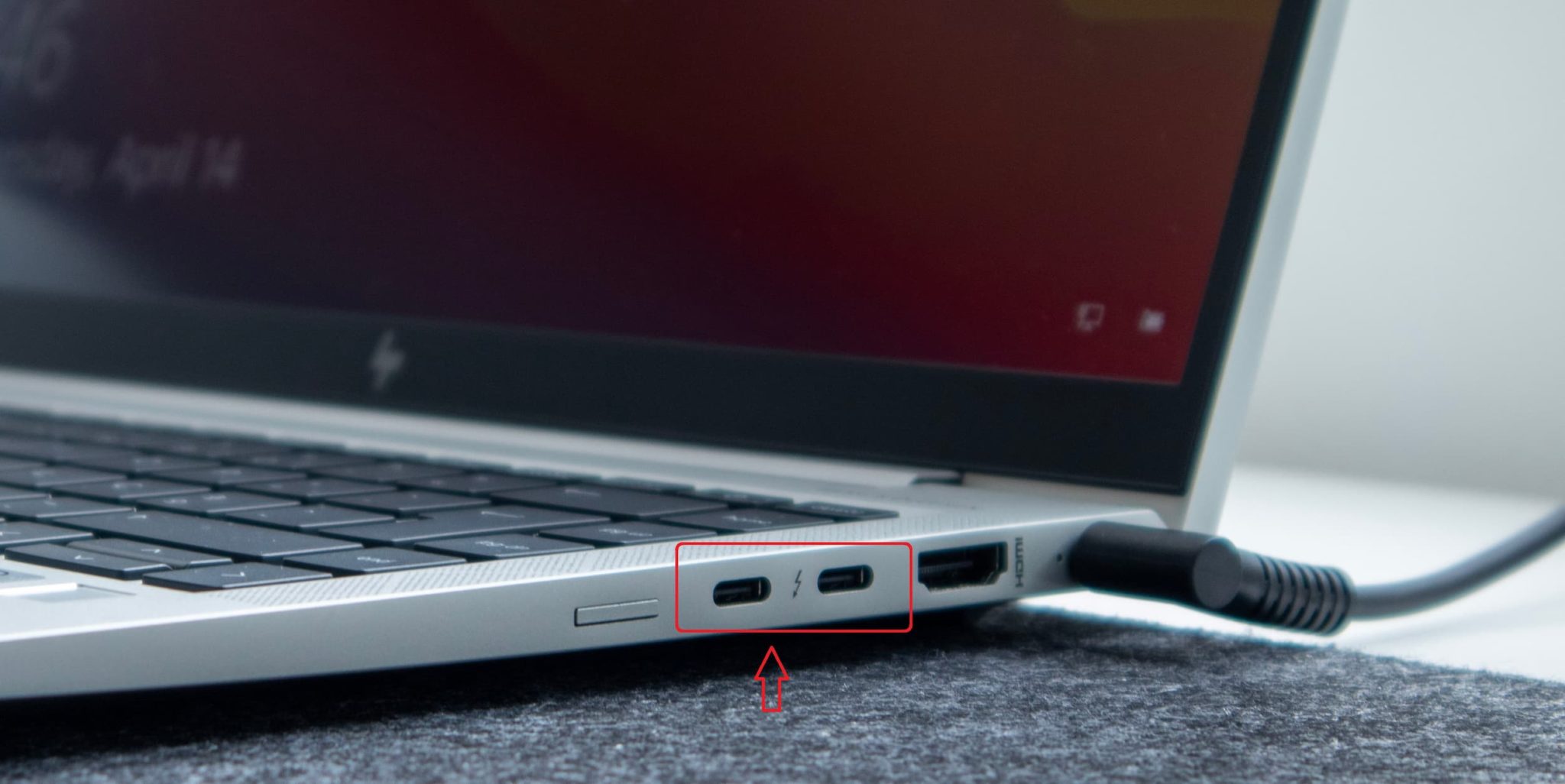
Apple lists two Thunderbolt 4 ports on the M4 MacBook Air. They support charging, an external display, and compatible USB or Thunderbolt devices.
Why it makes sense
The MacBook Air is:
- Light and easy to carry
- Quiet because it has no fan
- Fast enough for office work, school, coding, and light creative work
- Less costly than the MacBook Pro
- Available in 13-inch and 15-inch sizes
It is a good match for a single-monitor desk setup. Add a Thunderbolt or USB-C dock, and you can connect a display, wired network, keyboard, mouse, and storage with one cable.
Where it falls short
The Air has fewer ports than the MacBook Pro. You may need a dock more often.
Its fanless design also limits long, heavy workloads. Short tasks can be very fast, but repeated video exports, 3D work, or long code builds may favor a MacBook Pro with active cooling.
The Air is the better buy when you need Thunderbolt mainly for a monitor, dock, or external drive. It is not the best tool for constant professional rendering.
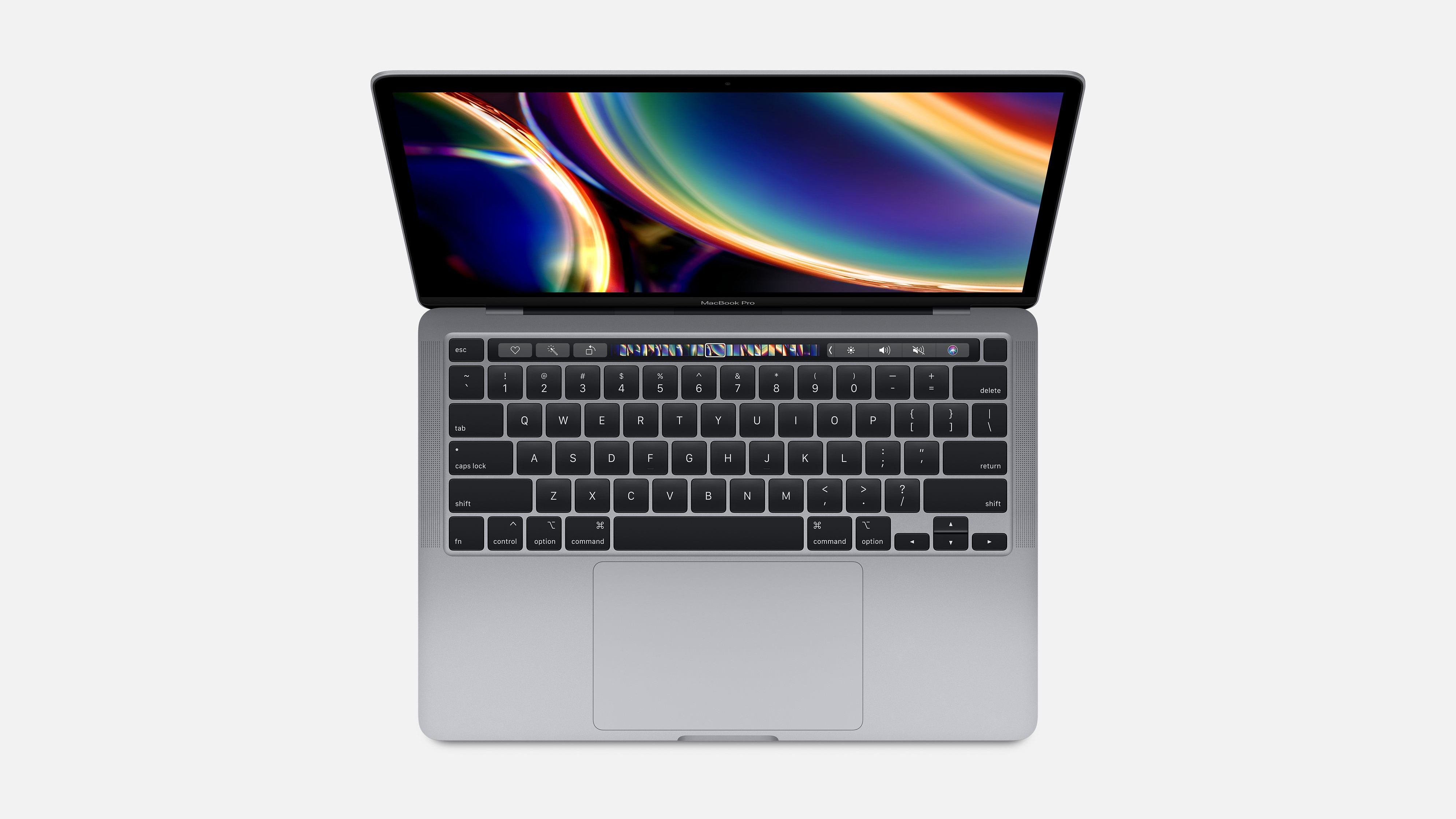
Best lightweight Windows option: Lenovo ThinkPad X1 Carbon Gen 13
The Lenovo ThinkPad X1 Carbon Gen 13 is a good Thunderbolt laptop for business travel and office work.
It includes Thunderbolt 4 ports and focuses on low weight, long mobile use, and business features. Configurations can include Intel Core Ultra processors, different displays, and varied memory and storage options.
Why choose it?
The X1 Carbon works well for:
- Business travel
- Writing and spreadsheets
- Web applications
- Programming
- Presentations
- Video meetings
- A desk setup with a Thunderbolt dock
It also offers useful business features that are less common on consumer laptops. These may include enterprise security tools, a comfortable keyboard, and support options for business buyers.
The important limit
The X1 Carbon is not a workstation. Integrated graphics are suitable for normal work and light creative tasks, but they are not a substitute for a dedicated GPU.
If you need 3D design, advanced video effects, or local AI workloads, move up to the ThinkPad P1 or another workstation-class model.
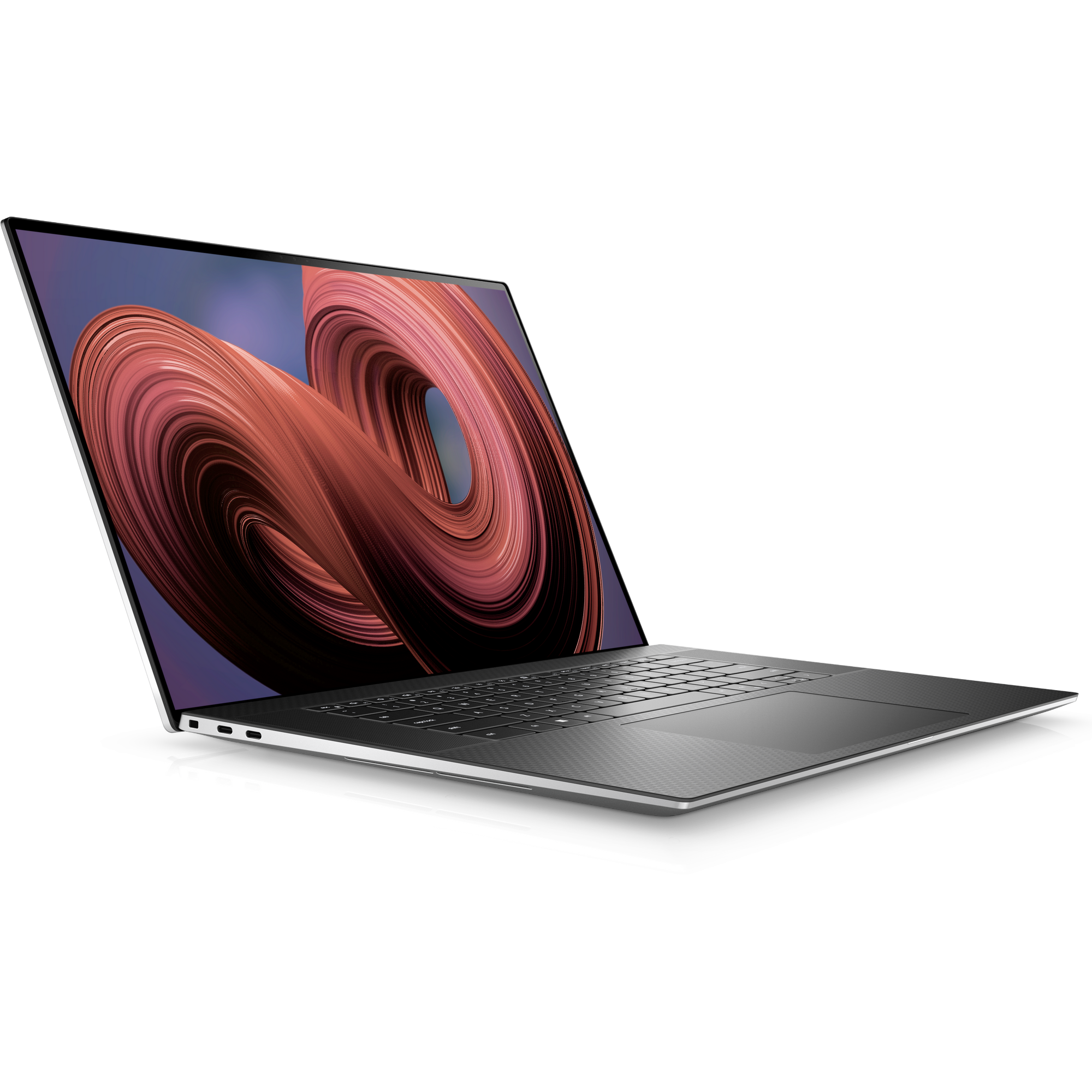
Best large-screen Windows choice: Dell XPS 16
The Dell XPS 16 is a premium Windows laptop for users who want a large display and strong performance in a modern design.
It uses Thunderbolt 4 ports and may be configured with Intel Core Ultra processors and discrete NVIDIA graphics. Dell’s exact ports and internal options depend on the model and configuration.
What it does well
The XPS 16 is suited to:
- Large spreadsheets
- Photo and video work
- Coding with many windows open
- Creative software
- A premium desk setup
- Users who prefer Windows over macOS
The large screen gives you more room for timelines, code, charts, and side-by-side documents.
What to check before buying
The XPS 16 uses a minimal port design. You may need adapters for USB-A accessories, SD cards, or other older connections.
It is also a large laptop. The bigger display is helpful at a desk, but it adds weight in a backpack. Compare the full weight, charger size, screen type, and graphics option—not just the processor name.

How to choose the right Thunderbolt laptop
Start with the devices you already own. The laptop should match your monitor, dock, storage, and operating system needs.
1. Pick the operating system first
Choose macOS if you value battery life, Apple’s software, and a quiet mobile system. Choose Windows if you need specific business, engineering, gaming, or enterprise software.
Thunderbolt works across both platforms, but device support is not identical. A dock may offer different display features on macOS and Windows.
2. Count the displays
A single 4K display is not a difficult Thunderbolt task. Multiple displays require more care.
Check:
- The laptop’s maximum display count
- The maximum resolution and refresh rate
- Whether the dock uses DisplayPort, HDMI, or DisplayLink
- Whether the laptop supports the needed display arrangement
- Whether the monitor supports daisy chaining
Do not assume that two USB-C monitor cables will work just because the laptop has two USB-C-shaped ports.
3. Decide whether you need Thunderbolt 5
Thunderbolt 5 is useful for a high-end setup. It is less important for simple desk use.
Choose Thunderbolt 5 when you plan to use:
- Several high-resolution monitors
- Very fast external storage
- Large video projects
- A new Thunderbolt 5 dock
- A fast external PCIe enclosure
Thunderbolt 4 is enough for many people. It can still connect a dock, monitor, SSD, Ethernet, and common accessories.
4. Check memory and storage
Thunderbolt does not fix a laptop with too little RAM or storage.
For general work, 16GB of memory is a practical starting point. Heavy creative work, software development, virtual machines, and large datasets may justify 32GB or more.
A 512GB SSD may work for office use. Video editors, photographers, and developers often benefit from 1TB or more. External Thunderbolt storage can expand capacity, but it adds cost and another device to carry.
These are planning guidelines, not universal rules. Your software matters most.
5. Check charging support
Some Thunderbolt docks can charge a laptop. Others provide little or no power.
Confirm:
- The dock’s power delivery rating
- The laptop’s required charger wattage
- Whether the dock includes a power supply
- Whether the laptop charges through the port you plan to use
A dock may connect your monitor and storage but still fail to keep a powerful laptop charged under load.

Thunderbolt dock and cable advice
A good laptop can still give poor results with the wrong dock or cable.
Look for a dock that clearly states:
- Thunderbolt 4 or Thunderbolt 5 certification
- Supported display count and resolution
- Host charging power
- Ethernet speed
- USB port speeds
- SD card performance
- macOS and Windows support
Use a certified Thunderbolt cable when you need Thunderbolt performance. A basic USB-C charging cable may fit the port but may not carry the required data rate.
Cable length can also affect performance. A short, certified cable is often the safest choice for a high-speed setup.
A simple desk setup
For many US home offices, this setup is enough:
- Connect the laptop to a Thunderbolt dock.
- Connect the dock to power.
- Connect the monitor to the dock.
- Add Ethernet, keyboard, mouse, and external storage to the dock.
- Keep the laptop charger nearby in case the dock cannot supply enough power.
If the monitor does not work, connect it directly to the laptop first. This helps identify whether the problem is the laptop, cable, dock, or display.

Common Thunderbolt mistakes
Mistaking USB-C for Thunderbolt
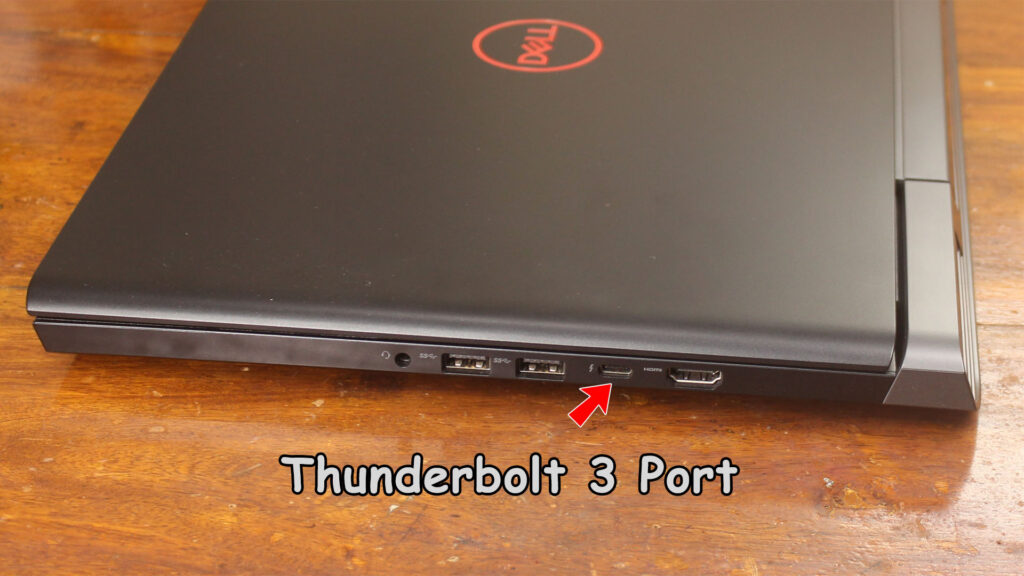
The USB-C shape does not prove Thunderbolt support. Look for a lightning-bolt logo or the maker’s technical specification.
Buying a dock without checking display support
Some docks use DisplayLink software for extra monitors. DisplayLink can be useful, but it is different from native Thunderbolt display output and may have limits for protected video, gaming, or color-critical work.
Expecting every port to work the same way
A laptop may have two USB-C ports with different capabilities. One may support Thunderbolt and charging, while another supports USB only.
Ignoring the operating system
A dock that works well with Windows may behave differently with macOS. Check firmware updates and the dock maker’s compatibility list.
Choosing Thunderbolt over the laptop itself
Thunderbolt is only one feature. A laptop with a faster processor, better keyboard, stronger battery life, or better support may be the wiser choice even if it has Thunderbolt 4 rather than Thunderbolt 5.
Is Thunderbolt worth paying more for?
Thunderbolt is worth the extra cost when you use fast external devices or need a clean one-cable desk setup.
It may be worth paying more if you need:
- A single cable for several desk devices
- Fast external editing storage
- Multiple high-resolution displays
- A professional dock
- A high-speed network adapter
It may not be worth it if you only connect:
- A basic USB mouse
- A keyboard
- A low-cost monitor
- A printer
- A standard flash drive
For those devices, regular USB-C or USB-A may work just as well.
The best value comes from matching the port to the workload. Do not pay for Thunderbolt 5 if your current dock and storage devices use USB 3 or Thunderbolt 4.
Key takeaways
- Best overall: 14-inch MacBook Pro with M4 Pro and Thunderbolt 5.
- Best Windows workstation: Lenovo ThinkPad P1 Gen 7 with Thunderbolt 4.
- Best value: MacBook Air with M4 and Thunderbolt 4.
- Best lightweight Windows option: Lenovo ThinkPad X1 Carbon Gen 13.
- Best large Windows laptop: Dell XPS 16.
- USB-C and Thunderbolt are not the same.
- Thunderbolt 4 remains enough for most docks, monitors, and external SSDs.
- Check the exact laptop, dock, cable, display, and operating system combination before buying.
Frequently asked questions
What is the best laptop with Thunderbolt 5?
The 14-inch MacBook Pro with the M4 Pro chip is the best overall option for most users. It combines Thunderbolt 5, strong performance, good battery life, and a high-quality display.
Is Thunderbolt 4 still good in 2025?
Yes. Thunderbolt 4 is still suitable for most home offices, creative work, and professional desk setups. It can support fast storage, docks, Ethernet, and external displays.
Can I connect a Thunderbolt dock to a USB-C laptop?
Sometimes. A USB-C laptop may support a USB-C dock, but it may not support a Thunderbolt dock at full function. Check whether the laptop supports Thunderbolt, USB4, DisplayPort Alt Mode, and USB Power Delivery.
Can Thunderbolt charge a laptop?
A Thunderbolt port can support laptop charging when the laptop and charger support USB Power Delivery. A dock may also charge the laptop, but its power output must be high enough for that model.
Does a Thunderbolt laptop work with Windows and Mac accessories?
Often, yes. Storage, keyboards, mice, and many monitors work across both systems. Display behavior, dock features, software support, and device security can differ, so check the accessory maker’s compatibility notes.
Should I buy Thunderbolt 5 or Thunderbolt 4?
Buy Thunderbolt 5 if you need several high-resolution displays, very fast storage, or a Thunderbolt 5 dock. For one monitor, ordinary office work, and common accessories, Thunderbolt 4 is usually enough.
Final recommendation
For the broadest mix of speed, battery life, display quality, and modern connectivity, choose the 14-inch MacBook Pro with M4 Pro.
Choose the Lenovo ThinkPad P1 Gen 7 when Windows software or professional graphics power is more important. Choose the MacBook Air with M4 when you want a lighter and less costly laptop with Thunderbolt 4.
Before you order, confirm the exact port standard, display support, charging power, memory, storage, and operating system compatibility. Those details matter more than the Thunderbolt label alone.

Everett Ashford is a tech reviewer at mytechgrid.com specializing in SSDs, cameras, TVs, earbuds, headphones, and other consumer electronics. He provides honest, data-driven reviews based on hands-on testing and real-world performance analysis. Everett simplifies complex tech details to help readers make smart, confident buying decisions.