Introduction
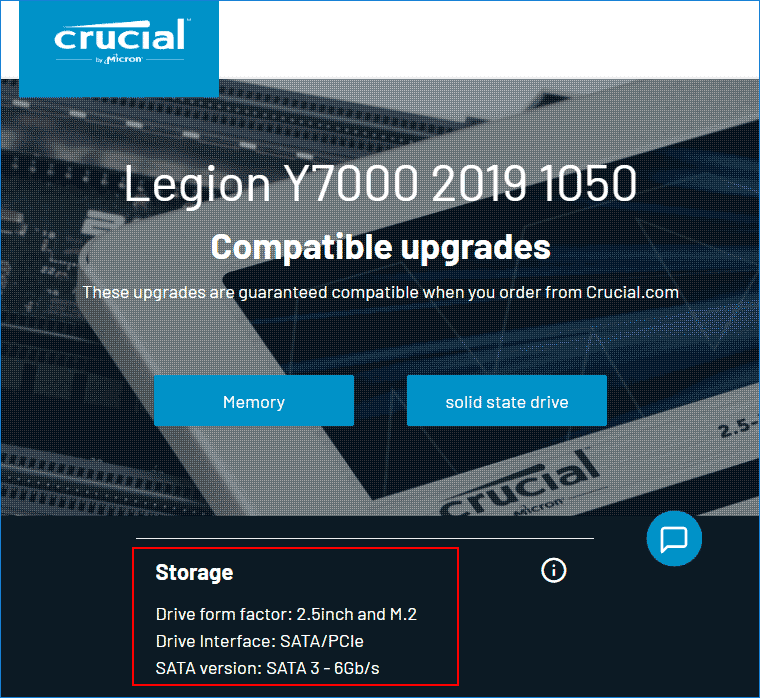
To check whether an SSD works with your laptop, match four things: drive type, physical size, interface, and laptop support. Most laptop upgrades use either a 2.5-inch SATA SSD or an M.2 SSD. However, an M.2 slot may support SATA, NVMe, or both.
For laptops sold in the United States, the safest method is to check the exact model number on the manufacturer’s US support page. Then compare the laptop manual or service guide with the SSD’s specifications. Do not buy based on the words “M.2” alone.

The Four Compatibility Checks That Matter
1. Check the SSD form factor
The form factor is the SSD’s physical shape.
The two common laptop types are:
| SSD type | Typical size | Common use |
|---|---|---|
| 2.5-inch SATA | 2.5 inches wide | Older laptops and some budget models |
| M.2 2280 | 22 mm wide, 80 mm long | Many newer laptops |
| M.2 2230 | 22 mm wide, 30 mm long | Some thin laptops and compact devices |
| M.2 2242 | 22 mm wide, 42 mm long | Some business and small laptops |
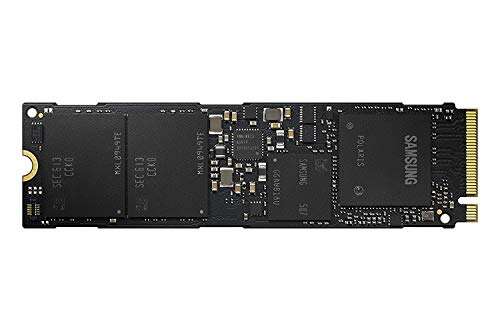
An M.2 SSD is a thin circuit board. The number after “M.2” shows its size. For example, M.2 2280 means 22 mm wide and 80 mm long.
A longer M.2 SSD may not fit if the laptop has no mounting point for it. A shorter SSD may fit only if the laptop has a matching screw hole and support for that length.
2. Check the interface
The interface is the connection standard used by the SSD.
A 2.5-inch SSD usually uses SATA. An M.2 SSD may use either:
- M.2 SATA
- M.2 NVMe using PCIe
- Both, depending on the laptop slot
These drives can look very similar, but they are not automatically interchangeable.
An M.2 SATA SSD will not work in an M.2 slot that supports PCIe NVMe only. Likewise, an NVMe SSD will not work in an M.2 SATA-only slot.
3. Check the connector key
The notch on an M.2 SSD is called its key. It helps show which electrical connections the drive uses.
Common examples include:
- B-key: often linked with SATA or PCIe x2 devices
- M-key: common on PCIe NVMe SSDs
- B+M-key: has two notches and may fit more slot designs
The key is useful, but it is not enough by itself. A drive can physically fit into a slot and still fail to work because the slot uses a different protocol.
Think of the key as the shape of a plug. The shape may fit, but the device still needs the correct electrical signal.
4. Check the laptop’s documented support
The laptop maker’s documentation gives the final answer.
Search the manufacturer’s US support site using the full model number. Look for:
- Service manual
- Hardware maintenance manual
- Technical specifications
- Storage specifications
- Parts list
- Upgrade guide
- BIOS or system information page
The exact model matters. A laptop family may have several versions with different storage slots. One version may support NVMe, while another may use SATA.
How to Find Your Exact Laptop Model
You need the full laptop model before checking SSD support. A short product name is often not enough.
In Windows 11 or Windows 10
Try these steps:
- Press Windows + R.
- Type
msinfo32. - Press Enter.
- Find System Model and System Manufacturer.
You can also open settings > System > About. Look for the device model under Windows specifications or device details.
On the laptop case
Check the label on:
- The bottom cover
- The battery area
- The original box
- The purchase receipt
- The manufacturer’s support app
Some model names include a product number, type number, or service tag. That extra code can identify the correct motherboard and storage layout.
In the BIOS or UEFI
Restart the laptop and open its BIOS or UEFI setup. The key is often F2, Delete, F10, or Esc, but the correct key depends on the laptop.
Look for:
- Model name
- Serial number
- Installed storage
- Storage controller
- NVMe information
- SATA information
Do not change settings while checking. Record the model and exit without saving.

How to Check SSD Compatibility Without Opening the Laptop
You can often confirm compatibility through software and manufacturer documents.
Step 1: Check the current drive in Windows
Open Device Manager:
- Right-click the Start button.
- Select Device Manager.
- Expand Disk drives.
- Record the drive model.
Search that exact model on the drive maker’s website. The product page should list whether it is SATA or NVMe and whether it uses a 2.5-inch or M.2 form factor.
You can also use a trusted system information tool to view:
- Drive model
- Bus type
- Interface
- Capacity
- Firmware details
The current drive gives a useful clue, but it does not always show every available slot. A laptop may have a 2.5-inch drive installed and also include an unused M.2 slot.
Step 2: Read the laptop’s storage specifications
Search for the model in this format:
[full laptop model] service manual SSD
Use the manufacturer’s own US support page when possible.
Look for phrases such as:
- “M.2 2280 PCIe NVMe”
- “M.2 SATA”
- “2.5-inch SATA drive”
- “PCIe Gen 3 x4”
- “PCIe Gen 4 x4”
- “One storage slot”
- “Supports up to [capacity]”
If the manual lists only “M.2,” keep checking. That description is incomplete because it does not identify the storage protocol.
Step 3: Check the number of storage slots
A laptop may have:
- One 2.5-inch bay
- One M.2 slot
- Two M.2 slots
- One occupied slot and one empty slot
- A storage device soldered to the motherboard
If you plan to add a second SSD, confirm that the laptop has an open slot. Also check whether the laptop needs a mounting screw, bracket, cable, or 2.5-inch drive caddy.
How to Check an M.2 SSD
M.2 compatibility needs more than a size check. Confirm the length, protocol, key, and slot support.
Use this M.2 checklist
| Check | What to compare |
|---|---|
| Width | Usually 22 mm |
| Length | 2230, 2242, 2260, or 2280 |
| Protocol | SATA or NVMe |
| Bus | SATA or PCIe |
| Key | B, M, or B+M |
| PCIe version | Gen 3, Gen 4, or Gen 5 |
| Mounting point | Must match the SSD length |
| Clearance | Heatsink and drive height must fit |
Example: compatible M.2 upgrade
Suppose a laptop manual says:
One M.2 2280 slot, PCIe NVMe, PCIe Gen 3 x4
A suitable replacement is usually an M.2 2280 NVMe SSD. A PCIe Gen 4 NVMe SSD may also work in many systems because newer PCIe drives commonly support older PCIe links. It will run at the laptop’s supported link speed, not necessarily at its advertised maximum.
The same laptop may not support an M.2 SATA SSD, even if the SATA drive has the same 2280 size.
Example: physically fitting but not compatible
Suppose a laptop has:
One M.2 2280 SATA slot
An M.2 2280 NVMe drive may fit the slot but fail to appear in the BIOS. The problem is not the length. The problem is the storage protocol.
How to Check a 2.5-Inch SATA SSD
A 2.5-inch SATA SSD is common in older Windows laptops. It usually replaces a 2.5-inch hard disk drive.
Check these details before buying:
- Drive interface: It should use SATA.
- Laptop bay: The laptop must have a 2.5-inch drive bay.
- Connector: The SATA data and power connection must line up with the laptop’s connector or cable.
- Thickness: Many laptop bays support a 7 mm drive. Some older bays may use a spacer for a thicker drive.
- Mounting parts: You may need the original caddy, rails, screws, or connector cable.
A 2.5-inch SATA SSD will not replace an M.2 SSD unless the laptop has a suitable 2.5-inch bay and connection. The two formats use different physical layouts.
SATA speed limits
SATA III has a link speed of 6 gigabits per second. This does not mean every SSD reaches the same real-world speed. The laptop’s controller, firmware, and workload also affect performance.
If a laptop supports only SATA, installing a much faster NVMe SSD is not an option unless the laptop has a separate NVMe-capable M.2 slot.

Does PCIe Generation Matter?
PCIe generation matters, but it usually does not prevent compatibility between nearby generations.
For example:
- A PCIe Gen 4 NVMe SSD may work in a PCIe Gen 3 slot.
- The drive will normally operate at the older slot’s supported speed.
- A PCIe Gen 5 SSD may need more power and cooling than an older laptop can provide.
- The laptop’s manual is still the deciding source.
Do not treat the advertised read speed as a promise for your laptop. The laptop’s PCIe generation, lane count, firmware, processor platform, and thermal limits all affect results.
A Gen 4 drive in a Gen 3 laptop can be compatible, but the extra Gen 4 speed will not be available through a Gen 3 connection.
Does SSD Capacity Matter?
Capacity can affect compatibility in some laptops, but the limit is often tied to firmware, platform design, or the manufacturer’s tested parts.
Before buying a very large SSD, check:
- The laptop’s maximum listed capacity
- BIOS and UEFI support
- The operating system
- Whether the laptop uses a 32-bit or 64-bit system
- Manufacturer-tested drive sizes
Many modern laptops can use large SSDs, but do not assume that every old laptop supports every capacity. If the manual lists a maximum, treat that as the safe limit.
Also remember that advertised capacity and usable capacity differ. A drive sold as 1 TB will show less usable space in Windows because storage manufacturers and operating systems use different measurement methods, and some space is used for system data.
What You Need Before Installing the SSD
Prepare these items:
- The compatible SSD
- A small Phillips screwdriver
- The laptop service manual
- A backup of important files
- A USB recovery drive or Windows installation drive
- A USB-to-SATA adapter or NVMe enclosure if cloning
- The correct mounting screw or bracket
- An anti-static work area
Back up important files before opening the laptop. A new SSD does not protect files stored on the old drive.
If the laptop is under warranty, read the warranty terms first. In the United States, the ability to upgrade a device can depend on the laptop design and the terms that apply to the repair. Avoid damaging seals, cables, or clips.
How to Install and Confirm the SSD
After confirming compatibility, use this general process.
If replacing the existing drive
- Shut down the laptop.
- Disconnect the charger.
- If possible, disable the internal battery in the BIOS.
- Hold the power button for several seconds.
- Remove the bottom cover according to the service manual.
- Disconnect the battery before touching internal parts.
- Remove the old drive.
- Install the new SSD.
- Reconnect the battery and close the cover.
- Start the laptop and enter the BIOS or UEFI.
Check whether the new SSD appears in the storage list.
If cloning the old drive
You need a compatible external enclosure or adapter. Use a cloning tool that supports your source and target drive types.
Before cloning:
- Make sure the new SSD has enough capacity for the used data.
- Back up the original drive.
- Keep the old drive unchanged until the new one starts correctly.
- Confirm that the cloning tool copies the EFI system partition and recovery partitions.
After cloning, set the new SSD as the first boot device if the laptop does not select it automatically.
If installing Windows from scratch
Create a Windows installation USB using Microsoft’s official media creation process. Boot from the USB, select the new SSD, and install Windows.
A clean install removes old files and software from the target drive. Save your files first because selecting the wrong disk during setup can erase data.
Signs that the SSD works
The upgrade is likely successful when:
- The SSD appears in BIOS or UEFI.
- Windows Disk Management detects it.
- The drive can be initialized and formatted.
- Windows boots from the new drive after cloning.
- The laptop does not show storage or boot errors.
- The drive model appears correctly in Device Manager.
What to Do If the SSD Is Not Detected
Check the cause in a safe order.
The SSD does not appear in BIOS
Possible causes include:
- Wrong protocol, such as SATA versus NVMe
- Incorrect M.2 length or mounting position
- Poor connection
- Missing cable or caddy
- Disabled storage port
- Outdated BIOS
- Defective SSD
- Laptop support limit
Power off the laptop and reseat the drive. Check the manual again before changing BIOS settings. If the laptop has two M.2 slots, confirm that the slot supports storage rather than Wi-Fi or another device.
The SSD appears in BIOS but not in Windows
Open Disk Management:
- Right-click the Start button.
- Select Disk Management.
- Find the new disk.
- Initialize it only if it is new and contains no needed data.
- Create a volume and format it.
Do not initialize or format the drive if it contains files you need.
The disk may also be offline, unallocated, or missing a drive letter. Windows can see the hardware even when File Explorer does not show a usable volume.
The laptop boots to an error after cloning
Common causes include:
- The wrong drive is first in the boot order
- The EFI boot partition was not copied
- The clone used the wrong partition mode
- Secure Boot settings changed
- The original drive was removed too soon
- The cloning process failed
Reconnect the original drive if needed. Check the boot order and confirm that the cloned SSD contains the system partitions. If the problem continues, a clean Windows installation may be simpler than repeated cloning.
The SSD runs hot or feels slow
Possible causes include:
- Heavy background writes
- Poor airflow
- A missing laptop heat spreader
- An SSD that uses more power than the original drive
- Thermal throttling
- Full storage capacity
- An incorrect driver or firmware issue
A thin laptop may have limited cooling. A high-performance NVMe drive can work but may not maintain its top rated speed under long workloads.
Common SSD Compatibility Mistakes
Buying an SSD based only on “M.2”
“M.2” describes the shape, not the full connection standard. Always confirm whether the slot supports SATA, NVMe, or both.
Ignoring the drive length
An M.2 2280 drive may not fit a laptop designed for M.2 2230 or M.2 2242. Do not leave the drive unsupported inside the laptop.
Confusing PCIe NVMe with SATA
Both are common SSD technologies, but they use different protocols. A SATA SSD cannot use an NVMe-only slot.
Assuming every laptop has an upgradeable drive
Some laptops use soldered storage. Others have only one slot, while a few use unusual modules. Check the service manual before opening the case.
Forgetting the operating system
A compatible SSD still needs a working operating system. Plan for cloning, a clean install, or a recovery image.
Using the wrong screw
M.2 screws are small and easy to lose. Do not force a screw into the board or use a screw that is too long. It can damage the SSD or motherboard.
Quick Compatibility Decision Table
| What your laptop has | SSD to consider | Main warning |
|---|---|---|
| 2.5-inch SATA bay | 2.5-inch SATA SSD | Check cable, caddy, and thickness |
| M.2 SATA-only slot | M.2 SATA SSD of the correct length | NVMe may not work |
| M.2 NVMe-only slot | M.2 NVMe SSD of the correct length | M.2 SATA may not work |
| M.2 SATA/NVMe slot | Matching M.2 SATA or NVMe SSD | Confirm the preferred protocol |
| Soldered storage only | No normal internal SSD upgrade | Use external storage or manufacturer service |
| Empty slot not listed in the manual | Do not assume it is usable | The slot may be for another device |
Frequently Asked Questions
Can any M.2 SSD work in a laptop?
No. You must match the SSD’s size, protocol, key, and the laptop’s slot support. An M.2 drive can fit physically and still be electrically incompatible.
Is NVMe better than SATA for every laptop?
No. NVMe is usually faster than SATA, but it helps only when the laptop supports NVMe. In a SATA-only laptop, an NVMe SSD will not work.
Can I install a PCIe Gen 4 SSD in a Gen 3 laptop?
Often, yes. The SSD will generally run at the laptop’s lower PCIe generation and available lane speed. Confirm support in the laptop manual, especially for older systems.
How do I know if my laptop has an extra SSD slot?
Check the service manual, internal parts diagram, or manufacturer support page for the exact model. The current drive alone does not prove that another slot exists.
Can I use a desktop SSD in a laptop?
A 2.5-inch SATA SSD can work in a laptop if the laptop has a matching bay and connector. Desktop M.2 heatsinks may not fit in a laptop, so check the drive’s height and cooling clearance.
Final Checklist
Before ordering an SSD, confirm all of these points:
- You have the exact laptop model number.
- The laptop has an available or replaceable storage slot.
- The SSD uses the correct form factor.
- The SSD has the correct length.
- The interface is SATA or NVMe as required.
- The connector key matches the slot.
- The capacity is supported.
- The drive’s height and heat solution fit.
- You have the needed screw, cable, caddy, or bracket.
- Your important files are backed up.
- You have a cloning or Windows installation plan.
Conclusion
The reliable way to check SSD compatibility with a laptop is to compare the laptop’s exact service documentation with the SSD’s full specifications. Match form factor, length, interface, key, capacity, and physical clearance. For an M.2 drive, never rely on the M.2 label alone.
If the manual says M.2 2280 PCIe NVMe, choose an M.2 2280 NVMe SSD. If it says 2.5-inch SATA, choose a 2.5-inch SATA SSD. When the documentation is unclear, confirm the model with the laptop manufacturer before buying.
Suggested official references
- Microsoft: Create installation media for Windows
- Dell Support
- HP Customer Support
- Lenovo Support
- ASUS Support
- Acer Support

Everett Ashford is a tech reviewer at mytechgrid.com specializing in SSDs, cameras, TVs, earbuds, headphones, and other consumer electronics. He provides honest, data-driven reviews based on hands-on testing and real-world performance analysis. Everett simplifies complex tech details to help readers make smart, confident buying decisions.