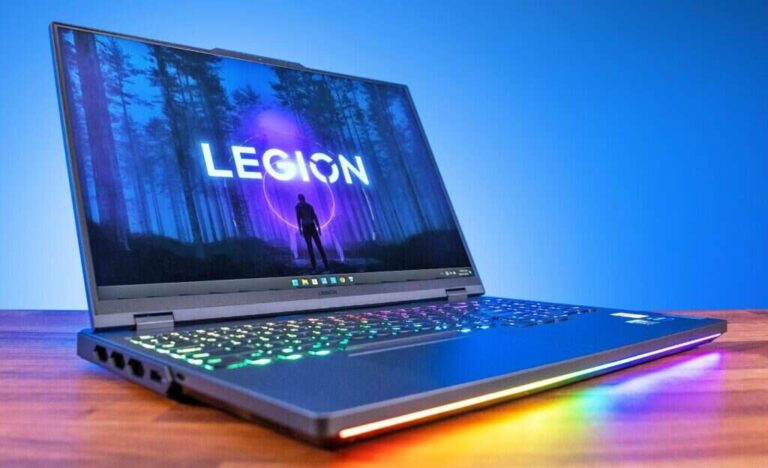
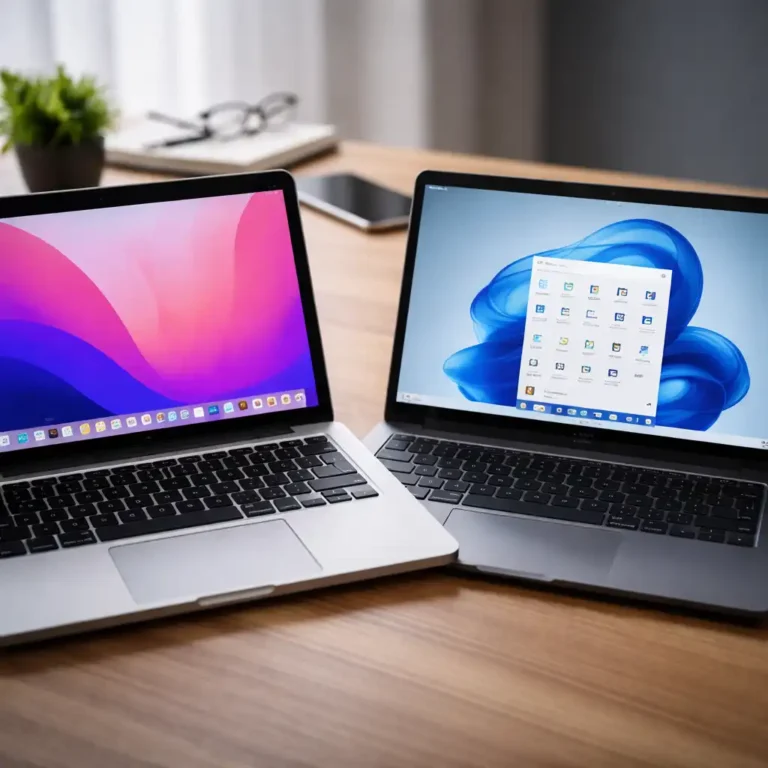
For most people in the United States, the best laptop for remote work is the 13-inch MacBook Air with the M4 chip. It is fast, quiet, light, and has strong battery life. It also works well for video calls, office apps, web tools, writing, and light creative work.
The best choice changes if you need Windows-only software, many ports, a larger screen, or a lower price. In those cases, consider a business laptop such as the Lenovo ThinkPad T14, Dell Latitude 7450, HP EliteBook 840, or Microsoft Surface Laptop.
This guide compares the key features that matter for remote work. It also explains which laptop fits different jobs, budgets, and home office setups.

Best laptops for remote work at a glance
The table below gives a quick starting point. Prices and configurations can change, so check the maker’s website before you buy.
| Laptop | Best for | Main strengths | Main limits |
|---|---|---|---|
| MacBook Air 13-inch with M4 | Most remote workers | Fast chip, quiet design, long battery life, sharp display | macOS may not run some Windows-only apps |
| MacBook Air 15-inch with M4 | People who want more screen space | Large display, quiet operation, strong battery life | Costs more and is less compact |
| Lenovo ThinkPad T14 | Business users and IT teams | Great keyboard, business features, Windows support | Design is plain; screen options vary |
| Dell Latitude 7450 | Corporate work | Strong management and security options | Configuration prices can be high |
| HP EliteBook 840 | Office workers who need Windows | Good keyboard, business support, useful ports | Specs vary by retailer and model |
| Microsoft Surface Laptop | Windows users who value design | Bright display, light build, good battery life | Fewer ports than many business laptops |
| Acer Aspire 5 or Lenovo IdeaPad Slim 5 | Tight budgets | Good value for basic office work | Lower-cost screens, cameras, and build quality |
Our top pick: MacBook Air with M4
The MacBook Air is the strongest all-purpose choice for many remote workers. Apple lists the M4 MacBook Air with a silent, fanless design, a 12-megapixel Center Stage camera, Wi-Fi 6E, and support for two external displays when the laptop is closed.
The 13-inch model is easier to carry. The 15-inch model gives you more room for two documents side by side. Both are good for email, Zoom, Microsoft 365, Google Workspace, Slack, project tools, and light photo or video work.
Choose it only if your key apps support macOS. Check this before you buy if you use specialized medical, engineering, finance, government, or company software.
Best Windows choice: Lenovo ThinkPad T14
The ThinkPad T14 is a strong pick for people who need Windows and a work-first design. It has a well-known keyboard, many business configurations, and options for extra security and IT management.
Lenovo offers different processors, displays, memory choices, and storage options. That means one T14 may be much better than another. Look for at least 16 GB of RAM, a 512 GB solid-state drive, and a 1080p or better screen.
The T14 is a better fit than a low-cost consumer laptop if you travel for work, type all day, or need help from an employer’s IT team.
Best for a large screen: MacBook Air 15-inch or a 15-inch Windows laptop
A larger display can reduce window switching. It helps if you compare spreadsheets, write reports, or work with large web dashboards.
The 15-inch MacBook Air is a good choice for macOS users. Windows buyers can look at the Surface Laptop 15-inch, Dell Latitude 15-inch models, or business laptops with a 15.6-inch display.
A large laptop is less portable. If you work from coffee shops, airports, or shared offices, a 13- or 14-inch laptop may feel better.

What makes a laptop good for remote work?
A good remote-work laptop does not need the fastest gaming chip. It needs a balance of speed, battery life, comfort, camera quality, security, and support.
Processor
The processor runs apps and handles tasks. For most remote work, look for one of these levels:
- Basic: Intel Core 3, Intel Core i3, AMD Ryzen 3, or Apple M-series chips
- Good for most users: Intel Core 5, Core Ultra 5, AMD Ryzen 5, or Apple M-series chips
- Heavy work: Intel Core 7 or Ultra 7, AMD Ryzen 7, Apple M-series Pro chips, or similar
A modern mid-range chip is enough for video calls, web apps, documents, and spreadsheets. A faster chip helps when you use many apps at once, edit video, run code, or use virtual machines.
Memory
Memory, also called RAM, helps your laptop keep apps open.
- 8 GB: Works for light tasks, but may feel tight over time
- 16 GB: The best target for most remote workers
- 32 GB or more: Useful for development, design, video editing, data work, and virtual machines
If the laptop does not allow a memory upgrade, choose 16 GB from the start. Many thin laptops have memory built into the main board.
Storage
Choose a solid-state drive, or SSD. It makes the laptop start and open apps faster than an old hard disk drive.
- 256 GB: Enough for cloud-first work
- 512 GB: Better for most people
- 1 TB: Useful for large files, photos, video, or offline work
Cloud storage does not remove the need for local space. Your operating system, apps, downloads, and cached files still use the internal drive.
Display
A 13- or 14-inch screen is a good balance for travel. A 15- or 16-inch screen gives you more work space.
Look for:
- A resolution of at least 1920 × 1080
- A matte or low-glare finish if possible
- Around 300 nits or more for mixed indoor use
- Good viewing angles
- A comfortable scaling setting for text
Brightness claims can vary by model and test method. A bright screen helps near windows, but it does not solve strong glare.
Webcam and microphone
A clear camera and microphone matter for remote work. The camera should show your face without heavy blur or noise. The microphone should reduce room noise without making your voice sound thin.
Apple lists a 12MP Center Stage camera on the M4 MacBook Air. Some Windows business laptops offer 1080p cameras and features such as automatic framing or background blur. These features depend on the laptop model and software.
A laptop camera is not always enough. A cheap USB headset can improve voice quality more than a small camera upgrade.
Battery life
Battery life depends on screen brightness, apps, call length, Wi-Fi, and power settings. Manufacturer battery figures are useful for comparison, but they are not a promise for a full workday.
For remote work, aim for a laptop that can handle several hours away from a charger. A laptop with USB-C charging is easier to use with a dock, monitor, and travel charger.
Keyboard and touchpad
You may type for many hours each day. A good keyboard can matter more than a small gain in processor speed.
Try to check:
- Key travel and spacing
- Backlighting
- A full-size arrow-key layout
- A comfortable palm rest
- Touchpad size and accuracy
- Whether the keyboard feels stable when pressed
Business laptops often have better keyboards and service options than very cheap consumer models.

How much should you spend on a remote-work laptop?
Most people should plan to spend about $700 to $1,500 for a reliable new laptop. You can spend less, but low-cost models often cut back on the screen, camera, memory, storage, or build quality.
| Budget | What to expect | Best fit |
|---|---|---|
| Under $600 | Basic speed and build; often 8 GB RAM | Email, documents, school, light web work |
| $600–$900 | Better processors and SSDs | General remote work |
| $900–$1,500 | Better screens, cameras, keyboards, and build | Daily professional use |
| Over $1,500 | Premium materials or specialist power | Developers, creators, executives, heavy users |
A laptop that costs $300 more may be worth it if you use it every workday for four or five years. A simple example:
- A $900 laptop used for four years costs about $225 per year
- A $1,400 laptop used for five years costs about $280 per year
This is only a budget example. Repair costs, software, warranties, and accessories can change the total.
Do not pay for a dedicated graphics card unless your work needs one. It adds cost, heat, weight, and power use. Most office work relies more on the processor, memory, screen, webcam, and keyboard.

Which laptop is best for your type of remote work?
The right answer depends on your apps and work habits.
For email, documents, and video calls
Choose a MacBook Air, Surface Laptop, ThinkPad T14, or a well-configured Dell Latitude or HP EliteBook.
Minimum target:
- 16 GB RAM
- 512 GB SSD
- A modern Core 5, Core Ultra 5, Ryzen 5, or Apple M-series chip
- A 1080p webcam
- Wi-Fi 6 or newer
You do not need a high-end graphics chip for this work.
For Microsoft 365 and Windows-only business apps
Choose a Windows laptop. Good starting points include the ThinkPad T14, Dell Latitude 7450, HP EliteBook 840, and Surface Laptop.
Before buying, check whether your company requires:
- Windows 11 Pro
- A specific VPN
- A security certificate
- Smart-card support
- A company device-management tool
- A particular browser or plug-in
A Mac can run some Windows software through virtualization or remote access. That does not mean every business app will work well. Your employer’s IT team should confirm compatibility.
For software development
Choose at least 16 GB of RAM. Consider 32 GB if you run containers, emulators, local databases, or virtual machines.
The operating system matters. A MacBook may suit web development, Unix tools, and Apple app development. A Windows laptop may suit .NET, corporate tools, and applications that require Windows. Linux support varies by model and manufacturer.
Check processor architecture before buying. Some newer ARM-based Windows laptops may have compatibility limits with older tools, drivers, or virtual machines.
For design, photography, and video
Prioritize the screen, processor, memory, storage, and ports.
A practical target is:
- 16 GB RAM or more
- 512 GB or 1 TB SSD
- A high-quality display with good color coverage
- A strong modern processor
- A way to connect fast external storage
- 32 GB RAM for larger video projects or 3D work
For professional color work, check measured color accuracy and support for your needed color space. A maker’s “vivid display” label is not the same as independent color testing.
For travel
Choose a 13- or 14-inch model that weighs about three pounds or less. Also check the charger size, battery capacity, hinge strength, and port selection.
A small laptop is easier to carry, but a small screen can make long work sessions harder. A portable USB-C monitor may help if you often work away from home.
For customer calls
The webcam and microphone matter more than peak processor speed. Look for a 1080p or better camera, noise reduction, and a headphone jack if you use a wired headset.
Test the camera before an important call. Poor lighting can make a good webcam look bad. Face a window or use a soft lamp placed in front of you.
MacBook or Windows laptop for remote work?
Neither operating system is best for every worker.
Choose a MacBook if:
- Your work apps support macOS
- You value quiet operation and low weight
- You use an iPhone and want Apple device features
- You prefer macOS
- You do not need many built-in ports
The MacBook Air uses USB-C ports, so you may need a hub for HDMI, USB-A devices, Ethernet, or memory cards.
Choose Windows if:
- Your employer requires Windows
- You need a Windows-only program
- You want a wider range of prices and designs
- You need business management tools
- You want more built-in ports on some models
Windows laptops vary widely. Compare the exact configuration, not just the product family name.
Check company rules first
A company may block personal devices. It may also require device encryption, antivirus software, a managed account, or a specific version of Windows or macOS.
Ask your IT team these questions before buying:
- Does the laptop need Windows Pro?
- Does the company support macOS?
- Are ARM-based processors supported?
- Is a built-in smart-card reader required?
- Which VPN and security tools must run?
- Can the device connect to the company’s remote desktop system?

What ports and accessories do remote workers need?
A laptop is only part of a comfortable home office.
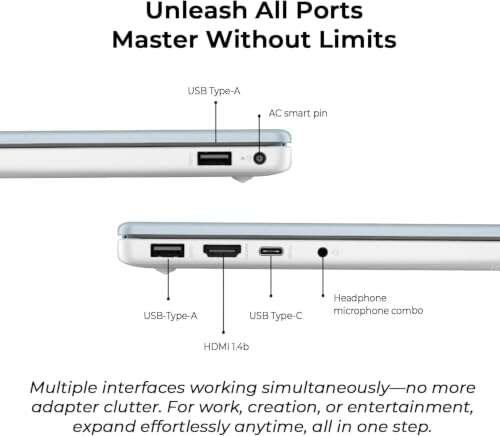
Useful ports include:
- USB-C for charging and modern accessories
- USB-A for older mice, keyboards, and drives
- HDMI for a monitor or TV
- A headphone jack for calls
- Ethernet for a stable wired network
- An SD card slot for cameras and media work
You can add missing ports with a USB-C hub or docking station. Check the hub’s power limits and video support. Some hubs cannot run two external monitors at the needed resolution or refresh rate.
Useful accessories include:
- External monitor
- USB or Bluetooth keyboard
- Mouse
- USB headset
- Laptop stand
- External webcam
- Surge protector
- Backup drive or cloud backup
An external monitor often improves comfort more than choosing a more powerful laptop. Place the top of the screen near eye level, and keep the keyboard and mouse at a relaxed height.

Security and privacy features to check
Remote work can expose company data on home networks, public Wi-Fi, and personal devices.
Look for:
- Automatic security updates
- Full-disk encryption support
- A fingerprint reader or facial login
- A physical camera shutter
- Secure boot support
- A trusted platform module on Windows laptops
- Business warranty and repair options
Windows 11 requires supported security hardware on compatible PCs. Microsoft explains features such as Windows Hello, BitLocker, and security processors in its official documentation.
Apple provides FileVault, Touch ID on some models, and hardware-based security features on Apple silicon Macs. The exact security setup depends on the device and account settings.
Good habits matter as much as hardware:
- Use a unique password
- Turn on multifactor authentication
- Install updates promptly
- Avoid sensitive work on unknown public computers
- Use your employer’s VPN when required
- Lock the screen when you step away
- Keep a separate backup of important personal files
Do not install random “cleaner,” “driver updater,” or remote-support apps. Use your employer’s approved tools.

Common mistakes when buying a remote-work laptop
Buying by processor name alone
A laptop with a newer processor can still have a poor screen, weak webcam, or only 8 GB of RAM. Compare the full configuration.
Choosing 8 GB of RAM to save money
Eight gigabytes may handle light work. It gives you less room for many browser tabs, video calls, and large files. Sixteen gigabytes is a safer long-term choice.
Ignoring the webcam
A fast laptop with a poor camera can make calls frustrating. Check the camera resolution and microphone features before buying.
Assuming every USB-C port does everything
USB-C describes the connector shape. One port may support charging and video, while another may support only data. Read the maker’s port list.
Buying a gaming laptop for office work
Gaming laptops can be powerful. They are often heavier, louder, and less convenient to carry. Buy one only if you need its graphics power.
Forgetting the warranty
A business laptop with on-site or extended support may be worth more than a cheaper model if your income depends on it. Read the warranty terms for the United States.
Using a personal laptop for restricted work
Your employer may not allow company data on an unmanaged device. Confirm the policy before signing in.

How to choose the best laptop for remote work
Use this short process:
- List your required apps. Include company tools, VPNs, browsers, and accessories.
- Choose the operating system. Pick macOS or Windows based on compatibility, not brand loyalty.
- Set a budget. Include a monitor, dock, headset, and warranty.
- Choose 16 GB of RAM. Move to 32 GB for heavy development or creative work.
- Choose at least a 512 GB SSD.
- Check the camera and microphone.
- Check ports and monitor support.
- Review warranty and repair options.
- Buy from a seller with a clear return policy.
- Test everything during the return period.
Test the camera, microphone, speakers, Wi-Fi, charging, keyboard, touchpad, external display, and work apps. If one key tool does not work, stop and check compatibility before the return period ends.

FAQs about the best laptop for remote work
Is a MacBook Air good for working from home?
Yes. The MacBook Air is a strong option for documents, email, video calls, web apps, and many creative tasks. Confirm that your work software supports macOS before buying.
Is 8 GB RAM enough for remote work?
It can be enough for light email and document work. For a new laptop, 16 GB is a better target because it handles more browser tabs, video calls, and apps at once.
Do I need a 5G laptop for remote work?
Usually, no. Home Wi-Fi is enough for most people. A laptop with cellular service can help if you travel often, but it adds hardware and mobile-plan costs.
Is a Chromebook good for remote work?
A Chromebook can work well for browser-based tools, Google Workspace, email, and video calls. It may not work with desktop Windows or macOS software. Check your employer’s tools first.
How long should a remote-work laptop last?
A good laptop may last several years if you keep it updated, protect it from heat and spills, and replace the battery when needed. Heavy use, limited RAM, poor repair access, and short warranties can reduce its useful life.
Should I buy a business laptop or a consumer laptop?
Choose a business laptop if you need a strong keyboard, better support, security tools, or company management. A consumer laptop may offer more value if your work is light and you do not need business features.
Final recommendation
For most US remote workers, start with the 13-inch MacBook Air with M4 and 16 GB of memory. Choose the 15-inch version if screen space matters more than portability.
If you need Windows, start with a Lenovo ThinkPad T14, Dell Latitude 7450, HP EliteBook 840, or Microsoft Surface Laptop. Choose 16 GB of RAM, a 512 GB SSD, a 1080p-or-better screen, and a strong warranty.
The best laptop is not the one with the biggest processor. It is the one that runs your required apps, feels comfortable after a full workday, protects your data, and fits your real budget.

Everett Ashford is a tech reviewer at mytechgrid.com specializing in SSDs, cameras, TVs, earbuds, headphones, and other consumer electronics. He provides honest, data-driven reviews based on hands-on testing and real-world performance analysis. Everett simplifies complex tech details to help readers make smart, confident buying decisions.