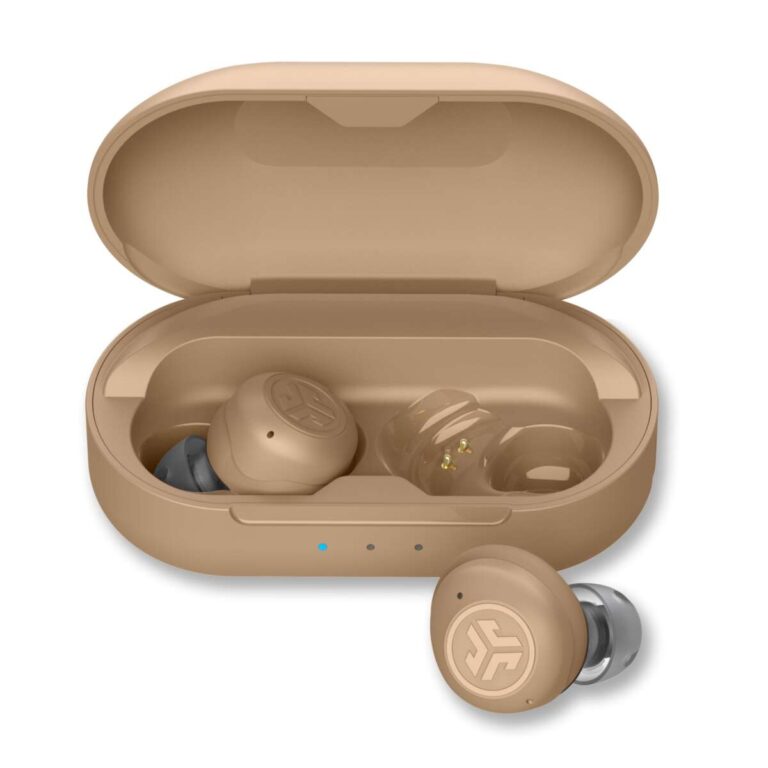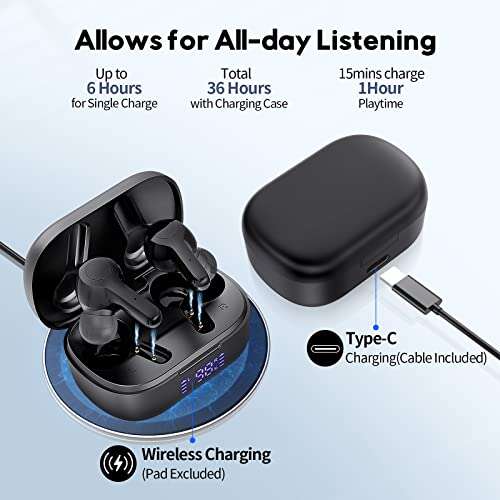
Put both earbuds in the case, enable Bluetooth on your device, then follow the pairing LED prompt.
I’ve paired dozens of TWS earbuds across brands and models, and this guide explains exactly how to pair TWS earbuds step by step. You’ll learn simple setup paths for iPhone, Android, Windows, and Mac, plus troubleshooting, tips, and real-world fixes I use when a pair won’t connect. Read on to master how to pair TWS earbuds with confidence and speed.
How to pair TWS earbuds — step-by-step for any device
Pairing is the process that links your earbuds to a device so audio flows wirelessly. Follow these simple steps to learn how to pair TWS earbuds reliably.
- Prepare the earbuds
- Place earbuds in the charging case and open the lid.
- Make sure they are charged. Low battery often blocks pairing.
- Some models enter pairing automatically when removed from the case.
- Put earbuds in pairing mode
- Many earbuds flash a white or blue LED when ready to pair.
- If not, hold the touch sensor or power button for 5–10 seconds until the LED flashes.
- Some earbuds pair only when both buds are out of the case; others let you pair a single bud.
- Enable Bluetooth on your device
- On Android: Settings > Connections > Bluetooth. Tap Scan or new device.
- On iPhone: Settings > Bluetooth. Wait for the earbuds to appear and tap them.
- On Windows: Settings > Devices > Bluetooth & other devices > Add Bluetooth.
- On macOS: System Settings > Bluetooth, then pair.
- Select the earbuds on your device
- Choose the model name that appears. Pairing completes within seconds.
- If prompted for a PIN, try 0000 or 1234. Most modern TWS earbuds don’t need a code.
- Confirm stereo and test audio
- Play music or a video. Check that both left and right channels work.
- If one bud is silent, try reseating it in the case and re-pair.
How to pair TWS earbuds varies by brand, but these steps work for most models. If a model uses an app, open the app for advanced setup after basic pairing.

How to pair TWS earbuds with specific devices
Different devices have small differences. Here’s a quick guide to common platforms.
Android
- Turn on Bluetooth and scan. Tap the earbuds’ name.
- Grant permission if a pop-up asks for location or pairing.
- Use the brand app for firmware updates and controls.
iPhone (iOS)
- Open Bluetooth in Settings or use the Control Center.
- Tap the earbuds’ name when it appears.
- For MFi or H1 chips, an on-screen card may speed setup.
Windows PC
- Open Bluetooth settings and choose Add device > Bluetooth.
- Select the earbuds and wait for “Connected” status.
- Set the earbuds as default playback if needed in Sound settings.
Mac
- Open Bluetooth in System Settings.
- Click Connect next to the earbuds name.
- Use Sound settings to choose input/output for calls and music.
How to pair TWS earbuds on each device is similar: put buds in pairing mode, then select them on the device.

Troubleshooting: common pairing problems and fixes
Pairing problems are common but usually simple to fix. Below are causes and fast solutions for how to pair TWS earbuds when things go wrong.
Problem: Earbuds don’t appear in Bluetooth list
- Restart Bluetooth on the device.
- Reset earbuds by holding power/touch controls for 10–20 seconds.
- Remove other paired devices from the phone’s Bluetooth list.
Problem: Only one earbud connects
- Place both buds in the case, close, then reopen to re-sync.
- Unpair the earbuds from your device and re-initiate pairing.
- Update firmware if the brand app offers updates.
Problem: Frequent dropouts or lag
- Move closer to the device and remove interference (Wi‑Fi routers, microwaves).
- Disable other active Bluetooth devices nearby.
- Switch codec or low-latency mode in the app if available.
Problem: Bluetooth pairing shows “Connected” but no sound
- Check the device volume and the earbud volume control.
- Ensure the correct playback device is selected in system audio settings.
- Reboot the device and try again.
I once spent an hour fixing a pair that wouldn’t sync. The fix was a factory reset on the earbuds followed by removing the device from Bluetooth history. That solved the issue immediately. These small steps often preempt long troubleshooting sessions.

Best practices and tips for reliable pairing
Adopt habits that make pairing fast and painless. These tips reflect real testing and daily use.
- Keep firmware updated through the vendor app for stability.
- Charge earbuds and case regularly; low battery disrupts pairing.
- Use only one pairing method at a time; close other Bluetooth devices.
- Keep the case clean; dirty contacts can stop charging and pairing.
- Learn the LED patterns and voice prompts for your model.
- Label your earbuds in device Bluetooth settings if you pair multiple sets.
Personal tip: I store my most-used earbuds as “Fav Earbuds” in phone settings and remove old, unused devices. This reduces accidental connections and speeds up how to pair TWS earbuds when I switch devices.

Advanced scenarios: multi-device pairing, single-bud use, and resets
Advanced features vary. Here’s how to handle multi-device use and resets.
Multi-device pairing
- Some earbuds support simultaneous connection to phone and laptop.
- Pair first device, then put earbuds in pairing mode and add second device.
- For seamless switching, pause on one device before playing on another.
Single-bud mode
- Many buds work independently. Remove one bud from the case and pair normally.
- Use single-bud mode for calls or extended battery life.
Factory reset and full re-pair
- Put both buds in case. Press and hold the case button or hold both earbuds until LEDs blink red/white.
- Delete the earbuds from your device Bluetooth list, then redo the pairing steps.
Gaming and low-latency
- If you need low audio lag, enable low-latency or gaming mode in the app.
- Use buds with aptX LL or similar codecs for best results on compatible devices.
How to pair TWS earbuds in advanced setups usually requires an app or specific button sequences. Check the manual for model-specific reset steps.
Practical examples and mistakes to avoid
Learning from mistakes helps you pair faster next time. Here are direct examples and what to avoid.
Example 1: I tried pairing during a meeting and had repeated dropouts. Lesson: disable other Bluetooth labs and move away from crowded networks.
Example 2: A friend kept trying to pair with an earbud still in firmware update mode. Lesson: always complete updates before pairing.
Common mistakes to avoid
- Trying to pair with dead batteries.
- Forgetting to remove previous pairings.
- Relying only on automatic pairing without learning manual reset steps.
Follow these examples and you’ll reduce time spent fixing how to pair TWS earbuds.

Frequently Asked Questions of how to pair tws earbuds
What is the first step to pair TWS earbuds?
Put the earbuds in the case, charge them, and put them into pairing mode by holding the buttons or removing them from the case. Then enable Bluetooth on your device and select the earbuds from the list.
Can I use only one earbud at a time?
Yes, many TWS earbuds support single-bud use. Remove one earbud from the case and pair it like normal. Check your model’s manual if only one bud connects intermittently.
Why won’t my earbuds show up on my phone?
Common causes are low battery, previously paired devices causing conflicts, or Bluetooth being off. Reset the earbuds, remove old pairings from your phone, and try again.
How long does pairing usually take?
Pairing normally completes within a few seconds to one minute. If it takes longer, reset the earbuds and try again or reboot your device.
Do I need an app to pair TWS earbuds?
No, basic pairing usually works without an app. Apps add features like firmware updates, EQ, and gesture mapping but are not required for basic audio pairing.
Conclusion
Mastering how to pair TWS earbuds takes a few minutes and a little practice. Follow the clear steps above, keep firmware and battery levels healthy, and learn your model’s reset sequence to avoid most problems. Try the simple routine I use: charge, reset if needed, delete old pairings, then pair fresh—this usually fixes stubborn issues fast. If you found this helpful, try pairing a set right now, subscribe for more tips, or leave a comment about the model you’re using.

Jamie Lee is a seasoned tech analyst and writer at MyTechGrid.com, known for making the rapidly evolving world of technology accessible to all. Jamie’s work focuses on emerging technologies, product deep-dives, and industry trends—translating complex concepts into engaging, easy-to-understand content. When not researching the latest breakthroughs, Jamie enjoys exploring new tools, testing gadgets, and helping readers navigate the digital world with confidence.