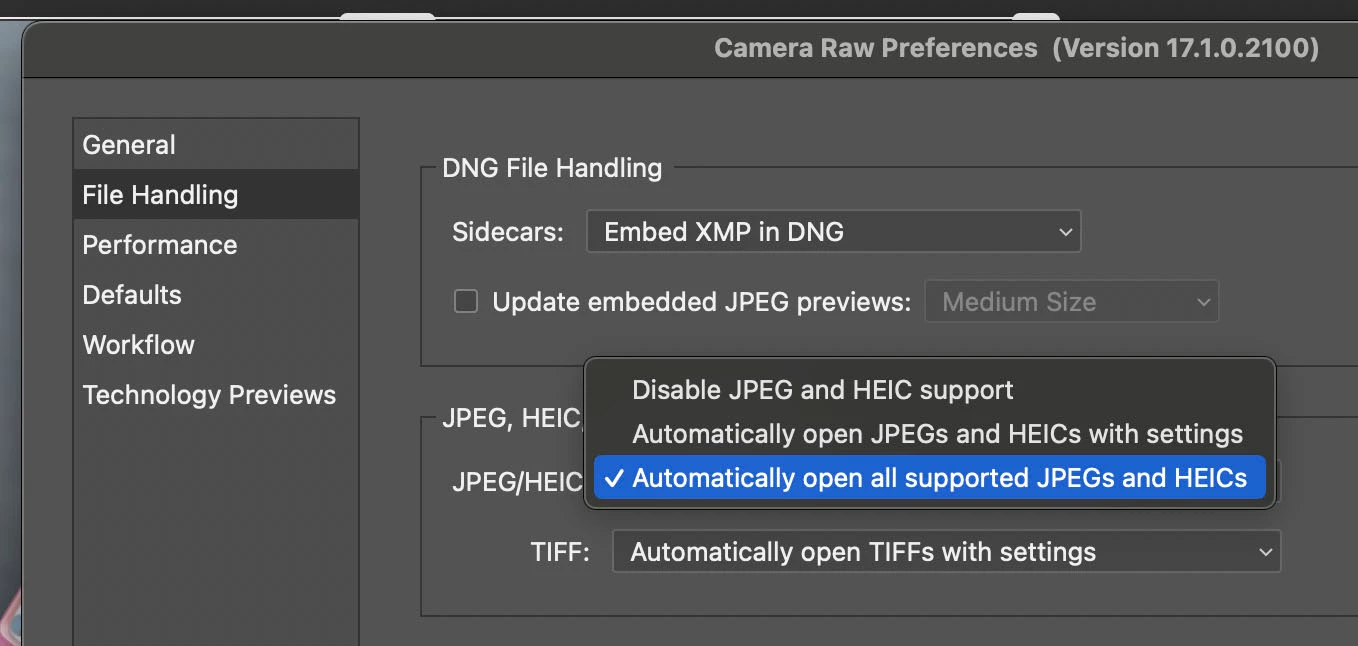
Yes — modern Camera Raw supports HEIC, but support depends on your Camera Raw version and operating system.
I’ve worked with raw converters and Apple photos for years, so I’ll walk you through exactly how and when Camera Raw supports HEIC. This article explains what HEIC is, why Camera Raw may or may not open HEIC files on your machine, the steps to enable support, practical workarounds, and tips to keep colors and metadata intact. Read on to get a clear, actionable answer to does camera raw support heic and how to make it work for your workflow.
How Camera Raw and HEIC relate
HEIC stands for High Efficiency Image Container. It’s a modern container that often holds images encoded with HEVC. HEIC is not the same as a camera RAW file. Camera Raw is a Photoshop plugin and image engine designed to read and edit raw sensor data. Because HEIC is a compressed image container, Camera Raw treats HEIC differently than true RAW formats.
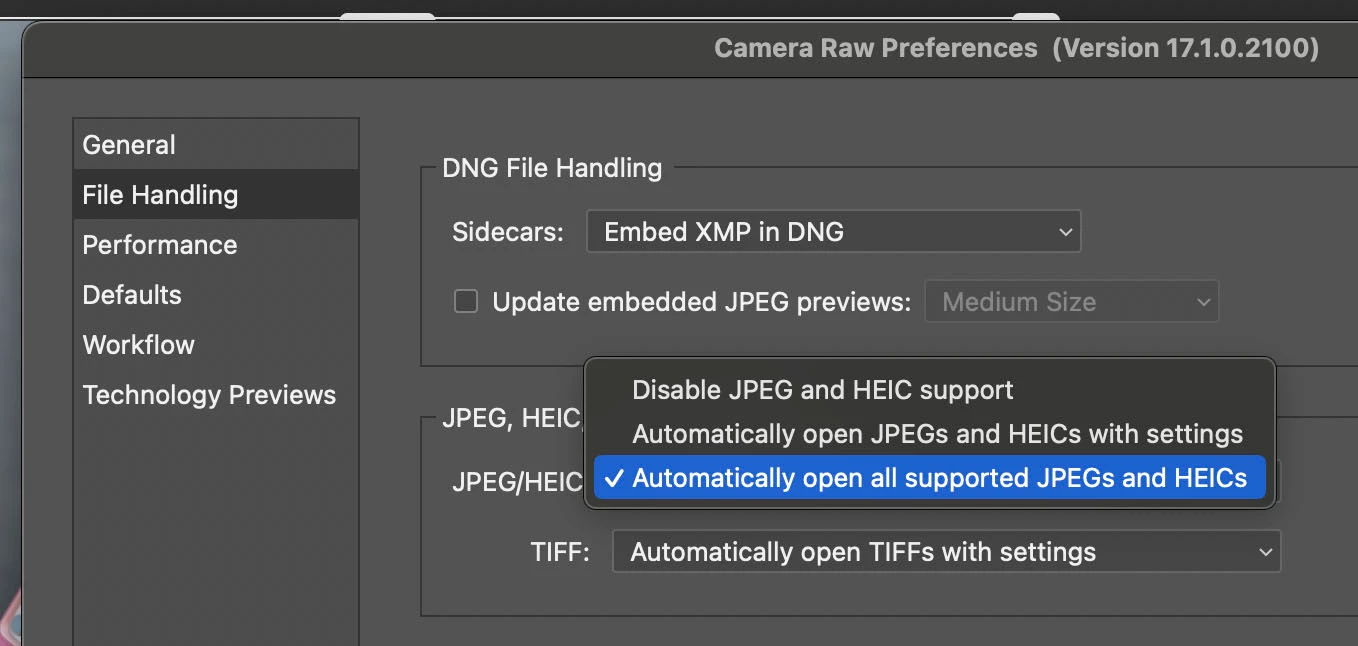
When you ask does camera raw support heic, the practical answer is: Camera Raw can open HEIC files in many setups, but it relies on OS-level and app-level support. If the operating system can decode HEIC, Camera Raw can usually access and edit that image. If not, Camera Raw will not see the file or will open a limited preview only.
Which platforms and versions usually support HEIC in Camera Raw
Support varies by platform and app version. Here are the typical scenarios where does camera raw support heic holds true:
- macOS: Newer macOS releases include HEIC decoding. Camera Raw running on a recent macOS version will normally open HEIC images without extra steps.
- Windows: Windows 10 and 11 provide HEIF/HEIC extensions. Installing the OS HEIF extension or codecs often enables Camera Raw to read HEIC files.
- Adobe versions: Recent releases of Camera Raw and Photoshop add or rely on system HEIF support. Keeping Adobe apps updated increases the chance that does camera raw support heic for your setup.
- Mobile and cloud apps: Lightroom and cloud-based Adobe apps may support HEIC after sync, but exact behavior depends on app version and platform.
If your setup feels inconsistent, the source is almost always either an outdated Camera Raw plugin, missing OS codec, or an HEIC variant (for example, an HEIC with a proprietary profile). Confirm updates for both your OS and Adobe apps to improve compatibility.
How to open HEIC in Camera Raw — step-by-step
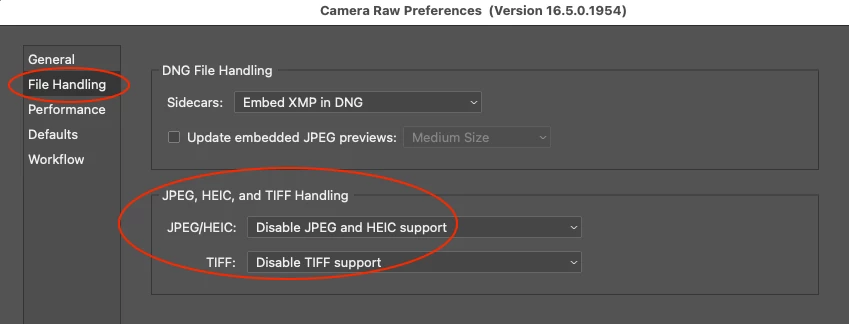
Here’s a clear path to test and enable HEIC support in Camera Raw:
- Update your software
- Update Photoshop/Camera Raw to the latest release.
- Update your OS to a version with native HEIC support.
- On Windows, install HEIF/HEVC codecs if needed
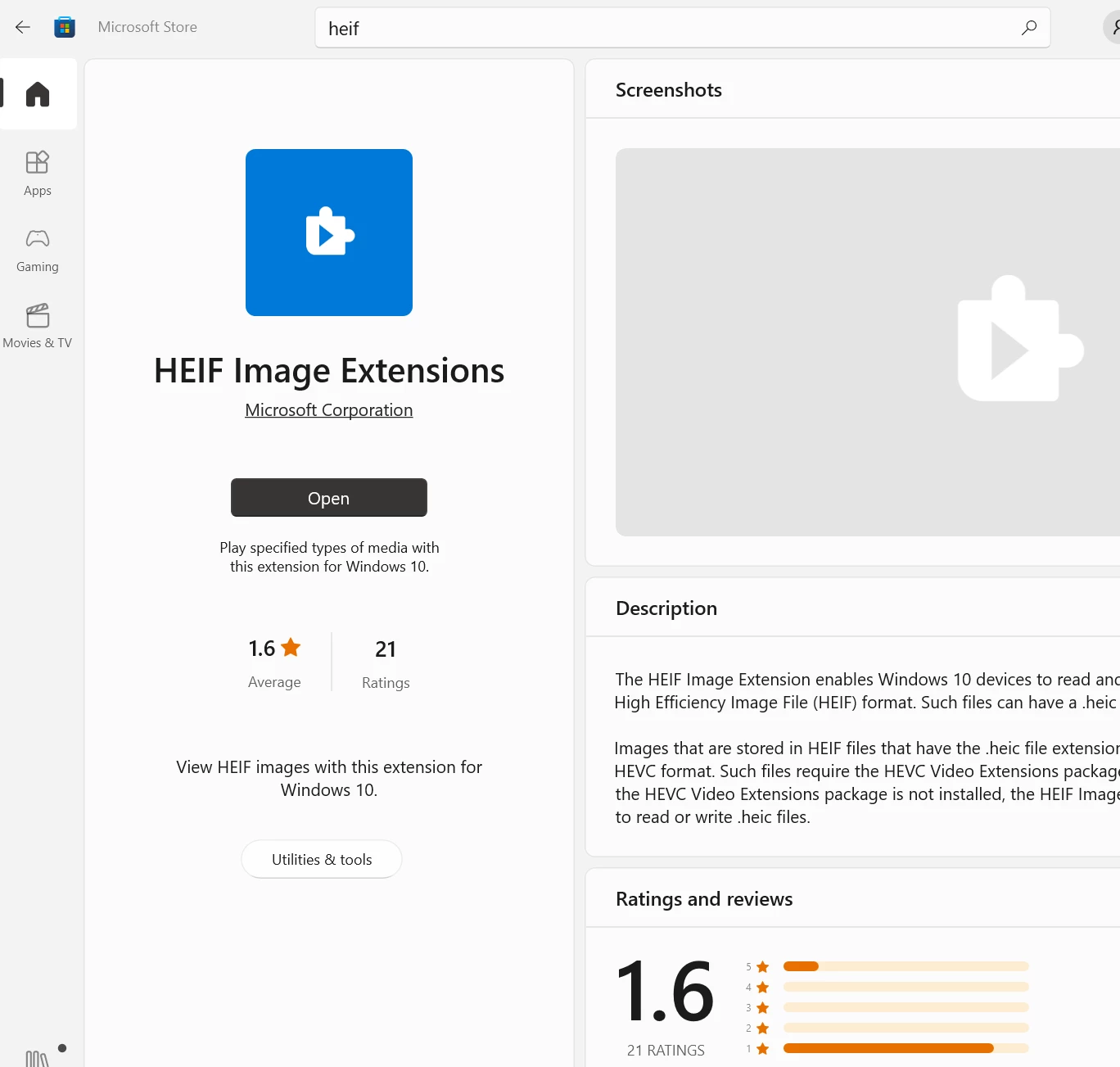
- Install the HEIF Image Extensions from the system store or the needed HEVC decoder so the OS can decode HEIC. After that, Camera Raw can access the image data.
- Try opening the file
- Use Photoshop’s File > Open to load the HEIC. If Camera Raw appears, you can edit the image there. If Photoshop opens the image directly, use Filter > Camera Raw Filter to process it.
- Convert when necessary
- If the OS or app still fails, convert HEIC to a supported format like DNG (for raw-like workflows) or TIFF/JPEG for editing. Use a reliable converter or export from the Photos app.
These steps answer does camera raw support heic in practice: if you update and add required codecs, yes; otherwise, convert.

Workarounds and conversion options
If does camera raw support heic for your machine is a no, try these workarounds:
- Convert HEIC to TIFF or JPEG with batch tools when you have many files.
- Use the Photos app (macOS) or the Photos import on Windows to export a compatible format.
- On iPhone, set Camera to “Most Compatible” to capture JPEG instead of HEIC for direct compatibility.
- Use Lightroom Classic or cloud Lightroom as an import step; these apps often handle HEIC more smoothly and then hand images to Camera Raw-compatible workflows.
- Automate conversion with scripts or tools if you process many HEIC files daily.
Conversion preserves access but can add storage overhead or change image characteristics. Keep originals until you confirm edits and exports are correct.
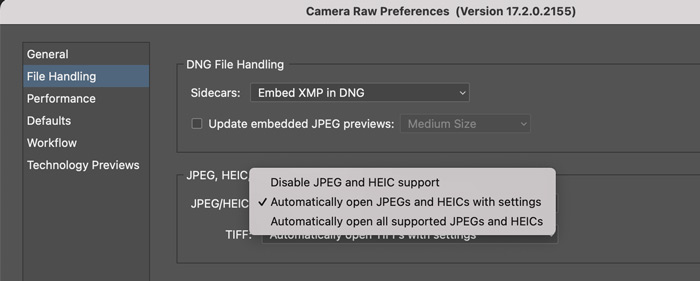
Image quality, metadata, and color considerations
HEIC can carry 10-bit color and advanced profiles, but it’s not raw. Here’s what to expect and how to preserve quality when Camera Raw handles HEIC:
- Color depth: HEIC can have higher bit depth than JPEG. Camera Raw may preserve more tonal data when OS decoding supports it.
- Profiles: Ensure color profiles are preserved on import. Check the image profile in Camera Raw and set the working space consistently.
- Metadata: HEIC often includes EXIF data. Camera Raw usually reads standard EXIF fields, but some proprietary tags can be lost on conversion.
- Dynamic range: HEIC can store HDR-like data. Camera Raw can edit that data if the decoded image exposes it. For true raw dynamic control, use genuine RAW formats when possible.
Practical tip from my tests: when precise color grading is critical, shoot in raw (or ProRAW on compatible devices) rather than relying on HEIC. Use HEIC for day-to-day images where storage savings matter.
Troubleshooting common errors
If Camera Raw refuses to open HEIC, try these checks:
- Verify the Camera Raw and Photoshop versions are current.
- Ensure your OS has the HEIF/HEVC codec and that it’s enabled.
- Check file variants: some HEIC files include depth or proprietary extensions. Try exporting a standard HEIC from the device.
- Try opening the file in the native Photos app. If it fails there, Camera Raw won’t open it either.
- Convert a single HEIC to TIFF to test whether Camera Raw can work with the decoded image.
These steps often reveal whether the problem is codecs, app versions, or file quirks.

Personal experience and practical tips
I handle mixed libraries daily. When clients send HEIC files, I first confirm whether they shot in HEIC or ProRAW. I keep a short checklist:
- Ask the client which format they used.
- Test one HEIC file on my machine to confirm support.
- If needed, I ask the sender to export TIFFs or JPEGs to avoid codec trouble.
A common mistake is assuming HEIC equals raw. I’ve seen photographers lose editing latitude by editing HEIC as if it were raw. Lesson learned: treat HEIC as an efficient image format, not a substitute for raw files.
Does Camera Raw support HEIC — short summary
To answer the core question: does camera raw support heic? Yes, in many cases, but it depends on your operating system, installed codecs, and Camera Raw version. Keep software updated and install the OS-level HEIF extensions to ensure best compatibility.
Frequently Asked Questions of does camera raw support heic
Does Camera Raw open HEIC files directly?
Camera Raw can open HEIC files if the operating system provides HEIC decoding and your Adobe apps are up to date. Without OS-level decoding, Camera Raw usually cannot read HEIC directly.
Do I need special codecs on Windows to use HEIC in Camera Raw?
Yes. Installing the HEIF/HEVC extensions for Windows lets Camera Raw access HEIC images. After installing codecs, restart Photoshop if needed.
Is HEIC the same as RAW?
No. HEIC is a compressed image container, not a raw sensor file. RAW files contain unprocessed sensor data, while HEIC is more like an advanced JPEG.
Will converting HEIC to TIFF lose quality?
Converting HEIC to TIFF retains the decoded image quality, but it does not recreate missing sensor-level data that a true RAW file would have. TIFF keeps edits non-destructive and is a safe editing format.
Should I shoot in HEIC or RAW for best editing?
For maximum editing flexibility, shoot RAW or ProRAW when available. Use HEIC for better storage efficiency and good-looking straight-out-of-camera results.
Conclusion
Camera Raw can support HEIC, but the outcome depends on your OS, Camera Raw version, and installed codecs. Update your software, install system HEIF extensions if needed, and convert when compatibility issues arise. If you want full editing latitude, prefer true RAW files; use HEIC when storage and convenience matter more.
Take action: check your system’s HEIC support now, update Camera Raw, and test one HEIC file to confirm your workflow. If this helped, try converting a batch and share your results or questions in the comments — I’ll help troubleshoot.

Everett Ashford is a tech reviewer at mytechgrid.com specializing in SSDs, cameras, TVs, earbuds, headphones, and other consumer electronics. He provides honest, data-driven reviews based on hands-on testing and real-world performance analysis. Everett simplifies complex tech details to help readers make smart, confident buying decisions.