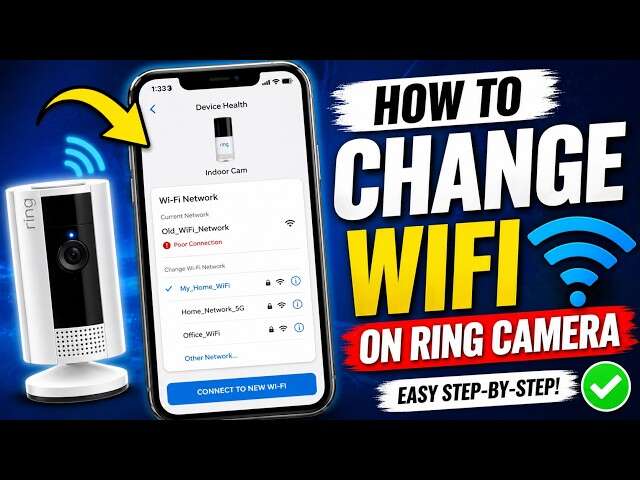
Reset your Ring, open the Ring app, choose your device, and follow the “Change Wi-Fi Network” steps.
I’ve helped homeowners, landlords, and small businesses fix dozens of Ring cameras that lost connection. This guide explains how to reconnect Ring camera to wifi step by step, why connections drop, and how to prevent future problems. I’ll walk you through preparation, quick reconnection steps, common errors and fixes, plus real-world tips I learned while troubleshooting Ring devices in the field.
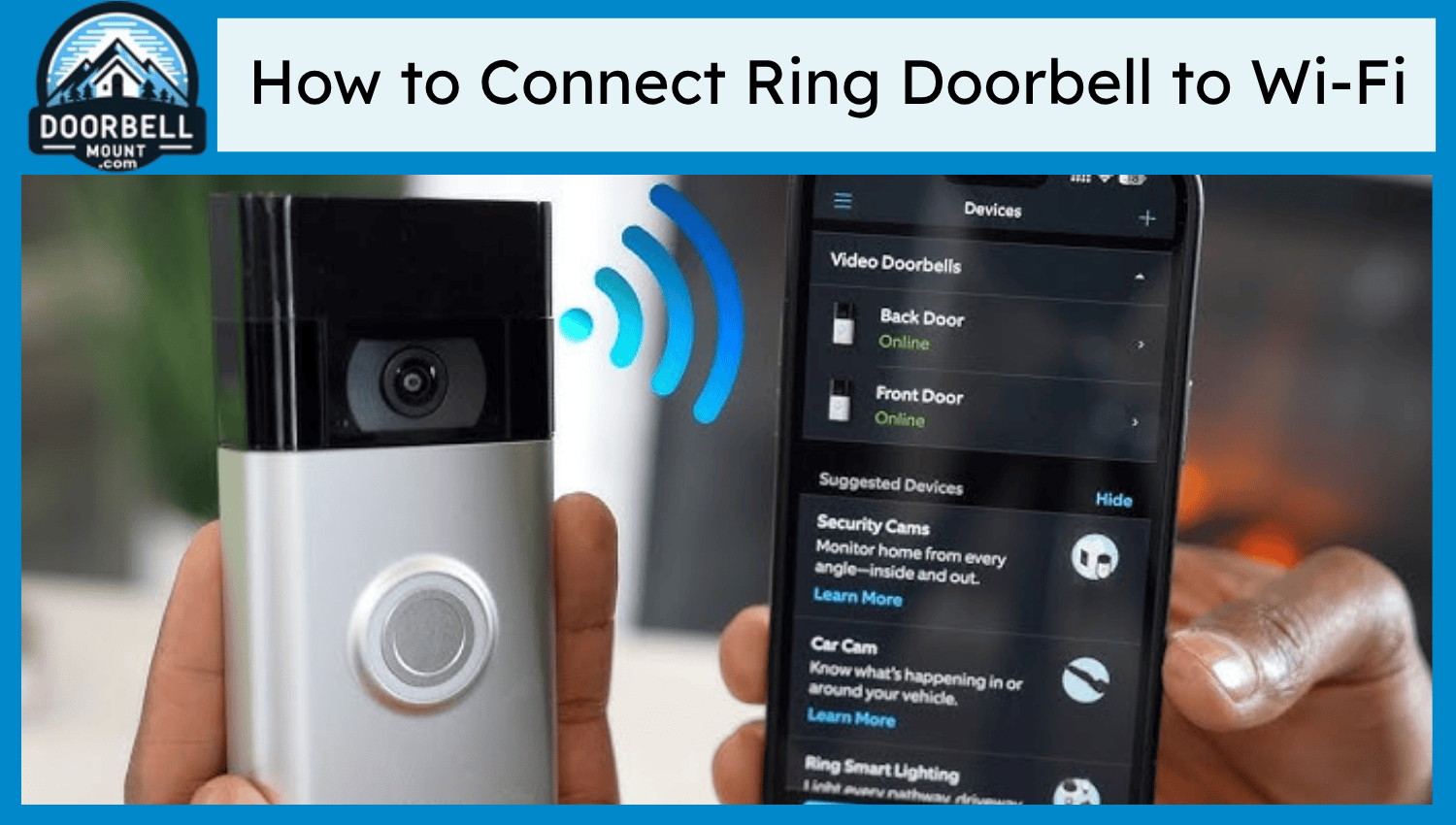
Why Ring cameras lose Wi-Fi
Ring cameras can lose Wi-Fi for many simple reasons. Routers are updated or restarted. Wi-Fi passwords change. Devices move out of range or face interference from walls, microwaves, or neighboring networks.
Firmware updates and account changes can also interrupt service. Power cycles and poor battery levels will make a camera appear offline. Knowing the cause helps you reconnect Ring camera to wifi faster and with less guesswork.

Preparation: what to check before reconnecting
Before you reconnect Ring camera to wifi, check a short list. This saves time and avoids repeated attempts.
- Ensure you know your Wi‑Fi network name and password.
- Confirm your phone is on the correct Wi‑Fi (2.4 GHz preferred for many Ring devices).
- Charge the Ring camera or keep it powered during setup.
- Have the Ring app updated to the latest version.
- Place the camera near the router for the initial setup if possible.
These quick checks cut setup time and reduce errors when you reconnect Ring camera to wifi.

Step-by-step: how to reconnect Ring camera to wifi
Follow these clear steps to reconnect Ring camera to wifi. I use short steps so you can act while troubleshooting.
- Open the Ring app
- Sign in to your Ring account.
- Tap the menu and choose Devices.
- Select your camera
- Tap the camera that shows offline or needs a network change.
- Start the Wi‑Fi change
- Tap Device Settings, then General Settings, then Change Wi-Fi Network or Reconnect to Wi‑Fi.
- Put the camera in setup mode
- For battery cameras, press the setup button until the light flashes.
- For wired models, remove and reconnect power or press the setup button per the model guide.
- Follow in-app prompts
- The app guides you to connect to the camera’s temporary hotspot.
- Enter your home Wi‑Fi name and password when prompted.
- Confirm connection
- Wait for the app to show a success message and device online status.
- Test a live view to confirm video and notifications work.
If a step fails, the app often shows an error code. Note that code and use the troubleshooting tips below. These steps are how to reconnect Ring camera to wifi in most cases.

Troubleshooting common errors when reconnecting
If reconnecting fails, try these focused fixes. I list common errors and short solutions.
- Camera won’t enter setup mode
- Make sure the battery is charged or wired power is stable. Hold the setup button longer if needed.
- App says wrong password
* Re-enter the Wi‑Fi password carefully. Watch for uppercase letters and special characters. - Weak signal or timeout
- Move the camera closer to the router for setup. Consider a temporary placement in the same room as the router.
- Camera connects but then drops
- Check router logs if available. Reduce network congestion or switch to a less crowded channel.
- App can’t find camera hotspot
- Turn Bluetooth on for your phone and grant location permission to the Ring app. Restart your phone and router, then retry.
I’ve solved many cases by simply moving the camera closer and retrying setup. Small steps often fix big headaches when you reconnect Ring camera to wifi.
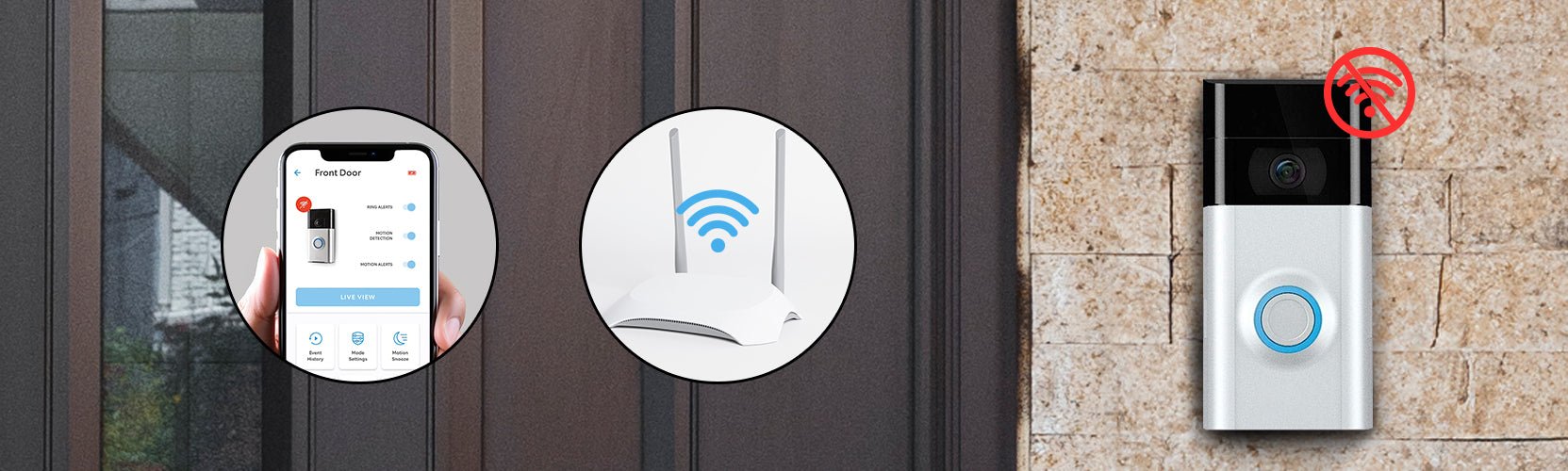
Improve Wi‑Fi reliability for Ring cameras
Make the connection stable so you don’t repeat the reconnection routine. These are practical, tested tips.
- Use 2.4 GHz network when possible
- Many Ring cameras prefer 2.4 GHz for range and compatibility.
- Check placement
- Keep cameras away from thick concrete or metal. Line of sight with the router helps.
- Use Wi‑Fi extenders or mesh systems
- If your home is large, add an access point or mesh node near the camera.
- Reserve bandwidth
- If your router supports Quality of Service (QoS), prioritize your camera for steady video upload.
- Update firmware
- Keep both router and camera firmware current for best compatibility and security.
These steps reduce dropouts and make it easier to reconnect Ring camera to wifi if problems happen later.
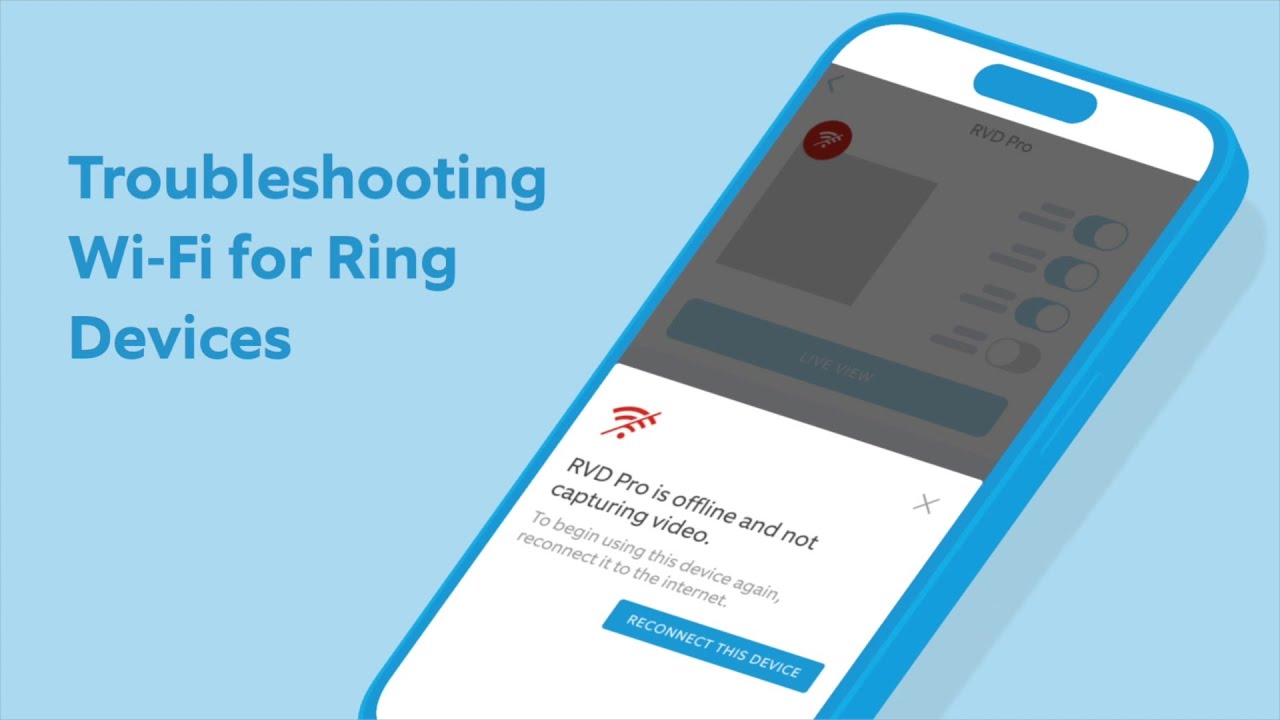
Advanced tips: network settings and tools
When simple fixes fail, try these advanced moves. They require a little more comfort with your router.
- Change router channel
- Move to a less crowded channel to reduce interference.
- Separate SSIDs
- Create a dedicated SSID for 2.4 GHz and 5 GHz to force the camera onto the correct band.
- Set DHCP reservations
- Reserve a stable IP address for your camera to avoid conflicts.
- Check encryption
- Use WPA2 or WPA3; older encryption can cause issues with device compatibility.
- Use a Wi‑Fi analyzer app
- Find dead zones and measure signal strength where the camera sits.
I’ve used DHCP reservations and mesh setups to stabilize multiple outdoor cameras. These steps help when you reconnect Ring camera to wifi repeatedly in the same spot.

Personal experience: mistakes I made and lessons learned
I once helped a customer whose Ring camera kept going offline every night. The issue was a smart plug rule that cut power during a scheduled routine. We disabled the schedule and moved the camera’s power to a constant outlet. Problem solved.
Another time I tried reconnecting a camera while my phone was on the wrong network. The app never found the camera until I switched Wi‑Fi and enabled location permission. Small oversights like this cost time.
Lessons learned
- Always check power and phone network first.
- Move the camera close for setup, then restore it to its final position.
- Keep a short troubleshooting checklist handy.
These practical tips save time when you reconnect Ring camera to wifi for real users.

Frequently Asked Questions of how to reconnect ring camera to wifi
How do I change the Wi‑Fi network on my Ring camera?
Open the Ring app, select your device, go to Device Settings, and choose Change Wi‑Fi Network. Follow the in‑app prompts to put the camera into setup mode and enter your new network details.
Why won’t my Ring camera connect to Wi‑Fi after a password change?
If you changed the Wi‑Fi password, the camera still tries the old one until you update it in the Ring app. Use Change Wi‑Fi Network in the app to enter the new password and reconnect.
Which network band should I use, 2.4 GHz or 5 GHz?
Use 2.4 GHz for better range and penetration through walls; choose 5 GHz only if the camera supports it and is close to the router. Many Ring models work best on 2.4 GHz.
What if my Ring camera shows offline but still records locally?
A camera may record locally during outages but not upload video until the connection returns. Check your router, restart the camera, and reconnect via the app to restore cloud uploads.
Do I need to reset my Ring camera to reconnect Wi‑Fi?
A full reset is rarely needed. Try Change Wi‑Fi Network first. Reset only when setup mode and troubleshooting steps fail, and you’re okay reconfiguring the device.
Conclusion
Reconnecting your Ring camera to Wi‑Fi is usually quick when you follow a clear checklist: verify power, confirm network and password, use the Ring app’s Change Wi‑Fi Network flow, and move the camera close to the router if needed. Use the troubleshooting steps and advanced tips here to fix persistent problems and to keep your camera stable over time. Try these steps now, and leave a comment with your issue if you need more help — I’ll respond with targeted advice.

Everett Ashford is a tech reviewer at mytechgrid.com specializing in SSDs, cameras, TVs, earbuds, headphones, and other consumer electronics. He provides honest, data-driven reviews based on hands-on testing and real-world performance analysis. Everett simplifies complex tech details to help readers make smart, confident buying decisions.