Turn off the headphones, place earbuds in their case, or reset Bluetooth pairing to disconnect Sony headphones without a device.
You can disconnect Sony headphones without a phone, tablet, or computer in several simple ways. The best method depends on whether you use Sony wireless headphones, true wireless earbuds, or a model with multipoint Bluetooth. This guide explains each option, what happens to saved connections, and how to avoid common pairing problems.
What happens when you disconnect Sony headphones without a device?
Sony headphones do not usually include a separate “disconnect” button. Instead, you control the Bluetooth link by turning off the headphones, placing earbuds in their charging case, or clearing the stored pairing data.
When you disconnect Sony headphones without a device, the headphones stop communicating with the last connected product. However, the old phone or computer may still remember the headphones. That saved entry is not the same as an active connection.
Bluetooth works like a short-range bridge. Turning off the headphones removes one end of the bridge, while resetting the headphones removes the bridge’s saved map. This difference matters when you want to connect the headphones to a new device.
How to disconnect Sony over-ear and on-ear headphones
The fastest way to disconnect Sony wireless headphones without a device is to power them off. This works on many popular models, including several WH and MDR Bluetooth headphones.
Method 1: Press the power button
Follow these steps:
- Find the Power button on the ear cup.
- Press and hold it for about two seconds.
- Wait for the power light to turn off.
- Listen for a voice prompt such as “Power off,” if your model supports voice guidance.
Once the headphones shut down, the Bluetooth connection ends. The next time you turn them on, they may reconnect to the last device automatically if that device is nearby and Bluetooth is enabled.
Some models use a short press, while others need a longer press. If a short press does not work, hold the button for two to three seconds. Avoid holding it for too long unless you intend to enter pairing or reset mode.
Method 2: Use the automatic power-off feature
Many Sony headphones can turn off after a period of inactivity. Some models also support automatic power-off through the Sony | Sound Connect app.
This method is useful when the headphones are already away from you. Still, it is not the best choice when you need an immediate disconnect. The headphones may remain connected until the timer runs out.
Method 3: Fold or store the headphones
Certain Sony models have wear detection or a carrying sensor. Removing the headphones may pause audio, but it usually does not end the Bluetooth connection.
Folding the headphones also does not always disconnect them. Treat folding as a storage action, not a reliable Bluetooth reset. To disconnect Sony headphones without a device right away, use the power button instead.
How to disconnect Sony WF earbuds without a device
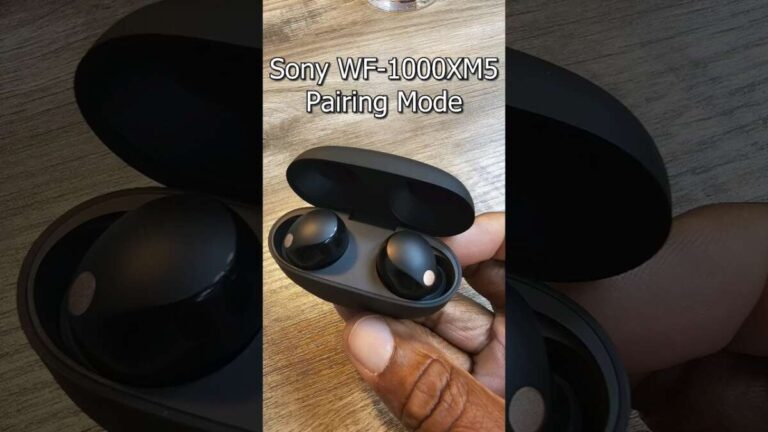
Sony true wireless earbuds work differently from over-ear headphones. The charging case often controls their power and connection state.
Method 1: Put both earbuds in the charging case
Place the left and right earbuds into the case. Make sure each earbud touches its charging contacts.
Then close the lid. On many Sony WF models, the earbuds power down or enter a charging state. This normally ends the active Bluetooth connection.
Check the case light if your model has one. If an earbud stays connected, remove it and clean the metal contacts with a soft, dry cloth. Dirt, sweat, or a loose fit can prevent the earbud from switching off.
Method 2: Turn off the earbuds manually
Some Sony earbuds allow manual power control through touch sensors or physical buttons. The exact action differs by model, so check the instructions for your model number.
Common actions include:
• Touching and holding both earbuds for several seconds
• Holding the button on each earbud
• Returning one or both earbuds to the case
Do not guess if the earbuds begin entering pairing mode. Pairing mode usually uses a flashing blue light or a voice prompt. If that happens, put the earbuds back into the case and close the lid.
Method 3: Charge the case
A case with no battery may not switch the earbuds off correctly. Charge the case for several minutes, then place both earbuds inside and close the lid.
This is an easy solution when you need to disconnect Sony headphones without a device but the earbuds appear frozen. It also helps when the case light does not respond.

How to disconnect Sony headphones without erasing pairing data
Powering off disconnects Sony headphones without a device, but it does not erase saved Bluetooth records. This is usually the best option for daily use.
Use a normal power-off when:
• You plan to use the same headphones again later
• You only need to stop audio for a short time
• You want the headphones to reconnect automatically
• You do not have access to the connected phone or computer
This approach is gentle and quick. It does not remove settings such as equalizer changes, noise-canceling preferences, or saved device information.
A useful example is leaving a video call. If you walk away and turn off your Sony headphones, the active connection ends. When you power them on later, they may reconnect to the same computer if it is available.

How to reset Sony Bluetooth pairing without a device
If you want the headphones to forget their saved devices, you need a reset or initialization. This is stronger than simply turning them off.
Sony uses different button combinations across its models. Common patterns may involve holding the Power button and another button, such as Custom, NC/AMB, or Volume. True wireless earbuds may use touch panels or case buttons instead.
Because these steps vary, use the instructions for your exact model. Search for the model number printed inside the headband, on the earbud case, or near the charging port. Model names can look similar, but their reset steps may be different.
Reset versus initialize
A reset often restarts the headphones without deleting all pairing information. An initialize operation usually restores factory settings and deletes saved Bluetooth devices.
Initialization may remove:
• Previously paired phones and computers
• Custom sound settings stored on the headphones
• Some control preferences
• Connection history
After initialization, the headphones act like a new product. You will need to pair them again with any device you want to use.
When I troubleshoot connection issues, I use normal power-off first. I reserve initialization for cases where the headphones keep connecting to the wrong device, refuse to enter pairing mode, or behave as if they are stuck. This avoids unnecessary loss of settings.

How to force a Sony headphone disconnect
Sometimes the power button does not seem to work. The headphones may be frozen, connected to a second device, or stuck during charging. Try these steps in order.
- Hold the Power button for at least two seconds.
- If there is no response, hold it for 10 to 15 seconds.
- Place wireless earbuds in the charging case.
- Connect over-ear headphones to a charger for a few minutes.
- Disconnect the charging cable and try the Power button again.
- Use the model-specific reset procedure if the problem continues.
Do not repeatedly press every button at once. That can activate pairing mode, voice guidance, or a factory initialization sequence.
A forced power cycle can help, but it may not erase a device list. If the headphones reconnect to an unwanted product later, you may need to forget the headphones on that product or initialize the headphones.
How multipoint affects Sony headphone disconnection
Some Sony headphones support multipoint Bluetooth. This feature lets the headphones connect to two devices at the same time, such as a laptop and a phone.
Powering off the headphones disconnects both devices. But pausing music on one device does not disconnect it. The headphones may still be listening for calls or audio from the second device.
To disconnect Sony headphones without a device when multipoint is active, turn the headphones off. If you want to keep using one device and remove another, you normally must disconnect the unwanted device from its Bluetooth settings.
Some models let you manage multipoint through Sony | Sound Connect. Without a phone or computer, you usually cannot choose only one connected device from the headphones themselves.

Why Sony headphones reconnect automatically
Automatic reconnection is normal Bluetooth behavior. After pairing, Sony headphones can remember a device and reconnect when both products are powered on and close together.
Common causes include:
• Bluetooth remains enabled on the old phone or computer
• The headphones were only paused, not powered off
• Multipoint is connecting to another nearby product
• The earbuds were not seated correctly in the case
• The headphones were reset but immediately paired again
To stop automatic reconnection without using the headphones’ old device, turn off the headphones completely. You can also move away from known devices or turn off Bluetooth on nearby products when possible.
If the headphones reconnect every time they power on, initialization may be needed. Remember that initialization deletes saved pairings, so use it only when normal power-off does not solve the issue.

Common mistakes to avoid
Disconnecting Sony headphones without a device is simple, but a few mistakes can make the problem worse.
Do not confuse pause with disconnect
Pressing play or pause stops sound. It does not necessarily end the Bluetooth connection. The headphones may remain connected and use battery power.
Do not assume the case always works
The earbuds must sit correctly on the charging pins. If the contacts are dirty or the case is empty, they may remain powered on.
Do not reset too quickly
A factory initialization removes saved connections. Try powering off first, especially if you only need a temporary disconnect.
Do not ignore the second device
With multipoint, the headphones may still connect to another nearby phone or computer. This can make it seem like the first connection never ended.
Do not use random button combinations
Sony models differ. An incorrect combination may start pairing mode or erase your settings. Always confirm the procedure for the exact model.
Benefits and limits of disconnecting without a device
The main benefit is convenience. You can stop a connection even when your phone is lost, out of battery, locked, or in another room.
This method also helps protect battery life. A powered-off headset uses far less energy than one that stays awake and searches for Bluetooth signals.
There are limits, though. Without the connected device, you usually cannot remove only one Bluetooth connection, change multipoint settings, rename the headphones, or manage app features. For those tasks, you need the phone, tablet, or computer that controls the Bluetooth settings.
You also cannot remotely disconnect a headset that is out of reach unless the headphones themselves support a physical power or reset action. Bluetooth is local, not a cloud-based service.
A practical troubleshooting routine
Use this routine when you need to disconnect Sony headphones without a device and want the least disruptive solution.
- Power off over-ear headphones with the Power button.
- Put WF earbuds into the charging case and close the lid.
- Wait 10 seconds.
- Check that indicator lights are off or show charging.
- Keep the headphones away from known Bluetooth devices.
- If they still reconnect later, perform the model-specific initialization.
- Pair them again only after choosing the device you want to use.
This routine works well because it moves from the simplest step to the most powerful one. It is like closing a door before changing the lock.
Frequently Asked Questions
Can I disconnect Sony headphones without turning off my phone?
Yes. Turn off the headphones with the Power button, or place Sony earbuds in their charging case. This ends the active Bluetooth link without changing the phone’s Bluetooth settings.
Will turning off Sony headphones delete paired devices?
No. Normal power-off usually keeps the saved pairing list. You need a reset or initialization to erase stored Bluetooth connections.
How do I disconnect Sony WF-1000XM earbuds without a phone?
Place both earbuds in the charging case and close the lid. Make sure the earbuds touch the charging contacts and that the case has enough battery.
Why do my Sony headphones reconnect after I turn them on?
They may be using automatic reconnection or multipoint Bluetooth. A nearby phone, tablet, or computer can reconnect as soon as the headphones power on.
Can I disconnect one device from Sony multipoint without using a device?
Usually not. Without access to a connected phone or computer, the practical option is to turn off the headphones, which disconnects all active devices.
Does resetting Sony headphones remove Bluetooth pairing?
A basic reset may not remove saved pairings, while initialization usually does. Check the instructions for your exact model before using a factory initialization.
Why do my Sony earbuds stay connected inside the case?
The earbuds may not be seated correctly, the case may be out of power, or the charging contacts may be dirty. Clean the contacts gently and charge the case before trying again.
Conclusion
The easiest way to disconnect Sony headphones without a device is to turn off over-ear headphones or place wireless earbuds in their charging case. This ends the active Bluetooth link while keeping your saved settings intact.
If the headphones keep reconnecting, use the model-specific reset or initialization process. Start with the least disruptive method, avoid random button combinations, and check the exact Sony model before erasing pairing data. Try these steps now, and share your model and results in the comments if you need more help.

Everett Ashford is a tech reviewer at mytechgrid.com specializing in SSDs, cameras, TVs, earbuds, headphones, and other consumer electronics. He provides honest, data-driven reviews based on hands-on testing and real-world performance analysis. Everett simplifies complex tech details to help readers make smart, confident buying decisions.