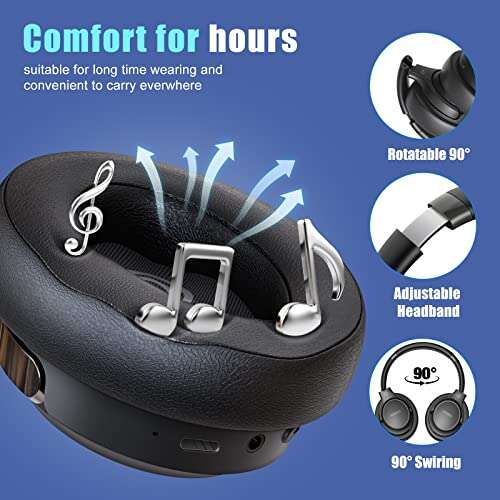
Press and hold the power button on your Pro Airex headphones until the LED flashes or you hear a startup tone.
Learning how to turn on Pro Airex headphones is usually simple, but the button layout and startup signals can vary by model. This guide explains the correct power-on steps, pairing process, charging checks, common mistakes, and reliable fixes when your headphones do not respond.
How to turn on Pro Airex headphones
Most Pro Airex headphones use a physical power button. It is often marked with a power symbol, a circle with a short vertical line at the top. On some models, the button may sit on the right earcup or along the edge of the control panel.
Follow these steps:
- Remove the headphones from their case or storage pouch.
- Find the power button.
- Press and hold it for about 2 to 5 seconds.
- Release the button when the status light turns on.
- Listen for a voice prompt or startup sound.
- Open your phone or computer’s Bluetooth settings if you want to connect them.
A flashing blue light often means the headphones are ready to pair. A steady light may mean they are already connected to a nearby device.

Where is the power button?
The power button on Pro Airex headphones is usually located on the right side. Look for a small button near the volume controls, charging port, or microphone.
Some models use one multi-purpose button for several tasks. This button may control power, Bluetooth pairing, music playback, and calls. It can feel like a small door handle because one button opens several functions.
Check these common locations:
• Right earcup: Many over-ear models place the controls here.
• Side control panel: Wireless headphones may have power and volume buttons in a row.
• Earbud charging case: True wireless models may turn on when removed from the case.
• Touch panel: Some newer models use a touch area instead of a click-style button.
If you cannot find the power control, inspect the symbols on the earcups. The power icon is usually clearer than the small printed model name.

Step-by-step power-on instructions
Use this method when you want to know exactly how to turn on Pro Airex headphones.
1. Charge the headphones first
Before testing the power button, connect the headphones to a USB charger. Leave them connected for at least 15 to 30 minutes.
A fully drained battery can make the headphones appear broken. Some devices do not show a light right away when the battery is empty. A short charge may restore enough power for the LED to work.
Use a suitable USB power source. A standard computer USB port or a trusted wall adapter is usually a safe choice. Avoid damaged cables, loose ports, or unknown chargers.
2. Press and hold the power button
Press the power button firmly and keep holding it for a few seconds. A quick tap may only pause music or wake the controls rather than switch the headphones on.
Release the button when you notice one of these signs:
• A blue, white, or red LED appears.
• A startup tone plays.
• A voice says “Power on.”
• Your phone shows the headphones in its Bluetooth list.
3. Wait for pairing mode if needed
If the headphones are new, press and hold the power button for a little longer, often 5 to 8 seconds. The LED may flash blue and red, or blue and white.
This pattern usually means pairing mode is active. It allows your phone, tablet, or laptop to find the headphones.
4. Connect to your device
On an iPhone, open Settings, select Bluetooth, and choose the Pro Airex name under Other Devices. On Android, open Settings, choose Connected devices or Bluetooth, and tap the Pro Airex listing.
On Windows, open Settings, select Bluetooth & devices, choose Add device, and select Bluetooth. On a Mac, open System Settings, select Bluetooth, and click Connect beside the headphones.

How to know if Pro Airex headphones are on
The status light is the fastest way to check the power state. However, LED colors are not identical on every Pro Airex model, so treat them as general signs rather than fixed rules.
Common signals include:
• Blue light: The headphones are on or connected.
• Flashing blue light: The headphones may be searching for a device.
• Blue and red flashing: Pairing mode is often active.
• Red light: The battery may be low or the headphones may be charging.
• No light: The headphones may be off, fully drained, or unable to start.
A startup voice prompt is often more useful than the light. If you hear “Power on,” the headphones have started even if the LED is hard to see.
You can also check your phone’s Bluetooth list. If the device appears as connected and audio routes through it, the headphones are powered on.

How to connect Pro Airex headphones after turning them on
Turning on Pro Airex headphones and pairing them are two different steps. Powering on starts the device, while pairing creates a wireless link with your phone or computer.
Use this process for a first-time connection:
- Turn on the Pro Airex headphones.
- Hold the power button until the LED enters pairing mode.
- Open Bluetooth settings on your device.
- Turn Bluetooth on.
- Select the Pro Airex headphone name.
- Accept the pairing request if one appears.
- Play a short audio clip to test the connection.
After the first successful connection, many Bluetooth headphones reconnect automatically. Keep Bluetooth enabled on your device and stay within a normal Bluetooth range.
If the headphones connect to another device nearby, switch Bluetooth off on that device for a moment. This prevents the headphones from reconnecting to an old phone, tablet, or laptop.

What to do when Pro Airex headphones will not turn on
If the headphones do not respond, do not keep pressing the button at random. Work through the basic checks in order.
Check the charging connection
Try another charging cable and another USB power source. Make sure the plug sits firmly in the charging port.
Look inside the port for lint or dirt. Do not insert metal objects, as they can damage the contacts. A clean, dry soft brush may help remove loose debris.
Hold the button longer
Try holding the power button for 10 to 15 seconds. Some models need a longer press to reset after a failed connection or deep battery drain.
Do not press the button repeatedly. Repeated short presses can activate other controls without starting the headphones.
Remove the charging cable
Some wireless headphones do not power on while they are charging. Disconnect the cable, wait a few seconds, and then hold the power button again.
Try a reset
A reset method can vary by Pro Airex model. Common methods include holding the power button and volume-up button together, or holding the power button for 10 to 20 seconds.
Use the instructions for your exact model when possible. A reset may erase saved Bluetooth connections, so you will need to pair the headphones again.
Check for physical damage
Stop using the headphones if they become unusually hot, smell burnt, swell, or show signs of liquid damage. Battery damage can create a safety risk, and it is better to seek professional service than keep charging the device.

Common mistakes when turning on Pro Airex headphones
Small setup mistakes cause many power problems. These are the ones I see most often when helping people set up wireless audio devices.
• Tapping instead of holding: A brief press may not activate the power function.
• Using a weak or damaged cable: The headphones may not receive enough power to start.
• Pairing with the wrong device: The headphones may be on but connected to a nearby tablet or laptop.
• Ignoring the LED pattern: Flashing lights can show pairing mode, low battery, or an active connection.
• Testing too far from the phone: Keep the devices close during first-time pairing.
• Expecting automatic power-on: Not every model turns on when removed from a case.
One useful lesson is to separate the problem into three parts: power, pairing, and sound. First confirm that the headphones turn on. Then confirm that Bluetooth connects. Finally, test the volume and audio output.
Tips for better battery life and reliable startup
Good charging habits can make future power problems less likely. Lithium-ion batteries, which are common in wireless headphones, perform best when they are stored and charged carefully.
Follow these practical tips:
• Charge the headphones before the battery reaches zero whenever possible.
• Store them in a cool, dry place.
• Keep the charging port free of dust and moisture.
• Avoid leaving the headphones in direct sunlight or a hot car.
• Turn them off when you will not use them for several hours.
• Disconnect them from Bluetooth devices that you no longer use.
Do not assume that a fast charger will improve headphone performance. The headphones control how much power they receive, but a reliable, compatible charger and cable are still important.
Battery capacity decreases over time. If your Pro Airex headphones turn off soon after charging, the battery may be worn rather than the power button being faulty.
When to read the manual or contact support
The general steps for how to turn on Pro Airex headphones work for many models, but they are not universal. Product names can cover different versions, and button functions may change between over-ear headphones, earbuds, and sport models.
Find the exact model number on the headband, earcup, charging case, or original packaging. Then check the user manual for:
• The correct power-button timing
• LED color meanings
• The official reset method
• Battery charging requirements
• Warranty and service information
If charging, resetting, and trying another device do not help, contact the seller or manufacturer. Give them the model number, the steps you tried, and what the LED does. Clear details usually lead to faster support.
Frequently asked questions about how to turn on Pro Airex headphones
How long should I hold the Pro Airex power button?
Hold the power button for about 2 to 5 seconds. If nothing happens, try holding it for up to 10 seconds after charging the headphones.
Why will my Pro Airex headphones not turn on?
The battery may be empty, the cable may be faulty, or the power button may not be registering. Charge the headphones with another cable and power source, then hold the button for several seconds.
How do I turn on Pro Airex earbuds?
Remove the earbuds from their charging case if the model supports automatic power-on. If they do not start, touch or press each earbud as described in the model’s manual.
How do I put Pro Airex headphones into pairing mode?
Turn the headphones off, then hold the power button until the LED flashes in a pairing pattern. Open Bluetooth settings and select the Pro Airex device name.
Can I use Pro Airex headphones while they are charging?
Many wireless headphones do not play audio while charging, but this depends on the model. For safety and proper operation, follow the charging instructions supplied with your headphones.
What does a red light mean on Pro Airex headphones?
A red light often indicates charging or a low battery. The exact meaning can vary, so check the LED guide for your specific Pro Airex model.
Conclusion
Turning on Pro Airex headphones usually takes only a few seconds: charge them if needed, press and hold the power button, watch for the LED or startup tone, and connect through Bluetooth. If they do not respond, test the cable, hold the button longer, disconnect the charger, and use the correct reset instructions.
The key is to treat power, pairing, and audio as separate checks. Try these steps with your headphones today, then consult the model manual for exact LED meanings and controls. Share your model and troubleshooting experience in the comments to help other Pro Airex users.

Everett Ashford is a tech reviewer at mytechgrid.com specializing in SSDs, cameras, TVs, earbuds, headphones, and other consumer electronics. He provides honest, data-driven reviews based on hands-on testing and real-world performance analysis. Everett simplifies complex tech details to help readers make smart, confident buying decisions.