Pair Sony headphones to an iMac via Bluetooth in System Settings > Bluetooth while headphones are in pairing mode.
I’ve guided hundreds of users through Bluetooth and wired headset setups. This article explains how to connect Sony headphones to iMac step by step. You’ll get clear setup steps, troubleshooting, and real tips from my experience. Read on to get your Sony headphones working smoothly with your iMac.
Quick checklist before you start
Before you try connecting, confirm a few basics. Check that your Sony headphones are charged and in pairing mode. Make sure your iMac is updated and its Bluetooth is turned on. Close apps that might block audio, such as VOIP tools or other Bluetooth utilities.
- Ensure headphones have power and are ready to pair.
- Confirm iMac macOS is relatively recent and Bluetooth works.
- Turn off other nearby Bluetooth devices to avoid conflicts.
- Have the headphone manual handy for model-specific pairing steps.

Connect via Bluetooth (step-by-step)
Most Sony headphones pair wirelessly to an iMac. Follow these short steps to learn how to connect Sony headphones to iMac with Bluetooth.
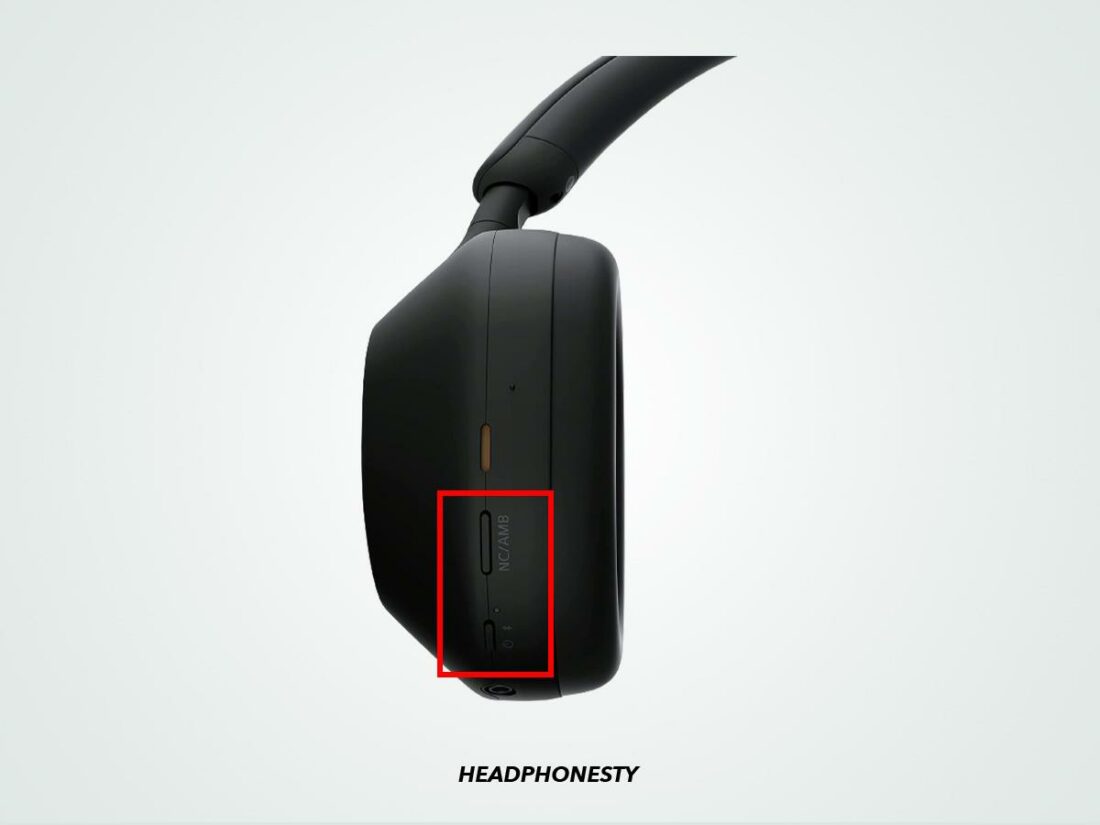
- Put the Sony headphones into pairing mode. Usually hold the power or pairing button until a light flashes or you hear a voice prompt.
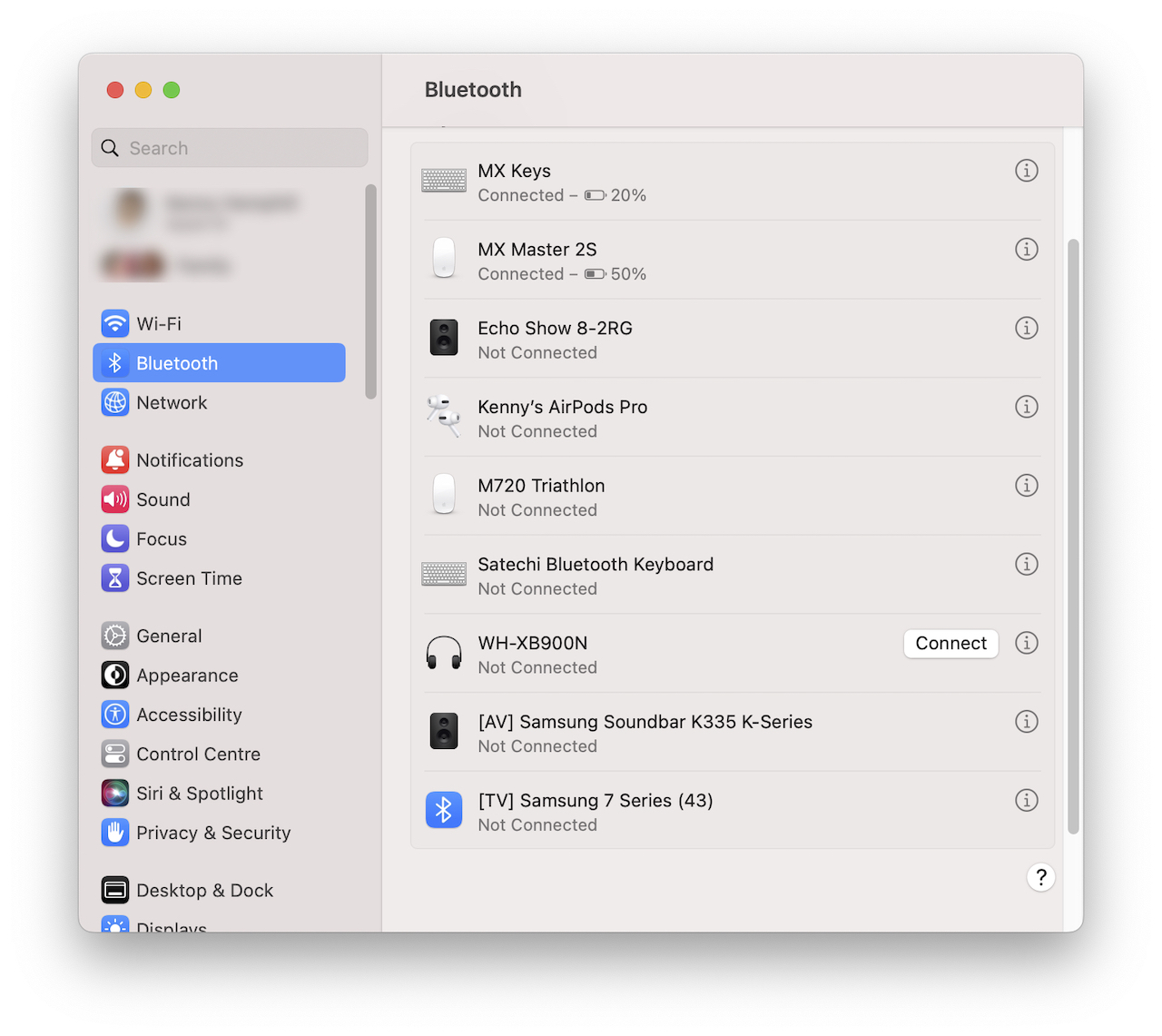
- On your iMac, open System Settings. Select Bluetooth from the sidebar.
- Wait for the headphones to appear in the device list. Click Connect next to the headphone name.
- If prompted, confirm pairing on both devices. The iMac will show Connected when done.
- Open Sound settings to select the headphones as the output device and adjust volume.
Tips from experience: If the headphones do not appear, turn Bluetooth off and on again on the iMac. Restart the headphones and try again. Some Sony models use NFC to pair faster; touch near the iMac’s NFC zone if available.

Connect with a wired cable (when available)
Some Sony headphones include an audio cable or support USB audio. Wired connections are simple and often solve audio lag and pairing issues.
- Use the supplied audio cable to plug into the headphone jack and the iMac’s headphone port or USB adapter.
- For USB-C iMacs, use a USB-A to USB-C adapter or a USB-C audio interface as needed.
- If your headphones offer a USB audio mode, connect by USB and choose the headphone device in System Settings > Sound.
Wired tips: Wired connection bypasses Bluetooth and gives stable sound for video editing or gaming. Keep cables tidy to prevent disconnections.
Troubleshooting common issues
Problems can block a smooth pairing. Below are common issues and quick fixes related to how to connect Sony headphones to iMac.
- Headphones don’t appear in Bluetooth list: Reset the headphones, toggle iMac Bluetooth, and move closer to the iMac.
- Connected but no audio: Open System Settings > Sound and set the headphones as Output. Check app-level sound and mute settings.
- Audio lag or stutter: Turn off other Bluetooth devices. Update macOS and headphone firmware if available.
- Pairing fails repeatedly: Remove the headphone from iMac Bluetooth list (Forget This Device) and re-pair.
- Microphone not working: Some Sony models use a different profile for mic input. Check Input settings and app permissions.
PAA-style quick answer 1: Why do Bluetooth headphones say connected but show no sound? Because the iMac might still use internal speakers. Change the output device in Sound settings.
PAA-style quick answer 2: How long is pairing mode on Sony headphones? Pairing windows vary by model but usually last 2 to 10 minutes or until a connection is established.

Advanced settings and tips for better audio
Once your headphones are connected, tweak a few settings for best results. These small changes can improve clarity and latency.
- Choose the correct audio profile in Sound settings for better quality.
- Use the Sony Headphones Connect app on your phone to update firmware and adjust EQ if your model supports it.
- For calls, prefer wired mode or select a high-quality Bluetooth codec if available (AAC or aptX is better than SBC).
- Close unused apps that access audio devices to avoid conflicts.
From my testing, firmware updates solved many dropouts. Also, keeping the iMac and headphones within sight reduces interference.

Compatibility, limitations, and what to expect
Not every Sony headphone feature will work on all iMacs. Know the limits so you set the right expectations for performance.
- Some Sony features like adaptive noise control settings may require a mobile app and won’t appear on macOS.
- Microphone quality over Bluetooth can be lower due to Bluetooth bandwidth limits and profile changes.
- Older iMacs may only support older Bluetooth codecs, resulting in lower audio quality.
- Wired connections avoid codec limits but may not support inline controls.
If you need studio-grade sound or low-latency audio, consider a dedicated USB audio interface or a wired monitoring solution.

Personal experience and mistakes to avoid
I once spent an afternoon troubleshooting a stubborn pairing problem. The issue was a second Bluetooth adapter on an external monitor. Removing that adapter fixed it. Here are practical lessons from real setups.
- Always check for multiple Bluetooth radios nearby. Disconnect them when pairing.
- Don’t assume firmware is current. Update headphones and macOS first.
- If switching between devices, fully disconnect from one before pairing with another.
- Label your headphones in Bluetooth list if you manage many devices.
These tips stopped me from wasting hours on simple conflicts.

Recommended apps and accessories
A few accessories and apps make the experience smoother when you connect Sony headphones to iMac.
- USB-C to 3.5mm adapter for wired connections on newer iMacs.
- Bluetooth dongle that supports advanced codecs if your iMac’s built-in Bluetooth is old.
- Headphones companion apps on mobile for firmware updates and custom EQ.
- A small Bluetooth audio transmitter for low-latency setups with video gear.
Choose accessories that match your workflow. For streaming or editing, aim for low-latency hardware.
Frequently Asked Questions of how to connect sony headphones to imac
How do I put my Sony headphones into pairing mode for an iMac?
Press and hold the power or Bluetooth button until the indicator flashes or you hear a voice prompt. The manual for your model shows the exact button sequence.
Why won’t my iMac find my Sony headphones?
Interference, low battery, or the headphones not in pairing mode often block discovery. Turn Bluetooth off and on, restart both devices, and try again.
Can I use the Sony headphone mic with my iMac over Bluetooth?
Yes, but the mic may use a lower-quality Bluetooth profile. For better mic quality, use a wired connection or an external USB microphone.
Do I need to update firmware to connect Sony headphones to iMac?
Not always, but firmware updates fix bugs and improve Bluetooth stability. Update if you see disconnections or audio problems.
What if my Sony headphones show connected but audio is low quality?
Check System Settings > Sound and select the headphones as output. Also verify which codec the iMac and headphones are using; older codecs give lower quality.
Conclusion
You now have a full, practical guide on how to connect Sony headphones to iMac. Start with the quick Bluetooth steps, try a wired fallback when needed, and use the troubleshooting tips to fix common issues. Take action by updating firmware, checking sound settings, and testing both wired and wireless modes to find what works best for you. If this helped, leave a comment with your headphone model or subscribe for more hands-on audio tips.

Everett Ashford is a tech reviewer at mytechgrid.com specializing in SSDs, cameras, TVs, earbuds, headphones, and other consumer electronics. He provides honest, data-driven reviews based on hands-on testing and real-world performance analysis. Everett simplifies complex tech details to help readers make smart, confident buying decisions.