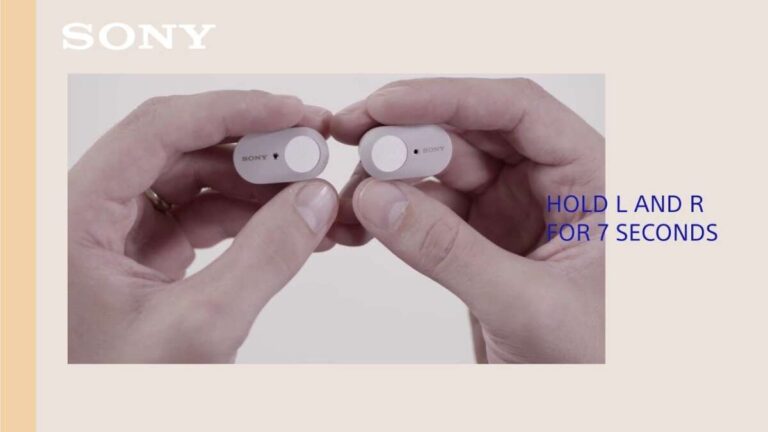
To pair Monster earbuds, open the case, enter pairing mode, and select them in your device’s Bluetooth settings.
Learning how to pair Monster earbuds is usually simple, but the exact button press can vary by model. This guide explains the standard process for iPhone, Android, Windows, and Mac, plus reliable fixes for pairing problems, one-earbud issues, and earbuds that keep disconnecting.
Before you pair Monster earbuds
Before learning how to pair Monster earbuds, check a few basic things. Small setup issues often look like Bluetooth problems, but they are usually caused by low power, an old connection, or earbuds that are still linked to another device.
Use this quick checklist:
• Charge the earbuds and charging case for at least 10 minutes.
• Keep the earbuds within 3 feet of your phone or computer.
• Turn off Bluetooth on nearby devices that have used the earbuds before.
• Remove any plastic film from the charging contacts.
• Make sure both earbuds sit correctly in the case.
• Keep the charging case open during the first pairing attempt.
Most Monster wireless earbuds use Bluetooth pairing. Bluetooth works like a short-range handshake between two devices. Your earbuds must announce themselves, and your phone or computer must accept the connection.
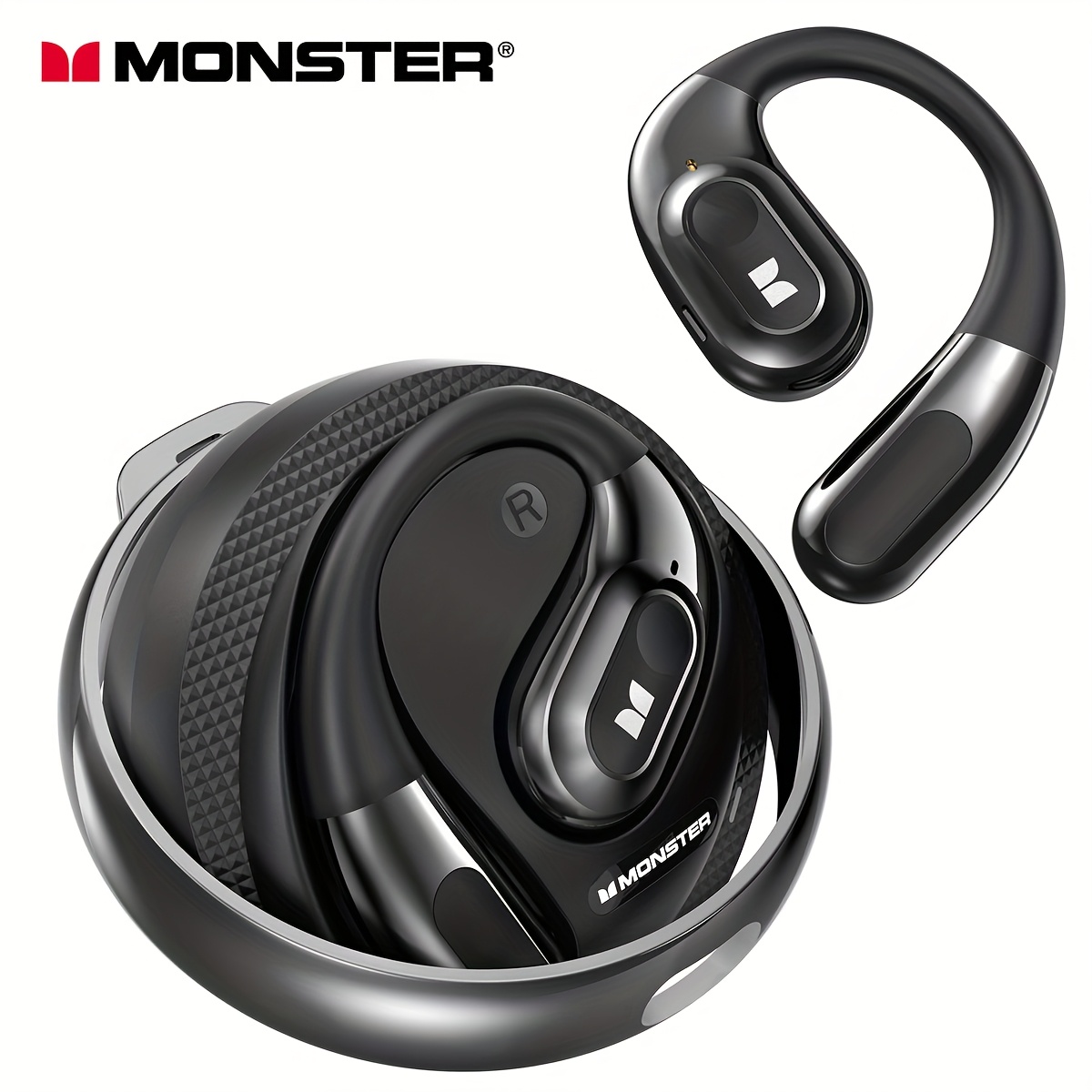
Monster has released several earbud lines, including Clarity, Achieve, Persona, and other model families. Their controls can differ, so the instructions below describe the most common process. If your model has a dedicated manual, use its button instructions when they differ.

How to pair Monster earbuds for the first time
The first pairing process normally takes less than two minutes. You do not need a special app for basic Bluetooth use, although some Monster models may offer extra features through a companion app.
Follow these steps:
-
Place both earbuds in the charging case.
-
Open the case lid.
-
Remove the earbuds from the case. Many models turn on automatically.
-
Look for flashing LED lights on the earbuds or case.
-
If they do not enter pairing mode, press and hold the touch control or power button for about 3 to 5 seconds.
-
Open the Bluetooth menu on your phone.
-
Find the Monster product name in the list of available devices.
-
Tap the name to connect.
-
Wait for the status to change to “Connected.”
-
Play music to confirm that sound comes through both earbuds.
When you first learn how to pair Monster earbuds, the most important step is pairing mode. The earbuds must be visible in the Bluetooth list. If you only take them out of the case and see no Monster name, they may still be connected to another device.
Some models show a white or blue flashing light during pairing. Others use red and blue lights or a voice prompt. The light pattern is not the same on every Monster model, so do not rely on color alone.
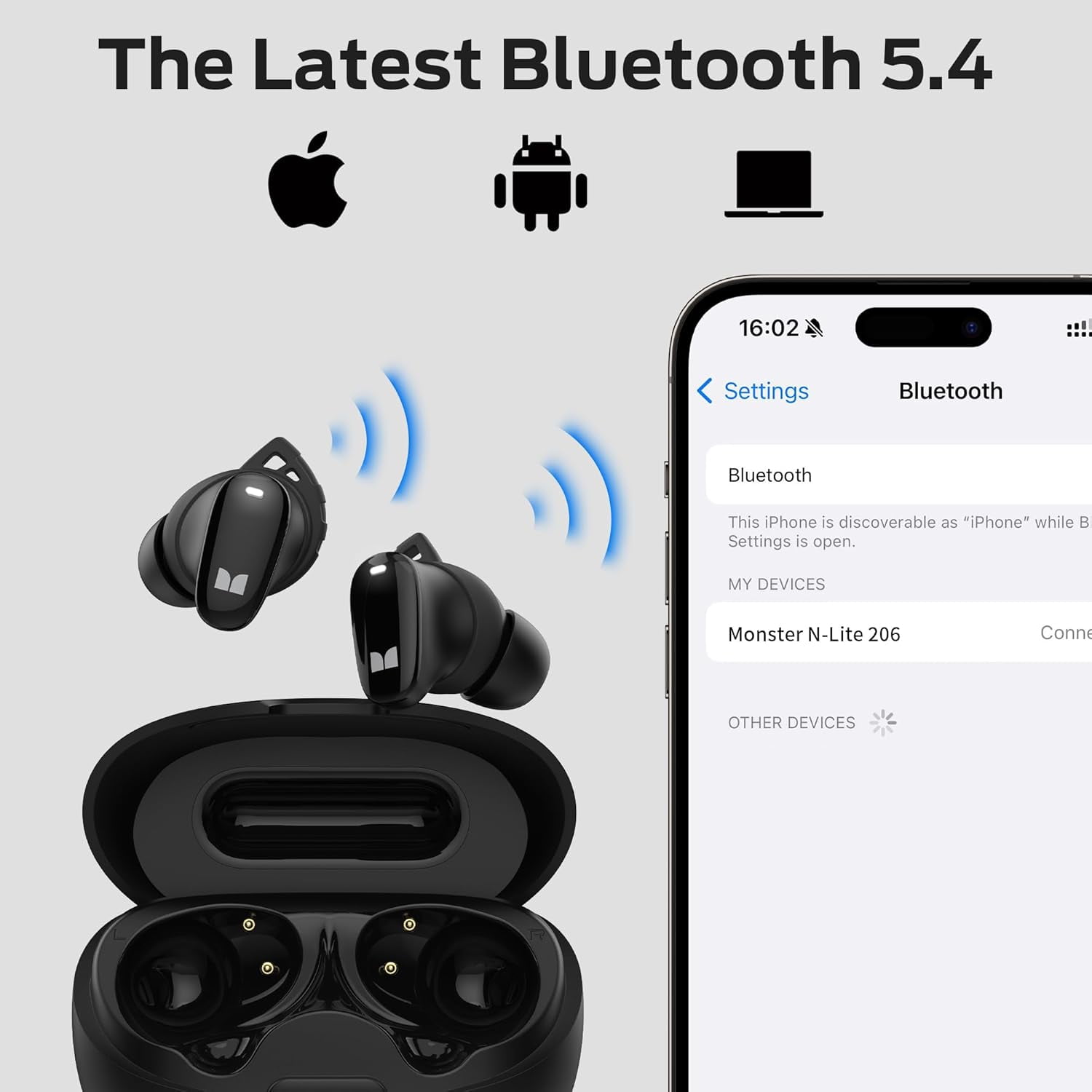
How to pair Monster earbuds with an iPhone
The iPhone pairing process is quick and works with most Monster Bluetooth earbuds. Keep the earbuds near the iPhone, and make sure they are not already connected to an iPad, laptop, or another phone.
-
Open the charging case and remove both earbuds.
-
Put the earbuds into pairing mode. Hold the control button if they do not flash or appear.
-
Open Settings on your iPhone.
-
Tap Bluetooth.
-
Turn Bluetooth on if it is off.
-
Look under “Other Devices.”
-
Tap the Monster earbuds’ name.
-
Wait until the name moves to “My Devices” and shows “Connected.”
If the earbuds appear but do not connect, tap the information icon beside their name. Choose “Forget This Device,” then put the earbuds back into pairing mode and try again.
An iPhone may reconnect to the last Bluetooth product it used. This is convenient when everything works, but it can confuse the first setup. Turning off Bluetooth on nearby Apple devices often solves the issue.

How to pair Monster earbuds with an Android phone
Android menus can look different across Samsung, Google Pixel, Motorola, and other phones. The names may change slightly, but the steps are nearly the same.
-
Open the Monster charging case.
-
Remove the earbuds or press the pairing button on the case.
-
Hold the earbuds’ touch controls if pairing mode does not start.
-
Open Settings on your Android phone.
-
Select Connected devices, Connections, or Bluetooth.
-
Tap Pair new device or scan for available devices.
-
Choose the Monster earbuds from the list.
-
Approve the pairing request if Android asks for confirmation.
-
Test the earbuds with music or a phone call.
If Android shows a PIN request, try 0000 or 1234 only if your model manual lists one. Most modern Monster earbuds pair without a code.
Android phones may display separate names for the left and right earbuds if the earbuds lose their internal connection. Choose the main product name, not a listing that clearly identifies only one side. If both names appear, reset and resynchronize the earbuds.
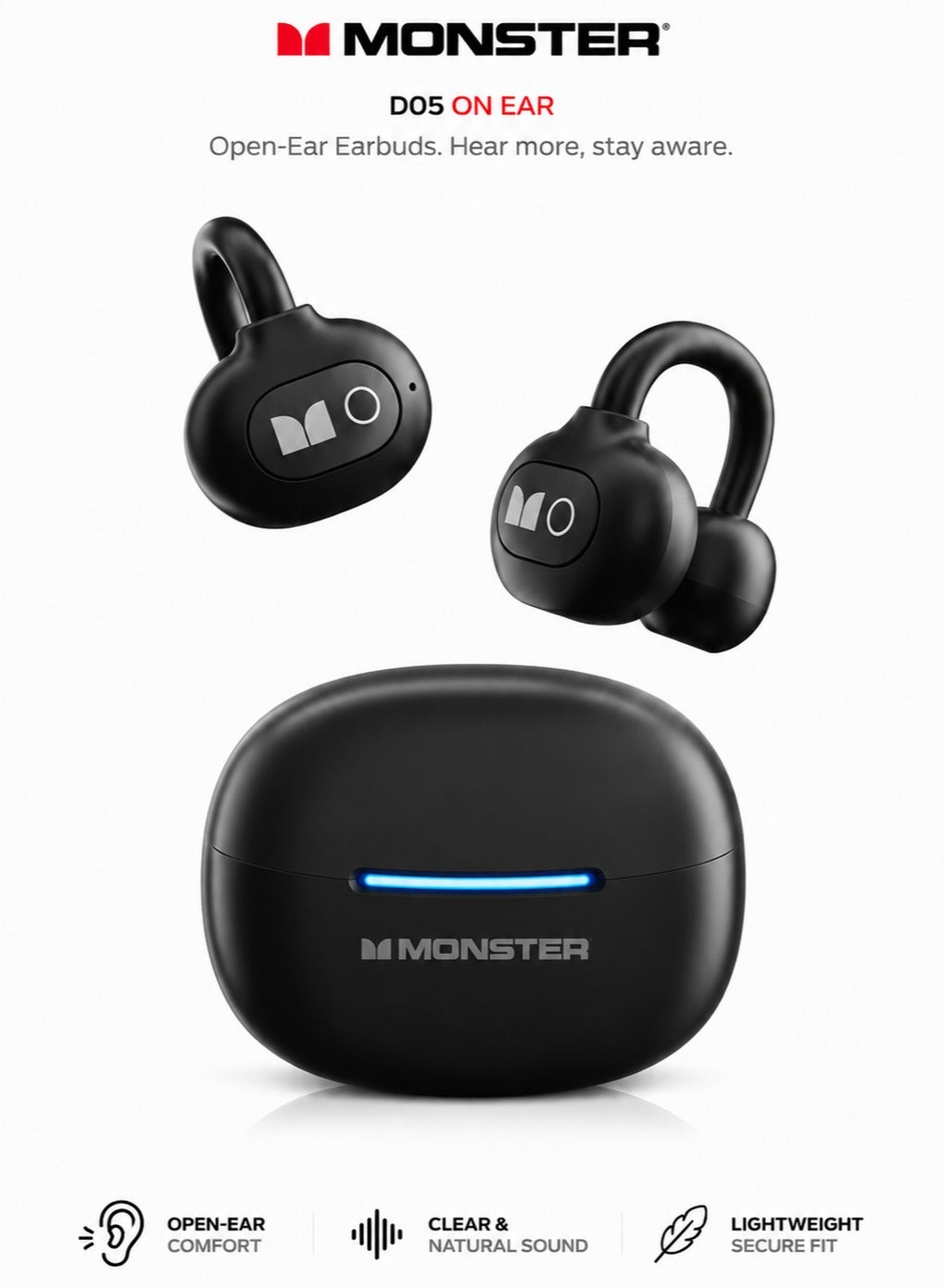
How to pair Monster earbuds with a Windows PC
You can use Monster earbuds with a Windows laptop or desktop for music, video calls, and games. Bluetooth must be available on the computer. Some desktop PCs need a separate Bluetooth adapter.
On Windows 11:
-
Put the Monster earbuds into pairing mode.
-
Open Settings.
-
Select Bluetooth & devices.
-
Turn Bluetooth on.
-
Click Add device.
-
Choose Bluetooth.
-
Select the Monster earbuds.
-
Click Done when Windows confirms the connection.
On Windows 10, open Settings, choose Devices, select Bluetooth & other devices, and click “Add Bluetooth or other device.” Then choose Bluetooth and select your Monster earbuds.
Windows may show two connection options: headphones and headset. The headphones setting usually gives better music quality. The headset setting activates the microphone but may reduce audio quality during calls.
If a video call uses the wrong microphone, open the call app’s audio settings and choose the Monster earbuds as both the speaker and microphone. You may also need to select them under Windows sound output.
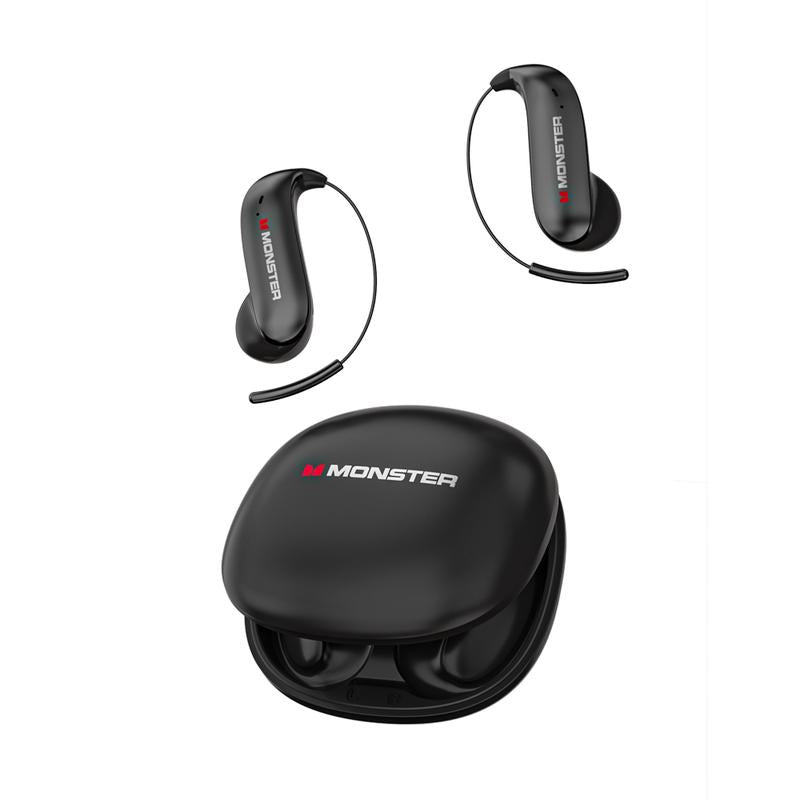
How to pair Monster earbuds with a Mac
Monster earbuds work with MacBook and desktop Mac computers through the Bluetooth menu. Pairing is similar to pairing them with a phone.
-
Place the earbuds in pairing mode.
-
Click the Apple menu.
-
Open System Settings.
-
Select Bluetooth.
-
Find the Monster earbuds under nearby devices.
-
Click Connect.
-
Open Sound settings and select the earbuds as the output device if needed.
Older macOS versions use System Preferences instead of System Settings. Open Bluetooth, locate the earbuds, and click Connect.
If the Mac connects but sends sound through its speakers, open System Settings, choose Sound, and select Monster earbuds under Output. For calls, also check the Input menu and choose the correct microphone.
A Mac can remember several Bluetooth products. If it keeps choosing another headset, disconnect that device or remove it from the Bluetooth list temporarily.
How to pair Monster earbuds when they are not detected
If your Monster earbuds do not appear in the Bluetooth menu, do not keep tapping the scan button. Start by checking pairing mode and power. These two steps solve many connection failures.
Try the following:
• Put both earbuds in the case, close the lid, wait 10 seconds, and open it again.
• Charge the case and earbuds.
• Hold the pairing or touch button for 5 to 10 seconds.
• Turn Bluetooth off, wait a few seconds, and turn it back on.
• Restart your phone, tablet, or computer.
• Move away from other active Bluetooth devices.
• Remove the earbuds from the Bluetooth list on devices used before.
• Search again under available devices.
A common mistake is opening the case while the earbuds remain connected to a tablet in another room. Bluetooth range can reach farther than expected in an open space, so the earbuds may silently reconnect before your phone can find them.
Another mistake is tapping the wrong product name. Monster models may have similar names, and a phone can display a duplicate entry from an earlier setup. Remove old entries, then pair with the name that appears when the earbuds are in pairing mode.
How to reset Monster earbuds and start over
A reset clears saved Bluetooth information and often fixes repeated pairing failures. It can also repair a left and right earbud that no longer work together.
The reset method depends on the model. A common process is:
-
Remove the earbuds from your phone’s Bluetooth list.
-
Turn off Bluetooth on nearby devices.
-
Put both earbuds in the charging case.
-
Leave the case open.
-
Press and hold the case button or both earbud controls for about 10 to 15 seconds.
-
Watch for a change in the LED pattern or a voice prompt.
-
Close the case for several seconds.
-
Open it, remove both earbuds, and wait for them to synchronize.
-
Turn Bluetooth back on and pair again.
Some Monster models reset when you tap an earbud several times rather than holding it. Never force a reset sequence that does not match your model’s instructions. If the LED does not respond, the battery may be empty or the charging contacts may be dirty.
After a reset, the earbuds may appear with the same name as before. That does not mean the reset failed. The important sign is that the old connection no longer works until you pair the earbuds again.
How to fix Monster earbuds that connect to only one side
One-earbud audio usually means the left and right earbuds lost their internal link. It does not always mean one earbud is broken.
Try this process:
-
Forget the Monster earbuds in your phone’s Bluetooth settings.
-
Turn Bluetooth off on the phone.
-
Put both earbuds in the charging case.
-
Confirm that both earbuds are charging.
-
Remove both earbuds at the same time.
-
Wait several seconds for them to connect to each other.
-
Turn Bluetooth back on.
-
Pair using the main Monster device name.
If one side still has no sound, check the phone’s audio balance. On an iPhone, open Accessibility, choose Audio & Visual, and place the balance slider in the center. On Android, search Settings for “left/right sound balance.”
Clean the small speaker grille and charging contacts with a dry, soft brush. Earwax can block sound, while dust on the contacts can prevent one earbud from charging. Avoid water, sharp tools, and household cleaners.
How to fix Monster earbuds that keep disconnecting
A Bluetooth connection can drop because of low battery, distance, radio interference, or outdated device software. Bluetooth uses the crowded 2.4 GHz band, which is also used by Wi-Fi and some other wireless products.
Use these practical fixes:
• Keep the phone on the same side of your body as the active earbud.
• Avoid placing the phone inside a bag or behind thick walls.
• Charge both earbuds and the case.
• Remove unused Bluetooth devices from the phone.
• Update your phone, computer, and Monster earbuds when updates are available.
• Restart the earbuds and reconnect them.
• Test the earbuds with another phone.
If the earbuds work well with another phone, the original device is likely causing the problem. Resetting network settings may help, but remember that this can remove saved Wi-Fi passwords and Bluetooth connections.
For calls, disconnect other audio accessories. A smartwatch, car system, or second headset may compete with the earbuds for the phone’s audio connection.
How to improve sound after pairing Monster earbuds
Pairing only creates the connection. Good sound also depends on fit, volume, audio settings, and clean earbud tips.
Start with the physical fit. The earbuds should seal the ear canal without causing pain. A poor seal can make bass sound weak and may tempt you to raise the volume too high.
Then check these settings:
• Set the phone’s audio balance to the center.
• Turn off volume limits only when safe and necessary.
• Try the phone’s equalizer with small changes.
• Use the correct ear tips if your model includes more than one size.
• Keep the speaker grilles clean.
The World Health Organization recommends keeping personal listening volume at a safe level and taking breaks. Loud sound over long periods can harm hearing, even when the earbuds sound clear.
In practical testing, fit often makes a bigger difference than an equalizer preset. A medium ear tip that seals well may sound better than a larger tip that slowly slips out.
Monster earbuds pairing tips for daily use
Once you know how to pair Monster earbuds, a few habits make future connections much easier.
• Pair the earbuds with one device at a time during setup.
• Give the earbuds a clear name in your Bluetooth settings.
• Keep the charging contacts clean and dry.
• Store both earbuds in the case after use.
• Charge the case before travel.
• Do not leave the earbuds connected while switching between several devices.
• Use the manufacturer’s manual for model-specific reset steps.
Most true wireless earbuds do not switch between devices as smoothly as some premium headphones. You may need to disconnect them from a laptop before connecting them to a phone. This is normal and does not necessarily indicate a fault.
If you use the earbuds for work, test the microphone before an important meeting. A short recording or test call can reveal problems with input selection, background noise, or low battery.
Common mistakes to avoid when pairing Monster earbuds
Several small mistakes can waste time. Avoiding them makes how to pair Monster earbuds much easier.
Do not pair one earbud first unless the manual specifically says to do so. Many true wireless models need both earbuds to synchronize before they connect to the phone.
Do not press every button repeatedly. Touch controls can pause music, activate an assistant, or power off the earbuds. Use one deliberate press or hold, then wait for the LED response.
Do not assume that a Bluetooth listing proves the earbuds are ready. A saved listing may belong to an old connection. Forget the old listing when troubleshooting.
Do not clean the earbuds with alcohol, water, or metal tools. A dry microfiber cloth or soft brush is safer for the charging contacts and speaker mesh.
Do not ignore the charging case. The case is more than storage. It often controls power, charging, synchronization, and pairing mode.
Frequently Asked Questions About How to Pair Monster Earbuds
How do I put Monster earbuds into pairing mode?
Open the case and remove both earbuds. If they do not flash or appear in Bluetooth settings, press and hold the touch controls or case button for about 3 to 5 seconds.
Why are my Monster earbuds not showing up on Bluetooth?
They may be connected to another device, turned off, or out of battery. Turn off Bluetooth on nearby devices, charge the earbuds, restart pairing mode, and scan again.
Can I pair Monster earbuds with an iPhone and Android phone?
Yes, Monster Bluetooth earbuds can generally pair with either an iPhone or an Android phone. They usually connect to one active device at a time unless the specific model supports multipoint Bluetooth.
How do I reset Monster wireless earbuds?
Forget the earbuds in your phone’s Bluetooth settings, place both earbuds in the case, and use the model’s reset button or touch-control sequence. The exact method varies, so check the instructions for your Monster model.
Why does only one Monster earbud work?
The earbuds may have lost their connection with each other, or one side may not be charging. Forget the Bluetooth connection, reset both earbuds, clean the contacts, and pair them again together.
Do Monster earbuds need an app to pair?
No. Basic pairing usually works through the standard Bluetooth menu on your phone or computer. An app may provide extra controls, firmware updates, or equalizer settings on supported models.
Conclusion
Learning how to pair Monster earbuds starts with three simple actions: charge them, place them in pairing mode, and select the correct Monster name in Bluetooth settings. If the connection fails, forget the old device entry, turn off nearby Bluetooth devices, and reset both earbuds together.
Keep the earbuds clean, charge the case, and use the model manual when button controls differ. Follow these steps today, then share your model and pairing experience in the comments or explore more device setup guides for easier wireless listening.

Everett Ashford is a tech reviewer at mytechgrid.com specializing in SSDs, cameras, TVs, earbuds, headphones, and other consumer electronics. He provides honest, data-driven reviews based on hands-on testing and real-world performance analysis. Everett simplifies complex tech details to help readers make smart, confident buying decisions.