To clear space on an SSD, remove large files, uninstall unused apps, clear temporary data, and empty the recycle bin.
Learning how to clear space on SSD storage is easier when you first find what is using the drive. This guide explains safe cleanup steps for Windows and Mac, shows what you can delete, and shares practical tips to free space without harming your system or personal files.
Why Your SSD Keeps Losing Free Space
An SSD can fill faster than expected because your computer stores more than documents and photos. Apps, system updates, browser data, temporary files, downloads, backups, and hidden system files can quietly use many gigabytes.
Modern operating systems also reserve space for updates, virtual memory, recovery tools, and caches. Some of this data is useful, but old files often remain long after you need them.


Understanding how to clear space on SSD storage starts with one rule: do not delete files at random. Find the largest categories first, then clean them with built-in tools or trusted apps.
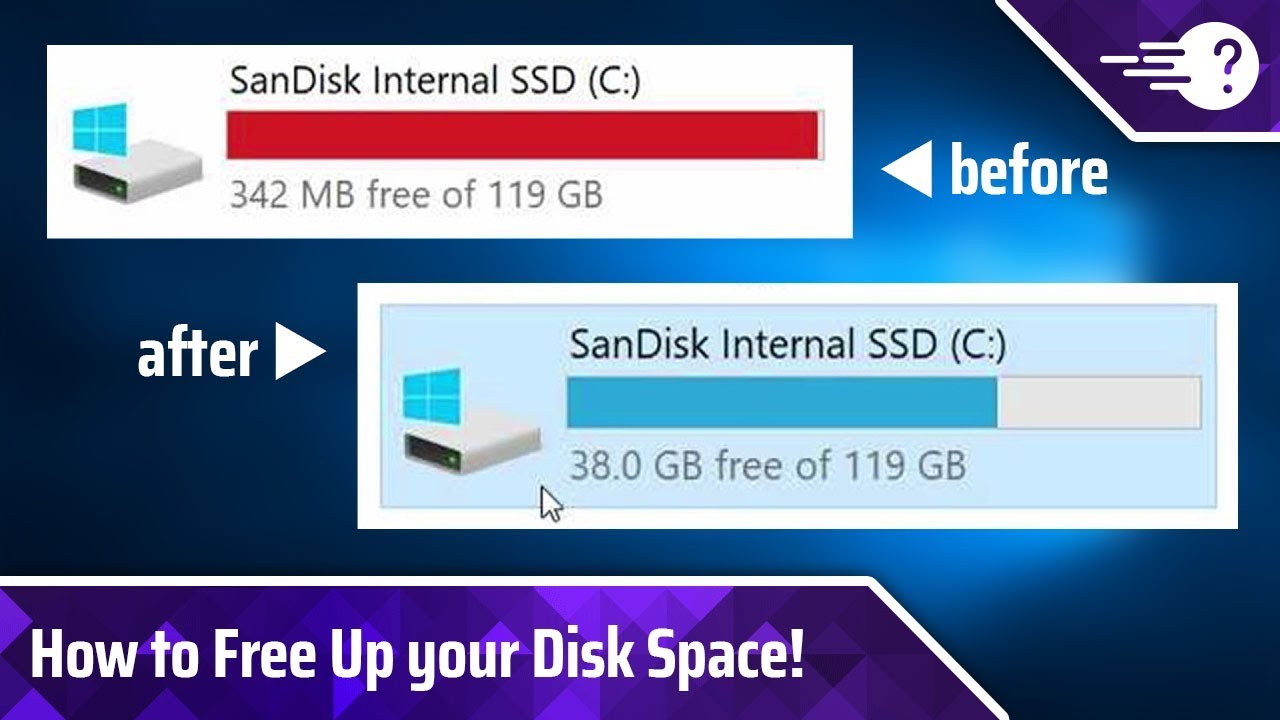
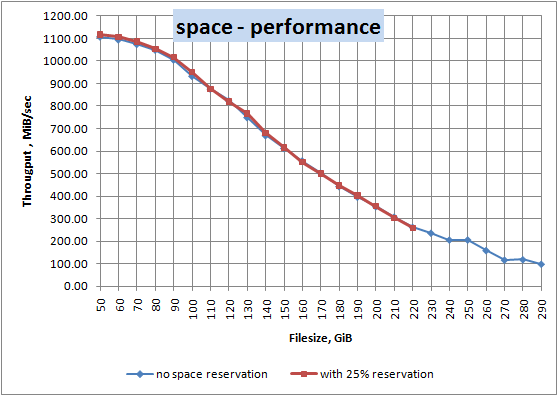
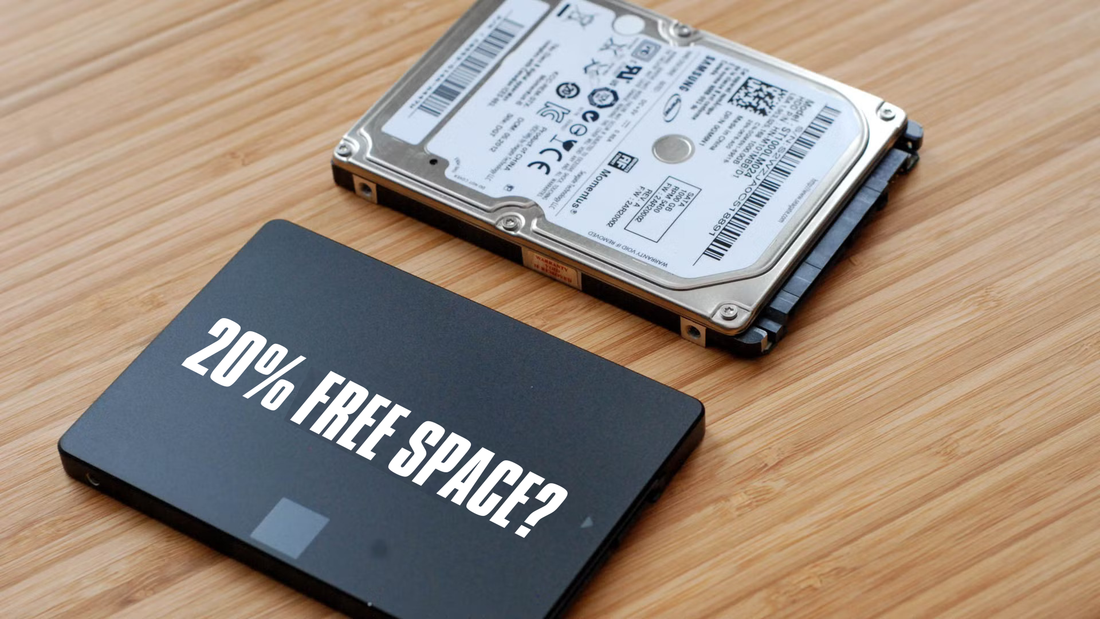
A full SSD can also cause problems. Your computer may slow down, updates may fail, and apps may crash. Try to keep at least 10% to 20% of the drive free when possible. The exact amount depends on your computer, workload, and SSD model.
Check What Is Using Your SSD
Before deleting anything, check where your storage has gone. This step prevents guesswork and helps you avoid removing important files.
Check storage on Windows
On Windows 11 or Windows 10:
- Open Settings.
- Select System.
- Choose Storage.
- Review categories such as Apps, Temporary files, Documents, Pictures, and Other.
Select a category to see more detail. Windows may also show recommendations for removing temporary files, unused apps, and files stored in the recycle bin.


File Explorer can help you find large personal files:
- Open File Explorer.
- Select This PC.
- Open your SSD, often labeled Local Disk (C:).
- In the search box, type
size:largeorsize:gigantic.
Review each file before deleting it. Large video files, game installers, old ISO files, and duplicate downloads are common storage users.
Check storage on macOS
On a Mac:
- Open the Apple menu.
- Select System Settings.
- Choose General.
- Select Storage.
Older versions of macOS may use About This Mac, followed by Storage. You can review applications, documents, iCloud Drive files, messages, mail, and system data.
Storage tools show estimates, so the categories may not always add up perfectly. macOS can also label caches and local snapshots as system data. Do not remove system folders simply because they look large.
Delete Temporary Files Safely
Temporary files help apps work, but many become useless after an update, installation, or browsing session. Removing them is one of the safest ways to learn how to clear space on SSD storage.
Use Windows Storage Sense
Windows includes Storage Sense, which can remove temporary files automatically.
- Open Settings.
- Go to System > Storage.
- Select Temporary files.
- Review the list.
- Select safe categories.
- Click Remove files.
Common safe choices include temporary files, thumbnails, delivery optimization files, and old Windows update cleanup files. Be careful with Downloads if you keep important files there.
You can enable Storage Sense to run on a schedule. This helps prevent temporary data from building up again.
Clear temporary files manually on Windows
Press Windows + R, type %temp%, and press Enter. Select the contents and delete what Windows allows you to remove. Some files may be in use, so skip those files rather than forcing deletion.
You can also open the Run dialog and type temp. The folder may require administrator permission. Delete only its contents, not the folder itself.
Remove cache files on a Mac
macOS manages many caches automatically. You can clear browser caches from Safari, Chrome, or Firefox settings. Avoid manually deleting random folders inside the Library directory unless you know exactly what they contain.
A cache is usually safe to rebuild, but removing the wrong system file can create new problems. When in doubt, use the app’s own cleanup option.


Empty the Recycle Bin and Trash
Deleted files are not always gone right away. Windows keeps them in the Recycle Bin, while macOS keeps them in the Trash. These files still occupy SSD space until you empty them.
Before emptying either location, check its contents. You may find a file that was deleted by mistake.
To empty the Recycle Bin on Windows:
- Right-click the Recycle Bin.
- Select Empty Recycle Bin.
- Confirm the action.
To empty the Trash on macOS, right-click the Trash icon and choose Empty Trash.
Cloud services can have a similar feature. OneDrive, Google Drive, Dropbox, and iCloud may keep deleted files in an online trash folder. Cleaning those folders can help with cloud storage, but it may not always free local SSD space.
A useful habit is to empty the recycle bin or trash once you are sure your deleted files are no longer needed. This simple step often frees more space than people expect.

Uninstall Apps and Games You Do Not Use
Applications can take up much more room than their main program files suggest. Games may use 50 GB, 100 GB, or more after updates and downloadable content.
On Windows:
- Open Settings.
- Select Apps.
- Choose Installed apps.
- Sort the list by size.
- Uninstall apps you no longer need.
On macOS, open the Applications folder and remove unused apps. Some apps include uninstallers, so use those when available. This can remove related support files more completely.
Game launchers such as Steam, Epic Games, and Xbox often let you move games to another drive. This is better than deleting a game if you plan to play it again.
Do not remove drivers, security software, system utilities, or unknown programs without checking them first. Search the developer name and app purpose before uninstalling unfamiliar software.
In my own storage cleanups, old games and video editors were usually the biggest surprise. Removing two programs I had not opened for months freed more space than clearing thousands of small files.
Move Large Personal Files to Another Location
Personal files are often the best targets because you can move them without changing the operating system.


Look for:
• Videos and screen recordings
• RAW photos and photo libraries
• Music libraries
• Downloaded movies
• Old project folders
• Virtual machines
• Installation files
• Disk images and ISO files
• Duplicate backups
You can move these files to an external SSD, network drive, or reliable cloud service. An external SSD is often a good choice because it offers fast access without using internal storage.
Do not treat one external drive as your only backup. Drives can fail, be lost, or become damaged. Important files should follow the 3-2-1 backup approach:
- Keep three copies of important data.
- Store them on at least two types of media.
- Keep one copy in a different location.
After moving files, open several of them from the new location. Confirm that they work before deleting the originals from your internal SSD.

Clean the Downloads Folder
The Downloads folder is one of the most common sources of forgotten files. It often contains old installers, duplicate PDFs, compressed folders, and files you needed only once.
Sort the folder by size or date. Delete files that you can download again or no longer need.
Pay special attention to:
• Old .exe, .msi, and .dmg installers
• Duplicate photos
• Large ZIP and RAR archives
• Old school or work files
• Downloaded videos
• Software update packages
Do not delete a file just because its name looks unfamiliar. If you are unsure, check its file type and location. System files usually should not sit in your personal Downloads folder, but malware can imitate familiar names.
A monthly Downloads review takes only a few minutes. It is one of the easiest habits for anyone learning how to clear space on SSD storage.

Reduce Restore Points, Backups, and Local Snapshots
System restore points and local backups can use substantial space. They are useful, but older copies may no longer be necessary.
Windows System Protection lets you control the amount of drive space used by restore points. Search for Create a restore point, open the tool, select your system drive, and choose Configure. You can delete old restore points or reduce the maximum usage.


Use care here. Restore points can help recover from driver problems, software errors, or failed updates. Keep some restore space instead of turning the feature off completely.
Mac users may see local Time Machine snapshots. macOS usually manages these automatically and removes them when space is needed. Avoid using third-party commands to force removal unless you understand the risks.
Backup software may also keep several full backups on your SSD. Review its retention settings. Keep enough history for recovery, but remove duplicate or outdated backup sets.
Manage Hibernation and Virtual Memory Files
Some hidden files can be large because they support special system functions.
Windows may create a hibernation file called hiberfil.sys. Its size depends on system settings and installed memory. If you never use Hibernate or Fast Startup, you can disable hibernation from an administrator Command Prompt with:
powercfg /hibernate off
This removes the hibernation file. To restore the feature, run:
powercfg /hibernate on
Do not remove pagefile.sys manually. Windows uses it as virtual memory when physical RAM is limited. Changing its settings without a clear reason can cause crashes or performance problems.
On macOS, swap files are managed by the operating system. Do not delete them manually. If swap use stays high, closing apps or upgrading RAM may help more than trying to remove system files.

Use Storage Tools for Duplicate and Large Files
Storage analyzer tools can show your SSD as a visual map. Large blocks often reveal old games, video folders, virtual machines, or forgotten backups.
Use reputable software from a trusted developer. Download it from the official website, and avoid tools that make extreme claims or demand unnecessary permissions.
A good storage tool should let you:
• Sort files by size
• View folder paths
• See file types
• Find duplicate files
• Exclude system folders
• Delete files only after confirmation
Duplicate finders need extra care. Two files with the same name may not be identical, and similar photos may have different edits. Review matches manually before deleting them.
My biggest mistake during an early cleanup was trusting a duplicate tool without checking its scan rules. It marked different versions of project files as duplicates. Since then, I compare file dates, sizes, and contents before removal.
What Not to Delete From an SSD
Knowing what to avoid is just as important as knowing how to clear space on SSD storage. Some folders contain core operating system data.
Avoid deleting files from these locations unless you have expert guidance:
• The Windows folder
• Program Files and Program Files (x86)
• System32
• The macOS System folder
• Random Library folders
• Driver folders
• EFI or recovery partitions
• Unknown hidden folders
Never format or repartition the SSD to solve a simple storage problem. Formatting erases data and may remove the operating system.
Do not use registry cleaners as a routine cleanup method. They offer little proven benefit and can create system errors. Also avoid “RAM cleaner” or “one-click booster” apps that promise dramatic results.
If a cleanup tool asks you to delete files you do not understand, stop and research the file first. A few minutes of caution can prevent hours of recovery work.
Improve SSD Space Without Hurting Performance
Deleting files is not the only way to manage SSD storage. You can also change how your computer stores new data.
Consider these options:
• Change the default download folder to another drive.
• Move Documents, Pictures, and Videos to a secondary drive.
• Install large games on a separate SSD.
• Use cloud files on demand instead of keeping every file offline.
• Set apps to limit cache size when they offer that option.
• Remove old virtual machines and unused development containers.
Keep SSD firmware and operating system updates current, but use official tools. SSD firmware updates can improve reliability, though they should not be interrupted.
Do not run traditional disk defragmentation on an SSD. Modern operating systems use optimization commands such as TRIM instead. Windows normally handles this through scheduled drive optimization, while macOS manages SSD maintenance automatically.
Storage optimization cannot replace a backup. Before major changes, save important work to another location.
Prevent the SSD From Filling Again
Once you know how to clear space on SSD storage, prevention makes the result last longer.
Try this simple routine:
- Check storage once a month.
- Review Downloads and large video folders.
- Uninstall apps you have not used in several months.
- Empty the recycle bin or trash after reviewing it.
- Keep cloud and backup settings under control.
- Leave free space for updates and normal system work.
You can also set a personal warning point. For example, take action when your SSD falls below 15% free space. This gives you time to clean up before performance or updates become a problem.
If your drive fills repeatedly after cleanup, look for a growing log file, game library, cloud sync loop, backup job, or malware infection. A sudden unexplained increase deserves investigation rather than repeated deletion.
Frequently Asked Questions About How to Clear Space on SSD
How much free space should I leave on an SSD?
Try to keep at least 10% to 20% of the SSD free. Your computer may still work with less, but extra space helps updates, temporary files, virtual memory, and general system management.
Does deleting files improve SSD speed?
Deleting files can help when the SSD is nearly full, since the operating system has more room for temporary work. It will not usually make a lightly used SSD noticeably faster.
Can I delete temporary files from my SSD?
Yes, most operating systems let you safely remove temporary files through built-in storage settings. Review the list first, especially before selecting Downloads or previous operating system installations.
Is it safe to delete Windows.old?
Windows.old may contain your previous Windows installation and recovery files. Delete it only after you are sure you will not roll back to the earlier version, and use Windows Storage settings rather than deleting the folder manually.
Will moving files to an external SSD free internal space?
Yes, moving personal files to an external SSD can free internal storage. Confirm that the files open correctly from the new drive and keep a second backup for important data.
Can I delete system files to clear SSD space?
Do not manually delete unknown system files. Use built-in cleanup tools, because removing operating system files can cause boot failures, crashes, or broken applications.
Why does my SSD show less capacity than advertised?
SSD manufacturers usually list decimal capacity, while operating systems often display capacity using binary measurements. Recovery partitions, formatting, and system files also reduce the usable space shown on your computer.
Conclusion
Learning how to clear space on SSD storage is mostly about finding large files, removing safe temporary data, uninstalling unused apps, and moving personal files to a suitable backup location. Built-in Windows and macOS tools can handle most cleanup tasks without risky third-party software.
Start by checking your storage breakdown. Then clean one category at a time, verify important files, and keep enough free space for updates and normal system work. Use a monthly storage check so the problem does not return.
Take a few minutes today to review your Downloads folder and largest apps. If this guide helped, explore more storage and backup tips, or share your best SSD cleanup method in the comments.

Everett Ashford is a tech reviewer at mytechgrid.com specializing in SSDs, cameras, TVs, earbuds, headphones, and other consumer electronics. He provides honest, data-driven reviews based on hands-on testing and real-world performance analysis. Everett simplifies complex tech details to help readers make smart, confident buying decisions.