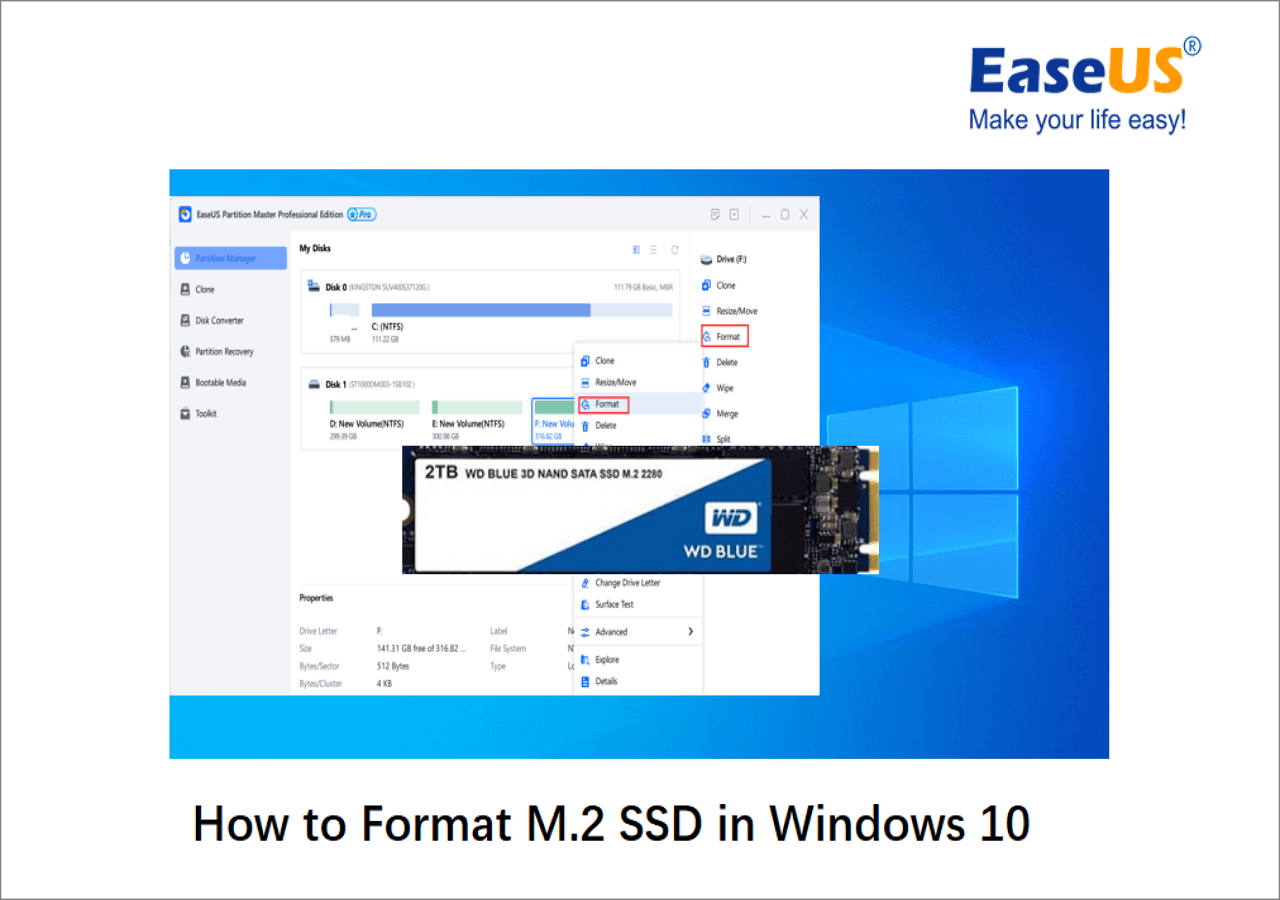
To format an SSD drive in Windows 10, back up your files, open Disk Management, choose the drive, and select Format.
Learning how to format a SSD drive in Windows 10 is simple, but the wrong click can erase the wrong disk. This guide explains safe methods, file systems, partition choices, common errors, and SSD-specific tips so you can complete the task with confidence.

What Formatting an SSD Does
Formatting prepares an SSD for storing files. It creates a file system, such as NTFS or exFAT, that Windows can use to read and write data.


Formatting usually removes the files stored on the selected partition. It does not always erase every piece of data permanently, especially when using a quick format. For that reason, always back up important files before you begin.
When you learn how to format a SSD drive in Windows 10, it helps to understand three related terms:
• Partition: A section of a physical drive that Windows treats as a separate storage area.
• File system: The structure Windows uses to organize files and folders.
• Volume: A formatted partition with a drive letter, such as C: or D:.
A new SSD may appear as unallocated space. In that case, you must initialize the disk, create a partition, and format it before Windows can use it.


Before You Format an SSD
Preparation prevents most formatting mistakes. Take a few minutes to confirm that you have selected the correct drive and saved anything you need.
Back Up Your Files
Copy important files to another drive, a cloud service, or an external backup device. Check the backup by opening a few files before formatting the SSD.
If the SSD contains your Windows installation, create a Windows recovery drive or installation USB first. Formatting the system drive from inside Windows can make the computer unbootable.
Identify the Correct Drive
Open File Explorer and check the drive letter, name, capacity, and folder contents. Then compare those details with Disk Management.
Capacity is especially useful. A 1 TB SSD may show about 931 GB in Windows because manufacturers use different methods to measure storage. This difference is normal.
Check SSD Health
A failing SSD may cause format errors or lose data after formatting. Use a trusted drive health tool, the SSD maker’s utility, or Windows diagnostics to check for warnings.
Formatting cannot repair worn-out memory cells or a failing controller. If the drive reports critical health problems, replace it instead of trusting it with important data.
Close Open Programs
Close files, games, backup tools, and applications that use the SSD. Remove unnecessary USB storage devices as well. This reduces the chance of selecting the wrong disk.
From my own troubleshooting work, the most common mistake is not the format process itself. It is choosing a nearby drive with a similar name or capacity. Slow down and verify every detail.

How to Format an SSD Drive in Windows 10 Using File Explorer
File Explorer is the easiest method when the SSD already has a drive letter and a working partition.
-
Press Windows + E to open File Explorer.
-
Select This PC from the left menu.
-
Find the SSD under Devices and drives.
-
Right-click the correct drive.
-
Select Format.
-
Choose a file system.
-
Keep allocation unit size set to Default.
-
Enter a volume label, if desired.
-
Leave Quick Format selected for normal use.
-
Click Start.
-
Read the warning, then click OK to confirm.


Windows will format the selected partition. The time depends on the drive size, connection speed, and format type.
Which File System Should You Choose?
NTFS is the best choice for an SSD used mainly with Windows 10. It supports large files, file permissions, encryption features, and Windows system functions.
Choose exFAT when you need to use the SSD with Windows, macOS, game consoles, or other devices. It offers broad compatibility but does not provide all NTFS features.
FAT32 works with many older devices, but it cannot store a single file larger than 4 GB. It is usually a poor choice for a modern internal SSD.
When deciding how to format a SSD drive in Windows 10 through File Explorer, NTFS is normally the safest default for Windows-only use.

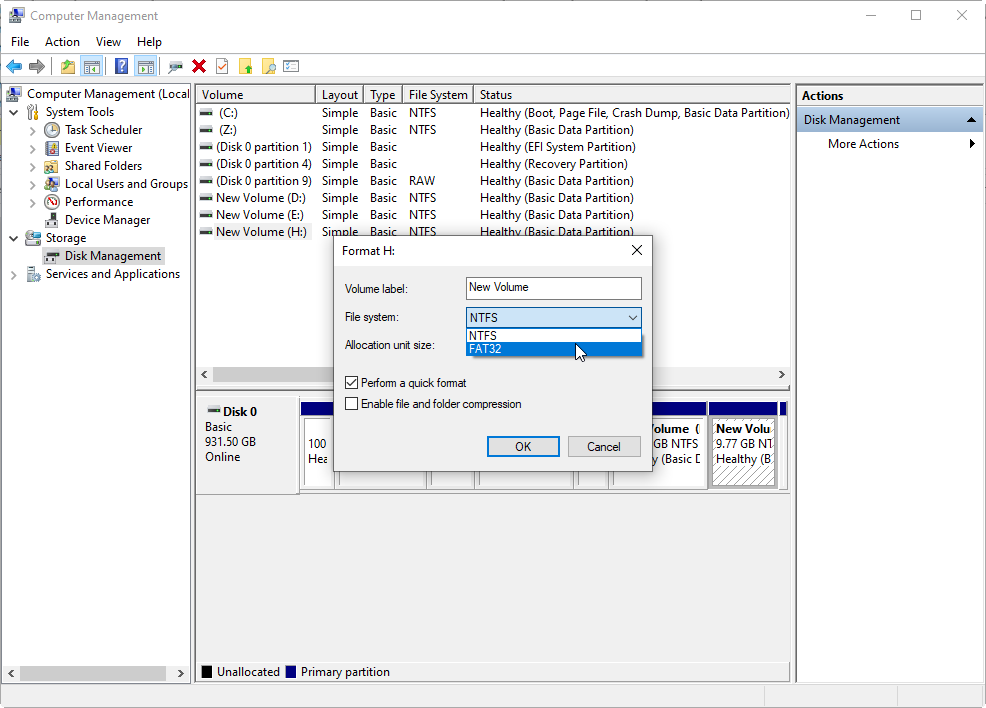
How to Format an SSD Drive in Windows 10 Using Disk Management
Disk Management offers more control than File Explorer. It can format partitions, assign drive letters, create new volumes, and manage unallocated space.


-
Right-click the Start button.
-
Select Disk Management.
-
Find the SSD in the lower section of the window.
-
Confirm the disk number, capacity, and partition layout.
-
Right-click the partition you want to format.
-
Select Format.
-
Enter a volume label.
-
Choose NTFS or another suitable file system.
-
Select Perform a quick format.
-
Click OK, then confirm the warning.
Disk Management may show the SSD as RAW, unallocated, or offline. These labels describe the drive’s current state and may require extra steps.
Format an Unallocated SSD
If the SSD shows a black bar labeled Unallocated, follow these steps:
-
Right-click the unallocated area.
-
Select New Simple Volume.
-
Choose Next in the wizard.
-
Select the volume size.
-
Assign a drive letter.
-
Choose NTFS for a Windows-only drive.
-
Give the volume a name.
-
Select Quick Format.
-
Click Finish.


Windows will create and format the new partition. The SSD should then appear in File Explorer.
Format a RAW SSD
A RAW label means Windows cannot recognize the current file system. This may happen after corruption, a failed format, or use with another operating system.
Right-click the RAW partition in Disk Management and select Format. If formatting fails, delete the volume only after confirming that no needed files remain, then create a new simple volume.
Data recovery becomes harder after new formatting or deleted partitions. If the SSD contains valuable files, stop and use a professional recovery service before making changes.

How to Format an SSD Drive in Windows 10 With DiskPart
DiskPart is a powerful command-line tool. It can fix storage layouts that Disk Management cannot handle, but one wrong command can erase an entire disk.
Use DiskPart only when you can identify the correct disk number with complete confidence.
-
Press Windows + S.
-
Search for Command Prompt.
-
Right-click Command Prompt.
-
Select Run as administrator.
-
Type
diskpartand press Enter. -
Type
list diskand press Enter. -
Identify the SSD by its size.
-
Type
select disk X, replacing X with the correct disk number. -
Type
cleanand press Enter. -
Type
create partition primaryand press Enter. -
Type
format fs=ntfs quickand press Enter. -
Type
assignand press Enter. -
Type
exitand press Enter.
The clean command removes the partition information from the selected disk. It does not belong in a routine process unless you want to rebuild the entire disk layout.
A safer habit is to run list disk again after selecting a disk. Confirm the asterisk appears next to the intended SSD before using any command that changes data.
This method explains how to format a SSD drive in Windows 10 from a clean disk, but it is not the best option for beginners. Disk Management is safer because it provides visible controls and confirmation prompts.

How to Format the Windows SSD
You cannot normally format the active Windows system partition while Windows is running from it. The operating system is using that partition, so File Explorer and Disk Management will block the action.
To format the Windows SSD, use one of these methods:
• Boot from a Windows 10 installation USB and format the partition during setup.
• Boot from Windows Recovery Environment and use advanced troubleshooting tools.
• Connect the SSD to another computer and format it there.
Format During Windows 10 Setup
-
Create a Windows 10 installation USB.
-
Back up all personal files.
-
Boot the computer from the USB drive.
-
Select language and keyboard settings.
-
Choose Install now.
-
Select Custom: Install Windows only.
-
Select the correct SSD partition.
-
Click Format or delete the old partitions.
-
Select the unallocated space.
-
Continue with Windows installation.
Deleting all partitions removes the recovery partition and personal data. Make sure you have product access, backups, drivers, and recovery tools before proceeding.
If you are selling or giving away the computer, a normal quick format may not protect private data. Use Windows reset options or the SSD manufacturer’s secure erase feature when appropriate.
Quick Format vs. Full Format on an SSD
A quick format creates a new file system and marks the space as available. It is fast and is usually suitable for a new or healthy SSD.
A full format checks the storage area more thoroughly. In Windows 10, a full format can take much longer and may write across the drive. It is rarely needed for a modern SSD.
For most users, a quick format is the better choice. SSDs have limited write endurance, so unnecessary full formats add work without offering much benefit.
Formatting is also different from securely erasing an SSD. A format changes the file system, while secure erase uses a drive-specific process to remove stored data more completely.

SSD Formatting Problems and Fixes
The Format Option Is Grayed Out
The partition may be in use, protected, or part of the active Windows installation. Restart the computer, close open programs, or use a Windows installation USB.
Windows Says the Drive Is Write-Protected
Check for a physical lock switch if the SSD is in an external enclosure. You can also inspect the drive with DiskPart, but do not clear attributes or use destructive commands until you confirm the correct disk.
The SSD Does Not Appear
Check the cable, USB port, power connection, and enclosure. For an internal SSD, confirm that it appears in the computer’s firmware settings and that the motherboard supports the drive type.
You can also open Device Manager and scan for hardware changes. A missing drive may indicate a bad cable, incompatible enclosure, driver problem, or hardware failure.
Windows Cannot Complete the Format
Try these steps:
• Restart the computer.
• Use Disk Management as an administrator.
• Remove the volume and create a new simple volume.
• Try another cable or port.
• Test the SSD on another computer.
• Check the SSD maker’s diagnostic software.
• Use DiskPart only after backing up data and confirming the disk number.
The SSD Is Slow After Formatting
A newly formatted SSD should not normally become slow because of formatting. Check whether the drive is nearly full, overheating, connected through a slow USB port, or reporting health problems.
For best performance, keep free space available and install the correct firmware from the SSD manufacturer. Windows 10 also manages TRIM on supported drives, which helps the SSD handle deleted data efficiently.
Best SSD Practices After Formatting
Formatting is only the first step. These habits help protect speed, reliability, and data.
• Keep Windows and SSD firmware updated.
• Use NTFS for most internal Windows drives.
• Keep regular backups on a separate device.
• Avoid filling the SSD completely.
• Do not defragment an SSD like a traditional hard drive.
• Let Windows optimize the drive through the Optimize Drives tool.
• Use a surge protector for desktop systems.
• Monitor unusual crashes, disappearing files, or health warnings.
Windows may display an SSD in the Optimize Drives tool. The maintenance action is usually TRIM rather than traditional disk defragmentation. Windows identifies the drive type and applies the suitable optimization.
One practical lesson I have learned is that a backup should be tested, not merely created. A drive can show a successful backup message while a damaged file remains unreadable. Open several backed-up files before formatting.
Should You Format an SSD Before Installing Windows 10?
You do not always need to format an SSD before installing Windows 10. During a clean installation, Windows Setup can create the required partitions and format the selected space.
A clean install is useful when replacing an old drive, removing malware, or starting with a fresh system. It also removes apps, settings, and personal files from the selected partitions.
Before starting, prepare these items:
• A working Windows 10 installation USB.
• A complete backup.
• Network access for updates.
• Important license information.
• Drivers for unusual hardware.
• A recovery plan if installation fails.
Select the correct SSD during setup. If more than one drive is connected, temporarily disconnect extra drives when possible. This reduces the risk of placing boot files on the wrong disk.
Frequently Asked Questions About How to Format a SSD Drive in Windows 10
Does formatting an SSD erase everything?
Formatting removes the file system information and makes the partition available for new data. A quick format may not securely erase every old file, so use a secure erase method when permanently disposing of sensitive data.
Should I use NTFS or exFAT for an SSD?
Use NTFS when the SSD will mainly work with Windows 10. Use exFAT when you need to move the SSD between Windows, macOS, and other compatible devices.
Can I format the C drive while Windows is running?
No. Windows normally cannot format the active system partition because the operating system is using it. Boot from Windows installation media or connect the SSD to another computer instead.
Does formatting damage an SSD?
A normal format does not immediately damage a healthy SSD. However, repeated unnecessary full formats create extra writes, so a quick format is usually the better option.
Why is my SSD not showing in File Explorer after formatting?
The SSD may not have a drive letter, partition, or recognized file system. Open Disk Management to check whether it is unallocated, offline, RAW, or missing entirely.
Do I need to format a new SSD?
A new SSD may need initialization, partitioning, and formatting before Windows can use it. If Windows Setup or Disk Management already recognizes a usable volume, additional formatting may not be necessary.
Conclusion
Learning how to format a SSD drive in Windows 10 is straightforward when you protect your data and confirm the correct disk first. File Explorer works well for a basic format, while Disk Management offers more control over partitions and unallocated space. DiskPart can handle advanced cases, but it requires extra care.
Choose NTFS for most Windows systems, use exFAT for wider device support, and avoid full formats unless you have a specific reason. Back up important files, check SSD health, and use secure erase tools when privacy matters.
Take a moment to identify your SSD, select the right method, and format it with confidence. Explore more Windows storage guides, and share your experience or questions in the comments.

Everett Ashford is a tech reviewer at mytechgrid.com specializing in SSDs, cameras, TVs, earbuds, headphones, and other consumer electronics. He provides honest, data-driven reviews based on hands-on testing and real-world performance analysis. Everett simplifies complex tech details to help readers make smart, confident buying decisions.