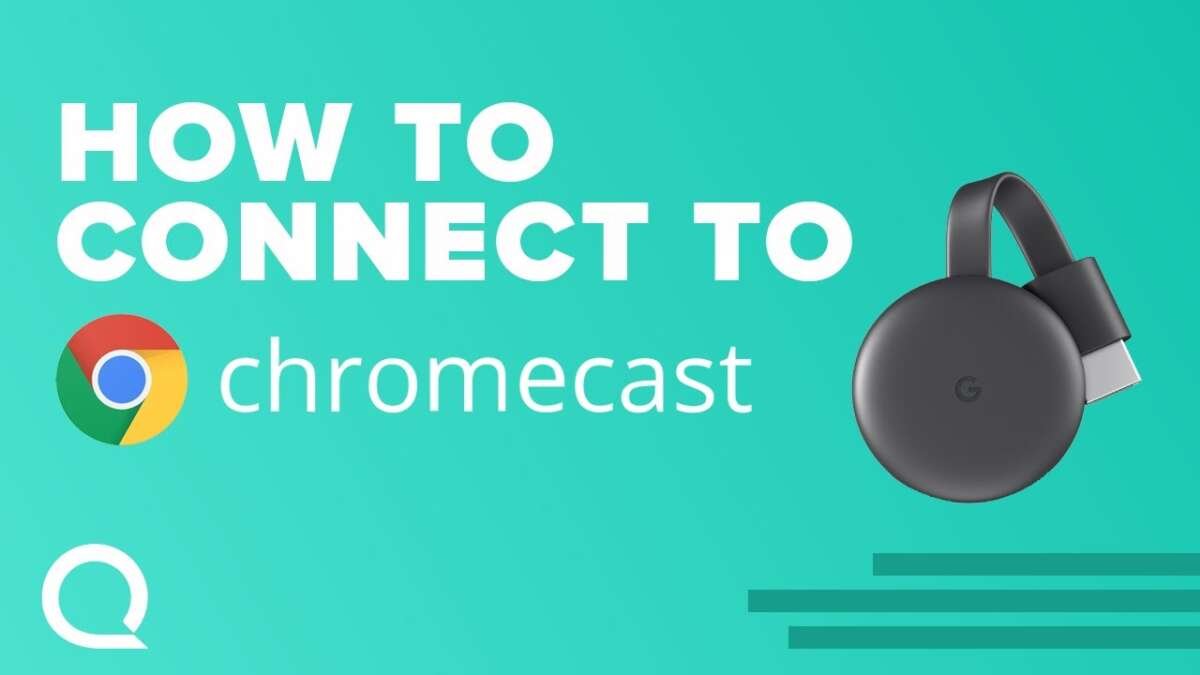
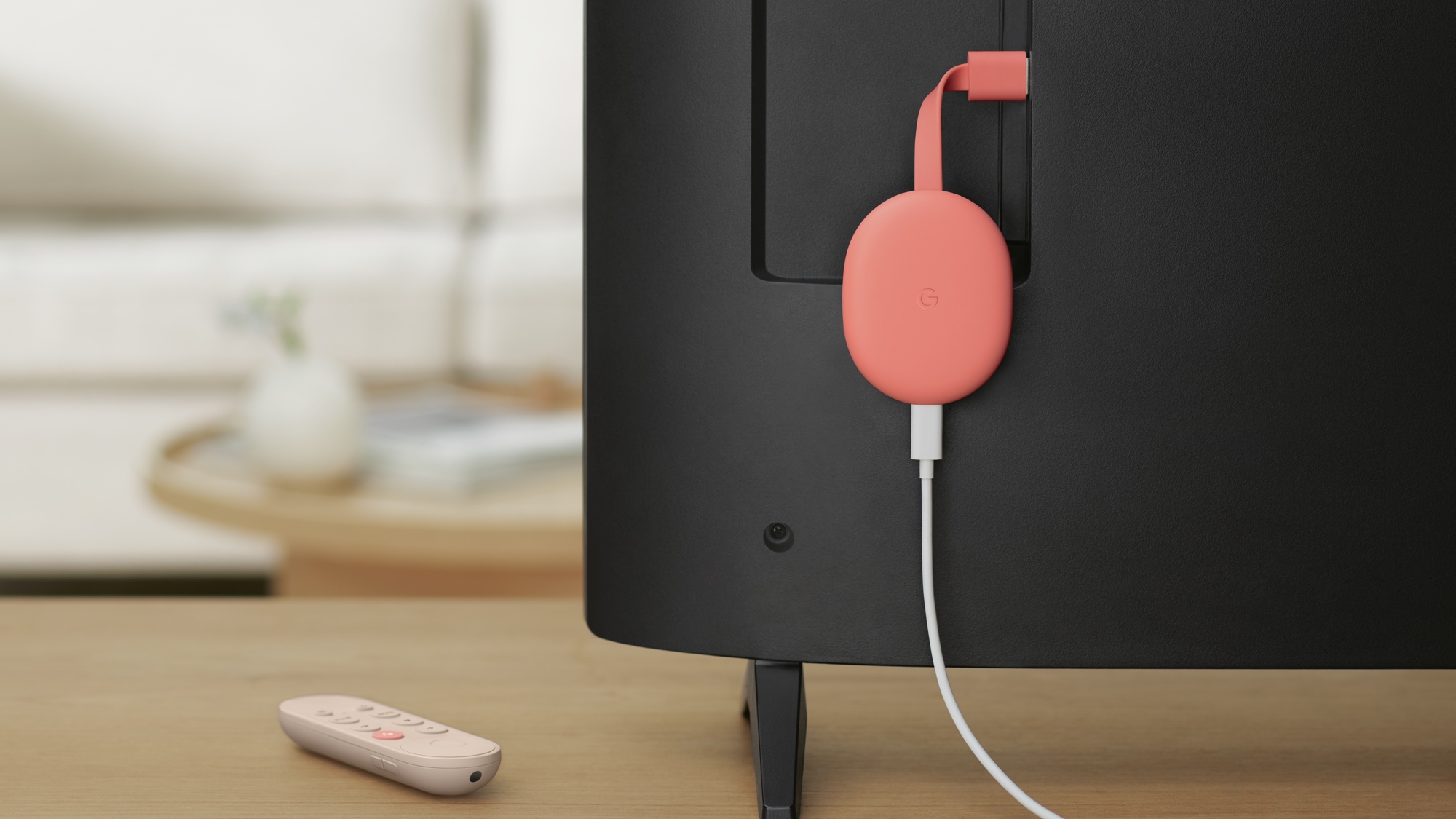
To connect Chromecast to a TV, plug it into HDMI, power it, and set it up with Google Home.
If you are wondering how do you connect Chromecast to TV, the process is simple once you know which Chromecast model you have. This guide covers the HDMI connection, Wi-Fi setup, Google Home steps, casting from different devices, and the most common fixes when setup does not go as planned.
What you need before connecting Chromecast
Before asking how do you connect Chromecast to TV, check that you have the right equipment. Most setup problems happen because of a missing power cable, the wrong TV input, or an unstable Wi-Fi connection.
You will need:
• A Chromecast device
• A TV with an open HDMI port
• The Chromecast power cable and power adapter
• A Google Account
• The Google Home app on an Android phone or iPhone
• A working Wi-Fi network
• A phone, tablet, or computer for casting
Most Chromecast models need external power. Plugging the USB cable into the TV may work on some models, but a wall outlet is more reliable. If your TV shows a power warning or Chromecast keeps restarting, use the included wall adapter instead.
Your phone and Chromecast should use the same Wi-Fi network during setup. If your router has separate 2.4 GHz and 5 GHz network names, connect both devices to the same one.
How do you connect Chromecast to TV?
The physical connection takes only a few minutes. Follow these steps in order.
-
Find an open HDMI port on the back or side of your TV.
-
Plug Chromecast into that HDMI port.
-
Connect the Chromecast power cable to the device.
-
Plug the other end into a wall outlet or a suitable USB power source.
-
Turn on the TV.
-
Press the Input, Source, or HDMI button on your TV remote.
-
Select the HDMI port that contains Chromecast.
You should see a welcome screen, a setup message, or a Chromecast logo. If the screen stays blank, choose each HDMI input one at a time. The correct input may be labeled HDMI 1, HDMI 2, or HDMI 3.
If you have Chromecast with Google TV, the device includes a remote and can complete much of the setup on the TV screen. Older Chromecast models do not have a remote. They rely on the Google Home app and a separate phone or tablet.
One common mistake is connecting Chromecast to HDMI but forgetting the power cable. HDMI sends video and sound, but it does not normally provide enough power for Chromecast.

How to set up Chromecast with Google Home
After the physical connection, the Google Home app helps link Chromecast to your Google Account and Wi-Fi network. This is the main answer to how do you connect Chromecast to TV wirelessly.
Follow these steps:
-
Install or update the Google Home app from the Apple App Store or Google Play Store.
-
Open the app and sign in with your Google Account.
-
Turn on Bluetooth and location access if the app requests them.
-
Tap the plus symbol or Add button.
-
Select Set up device.
-
Choose New device.
-
Select your home or create a new home.
-
Wait while Google Home searches for nearby devices.
-
Select your Chromecast from the list.
-
Confirm that the code in the app matches the code on the TV.
-
Choose the room where Chromecast is located.
-
Select your Wi-Fi network.
-
Enter the Wi-Fi password.
-
Wait for the setup to finish.
The code check is important. It helps prevent you from setting up a neighbor’s Chromecast by mistake, especially in an apartment building or shared home.
During setup, the app may ask whether you want to enable voice control, link streaming services, or accept personalized settings. You can skip many of these choices and return to them later.
For Chromecast with Google TV, pair the remote when the TV asks. If the remote does not pair, hold the Back and Home buttons together for several seconds, then follow the on-screen instructions.

How do you connect Chromecast to TV from an Android phone?
Once Chromecast is set up, you can cast from many Android apps. Your phone acts like a remote control, while Chromecast streams the content to your TV.
To cast from Android:
-
Connect your Android phone and Chromecast to the same Wi-Fi network.
-
Open a supported app, such as YouTube, Netflix, Spotify, or another casting app.
-
Look for the Cast icon. It looks like a small rectangle with Wi-Fi lines.
-
Tap the Cast icon.
-
Select your Chromecast device.
-
Choose a video, song, or photo.
The content should appear on the TV within a few seconds. You can use your phone to pause, play, change the volume, or select another item.
Some Android phones also support screen casting. Open the quick settings panel and look for options such as Cast, Screen Cast, Smart View, or Wireless Display. The name varies by phone brand.
Screen mirroring can use more battery and may look less smooth than casting from a supported app. For the best picture and sound, use the Cast button inside the streaming app when it is available.

How do you connect Chromecast to TV from an iPhone?
An iPhone can cast from apps that support Google Cast. The process is much like casting from Android.
-
Connect the iPhone and Chromecast to the same Wi-Fi network.
-
Open a compatible streaming app.
-
Tap the Cast icon.
-
Select your Chromecast.
-
Start playing your chosen content.
On iPhone, the app may ask for permission to find devices on your local network. Allow this permission. Without it, the app may not see Chromecast even when both devices use the same Wi-Fi.
The iPhone Control Center does not natively mirror the full screen to every Chromecast device. For full-screen mirroring, you may need a compatible third-party app. These apps can vary in quality, privacy practices, and subscription cost, so use care before installing one.

How do you connect Chromecast to TV from a laptop?
You can cast from Google Chrome on a Windows PC, Mac, or Chromebook. This method works well for websites, browser tabs, photos, and some online videos.
To cast a Chrome tab:
-
Open Google Chrome.
-
Select the three-dot menu in the upper-right corner.
-
Choose Cast, save, and share.
-
Select Cast.
-
Choose your Chromecast device.
-
Select whether to cast the current tab, the entire screen, or a supported file.
Casting a tab sends the browser tab to the TV. Casting the entire screen shows everything on your computer, including notifications and other open windows.
For better results, close large downloads and unnecessary browser tabs. A weak Wi-Fi signal can cause delays, blurry video, or sound that does not match the picture.
Some websites include their own Cast button. When available, that option is usually better than mirroring a browser tab because it can send the stream directly to Chromecast.

How do you connect Chromecast to TV without Wi-Fi?
Chromecast is designed to use a Wi-Fi network, so it normally cannot work as a simple plug-and-play HDMI device. Your phone or computer must usually communicate with Chromecast over the same local network.
There are a few limited alternatives:
• A phone hotspot may work if the Chromecast and casting device can join the same hotspot.
• A travel router can create a small local network for Chromecast.
• Some newer phones support advanced hotspot settings that allow connected devices to communicate.
• Chromecast with Google TV can use certain supported Ethernet adapters for a wired network.
Hotspot setup is not always reliable. Some phones block communication between connected devices, and mobile data can run out quickly when streaming video.
If you are traveling, test the setup before relying on it. Hotel Wi-Fi often uses a sign-in page, device limits, or network isolation. These features can prevent Chromecast from communicating with your phone.

How do you connect Chromecast to TV with a new Wi-Fi network?
Chromecast remembers its old Wi-Fi network. If you move it to a new home or replace your router, you may need to update the network settings.
For Chromecast with Google TV:
-
Open Settings on the TV.
-
Select Network and Internet.
-
Choose the current network.
-
Select the new Wi-Fi network.
-
Enter the new password.
For older Chromecast models, the Google Home app may not show a direct network change option. In that case, you may need to reset Chromecast and complete setup again.
To reset most Chromecast devices, keep the device powered on and hold the physical button. Release it when the indicator changes or the TV shows a reset message. The exact timing varies by model, so follow the instructions for your device.
A reset erases the current settings. Use it only after checking that the Wi-Fi password is correct and that your phone is connected to the intended network.

How do you connect Chromecast to TV when it is not working?
If Chromecast does not appear or the TV shows no signal, work through these fixes in order.
Check the HDMI input
Make sure the TV is set to the HDMI port used by Chromecast. Try another HDMI port if the current one does not work.
Check power
Use the original power adapter when possible. Avoid weak USB ports on older TVs, as they may not provide steady power.
Restart the devices
Unplug Chromecast for about one minute. Restart your phone and home router, then try setup again.
Confirm the Wi-Fi network
Your phone and Chromecast must be on the same network. Guest Wi-Fi often blocks communication between devices.
Move the router closer
Thick walls, metal cabinets, and long distances can weaken the signal. Place the router in an open, central spot.
Update the apps
Update Google Home, Google Chrome, and the streaming app. Older software may cause pairing or casting errors.
Turn off network blockers
VPNs, private relay tools, aggressive firewall settings, and some parental-control systems can prevent device discovery. Temporarily disable them to test the connection.
Check the TV
Try another HDMI device in the same port. If that device also fails, the TV port may be damaged or disabled.
A useful lesson from many home setups is to solve one link at a time: power first, HDMI input second, Wi-Fi third, and app settings last. This approach is faster than changing several settings at once.
Common Chromecast limits to know
Chromecast is convenient, but it is not a replacement for every type of media device. Knowing its limits can prevent frustration.
• Some apps do not support Google Cast.
• Certain websites block casting or screen recording.
• A phone cannot cast if it is on a different network from Chromecast.
• Hotel and public Wi-Fi networks may block device-to-device communication.
• Full-screen iPhone mirroring is more limited than Android screen casting.
• 4K video requires a compatible Chromecast model, TV, HDMI connection, and streaming plan.
• Dolby Vision, HDR, and surround sound depend on the Chromecast model, TV, receiver, and content.
• Casting does not always transfer a downloaded video file from your phone.
Chromecast also depends on the streaming service. A Cast icon may disappear if the app is outdated, the service has a temporary problem, or the network cannot discover local devices.
For the most stable experience, keep Chromecast firmware, Google Home, your phone, and streaming apps updated.
Tips for a smoother Chromecast setup
A few small habits make how do you connect Chromecast to TV much easier for the whole household.
• Give Chromecast a clear name, such as Living Room TV.
• Keep the TV and Chromecast near a strong Wi-Fi signal.
• Use the wall power adapter instead of a TV USB port when possible.
• Avoid guest networks during setup.
• Keep the Google Home app installed for device management.
• Use a reliable HDMI extension if Chromecast is crowded behind the TV.
• Restart the router if casting suddenly stops working.
• Set up voice control only if you are comfortable using it.
• Do not share your Wi-Fi password through untrusted apps.
• Check privacy settings before linking streaming services.
During one especially common setup mistake, users select the wrong HDMI input and assume Chromecast has failed. A quick look at the HDMI label often solves the issue in less than a minute. Think of the HDMI input as the TV’s doorway: Chromecast must enter through the same doorway that the TV is watching.
Frequently Asked Questions
How do you connect Chromecast to TV for the first time?
Plug Chromecast into an HDMI port and connect its power cable. Select the matching HDMI input on your TV, then use the Google Home app to connect Chromecast to Wi-Fi and finish setup.
Can you connect Chromecast to any TV?
Chromecast works with most TVs that have an available HDMI port and can display the device’s video signal. The TV also needs a suitable power source, either through the included adapter or a reliable compatible connection.
Why does Chromecast not show up in Google Home?
Your phone and Chromecast may be connected to different Wi-Fi networks. Check local network permissions, turn off VPNs temporarily, restart both devices, and confirm that Chromecast is powered on.
Do you need Google Home to connect Chromecast?
Older Chromecast models generally need the Google Home app for initial setup. Chromecast with Google TV can complete more steps using its remote, but Google Home remains useful for managing the device and home network.
Can you use Chromecast without a Google Account?
A Google Account is normally required for setting up and managing Chromecast. Some casting features may work from supported apps afterward, but the initial device setup usually requires account access.
Can Chromecast work without internet?
Chromecast needs a local network for most casting features, and streaming services need internet access. A local hotspot or travel router may work in limited cases, but hotel and public networks can block Chromecast connections.
Why is Chromecast connected but showing a black screen?
Confirm that the TV is using the correct HDMI input and that Chromecast has steady power. Try another HDMI port, restart the device, and check whether the TV supports the video resolution being sent.
Conclusion
Learning how do you connect Chromecast to TV is mostly a matter of four steps: connect HDMI, provide power, select the right TV input, and complete Wi-Fi setup in Google Home. After that, you can cast from Android phones, iPhones, Chrome browsers, and many popular streaming apps.
If setup fails, check the simple links first. Confirm power, HDMI input, Wi-Fi, and app permissions before trying a factory reset. Set up your Chromecast now, test it with a familiar app such as YouTube, and explore your TV’s casting options for an easier home streaming experience.

Everett Ashford is a tech reviewer at mytechgrid.com specializing in SSDs, cameras, TVs, earbuds, headphones, and other consumer electronics. He provides honest, data-driven reviews based on hands-on testing and real-world performance analysis. Everett simplifies complex tech details to help readers make smart, confident buying decisions.