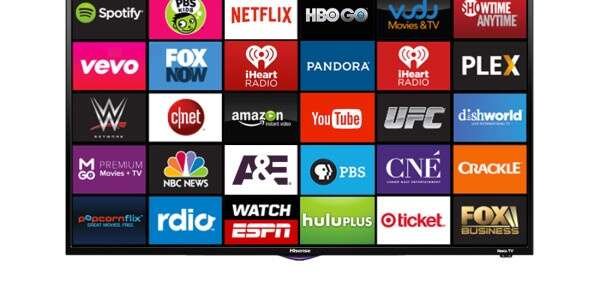
Open the app store, search for the app, select Install, and sign in on your Sharp Smart TV.
Learning how to add apps on Sharp Smart TV is simple once you identify the TV’s operating system. Sharp models may use Roku TV, Google TV, Android TV, or an older Aquos platform, so the menu names can differ. This guide explains each method, common problems, safe download habits, and practical tips that make setup much easier.

Check Which Sharp Smart TV Platform You Use
Before learning how to add apps on Sharp Smart TV, check the software platform on your television. Sharp has released different smart TV systems over the years, and each one uses its own app store.
Look at the home screen. You may see one of these platforms:
• Roku TV: The screen usually shows a purple Roku theme and a left-side menu.
• Google TV: The home screen includes tabs such as Home, Apps, and For You.
• Android TV: You may see the Google Play Store and Android-style menus.
• Aquos or older Sharp Smart TV software: These models may have a limited app menu or no traditional app store.
You can also check the model and software details:
-
Press the Home or Menu button on the remote.
-
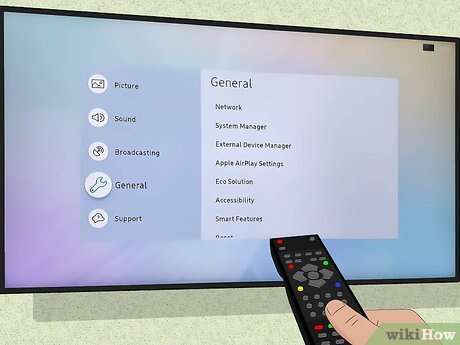
Open Settings.
-
Choose System, Device Preferences, Support, or About.
-
Look for the model number and operating system.
The model number matters because two Sharp TVs can look nearly identical but use different software. In hands-on TV setup, this is the step that saves the most time. Many failed app installations happen because owners follow Roku instructions on a Google TV model, or the other way around.

How to Add Apps on Sharp Roku TV
Roku TV uses the Roku Channel Store. You can add streaming services, music apps, news apps, games, and other approved channels from the TV menu.
Follow these steps:
-
Turn on the Sharp Roku TV and connect it to the internet.
-
Press the Home button on the Roku remote.
-
Scroll to Streaming Store or Store.
-
Select Search Channels.
-
Type the name of the app.
-
Choose the correct app from the results.
-
Select Add app or Add channel.
-
Wait for the download to finish.
-
Open the app and sign in with your account.
On some Roku versions, the store may be called Streaming Store instead of Channel Store. The wording can change after a software update, but the process stays much the same.
You can also add apps through the Roku mobile app or Roku website. The TV must be linked to the same Roku account, and it needs an internet connection before the new app appears. If the app does not show right away, restart the TV or check for a system update.
Roku calls many apps “channels,” even when they are streaming or utility apps. Do not let that wording confuse you. Adding a channel is the same basic process as installing an app.

How to Add Apps on Sharp Google TV
Newer Sharp TVs may use Google TV. This platform lets you install apps through the Google Play Store or the Apps tab.
Here is how to add apps on Sharp Smart TV models that use Google TV:
-
Press the Home button.
-
Select the Apps tab at the top of the screen.
-
Choose Search.
-
Use the on-screen keyboard or voice search to find the app.
-
Select the app from the search results.
-
Choose Install.
-
Wait for the installation to finish.
-
Select Open, or find the app on your home screen.
You may need to sign in with a Google Account before installing apps. This account connects the TV to Google Play and helps manage downloads, updates, and purchases.
Google TV may show recommended apps before you search. These suggestions can be useful, but always check the developer name. For example, an official streaming service should come from the company that owns that service. Avoid unknown copies with similar logos or names.
To move an app, highlight it on the home screen, press and hold the Select button, and choose Move. The exact option may vary by software version. Placing your most-used apps near the front makes daily use much faster.

How to Add Apps on Sharp Android TV
Some Sharp Smart TVs use Android TV rather than the newer Google TV interface. The names look different, but the installation process is close.
Use these steps:
-
Press Home on the remote.
-
Open the Apps section.
-
Select Get more apps or the Google Play Store.
-
Choose the search icon.
-
Enter the app name.
-
Select the correct result.
-
Press Install.
-
Open the app after the download completes.
If you cannot find the Play Store, open Settings and check Apps or See all apps. The Play Store may be hidden from the first row, especially on older Android TV software.
Android TV apps must be compatible with the TV’s hardware and operating system. A phone app may not appear because it was designed only for touch screens. This is normal and does not mean the TV is broken.
Some apps also require a newer Android TV version. If an app is missing from search, update the TV first, then search again. App availability can also depend on your country, account region, and licensing agreements.

How to Add Apps on an Older Sharp Aquos TV
Older Sharp Aquos models may not include Roku, Google TV, or Android TV. Some have a basic Smart Central menu with a small list of built-in apps. Others may not support new app downloads at all.
Try this process:
-
Press Smart, Home, or Apps on the remote.
-
Open Smart Central or the app screen.
-
Look for an Add, Store, or Download option.
-
Search the available app list.
-
Select the app and follow the on-screen instructions.
If there is no store or download option, the TV may use a fixed app system. In that case, you cannot install modern apps directly onto the television.
You still have several useful choices:
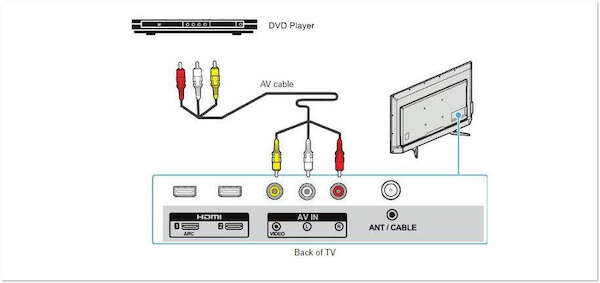
• Connect a Roku streaming stick.
• Use a Google TV Streamer or another certified streaming device.
• Connect an Apple TV device.
• Plug in a game console with streaming support.
• Cast content from a phone when the TV supports casting.
A streaming device often gives an older Sharp TV a fresh start. It also provides more regular app updates than an outdated built-in platform. Think of it as adding a new engine to an older car while keeping the same screen.

What to Do When an App Is Missing
Learning how to add apps on Sharp Smart TV also means knowing why an app may not appear. The most common reason is platform or regional support.
Check these points:
• The app may not support your Sharp TV operating system.
• The app may not be available in your country.
• The TV may need a software update.
• Your internet connection may be offline or unstable.
• The app may have been removed from the platform store.
• Your TV may have limited storage.
• Parental controls may block the download.
Search the app store using the exact name. Some services have separate versions for Roku, Android TV, and Google TV. A phone version may not be available for television use.
You should also check the developer name and app description. This helps prevent installing an unrelated app with a similar title. Official app stores review listings, but careful checking is still a smart habit.
If the app is available on another device but not on your Sharp TV, compatibility is the likely issue. In that situation, a supported streaming device is usually more reliable than trying to force an installation.
Fix App Installation Problems on a Sharp TV
If an app will not download, start with the simple fixes. Most problems come from a weak network, low storage, outdated software, or a temporary store error.
Try these steps in order:
-
Test another app to confirm that the internet works.
-
Restart the Sharp TV.
-
Unplug the TV for about one minute, then plug it back in.
-
Restart your router.
-
Check for a TV software update.
-
Remove unused apps if storage is full.
-
Search for the app again.
-
Sign out and back in to your Roku or Google Account if needed.
A wired Ethernet connection can help when Wi-Fi is weak. If you use Wi-Fi, place the router in an open area rather than inside a cabinet. Streaming apps need steady data, much like a garden needs steady water. A brief drop can interrupt both downloads and playback.
If the app installs but crashes, clear its cache on Android TV or Google TV. You can also uninstall and reinstall it. Roku users can remove the channel, restart the TV, and add it again.
Avoid repeated factory resets unless other solutions fail. A reset removes accounts, settings, and installed apps. It is a final repair step, not the first one.
How to Update Apps on Sharp Smart TV
Most apps update automatically when the TV is connected to the internet. You can still check for updates manually if an app acts slowly or shows an error.
On Roku TV:
-
Highlight the app on the home screen.
-
Press the Star button.
-
Select Check for updates.
On Google TV or Android TV:
-
Open the Google Play Store.
-
Select your profile icon.
-
Open Manage apps and games or Manage updates.
-
Choose available updates.
Also update the TV software itself:
-
Open Settings.
-
Select System, About, Support, or Device Preferences.
-
Choose System update or Software update.
-
Follow the instructions on the screen.
Do not turn off the TV during a firmware update. The screen may restart more than once. Updates can improve security, fix bugs, and maintain compatibility with newer app versions.
It is worth checking updates before deleting an app. In many cases, a software update fixes the problem without removing your sign-in details.
How to Arrange, Remove, and Manage Apps
After you learn how to add apps on Sharp Smart TV, you can organize the home screen for faster access. Put your most-used services near the front, such as live TV, movies, music, or sports apps.
To remove an app, highlight it and open its options menu. On Roku, press the Star button and choose Remove app. On Google TV or Android TV, highlight the app, press and hold the Select button, and choose Uninstall if the option appears.
Removing an app does not always cancel its paid subscription. You must cancel subscriptions through the service provider, Roku account, Google Account, or another billing platform used during signup.
Keep a little free storage on the TV. When storage becomes crowded, apps may update slowly or stop installing. Delete apps you no longer use, especially trial apps and large games.
One practical lesson from setting up smart TVs is to avoid installing every suggested app. A clean home screen is easier to use, and fewer apps mean fewer notifications, updates, and sign-in requests.
Safe App Download and Privacy Tips
Use only the official app store built into your Sharp TV or a trusted streaming device. Avoid websites that promise free TV apps through unknown files. These files may contain harmful software, collect personal data, or simply fail to work.
Follow these safety habits:
• Check the app name and developer.
• Read recent user reviews.
• Review the permissions requested by the app.
• Use strong, unique passwords.
• Turn on two-step verification when available.
• Never share your streaming password through an unofficial support message.
• Keep the TV firmware and apps updated.
• Use a secure home Wi-Fi network.
Streaming apps often collect viewing and device data. Review privacy settings when you create an account. A free app may still earn money through advertising or data-based services, so understand what you accept.
Official platform stores reduce risk, but they do not remove it completely. Good judgment remains your best protection.
Can You Add Apps Without a Remote?
You can often add apps without the original remote, but the method depends on your Sharp TV platform. The Roku mobile app can control compatible Roku TVs, while the Google TV app can act as a remote for supported Google TV and Android TV devices.
The phone and TV usually need to be on the same Wi-Fi network. If the TV has never connected to that network, the phone app may not find it.
A USB keyboard may help with typing on some models, but it cannot always replace every remote function. A universal remote is another option, although you must program the correct Sharp or platform code.
Voice search can also reduce typing on Google TV models that support it. Speak the app name clearly, then select the official result.
Frequently Asked Questions About How to Add Apps on Sharp Smart TV
How do I know which apps my Sharp Smart TV supports?
Check the app store on the TV and search for the service by name. Support depends on the TV platform, model year, software version, country, and app developer.
Can I install apps on every Sharp Smart TV?
No. Newer Roku, Google TV, and Android TV models support app downloads, but some older Aquos TVs have fixed app lists. An external streaming device can add newer app support.
Why can’t I find an app on my Sharp TV?
The app may not support your operating system or region. A software update, account region change, or compatible streaming device may solve the issue, but some apps are simply unavailable for certain models.
Do I need a Google Account to add apps?
You usually need a Google Account for Google TV and Android TV app installations. Roku TVs use a Roku account, while some older models may not require an account for built-in apps.
How do I delete an app from my Sharp Smart TV?
Highlight the app, open its options menu, and choose Remove or Uninstall. Deleting an app does not automatically cancel any subscription connected to that service.
Can I add apps to an older Sharp Aquos TV?
Only if the TV has an app store or Add Apps feature. If it does not, connect a Roku, Google TV, Apple TV, or another supported streaming device through HDMI.
Do Sharp TV apps update automatically?
Many apps update automatically when the TV is online. You can also check the Roku Channel Store or Google Play Store manually when an app shows errors or behaves unusually.
Conclusion
How to add apps on Sharp Smart TV depends mainly on the platform behind the screen. Roku TVs use the Roku Channel Store, while Google TV and Android TV models use app search or the Google Play Store. Older Aquos TVs may have limited support and may work best with an external streaming device.
Start by checking your model and operating system. Use the official store, keep the TV updated, and troubleshoot the internet before attempting a factory reset. Try these steps on your Sharp TV today, then explore more setup guides or share your experience in the comments.

Everett Ashford is a tech reviewer at mytechgrid.com specializing in SSDs, cameras, TVs, earbuds, headphones, and other consumer electronics. He provides honest, data-driven reviews based on hands-on testing and real-world performance analysis. Everett simplifies complex tech details to help readers make smart, confident buying decisions.