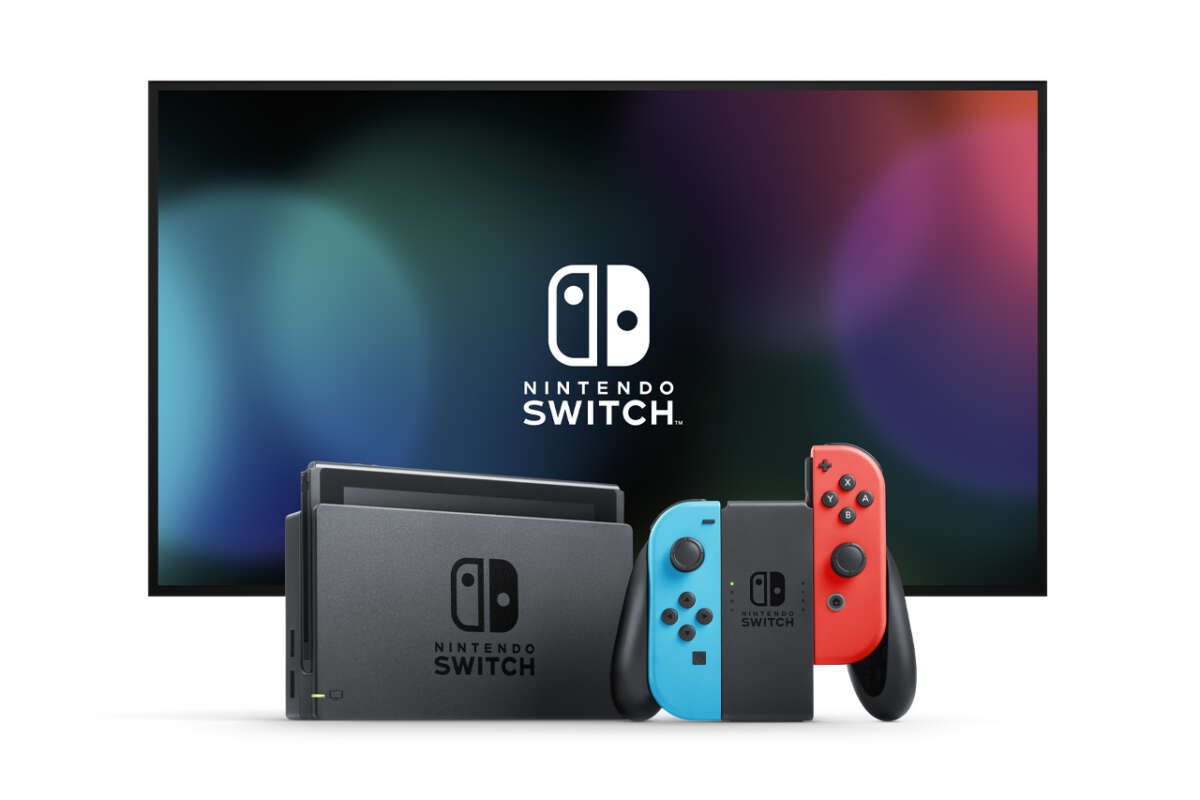
Connect the Switch dock to power and HDMI, then place the console inside to display games on your TV.
Learning how does nintendo switch connect to tv is simple once you understand the role of the dock. This guide explains the full setup, the right cables, model limits, common errors, and practical fixes so you can start playing with less guesswork.
How Does Nintendo Switch Connect to TV?
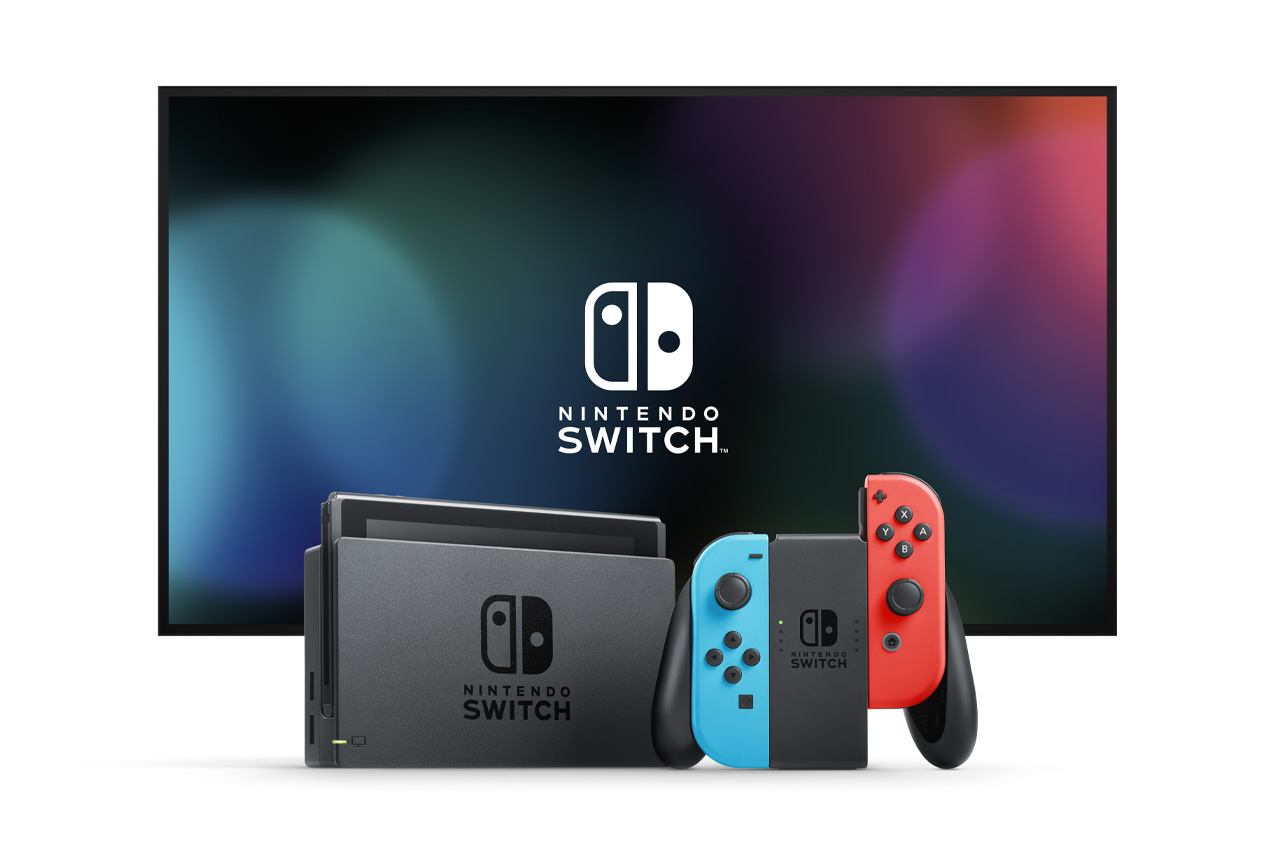
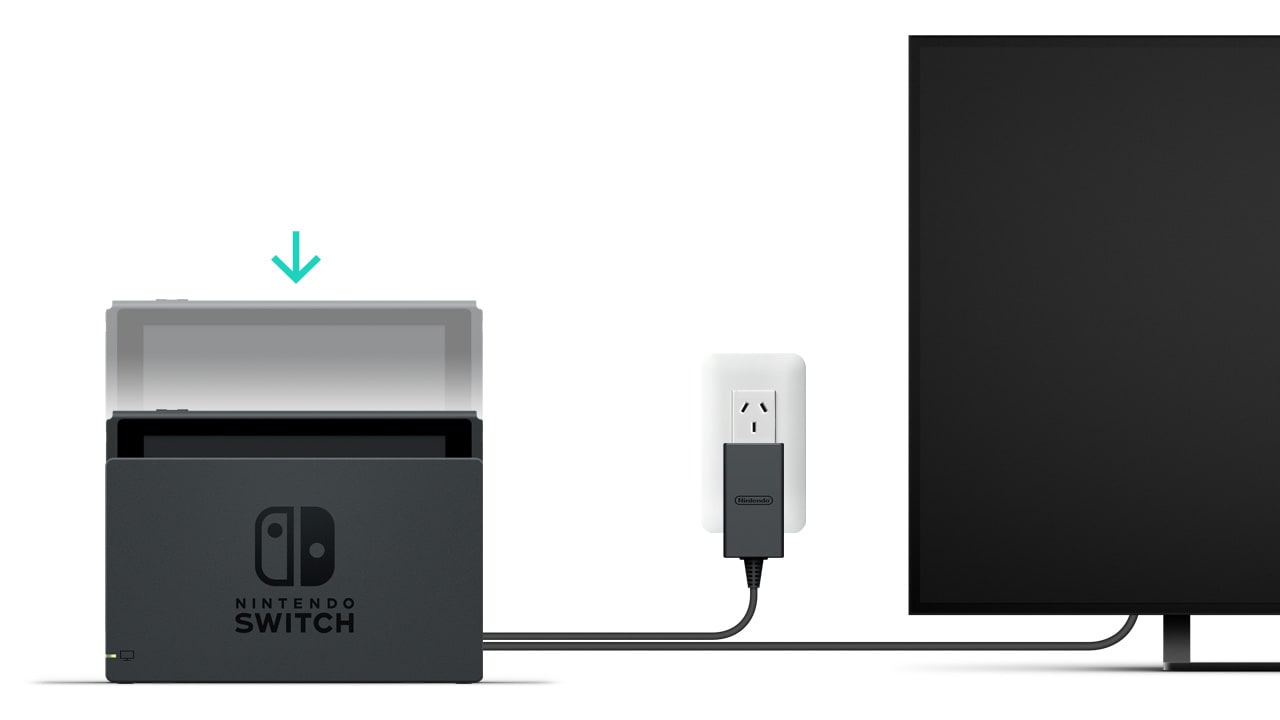
The Nintendo Switch connects to a TV through its dock. The dock receives power from the AC adapter and sends video and sound to the TV through an HDMI cable.
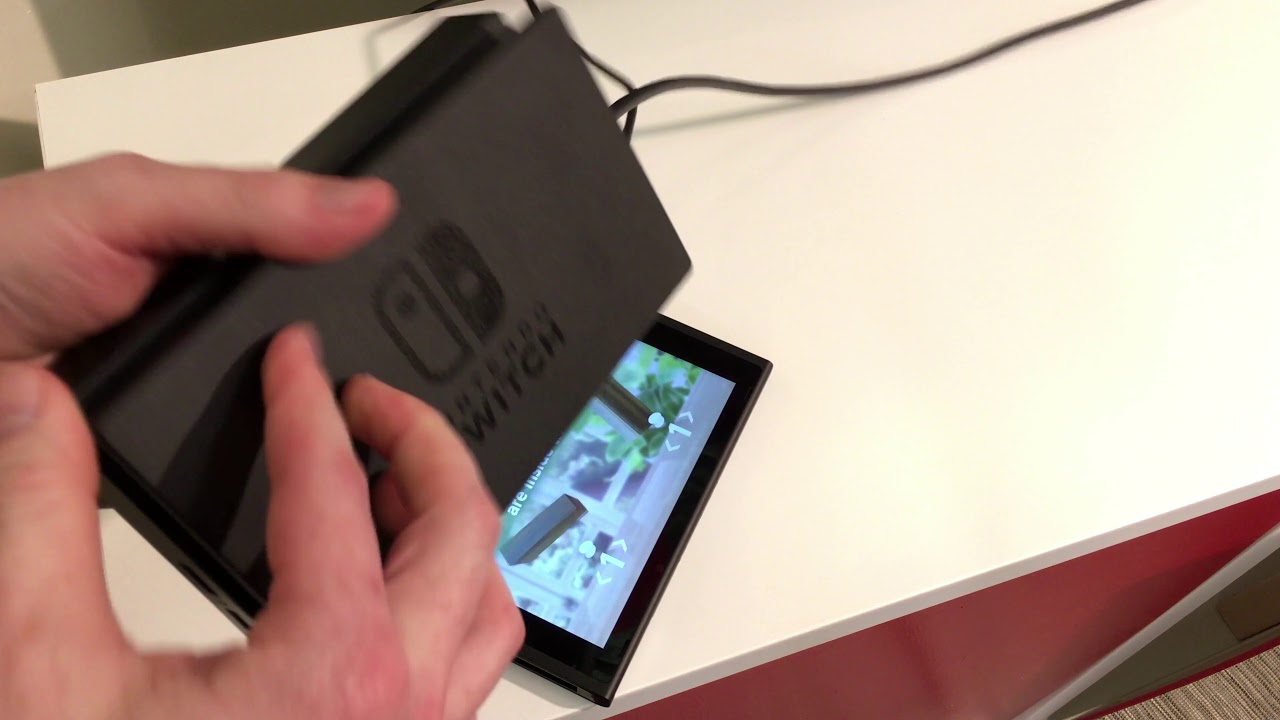
The console itself does not usually connect to the TV with a standard cable. Instead, it slides into the dock. The dock acts like a bridge between the Switch and your television.
To understand how does nintendo switch connect to tv, think of the dock as a small media station. It charges the console, carries the video signal, and lets you use the Switch on a larger screen.
What You Need for the Nintendo Switch TV Setup
Before you begin, gather the parts that came with your console. Using the correct equipment helps prevent black screens, charging problems, and unstable video.
You need:
• A Nintendo Switch or Nintendo Switch OLED console
• A compatible Nintendo Switch dock
• The official Nintendo Switch AC adapter
• A working HDMI cable
• A TV with an open HDMI port
• A wall outlet or surge protector
The Nintendo Switch Lite is different. It does not support TV mode, so it cannot display games on a television through a dock or HDMI adapter.
The regular Switch and Switch OLED work with TV mode. The OLED model includes a dock with a built-in LAN port, but its basic TV connection works in the same way as the standard Switch dock.
Nintendo recommends using the official power adapter and dock. Some third-party docks work, but poor designs may cause overheating, power issues, or an unstable display.

How to Connect Nintendo Switch to TV Step by Step
Follow these steps to connect your Nintendo Switch to a television.
1. Open the back panel of the dock
Turn the dock around and open the rear cover. You should see ports labeled AC Adapter, HDMI OUT, and, on some docks, LAN.
Do not plug the HDMI cable into a random port on the TV first and guess the rest. Check each label so the setup stays clear.
2. Connect the power adapter
Insert the official AC adapter into the port marked AC Adapter. Plug the other end into a wall outlet or a safe surge protector.
Power is important because the dock needs more than a basic USB connection to run TV mode. A low power source may cause the console to charge but fail to show a picture.
3. Connect the HDMI cable
Plug one end of the HDMI cable into the dock port marked HDMI OUT. Plug the other end into an open HDMI input on your TV.
Remember the input number. For example, if you use HDMI 2, you must select HDMI 2 with the TV remote.
4. Place the Switch in the dock
remove any bulky protective case that prevents the console from sitting properly. Slide the Switch screen first into the dock.
The console should sit straight and make contact with the dock connector. When it works, the Switch screen normally turns off because the image moves to the TV.
5. Select the correct TV input
Turn on the TV and use the remote to choose the HDMI source connected to the dock. The Nintendo Switch home screen should appear within a few seconds.
If the screen stays blank, wait briefly before removing the console. Many display problems come from selecting the wrong HDMI input rather than from a damaged console.
This process answers how does nintendo switch connect to tv in the most practical way: power the dock, connect HDMI, insert the console, and choose the matching TV input.

How Does Nintendo Switch Connect to TV Without the Dock?
Many people search how does nintendo switch connect to tv without the dock. The short answer is that the regular Switch was designed to use a dock for TV mode.
A USB C to HDMI adapter may work with some devices, but not every adapter supports the Switch correctly. The adapter must handle video output, power delivery, and the Switch’s display requirements.
If you need a smaller setup, choose a reputable Switch compatible travel dock. Avoid very cheap adapters that make strong promises but lack clear safety details.
The Switch Lite cannot connect to a TV, even with an adapter. Its hardware does not include the video output feature needed for TV mode.
A safe portable setup usually includes:
• A licensed or well reviewed compact dock
• The official Nintendo power adapter
• A short, reliable HDMI cable
• Good airflow around the dock
Do not force a cable into the USB C port or use a damaged adapter. A portable setup is useful, but safety matters more than saving a few dollars.

How Does Nintendo Switch Connect to TV With a Soundbar or Receiver?
If your TV uses a soundbar, AV receiver, or home theater system, the connection path may change. In most cases, connect the Switch dock to the receiver or soundbar’s HDMI input, then connect that device to the TV.
Another option is to connect the Switch dock directly to the TV. The TV can then send sound to the soundbar through HDMI ARC, eARC, optical audio, or another supported connection.
The best setup depends on your equipment. Direct connection to the TV is often easier for troubleshooting because it uses fewer devices.
Check these points:
• The receiver or soundbar must support the video signal from the Switch
• The TV must be set to the correct input
• The receiver must use the correct HDMI source
• Audio settings should match your equipment
If video works but sound does not, test the Switch directly with the TV. This simple test helps show whether the issue comes from the console, HDMI cable, TV, or audio system.
Switch TV Resolution and Display Settings
The Nintendo Switch can output up to 1080p in TV mode in supported games and menus. When the console is used in handheld mode, its built in screen has a lower resolution.
You can adjust display options by opening:
-
System Settings
-
TV Settings
-
TV Resolution
Available choices may include Automatic, 480p, 720p, and 1080p. Automatic is usually the best choice because the Switch detects what the TV supports.
Some games may not render at a full 1080p all the time. The final image depends on the game, the TV, and the way the game engine handles resolution.
You can also review RGB Range and Screen Size. If colors look washed out, test Full Range or Limited Range based on your TV’s settings. If the image is cut off, use Screen Size to fit the picture.
Understanding how does nintendo switch connect to tv also means understanding that the dock sends a digital signal. The TV does not improve the game’s internal graphics, but its larger screen can make play more comfortable.

How to Use the Switch Controllers on a TV
When the Switch is docked, you can use Joy Con controllers or a Nintendo Switch Pro Controller. You can hold the Joy Con controllers separately, attach them to the grip, or use a compatible wireless controller.
To pair a controller:
-
Open the Switch home menu.
-
Select Controllers.
-
Choose Change Grip/Order.
-
Follow the on screen instructions.
For Joy Con controllers, press the small sync button on the side if they do not connect automatically. For a Pro Controller, use its sync button or connect it with a USB cable.
Keep the controller within a reasonable range of the console. Walls, wireless devices, and crowded areas can sometimes affect a wireless signal.
One practical lesson is to pair controllers before guests arrive. It takes only a minute and avoids the familiar living room delay where everyone waits while one controller refuses to connect.

Nintendo Switch TV Connection Problems and Fixes
A blank screen does not always mean the Switch is broken. Work through the connection in a simple order.
No picture on the TV
Try these steps:
• Confirm the TV is on the correct HDMI input
• Remove the Switch from the dock
• Disconnect the dock’s power adapter
• Wait about 30 seconds
• Reconnect power to the dock
• Connect HDMI again
• Place the Switch back into the dock
This reset often clears a temporary handshake problem between the dock and TV.
The Switch charges but shows no image
Charging and TV output are related but not identical. A dock may provide power while the HDMI connection, dock hardware, or TV input still has a problem.
Test another HDMI cable and another HDMI port. If possible, test the dock with a different TV.
The image flickers
Flickering can result from a loose cable, a damaged HDMI port, or an unreliable third party dock. Use a short, certified HDMI cable and make sure both ends fit firmly.
You can also restart the TV and Switch. Avoid moving the console while it is seated in the dock.
The TV says “No Signal”
Check the HDMI source first. Then confirm that the cable is connected to the dock’s HDMI OUT port, not a USB port.
If the TV still shows no signal, connect the Switch dock directly to the TV. Remove receivers, splitters, capture cards, and HDMI switches during testing.
The screen looks too large or too small
Open System Settings, select TV Settings, and adjust Screen Size. You can also check the TV’s picture mode for overscan or zoom settings.
Older TVs sometimes crop the edges of the Switch image. Turning off overscan usually fixes this issue.
The dock light does not behave as expected
The dock’s green TV output light can help, but it is not a complete diagnosis tool. A light does not prove that the HDMI cable, TV port, or display signal is working correctly.
Test the full chain instead. Check power, HDMI, input selection, and the dock connection one by one.
Tips for a Better Nintendo Switch TV Experience
A few small habits can make the setup more reliable and comfortable.
• Keep the dock in an open space so heat can escape
• Do not place the dock on soft fabric that blocks airflow
• Use the official power adapter when possible
• Label HDMI cables if several consoles share the TV
• Keep the Switch software updated
• Keep the TV firmware updated when the manufacturer recommends it
• Avoid pulling the console out by force
• Clean dust around the dock with care
• Use a surge protector in areas with unstable power
The dock should be treated like a small computer hub, not just a plastic stand. Good airflow and stable power can help the setup remain dependable.
For family use, place the dock near the TV but away from foot traffic. A knocked dock can loosen the HDMI cable or damage the USB C connector.

Can You Play Switch Games on a TV in 4K?
The Nintendo Switch does not provide native 4K game output. A 4K TV can display the Switch signal, but the TV usually scales the image to fit its higher resolution.
Upscaling may make the picture look clean, but it does not add the same detail as a game created for 4K. The quality also depends on the TV’s image processor.
The Nintendo Switch OLED model improves the handheld screen, not the TV output resolution. When docked, its TV mode is broadly similar to the standard Switch.
The next generation of Nintendo hardware may have different features, but you should check the exact model before buying cables or accessories. Product names can sound similar while their video abilities differ.
Common Mistakes to Avoid
Many setup problems come from simple mistakes rather than serious hardware faults.
Using the Switch Lite
The Switch Lite cannot use TV mode. Confirm your model before buying a dock or HDMI adapter.
Connecting HDMI to the wrong dock port
The HDMI cable must connect to HDMI OUT. USB ports do not send the Switch’s TV image.
Forgetting the dock power adapter
HDMI alone is not enough for the standard dock. The dock needs power to activate TV mode.
Choosing the wrong TV input
If the cable is connected to HDMI 1, selecting HDMI 3 will show a blank or unrelated screen.
Using an unreliable third party dock
A cheap dock may work at first and then become unstable. It can also create power or heat concerns.
Leaving the console in a tight case
A thick case may stop the Switch from seating correctly. It can also put pressure on the dock connector.
When explaining how does nintendo switch connect to tv to someone else, begin with these basic checks. Clear steps are more helpful than replacing equipment too soon.
Frequently Asked Questions: How Does Nintendo Switch Connect to TV?
How does Nintendo Switch connect to TV?
Connect the official dock to power and the TV with an HDMI cable. Then place the Switch console in the dock and select the matching HDMI input on the TV.
Can Nintendo Switch connect to any TV?
The Switch can connect to most TVs with an available HDMI input. Very old TVs without HDMI may require a compatible converter, but results can vary.
Can Nintendo Switch Lite connect to a TV?
No, the Nintendo Switch Lite does not support TV output. It is designed for handheld play only.
Why does my Switch charge but not show on the TV?
Check the HDMI cable, TV input, dock power, and dock connection. Testing a different HDMI port or TV can help identify the faulty part.
Does the Switch OLED connect to a TV?
Yes, the Nintendo Switch OLED connects to a TV through its included dock. Its dock can also include a wired LAN port, but the TV connection still uses HDMI.
Can I connect the Switch to a TV without a dock?
The regular Switch is designed for docked TV play. Some compatible portable docks may work, but the Switch Lite cannot output video to a TV.
Does the Nintendo Switch support 4K TV output?
The Switch can display on a 4K TV, but it does not normally output native 4K gameplay. The TV scales the lower resolution signal.
Conclusion
The answer to how does nintendo switch connect to tv is straightforward: connect the dock to power, connect HDMI OUT to the TV, place the console in the dock, and select the right HDMI source.
Use the official adapter when possible, keep the dock cool, and test each part if the screen stays blank. Remember that the Switch Lite does not support TV mode, while the standard and OLED models do.
Set up your console today, try a few display settings, and enjoy your games on the big screen. If this guide helped, share it with another Switch player or explore more setup tips for your gaming space.

Everett Ashford is a tech reviewer at mytechgrid.com specializing in SSDs, cameras, TVs, earbuds, headphones, and other consumer electronics. He provides honest, data-driven reviews based on hands-on testing and real-world performance analysis. Everett simplifies complex tech details to help readers make smart, confident buying decisions.