Find your universal TV remote code in the remote manual, manufacturer database, or by using the automatic code search feature.
Learning how to find code for universal TV remote control is usually simple once you know where to look. The right code depends on your TV brand, remote model, and sometimes the type of device you want to control. This guide explains each method, common mistakes, setup steps, and practical fixes for codes that do not work.

What a Universal Remote Code Does
A universal remote code is a short number that tells the remote how to communicate with your television. The code matches the remote’s commands with the signal language used by your TV.
Most universal remotes use infrared light. When you press a button, the remote sends a coded infrared signal. Your TV reads that signal and responds by changing the channel, raising the volume, or turning the power on or off.
One TV brand may use several codes. This happens because a brand can release many TV models over the years. A code that works on an older LG television may not work on a newer LG smart TV.
When learning how to find code for universal TV remote, remember these key points:
- The remote brand matters.
- The remote model number matters.
- The TV brand matters.
- The exact TV model can affect compatibility.
- Some codes control only basic functions.
- Newer smart TVs may need a compatible remote or special setup.
A code is not a password. It is more like a translation key between two devices.

Check the Remote Manual First
The printed manual is often the fastest way to find a universal TV remote code. Most manuals include a code list arranged by TV brand.
Look for sections named “TV Codes,” “Device Codes,” or “Code List.” Find your TV brand, then note every code listed beside it. You may need to test several codes before finding the best match.
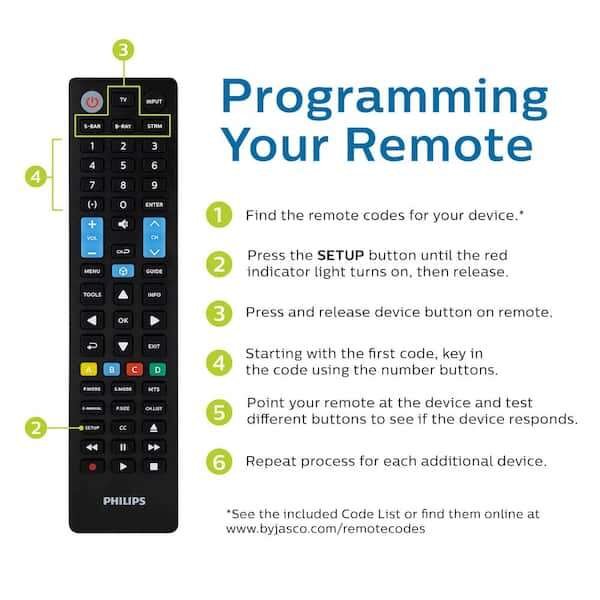
Follow these steps:
- Turn on the TV manually.
- Point the remote toward the TV.
- Press and hold the TV or Setup button.
- Wait until the indicator light stays on or flashes.
- Enter the first code listed for your TV brand.
- Press the Power button.
- Test the volume, channel, input, and menu buttons.
- Repeat the process with the next code if needed.
Write down the code that works. This small step can save time if the remote loses its settings later.
A common mistake is using the code list for the wrong remote model. Two remotes from the same company may have different code databases. Always check the model number printed on the front, back, or battery compartment.

Find the Code on the Manufacturer’s Website
If you lost the manual, visit the website of the remote manufacturer. Many companies provide online code finders, digital manuals, or searchable code lists.
You may need to enter:
- The remote brand
- The remote model number
- The device type
- The TV brand
- Sometimes the TV model number
The remote model number is usually found inside the battery compartment. It may also appear on the back of the remote or on the original packaging.
This is one of the most reliable ways to learn how to find code for universal TV remote because online databases can include newer codes. Still, check that the page belongs to the actual manufacturer or a trusted retailer. Random code websites may list incomplete or incorrect information.
Look for a downloadable PDF manual when possible. A manual gives you the full setup process, code list, reset instructions, and troubleshooting steps in one place.

Use the Automatic Code Search
Automatic code search is useful when you cannot find a code list or when several codes fail. The remote tests stored codes one at a time until the TV responds.
The exact steps vary by brand, but the general process looks like this:
- Turn on the television.
- Hold the Setup button until the indicator light turns on.
- Press the TV device button.
- Start the automatic search using Power, Channel Up, or another assigned button.
- Press the correct confirmation button when the TV turns off.
- Save the discovered code.
- Test several functions.
Some remotes move through codes with the Channel Up button. Others use the Power button. Read the instructions for your specific remote before starting.
Do not press buttons too quickly. Some remotes need a moment to send each signal. If you move too fast, you may skip the correct code.
Automatic search can find a code that turns the TV off but does not control the volume or input. If that happens, continue searching. The first response is not always the best match.

How to Find Code for Universal TV Remote Without a Manual
You can still set up the remote without the original instructions. Start by identifying both devices.
Check the front and back of the remote for a brand name and model number. Then check the TV frame, startup screen, settings menu, or label on the back of the television for its brand and model.
Next, try these options:
- Search the remote maker’s official support page.
- Use the remote’s automatic code search.
- Try a code lookup app supplied by the manufacturer.
- Search for the remote model and TV brand together.
- Contact customer support with both model numbers.
- Look for a replacement manual from a trusted electronics retailer.
If the remote has a learning function, you may be able to copy commands from the original TV remote. Place the two remotes face to face, select the learning mode, and press the matching buttons. This method requires the original remote and does not work with every universal remote.
Keep the TV and remote close together during setup. A distance of three to six feet is often suitable for infrared remotes.
Enter a Universal Remote Code Correctly
Entering the right number is only part of the process. The timing and button sequence also matter.
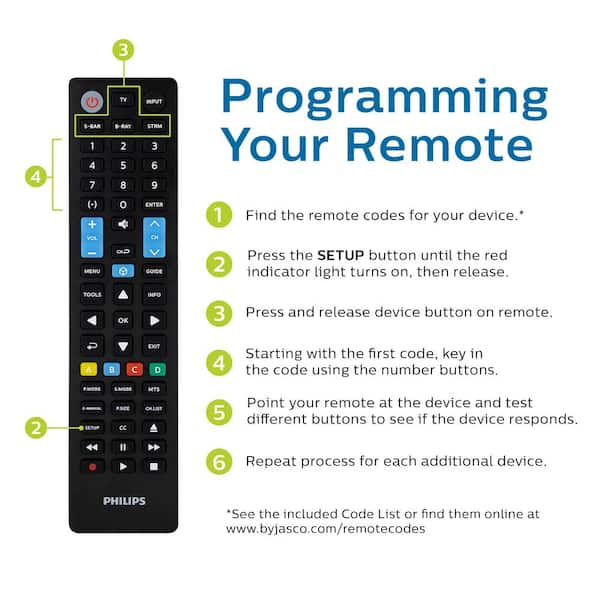
A typical manual setup follows this pattern:
- Turn on the TV.
- Press and hold Setup until the light remains on.
- Press TV.
- Enter the four digit code.
- Watch for the indicator light to flash or turn off.
- Test the remote.
Some remotes use three digit codes. Others use four or five digits. Do not add extra zeros unless the manual tells you to do so.
If the light flashes several times after you enter the code, the remote may have accepted it. If the light turns off before you finish, start again and press the buttons more slowly.
After entering a code, test more than the Power button. Check:
- Volume Up and Volume Down
- Channel Up and Channel Down
- Input or Source
- Mute
- Menu
- Navigation arrows
- Smart TV or Home button
A code is useful only when it controls the functions you need.

What to Do When the Code Does Not Work
A failed code does not always mean the remote is defective. It may mean the code is wrong, the remote is not in TV mode, or the infrared signal is blocked.
Try these fixes in order:
- Install fresh batteries.
- Confirm that the remote is set to TV mode.
- Aim the remote at the TV’s infrared sensor.
- Remove objects blocking the sensor.
- Enter another code for the same TV brand.
- Reset the remote and repeat setup.
- Try automatic code search.
- Test the remote with a different compatible TV if available.
Bright sunlight and some strong indoor lights can interfere with infrared signals. Move away from a sunny window during setup.
Also check the TV itself. If the TV does not respond to its original remote, the problem may involve the TV sensor or mainboard rather than the universal remote.
In my experience, the most common setup error is stopping after the first partial success. A code may turn the TV on and off but fail to control volume or input. Always test the main buttons before deciding that setup is complete.

Why Some Universal Remote Codes Work Only Partly
Universal remotes do not always support every feature on a television. Basic controls are more likely to work than advanced smart TV functions.
The remote may control power, volume, mute, and channels but fail to operate:
- Streaming apps
- Voice search
- Bluetooth devices
- Motion controls
- TV-specific menus
- Picture settings
- Built-in recording features
This limitation occurs because many smart TVs use Bluetooth, radio signals, or proprietary commands. A basic infrared universal remote may not be able to copy those functions.
Some newer televisions also require a brand-specific remote for first-time setup. In that case, use the original remote or a replacement made for that TV model. A universal remote may work after setup but may not replace every feature.
Check the remote packaging for terms such as “smart TV compatible,” “Bluetooth,” “voice control,” or “streaming button support.” These labels help set realistic expectations.
How to Store and Protect Your Remote Code
Once you find a working code, save it in more than one place. You can write it inside the battery cover, store it in your phone, or keep it with the TV manual.
Avoid removing the batteries for long periods. Some remotes retain codes, but others lose settings when the batteries are removed or become completely drained.
Good habits include:
- Keep a note of the remote model.
- Record the working TV code.
- Store the original TV remote in a safe place.
- Replace weak batteries in pairs.
- Clean the remote buttons and infrared window.
- Avoid dropping the remote.
- Keep liquids away from the battery compartment.
If the remote stops working after a battery change, repeat the setup process. Some models keep the code, while others reset to factory settings.
Universal Remote Code Examples
Code numbers differ by remote model, so you should not assume that one number works for every remote. A Samsung TV code for one remote may be different from the Samsung TV code listed for another.
For example, a remote manual may list several codes for:
- Samsung
- LG
- Sony
- Vizio
- TCL
- Hisense
- Panasonic
- Philips
- Toshiba
- Insignia
Treat code lists as model-specific instructions, not universal rules. The safest method is to use the code list created for your exact remote.
If you find several working codes, choose the one that controls the most functions. Keep the others as backup options.
Safety and Accuracy Tips
Setting up a remote is low risk, but a careful process prevents frustration. Do not open the television or attempt to repair its internal electronics just because a remote code fails.
Use these accuracy tips:
- Confirm the TV brand before searching.
- Check the remote model twice.
- Use official manuals when available.
- Test all important buttons.
- Replace old batteries.
- Do not press buttons repeatedly during automatic search.
- Record the successful code.
- Contact support if the remote is still under warranty.
Manufacturer code lists are usually the best reference because they are tied to the remote’s software. Third-party lists can help, but they may combine codes from different models.
There is also a limitation worth noting: no universal remote supports every TV. Compatibility depends on the remote’s infrared library, the TV’s control system, and the features you want to use.
Frequently Asked Questions About How to Find Code for Universal TV Remote
Where can I find the code for my universal TV remote?
Check the remote’s printed manual, the manufacturer’s website, or the code label inside the battery compartment. You can also use the automatic code search feature if the manual is missing.
How do I find code for universal TV remote without a manual?
Identify the remote model and TV brand, then search the manufacturer’s support page. If you cannot find a list, use automatic code search and test each discovered code.
Why does my universal remote code not work?
The code may belong to a different remote model, or the remote may not be in TV mode. Weak batteries, blocked infrared sensors, and incorrect button timing can also cause problems.
Can one universal remote code work on every TV from the same brand?
Not always. TV brands often use multiple code sets, so you may need to test several codes before finding one that supports the most functions.
How do I know whether the code worked?
Test Power, volume, channels, input, mute, and menu controls. If only the Power button works, continue searching for a better code.
Can a universal remote control a smart TV?
Many universal remotes can control basic smart TV functions, such as power and volume. Advanced features like voice search, Bluetooth control, and app navigation may require the original or a smart-compatible remote.
Conclusion
Finding a universal TV remote code is usually a matter of matching the correct remote model with the correct TV brand. Start with the manual or official code database, then try automatic search if needed. Always test several buttons, record the working code, and remember that some smart TV features may require a specialized remote.
Take a few minutes to identify your remote model and TV model before entering codes. That simple step can turn a frustrating setup into a quick fix. Share your working code or setup experience in the comments, and explore your remote manufacturer’s support resources for more help.

Everett Ashford is a tech reviewer at mytechgrid.com specializing in SSDs, cameras, TVs, earbuds, headphones, and other consumer electronics. He provides honest, data-driven reviews based on hands-on testing and real-world performance analysis. Everett simplifies complex tech details to help readers make smart, confident buying decisions.