Open your TV’s Accessibility settings, then disable Audio Description, Voice Guide, or Screen Reader.
If your TV suddenly reads menus, scenes, or on-screen text aloud, an accessibility feature is usually turned on. This guide explains how to turn off narration on TV models from Samsung, LG, Roku, Sony, Vizio, Fire TV, and other popular brands. You will also learn why narration starts, how to stop it inside streaming apps, and what to do if the voice will not disappear.
:max_bytes(150000):strip_icc()/samsung-voice-guide-settings-b6d650b942df40b28c2f3267a03b1710.png)
What TV narration means
TV narration is an accessibility tool that speaks information through your television speakers. It may read menus, program details, button names, scene descriptions, or text on the screen.
Several features can cause a TV to talk:
• Audio Description explains important visual details during a show or movie.
• Voice Guide reads menus, settings, channel names, and volume changes.
• Screen Reader announces text and controls on smart TV apps.
• TalkBack provides spoken feedback on some Android TV and Google TV models.
• Voice control may respond to commands, but it does not usually narrate every menu item.
The first step in learning how to turn off narration on TV is identifying which feature is active. If the voice describes scenes, look for Audio Description. If it reads menus aloud, look for Voice Guide, Screen Reader, or TalkBack.

How to turn off narration on TV with the remote
Most TVs let you disable narration in less than a minute. The exact menu names vary, but the general path is similar.
-
Press the Menu, Home, or Settings button on your remote.
-
Open Settings.
-
Choose Accessibility, General, or System.
-
Find Audio Description, Voice Guide, Screen Reader, or TalkBack.
-
Select the feature and change it to Off.
-
Play a program again to confirm that the narration has stopped.
Some remotes include a shortcut. Pressing the Mute button several times, holding a volume button, or pressing an Accessibility button may open the accessibility menu. These shortcuts differ by model, so check your TV manual if the usual steps do not work.
When helping someone with how to turn off narration on TV, I recommend checking the menu while a program is playing. This makes it easier to hear whether the voice stops after each change.
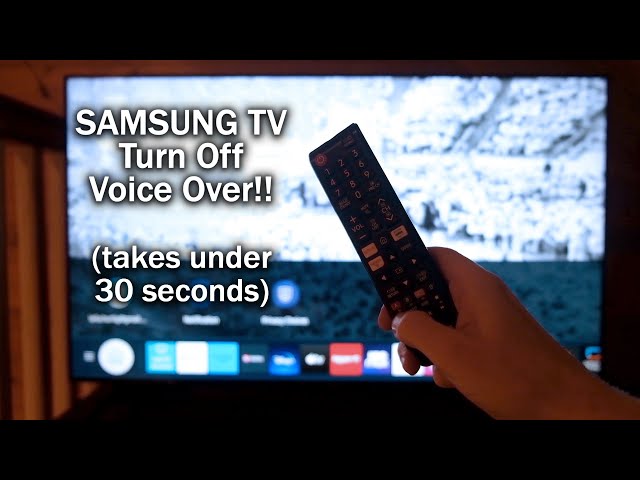
How to turn off narration on Samsung TV
Samsung TVs may call menu narration Voice Guide. This feature reads menu items, volume changes, channels, and other controls.
Try these steps:
-
Press the Home button on the Samsung remote.
-
Select Menu, then Settings.
-
Choose All Settings.
-
Open General & Privacy.
-
Select Accessibility.
-
Choose Voice Guide Settings.
-
Turn Voice Guide off.
On some older Samsung models, the path is Settings, General, Accessibility, and Voice Guide. You may also be able to press and hold the volume button to open the Accessibility Shortcuts menu.
If a movie still describes scenes after Voice Guide is off, the problem is likely Audio Description from the channel or streaming service. Open the audio and language menu during playback, then choose English instead of English Audio Description.
This is an important distinction. Turning off Voice Guide stops the TV from reading menus, but it does not always disable spoken descriptions in a program.

How to turn off narration on LG TV
LG usually labels menu narration as Audio Guidance. It can read settings, apps, volume levels, and other items aloud.
Follow these steps:
-
Press the Settings button on the LG remote.
-
Select All Settings.
-
Open General.
-
Choose Accessibility.
-
Select Audio Guidance.
-
Switch Audio Guidance to Off.
On some LG webOS versions, you may find the setting under General, Accessibility, and Audio Guidance. Older models may use the name Audio Guidance or Audio Description in slightly different places.
If your LG TV narrates only during a show, open the program’s audio options. Select the standard audio track rather than the track marked Audio Description, Descriptive Audio, or AD.
When testing how to turn off narration on TV, wait a few seconds after changing the setting. Some LG models continue speaking until the current menu closes.
:max_bytes(150000):strip_icc()/004_how-to-turn-off-narrator-on-a-roku-5200804-9e91d69582c14b7eb2e4ef98c70a83e1.jpg)
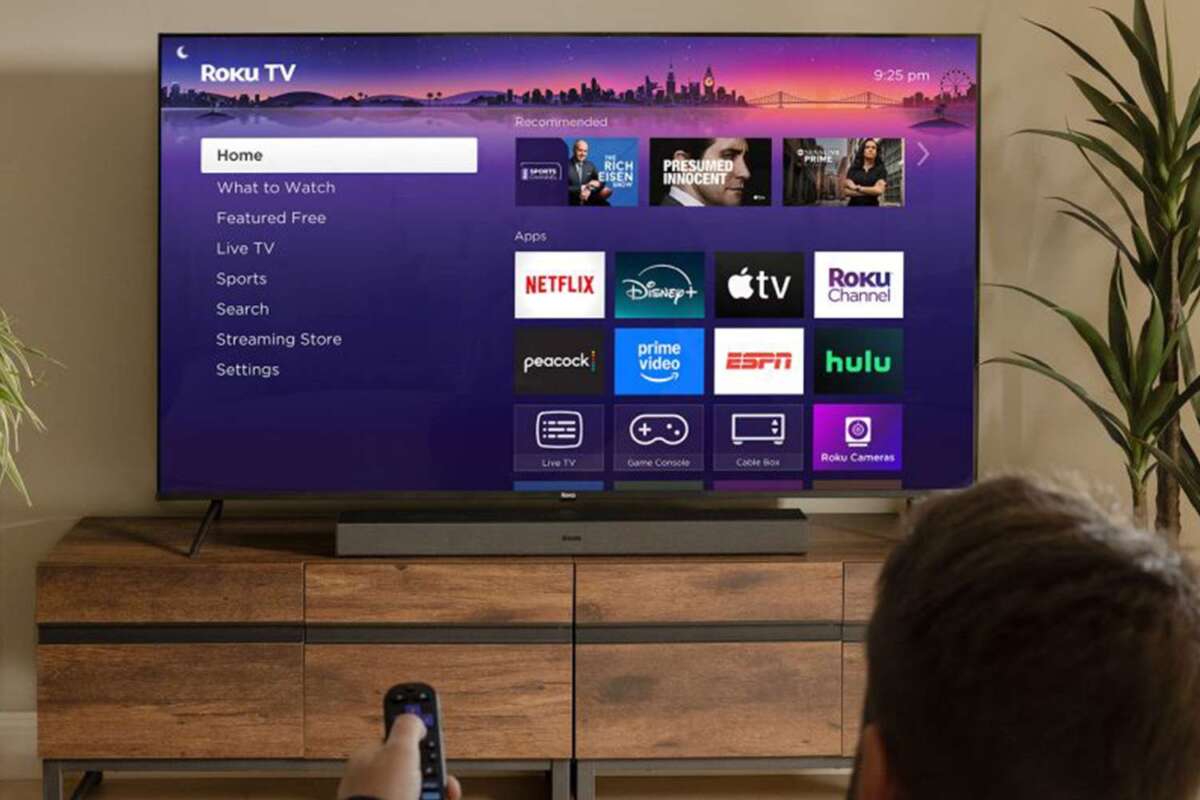
How to turn off narration on Roku TV
Roku TV uses a feature called Screen Reader. Roku may also call it Audio Guide on certain devices.
To disable it:
-
Press the Home button four times quickly.
-
Listen for the confirmation message.
-
Press the Home button four times again if needed to toggle the feature off.
You can also use the full menu:
-
Open Settings.
-
Select Accessibility.
-
Choose Screen Reader.
-
Set it to Off.
On some Roku versions, go to Settings, Accessibility, and Audio Guide. The shortcut is helpful, but it can be triggered by accident when someone presses the Home button repeatedly.
Roku streaming channels may have their own audio settings. If the Roku menu is quiet but a show still has narration, pause the video and check the audio track inside the channel.
How to turn off narration on Sony TV
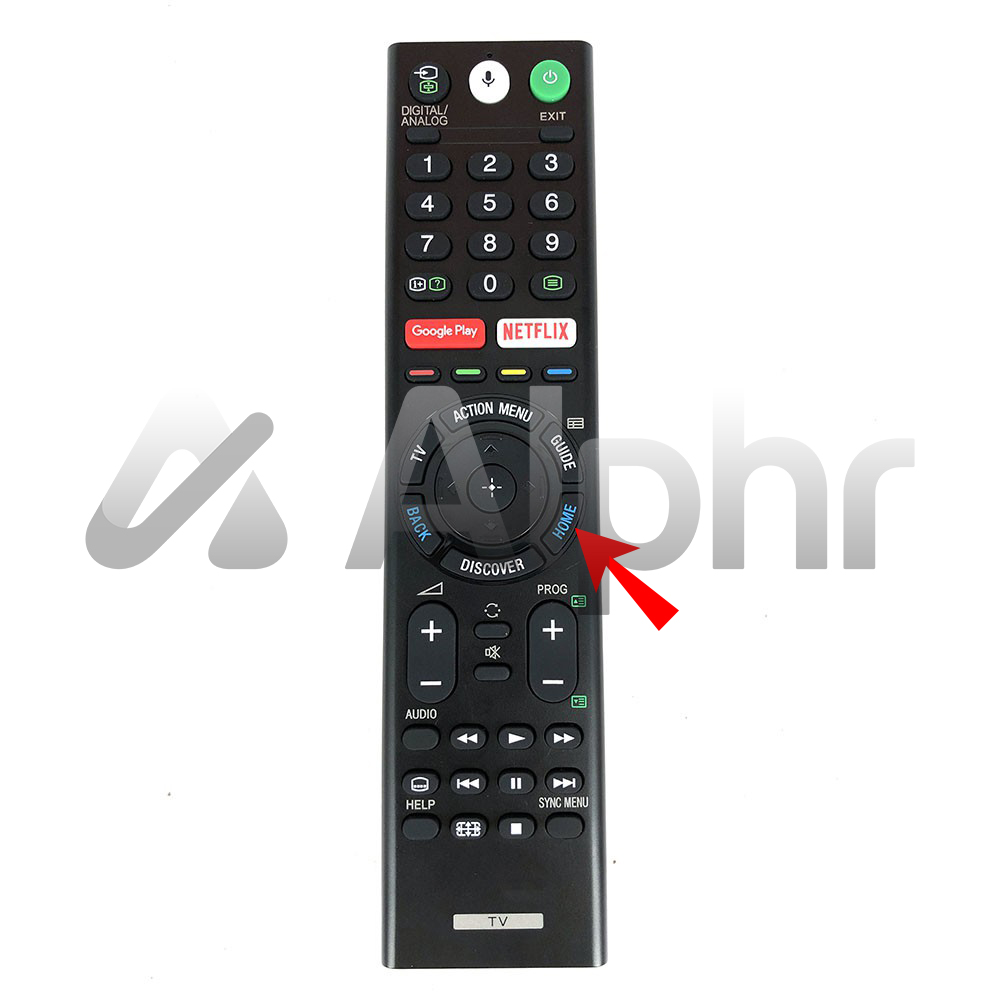
Sony smart TVs may use TalkBack or Screen Reader. The wording depends on whether the TV runs Google TV, Android TV, or an older Sony platform.
For many Sony Google TV models:
-
Press the Quick Settings button.
-
Choose Settings.
-
Open System.
-
Select Accessibility.
-
Choose TalkBack or Screen Reader.
-
Turn the feature off.
For some Android TV models, open Settings, then Device Preferences, Accessibility, and TalkBack. You may also find a shortcut in the Accessibility menu.
If you cannot move through the menu easily, use the remote’s directional buttons and listen for each spoken option. This is one case where the narrator can help you find the setting that controls it.
Sony TVs can also receive Audio Description from broadcast channels and apps. Check the audio language menu while the program is playing if the voice describes people, places, or actions.

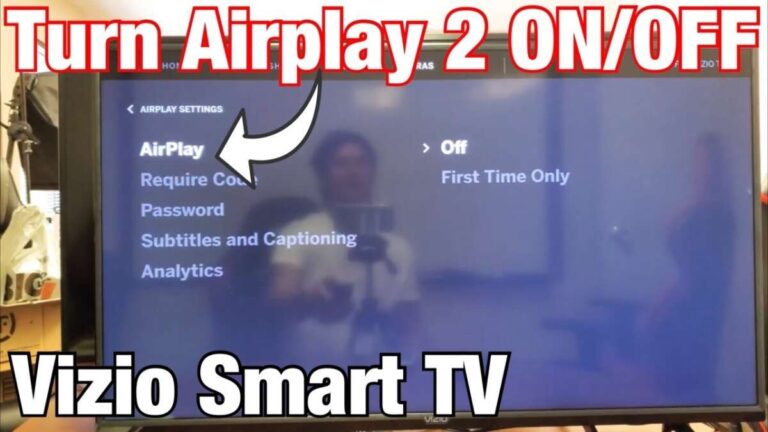
How to turn off narration on Vizio TV
Vizio TVs may include Talk Back, Voice Guidance, or an Audio Description setting. The name can change by model and software version.
Try this general path:
-
Press the Menu button.
-
Select Accessibility.
-
Look for Talk Back or Voice Guidance.
-
Set the feature to Off.
For program narration, press the Menu or Audio button while watching the show. Select the standard audio track instead of Audio Description or Descriptive Video Service.
Some Vizio models place these controls under System, Accessibility, or Closed Captions. If you do not see an Accessibility menu, check the Audio or System sections.
Because Vizio menus vary more than some other brands, the model number is useful. You can find it on the back of the TV, in System Information, or on the original receipt.
:max_bytes(150000):strip_icc()/person-watching-roku-tv-5def410d4e634fddb1048cad935741fb.jpg)
How to turn off narration on Fire TV
Amazon Fire TV devices may use VoiceView. VoiceView speaks menu items and instructions, while Audio Description narrates video content.
To turn off VoiceView:
-
Press and hold the Back and Menu buttons together for two seconds.
-
Follow the prompt to disable VoiceView.
You can also open Settings, select Accessibility, choose VoiceView, and turn it off.
To stop Audio Description:
-
Start the movie or show.
-
Press the Menu button on the remote.
-
Open Audio or Subtitles.
-
Choose the regular audio track.
-
Avoid the track marked Audio Description.
Fire TV accessibility shortcuts are easy to activate by mistake. A child pressing two buttons at once can turn VoiceView on without changing any other setting.
How to turn off narration on streaming apps
Sometimes the television is not the source of the narration. Netflix, Hulu, Max, Disney+, Prime Video, and live TV services can select an Audio Description track inside the app.
Use these steps:
-
Start the video.
-
Pause playback.
-
Open the Audio, Language, or Subtitles menu.
-
Select the standard language track.
-
Avoid options labeled AD, Audio Description, Descriptive Audio, or Video Description.
-
Resume playback and listen for the change.
The steps may look different from one app to another. The key is to change the audio track, not only the TV’s accessibility settings.
A useful test is to open another app. If narration happens in every app, check the TV settings. If it happens in only one app, change that app’s audio selection or restart it.
How to turn off narration on cable and satellite TV
Cable boxes, satellite receivers, and live TV services may control narration separately from the television.
Open the cable or satellite receiver’s settings and look for:
• Accessibility
• Secondary Audio Programming
• Descriptive Video Service
• Audio Language
• SAP
• Audio Description
In the United States, SAP can provide an alternate audio track. It is not always narration, but it may contain descriptive audio or another language.
If the voice appears on only one channel, contact the provider or check the channel’s audio options. If it appears on every channel, inspect both the receiver settings and the TV settings.
This two-device setup often causes confusion. People learn how to turn off narration on TV, disable the TV feature, and still hear the cable box narrating the program.
Why narration turns on by itself
Narration usually starts for a simple reason. It does not mean the TV is damaged.
Common causes include:
• Someone pressed an accessibility shortcut by accident.
• A software update restored an accessibility setting.
• A streaming app selected an Audio Description track.
• A child changed the audio settings.
• A cable box enabled SAP or descriptive audio.
• The TV was reset and restored default settings.
• A remote control button is stuck.
To find the cause, note when the voice speaks. Menu narration points to Voice Guide, Screen Reader, TalkBack, or VoiceView. Scene narration points to Audio Description. A voice on only one channel usually points to the broadcaster or cable provider.
What to do if narration will not turn off
If the usual setting does not work, use a simple troubleshooting process.
-
Restart the TV. Turn it off, unplug it for 60 seconds, and reconnect it.
-
Check the streaming app’s audio track.
-
Check the cable box or streaming device settings.
-
Update the TV software.
-
Remove and replace the remote batteries if a shortcut may be stuck.
-
Test another app or input source.
-
Reset accessibility settings if your TV offers that option.
Do not perform a full factory reset as your first step. A reset removes apps, network details, picture settings, and saved preferences. It is better to identify the source of the narration first.
If the TV speaks even when no menu or program is open, contact the manufacturer. A support agent can identify the correct menu path from the model number and software version.
Audio Description and Voice Guide are different
Understanding the difference makes how to turn off narration on TV much easier.
Voice Guide reads the TV interface. It may say “Settings,” “Volume 20,” or “Input HDMI 1.” It is designed to help people navigate the television.
Audio Description explains visual events in a show. It may say that a person enters a room, a car drives away, or text appears on screen.
These tools work independently. You can turn off Voice Guide and still hear Audio Description. You can also keep Voice Guide on while turning off Audio Description.
This distinction matters for households with different needs. One person may rely on menu narration, while another may prefer regular audio during movies. Change only the feature that causes the unwanted sound.
Practical tips from common TV troubleshooting
A helpful troubleshooting habit is to change one setting at a time. If you switch several options at once, you may not know which setting fixed the problem.
Another useful tip is to write down the exact words the voice uses. “Voice Guide,” “TalkBack,” and “Audio Description” point to different controls. The wording can save time when you search the TV manual.
Also check the remote before blaming the TV. Sticky buttons, worn batteries, or a remote stored under a cushion can trigger accessibility shortcuts. This small check has solved many cases faster than a full settings reset.
Keep the TV model number nearby. A model-specific manual is more reliable than a general online guide because manufacturers change menu layouts with software updates.
Frequently Asked Questions about how to turn off narration on TV
Why is my TV talking when I change the volume?
Voice Guide, Audio Guidance, Screen Reader, or TalkBack is likely enabled. Open Settings, choose Accessibility, and turn off the menu narration feature.
Why does my TV describe everything happening in a movie?
Audio Description is active. Open the audio settings during playback and select the standard audio track instead of Audio Description or Descriptive Audio.
Can I turn off narration without a remote?
Many TVs have physical buttons, mobile remote apps, or HDMI device controls. A phone app may work if the TV and phone are connected to the same Wi-Fi network.
Why does narration continue after I disable Voice Guide?
The narration may come from a streaming app, cable box, or external device. Check the program’s audio track and the accessibility settings on every connected device.
How do I stop narration on a Roku TV quickly?
Press the Home button four times in quick succession to toggle Screen Reader or Audio Guide. You can also open Settings, Accessibility, and Screen Reader to turn it off.
Does turning off narration disable subtitles?
No. Narration and subtitles are separate features. You can turn off spoken guidance while keeping captions enabled.
Why does my TV narration return after a software update?
An update may restore certain accessibility settings or change the menu location. Check Accessibility again and confirm that Voice Guide, Audio Description, and related features remain off.
Conclusion
Learning how to turn off narration on TV starts with identifying the voice. Menu reading usually comes from Voice Guide, Screen Reader, TalkBack, or VoiceView. Spoken scene descriptions usually come from Audio Description in the TV, streaming app, cable box, or broadcast service.
Check the TV’s Accessibility menu first, then inspect the audio settings inside the program. Test another app, restart the device, and avoid a factory reset unless simpler steps fail.
With the right setting changed, your TV should return to normal sound in just a few minutes. Save this guide for future reference, and share your TV model in the comments if you need help finding its exact narration control.

Everett Ashford is a tech reviewer at mytechgrid.com specializing in SSDs, cameras, TVs, earbuds, headphones, and other consumer electronics. He provides honest, data-driven reviews based on hands-on testing and real-world performance analysis. Everett simplifies complex tech details to help readers make smart, confident buying decisions.