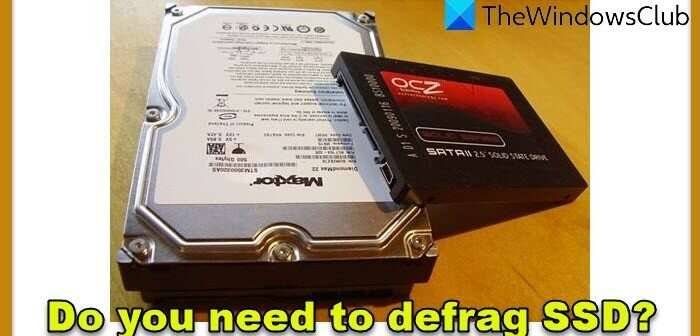
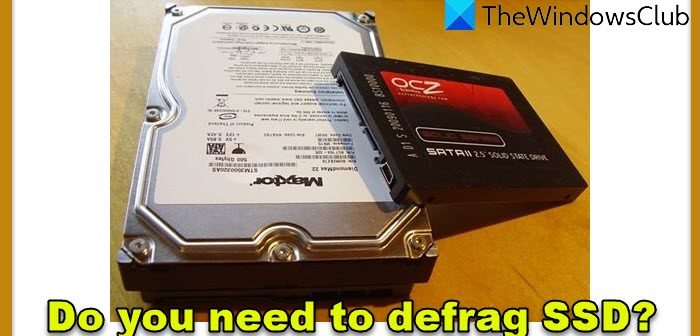
No, you should not defrag SSD drives because it adds wear without delivering useful speed gains.
If you are wondering, “should you defrag SSD drives?” the answer is clear for modern computers: let your operating system optimize the drive instead. SSDs use flash memory, not spinning disks, so they handle scattered files in a very different way. This guide explains why defragmentation is harmful, what optimization really does, and how to keep an SSD fast and healthy.
Should You Defrag SSD Drives?
No, you generally should not defrag SSD drives manually. Traditional defragmentation moves file pieces into a more organized order. This helps hard disk drives because their read heads must physically move across spinning platters.
An SSD has no moving parts. It stores data in flash memory cells and can access different data blocks quickly. File fragmentation usually has little effect on SSD performance, while moving large amounts of data creates extra write activity.
Modern versions of Windows usually recognize SSDs and manage them differently from hard drives. Instead of running a classic defragmentation process, Windows uses an optimization task that may send TRIM commands to the drive.
Why Defragmentation Helps Hard Drives
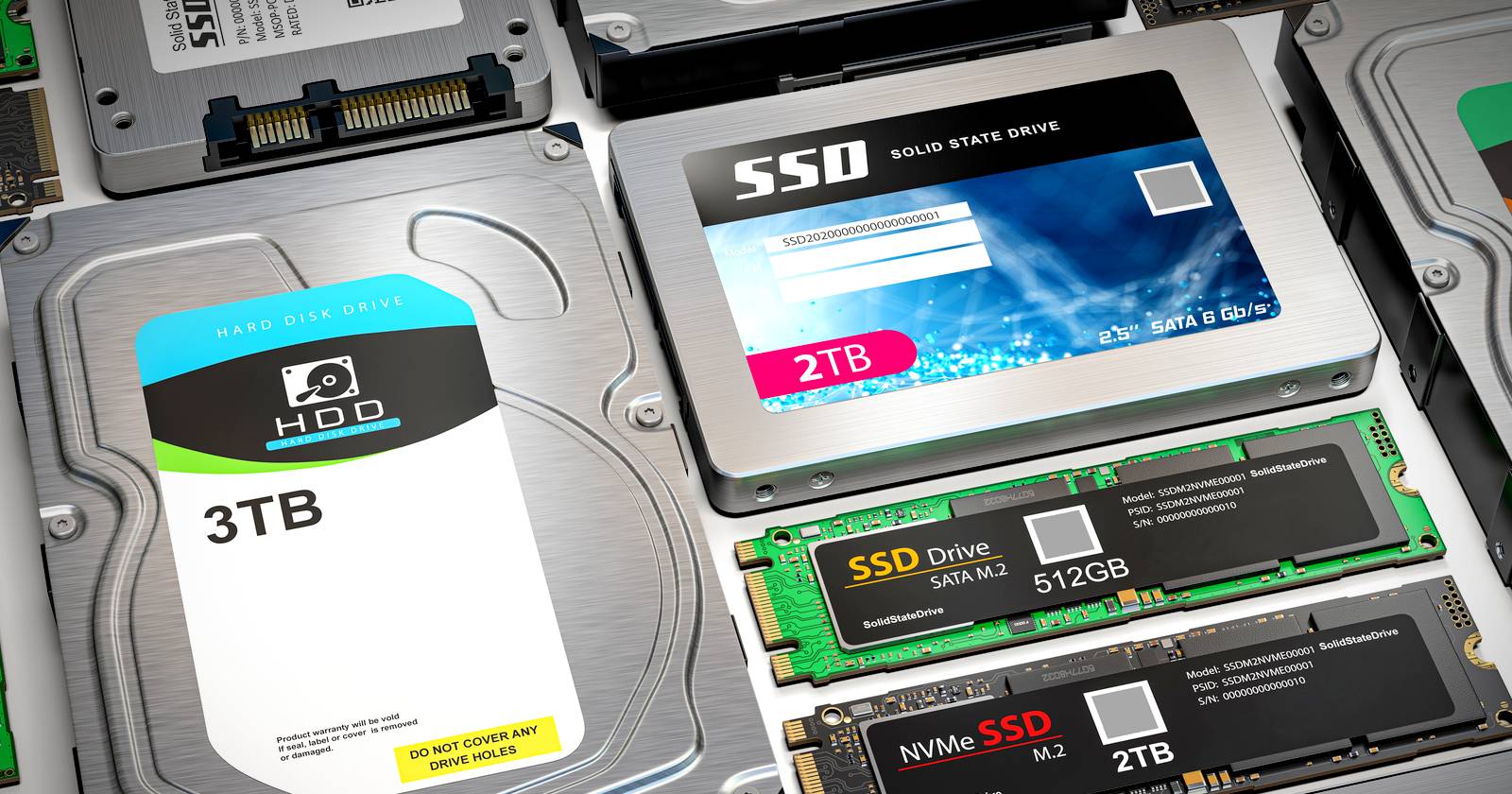
To understand why you should not defrag SSD drives, it helps to compare SSDs with hard disk drives, or HDDs.
An HDD stores data on spinning magnetic platters. A mechanical arm moves over the platter to read and write information. If one file is split across many areas, the arm must move more often to open that file.
This creates several problems:
• Longer file access times
• More mechanical movement
• Lower performance during large file operations
• Extra noise and vibration
Defragmentation places related file pieces closer together. On an HDD, this can reduce head movement and improve file access. It is like rearranging books on a shelf so that every book in a series sits together.
The same process does not offer the same benefit on an SSD. An SSD can read data from many memory locations without moving a physical arm. Its main performance limits involve its controller, flash memory, available free space, and connection type.

Why You Should Not Defrag SSD Drives
The main reason you should not defrag SSD drives is that traditional defragmentation creates many unnecessary write operations.
An SSD has a limited program-erase cycle for each memory cell. Modern SSDs include wear-leveling technology, so normal use can last for years. Still, forcing the drive to move large amounts of data offers little benefit and adds avoidable wear.
Defragmentation can also use system resources. During a manual defrag, your computer may spend time reading and rewriting files. You may notice higher disk activity, slower performance during the process, and increased power use on a laptop.
The risk is greater when someone uses an old third-party defragmentation tool. Such software may not understand SSD storage correctly. It could run repeated full defragmentation jobs when a simple TRIM operation would be more suitable.
That said, modern operating systems are designed to avoid this mistake. Windows, macOS, and Linux can identify SSD storage and apply different maintenance methods. The safest approach is to keep your operating system updated and avoid forcing a manual defrag.

What SSD Optimization Really Does
SSD optimization is not the same as classic hard drive defragmentation. It often involves sending a TRIM command to the SSD.
When you delete a file, the operating system usually marks its space as available. The old data may still remain in the flash memory until the drive cleans it up. TRIM tells the SSD which data blocks are no longer needed.
The SSD can then prepare those blocks for future writes. This helps the drive manage free space and maintain steady performance.
A useful way to picture TRIM is a restaurant clearing used tables before new guests arrive. Without that preparation, the staff must remove old dishes during the next busy service. With TRIM, the drive has better information about which blocks are ready for reuse.
TRIM does not recover deleted files. In fact, it can make deleted data harder to restore because the SSD may clear unused blocks during background maintenance. This is one reason a reliable backup remains essential.

How Windows Handles SSDs
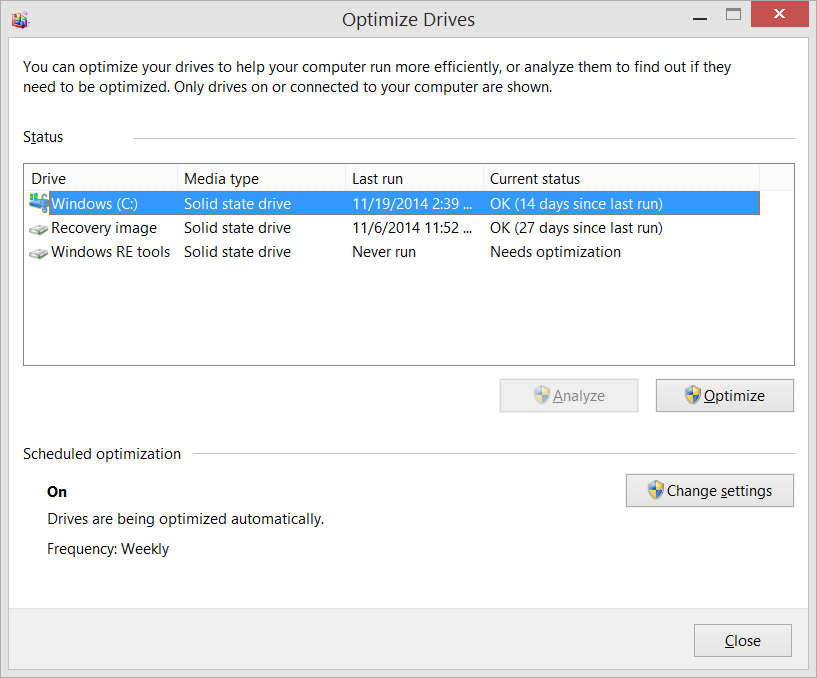
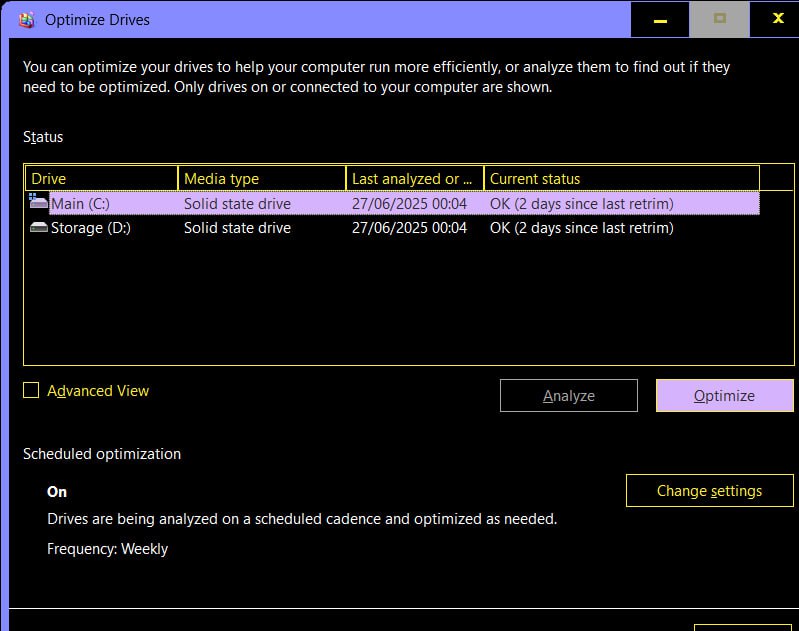
Windows usually detects whether a storage device is an SSD or an HDD. Its scheduled drive optimization feature then uses a suitable method for each type.
For an HDD, the tool may perform a traditional defragmentation. For an SSD, it normally uses optimization based on TRIM. The wording may still include “defragment,” which can confuse users, but the underlying process is different.
You can check this setting in Windows by following these steps:
-
Open the Start menu.
-
Search for “Defragment and Optimize Drives.”
-
Open the matching application.
-
Look at the “Media type” column.
-
Select the SSD and review its optimization status.
-
Leave scheduled optimization enabled unless you have a specific reason to change it.
Do not click repeated manual optimization commands out of concern that the drive needs constant maintenance. Windows schedules this work for you. If the tool identifies the device correctly, its normal process should be safe.
How macOS and Linux Manage SSDs
Mac computers also manage SSD storage through built-in system processes. Recent macOS versions use TRIM support on compatible Apple and third-party SSDs. You should not install a standard disk defragmenter for a Mac SSD.
Linux systems can also use TRIM. Many distributions run a scheduled fstrim service, which helps notify SSDs about unused blocks. Advanced Linux users can check the service status, but most users do not need to run manual storage commands.
Compatibility can vary by hardware, operating system version, file system, and storage connection. If you use an older computer or a nonstandard setup, check the drive manufacturer’s support documentation before changing advanced settings.

Can Fragmentation Still Affect an SSD?
Fragmentation can still exist on an SSD, but its effect is usually much smaller than it is on an HDD.
A heavily fragmented file may require the SSD controller and operating system to handle more data references. In some special cases, fragmentation can affect performance. However, manually defragmenting an SSD is rarely the right answer.
Modern SSDs are fast enough that small access delays often go unnoticed. Other issues usually matter more, such as:
• A nearly full drive
• Outdated firmware
• Excessive background tasks
• Thermal throttling
• A slow SATA connection
• Low-quality or aging hardware
• Malware or unwanted software
• Heavy write workloads
If an SSD feels slow, investigate these causes before you consider defragmentation. In many cases, clearing space or removing unnecessary startup apps will help more than rearranging files.

What Happens If You Defrag an SSD?
If you defrag an SSD once, it will probably not fail immediately. A single accidental run is unlikely to cause serious damage, especially on a modern drive.
The concern is repeated and unnecessary defragmentation. Each full defrag can move a large amount of data. Over time, that adds write activity without providing a meaningful improvement.
If you accidentally started a defrag, you can stop it and check whether your files open normally. You should also remove old third-party defragmentation software that runs automatic scans. Use the operating system’s built-in storage management tools instead.
One lesson often seen in computer support is that users treat every storage device like an old hard drive. That habit made sense years ago. Today, it can lead to needless maintenance and confusion. Knowing the difference between HDD defragmentation and SSD optimization prevents that mistake.
How to Keep an SSD Fast and Healthy
You do not need complicated maintenance to protect an SSD. A few simple habits provide better results than manual defragmentation.
Keep Free Space Available
Try to avoid filling an SSD to its maximum capacity. The drive needs free blocks for wear leveling, background cleanup, and efficient writing.
There is no single perfect free-space percentage for every SSD. Keeping at least 10% to 20% free is a practical target for many users. Heavy users, such as video editors, may benefit from leaving more space available.
Enable TRIM
Most current operating systems enable TRIM automatically. You can confirm support through the operating system or the SSD manufacturer’s management software.
Do not confuse TRIM with secure deletion. TRIM helps the drive manage unused blocks, but it is not a backup or a complete privacy tool.
Update SSD Firmware Carefully
Firmware updates can improve compatibility, reliability, and performance. Check the manufacturer’s instructions before installing one.
Back up important files first. Most firmware updates are safe, but every storage update carries some risk if power fails or the process is interrupted.
Avoid Unnecessary Write Workloads
Normal use is fine. You do not need to worry about every downloaded file or application install. However, avoid running benchmarks, cleaning tools, or defragmentation programs repeatedly without a clear purpose.
Monitor Drive Health
Many SSD manufacturers provide tools that show health estimates, temperature, firmware version, and total data written. These estimates are useful, but they are not perfect predictions of failure.
Watch for warning signs such as:
• Frequent system freezes
• File corruption
• Drive errors
• Sudden read-only behavior
• Missing partitions
• Unusual crashes
Back up your data before investigating a drive that shows these symptoms.
SSD Maintenance Mistakes to Avoid
Several common habits can create more problems than they solve.
• Do not use HDD defragmentation software on an SSD.
• Do not repeatedly run benchmark tests just to check speed.
• Do not fill the drive completely.
• Do not disable TRIM without a specific technical reason.
• Do not rely on one copy of important files.
• Do not assume a disk-cleaning app can repair failing hardware.
• Do not ignore heat, firmware warnings, or file errors.
A common mistake is chasing a small performance issue with an aggressive tool. For example, if a laptop feels slow because it has only 2 GB of free space, defragmenting the SSD will not solve the real problem. Removing large unused files, upgrading memory, or checking background apps is more likely to help.
When Should You Defrag SSD Drives?
In normal home and office use, you should not defrag SSD drives manually. Let the operating system handle scheduled optimization.
There may be unusual enterprise or testing situations where a storage specialist studies fragmentation behavior. Even then, the process should follow the SSD manufacturer’s guidance and the organization’s maintenance plan.
The same advice applies to external SSDs. Their USB connection does not turn them into hard drives. They still use flash memory and should not receive routine HDD-style defragmentation.
If an operating system incorrectly identifies an SSD as a hard drive, fix the detection or driver issue instead of allowing repeated defragmentation. The drive manufacturer’s utility may help confirm the device type and health.
Best Tools for SSD Care
The best SSD maintenance tools are usually the ones built into your operating system or provided by the drive manufacturer.
Useful features may include:
• Drive health monitoring
• Firmware updates
• TRIM status
• Temperature readings
• Secure erase functions
• Capacity and endurance information
Use secure erase only when you understand its purpose. It is designed to prepare a drive for reuse or remove data more thoroughly. It is not a routine performance tool and may erase everything on the SSD.
Avoid registry cleaners and “one-click speed booster” programs that make broad claims. They often provide little value and may change system settings without explaining the effect.
Frequently Asked Questions About Should You Defrag SSD Drives
Should you defrag SSD drives in Windows 10 or Windows 11?
No, you should not manually defrag SSD drives in Windows 10 or Windows 11. Their built-in optimization tool normally uses TRIM for SSDs and traditional defragmentation for HDDs.
Does defragmenting an SSD make it faster?
Defragmenting an SSD usually provides little or no noticeable speed improvement. It can add unnecessary write operations, so free space, TRIM, updated firmware, and proper system settings matter more.
Is Windows Optimize Drives safe for an SSD?
Yes, Windows Optimize Drives is generally safe when it correctly identifies the device as an SSD. It uses SSD-appropriate maintenance rather than treating the drive exactly like a mechanical hard disk.
How often should you optimize an SSD?
Most users should allow the operating system to run its scheduled optimization. You do not need to optimize an SSD every day or run manual maintenance unless a trusted technical guide gives you a specific reason.
What should I do if I accidentally defragged my SSD?
Do not panic. A single defragmentation session is unlikely to damage a modern SSD, but you should stop repeated runs and remove any third-party tool that schedules them.
Does an SSD need TRIM?
Yes, TRIM helps an SSD manage deleted data and prepare unused blocks for future writes. Modern operating systems usually enable it automatically, but you can verify its status if performance or compatibility problems appear.
Conclusion
You should not defrag SSD drives as a routine maintenance task. SSDs do not depend on moving read heads, so classic defragmentation offers little benefit and can create extra write activity.
Instead, keep your operating system updated, allow scheduled SSD optimization, maintain free space, monitor drive health, and back up important files. If your SSD is slow, look for storage capacity, heat, firmware, software, or hardware issues before reaching for a defragmenter.
Use the built-in tools, avoid aggressive cleanup software, and review your SSD’s health today. Share this guide with anyone still treating a modern SSD like an old hard drive.

Everett Ashford is a tech reviewer at mytechgrid.com specializing in SSDs, cameras, TVs, earbuds, headphones, and other consumer electronics. He provides honest, data-driven reviews based on hands-on testing and real-world performance analysis. Everett simplifies complex tech details to help readers make smart, confident buying decisions.