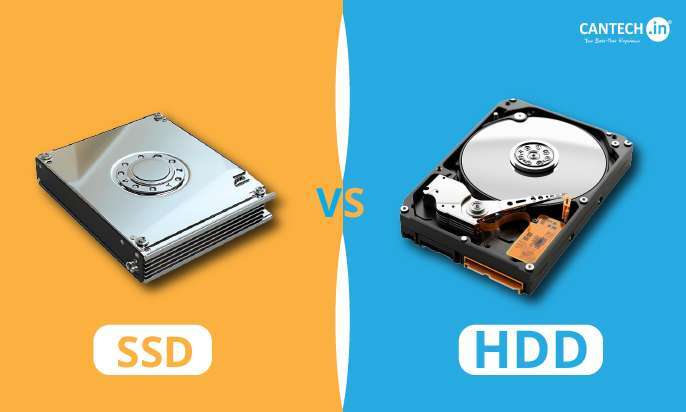
Most SSDs work with many motherboards, but interface, slot, size, and firmware limits can affect compatibility.
Are all SSD compatible with all motherboards? No. An SSD must match the motherboard’s storage interface, connector, physical format, and supported boot features. A 2.5-inch SATA SSD usually works with a SATA port, while an M.2 SSD may use SATA or PCIe NVMe technology. These drives can look almost identical but work in very different ways.
This guide explains SSD and motherboard compatibility in simple terms. You will learn how SATA, M.2, NVMe, PCIe generations, boot support, adapters, and shared motherboard lanes affect your upgrade. You will also see practical examples that can help you avoid buying the wrong drive.
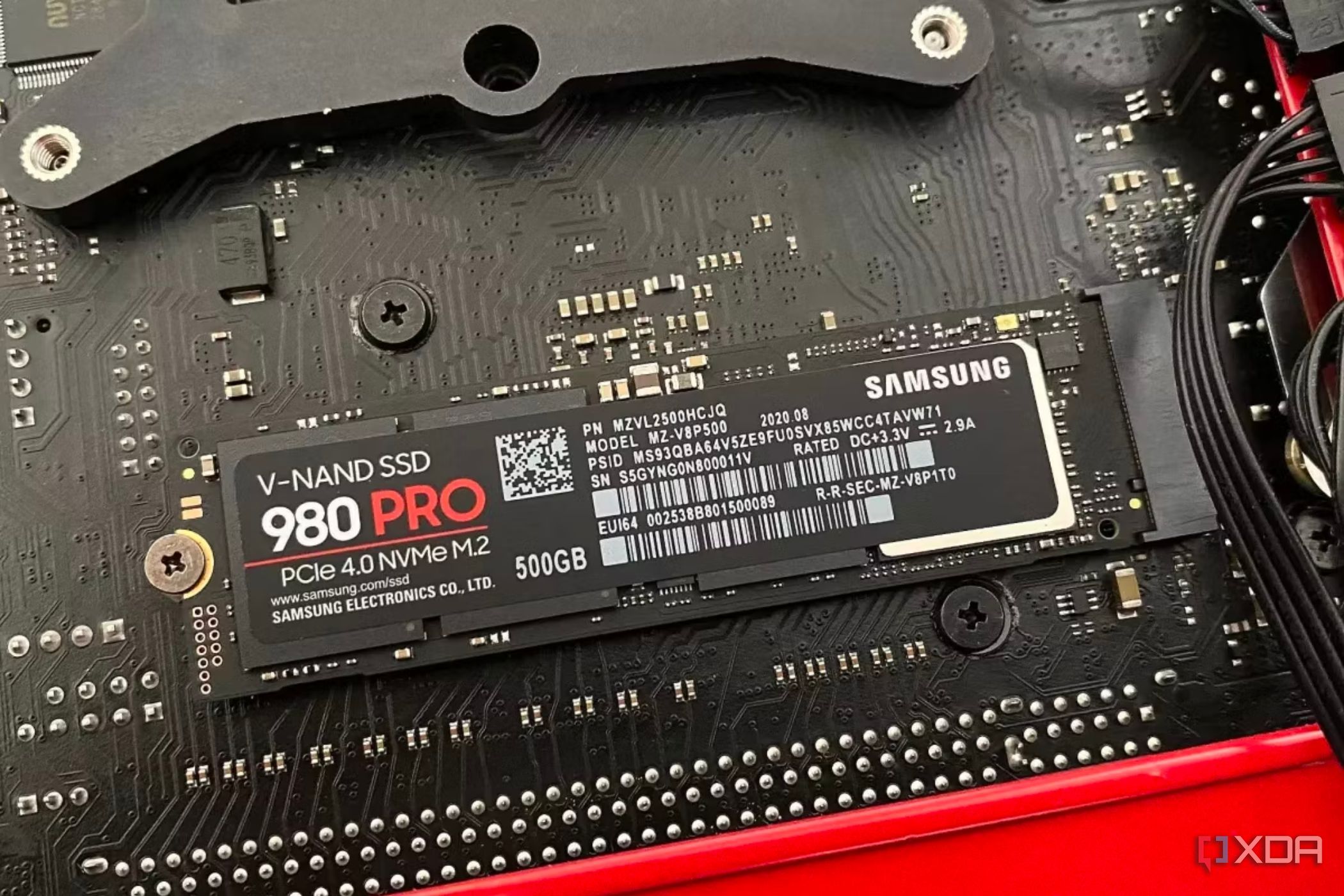
The short answer: Are all SSD compatible with all motherboards?
Are all SSD compatible with all motherboards? They are not. Compatibility depends on more than whether the drive is labeled “SSD.”
A solid-state drive can use one of several connection types:
• SATA 2.5-inch SSDs connect through a SATA data cable and a SATA power cable.
• M.2 SATA SSDs fit into an M.2 slot but use the SATA protocol.
• M.2 NVMe SSDs fit into an M.2 slot and use PCIe lanes.
• PCIe add-in card SSDs fit into a PCIe expansion slot.
The key lesson is simple: the SSD connector must match the motherboard slot, and the motherboard must support the SSD’s communication protocol.
For example, an M.2 NVMe drive will not work in an M.2 slot that supports only SATA drives. In the same way, an M.2 SATA drive may not work in an NVMe-only slot. The shape can look right while the electrical connection is wrong.
Are all SSD compatible with all motherboards? The answer remains no, but most modern systems support at least one common SSD type. Checking the motherboard manual before buying is the safest step.
Understanding the main SSD types
Knowing the difference between SSD types makes the compatibility question much easier. The most common options are SATA SSDs, M.2 SATA SSDs, and M.2 NVMe SSDs.
2.5-inch SATA SSDs
A 2.5-inch SATA SSD is the easiest type to install in many older desktop computers and laptops. It uses the same basic cables as a 2.5-inch hard drive.
You need:
• A free SATA data port on the motherboard
• A SATA power connector from the power supply
• Enough physical space for the 2.5-inch drive
SATA III supports speeds of up to 6 gigabits per second. In real use, many SATA SSDs reach about 500 to 560 megabytes per second. They are much faster and more responsive than hard disk drives, even though they are slower than modern NVMe SSDs.
A SATA SSD is often the best choice for an older computer. It offers simple installation, broad support, and a noticeable speed boost without requiring a new motherboard.
M.2 SATA SSDs
M.2 describes the physical shape of the drive, not its speed or protocol. This point causes many compatibility mistakes.
An M.2 SATA SSD uses the SATA protocol. It may fit into an M.2 slot that supports SATA, but it will not automatically work in every M.2 slot.
M.2 SATA drives are less common today than they once were. Before buying one, check the motherboard manual for wording such as “M.2 SATA support” or “SATA mode.”
M.2 NVMe SSDs
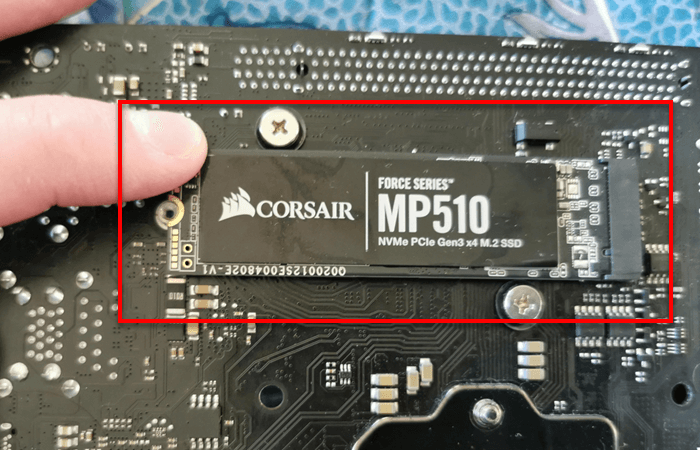
M.2 NVMe SSDs are now the most common choice for new desktop and laptop systems. They use the PCIe interface and the NVMe protocol, which was designed for fast flash storage.
Most M.2 NVMe drives use the M-key notch. Common physical sizes include:
• 2230, which is 22 millimeters wide and 30 millimeters long
• 2242, which is 22 millimeters wide and 42 millimeters long
• 2260, which is 22 millimeters wide and 60 millimeters long
• 2280, which is 22 millimeters wide and 80 millimeters long
The 2280 size is the most common in desktop PCs. Still, the slot must include a mounting point for the drive length you plan to use.
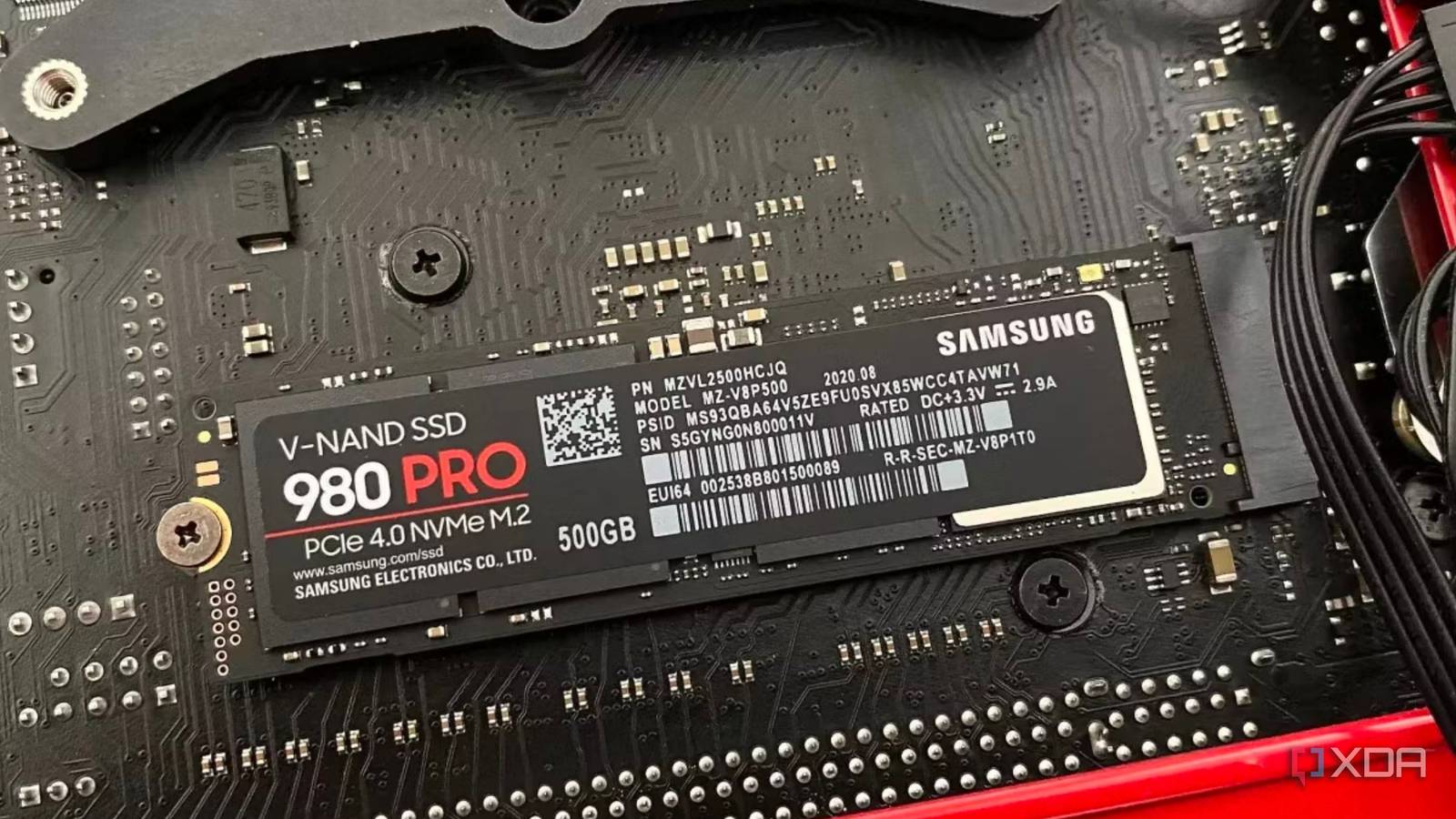
SATA versus NVMe motherboard compatibility
SATA and NVMe are different technologies. This difference matters more than the word “M.2.”
SATA sends data through the Serial ATA interface. NVMe communicates over PCIe and is built for low-latency flash storage. NVMe drives can handle more commands at once and usually offer much higher sequential speeds.
Here is a simple comparison:
| SSD type | Typical connector | Protocol | Common speed range | Main compatibility need |
|---|---|---|---|---|
| 2.5-inch SATA SSD | SATA cable | SATA | Up to about 550 MB/s | Free SATA port and power |
| M.2 SATA SSD | M.2 slot | SATA | Up to about 550 MB/s | M.2 slot with SATA support |
| M.2 NVMe SSD | M.2 slot | PCIe/NVMe | About 1,500 to 14,000+ MB/s | M.2 slot with PCIe/NVMe support |
| PCIe SSD card | PCIe slot | NVMe or vendor-specific | Varies | Compatible PCIe slot and firmware |
Are all SSD compatible with all motherboards? This table shows why the answer is no. Two drives may use the M.2 form factor but require different support from the motherboard.
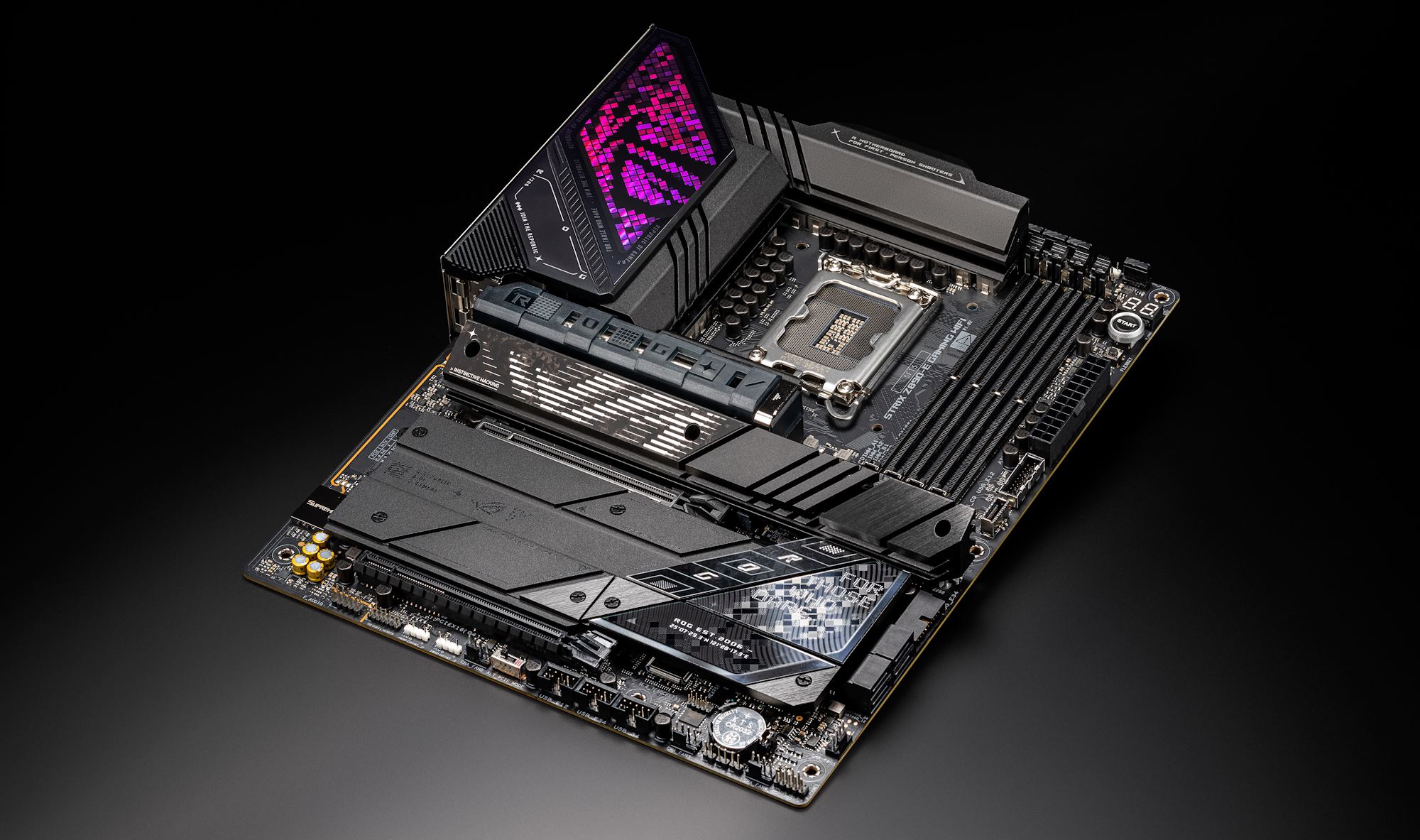
A motherboard manual may label an M.2 slot in one of these ways:
• M.2 PCIe
• M.2 NVMe
• M.2 SATA
• M.2 SATA/PCIe
A slot labeled SATA/PCIe is usually the most flexible. However, the manual still has the final word because manufacturers use different lane layouts and restrictions.
How to check whether an SSD will work
You can check compatibility in a few minutes. Do not rely only on product photos or the fact that both parts contain the word “M.2.”
1. Find your motherboard model
Look at the motherboard box, printed manual, or system information in your operating system. On a custom desktop, the model name is often printed directly on the board.
For a prebuilt computer or laptop, search the exact model number on the manufacturer’s support page. A similar model may use a different storage layout.
2. Read the storage specifications
Look for details about:
• SATA ports
• M.2 slot count
• Supported M.2 protocol
• PCIe generation
• Supported drive lengths
• Maximum supported capacity
• Boot support
The phrase “M.2 slot” alone is not enough. You need to know whether that slot accepts SATA, PCIe NVMe, or both.
3. Check the key notch
M.2 drives have notches called keys. The notch helps show which connector type the drive uses.
Common examples include:
• B-key drives
• M-key drives
• B+M-key drives
A B+M-key drive may fit more slots, but physical fit does not guarantee electrical compatibility. The protocol still must match.
4. Check the drive length
A 2280 SSD cannot be safely installed if the motherboard supports only a 2242 drive position. Some boards have several screw holes, while others support only one length.
Laptop space is even more limited. A drive with a large heatsink may not fit under the bottom cover.
5. Check the manual for shared ports
Some motherboards disable one or more SATA ports when an M.2 drive is installed. This is normal. The M.2 slot may share chipset lanes with those ports.
For example, installing an M.2 SATA SSD could disable SATA port 1. The drive is compatible, but another storage device may disappear until you move its cable.

PCIe generations and SSD compatibility
PCIe generations affect speed, but they usually do not prevent an NVMe SSD from working. A PCIe 4.0 NVMe SSD can normally operate in a PCIe 3.0 slot, though it will run at the slower generation’s speed.
The same general rule applies to newer drives in older compatible slots:
• A PCIe 4.0 SSD in a PCIe 3.0 slot usually works at PCIe 3.0 speed.
• A PCIe 3.0 SSD in a PCIe 4.0 slot usually works at PCIe 3.0 speed.
• A PCIe 5.0 SSD in a PCIe 4.0 slot usually works at PCIe 4.0 speed if the motherboard and firmware support it.
Backward and forward compatibility can vary by device and platform. Always check the SSD and motherboard documentation for unusual limits.
The practical point is that PCIe generation is often a speed issue, not a basic compatibility issue. You may lose peak performance, but the drive can still be useful.
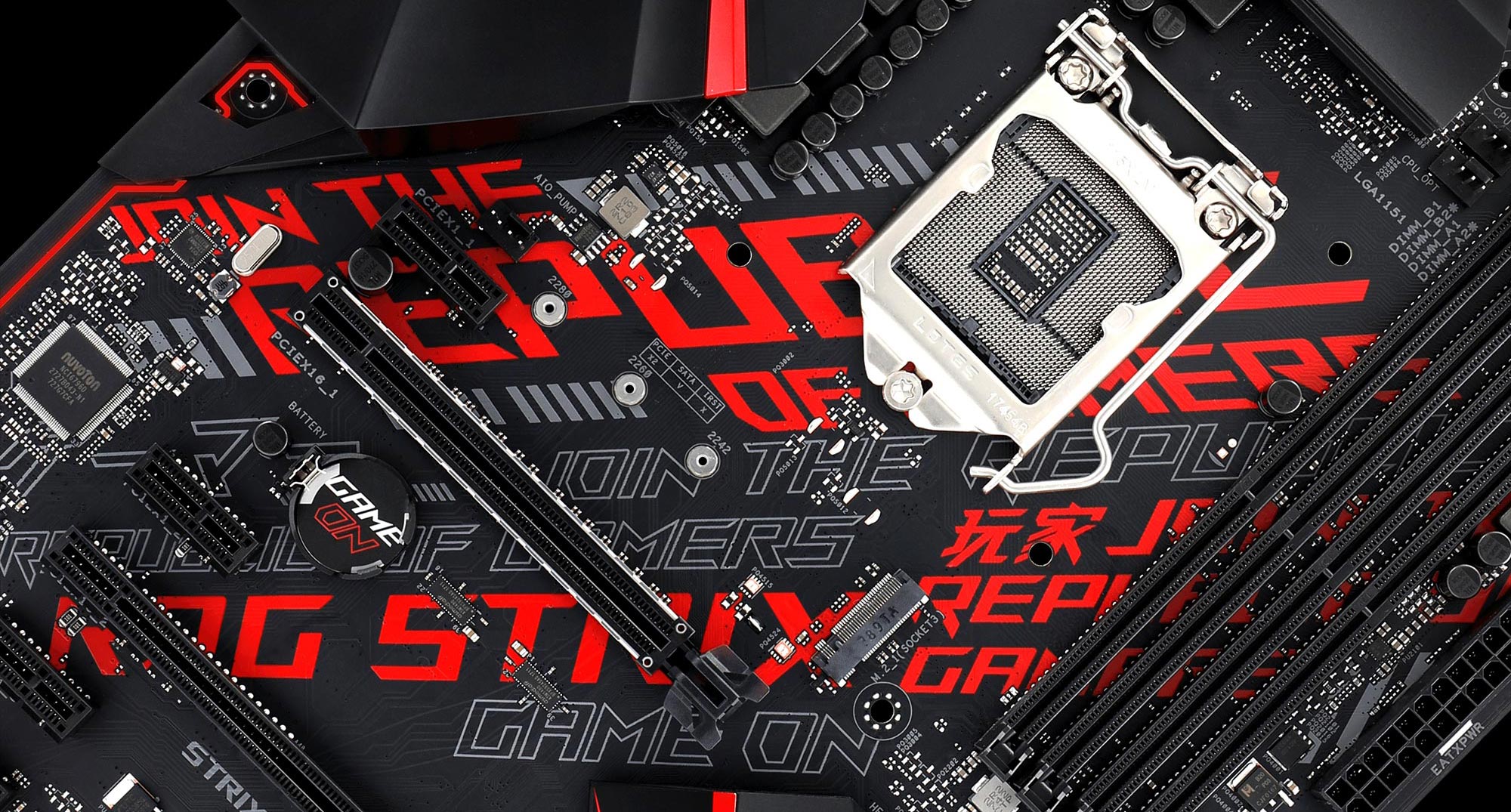
Also consider heat. High-end PCIe 4.0 and PCIe 5.0 SSDs can become hot during large file transfers. A motherboard heatsink or a properly designed aftermarket heatsink may help prevent thermal throttling.
Motherboard age and boot support
Older motherboards are where SSD compatibility becomes more complicated. A board may physically accept an NVMe SSD but fail to boot from it because its firmware lacks NVMe boot support.
This can happen with some older systems that were designed before NVMe drives became common. The drive may appear in the operating system after installation, yet it may not appear as a boot option.
Possible solutions include:
• Updating the motherboard BIOS or UEFI
• Installing the operating system on a supported SATA SSD
• Adding an NVMe boot module, if the board supports that process
• Using an NVMe adapter card with suitable firmware support
• Checking the manufacturer’s compatibility list
BIOS updates can improve compatibility, but they also carry risk. Use the exact update for your motherboard model, keep stable power during the process, and follow the manufacturer’s instructions.
When helping with upgrades, I have seen people assume a missing boot option meant the SSD was defective. In several cases, the drive worked perfectly as secondary storage. The real problem was outdated firmware.

Can you use an SSD with an adapter?
Adapters can solve some connection problems, but they cannot create support that the motherboard does not have.
SATA-to-USB adapters
A SATA-to-USB adapter lets you connect a 2.5-inch SATA SSD externally. It is useful for cloning, file recovery, backups, and temporary storage.
The USB connection becomes the speed limit. A USB 3.0 connection is slower than a direct SATA connection in many real-world cases, but it remains useful.
M.2-to-USB enclosures
An M.2 enclosure must match the SSD protocol. Some enclosures support only NVMe drives, while others support only M.2 SATA drives.
Do not place an M.2 SATA SSD into an NVMe-only enclosure. The drive may fit physically but remain invisible to the computer.
PCIe adapter cards
An M.2 NVMe-to-PCIe adapter can let you install an NVMe drive in a desktop PCIe slot. This works well when the motherboard lacks an M.2 connector.
However, the motherboard must support booting from an NVMe device if you want to use it as the main system drive. The adapter also needs enough PCIe lanes and physical clearance.
Common SSD compatibility mistakes
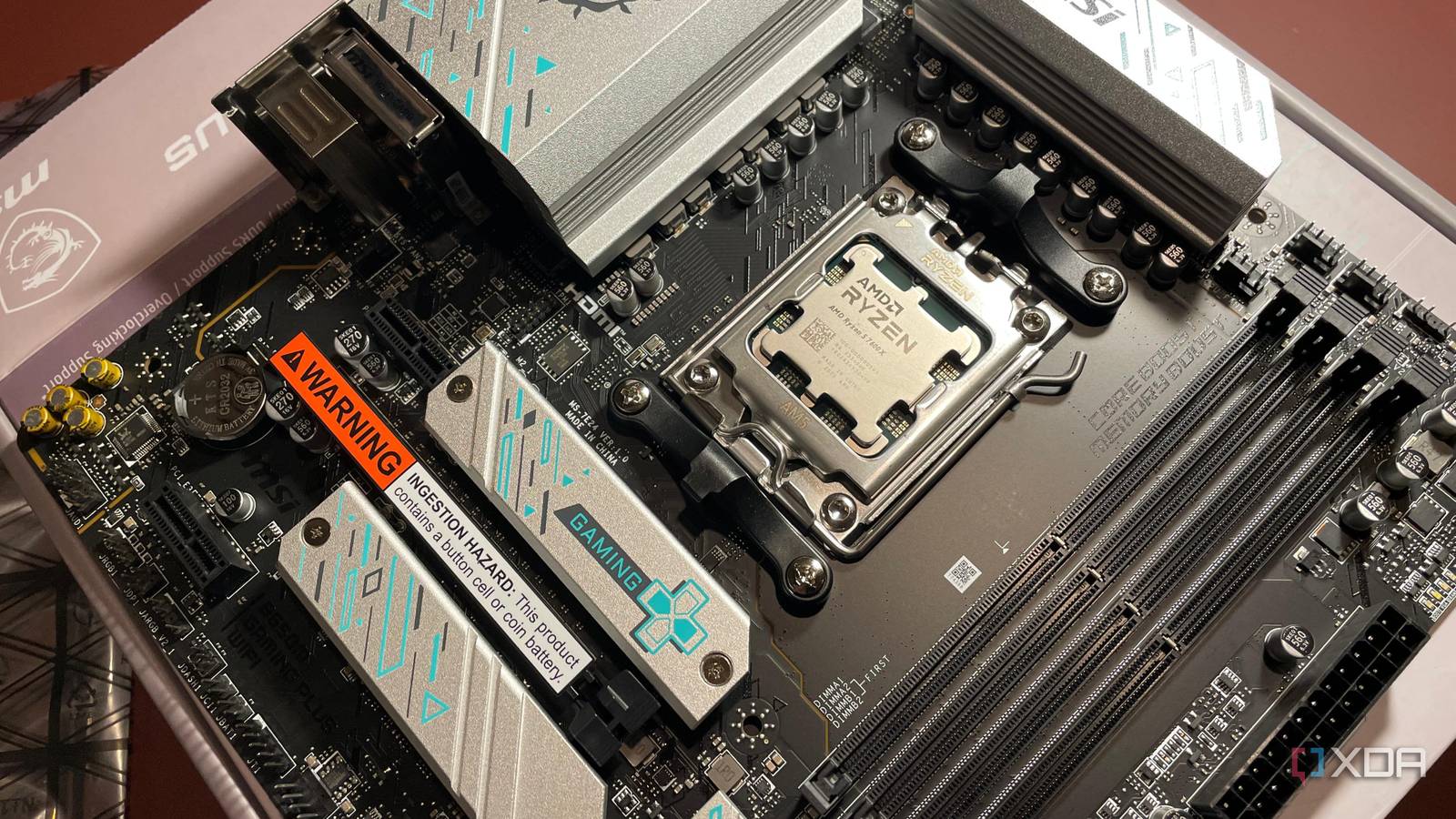
Many failed SSD upgrades come from small assumptions. These mistakes are easy to avoid when you know what to check.
• Assuming every M.2 slot supports NVMe: Some M.2 slots support SATA only.
• Assuming every M.2 SSD uses the same protocol: M.2 is a form factor, not a speed standard.
• Ignoring drive length: A 2280 drive may not fit a laptop designed for 2242 storage.
• Forgetting SATA power: A 2.5-inch SATA SSD needs both data and power cables.
• Buying based only on PCIe speed: A fast SSD may run at a lower speed on an older motherboard.
• Ignoring shared ports: An M.2 installation can disable certain SATA ports.
• Skipping BIOS checks: Older boards may need a firmware update for NVMe boot support.
• Installing the wrong heatsink: A thick heatsink may prevent the case panel or laptop cover from closing.
• Cloning without checking boot mode: A system installed in UEFI mode may not boot correctly if the firmware settings change to legacy mode.
Before opening the computer, make a short checklist. Confirm the interface, protocol, size, boot support, and available lanes. This takes less time than returning an incompatible drive.

Which SSD should you buy?
The right SSD depends on your motherboard, budget, and workload. The fastest model is not always the best choice.
Choose a 2.5-inch SATA SSD when:
• Your computer has no compatible M.2 slot.
• You are upgrading an older desktop or laptop.
• You want simple and broad compatibility.
• Your everyday work includes web browsing, office tasks, and light gaming.
Choose an M.2 NVMe SSD when:
• Your motherboard supports PCIe NVMe storage.
• You want fast application loads and file transfers.
• You edit video, work with large files, or use demanding software.
• You are building a new computer.
Choose a higher-end PCIe 4.0 or PCIe 5.0 SSD when:
• Your motherboard supports the matching PCIe generation.
• Your workload benefits from high sustained performance.
• You have good airflow or an SSD heatsink.
For gaming, moving from a hard drive to any good SSD creates a major improvement. Moving from a SATA SSD to a high-end NVMe drive may produce a smaller change in game loading times than the specifications suggest.
A safe SSD installation process
Once you confirm compatibility, installation is usually simple. Work slowly and avoid forcing any connector.
-
Back up important files before changing storage.
-
Shut down the computer and disconnect the power cable.
-
Touch a metal part of the case or use an anti-static strap.
-
Install a 2.5-inch SATA SSD with its data and power cables, or insert an M.2 SSD at a slight angle.
-
Secure the M.2 drive with the correct screw.
-
Reconnect power and start the computer.
-
Enter the UEFI or BIOS to confirm that the drive appears.
-
Initialize and format the drive in the operating system if it is new.
-
If it is your boot drive, install or clone the operating system and confirm the correct boot entry.
Never press down hard on an M.2 drive. It should slide into the slot easily and then rest flat when secured. If it does not fit, stop and check the key, length, and slot type.
Frequently Asked Questions
Are all SSD compatible with all motherboards?
No. SSD compatibility depends on the drive’s interface, protocol, physical size, and the motherboard’s available ports or slots. A SATA SSD and an NVMe SSD cannot be treated as interchangeable.
Can an NVMe SSD work in any M.2 slot?
No. The M.2 slot must support PCIe NVMe storage. Some M.2 slots support only SATA drives, while others support both SATA and NVMe.
Can a PCIe 4.0 SSD work on a PCIe 3.0 motherboard?
Usually, yes. It will normally operate at PCIe 3.0 speed, so you will not receive the drive’s full advertised performance.
Can I install an M.2 SSD without an M.2 slot?
Yes, in many desktop computers. An M.2-to-PCIe adapter can connect the drive to a compatible PCIe slot, but NVMe boot support depends on the motherboard firmware.
Do all motherboards support booting from an NVMe SSD?
No. Most modern motherboards do, but some older boards need a BIOS or UEFI update and some may not support NVMe booting at all. Check the motherboard documentation before using NVMe as the main system drive.
Does an M.2 SSD always run faster than a SATA SSD?
No. M.2 describes the shape, not the protocol. An M.2 SATA SSD has similar speed to a 2.5-inch SATA SSD, while an M.2 NVMe SSD is usually much faster.
Can installing an M.2 SSD disable SATA ports?
Yes. Some motherboards share chipset lanes between M.2 slots and SATA ports. The manual will identify which ports become unavailable when a particular M.2 slot is occupied.
Conclusion
Are all SSD compatible with all motherboards? No, but checking a few key details makes the right choice clear. Match the SSD’s protocol, connector, size, and interface with the motherboard’s specifications. Also check PCIe generation, BIOS support, shared ports, and physical clearance.
A 2.5-inch SATA SSD is often the safest upgrade for an older computer. A compatible M.2 NVMe SSD is usually the better choice for a newer system. Before you buy, read the motherboard manual and confirm the exact SSD type rather than relying on its shape or advertised speed.
Use this checklist for your next upgrade, and share your motherboard model or SSD question in the comments for more practical storage advice.

Everett Ashford is a tech reviewer at mytechgrid.com specializing in SSDs, cameras, TVs, earbuds, headphones, and other consumer electronics. He provides honest, data-driven reviews based on hands-on testing and real-world performance analysis. Everett simplifies complex tech details to help readers make smart, confident buying decisions.