SSD is generally better for speed and daily use; HDD wins only on raw capacity per dollar.
I have spent years building PCs, testing drives, and fixing slow systems. In this guide I explain which is better ssd or hdd with clear, practical advice. You will get a plain comparison, real examples, and action steps to pick the right drive for your needs. Read on and you’ll leave confident in choosing between which is better ssd or hdd for work, gaming, or storage.
Performance: speed, latency, and real-world impact
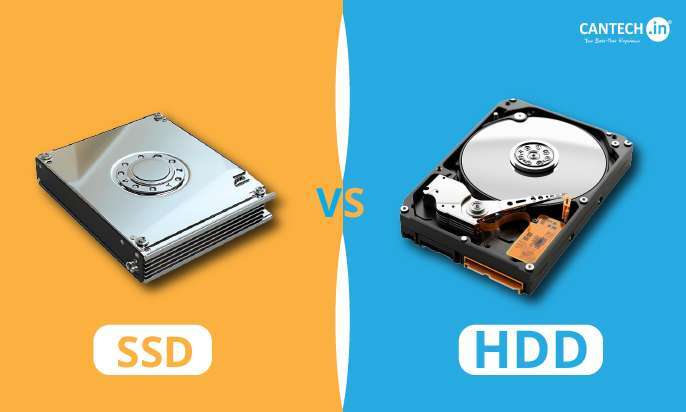
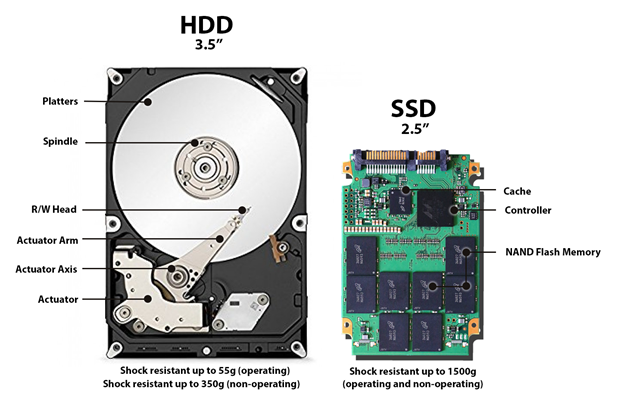
SSDs use flash memory and have near-instant access times. HDDs spin a disk and need the head to move. That mechanical action makes HDDs much slower for small files and random access.
Key performance differences
- Boot and app launch: SSDs start systems and apps in seconds. HDDs can take minutes for the same tasks.
- Sequential reads/writes: SATA SSDs reach about 500 MB/s, NVMe drives can hit thousands of MB/s, while HDDs typically reach 100 to 200 MB/s.
- Random IOPS: SSDs handle many more small reads and writes per second. This matters for multitasking and databases.
Why performance matters
- For daily use, which is better ssd or hdd is clear: SSDs make everything feel snappier.
- For tasks like video editing or large file moves, NVMe SSDs cut export times significantly.
- For backups and cold storage, HDD performance is less critical.
Durability and reliability
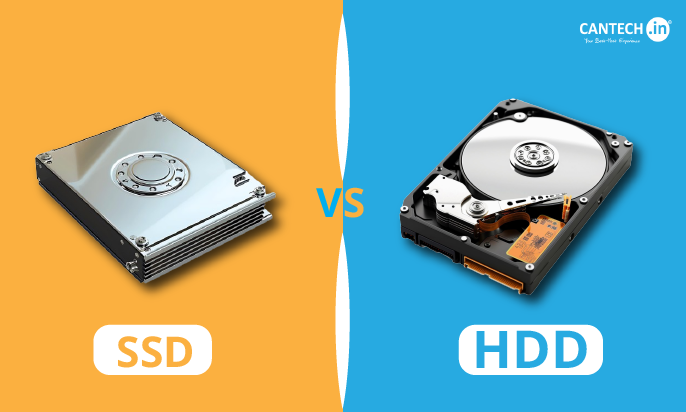
SSDs have no moving parts. HDDs are mechanical. That single fact changes reliability profiles.
SSD pros and cons
- Pros: Better shock resistance, lower chance of failure from drops, and often longer mean time between failures in consumer use.
- Cons: Flash cells wear with writes. Drives have TBW (terabytes written) ratings and can slow or fail after heavy use.
HDD pros and cons
- Pros: Mature tech with predictable failure modes. Data recovery is often possible after drive failure.
- Cons: Susceptible to drops, vibration, and mechanical wear. Heads and motors fail over time.
Practical note: For most users, which is better ssd or hdd depends on use. SSDs are more robust for laptops and active drives. HDDs remain fine for long-term cold storage and backups when used correctly.

Capacity and cost: where HDD still shines
HDDs offer more gigabytes per dollar. You can buy multiple terabytes cheaply on HDDs. SSDs cost more per GB but prices drop each year.
Price and capacity snapshot
- HDDs: Best for large mass storage and backups. Common sizes: 1 TB to 16 TB for consumer drives.
- SSDs: Best for system drives, apps, and active projects. Consumer SSDs commonly range from 256 GB to 4 TB.
Hybrid approaches
- Use an SSD for the operating system and apps, and an HDD for media, archives, and backups.
- Consider an external HDD for large backups and an internal SSD for speed.
Which is better ssd or hdd on price? For raw capacity, HDD wins. For performance per dollar and user experience, SSD often wins.
Types and technology explained
Understanding drive types helps pick the right option. I explain the common formats simply.
SSD types
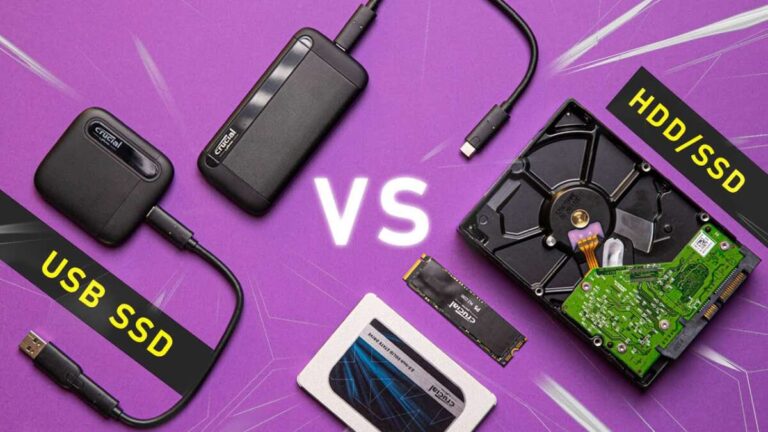
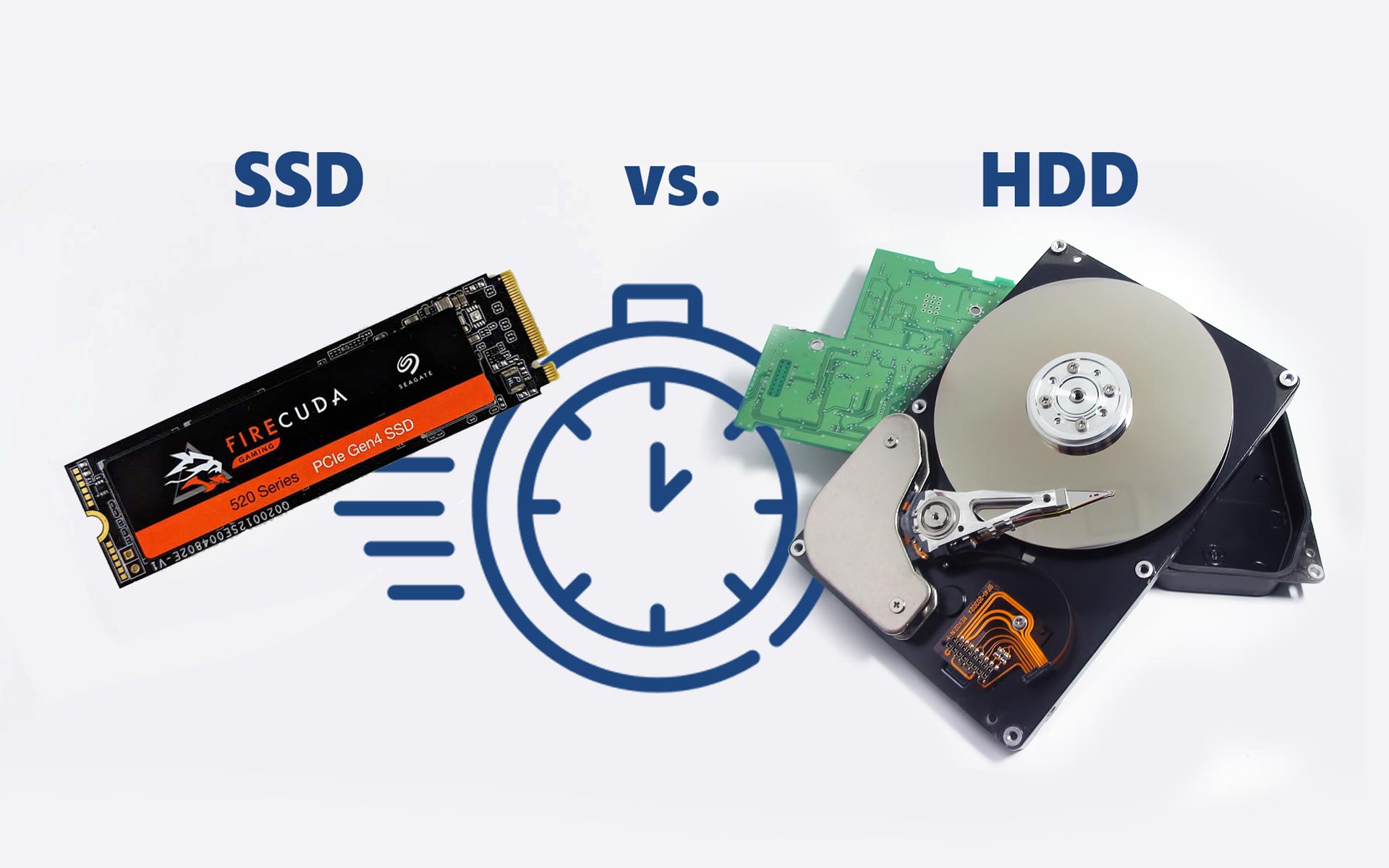
- SATA SSD: Fits older laptops and desktops. Faster than HDD but limited by SATA speeds.
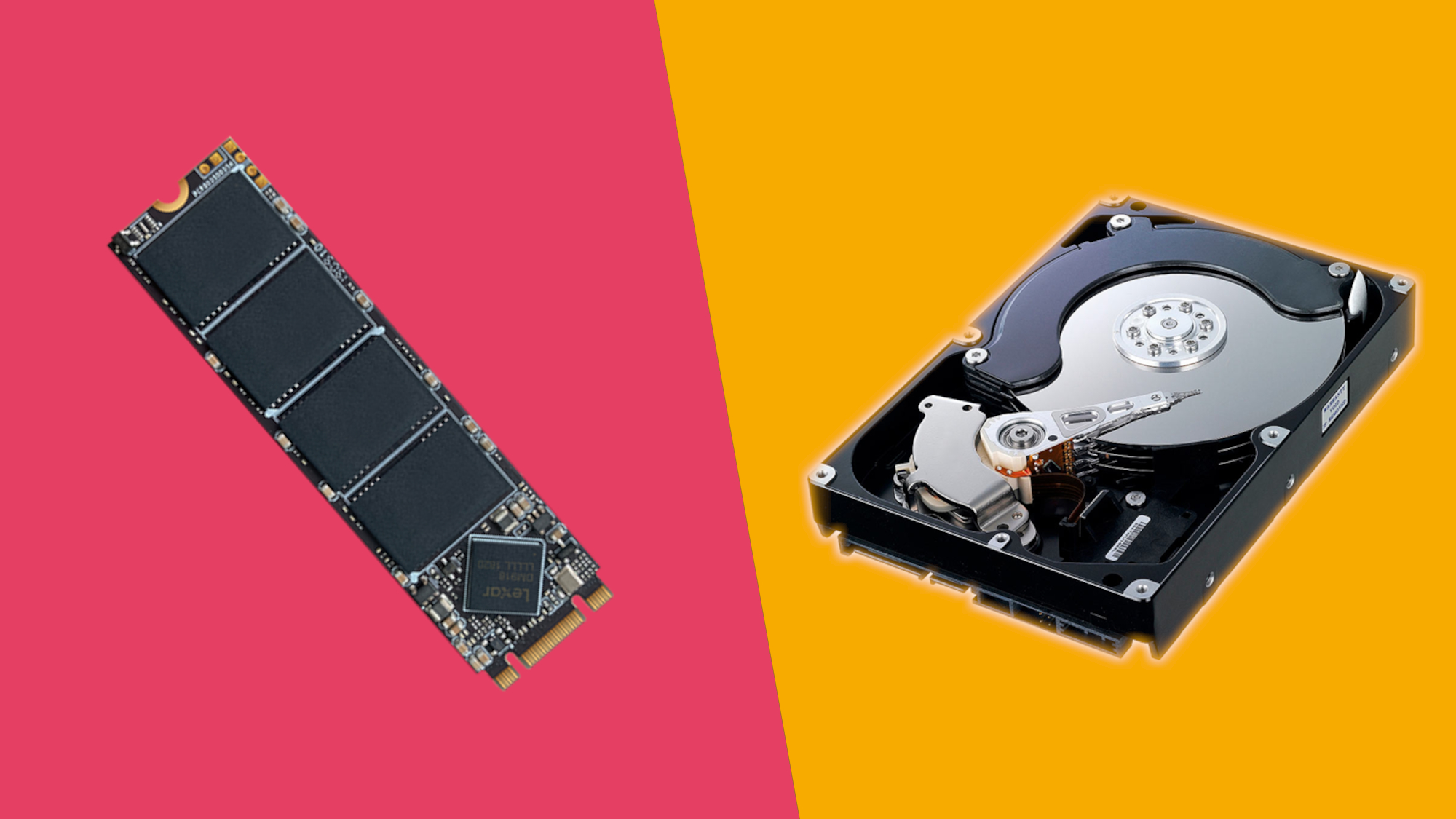
- NVMe SSD: Uses PCIe lanes. Much faster and great for heavy workloads.
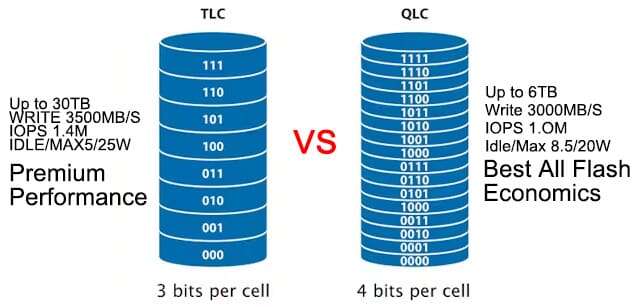
- NAND types: QLC, TLC, and MLC affect endurance and cost. QLC is cheapest but has lower endurance.
HDD types
- 2.5-inch drives: Common in laptops and consoles.
- 3.5-inch drives: Desktop and NAS use these for higher capacity.
- RPM: 5,400 RPM vs 7,200 RPM affects speed and noise.
Understanding these helps answer which is better ssd or hdd for a specific machine or workflow.
Use cases: match drive to need
Different tasks favor different drives. Here are clear recommendations.
Best for everyday laptops and desktops
- SSD: Use an SSD for OS, browser, and apps. Expect faster boot, smoother multitasking, and better battery life on laptops.
Best for gaming
- SSD: Install games and OS on an SSD to cut load times. NVMe gives best performance for large open-world games.
Best for media storage and backups
- HDD: Store raw video, photos, and archives on HDDs to save cost. Use RAID or multiples for redundancy.
Best for content creation and heavy IO
- NVMe SSDs: Use high-speed NVMe for video editing, large project files, and temporary scratch disks.
Which is better ssd or hdd here? It depends on the task: SSD for active work, HDD for cheap bulk.
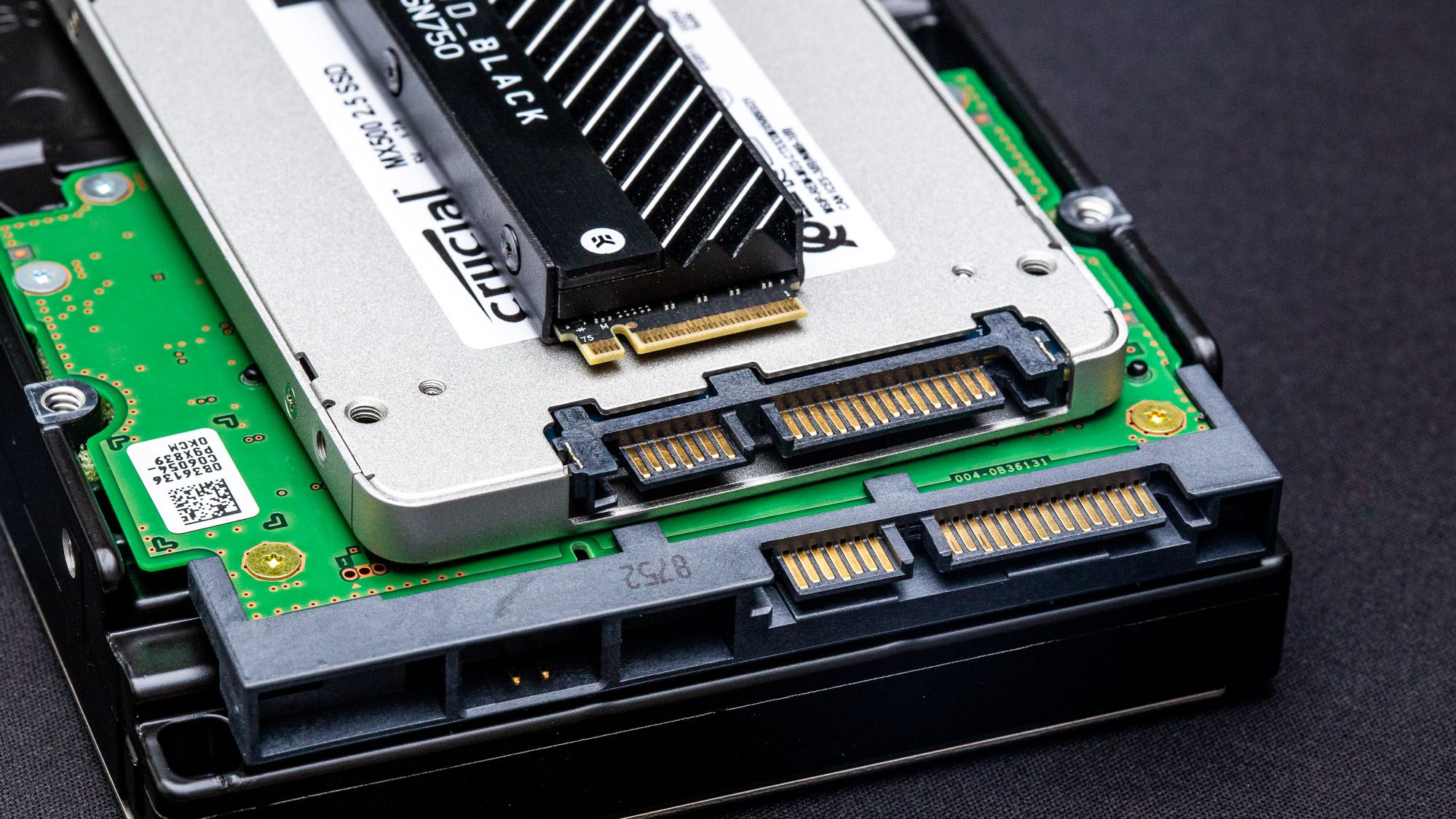
How to choose: a step-by-step checklist
Follow these steps to decide which is better ssd or hdd for you.
- Define your priority
- Speed or capacity? Choose SSD for speed, HDD for capacity and budget.
- Check your device
- Does your laptop support NVMe? Does your motherboard have extra SATA ports?
- Balance budget and performance
- If you need both, use a smaller SSD for the OS and a larger HDD for storage.
- Plan for backups
- Always have at least one backup on a separate drive or cloud storage.
- Consider longevity
- For archival, prefer HDD with redundancy; for daily work choose SSD and monitor health.
This checklist keeps decisions practical and simple.

Personal experience and practical tips
I have upgraded dozens of machines. I’ll share what worked and what I learned.
Real-world upgrades
- I replaced a laptop HDD with an SSD and saw boot times fall from two minutes to 20 seconds. Apps opened instantly.
- For a desktop video workstation, moving scratch disks to NVMe cut export time by nearly half.
Common mistakes to avoid
- Don’t defragment SSDs. It wastes writes and gives no benefit.
- Enable AHCI and TRIM on SSDs for best performance and longevity.
- Don’t treat HDDs as your only backup. They fail; consider cloud or offsite copies.
Practical tips
- Buy a reliable brand and check TBW for heavy-write workloads.
- Use free drive-health tools to monitor temperature and life remaining.
Which is better ssd or hdd in my work? I use SSDs for daily use and NVMe for heavy projects; I use HDDs for backups and cold storage.
Simple buying guide
Follow these quick picks based on common budgets.
- Tight budget, need space: Buy a large HDD and use cloud for critical files.
- Balanced user: 500 GB to 1 TB SSD for system plus 2 TB HDD for files.
- Power user: NVMe 1 TB+ as primary drive and multiple HDDs or NAS for storage.
- Backup-focused: Two HDDs plus cloud or RAID for redundancy.
Which is better ssd or hdd? Choose based on budget, workflow, and risk tolerance.
Frequently Asked Questions of which is better ssd or hdd
What makes an SSD faster than an HDD?
SSDs use flash memory with near-zero seek time, so they access data quickly. HDDs use mechanical parts that move, which slows random reads and writes.
Can I use an HDD and SSD together?
Yes. Many users run the OS and apps on an SSD and keep large files on an HDD. This gives a good balance of speed and cost.
Do SSDs fail more often than HDDs?
SSDs and HDDs fail differently. SSDs wear from writes but resist shock; HDDs fail mechanically. Both need backups to protect data.
Is it worth upgrading from HDD to SSD?
For nearly all daily-use laptops and desktops, an SSD upgrade is worth it. You get faster boot, better responsiveness, and longer battery life in most cases.
How long do SSDs and HDDs last?
Lifespan varies by use and quality. Modern SSDs often last many years under normal use, and HDDs can last long if not physically stressed. Always plan for backups because any drive can fail.
Conclusion
Choosing which is better ssd or hdd comes down to purpose: SSDs win for speed, responsiveness, and mobile use; HDDs win for raw capacity and low cost. Use SSDs for your operating system and active projects. Use HDDs for backups and large file archives. Test your needs, balance budget and performance, and keep reliable backups. Try upgrading one machine with an SSD if you’re unsure — the speed difference is often life-changing. Share your experience below, subscribe for more guides, or ask a question to get tailored advice.

Everett Ashford is a tech reviewer at mytechgrid.com specializing in SSDs, cameras, TVs, earbuds, headphones, and other consumer electronics. He provides honest, data-driven reviews based on hands-on testing and real-world performance analysis. Everett simplifies complex tech details to help readers make smart, confident buying decisions.