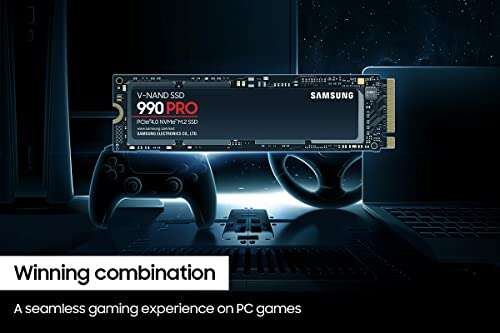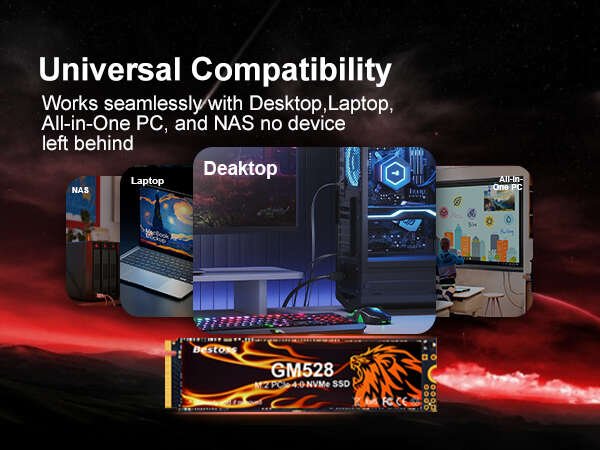
No, not all SSDs are compatible with every PC because connectors, sizes, interfaces, and motherboard support can differ.
The answer to “are all SSD compatible with PC” depends on your computer’s age, motherboard, available ports, and operating system. A 2.5-inch SATA SSD may work in one PC, while an M.2 NVMe drive may need a newer motherboard and a specific M.2 slot. This guide explains how to check compatibility before you buy, install, or upgrade an SSD.

Are All SSD Compatible With PC?
Not all SSDs are compatible with every PC. SSD compatibility depends on more than storage capacity. You must match the drive to the PC’s physical space, connector, communication standard, and firmware support.
The main SSD types include:
• 2.5-inch SATA SSDs
• M.2 SATA SSDs
• M.2 NVMe SSDs
• PCIe expansion card SSDs
• U.2 SSDs, which are less common in regular home PCs
A PC may support one type, several types, or none without an adapter. For example, a desktop with a free SATA port can usually use a 2.5-inch SATA SSD. However, that same desktop may not support an M.2 NVMe SSD if its motherboard has no compatible M.2 slot.
Think of SSD compatibility like using a key in a lock. The drive may be excellent, but it still needs the correct shape and connection.
The Main Types of SSDs
2.5-Inch SATA SSD
A 2.5-inch SATA SSD is one of the easiest drives to install in older desktop PCs and many laptops. It uses the same SATA data and power connections found in many hard disk drives.
A 2.5-inch SATA SSD usually offers:
• A 2.5-inch physical size
• A SATA data connector
• A separate SATA power connector
• Speeds near the limit of the SATA III interface
• Easy compatibility with older computers
SATA III supports up to about 6 gigabits per second. Real-world file speeds are often lower, but a SATA SSD still feels much faster than a traditional hard drive.
You may need a 2.5-inch mounting bracket when installing this SSD in a desktop case. Some cases include mounting points, while others require a low-cost adapter.
M.2 SATA SSD
An M.2 SATA SSD looks similar to an M.2 NVMe drive. Both are small circuit boards, but they use different communication methods.
An M.2 SATA SSD sends data through the SATA protocol. It cannot use an M.2 slot that supports only NVMe. The reverse is also true in many cases: an M.2 NVMe SSD may not work in an M.2 slot designed only for SATA.
This is one of the most common causes of SSD buying mistakes. The drive may physically fit into the slot but still fail to work.
M.2 NVMe SSD
M.2 NVMe SSDs are now common in modern desktops and laptops. They use the NVMe protocol and communicate through PCI Express, often called PCIe.
NVMe drives commonly use:
• PCIe 3.0
• PCIe 4.0
• PCIe 5.0
A newer PCIe drive may work in an older PCIe slot, but it will usually run at the older slot’s speed. Compatibility is often backward compatible, but motherboard support and firmware can still affect whether the computer boots from the drive.
PCIe Add-In Card SSD
A PCIe add-in SSD is installed into a desktop expansion slot. It looks like a graphics card or network card and can offer high performance.
This type of SSD needs:
• A free PCIe slot
• Enough space inside the case
• Motherboard support for booting from the drive
• Proper drivers or firmware in some systems
These SSDs are less common for standard upgrades but can help older workstations or desktops that lack M.2 support.

SSD Compatibility: The Four Things to Check
When asking “are all SSD compatible with PC,” start with four basic checks. These checks prevent most installation problems.
1. Check the Physical Size
A drive must fit inside the computer. For 2.5-inch SSDs, check whether your laptop tray or desktop case has enough space.
For M.2 drives, size is shown with a number such as 2280. The numbers mean:
• 22 means the drive is 22 millimeters wide
• 80 means the drive is 80 millimeters long
The M.2 2280 size is common in desktop PCs and laptops. Some small laptops use shorter sizes, such as 2230 or 2242.
Do not assume that every M.2 slot can hold every M.2 drive. The slot may have a screw position for only one drive length.
2. Check the Connector and Key
M.2 drives use small notches called keys. These help show which type of slot and drive are involved.
Common examples include:
• B-key drives
• M-key drives
• B and M-key drives
Many NVMe SSDs use an M-key design. SATA M.2 drives may use B-key or B and M-key designs.
The key is helpful, but it is not enough by itself. A drive can fit physically and still use the wrong protocol. Always check the motherboard manual or the PC manufacturer’s specifications.
3. Check SATA or PCIe Support
The connection type matters. A 2.5-inch SATA SSD needs a SATA data port and a SATA power cable. An M.2 SATA SSD needs an M.2 slot with SATA support. An M.2 NVMe SSD needs an M.2 slot connected to PCIe lanes.
Motherboard manuals often list supported drives in terms such as:
• M.2 SATA
• M.2 PCIe
• NVMe
• PCIe x4
• PCIe Gen 3 or Gen 4
If the manual says “M.2 PCIe x4,” it usually supports an NVMe drive. If it says “M.2 SATA,” it may not support NVMe.
4. Check Boot and Firmware Support
A computer may recognize an SSD as extra storage but still fail to boot from it. Older motherboards sometimes lack the firmware needed to boot from NVMe drives.
Check whether your PC supports:
• UEFI boot mode
• NVMe boot support
• BIOS updates
• GPT partitioning
• Secure Boot settings
A BIOS update may improve compatibility, but updating firmware has risks. Use the exact update for your motherboard model and follow the manufacturer’s instructions.
Are All SSD Compatible With Desktop PCs?
Desktop PCs usually offer more upgrade options than laptops. A desktop may support 2.5-inch SATA SSDs, M.2 drives, and PCIe expansion cards.
A desktop PC can often use a 2.5-inch SATA SSD if it has:
• A free SATA data port on the motherboard
• A free SATA power connector from the power supply
• A mounting location or adapter
For an M.2 drive, the motherboard must have a compatible M.2 slot. Some desktop boards include several M.2 slots, but they may not all support the same drive type or speed.
An M.2 slot can also share bandwidth with SATA ports or PCIe slots. Installing an M.2 drive may disable one or two SATA ports on certain motherboards. This is normal, but the manual should explain which ports are affected.

Are All SSD Compatible With Laptops?
Laptop compatibility is more limited because laptops use custom layouts and parts. A laptop may accept a 2.5-inch SATA SSD, an M.2 SATA SSD, or an M.2 NVMe SSD, but rarely all three.
Before buying an SSD for a laptop, check:
• The exact laptop model
• The existing drive type
• The supported M.2 size
• Whether the laptop has a 2.5-inch drive bay
• Whether a drive cable or mounting bracket is required
• The maximum supported storage capacity
Some laptops have an M.2 slot but use it only for Wi-Fi. Never assume that an M.2 slot is meant for storage.
Laptop upgrades can also involve a small connector cable. If the original drive uses a special SATA adapter, you may need to move that adapter to the new SSD.
A useful method is to open the laptop’s service manual or manufacturer support page. Product pages from memory and upgrade sellers can help, but the laptop manual is usually more reliable.
SATA SSD vs. NVMe SSD Compatibility
SATA and NVMe SSDs are not interchangeable in every slot. They are like two roads that use different traffic systems.
SATA SSDs are widely compatible with older computers. NVMe SSDs are faster in many tasks, but they require PCIe-based support.
| Feature | SATA SSD | NVMe SSD |
|---|---|---|
| Common form | 2.5-inch or M.2 | Mostly M.2 |
| Connection | SATA | PCIe |
| Protocol | AHCI or SATA | NVMe |
| Typical use | Older PCs and laptops | Modern PCs and laptops |
| Installation | SATA data and power, or M.2 SATA slot | Compatible PCIe M.2 slot |
| Main limitation | Lower interface speed | Needs newer hardware support |
For daily work, both types can feel quick. NVMe is most useful for large file transfers, video editing, software development, gaming loads, and other tasks that move a lot of data.
If a PC supports only SATA, buying an expensive PCIe 5.0 NVMe drive will not make it compatible. In that case, a SATA SSD is the correct choice.
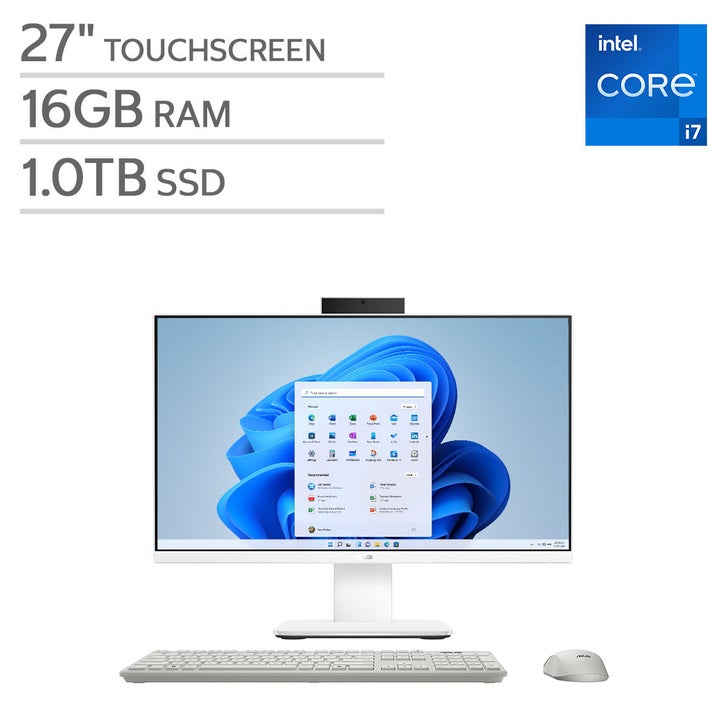
Can You Use an NVMe SSD in a SATA M.2 Slot?
Usually, no. An NVMe SSD needs PCIe lanes, while a SATA M.2 slot uses the SATA interface.
Some motherboards support both SATA and NVMe drives in the same M.2 slot. The product manual may describe this as a “combo” or “M.2 SATA/PCIe” slot. Without that support, the drive may not appear in the BIOS or operating system.
This is a key answer to “are all SSD compatible with PC.” A drive can have the correct M.2 shape and still use the wrong data standard.
Can You Use a SATA SSD in an NVMe Slot?
Sometimes, but not always. Some M.2 slots support both SATA and NVMe drives. Other slots support only NVMe.
If the slot supports only PCIe NVMe, an M.2 SATA SSD will not work. Check the motherboard or laptop manual before purchasing the drive.
A 2.5-inch SATA SSD is different. It does not plug into an NVMe M.2 slot because it uses separate SATA data and power connectors.
Do You Need an SSD Adapter?
An adapter can solve some connection problems, but it cannot change every protocol.
Useful adapters include:
• 2.5-inch drive brackets for desktop cases
• USB-to-SATA adapters for cloning or external storage
• PCIe-to-M.2 adapters for desktop motherboards
• M.2 enclosures for using an SSD as a portable drive
A PCIe-to-M.2 adapter can let a desktop use an NVMe SSD when the motherboard has no built-in M.2 slot. However, the motherboard may not support booting from that drive, especially if it is old.
A USB enclosure can let you use an internal SSD as external storage. Performance will depend on the USB standard and enclosure quality.
An adapter does not make an incompatible laptop slot compatible. It also cannot make a SATA-only connection operate like PCIe.

How to Check SSD Compatibility Before Buying
Use this process to reduce the chance of buying the wrong SSD.
-
Find the exact PC or motherboard model.
-
Read the official specifications or service manual.
-
Identify the current drive type.
-
Check whether the PC supports SATA, NVMe, or both.
-
Confirm the M.2 size, such as 2280 or 2242.
-
Check whether the computer supports booting from the new drive.
-
Look for shared ports or lane restrictions.
-
Confirm that the case or laptop has enough physical space.
-
Check whether you need a bracket, screw, cable, or adapter.
-
Back up important files before installation.
Windows tools can also provide useful clues. In Device Manager, Disk Management, or system information, you may see the current drive model. The model number can then be checked against the manufacturer’s specifications.
For a desktop, inspect the motherboard manual rather than relying only on photos. Two boards may look similar but support different M.2 standards.
Common SSD Installation Problems
Even when the SSD is compatible, installation can fail for simple reasons.
The SSD Does Not Appear in BIOS
Possible causes include:
• The drive is not fully inserted
• The M.2 screw is missing or loose
• The slot does not support that drive type
• The BIOS needs an update
• A shared SATA port has been disabled
• The drive or slot is faulty
Power off the PC, unplug it, and reseat the drive. Do not force the SSD into the slot. If it still does not appear, test the slot specifications and BIOS settings.
The SSD Appears in BIOS but Not Windows
A new SSD may need initialization and formatting. In Windows, open Disk Management and check whether the drive is listed as unallocated space.
You may need to:
• Initialize the disk
• Choose GPT for modern UEFI systems
• Create a new volume
• Assign a drive letter
• Format the volume
Formatting erases data on the selected drive. Confirm the disk number carefully before making changes.
The PC Finds the SSD but Will Not Boot
This often happens after cloning Windows. The common causes include:
• Incorrect boot order
• Missing EFI system partition
• GPT and legacy BIOS mismatch
• An incomplete clone
• Secure Boot configuration issues
Set the new SSD as the first boot device. If the system still fails, use Windows recovery tools or repeat the cloning process with the correct partitions.

SSD Compatibility Mistakes to Avoid
One of the biggest mistakes is buying based only on speed. A fast SSD is not automatically the right SSD for your PC.
Avoid these errors:
• Assuming every M.2 SSD is NVMe
• Assuming every M.2 slot supports every M.2 drive
• Ignoring the SSD length
• Forgetting the SATA power cable
• Skipping a backup before cloning
• Buying a PCIe 5.0 drive for a SATA-only system
• Ignoring shared motherboard ports
• Forcing a connector that does not fit
• Updating BIOS without checking the exact motherboard model
A practical lesson from many PC upgrades is simple: compatibility comes before performance. A slower drive that works is far better than a premium drive that your PC cannot detect.
Does SSD Brand Matter for Compatibility?
Brand usually does not determine basic compatibility. A reputable SATA SSD should work in a compatible SATA system, and a reputable NVMe SSD should work in a compatible NVMe system.
Quality still matters. Look for:
• A clear warranty
• Reliable firmware support
• Consistent reviews
• A known controller and NAND type
• Suitable endurance for your workload
• Trusted retail or manufacturer channels
The manufacturer’s specifications should state the interface, form factor, capacity range, and operating requirements. Avoid drives with unclear specifications or unusually low prices from unknown sellers.
Capacity can also affect performance and endurance. Some SSDs perform better when they have free space available, so leaving roughly 10% to 20% of the drive unused can be helpful for long-term performance.

Are All SSD Compatible With PC Gaming?
Many gaming PCs support both SATA and NVMe SSDs. Modern games may load faster from NVMe storage, but game performance also depends on the CPU, graphics card, memory, and game design.
A SATA SSD is still a major improvement over a hard drive. It can reduce game load times and make Windows feel much more responsive.
An NVMe SSD is a strong choice for a newer gaming PC with a compatible M.2 slot. Check the motherboard manual before choosing PCIe 4.0 or PCIe 5.0, since the drive may run at a lower generation speed.
Do not expect an SSD to increase frame rates in every game. Its biggest benefit is shorter loading and faster file access.
SSD Power, Heat, and Performance
Most SSDs use little power compared with hard drives. This makes them useful for laptops, where battery life and heat matter.
High-speed NVMe drives can become warm during large file transfers. Some motherboards include M.2 heatsinks, while others do not. A heatsink is not always required, but it can help maintain performance during heavy workloads.
SSD speed also depends on the task. Opening apps may not show a large difference between a good SATA SSD and a fast NVMe SSD. Copying large files or editing high-resolution video can show a clearer advantage.
Real-world performance is often less dramatic than the numbers on the box. Interface speed is a limit, not a guarantee.
Frequently Asked Questions About Are All SSD Compatible With PC
Are all SSD compatible with PC?
No. SSD compatibility depends on the drive’s form factor, connector, interface, protocol, size, and the PC’s motherboard or laptop design. A SATA SSD and an NVMe SSD may look similar but require different support.
Can any SSD fit in a desktop PC?
No. A desktop must have the correct port, mounting space, and power connection for the SSD type. Most desktops can use a 2.5-inch SATA SSD, but M.2 and PCIe drives require compatible motherboard support.
Can I install an NVMe SSD in an old computer?
Sometimes, but not always. An adapter may allow installation, yet an older motherboard might not support booting from NVMe storage without a BIOS update or another workaround.
How do I know if my PC supports an M.2 SSD?
Check the motherboard or PC manual for an M.2 storage slot and confirm whether it supports SATA, NVMe, or both. Also check the supported drive length, such as 2280 or 2242.
Is an M.2 SSD always faster than a SATA SSD?
No. M.2 describes the physical shape, not the speed. An M.2 SATA SSD has similar limits to a 2.5-inch SATA SSD, while an M.2 NVMe SSD usually offers higher performance.
Can I use a SATA SSD and an NVMe SSD together?
Often, yes. Many desktops support both drives at the same time, but some motherboards disable specific SATA ports when an M.2 drive is installed. Review the motherboard manual for lane-sharing details.
Will a larger SSD work in my PC?
Not always. Some older systems, laptop firmware, or operating systems may have storage limits. Modern computers usually handle large drives well, but confirm the manufacturer’s maximum supported capacity before buying.
Conclusion
Are all SSD compatible with PC? No. The right SSD must match your computer’s form factor, connector, interface, size, firmware, and available space. SATA SSDs are often the safest choice for older systems, while NVMe SSDs are ideal for modern PCs with compatible PCIe M.2 slots.
Check your exact PC or motherboard model before you buy. Confirm the drive type, M.2 size, boot support, and required cables or adapters. With those checks complete, you can choose an SSD that works correctly and gives your computer a meaningful speed boost. Explore your manufacturer’s storage guide, back up your files, and share your upgrade experience in the comments.

Everett Ashford is a tech reviewer at mytechgrid.com specializing in SSDs, cameras, TVs, earbuds, headphones, and other consumer electronics. He provides honest, data-driven reviews based on hands-on testing and real-world performance analysis. Everett simplifies complex tech details to help readers make smart, confident buying decisions.