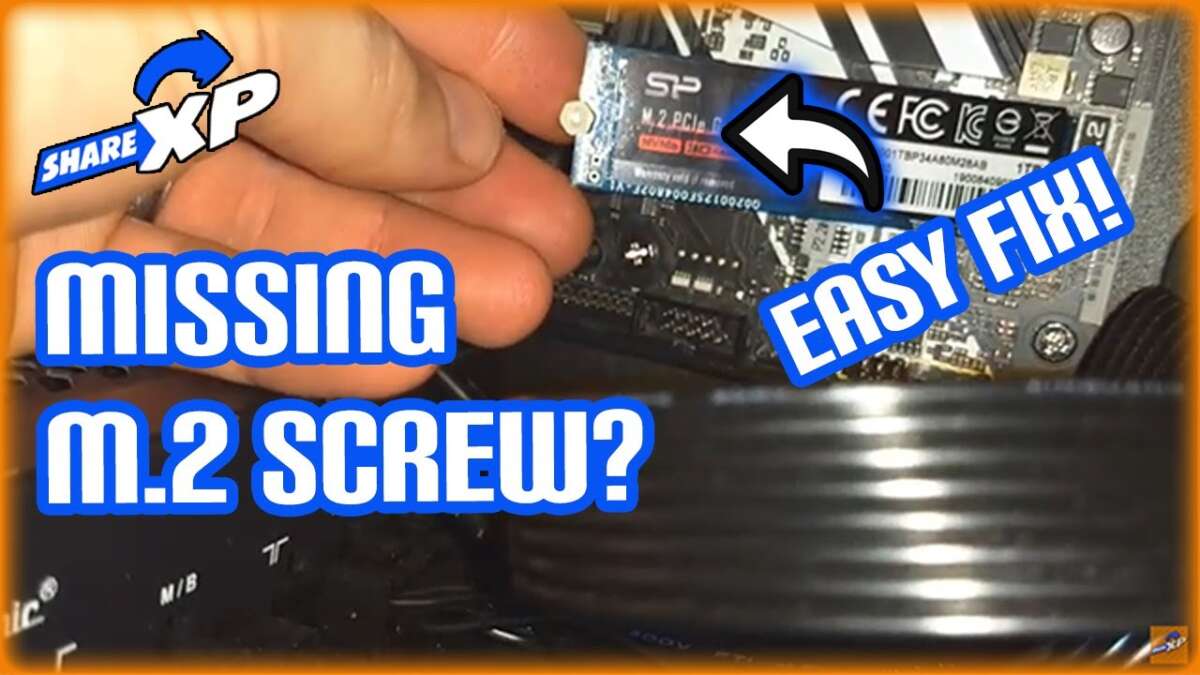
Most M.2 SSDs do not include a mounting screw, so check your motherboard or laptop before installation.
The question “do M 2 SSD come with screw” is common because the tiny screw is easy to miss and often comes with the computer, not the drive. This guide explains where the screw comes from, which type you need, how to install an M.2 SSD safely, and what to do if the screw is missing.
Do M 2 SSD Come With a Screw?
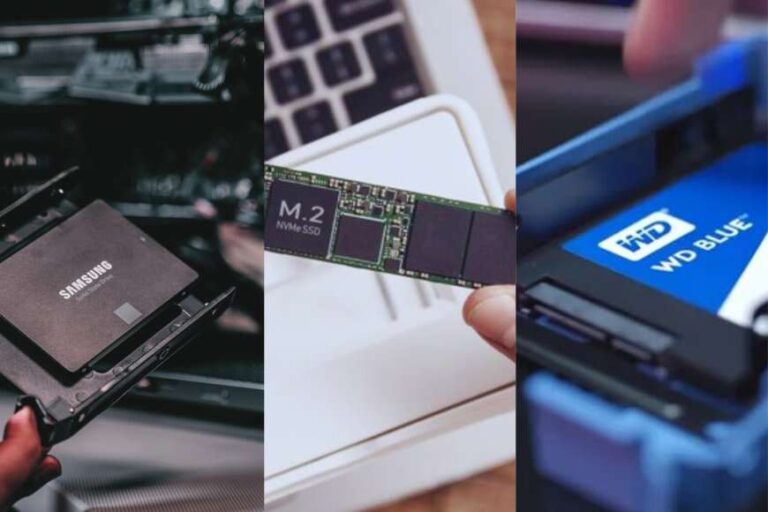
Usually, no. Most M.2 SSDs are sold with the storage drive only. The small mounting screw and standoff normally come with the motherboard, laptop, or prebuilt computer.
This design makes sense because M.2 screws are part of the system’s mounting hardware. Motherboards may support several M.2 sizes, such as 2230, 2242, 2260, and 2280. The correct screw position depends on the board layout.
When people ask, “do M 2 SSD come with screw,” they often expect the screw to be inside the SSD box. Some brands include one, but you should not assume it. Always check the product listing and the box contents before buying.
Common situations include:
• Desktop motherboard: The screw and standoff are often included with the motherboard.
• Laptop upgrade: The screw may already be inside the laptop or attached to the old drive.
• Prebuilt computer: The screw may be installed in the unused M.2 slot.
• Expansion card: The adapter card may include its own screw.
• Retail SSD kit: Some bundles include a screw, standoff, or small screwdriver.

Where Does the M.2 SSD Screw Come From?
The motherboard is the most common source of the M.2 screw. Look in the motherboard accessory box, manual packet, or small hardware bags labeled “M.2.”
Many boards use a brass or silver standoff beneath the SSD. The standoff raises the drive slightly above the board. The screw then holds the far end of the SSD down.
If you are wondering, “do M 2 SSD come with screw,” check these places first:
-
The motherboard box and accessory bags
-
The laptop’s original M.2 slot
-
The PC case accessory box
-
The M.2 heatsink packaging
-
The SSD installation kit
-
The unused screw already fitted in the motherboard
Some newer motherboards use tool-free clips instead of standard screws. These clips may look like small plastic posts or rotating locks. In that case, you may not need a screw at all.
What Screw Does an M.2 SSD Need?
Most M.2 SSDs use a small M2 screw. “M2” refers to the screw’s approximate 2-millimeter thread diameter. The exact length can vary by motherboard design.
A common M.2 mounting screw is around 2 to 3 millimeters long. However, you should use the screw supplied with your motherboard whenever possible. A screw that is too long may damage the board or prevent the SSD from sitting flat.
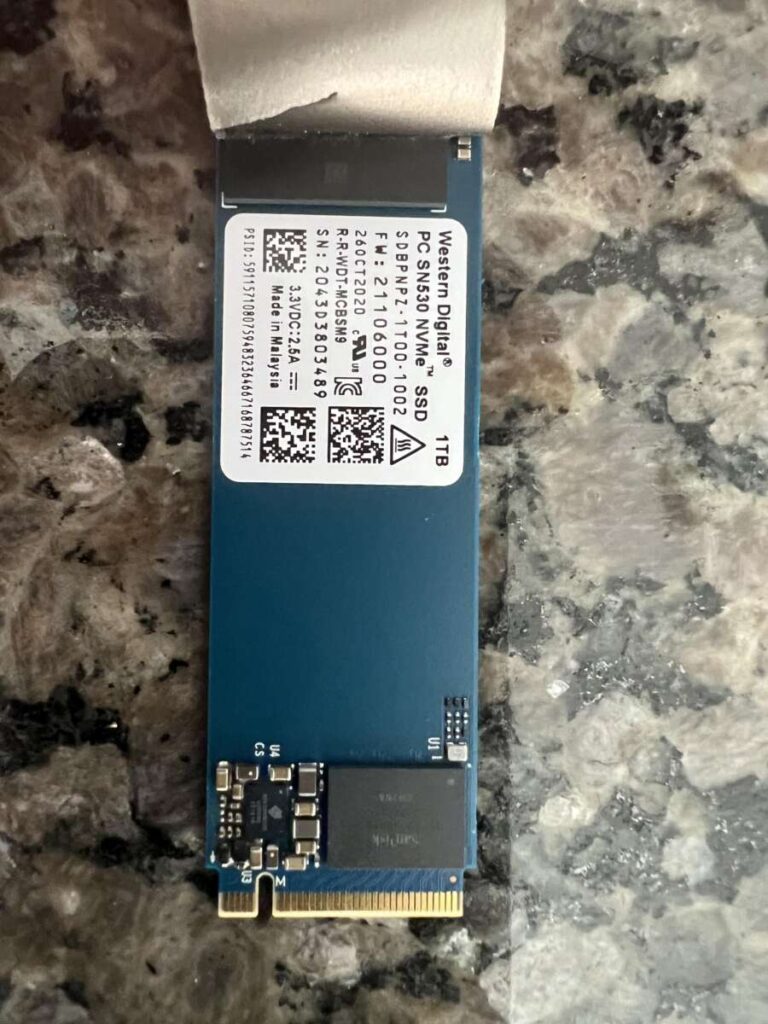
The drive itself has a small mounting hole at the end. The screw passes through this hole and enters the standoff below it. Do not force the screw if it does not turn easily.
Important points include:
• Use an M2 screw made for motherboard mounting.
• Do not use a large computer case screw.
• Do not use a random screw from a laptop hinge or hard drive.
• Make sure the standoff is in the correct position.
• Tighten the screw gently by hand.
A motherboard manual will usually show the correct screw type and mounting points. If the manual says “M.2 screw” or “M.2 nut,” follow that instruction.

Does the Motherboard Include the Screw?
In most desktop builds, yes. Motherboard manufacturers commonly include the M.2 screw and standoff with the board rather than with the SSD.
The hardware may arrive already installed in one M.2 position. This can make the screw hard to notice. Before installing the drive, inspect every M.2 slot and remove the screw from the correct mounting point.
Some boards include several standoffs. One may fit a 2280 drive, while another may fit a shorter 2242 drive. Use the position that matches your SSD length.
In my PC building work, the most common mistake is not a missing screw. It is an M.2 screw still hidden in the wrong mounting hole. A quick look with a flashlight often solves the problem.
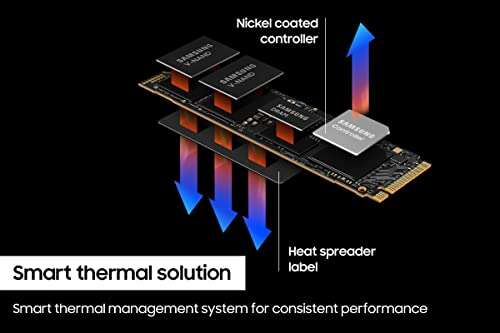
If your board has an integrated M.2 heatsink, the screw may be attached to the heatsink cover. Remove the cover carefully, then check whether the mounting hardware is already installed.

Do M 2 SSD Come With Screw for a Laptop?
Laptop M.2 SSDs often do not include a screw. The laptop manufacturer usually installs the screw in the laptop chassis. If the laptop already has an SSD, you can normally reuse its screw for the replacement drive.
Be careful with laptop screws because they can be very small and easy to strip. Use a precision Phillips screwdriver that fits the head properly. A poor fit can damage the screw head.
Before buying a replacement screw, check:
• The laptop model
• The M.2 drive length
• The original screw size
• The repair manual
• The laptop manufacturer’s parts list
Laptop mounting hardware is not always the same as desktop hardware. A screw that works in a desktop motherboard may be too long for a laptop. This is one reason the answer to “do M 2 SSD come with screw” differs between desktop and laptop upgrades.
If the original screw is missing, use a replacement made for that laptop model. Avoid forcing a screw into the standoff.

How to Install an M.2 SSD
Installing an M.2 SSD is simple when the correct screw and standoff are ready. Turn off the computer completely and unplug the power cable first.
Follow these steps:
-
Shut down the computer.
-
Turn off the power supply and unplug the power cable.
-
Hold the power button for a few seconds to discharge stored power.
-
Remove the computer case panel.
-
Find the M.2 slot on the motherboard.
-
Confirm that the standoff matches the SSD length.
-
Remove the M.2 screw from the mounting point.
-
Insert the SSD at about a 20 to 30-degree angle.
-
Push the drive gently into the connector.
-
Press the free end down toward the standoff.
-
Replace the small screw and tighten it lightly.
-
Reinstall the heatsink, if your board has one.
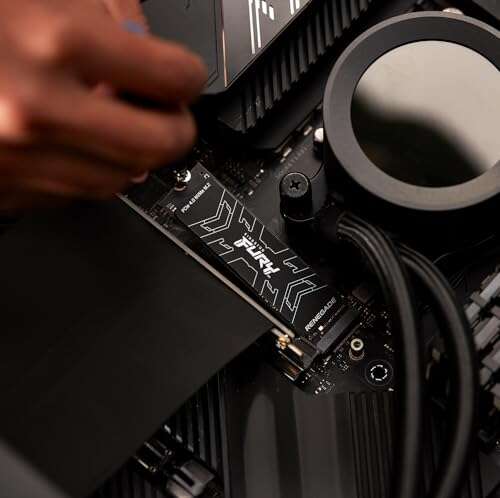
The gold contacts should slide into the connector smoothly. Never push the SSD straight down into the slot. The angled insertion protects the connector and helps the drive seat correctly.
The SSD should lie flat after installation. If it bends sharply, stop and check the standoff position. A slight bend can place stress on the circuit board.

What If the M.2 Screw Is Missing?
If your screw is missing, do not use tape, glue, or a large screw as a permanent fix. These methods can cause poor contact, physical damage, or a short circuit.
You can buy an M.2 screw kit from a computer parts store or electronics supplier. Look for a kit labeled “M2 SSD screw and standoff.” These kits often include several screw lengths and standoff styles.
Before ordering, compare the replacement with the original hardware. Check the thread, length, head shape, and standoff height.
Good replacement options include:
• A motherboard manufacturer replacement
• A laptop-specific replacement
• A standard M2 SSD screw kit
• An M.2 screw included with a heatsink kit
• A compatible screw from a computer repair shop
The best answer to “do M 2 SSD come with screw” does not change when a screw is missing: the screw is system hardware, and it must match the mounting system.
Common M.2 Installation Mistakes
A missing screw is only one possible problem. Many installation issues come from using the wrong slot or mounting hardware.
Avoid these mistakes:
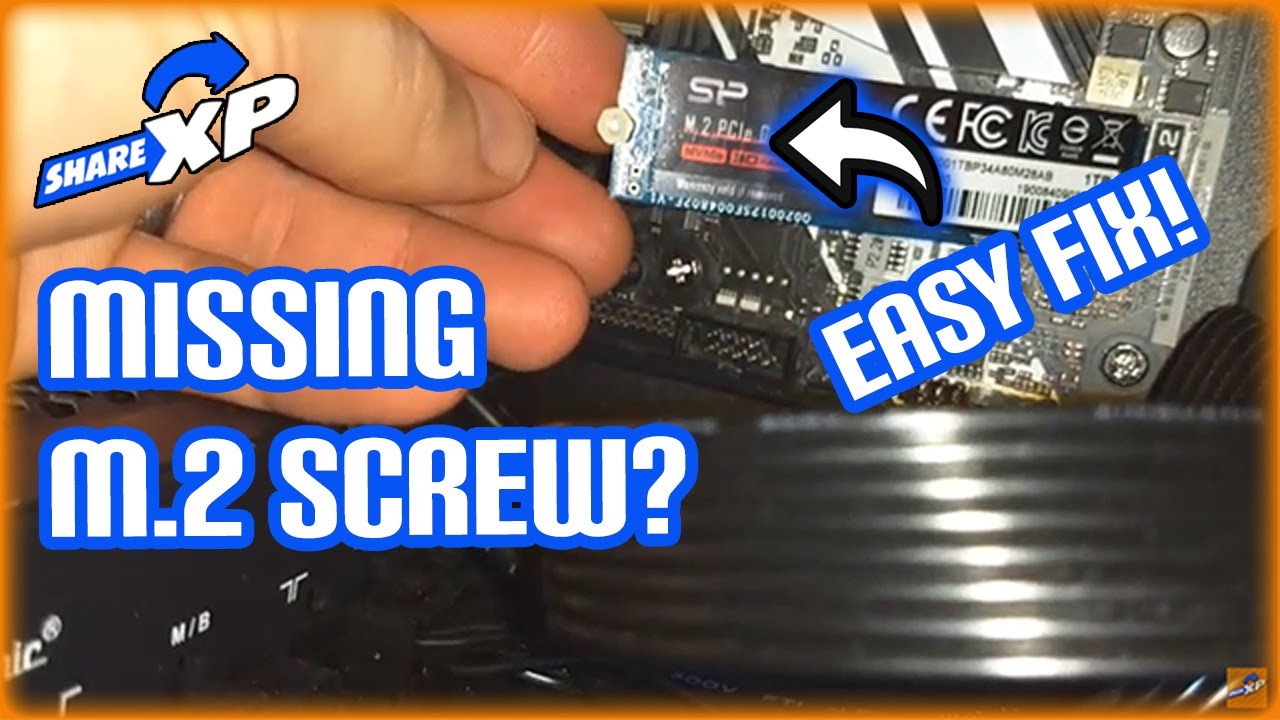
• Installing the SSD without a standoff
• Using a screw that is too long
• Tightening the screw too much
• Placing the SSD in the wrong key slot
• Touching the gold contacts
• Forgetting to remove protective film from a heatsink pad
• Installing a PCIe NVMe SSD in an incompatible SATA-only slot
• Failing to check BIOS or UEFI support
The notch on the SSD connector is called a key. M-key NVMe drives are common, but not every M.2 slot supports every drive type. Check the motherboard manual before installation.
Also, do not confuse an M.2 screw with a Wi-Fi card screw. M.2 Wi-Fi cards can use similar hardware, but their mounting position and device type may differ.

Can an M.2 SSD Work Without a Screw?
An M.2 SSD may work without a screw if it stays firmly in the connector, but this is not a safe installation. The drive can move, lift, or lose contact when the computer is moved.
The screw does more than hold the drive in place. It keeps the SSD level and maintains steady pressure inside the connector. Without it, a desktop computer may work one day and fail after being transported.
For testing, a technician may briefly power on a system before securing the drive. For normal use, always install the correct screw. This is especially important in laptops, which move often.
If your drive is not detected, first install the correct hardware. Then check the BIOS, operating system storage settings, and drive initialization process.
Do M 2 SSD Come With Screw in Retail Kits?
Some retail kits include a screw, but this depends on the brand and product bundle. A bare SSD usually contains the drive, documentation, and sometimes a cloning tool or software code.
SSD upgrade kits may include extra items such as:
• An M2 screw
• A mounting standoff
• A USB enclosure
• A SATA cable
• A heatsink
• A thermal pad
• Drive cloning software
Read the “what’s in the box” section before purchasing. Product photos can be misleading because sellers may show an SSD installed with a screw even when the screw is not included.
If the listing clearly promises a screw and it is missing, contact the seller or manufacturer. Keep the packaging and take a photo of the contents.
How to Check M.2 SSD Screw Compatibility
Screw compatibility depends on more than the thread diameter. The screw must also have the right length and head style for the standoff.
Use this simple check:
-
Compare the new screw with the original.
-
Confirm that it turns smoothly into the standoff.
-
Check that the SSD sits flat.
-
Make sure the screw does not touch nearby components.
-
Confirm that the screw head holds the SSD hole securely.
Never tighten a screw until the SSD bends. The screw only needs enough pressure to stop movement. Over-tightening can damage the drive, motherboard, or standoff.
A magnetic precision screwdriver can help. Keep the tip away from the exposed circuit board, and work on a clean, stable surface.
Frequently Asked Questions About Do M 2 SSD Come With Screw
Do all M.2 SSDs come with a screw?
No, most M.2 SSDs do not include a mounting screw. The screw usually comes with the motherboard, laptop, or computer case.
Where can I buy an M.2 SSD screw?
You can buy one from a computer parts store, electronics supplier, or online retailer. Search for an “M2 SSD screw and standoff kit” and match it to your system.
Can I use a regular screw for an M.2 SSD?
You should not use a random regular screw. An incorrect screw may have the wrong thread or length and can damage the motherboard or SSD.
What size screw is used for an M.2 SSD?
Most M.2 SSD installations use a small M2 screw. The length and head style vary, so the motherboard or laptop manual is the safest guide.
Can an M.2 SSD run without a screw?
It may work temporarily, but it should not be left unsecured. Movement can loosen the drive or interrupt its connection.
Does an M.2 heatsink include a screw?
Some heatsinks include mounting screws, while others use the motherboard’s existing hardware. Check the heatsink instructions before removing or replacing any screw.
What should I do if my motherboard has no M.2 screw?
Buy a compatible M2 SSD screw and standoff kit or request replacement hardware from the motherboard maker. Do not secure the drive with tape or glue.
Conclusion
So, do M 2 SSD come with screw? Usually, they do not. The correct screw and standoff most often come with the motherboard or laptop because they are part of the computer’s mounting system.
Check the original hardware, read the motherboard manual, and use only a compatible M2 screw. Install the SSD at an angle, press it down gently, and tighten the screw just enough to hold the drive flat.
A tiny screw can seem unimportant, but it keeps your storage drive stable and reliable. If this guide helped, share it with someone building a PC or upgrading a laptop, and explore your motherboard manual before starting the installation.

Everett Ashford is a tech reviewer at mytechgrid.com specializing in SSDs, cameras, TVs, earbuds, headphones, and other consumer electronics. He provides honest, data-driven reviews based on hands-on testing and real-world performance analysis. Everett simplifies complex tech details to help readers make smart, confident buying decisions.