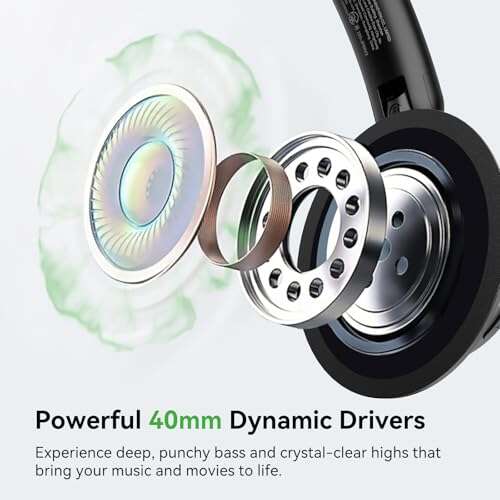
Yes. In the United States, you can talk through Bluetooth headphones during phone calls, video meetings, game chats, and voice assistant sessions—as long as the headphones have a built-in microphone and your device supports Bluetooth call audio.
You must pair the headphones, grant microphone access when asked, and select them as the audio input and output. If you can hear sound but no one can hear you, your device is likely using the wrong microphone or the headphones are connected only for music.

What “talk through Bluetooth headphones” means
Bluetooth headphones can send audio in two directions:


- Audio out: You hear music, calls, or other people through the headphones.
- Audio in: The built-in microphone picks up your voice and sends it to the phone, computer, or console.
Music often uses a Bluetooth mode called A2DP. This mode is designed for better sound playback. Calls and chat use a headset mode, often called HFP or HSP, which adds microphone support.
When the microphone turns on, sound quality may drop. This is normal. Bluetooth must carry both your voice and incoming sound at the same time.
Your headphones need a microphone
Most Bluetooth headsets, earbuds, and wireless gaming headsets include microphones. Some simple Bluetooth headphones do not.
Check for:
- A small microphone opening on one or both earcups
- A call button
- A model description that says “built-in mic,” “hands-free calling,” or “voice chat”
- A microphone listed in the product manual or technical specifications
A headphone model that only supports listening cannot send your voice through Bluetooth.
Bluetooth headphones do not always support every device
A phone usually supports Bluetooth calling well. A laptop also normally supports it, but you may need to choose the headset microphone manually.


Some TVs, streaming devices, and game consoles support Bluetooth audio only. They may let you hear sound but not use the headphone microphone.
The key question is not only, “Can this device connect to Bluetooth headphones?” It is also, “Does this device support the Bluetooth microphone for this type of call or chat?”
How to talk through Bluetooth headphones on a phone
Pair the headphones first. Then make a test call and check the call audio menu.
iPhone
- Open Settings.
- Tap Bluetooth.
- Turn Bluetooth on.
- Put the headphones in pairing mode.
- Tap the headphone name when it appears.
- Start a phone call or video call.
- Tap the audio button on the call screen.
- Choose your Bluetooth headphones.
During a call, speak toward the microphone openings. On many earbuds, the microphone sits near the lower stem or outer edge. Keep the microphone clear of hair, clothing, and a phone case.
Apple’s Bluetooth support guide explains the basic pairing process. The exact call controls can vary by iOS version and by the app you use.
Android phones
Android menus vary by brand, but the process is similar:
- Open Settings.
- Tap Connected devices, Connections, or Bluetooth.
- Turn Bluetooth on.
- Put the headphones into pairing mode.
- Select the headphones from the list.
- Open the device details, if available.
- Make sure Phone calls or Calls is enabled.
- Start a call and select the Bluetooth device if the phone asks where to send audio.
On some Android phones, the paired device has separate switches for Media audio and Phone calls. Both should be on if you want to listen and speak through the headphones.
For app calls, such as Google Meet, Zoom, WhatsApp, or Microsoft Teams, check the audio menu inside the app. The app may use a different microphone from the one used by the regular phone app.
How to confirm the microphone works
Make a short test call or record a voice memo. Speak at a normal volume. If the recording uses the phone microphone instead of the headphone microphone, check the app’s input settings and the Bluetooth device permissions.
A call icon or a small microphone icon on the headphones may also show that the headset microphone is active.
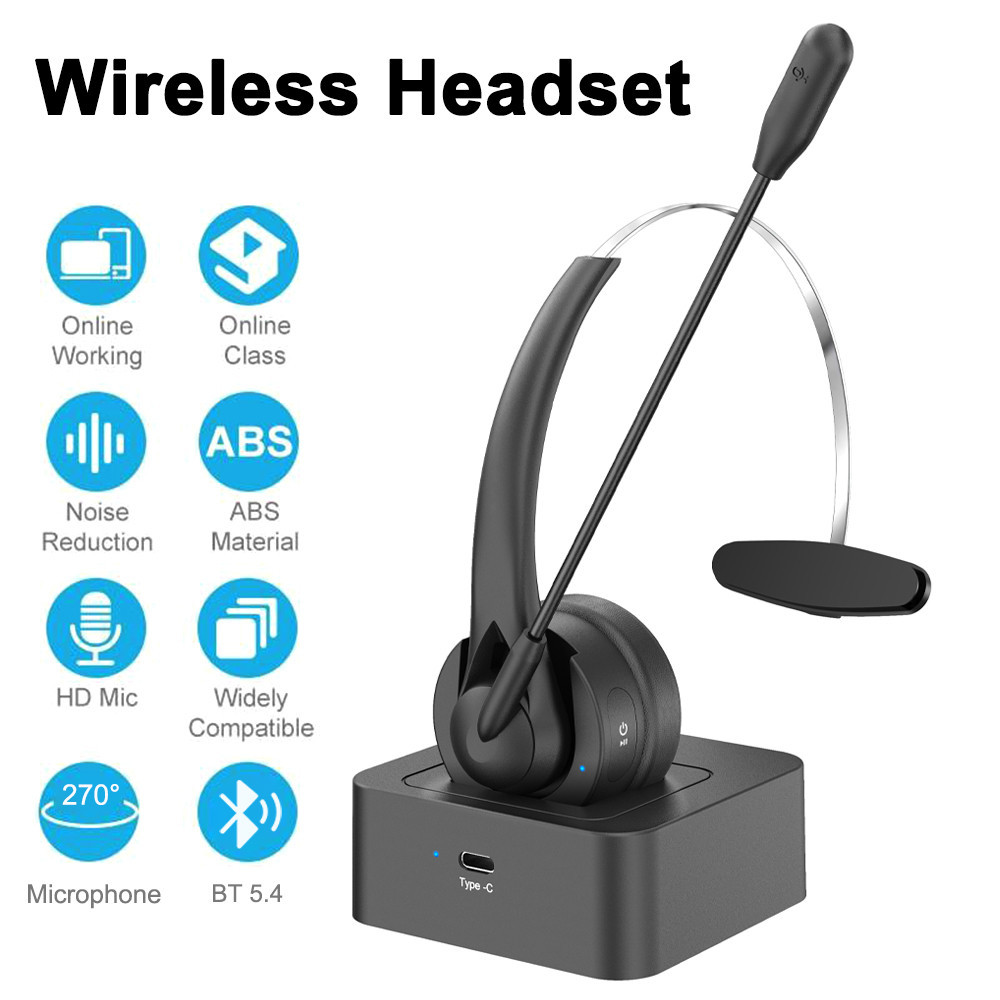
How to use Bluetooth headphones for calls on a Windows PC
Windows may list the same Bluetooth headphones as two audio devices:
- Headphones or Stereo: Better playback, usually without microphone use
- Headset or Hands-Free AG Audio: Microphone support, with lower sound quality
For a call, choose the headset or hands-free option as both the input and output device.
Windows 11 setup
- Open Settings.
- Select System.
- Choose Sound.
- Under Output, select your Bluetooth headphones.
- Under Input, select the headphones’ microphone.
- Speak and watch the input level move.
- Open your call app and select the same headphones for speaker and microphone.
In Zoom, Teams, Discord, Google Meet, and similar apps, audio settings inside the app can override Windows settings. Check both places.
Microsoft provides guidance for connecting Bluetooth devices in Windows.


Why PC sound quality drops during a call
Windows may switch from the stereo profile to the hands-free profile when the microphone is active. This gives the computer a two-way audio path, but it may sound less clear.
This is a Bluetooth design limit, not always a defect. If you need high-quality music while speaking, consider:
- A USB microphone with Bluetooth headphones
- A wired headset
- A wireless headset with its own USB receiver
- A newer computer and headset that support a suitable Bluetooth audio standard
The best choice depends on the computer, operating system, headset, and app. A newer Bluetooth version by itself does not guarantee better microphone quality.

How to use Bluetooth headphones on a Mac
macOS can use Bluetooth headphones for calls and online meetings.
- Open System Settings.
- Select Bluetooth.
- Connect the headphones.
- Open System Settings again.
- Select Sound.
- Choose the headphones under Output.
- Choose the headphone microphone under Input.
- Open your call app and confirm the same selections there.
You can also use the sound menu in the macOS menu bar to change the output device quickly.
When an app starts using the microphone, macOS may switch the Bluetooth headphones into a lower-quality call mode. This behavior is expected with many Bluetooth headsets.
If the headphones connect but the microphone does not appear, disconnect them, turn Bluetooth off and on, and pair them again. Also check System Settings > Privacy & Security > Microphone and allow access for the call app.
Apple’s Mac Bluetooth connection guidance and microphone privacy settings cover these controls.

Can you talk through Bluetooth headphones on a TV or game console?
Sometimes. The answer depends on the device.
Smart TVs
Many TVs can send sound to Bluetooth headphones. Fewer TVs support the headphone microphone for two-way conversation.
If you want to use Bluetooth headphones for TV calls, look for settings related to:
- Bluetooth headset
- Voice chat
- Microphone input
- Hands-free audio
- Bluetooth accessories
If the TV has no microphone input option, the headphones may work only as speakers.
A video calling app built into a smart TV may also support only the TV’s own microphone. Check the TV manual for the exact model.


PlayStation and Xbox
Game consoles often limit Bluetooth audio support. A console may not accept ordinary Bluetooth headphones for game chat, even if it can connect to other Bluetooth devices.
For reliable console chat, use one of these options when supported:
- A headset made for the console
- A wired headset connected to the controller
- A wireless headset with a compatible USB receiver
- A console-approved Bluetooth adapter
On PlayStation 5, Sony’s support information for compatible audio devices explains how to change audio output. Xbox also has its own accessory and compatibility limits.
Do not assume that a headset that works for music on a phone will work for voice chat on a console.
What to do when Bluetooth headphones connect but the mic does not work
Follow these checks in order. Start with the simple causes before resetting everything.
1. Check the mute controls
Look for:
- A mute button on the headphones
- A microphone mute setting in the call app
- A muted meeting participant control
- A physical boom mic that is folded up
- A touch control that muted the headset
Some headsets mute when you raise the microphone boom.
2. Select the correct input device
Your device may send sound to the headphones while using the built-in phone or computer microphone.
Open the sound settings and select the Bluetooth headset under Input, Microphone, or Voice input. Then check the same setting in the call app.
3. Allow microphone permission
On a phone, computer, or browser, the app may not have permission to use the microphone.
Check:
- iPhone: Settings > Privacy & Security > Microphone
- Android: Settings > Privacy > Permission Manager > Microphone
- Windows: Settings > Privacy & security > Microphone
- Mac: System Settings > Privacy & Security > Microphone
- Browser calls: select Allow when the site requests microphone access
The exact menu names may differ by operating system version.
4. Charge the headphones
Low battery can cause dropped connections, poor microphone performance, or a failure to enter call mode. Charge the headphones and test again.
5. Disconnect other Bluetooth devices
A phone or computer may connect to a car system, smartwatch, speaker, or second headset. Temporarily disconnect other devices and test the headphones alone.
6. Move closer to the device
Bluetooth works best with a clear path over a short distance. Walls, metal objects, crowded wireless areas, and the human body can reduce the signal.


Keep the headphones near the phone or computer during the test.
7. Reconnect and reset the pairing
Try this sequence:
- Turn the headphones off.
- Turn Bluetooth off on the device.
- Restart the phone or computer.
- Turn Bluetooth back on.
- Remove or forget the headphones from the Bluetooth list.
- Put the headphones into pairing mode.
- Pair them again.
- Test the microphone.
If the problem continues, follow the headphone maker’s reset instructions. A reset may erase saved connections.
How to improve voice quality through Bluetooth headphones
Good voice quality depends on more than Bluetooth. The microphone, room, network, app, and device all matter.
Use these habits:
- Keep the microphone opening clean.
- Do not cover the microphone with a hat, hair, or clothing.
- Avoid wind and loud fans.
- Speak at a normal distance from the microphone.
- Keep the headphones close to the connected device.
- Use a stable Wi-Fi or cellular connection for online calls.
- Test the microphone before an important meeting.
- Keep the headphone firmware and device software current when updates are available.
Bluetooth headphones can reduce background noise, but they cannot remove every sound. Noise cancellation often helps what you hear. It does not always remove noise from the microphone signal sent to other people.
Why people hear an echo
An echo may happen when:
- The call app plays sound through speakers while the microphone remains active
- The headphone microphone picks up sound leaking from the earcups
- Two devices are connected to the same call
- A second person nearby has the call open
- The app has poor echo control
Use the headphones for both input and output. Leave the call on only one device. If needed, lower the volume or use a headset with a boom microphone.
Bluetooth headphone call limits and safety tips
Bluetooth headphones are useful for hands-free calls, but they are not perfect in every setting.
Bluetooth range is limited
The connection can weaken when you move far from the phone or computer. The advertised range is usually measured in open conditions. Walls and interference can reduce real-world range.
Battery life affects calls
A headset may have enough battery for a short music session but not a long meeting. Charge it before work calls, travel, or emergency use.
Do not rely on Bluetooth headphones as your only way to reach emergency services. Keep your phone charged and accessible. In the United States, emergency call behavior can vary by device, carrier, network, and location.
Protect your hearing
Keep the volume at a comfortable level. Loud sound over time can harm hearing. If people nearby can hear your audio clearly, the volume may be too high.
Use speaker mode or a different setup when you need to hear traffic, alarms, or other important sounds. Noise cancellation can make it harder to notice your surroundings.
Protect private conversations
Bluetooth connections are designed to use wireless security, but privacy also depends on the phone, computer, app, and account. Avoid pairing with unknown devices. Review microphone permissions and disconnect the headphones when you no longer need them.
Quick decision table
| Situation | Can Bluetooth headphones usually send your voice? | What to check |
|---|---|---|
| iPhone phone call | Yes | Headphones have a mic and are selected for call audio |
| Android phone call | Yes | “Phone calls” and microphone access are enabled |
| Windows video call | Usually | Choose the headset as both input and output |
| Mac video call | Usually | Select the mic in macOS and the calling app |
| Smart TV | Sometimes | The TV must support Bluetooth microphone input |
| PlayStation or Xbox chat | Sometimes | The console and headset must support the same chat method |
| Music playback | Not usually | Music mode may not use the microphone |
| Headphones without a mic | No | Use a headset or separate microphone |
The main trade-off is simple: Bluetooth headphones offer comfort and freedom, but call quality and compatibility vary more than with a wired headset or dedicated wireless receiver.
Frequently asked questions
Can I talk on the phone with wireless earbuds?
Yes. Most wireless earbuds have built-in microphones. Pair them with your phone, select them during the call, and make sure the phone app has microphone permission.
Can people hear me through Bluetooth headphones?
They can if the headphones have a working microphone and the device is using it as the input. If people cannot hear you, check the input setting, mute control, and app permission.
Why can I hear a call but cannot speak?
The headphones may be connected for media audio only. Open the Bluetooth device settings and enable phone calls or hands-free audio. Then select the headphone microphone in the calling app.
Can I use Bluetooth headphones and the phone microphone at the same time?
Often, yes. Some phones and apps let you choose Bluetooth headphones for listening while using the phone’s built-in microphone. The available choices depend on the operating system and app.
Can I use Bluetooth headphones for Zoom or Microsoft Teams?
Usually, yes, on compatible phones and computers. Select the headphones as both the speaker and microphone inside the app. If the sound becomes less clear, the system has likely switched to hands-free Bluetooth mode.
Do Bluetooth headphones work for emergency calls?
They may, but do not depend on them. Emergency call behavior can change based on the phone, wireless carrier, network coverage, battery level, and local conditions. Keep the phone available and use the phone’s normal emergency calling controls.
Conclusion
You can talk through Bluetooth headphones when three conditions are met: the headphones have a microphone, the device supports two-way Bluetooth audio, and the correct input and output settings are selected.
For the most reliable setup, pair the headphones, enable call audio, choose the headset microphone, and test it before the call begins. If it works for music but not speech, check the microphone permission and input device first.

Everett Ashford is a tech reviewer at mytechgrid.com specializing in SSDs, cameras, TVs, earbuds, headphones, and other consumer electronics. He provides honest, data-driven reviews based on hands-on testing and real-world performance analysis. Everett simplifies complex tech details to help readers make smart, confident buying decisions.