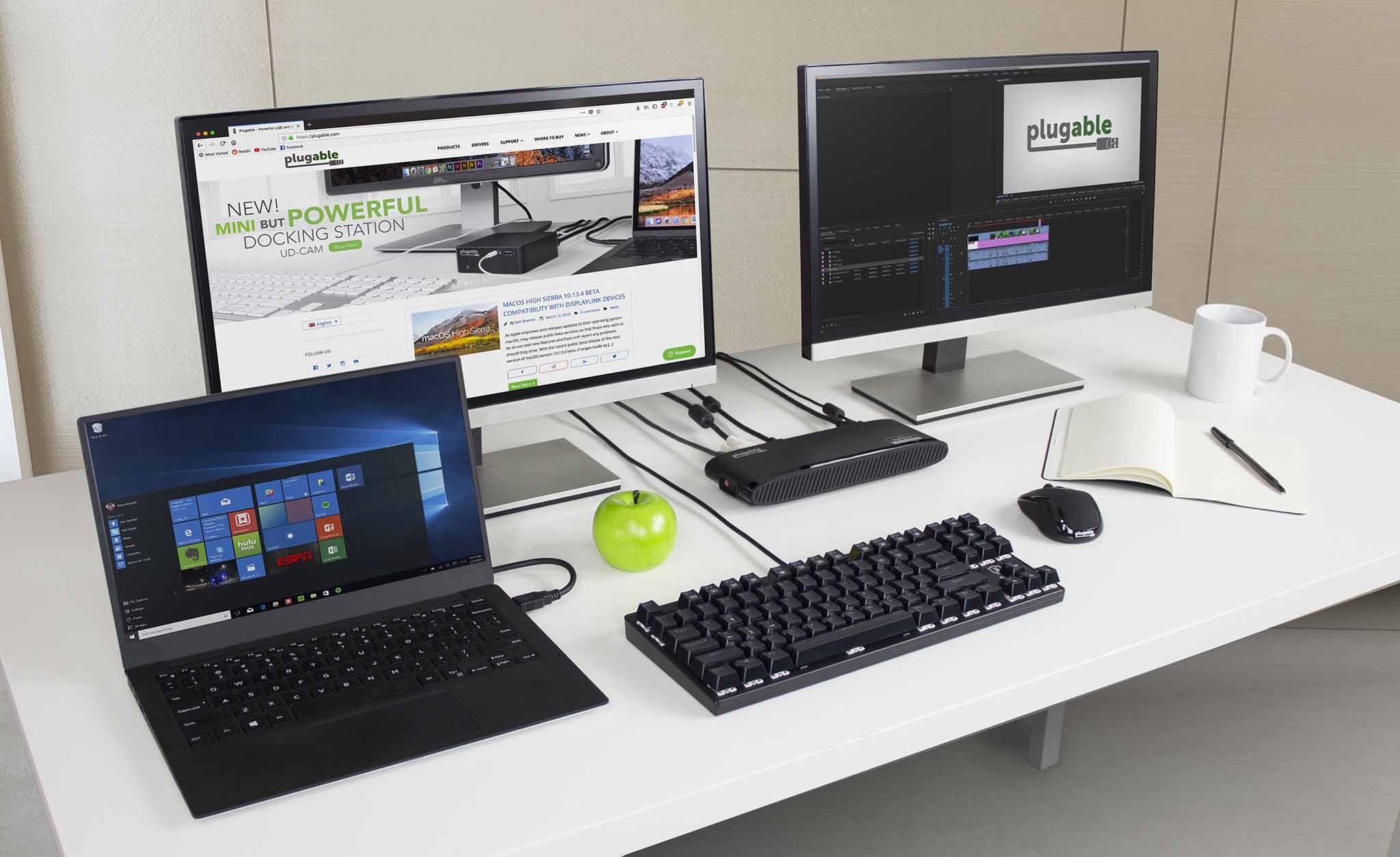
The best laptop docking station setup for most people in the United States is a powered USB-C or Thunderbolt dock connected to one or two external monitors, a wired network, and your main desk devices. The dock should support your laptop’s charging needs, match your monitor resolution, and provide enough ports for your keyboard, mouse, storage, webcam, and other tools.
For most home offices, a good setup looks like this:
Laptop → USB-C or Thunderbolt dock → monitors, Ethernet, keyboard, mouse, webcam, and power
This guide explains how to choose the right dock, connect it, avoid common compatibility problems, and build a clean desk that works when you plug in your laptop.

The Best Docking Station Setup at a Glance
The best setup depends on your laptop, displays, work needs, and budget. There is no single dock that fits every computer.
| User type | Recommended setup | Best connection |
|---|---|---|
| Basic home office | One 1080p or 1440p monitor, keyboard, mouse, Ethernet | USB-C dock |
| Professional office | Two 1440p monitors, Ethernet, webcam, storage | USB-C or Thunderbolt 4 dock |
| MacBook user | One or two supported displays, Ethernet, USB devices | Thunderbolt or USB-C dock |
| Windows laptop user | One or two monitors, Ethernet, USB accessories | USB-C, USB4, or Thunderbolt dock |
| Creative worker | High-resolution monitor, fast storage, card reader, Ethernet | Thunderbolt 4 or USB4 dock |
| Gamer | External monitor connected directly to the laptop, plus USB dock features | Direct HDMI or DisplayPort for video |
| Heavy workstation user | Multiple high-resolution displays and high-speed storage | Thunderbolt 4 or USB4, if supported |
A powered dock is usually better than a simple USB-C hub for a permanent desk. A dock can connect several devices and charge the laptop through one cable. A small hub is better for travel or occasional use.
The key point is simple: buy for the laptop and monitor combination, not just for the number of ports.
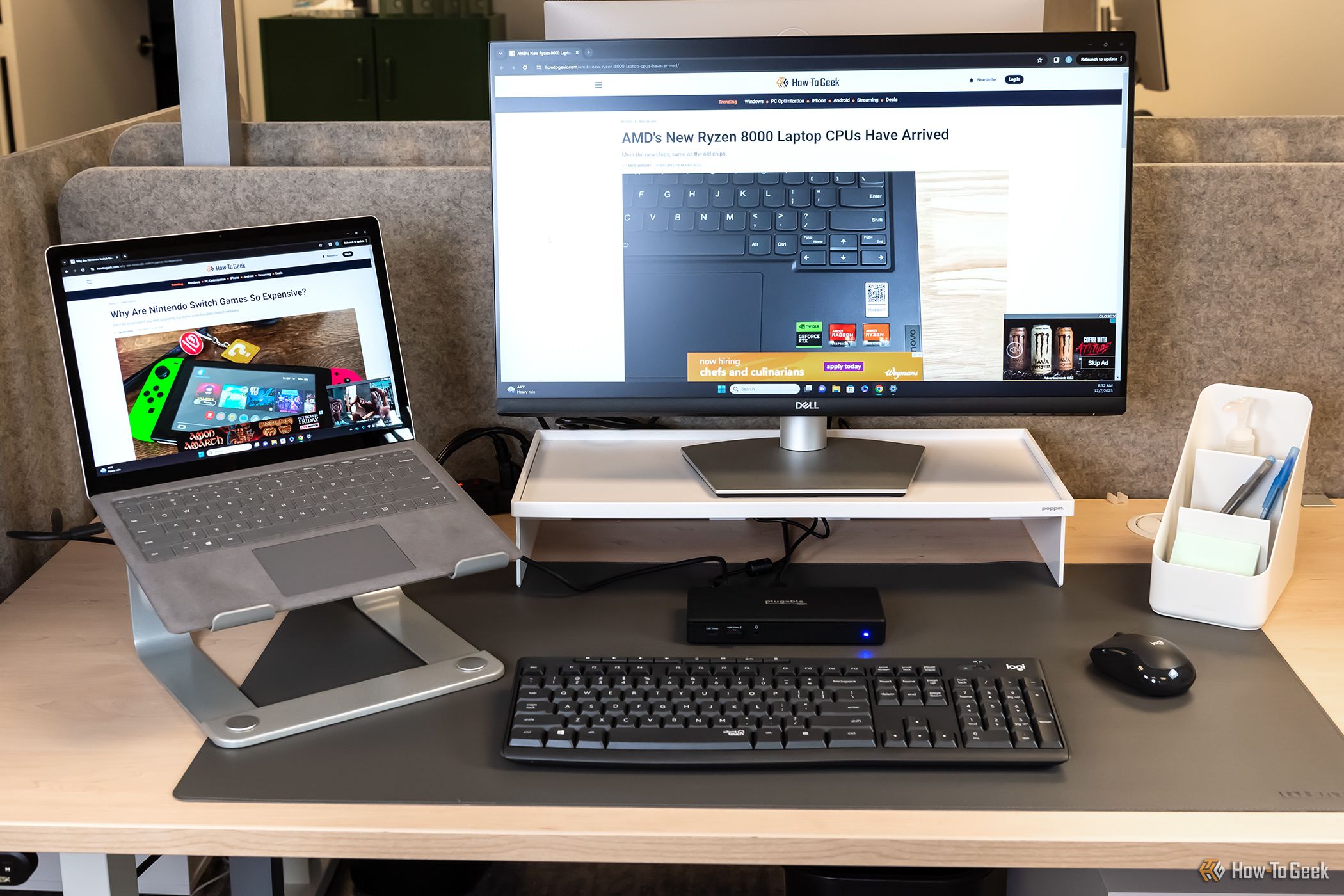
What Is a Laptop Docking Station?
A laptop docking station is a device that expands one laptop connection into several ports. It may provide video output, USB ports, Ethernet, audio, memory card slots, and laptop charging.
A dock can turn a laptop into a desktop-style workstation. You can leave your monitor, keyboard, mouse, speakers, and network cable connected to the dock. When you return to your desk, connect one cable to the laptop.
Dock versus USB-C hub
A USB-C hub is usually small and bus-powered. It may offer:
- HDMI
- USB-A
- USB-C data
- SD card access
- Basic power pass-through
A docking station is often larger and may include:
- Its own AC power adapter
- Laptop charging
- Multiple monitor outputs
- Gigabit or faster Ethernet
- More USB ports
- Audio connections
- Higher data bandwidth
- Support for business features
The terms are not used in a strict way by every brand. Check the specifications instead of relying on the product name.
USB-C is a connector, not a full feature list
USB-C describes the shape of the port. It does not tell you the port’s speed or features.
A USB-C port may support:
- USB data only
- Charging only
- DisplayPort video
- USB Power Delivery
- Thunderbolt
- USB4
Your laptop must support the feature you need. For example, a USB-C port that supports charging but not video cannot send a display signal through a standard USB-C dock.
Look for symbols near the port or check the laptop manual. A lightning-bolt symbol often indicates Thunderbolt, though the exact symbol can vary by device.
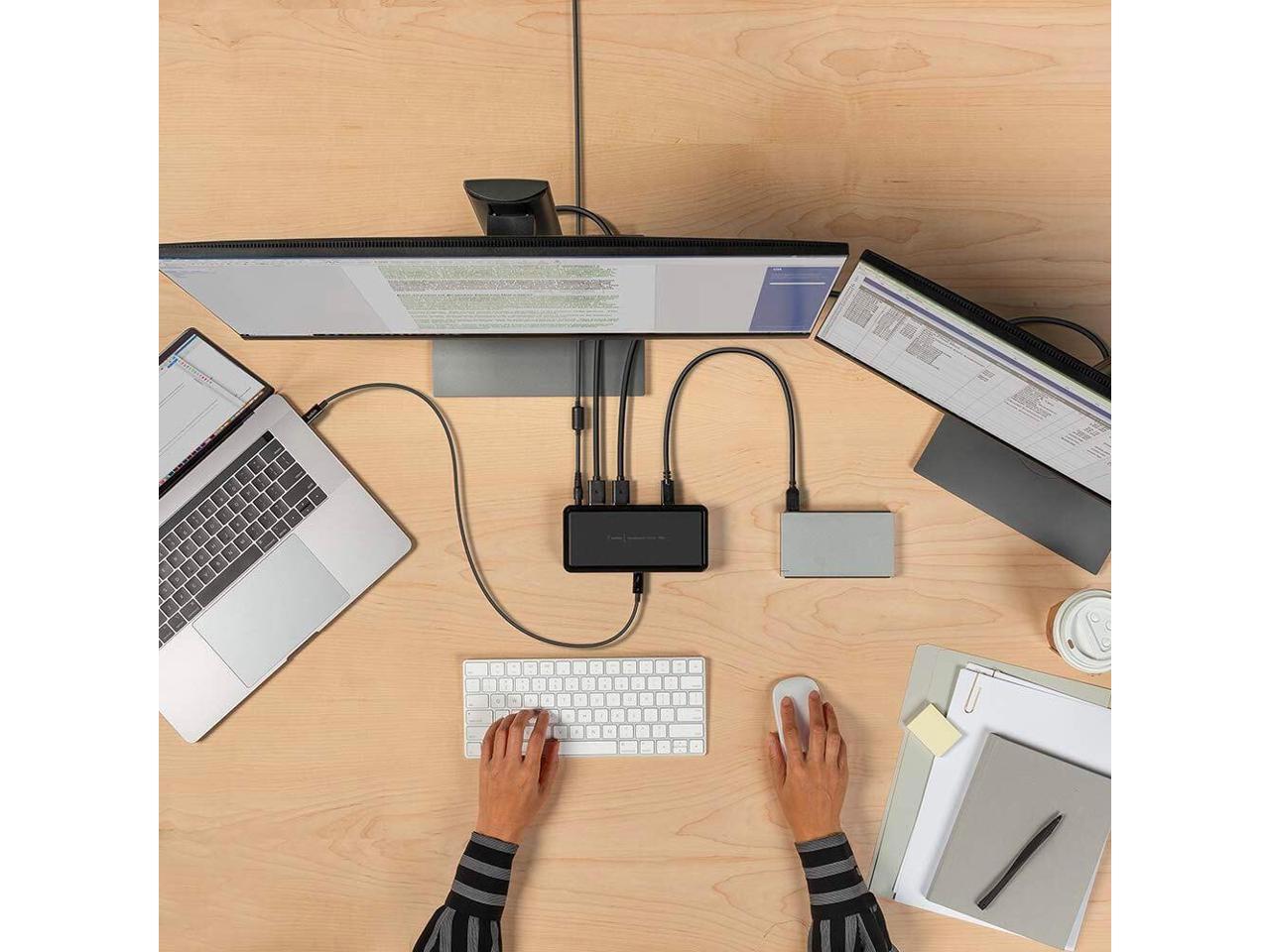
Choose the Dock by Laptop Compatibility
Start with the laptop. The dock must support the laptop’s port type, operating system, charging needs, and display limits.
USB-C docks
A USB-C dock can be a good choice when your laptop supports:
- DisplayPort over USB-C
- USB Power Delivery
- The required USB data speed
USB-C docks are often less costly than Thunderbolt docks. They work well for office use, web work, video calls, and standard monitors.
Thunderbolt 4 docks
Thunderbolt 4 docks use the USB-C connector but require Thunderbolt support. They can provide more bandwidth for high-speed storage, displays, and other devices.
A Thunderbolt 4 dock may be useful if you:
- Use a high-resolution monitor
- Transfer large video or photo files
- Need several fast devices at once
- Use a compatible Windows laptop or Mac
- Want a dock with broad Thunderbolt and USB compatibility
Thunderbolt 4 does not remove every display limit. The laptop, dock, operating system, and monitors still determine the final result.
USB4 docks
USB4 can offer high data speeds and USB-C compatibility, but features vary by device. Check the exact USB4 version, display support, charging support, and included power adapter.
Do not assume that every USB4 port behaves the same way. The laptop maker’s technical specifications matter.
MacBook display limits
MacBook models differ in the number of external displays they can run. Some models support one external display, while others support two or more.
A dock cannot always bypass a limit set by the Mac’s hardware. Some docks use DisplayLink technology to add displays through software. DisplayLink can help in some office setups, but it may need a driver and permission in macOS. It may also be less suitable for protected video, gaming, or color-critical work.
Check Apple’s support documentation for the exact Mac model before buying a dock.
Windows laptop display limits
Windows laptops also vary. Display support depends on the graphics system, USB-C mode, Thunderbolt or USB4 support, and the laptop manufacturer’s design.
A laptop may have a USB-C port that supports only one external display. Another model may support two or more. A dock cannot create unlimited independent video outputs from a port with limited graphics support.
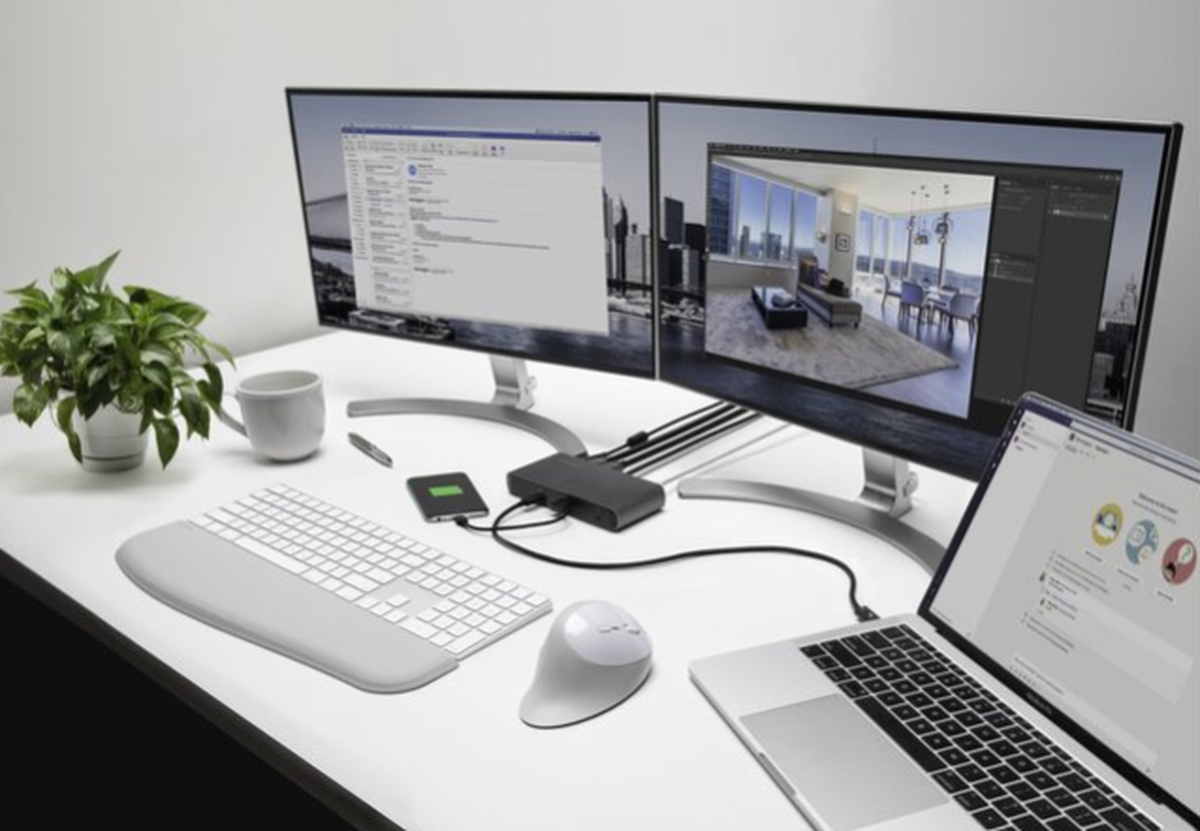
Match the Dock to Your Monitors
The display is often the most important part of a docking station setup. Check resolution, refresh rate, connection type, and the number of screens.
One-monitor setup
For one monitor, a USB-C dock with HDMI or DisplayPort is often enough.
A practical office setup may include:
- One 24- to 27-inch monitor
- 1080p or 1440p resolution
- 60 Hz refresh rate
- HDMI or DisplayPort
- USB-C laptop connection
- Ethernet and USB ports on the dock
A single-monitor setup is easier to configure and places less demand on the dock.
Two-monitor setup
For two monitors, confirm all of these points:
- The laptop supports two external displays.
- The dock supports two independent displays.
- The dock has the right video outputs.
- The cables support the chosen resolution and refresh rate.
- The operating system can arrange the screens as extended displays.
Two 1440p monitors may require more bandwidth than two 1080p monitors. High refresh rates also increase the demand on the graphics system and connection.
HDMI, DisplayPort, and USB-C video
HDMI is common on TVs and monitors. It is simple and widely supported.
DisplayPort is common on computer monitors and can be useful for high refresh rates and multi-display setups.
USB-C video uses DisplayPort Alt Mode or another supported video feature. It can carry video, data, and power through one connector, but only when the laptop and dock support those functions.
Use DisplayPort when your monitor and dock support it and you need a high refresh rate or a direct computer-monitor connection. Use HDMI when it offers the resolution and refresh rate you need.
Gaming and high refresh rates
A dock may not be the best path for a gaming monitor. For low delay and high refresh rates, connect the gaming display directly to the laptop when possible.
You can still use a dock for:
- Keyboard
- Mouse
- Headset
- Ethernet
- Webcam
- Secondary monitor
Check the dock’s stated limits. “Supports 4K” does not necessarily mean it supports 4K at 120 Hz. Resolution and refresh rate must be considered together.
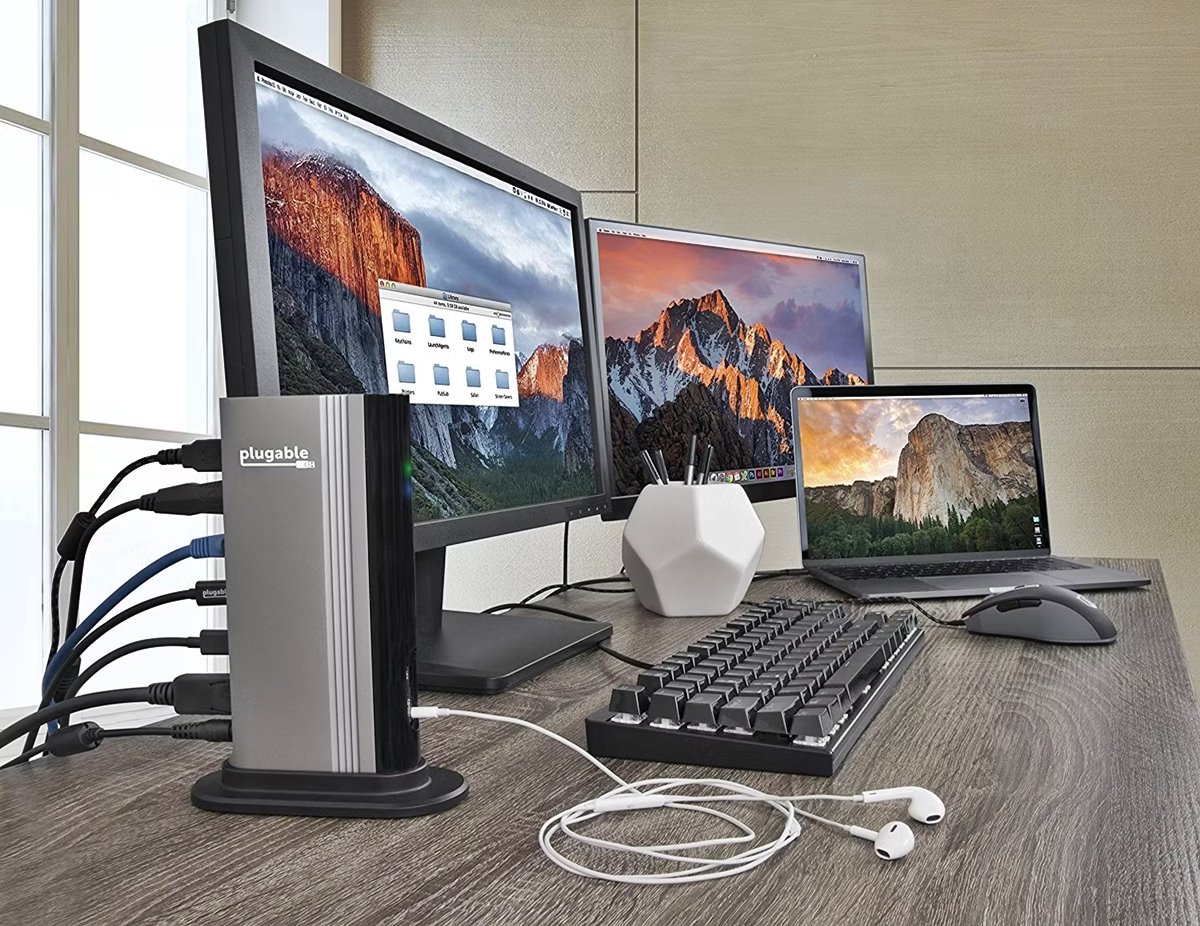
Build the Best Physical Desk Setup
A good docking station setup should reduce cable clutter without creating a single point of failure that is hard to troubleshoot.
Place the dock close to the laptop, but leave space around it for airflow. Do not cover the dock with papers, fabric, or other items that can trap heat.
A useful cable layout is:
- Dock near the rear or side of the desk
- Monitor cables routed behind the monitor
- Ethernet cable routed toward the router or network switch
- Keyboard and mouse connected to the dock
- Laptop cable placed where it can be reached easily
- Power adapter secured under or behind the desk
Recommended connection order
Connect the desk in this order:
- Plug the dock’s power adapter into a wall outlet or approved surge protector.
- Connect the monitor or monitors to the dock.
- Connect Ethernet, if used.
- Connect the keyboard, mouse, webcam, audio devices, and storage.
- Connect the dock to the laptop with the correct USB-C or Thunderbolt cable.
- Open the laptop and check charging, displays, network, and USB devices.
- Set the display arrangement in Windows or macOS.
The dock’s own power adapter matters. A dock may have many ports but still provide weak laptop charging if the adapter is too small.
Keep the laptop open or closed?
Both options can work.
Use the laptop open when you want:
- The built-in screen as another display
- Easy access to the power button
- Better airflow around some laptops
- The webcam or microphone built into the laptop
Use the laptop closed when you want:
- A cleaner desk
- A single large external monitor
- Less visual clutter
Closed-lid operation may require the laptop to be connected to power and an external keyboard or mouse. Settings vary by operating system.

Check Power Delivery Before You Buy
Power Delivery, often called USB PD, lets the dock send power to the laptop through the same cable that carries data and video.
The dock must provide enough power for the laptop. A basic office laptop may need less power than a mobile workstation or gaming laptop.
Check three numbers:
- The laptop’s required charger wattage
- The dock’s maximum laptop charging wattage
- The dock’s power adapter rating
For example, if a laptop normally uses a 100-watt charger, a dock rated for only 60 watts may charge it slowly or fail to keep up during heavy work. The dock may still function, but the laptop could reduce performance or discharge its battery.
Some dock specifications list the adapter’s total wattage rather than the power available to the laptop. Read the charging section carefully.
When the original charger is still useful
Keep the original charger nearby if:
- The dock cannot match the laptop’s power needs
- You use a high-performance laptop
- The laptop charges slowly through the dock
- You use demanding software for long periods
- The dock has many devices connected
A separate charger may be less tidy, but it can provide more reliable power.
Power and heat safety
Use the power adapter supplied with the dock unless the manufacturer clearly supports a replacement. Do not force a connector into a port or use a damaged cable.
Keep power adapters and docks dry. If a dock becomes unusually hot, smells burnt, makes noise, or repeatedly disconnects, unplug it and stop using it until the cause is clear.

Pick the Right Ports for Your Devices
Count the devices you will use now and the devices you may add later. A dock with many ports is not automatically better if it shares bandwidth or lacks the port type you need.
Useful dock ports
| Port | Common use | What to check |
|---|---|---|
| USB-A | Keyboard, mouse, printer, older drives | USB speed and power |
| USB-C data | New drives and accessories | Data speed and charging |
| HDMI | Monitor or TV | Resolution and refresh rate |
| DisplayPort | Computer monitor | Resolution and refresh rate |
| Ethernet | Wired internet or local network | 1Gbps, 2.5Gbps, or faster |
| SD or microSD | Cameras and media cards | Read and write speed |
| 3.5 mm audio | Headphones or speakers | Mic support |
| USB-C power input | Dock power | Required adapter rating |
A webcam, external drive, and wireless receiver may all work through USB. However, several high-speed devices can share the dock’s bandwidth.
For file work, connect a fast external drive to the fastest suitable port. For a keyboard or mouse, nearly any standard USB data port is usually enough.
Ethernet versus Wi-Fi
Ethernet can improve consistency for video calls, large file transfers, remote desktops, and local network storage. Wi-Fi is more convenient and may be fast enough for normal work.
A dock with Ethernet does not guarantee faster internet. The result also depends on the router, internet plan, network cable, and local network.

Troubleshoot a Docking Station in the Right Order
When a dock fails, start with simple connection checks. Do not immediately replace every cable or reinstall the operating system.
The monitor shows no image
Check these steps:
- Confirm the monitor is on and set to the correct input.
- Reseat the cable at both ends.
- Try another video cable.
- Test the monitor directly with the laptop.
- Disconnect other dock devices and test the display alone.
- Restart the laptop with the dock connected.
- Check whether the laptop supports video through that USB-C port.
- Update the dock firmware or required driver from the manufacturer.
If the monitor works when connected directly but not through the dock, the issue may involve dock compatibility, bandwidth, firmware, or display limits.
The laptop does not charge
Check the dock’s power adapter first. Then confirm that:
- The dock supports USB Power Delivery.
- The dock supplies enough wattage.
- The USB-C cable supports charging.
- The laptop’s charging port is the one connected to the dock.
- The dock is not using a travel adapter with limited power.
A dock may run USB devices while failing to charge a laptop. These are separate functions.
USB devices disconnect
Possible causes include:
- A loose cable
- An underpowered dock
- A damaged USB device
- Too many high-power devices
- Outdated firmware
- A sleep or power-management setting
Test one USB device at a time. If only one device causes the problem, test that device directly on the laptop.
Ethernet is slow or unstable
Check the network cable, router port, and dock link speed. If the dock supports only 1Gbps Ethernet, it cannot provide a faster wired link even if your network supports one.
Also test the laptop’s Wi-Fi and another wired device. This helps show whether the problem is the dock or the network.

Common Docking Station Mistakes to Avoid
The most common mistake is buying a dock by port count alone. A dock with 12 ports may not support the displays, charging level, or bandwidth that your laptop needs.
Avoid these errors:
- Assuming every USB-C port supports video
- Assuming USB-C means Thunderbolt
- Buying a dock before checking the laptop model
- Using a low-quality or incorrect USB-C cable
- Expecting a MacBook to exceed its display limit
- Using a dock for high-refresh gaming without checking support
- Ignoring the dock’s power adapter rating
- Hiding the dock where heat cannot escape
- Connecting many fast drives without considering shared bandwidth
- Assuming a dock will fix a weak Wi-Fi or internet connection
A dock is a connection system, not a graphics upgrade. It cannot turn a laptop with limited display hardware into an unlimited multi-monitor workstation.
A Simple Buying Checklist
Before you choose a dock, write down the answers to these questions:
- What is the exact laptop model?
- Does its USB-C port support DisplayPort video?
- Does it support Thunderbolt or USB4?
- How many external displays can it run?
- What resolution and refresh rate do the monitors need?
- How many USB-A and USB-C devices will you use?
- Do you need Ethernet?
- Do you need an SD card reader?
- How much power does the laptop require?
- Will you use the dock for gaming, video editing, or large file transfers?
- Does the dock include the correct power adapter?
- Does the manufacturer list support for your operating system?
For a typical U.S. home office, a powered USB-C dock with one DisplayPort or HDMI output, several USB ports, Ethernet, and adequate Power Delivery is often the sensible starting point.
Choose a Thunderbolt 4 or USB4 dock when you need more bandwidth, faster storage, higher-resolution displays, or wider compatibility with supported computers.
Frequently Asked Questions
Can I use a docking station with any laptop?
No. The laptop must support the dock’s required connection features. A USB-C port may support data but not video or charging. Check the laptop’s manual or technical specifications before buying.
Is Thunderbolt better than USB-C?
Thunderbolt can provide more bandwidth and advanced display and storage support, but it costs more and requires compatible hardware. USB-C is often enough for one monitor, office accessories, Ethernet, and normal charging.
Do I need a dock with DisplayLink?
Usually not for a basic one- or two-monitor setup supported by the laptop. DisplayLink may help when you need extra displays beyond the laptop’s native support. It uses software and may not suit gaming or protected video.
Can a docking station replace my laptop charger?
Sometimes. The dock must support USB Power Delivery at a wattage high enough for the laptop. High-performance laptops may still need their original charger.
Should I connect my monitor to the dock or directly to the laptop?
Use the dock for a clean office setup and easy one-cable connection. Connect the monitor directly to the laptop when you need the lowest possible delay, a very high refresh rate, or the dock does not support the display’s full specifications.
Conclusion
The best laptop docking station setup is a powered dock that matches your laptop’s video, data, and charging limits. For most people, the ideal desk includes one or two monitors, Ethernet, a keyboard, a mouse, and other accessories connected to the dock.
Start with the laptop model. Then check display support, Power Delivery, port speeds, cable requirements, and the dock’s operating system support. If the dock meets those limits, one cable can give you a clean and practical workstation without sacrificing the flexibility of a laptop.

Everett Ashford is a tech reviewer at mytechgrid.com specializing in SSDs, cameras, TVs, earbuds, headphones, and other consumer electronics. He provides honest, data-driven reviews based on hands-on testing and real-world performance analysis. Everett simplifies complex tech details to help readers make smart, confident buying decisions.