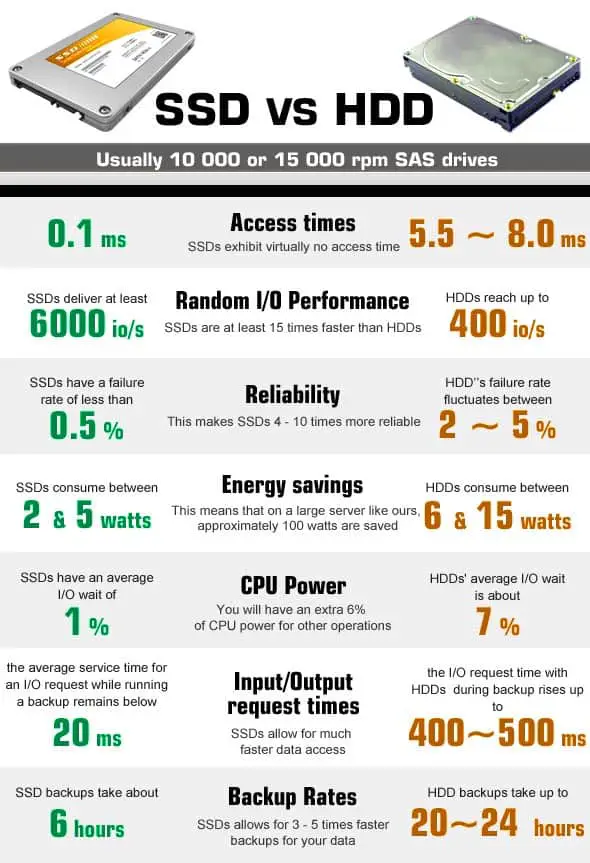
For most Windows PCs, Macs, and laptops in the United States, an SSD is more stable than an HDD because it has no moving parts. An SSD does not use spinning platters or a moving read/write head. This makes it less likely to fail from drops, vibration, motor wear, or head damage.
That does not mean an SSD lasts forever. Flash memory wears out, controllers can fail, and data can be lost if a drive is damaged. The best setup for most people is an SSD for daily use, plus a separate backup for important files.
Introduction
When people ask why an SSD is more stable than an HDD, they often mean one of three things:
- Which drive is less likely to fail during normal use?
- Which drive is safer in a laptop or portable computer?
- Which drive will keep data available with fewer problems?
An SSD usually wins for active use. It starts faster, handles shocks better, and has fewer parts that can wear out. An HDD can still be useful for low-cost storage and backups, especially when capacity matters more than speed.
The key point is simple: an SSD is usually more physically stable, while an HDD may still be useful for cheap, large-scale storage.
What Makes an SSD More Stable Than an HDD?
An SSD is more stable mainly because it stores data in flash memory instead of on spinning magnetic disks. This changes how the drive handles movement, heat, wear, and everyday use.
1. An SSD has no moving parts
An HDD contains several mechanical parts:
- Spinning platters
- A motor
- A read/write head
- An actuator arm
- Bearings and other moving components
The read/write head moves over the platter without touching it during normal operation. A hard impact can still make the head touch the platter. This event, often called a head crash, can damage data or the drive surface.
An SSD stores data in NAND flash chips. It uses electronic signals rather than a moving head. As a result, an SSD is less affected by:
- Drops
- Vibration
- Movement while running
- Small bumps
- Mechanical wear
This is especially useful in a laptop, school computer, field system, or portable external drive.
2. SSDs handle shock better
A powered-on HDD is vulnerable to sudden movement because its platters are spinning and its head is moving. A laptop that falls from a desk can suffer damage even if the outside case looks fine.
An SSD is not immune to impact. The circuit board, connector, solder joints, or controller can still break. However, the storage medium itself has no spinning disk or head that can be knocked out of position.
This gives SSDs a clear advantage in mobile devices used around homes, offices, schools, and job sites.
3. SSDs produce less heat and noise
HDD motors and spinning platters create heat and sound. The effect is often small, but it can matter in a compact laptop or a system with limited airflow.
An SSD usually runs quietly because it has no motor. Many SSDs also use less power during typical light workloads. Lower heat can reduce stress on the drive and nearby components, although the exact result depends on the model, workload, and cooling system.
Some high-speed PCIe NVMe SSDs can become quite warm under heavy work. They may need a heatsink or good airflow. So, “SSD runs cooler” is common but not universal.
4. SSDs are less affected by vibration
Vibration can come from fans, nearby equipment, transport, or other hard drives in the same computer. An HDD must keep its head aligned with very small data tracks while the platters spin.
An SSD has no head-to-platter alignment problem. It can still suffer from a loose cable or damaged circuit board, but normal vibration is less likely to interrupt its operation.
This makes SSDs a better choice for portable computers and systems that may operate in moving vehicles or less stable locations.

SSD vs. HDD Stability: A Practical Comparison
The table below compares the main stability factors for common consumer drives in the United States.
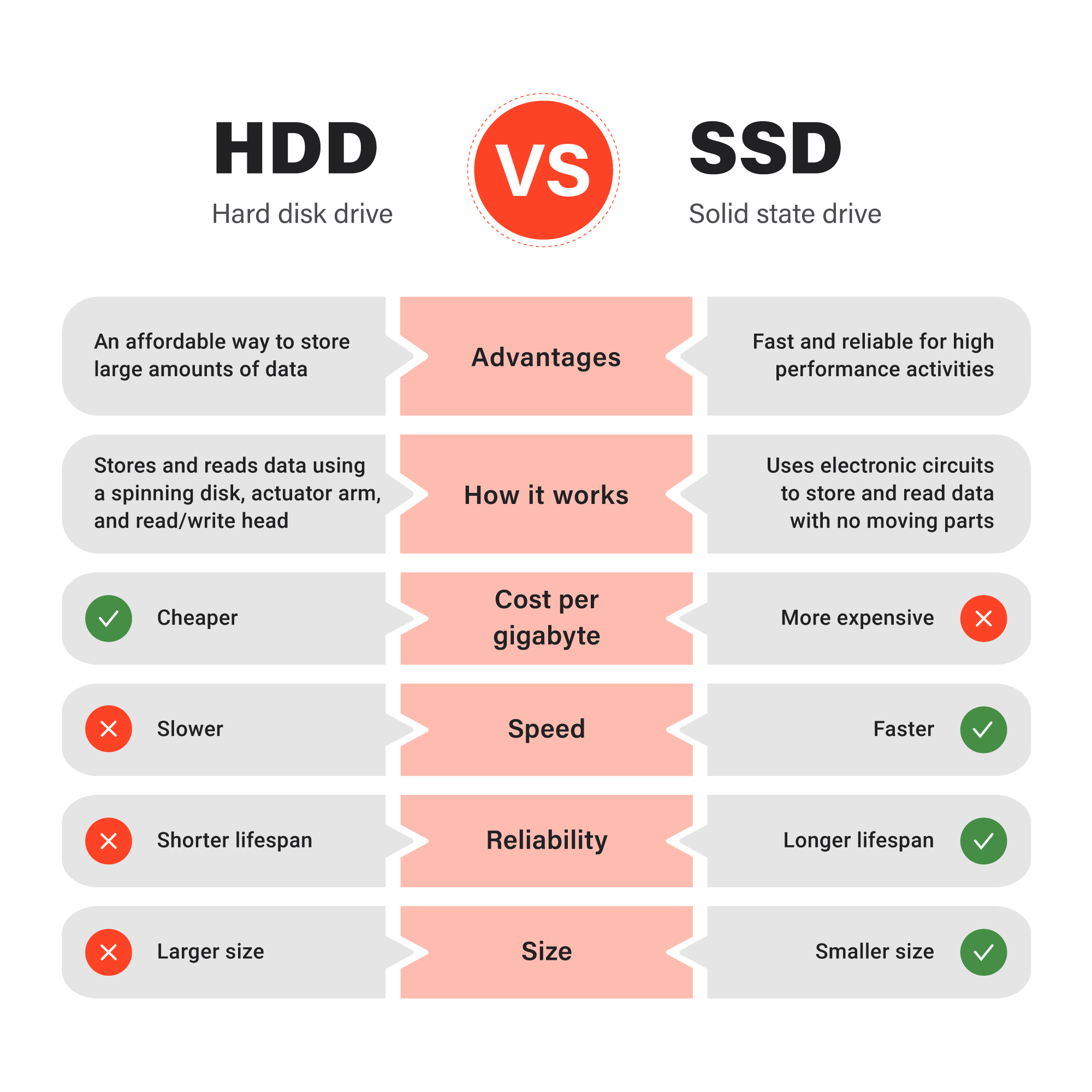
| Stability factor | SSD | HDD |
|---|---|---|
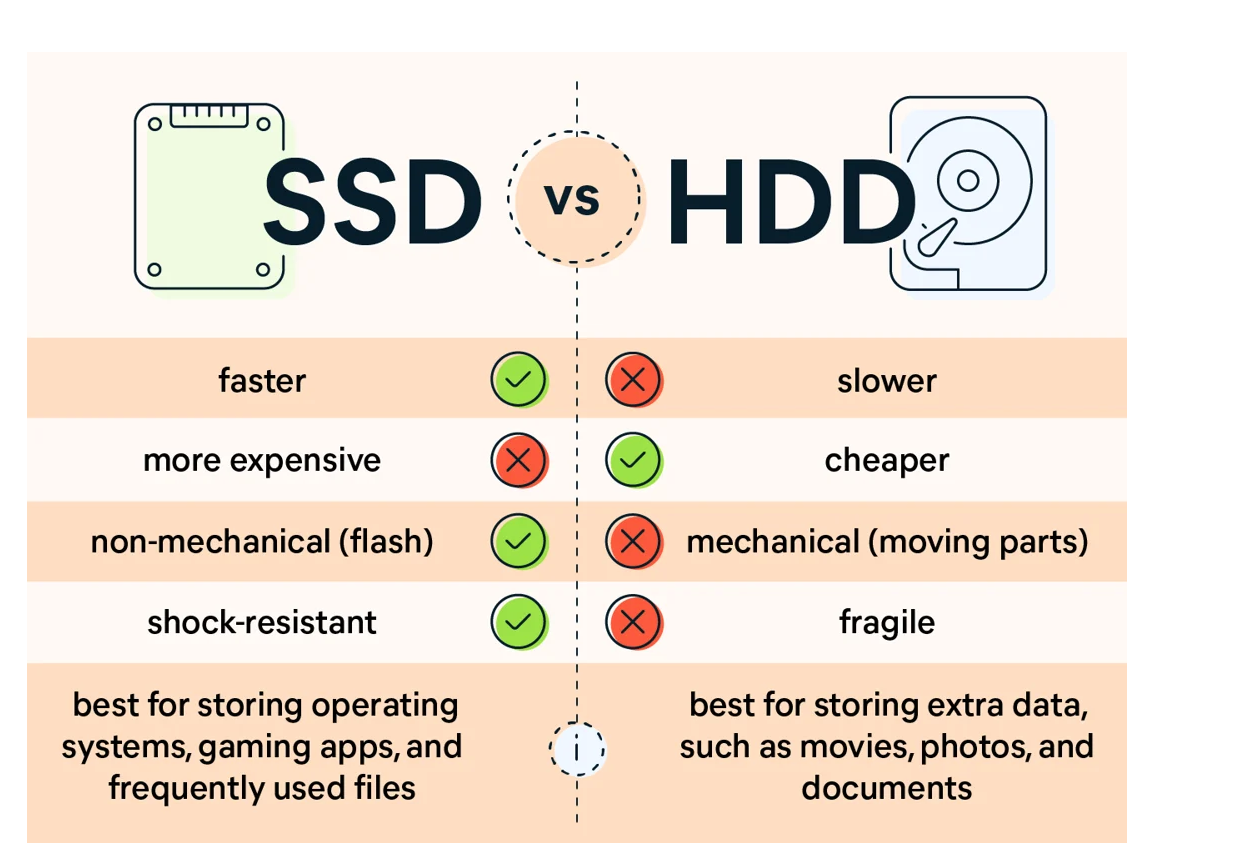
| Moving parts | None | Motor, platters, and actuator arm |
| Resistance to drops | Usually better | Lower, especially while powered on |
| Resistance to vibration | Usually better | More sensitive |
| Noise | Silent | Audible motor and head movement |
| Heat | Often low, but varies by model | Motor and platter heat |
| Mechanical wear | Very low | Present |
| Flash or magnetic media wear | Flash cells wear with writes | Platters do not wear in the same way |
| Sudden failure | Possible | Possible |
| Recovery after failure | Can be difficult | Can also be difficult |
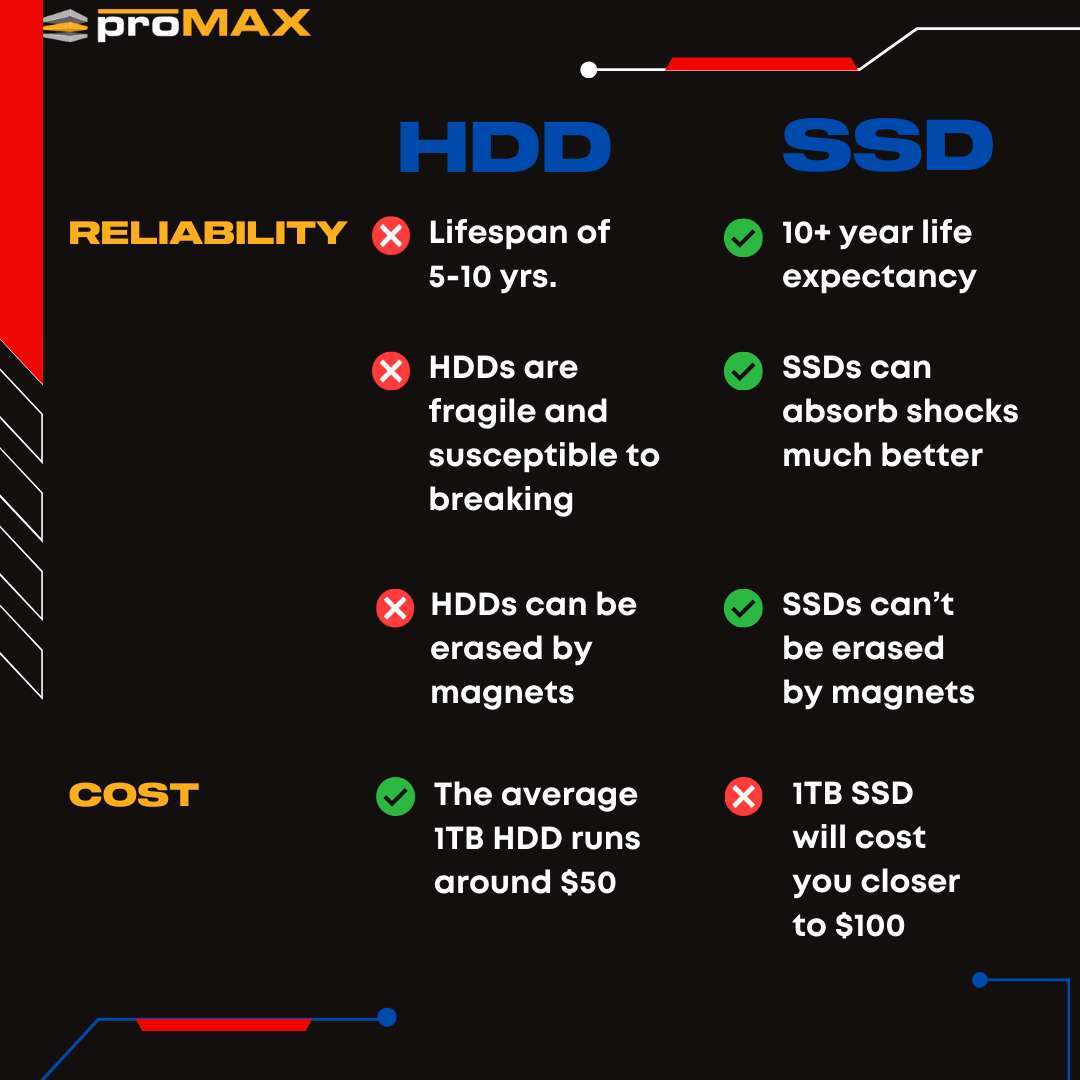
| Cost per terabyte | Usually higher | Usually lower |
| Best common role | Operating system and active files | Bulk storage and backup |
The table shows why stability is not the same as capacity or price. An SSD is usually the stronger choice for a boot drive. An HDD may still make sense when you need several terabytes at a lower cost.
How SSD Reliability Works
An SSD is not a simple memory chip. It has a controller, firmware, NAND flash, cache, and error-correction systems. These parts work together to store and retrieve data.
Flash cells have a write limit
NAND flash cells can only handle a finite number of program-and-erase cycles. Each time data is changed, the drive may need to erase and rewrite a block.
Modern SSDs reduce this wear with:
- Wear leveling
- Spare storage area
- Error-correcting code
- Garbage collection
- Bad-block management
- Over-provisioning
Wear leveling spreads writes across the drive instead of repeatedly using the same cells. This helps the SSD last longer.
Manufacturers often list an endurance rating called TBW, or terabytes written. For example, a drive may have a rating of 600 TBW. That number is a warranty and endurance guideline under stated conditions. It is not a promise that the drive will fail at exactly that amount.
A home user may write far less data than a video editor, database server, or security camera system. Workload matters.
SSD controllers can fail
The controller manages the flash memory and translates computer commands into stored data. If the controller fails, the SSD may become inaccessible even when some flash cells still work.
This is one reason SSD failure can appear sudden. An HDD may show warning signs such as slow reads, repeated clicks, or bad sectors. An SSD can also report health problems, but some failures occur without much warning.
SSDs use error correction
Flash memory can develop errors as cells wear or hold smaller electrical differences. SSDs use error-correcting systems to detect and fix many errors.
When too many errors appear, the drive may mark cells as unusable and move data to spare areas. This process helps protect data, but it has limits. A failing drive should be replaced, not trusted because its health tool still shows a percentage.
Why HDDs Can Still Be Reliable
An HDD is not automatically unreliable. A well-made HDD used in a cool, stable computer can work for many years. Some hard drives are designed for continuous operation and include features for vibration control and error recovery.
HDDs also have a useful role in backup systems. They offer a lower cost per terabyte, which makes it easier to keep several copies of photos, videos, documents, and system images.
However, HDD stability depends heavily on handling and environment. Avoid moving an HDD while it is running. Keep it on a firm surface, protect it from heat, and eject external drives properly before unplugging them.
An HDD can also develop:
- Bad sectors
- Weak sectors
- Head alignment problems
- Motor failure
- Bearing wear
- Firmware issues
- Platter damage
The main trade-off is clear: HDDs can provide affordable capacity, but SSDs usually provide better resistance to physical stress.
Is an SSD More Reliable for Long-Term Data Storage?
Not always. SSDs are usually more stable during daily operation, but long-term storage has different risks.
When an SSD is disconnected and stored without power, its flash cells can slowly lose charge. Data retention depends on factors such as:
- NAND type
- Drive age
- Amount of previous wear
- Storage temperature
- Drive design
- Time without power
High temperature can make retention problems worse. For important files, do not treat a single SSD as a permanent archive.
HDDs can also lose data over time. Their magnetic media may remain readable for years, but the drive’s motor, heads, electronics, or bearings can fail. A drive that sits unused is not automatically safe.
For long-term storage, use more than one copy. Follow the practical 3-2-1 backup rule:
- Keep at least three copies of important data.
- Store the copies on at least two different types of media.
- Keep at least one copy in a different location.
For example, you might keep working files on an SSD, a local backup on an HDD, and another backup in a separate location or a reputable cloud service.
Which Drive Should You Use?
Choose an SSD when you need fast, stable everyday performance. Choose an HDD when low-cost capacity is the main goal.
Choose an SSD for:
- Windows or macOS
- Applications
- Gaming
- Laptops
- Portable computers
- Photo and video editing
- Workstations
- Systems that face vibration or movement
- Faster startup and file access
Choose an HDD for:
- Large media libraries
- Local backups
- Cold storage that is checked from time to time
- Desktop computers with several terabytes of data
- Situations where cost per terabyte matters most
Use both when possible
A mixed setup often gives the best balance:
- Install the operating system and applications on an SSD.
- Store large files on an HDD if you need inexpensive capacity.
- Keep a separate backup of important files.
- Replace a drive when health warnings appear.
- Do not rely on either drive as the only copy of critical data.
This approach combines the speed and physical stability of an SSD with the lower cost of an HDD.
How to Check Whether an SSD or HDD Is Becoming Unstable
Drive health tools can help, but they cannot predict every failure. Check the drive’s SMART data, which records information about storage health and operation.
Warning signs include:
- The drive disappears from the computer
- Files take much longer to open
- The operating system freezes during disk activity
- Copy operations fail
- Files become corrupted
- An HDD clicks, grinds, or repeatedly spins up
- An SSD reports critical warnings
- The drive shows increasing bad sectors or uncorrectable errors
If important files are still accessible, copy them to a safe location before running demanding tests. A failing drive may stop working during a long scan.
For an HDD, unusual clicking or grinding is a serious warning. Shut it down if possible and avoid repeated power cycles. If the data is valuable, use a professional data recovery service.
For an SSD, do not assume that a health score means the drive is safe. Copy important data first, then replace the drive if it reports critical errors or behaves unpredictably.
Common Misconceptions About SSD Stability
“SSDs never fail”
They do fail. A controller, connector, firmware system, or flash chip can stop working. An SSD is more resistant to physical shock, not immune to electronic failure.
“A higher TBW rating guarantees a longer life”
TBW is useful for comparing endurance ratings, but it does not cover every failure type. A drive can fail because of its controller before reaching its rated write limit.
“HDDs are always better for archives”
HDDs are often cheaper for large archives, but no single drive should hold the only copy. Both SSDs and HDDs need backups and periodic checks.
“An SSD is always cooler”
Many SATA SSDs use little power. Some high-performance NVMe SSDs can become hot during sustained transfers. Check the manufacturer’s thermal specifications and use proper airflow.
“Safe removal prevents all data loss”
Ejecting an external drive helps ensure that pending writes finish. It cannot protect against a failing drive, physical damage, malware, accidental deletion, or file-system corruption.
Key Takeaways
- An SSD is usually more stable than an HDD during everyday use.
- The main reason is the SSD’s lack of moving parts.
- SSDs handle drops and vibration better, especially in laptops.
- HDDs remain useful for affordable, high-capacity storage.
- SSDs can fail suddenly because of controller or electronic problems.
- Flash memory has a finite write endurance.
- Neither drive should be the only copy of important data.
- A backup plan matters more than choosing SSD or HDD alone.
Frequently Asked Questions
Is an SSD safer than an HDD for a laptop?
Usually, yes. An SSD is less affected by drops, vibration, and movement while the computer is running. The laptop itself can still be damaged, and the SSD should still have a backup.
Does an SSD last longer than an HDD?
There is no universal answer. SSDs avoid mechanical wear, but flash cells and controllers have limits. HDDs can run for many years, but their mechanical parts may wear out. Model, workload, heat, handling, and usage pattern all matter.
Can an SSD lose data when it is turned off?
Yes. Flash data retention can decline over time, especially in a heavily worn or hot SSD. Keep important data in more than one place and reconnect stored SSDs from time to time to check their condition.
Should I use an SSD or HDD for backups?
Either can work. An HDD usually offers more storage for less money. An SSD may be better for a portable backup that will be moved often. The best choice is the one that supports multiple verified copies.
Is NVMe more stable than SATA?
NVMe and SATA describe different storage interfaces. An NVMe SSD is often faster than a SATA SSD, but speed alone does not make it more reliable. Stability depends on the drive’s design, controller, NAND type, firmware, temperature, and workload.
How often should I replace an SSD?
Replace an SSD when it reports critical health warnings, develops errors, becomes unreliable, or no longer fits your needs. Do not replace it only because it has reached a certain age if it is healthy and backed up.
Conclusion
An SSD is more stable than an HDD for most everyday computer use because it has no spinning platters, motor, or moving read/write head. That design gives it better resistance to shock, vibration, noise, and mechanical wear.
An HDD still has a place in the United States home and small-business market. Its low cost per terabyte makes it useful for large backups and media collections. The safest plan is not to choose one drive and trust it completely. Use an SSD for active work, use an HDD when affordable capacity helps, and keep verified backups in separate locations.

Everett Ashford is a tech reviewer at mytechgrid.com specializing in SSDs, cameras, TVs, earbuds, headphones, and other consumer electronics. He provides honest, data-driven reviews based on hands-on testing and real-world performance analysis. Everett simplifies complex tech details to help readers make smart, confident buying decisions.