For most gamers, an SSD is better than an HDD because it loads games and levels much faster.
The answer to “is SSD or HDD better for gaming” depends on your budget, game library, and performance goals. After years of comparing storage upgrades in real gaming systems, one pattern is clear: an SSD makes a PC feel faster, while an HDD remains useful for cheap, high-capacity storage. This guide explains the real differences so you can choose with confidence.

SSD vs. HDD for gaming: What is the difference?
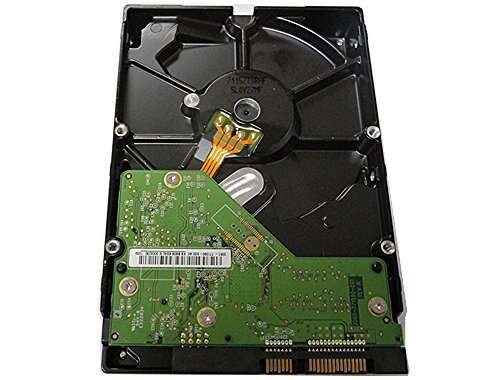
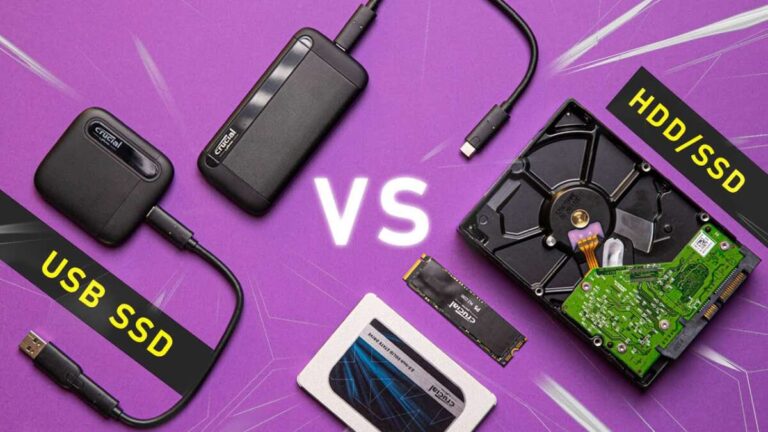
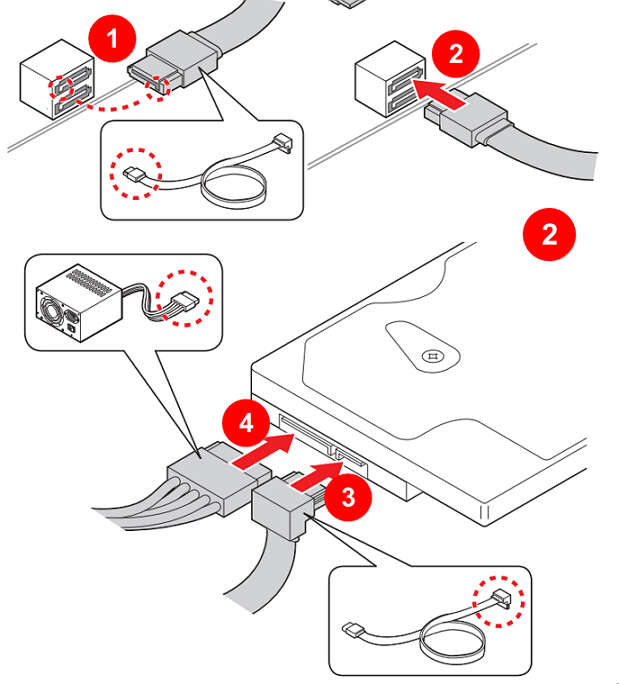
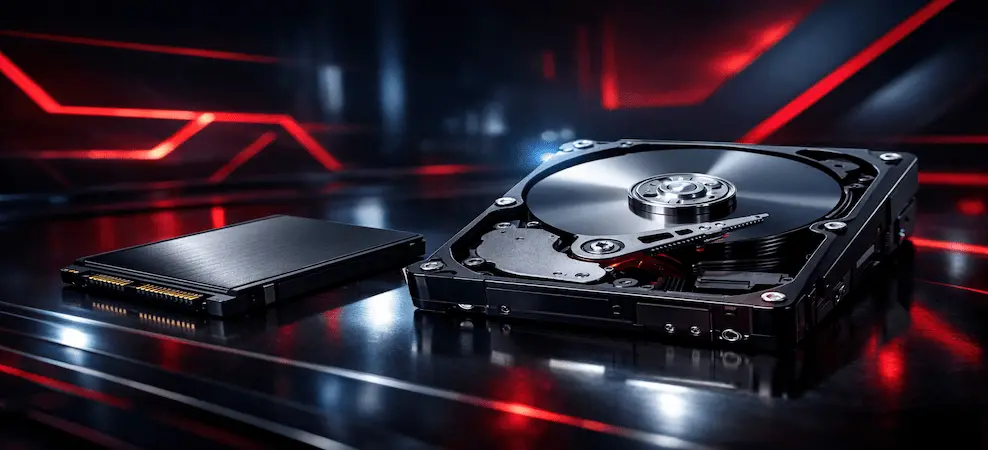
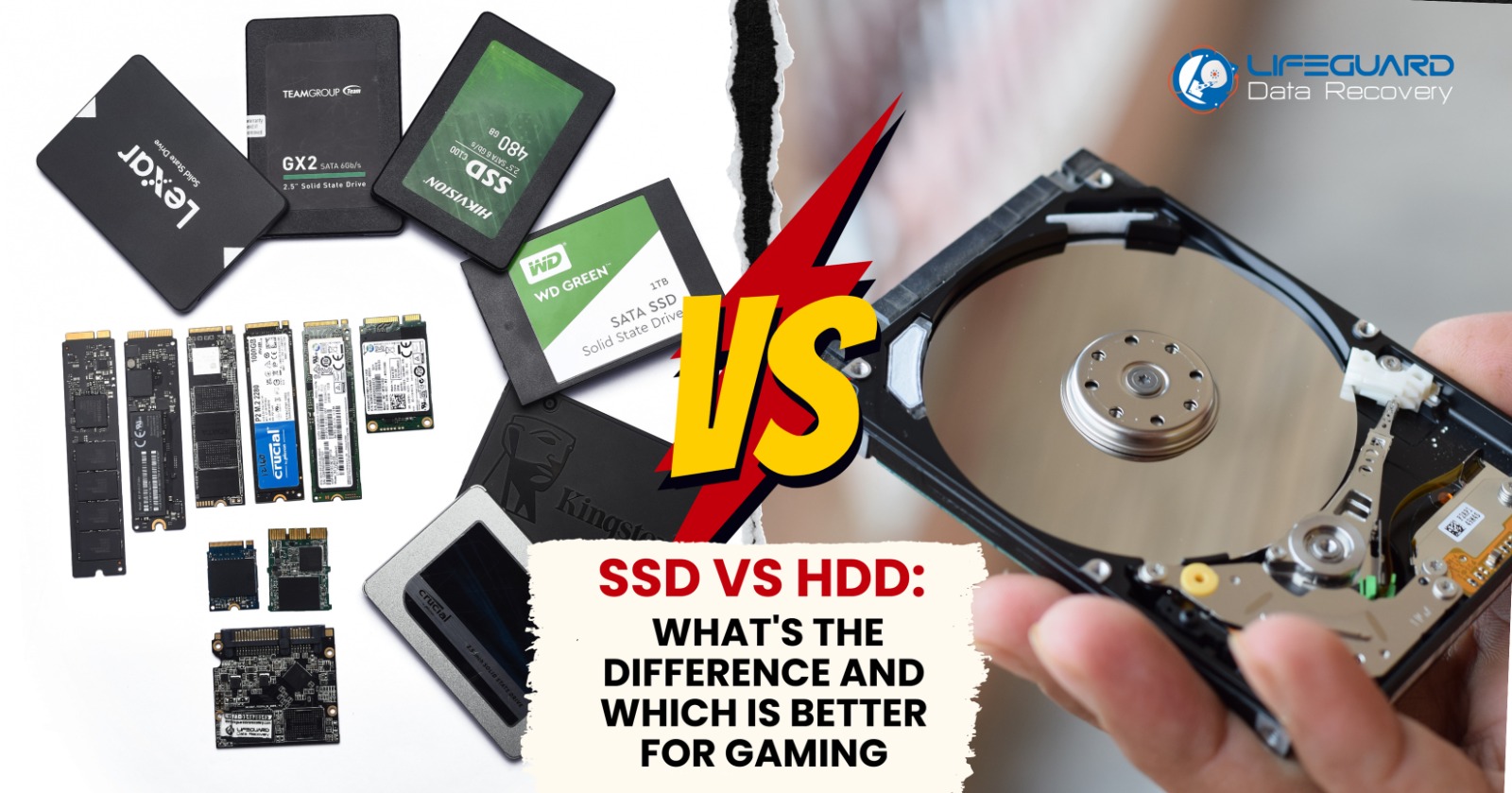
An SSD, or solid-state drive, stores data on flash memory chips. It has no moving parts. An HDD, or hard disk drive, stores data on spinning magnetic platters and reads it with a moving arm.
That design difference affects speed, noise, heat, and durability. It also explains why is SSD or HDD better for gaming is such a common question.
An SSD can find small files almost at once. An HDD must move its read head to the correct part of the platter. This delay is small for one file but can become clear when a modern game loads thousands of files.
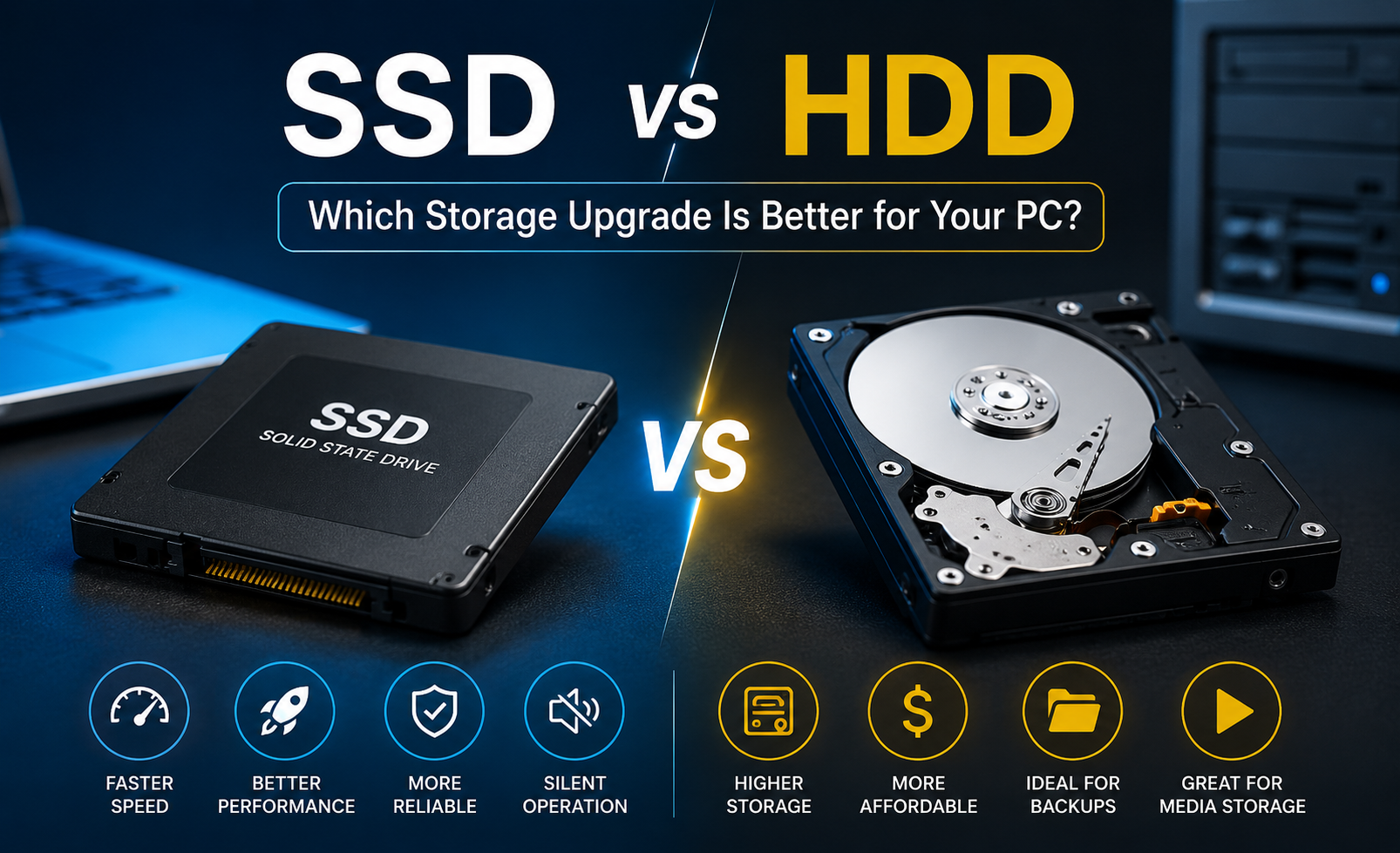
Here is the basic comparison:
| Feature | SSD | HDD |
|---|---|---|
| Game loading | Very fast | Much slower |
| File access | Near-instant | Delayed by moving parts |
| Game installation | Usually faster | Usually slower |
| Frame rate | Usually similar | Usually similar |
| Noise | Silent | Audible spinning and seeking |
| Power use | Lower | Higher |
| Durability | Better resistance to drops | More sensitive to shocks |
| Price per terabyte | Higher | Lower |
| Best use | Active games and system drive | Large game archives and media |
The key point is simple: storage speed affects how quickly a game starts and loads content. It does not usually make your graphics card render more frames per second.

Is SSD or HDD better for gaming performance?
An SSD is better for gaming performance when performance means faster loading, smoother file streaming, and a more responsive system. It is not a magic frame-rate upgrade.
Your CPU and GPU still control most in-game frame rates. An SSD will not turn a 45 FPS system into a 100 FPS system. However, it can reduce the time you spend looking at loading screens.
Games may also stream maps, textures, sounds, and animation files while you play. An SSD can deliver these files faster than an HDD. This matters more in large open-world games that move you through a map at high speed.
You may notice these SSD benefits:
• Faster game launches
• Shorter level and fast-travel loading times
• Faster restarts after dying
• Less waiting when loading saved games
• Faster Windows startup
• Quicker game updates and file verification
• Fewer pauses caused by slow asset streaming
During storage testing, I have found that the biggest upgrade is often the feeling of speed. You click a game, and it opens sooner. You restart a mission, and you return to the action before the wait becomes annoying.
Still, results vary. A game installed on a slow SATA SSD may load only slightly faster than one on a fast NVMe SSD. The jump from HDD to any decent SSD is usually much more noticeable than the jump from SATA SSD to high-end PCIe 4.0 SSD.

How much does an SSD improve game load times?
The improvement depends on the game, system, processor, memory, and drive. In many cases, moving from an HDD to an SSD can cut loading time by a large margin. Some games may load twice as fast, while others show a smaller gain.
A modern NVMe SSD can offer several gigabytes per second of sequential bandwidth. A typical 7200 RPM HDD often reaches only a small fraction of that speed. More important for game loading, SSDs have much lower access latency.
However, advertised speed is not the whole story. Game loading includes many steps:
-
The storage drive reads game files.
-
The CPU decompresses and processes some data.
-
The game engine builds the scene.
-
The GPU prepares visual assets.
-
The system may connect to online services.
Because of this process, a faster drive cannot remove every part of a loading screen. The SSD may finish its work while the CPU or game engine continues working.
This is why is SSD or HDD better for gaming should not be judged only by a drive’s speed rating. A reliable 1 TB SATA SSD can provide a major upgrade over an HDD, even though a premium NVMe model looks faster on paper.
Does an SSD increase FPS?
Usually, no. An SSD normally does not increase average FPS because frame rate depends mainly on the GPU, CPU, game settings, resolution, and memory.
There are a few exceptions. Some games stream large assets during play, and a very slow HDD can cause stutter or delayed texture loading. In that case, an SSD may improve frame-time consistency and reduce hitching.
An SSD can also help when your system runs low on RAM and uses virtual memory. This is not an ideal fix, but an SSD handles temporary data far better than an HDD.
Think of it this way:
• The GPU is the artist drawing each frame.
• The CPU is the manager handling game logic.
• The SSD or HDD is the delivery truck bringing assets to the work site.
A faster truck does not make the artist draw faster. It can prevent the artist from waiting for supplies.
If your goal is higher FPS, upgrade the GPU first when it is the main limit. If your goal is faster loading and a smoother desktop, choose an SSD.

SSD types for gaming
Not every SSD has the same design. The main types are SATA SSDs and NVMe SSDs.
SATA SSD
A SATA SSD uses the same common interface found in many older storage systems. It is limited by the SATA interface, but it is still much faster and more responsive than an HDD.
A SATA SSD is a strong choice for:
• Older gaming PCs
• Budget upgrades
• Secondary game storage
• Systems without an available M.2 slot
• Users who want the best value
NVMe SSD
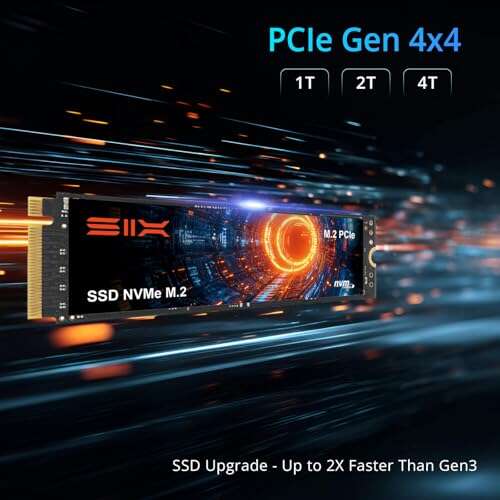
An NVMe SSD usually fits into an M.2 slot on the motherboard. It communicates through PCI Express and can offer much higher transfer speeds than SATA storage.
NVMe drives are useful for:
• New gaming PCs
• Large open-world games
• Fast file transfers
• Frequent game installations
• Systems with PCIe 4.0 or PCIe 5.0 support
For most games, the difference between a good SATA SSD and a good NVMe SSD is smaller than the difference between either SSD and an HDD. Do not spend your entire budget on the fastest drive if a larger, affordable SSD gives you more useful space.
PCIe generations
PCIe 3.0, PCIe 4.0, and PCIe 5.0 SSDs offer different maximum speeds. A newer drive can be much faster in benchmarks, but many games do not use that full speed.
Microsoft’s DirectStorage technology may allow supported PC games to use fast storage more effectively. Adoption varies by game, and the graphics card, CPU, and game engine still matter. Buy for your real workload, not only for the largest number on the box.
Why some gamers still choose HDDs
An HDD remains useful because it offers a lot of storage for less money. A 4 TB HDD can cost far less per terabyte than a 4 TB SSD.
That capacity is helpful for gamers who keep many large games, recordings, movies, and backups. Modern PC games can occupy 50 GB, 100 GB, or more, so storage space disappears quickly.
An HDD makes sense for:
• Game archives
• Older games
• Games you play rarely
• Video files and screenshots
• Backup copies
• Large Steam, Epic Games, or Xbox libraries
There is also a practical benefit: an HDD can serve as a cold-storage drive. You can keep games on it until you are ready to move them to an SSD.
The main drawback is patience. Games installed on an HDD may take longer to launch and may show more texture pop-in or stutter in some open-world titles. An HDD is not useless for gaming, but it is no longer the best primary game drive for most players.

SSD or HDD: Which is more reliable?
SSDs have no moving parts, so they handle vibration and accidental movement better than HDDs. This is especially useful in laptops and portable gaming systems.
HDDs contain spinning platters and a moving read head. A strong shock while the drive is operating can damage it. That does not mean every HDD fails quickly. Many run reliably for years when used in a cool, stable case.
SSDs also have limits. Flash memory has a finite write endurance rating, often listed as TBW, or terabytes written. Normal gaming use rarely approaches this limit quickly, but heavy video editing, constant recording, and large data workloads create more writes.
The safest approach is simple:
• Keep important saves and files backed up.
• Monitor unusual drive errors.
• Leave some free space on an SSD.
• Use good airflow around storage devices.
• Replace a drive that shows repeated health warnings.
No storage device should be treated as a permanent backup. Reliability is important, but a second copy of your data matters more than choosing SSD or HDD alone.
Power use, heat, and noise
An SSD runs silently because it has no motor or moving head. It also typically uses less power than an HDD. That can help laptops, handheld PCs, and compact gaming systems.
An HDD creates a soft spinning sound and may click or seek when reading files. In a quiet room, the sound can become noticeable. Some gaming desktops hide it well, but the difference is clear when both drives are in the same system.
NVMe SSDs can become warm during long file transfers. A motherboard heatsink or a small thermal pad may help keep temperatures under control. Gaming loads are often shorter than large file-copy tasks, so heat is not usually a major issue for a quality drive.
For a quiet gaming PC, an SSD is the clear winner. For a low-cost desktop with plenty of airflow, an HDD can still work well as secondary storage.

The best storage setup for most gamers
The most practical solution is often a combination of both drives.
Use an SSD for Windows and the games you play most. Use an HDD for games you rarely play, recordings, downloads, and backups.
A balanced setup might look like this:
-
Install Windows on a 1 TB SSD.
-
Put competitive games and frequently played titles on the SSD.
-
Store older games and large media files on a 2 TB or 4 TB HDD.
-
Move a game to the SSD when you start playing it often.
-
Keep personal files backed up on a separate device.
This setup gives you speed without forcing you to buy a very large SSD. It also avoids a common mistake: buying a small 250 GB SSD and filling it almost immediately.
Try to keep roughly 10% to 20% of an SSD free when possible. The drive can then manage temporary data and background operations more effectively. Exact needs vary by model, but a nearly full drive is inconvenient and may slow some workloads.
How to choose the right gaming drive
Start with your motherboard and budget. Check whether your PC supports an M.2 NVMe drive, how many M.2 slots are available, and whether installing one will disable a SATA port.
Then consider capacity:
• 500 GB: Suitable for Windows and a small game collection.
• 1 TB: The best starting point for many gamers.
• 2 TB: Better for several large modern games.
• 4 TB or more: Useful for a large library and media storage.
Look for a drive with strong reviews, a good warranty, and consistent performance. Do not choose only by maximum sequential read speed. Random performance, sustained writes, firmware quality, controller design, and thermal behavior also matter.
For an SSD, a model with a DRAM cache can perform well in demanding file tasks, although modern DRAM-less drives can still be good for gaming. A reputable TLC NAND drive is often a sensible choice. QLC drives can offer more capacity at a lower price, but their sustained write performance may drop during very large transfers.
For an HDD, a 7200 RPM model usually feels more responsive than a 5400 RPM model. It may also be louder and use more power. Either type can store games, but an HDD should be viewed as a capacity choice rather than a speed choice.
Common mistakes to avoid
Many storage upgrades disappoint because buyers expect the drive to solve the wrong problem.
Avoid these mistakes:
• Buying an SSD to fix low FPS caused by a weak GPU.
• Choosing a tiny SSD that fills within weeks.
• Paying extra for PCIe 5.0 when your games and system will not benefit.
• Ignoring motherboard compatibility.
• Installing an SSD without checking its temperature.
• Keeping the only copy of important files on one drive.
• Assuming every loading screen will become instant.
• Using an old, failing HDD for valuable game saves.
One mistake I often see is spending heavily on a top-tier NVMe drive while keeping games on an aging HDD because the SSD is too small. A larger midrange SSD usually creates a better gaming experience than a tiny premium model.
Check real-world reviews, not just manufacturer claims. Independent tests from established hardware outlets can show game load times, sustained performance, temperatures, and power use more clearly than a product page.
Is SSD or HDD better for gaming on PS5 and Xbox?
For modern consoles, SSD storage is usually the better fit. The PlayStation 5 uses a high-speed internal SSD, and compatible expansion drives must meet strict performance requirements.
The Xbox Series X and Series S also rely on fast internal storage and support expansion options designed for modern game loading. External HDDs can still store or play some older games, but they may not run current-generation titles directly.
Console support changes by model and software update. Always check the official compatibility list before buying an expansion drive.
The same rule applies to PC gaming: fast storage is becoming more important as games use larger worlds and more detailed assets. Still, an HDD remains useful for storage when the system allows games to be moved between drives.
Frequently Asked Questions: Is SSD or HDD Better for Gaming?
Is an SSD worth it for gaming?
Yes, an SSD is worth it for most gamers who still use an HDD. It can greatly reduce game loading times and make Windows, updates, and file access feel much faster.
Does an SSD improve gaming FPS?
An SSD usually does not increase average FPS. It can reduce stutter or texture-loading delays in some games, especially when an HDD cannot stream game assets quickly enough.
Can I install games on an HDD?
Yes, you can install and play games on an HDD. Older and less demanding games may run well, but modern open-world games often load more slowly and may stream assets less smoothly.
Is NVMe better than SATA SSD for gaming?
NVMe SSDs are faster in technical benchmarks, but the real gaming difference over a good SATA SSD is often modest. Both are much better choices for active games than an HDD.
How much SSD storage do I need for gaming?
A 1 TB SSD is a good starting point for many players. Choose 2 TB if you install several large games and want to avoid moving them often.
Should I use an SSD and HDD together?
Yes, using both can be cost-effective. Put Windows and frequently played games on the SSD, then use the HDD for archives, media, backups, and games you rarely play.
Do SSDs make games run smoother?
They can make some games feel smoother by reducing asset-streaming delays and loading pauses. They cannot fix every stutter, because CPU limits, GPU limits, memory issues, drivers, and game optimization may also be responsible.
Conclusion
For most modern gamers, an SSD is better than an HDD because it delivers faster game loading, quicker system response, silent operation, and better support for asset streaming. It will not normally raise FPS, but it can make the entire gaming experience feel less delayed.
An HDD still earns its place as an affordable, high-capacity storage drive. The best setup for many players is an SSD for Windows and active games, paired with an HDD for large libraries and backups.
If you are upgrading from an HDD, start with a reliable 1 TB or 2 TB SSD that fits your system and budget. Check compatibility, keep backups, and move your favorite games first. Then share your storage setup or your loading-time results in the comments.

Everett Ashford is a tech reviewer at mytechgrid.com specializing in SSDs, cameras, TVs, earbuds, headphones, and other consumer electronics. He provides honest, data-driven reviews based on hands-on testing and real-world performance analysis. Everett simplifies complex tech details to help readers make smart, confident buying decisions.