Yes, an SSD can cause FPS drops, but it is not the usual cause. A healthy SSD normally changes game loading times more than in-game frame rates. However, a failing, overheated, nearly full, badly connected, or heavily used SSD can cause stutter, freezes, and sudden frame-time spikes.
For gamers in the United States using a Windows 10 or Windows 11 PC, the graphics card, processor, cooling, and game settings are usually the first areas to check. The SSD becomes more likely when the problem appears while a game loads new areas, streams textures, or saves data.

How an SSD can affect FPS
An SSD stores game files. The CPU and GPU then read those files and turn them into game images. If the drive cannot deliver data in time, the game may pause briefly while it waits for assets such as textures, sounds, maps, or models.


This issue often feels like stutter rather than a steady loss of FPS. Your average frame rate may look normal, but the game can still feel rough because some frames take much longer to appear.
Average FPS versus frame-time spikes
FPS means frames per second. Frame time is the time needed to create one frame.
For example:
- 60 FPS equals about 16.7 milliseconds per frame.
- 120 FPS equals about 8.3 milliseconds per frame.
- 144 FPS equals about 6.9 milliseconds per frame.
If most frames take 7 milliseconds but one frame takes 100 milliseconds, the game may freeze for a short moment. A simple FPS counter may not show the full problem. A frame-time graph or 1% low result can reveal it more clearly.
An SSD can contribute to these spikes when:
- The game streams a large amount of data during play.
- The drive is close to full.
- The SSD is overheating.
- The drive has health or firmware problems.
- Windows is using the SSD heavily for another task.
- A loose cable or poor connection interrupts data access.
- The game is installed on a slow or damaged external drive.
A healthy SSD does not normally reduce GPU performance. It also does not make a graphics card render fewer frames by itself.


SSD types and gaming performance
SATA SSDs and NVMe SSDs are both much faster at random access than traditional hard disk drives. NVMe drives use the PCIe interface, while SATA drives use the older SATA interface.
For many games, moving from a hard drive to a SATA SSD improves:
- Game launch time
- Level loading
- Fast travel time
- Texture streaming
- Windows responsiveness
Moving from a SATA SSD to a faster NVMe SSD may produce a smaller change during play. Some modern games can use fast storage features more effectively, but the graphics card and processor still control most rendered frames.
| Storage condition | Likely effect on average FPS | Likely effect on stutter |
|---|---|---|
| Healthy SATA SSD | Little or no change | Low |
| Healthy NVMe SSD | Little or no change | Low |
| Slow hard drive | Usually little change | Moderate to high in streaming games |
| Nearly full SSD | Usually little change | possible |
| Overheating SSD | Possible drops | Possible to high |
| Failing SSD | Unpredictable | High |
| Damaged external drive or cable | Unpredictable | High |
The key point is simple: storage speed often affects how quickly a game supplies data, while the GPU and CPU affect how quickly the game renders each frame.

When an SSD is likely to cause stuttering
An SSD is a strong suspect when the timing of the problem matches storage activity. Look for a clear link between the stutter and a game event.
Common examples include:
- A pause when entering a new part of the map
- Texture pop-in followed by a short freeze
- Stutter during fast travel
- Hitching when many players or objects appear
- Freezes during autosaves
- Slow file access across Windows, not just in one game
- Disk usage reaching 100% during the stutter
A drive problem is less likely when FPS drops happen only during explosions, crowded scenes, or high-resolution effects. Those patterns point more often to the GPU or CPU.
Signs of a storage-related problem
Check for these signs:
-
Disk activity rises during each hitch.
Windows Task Manager may show high disk usage when the game stutters. -
The game pauses while loading new assets.
This is common in open-world games and games with large maps. -
Other programs also become slow.
File Explorer may hang, apps may take a long time to open, or Windows may report disk errors. -
The drive temperature is high.
Some NVMe SSDs reduce speed when they become too hot. This is called thermal throttling. -
The game reports corrupted files.
Corruption can result from software problems, an unstable connection, or a failing drive. -
The problem began after moving the game.
A different drive, USB enclosure, or loose SATA cable may be involved. -
The PC freezes briefly outside the game.
This is more concerning than game-only stutter. Back up important files before testing further.


An SSD does not need to be completely dead to cause trouble. Intermittent errors can produce pauses long before the drive stops working.

When the SSD is probably not the cause
Many FPS drops have nothing to do with storage. Check the graphics card and processor first when the pattern points to rendering load.
The SSD is less likely to be responsible when:
- GPU usage reaches close to 100% during the drop.
- CPU usage is high on one or more game threads.
- The GPU temperature causes clock speeds to fall.
- The CPU overheats and reduces its speed.
- The drop occurs in every demanding scene.
- Lowering resolution greatly improves FPS.
- Lowering texture quality does not change the problem.
- The game has a known shader-compilation stutter.
- The issue began after a graphics driver or game update.
Use the bottleneck pattern
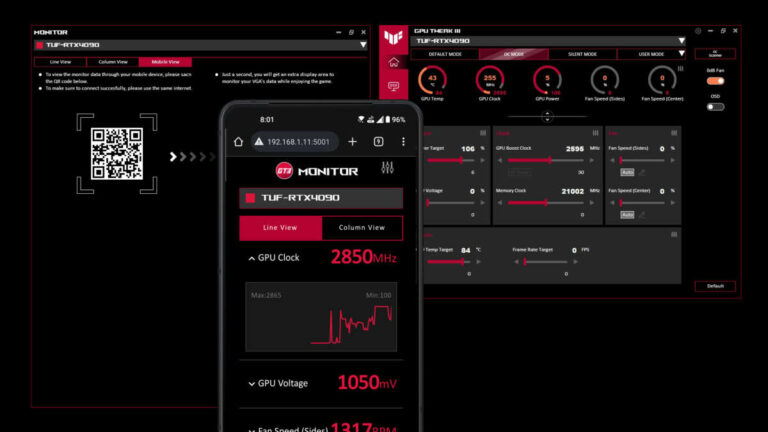
A basic monitoring overlay can help. Track:
- FPS
- Frame time
- GPU usage
- GPU temperature and clock speed
- CPU usage by core
- CPU temperature and clock speed
- System memory use
- Disk activity
- SSD temperature, if available
Use the pattern, not one number.
| What happens during the drop | More likely cause |
|---|---|
| GPU usage falls while disk activity rises | Storage or asset streaming |
| GPU usage stays near maximum | GPU limit or graphics settings |
| One CPU core reaches its limit | CPU or game-engine limit |
| CPU and GPU clocks fall with high temperatures | Thermal throttling |
| RAM is full and page-file use rises | Memory pressure |
| Stutter occurs after new shaders load | Shader compilation |
| The entire PC pauses | Drive, memory, driver, or system fault |
Monitoring tools can mislead if they report averages. A short disk spike may disappear in a one-second sample. A frame-time graph is more useful for brief hitches.

How to test whether the SSD is causing FPS drops
Test one variable at a time. Changing graphics settings, drivers, and storage at the same time makes the result hard to interpret.
1. Record the exact symptom
Write down:
- The game and game mode
- The map or location
- Whether the issue occurs at launch, during movement, or during combat
- Whether the game freezes or only loses FPS
- Whether other games show the same behavior
- When the problem started
- Any recent hardware or Windows changes
This helps separate a game-specific issue from a system-wide problem.
2. Check disk activity in Windows
Open Task Manager with Ctrl + Shift + Esc.
During the problem:
- Open the Processes tab.
- Sort by the Disk column.
- Watch whether the game or another process creates a disk spike.
- Open the Performance tab and select the SSD.
- Check active time, transfer rate, and response time.
High active time alone does not prove that the SSD is faulty. A small drive can reach 100% active time with modest data transfer if requests are slow or scattered.


Look for a repeatable pattern: the game hitches, disk activity rises, and the hitch stops when storage activity falls.
3. Check SSD temperature
Use the drive maker’s utility or a trusted hardware monitor. The exact safe temperature depends on the SSD model, so compare the reading with the manufacturer’s specifications.
If the temperature rises sharply during play and the drive slows at the same time:
- Improve case airflow.
- Confirm that an M.2 heatsink is installed correctly.
- Remove dust from filters and fans.
- Avoid blocking the drive with a hot graphics card when possible.
- Check whether the motherboard firmware manages the M.2 slot correctly.
Do not remove an M.2 drive while the computer is running. Shut down the PC and disconnect power before opening the case.
4. Check drive health and errors
Use the SSD manufacturer’s diagnostic tool to review:
- Drive health
- Total data written
- Available spare blocks
- Error counts
- Firmware version
- Temperature
- Remaining life estimate
These values differ between brands and models. A percentage shown by one tool may not mean the same thing on another SSD.
Also check Windows Event Viewer for repeated disk, storage, controller, or file-system errors. These are warning signs, not automatic proof that the drive is failing.
If the drive shows serious errors, crashes, disappears, or causes file corruption, back up your data before running intensive tests.
5. Test the same game from another drive
If possible, install or move the affected game to another healthy internal drive. Use the same graphics settings, game mode, and save area.
Interpret the result carefully:
- If the stutter follows the game to another drive, the SSD is less likely to be the cause.
- If the stutter stops on the second drive, the first SSD, its connection, or its file system becomes more likely.
- If both drives behave the same way, inspect the CPU, GPU, RAM, drivers, and game engine.
This is a comparison test, not a laboratory proof. Two drives may have different temperatures, free space, or game files.

Fixes that can reduce SSD-related stutter
Start with low-risk changes. Do not erase or format a drive until your files are backed up.
Keep free space available
An SSD needs unused space for internal housekeeping, wear leveling, and temporary operations. A nearly full drive can perform poorly, especially during large installs, updates, and file changes.
There is no single free-space percentage that applies to every SSD. A practical rule is to avoid letting the Windows system drive or game drive remain nearly full. Windows should also have room for updates and its page file.


Delete or move:
- Unused games
- Large video files
- Old installers
- Temporary files
- Duplicate downloads
Do not manually delete folders such as C:\Windows or unknown program directories.
Enable TRIM
TRIM lets Windows tell an SSD which blocks are no longer needed. Modern versions of Windows normally manage TRIM automatically.
To check the setting, open Command Prompt as administrator and run:
fsutil behavior query DisableDeleteNotify
A result of 0 generally means that delete notifications are enabled. The exact output can differ by file system and Windows configuration.
Do not use old hard-drive defragmentation advice on an SSD. Windows may run an SSD-appropriate optimization task, but manually forcing repeated defragmentation is unnecessary.
Update the right components
Check for updates from the correct source:
- SSD firmware from the drive manufacturer
- Motherboard BIOS or UEFI from the motherboard maker
- Chipset and storage drivers from the PC or motherboard maker
- Graphics drivers from AMD, Intel, or NVIDIA
- Game updates from the game publisher or platform
Create a backup before firmware work. A firmware update can fail if power is interrupted.
Check SATA cables and M.2 installation
For a 2.5-inch SATA SSD:
- Power off the PC.
- Reseat the data cable.
- Try another SATA data cable.
- Try another motherboard SATA port.
- Confirm that the power connector is secure.
For an M.2 SSD:
- Power off and disconnect the PC.
- Confirm that the drive sits flat in the slot.
- Check that the retaining screw is secure.
- Confirm that the thermal pad touches the drive if a heatsink is used.
- Check the motherboard manual for shared PCIe or SATA lanes.
A shared lane can disable or change another port on some motherboards. This is a compatibility detail, not usually an FPS problem by itself, but it can affect where the drive appears.
Verify game files
Use the repair or verify option in the relevant PC game launcher. This can replace damaged files without reinstalling the full game.
If verification repeatedly finds damaged files, investigate the storage device, RAM stability, overclocking, and Windows file-system health. Repeated corruption should not be treated as a normal game issue.
Reduce background storage load
Pause or schedule tasks that read or write large amounts of data:
- Game downloads
- Cloud synchronization
- Video recording
- Antivirus scans
- Large file transfers
- Backup programs
- Search indexing after a major file change
Do not permanently disable security software just to test FPS. If a security tool is involved, use its documented game mode or exclusion process and understand the risk.
SSD, RAM, page file, and texture streaming
People often blame the SSD when the real issue is low system memory. When RAM fills, Windows may move data between memory and the page file on the storage drive. This can cause severe stutter, especially if the game and page file share a busy drive.
Signs of memory pressure include:
- RAM use staying near its installed capacity
- The game stuttering after opening many other programs
- Heavy disk activity with high memory use
- Long pauses when switching areas or menus
- The problem improving after closing browsers and overlays
Adding RAM may help if the system regularly runs out of memory. A faster SSD cannot fully solve a lack of RAM because storage is much slower than system memory.
Texture quality also matters. High texture settings increase memory use, but they do not always require a faster SSD. If the GPU has enough VRAM and the game loads assets smoothly, changing texture quality may have little effect. If VRAM or system RAM is exhausted, lower texture quality can reduce streaming pressure.
Common mistakes when diagnosing SSD-related FPS drops
Mistaking low FPS for stutter
A low frame rate that stays steady is usually a rendering limit. Stutter consists of uneven frame delivery. Check frame time rather than relying on the average FPS number.
Assuming 100% disk usage means the SSD is broken
Windows can show 100% active time during normal work. Check the response time, transfer rate, errors, temperature, and repeatable in-game behavior before deciding that the drive is failing.
Replacing the SSD before checking temperatures
A hot SSD can slow down temporarily. Better airflow or a correctly installed heatsink may fix the issue. The drive may not need replacement.
Using synthetic benchmarks as the only test
A benchmark can show sequential speed, but games often use many small reads. A drive can look fast in a benchmark and still have a connection, firmware, temperature, or health problem.
Moving the game but changing everything else
If you move the game and also update the GPU driver, change graphics settings, and disable overlays, you will not know which change mattered. Keep the test controlled.
When should you replace the SSD?
Replace the SSD when it shows repeated health warnings, unexplained disconnections, file corruption, read or write errors, or worsening performance after basic checks.
Do not wait for a complete failure if:
- The drive disappears from BIOS or Windows.
- Important files become corrupted.
- The system reports repeated controller or disk errors.
- The manufacturer’s tool reports a critical health condition.
- The drive causes crashes or freezes across multiple applications.
Before replacement:
- Back up personal files.
- Save game settings and local save files.
- Record your Windows activation and recovery options.
- Check whether the drive is covered by a warranty.
- Replace the cable or slot only if the evidence points there.
- Restore from a verified backup after installing the new drive.
A new SSD may improve loading and remove storage-related stutter, but it will not fix a CPU or GPU bottleneck.
A quick decision guide
Use this short guide to choose your next step:
- Only loading times are slow: Check the game drive, launcher, and drive type.
- Stutter happens during map streaming: Check disk activity, free space, temperature, and game files.
- FPS falls in every heavy scene: Check GPU load, CPU load, temperatures, and settings.
- The whole computer freezes: Back up data and check drive health, RAM, drivers, and Windows errors.
- The issue started after installing an SSD: Check firmware, cables, M.2 seating, BIOS settings, and game files.
- Another drive fixes the problem: Test the original SSD and its connection before replacing it.
- The SSD is healthy and cool: Look at the GPU, CPU, RAM, shader compilation, and game-specific settings.
Frequently asked questions
Can a faster SSD increase FPS?
Usually, no. A faster SSD can reduce loading times and may reduce asset-streaming stutter in some games. Average FPS is normally controlled by the GPU, CPU, game engine, and graphics settings.
Can a full SSD cause FPS drops?
A nearly full SSD can contribute to stutter, slow updates, and poor system response. It is not guaranteed to lower FPS, but keeping reasonable free space gives Windows and the drive room to work.
Can an external SSD cause game stutter?
Yes. A USB connection, cable, enclosure, power issue, or shared USB controller can create pauses. An internal SSD is easier to test and usually avoids those extra points of failure.
Does SSD health affect gaming?
Yes, if the drive has errors, overheats, disconnects, or cannot read files reliably. A healthy SSD, whether SATA or NVMe, should not normally reduce in-game FPS.
Should games be installed on an NVMe SSD?
An NVMe SSD is useful for fast installs, quick loading, and systems that support high-speed asset streaming. A SATA SSD is still suitable for many games. Choose based on available slots, price, capacity, and workload rather than FPS alone.
Conclusion
An SSD can cause FPS drops, but it usually causes stutter and frame-time spikes, not a constant loss of rendering power. Suspect the drive when hitches match disk activity, map loading, high SSD temperatures, file errors, or system-wide pauses.
Check the problem in this order: monitor disk and frame time, check SSD health and temperature, keep free space available, verify game files, inspect cables or M.2 seating, and test the game on another healthy drive. If the SSD passes those checks, focus on the GPU, CPU, RAM, drivers, and game settings instead.
The best next action is to capture a frame-time graph while the stutter occurs and compare it with GPU, CPU, memory, and disk activity. That evidence can show whether the SSD is the cause or only an innocent bystander.

Everett Ashford is a tech reviewer at mytechgrid.com specializing in SSDs, cameras, TVs, earbuds, headphones, and other consumer electronics. He provides honest, data-driven reviews based on hands-on testing and real-world performance analysis. Everett simplifies complex tech details to help readers make smart, confident buying decisions.