Yes, SSDs are much faster than HDDs for booting, loading apps, transferring files, and everyday computer use.
The answer to “are SSD faster than HDD” is clear, but the size of the gap depends on the type of SSD, the workload, and the rest of your computer. This guide explains the real speed differences, practical benefits, limits, costs, and the best choice for gaming, work, storage, and upgrades.
Why Are SSDs Faster Than HDDs?
The main reason SSDs are faster than HDDs is simple: SSDs use flash memory, while HDDs use moving parts.
An HDD stores data on spinning magnetic platters. A small arm moves across those platters to find each file. This process takes time. An SSD stores data on memory chips and can access it almost instantly.
Think of an HDD as a record player searching for a song. An SSD is more like tapping a song on your phone. Both can play the file, but one reaches it much faster.
Here are the main reasons SSDs outperform HDDs:
• No moving parts: An SSD does not need to spin a disk or move a read and write arm.
• Lower access time: An SSD can find small files far faster than an HDD.
• Higher input and output operations per second: SSDs handle many small tasks at once.
• Better multitasking: An SSD can load apps, update files, and support background tasks with less slowdown.
• Less performance loss from file location: HDDs slow down when files become scattered across the disk. SSDs are far less affected by this issue.
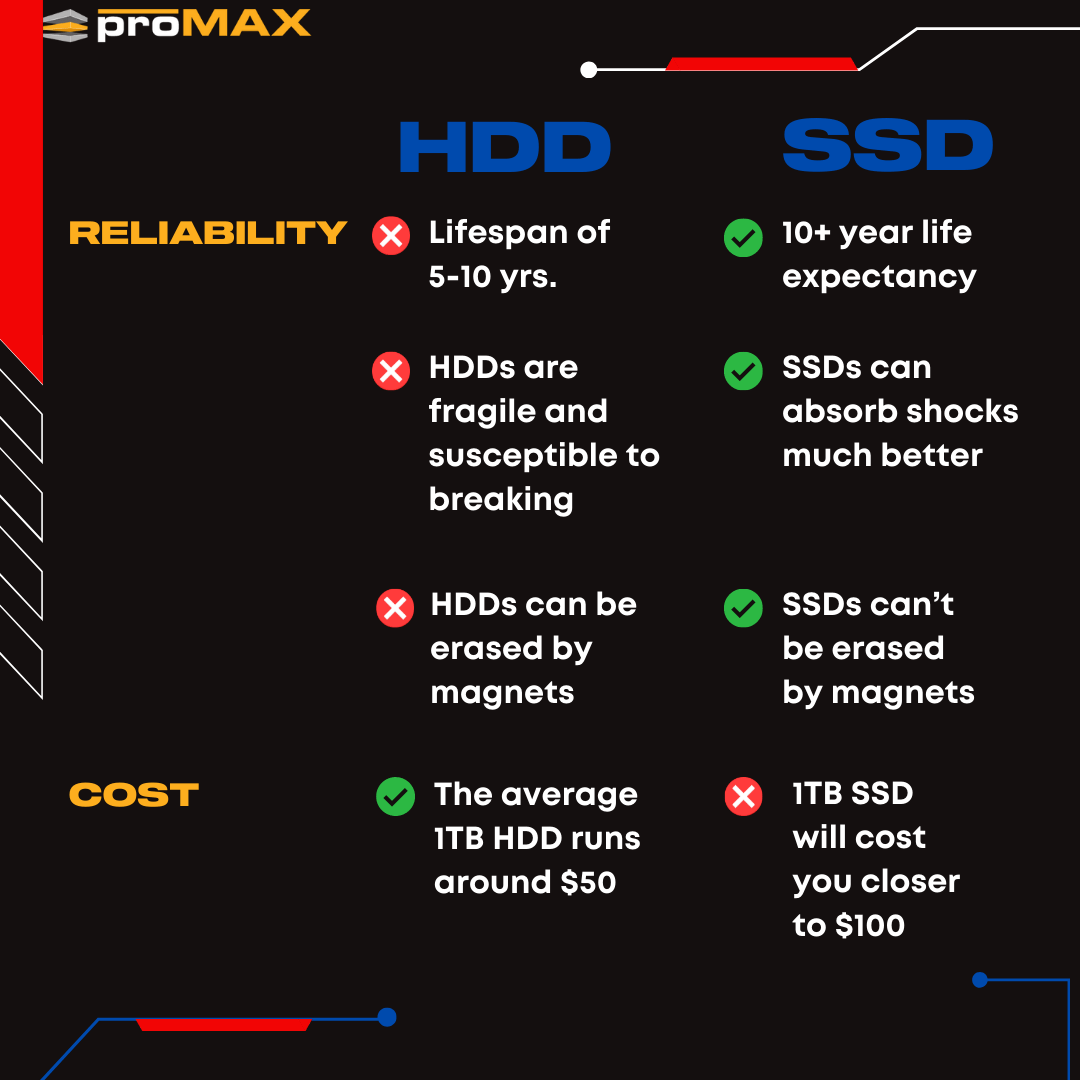
A typical 7,200 RPM HDD may offer sequential speeds near 100 to 220 MB per second. A SATA SSD can reach about 500 to 550 MB per second. A modern NVMe SSD may reach 3,000 to more than 14,000 MB per second, depending on the model and connection.
Those numbers show why are SSD faster than HDD is not a close comparison in most tasks.
How Much Faster Is an SSD Than an HDD?
The speed difference varies by task. A large file copy may show a clear advantage, but small file access and system response often make the biggest difference in daily use.
Boot time
A computer with an HDD may take 30 seconds to several minutes to start, especially if the drive is old or nearly full. A computer with an SSD often reaches the desktop in about 10 to 30 seconds.
The exact time depends on the operating system, startup apps, processor, memory, and firmware. Still, moving the operating system from an HDD to an SSD is one of the most noticeable upgrades for an older computer.
App loading
Programs open faster from an SSD because the drive can read many small files quickly. Web browsers, office tools, photo editors, and development software usually feel more responsive.
The improvement is easy to notice when opening large programs. An application that takes 20 seconds to load from an HDD may open in only a few seconds from an SSD.
File transfers
SSDs are usually faster when copying large files, but the result depends on the source drive, destination drive, file size, and connection.
For example:
• A SATA SSD may transfer large files at roughly 400 to 550 MB per second.
• A common HDD may transfer large files at roughly 100 to 220 MB per second.
• An NVMe SSD can be several times faster than a SATA SSD under the right conditions.
Small files are more difficult for HDDs because the mechanical arm must seek each file. SSDs handle this work with much lower delay.
Gaming load times
An SSD can reduce game loading screens and help large game worlds load more smoothly. It may also reduce texture pop-in in some modern games.
However, an SSD does not automatically increase frame rates. Your graphics card and processor control most frame rate performance. The SSD mainly improves loading, installation, updates, and system response.
Newer technologies, such as DirectStorage, can allow supported games to use fast NVMe storage more effectively. Support still depends on the game, operating system, graphics hardware, and driver setup.
Everyday response
The greatest benefit may be the feeling of speed. Windows or macOS responds more quickly when you open folders, search files, switch apps, or install updates.
This is why a modest computer with an SSD can feel faster than a more powerful computer with a slow HDD.

SSD vs HDD: Key Differences
The question “are SSD faster than HDD” is only one part of the buying decision. Speed matters, but capacity, price, durability, and use also matter.
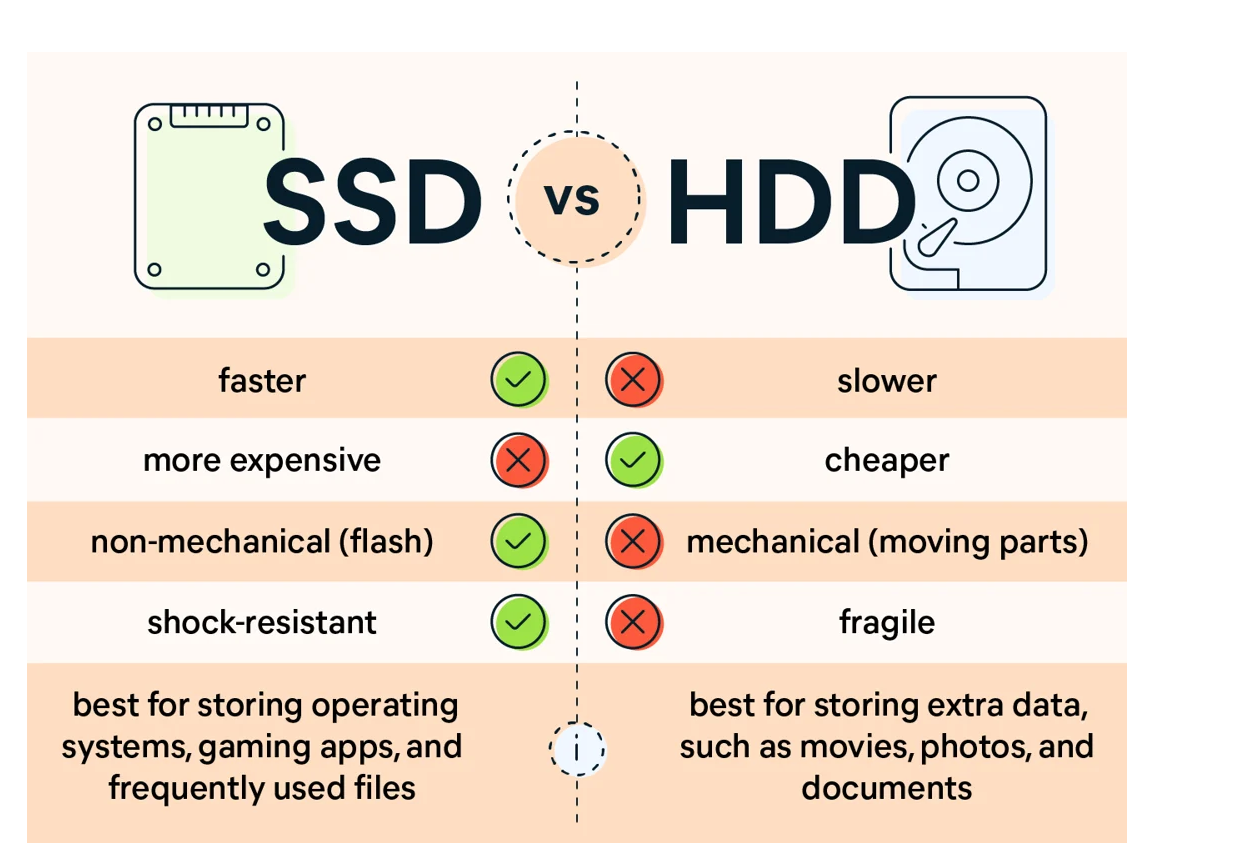
| Feature | SSD | HDD |
|---|---|---|
| Storage method | Flash memory | Magnetic platters |
| Moving parts | None | Spinning platters and moving arm |
| Typical speed | Very fast | Moderate |
| Access time | Very low | Much higher |
| Noise | Silent | Audible hum or clicking |
| Shock resistance | Better | Lower |
| Power use | Usually lower | Usually higher |
| Cost per terabyte | Higher | Lower |
| Large capacity | More expensive | More affordable |
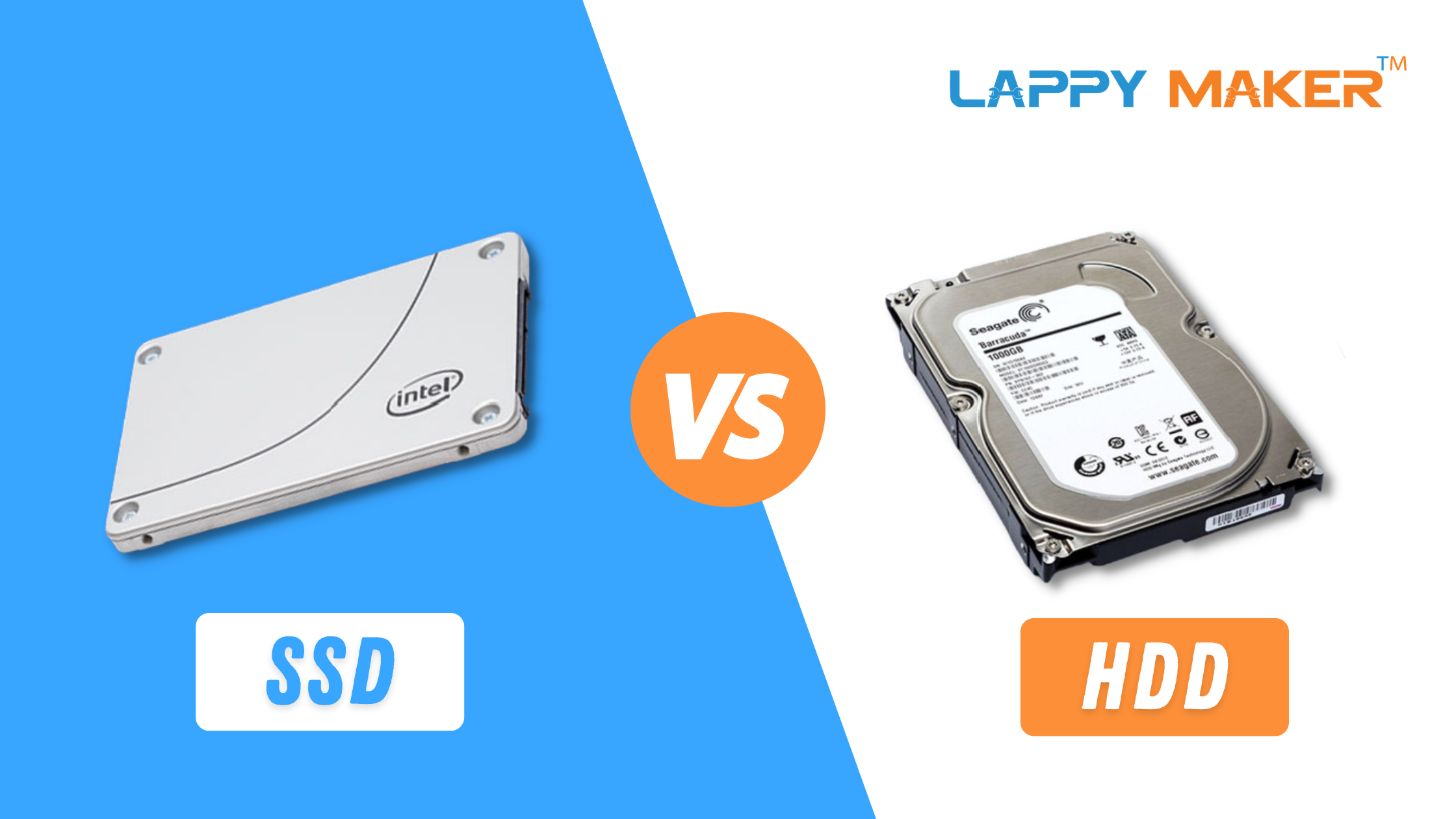
| Best use | Operating systems, apps, games | Archives, backups, large media libraries |
Speed
SSDs win by a wide margin. Even an older SATA SSD is much faster than a typical consumer HDD for system tasks.
NVMe SSDs are faster than SATA SSDs because they connect through PCIe and use a protocol designed for flash storage. However, the jump from HDD to SATA SSD usually feels more dramatic than the jump from SATA SSD to NVMe SSD.
Durability
SSDs have no spinning parts, so they handle movement and vibration better. This makes them a strong choice for laptops, portable drives, and computers that travel often.
That does not mean SSDs cannot fail. Flash memory has a limited write lifespan, and electronic parts can fail without warning. You still need backups.
Noise and heat
HDDs make sound as the platters spin and the actuator moves. Some drives are quiet, while others produce noticeable vibration or clicking.
SSDs run silently. They also tend to produce less heat, though high-end NVMe models can become warm during long transfers and may need a heat sink.
Capacity and price
HDDs remain attractive for large storage needs. A multi-terabyte HDD often costs less than an SSD with the same capacity.
SSDs cost more per terabyte, but prices have fallen over time. For many people, a smaller SSD for the operating system and a large HDD for files offers a practical balance.
Reliability
Drive reliability depends on model quality, workload, temperature, age, and usage. There is no universal rule that every SSD lasts longer than every HDD.
An SSD is less likely to suffer damage from drops. An HDD may provide many years of service in a stable desktop computer. Neither one should be treated as a backup.

When Is an HDD Still Better?
SSDs are faster than HDDs, but HDDs still have useful roles. Choosing an HDD can make sense when you need a lot of space at the lowest possible price.
An HDD may be a good fit for:
• Large photo, video, and music collections
• Long-term archives
• Local backup storage
• Home media servers
• Network-attached storage
• Files that you rarely open
• Security camera recording, when the drive is designed for that workload
For example, a photographer may keep current projects on an SSD for quick editing. Older projects can move to a large HDD. This setup keeps active work fast without making every terabyte expensive.
An HDD is also useful as part of a backup plan. Many users keep an external HDD disconnected from the computer when it is not being used. This can help protect files from accidental deletion and some forms of malware.
Still, one drive is not a complete backup strategy. Important files should follow the 3-2-1 rule:
-
Keep three copies of important data.
-
Store those copies on at least two types of media.
-
Keep one copy in a different location.
When Should You Choose an SSD?
Choose an SSD when speed, quiet operation, and fast response matter most. For most new computers, an SSD should be the primary storage drive.
An SSD is especially useful for:
• The operating system
• Frequently used applications
• Modern games
• Video editing projects
• Software development
• Virtual machines
• Large spreadsheets and databases
• Laptops and portable computers
• Computers that feel slow during startup
A 500 GB or 1 TB SSD is enough for many everyday users. Gamers and creative professionals may need 2 TB or more because modern games and video files can be very large.
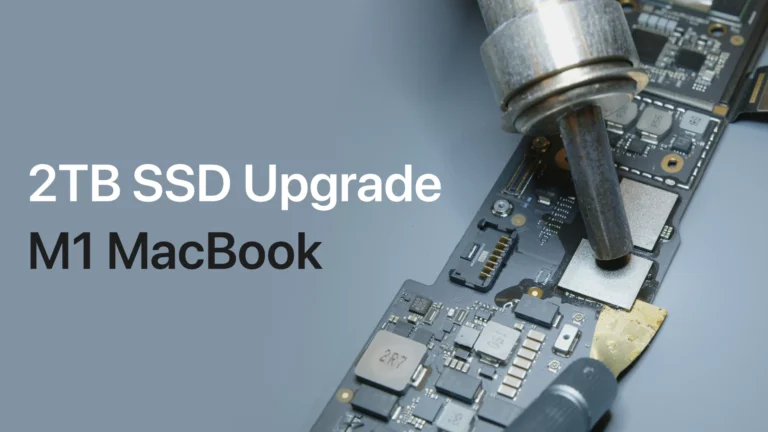
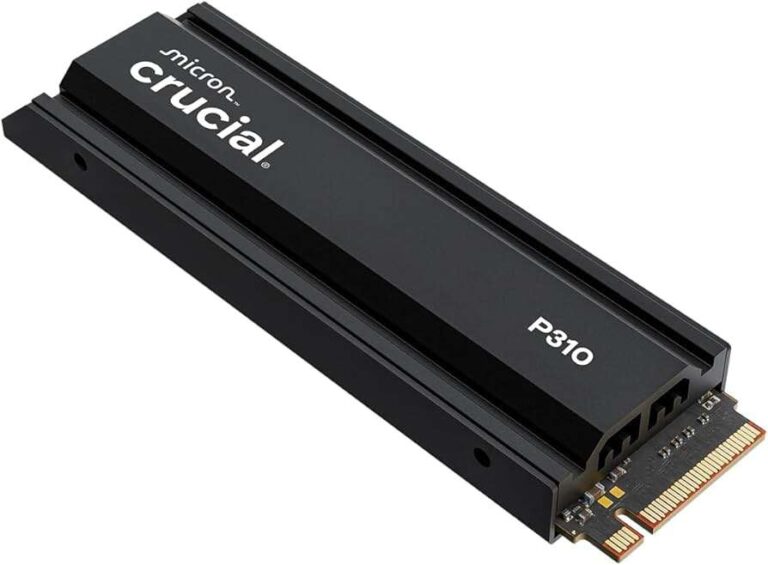
If you use a laptop, check the physical size and interface before buying. Common formats include 2.5-inch SATA drives and M.2 drives. An M.2 drive may use SATA or NVMe, so the shape alone does not tell you its speed.
Check your computer’s manual or motherboard specifications. Installing an NVMe SSD in a slot that supports only SATA may cause compatibility problems.

SATA SSD vs NVMe SSD
Both SATA SSDs and NVMe SSDs are much faster than HDDs, but they are not equal.
A SATA SSD uses the same basic interface that many 2.5-inch hard drives use. Its maximum practical speed is usually around 500 to 550 MB per second because of the SATA interface limit.
An NVMe SSD connects through PCIe. It can deliver much higher sequential speeds and lower delays. This makes it better for demanding work such as:
• High-resolution video editing
• Large software builds
• 3D content creation
• Scientific workloads
• Virtual machines
• Large file transfers
For normal web browsing, email, office work, and casual gaming, both SSD types feel fast. The biggest improvement comes from replacing an HDD, not from replacing a SATA SSD with an NVMe model.
A common mistake is paying for an extremely fast NVMe drive when the computer will not use that speed. If your workload is light, a reliable SATA SSD may offer better value.
Do SSDs Improve Gaming Performance?
SSDs improve gaming in several ways, but they do not replace a powerful graphics card.
An SSD can:
• Shorten game launch times
• Reduce loading screen waits
• Speed up game installations and updates
• Help supported games stream world data more quickly
• Reduce pauses caused by slow asset loading
An SSD usually does not create a large increase in average frames per second. If your game already runs smoothly, the main benefit may be less waiting rather than higher frame rates.
Modern open-world games can benefit more from fast storage because they load large amounts of data while you move through the game. Even then, the game must be designed to use that storage well.
For a gaming computer, install the operating system and frequently played games on an SSD. Use an HDD for older games, recordings, and media if you need extra space.
Does an SSD Last Longer Than an HDD?
There is no simple answer. SSD and HDD life spans depend on how each drive is used.
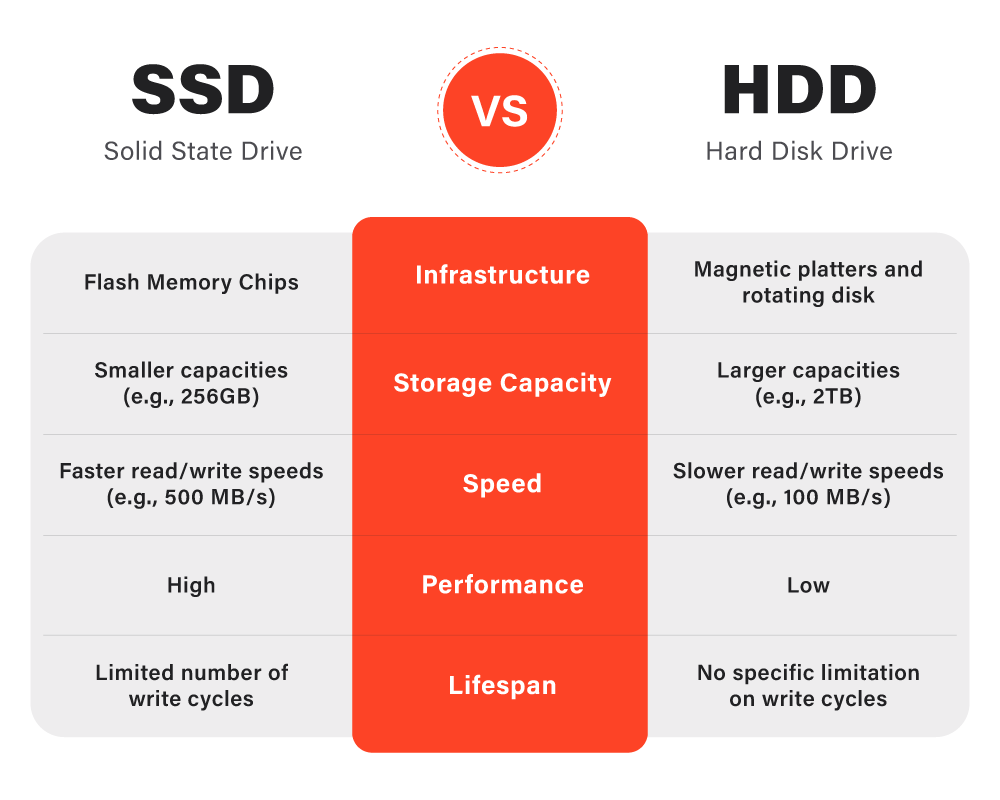
SSD endurance is often measured in terabytes written, or TBW. This figure estimates how much data can be written before the manufacturer’s endurance rating is reached. Many consumer SSDs can handle years of normal use, but heavy workloads can use more of their write capacity.
HDDs do not have a flash write limit, but their mechanical parts wear over time. A motor, bearing, or read and write arm can fail. Drops, heat, vibration, and power problems can also damage an HDD.
The safest view is this:
• SSDs are more resistant to physical shock.
• HDDs can be cost-effective for large, low-activity storage.
• Both types can fail suddenly.
• Backups matter more than the drive type.
Watch for warning signs such as repeated errors, missing files, unusual noise, slow performance, or health alerts from drive monitoring software. Replace a drive before it fails if its health status looks poor.

How to Upgrade From an HDD to an SSD
Moving from an HDD to an SSD can make an old computer feel new. The upgrade is usually straightforward, but preparation prevents problems.
-
Check the connection. Confirm whether your computer supports 2.5-inch SATA, M.2 SATA, or M.2 NVMe storage.
-
Choose enough capacity. Leave free space for system updates and temporary files. A nearly full SSD can lose performance.
-
Back up important files. Keep a separate backup before cloning or reinstalling the operating system.
-
Decide between cloning and a clean install. Cloning keeps your apps and settings. A clean install removes old clutter but takes more setup time.
-
Update the firmware and drivers when needed. Use the drive maker’s official tools and follow its instructions.
-
Enable the correct system settings. Modern operating systems usually manage SSD trimming automatically.
-
Keep the old drive until everything works. Do not erase it immediately after the upgrade.
In hands-on upgrades, the most common mistake is choosing the wrong M.2 type. Another is buying a fast drive but placing it in a slot that shares bandwidth with another device. Check the motherboard manual first.
How to Get the Best SSD Performance
Even the fastest SSD can perform poorly if the system is not set up well.
Use these practical tips:
• Keep at least 10% to 20% of the drive free.
• Install current operating system and chipset updates.
• Use the correct PCIe slot for NVMe storage.
• Avoid filling the drive completely.
• Keep high-performance NVMe drives cool.
• Use a reliable power supply and surge protection.
• Do not run old disk defragmentation tools on an SSD.
Modern operating systems use TRIM to help the SSD manage unused blocks. You usually do not need to run manual optimization tools.
Speed tests can also mislead. A benchmark may show impressive numbers that do not reflect normal use. Check boot time, app loading, file transfers, and workload response instead of focusing only on the highest advertised speed.
Are SSDs Faster Than HDDs for Every Task?
SSDs are faster than HDDs for most computer tasks, but not every result will feel dramatic.
The advantage is smaller when:
• You are limited by a slow internet connection.
• The processor is already the main bottleneck.
• The program loads mostly into memory after startup.
• You are copying files through a slow USB port.
• The destination drive is slower than the source drive.
• You are reading data from a remote server.
For example, an SSD cannot make a website load faster than the network allows. It also cannot fix a computer with too little RAM or an overheating processor.
Still, the SSD improves the storage part of the process. It reduces delays caused by reading and writing local data, which adds up across the day.
Frequently Asked Questions About Are SSD Faster Than HDD
Are SSDs faster than HDDs for everyday use?
Yes. SSDs start computers faster, open applications sooner, and make file browsing feel more responsive. The difference is especially clear when replacing an older or nearly full HDD.
Is an NVMe SSD faster than a SATA SSD?
Yes. NVMe SSDs use the PCIe interface and can reach much higher speeds than SATA SSDs. For basic tasks, however, both feel far faster than an HDD.
Do SSDs increase computer FPS?
Usually not by much. An SSD mainly reduces loading times and can improve asset streaming, while the processor and graphics card control most frame rate performance.
Are HDDs better than SSDs for backups?
HDDs often provide more storage for less money, so they are useful for large backups. SSDs are better for portable backups that face movement, but every backup drive can fail and should be checked regularly.
Can an SSD fail suddenly?
Yes. SSDs do not have moving parts, but their memory cells, controller, or other electronic components can fail. Keep more than one copy of important files.
How long does an SSD last?
A good SSD can last for many years under normal consumer use. Its expected endurance depends on the model, capacity, workload, temperature, and total data written.
Should I replace my HDD with an SSD?
For most users, yes. Replacing the system drive with an SSD is one of the best upgrades for a slow computer, especially when the processor and memory are still suitable.
Is a 2 TB HDD better than a 1 TB SSD?
It depends on your needs. The 2 TB HDD offers more space at a lower price, while the 1 TB SSD offers much faster performance and a better everyday experience.
Conclusion
SSDs are faster than HDDs for booting, opening programs, loading games, searching files, and handling many small tasks. Their flash memory has no moving parts, so SSDs are also quieter and more resistant to shock.
HDDs still make sense for large archives, backups, media collections, and other storage where low cost matters more than speed. For the best balance, use an SSD for your operating system and active files, then add an HDD for extra capacity.
Check your computer’s interface, choose enough space, and back up important data before upgrading. If your computer still uses an HDD, moving to an SSD is a practical step that can make everyday work feel much faster.

Everett Ashford is a tech reviewer at mytechgrid.com specializing in SSDs, cameras, TVs, earbuds, headphones, and other consumer electronics. He provides honest, data-driven reviews based on hands-on testing and real-world performance analysis. Everett simplifies complex tech details to help readers make smart, confident buying decisions.