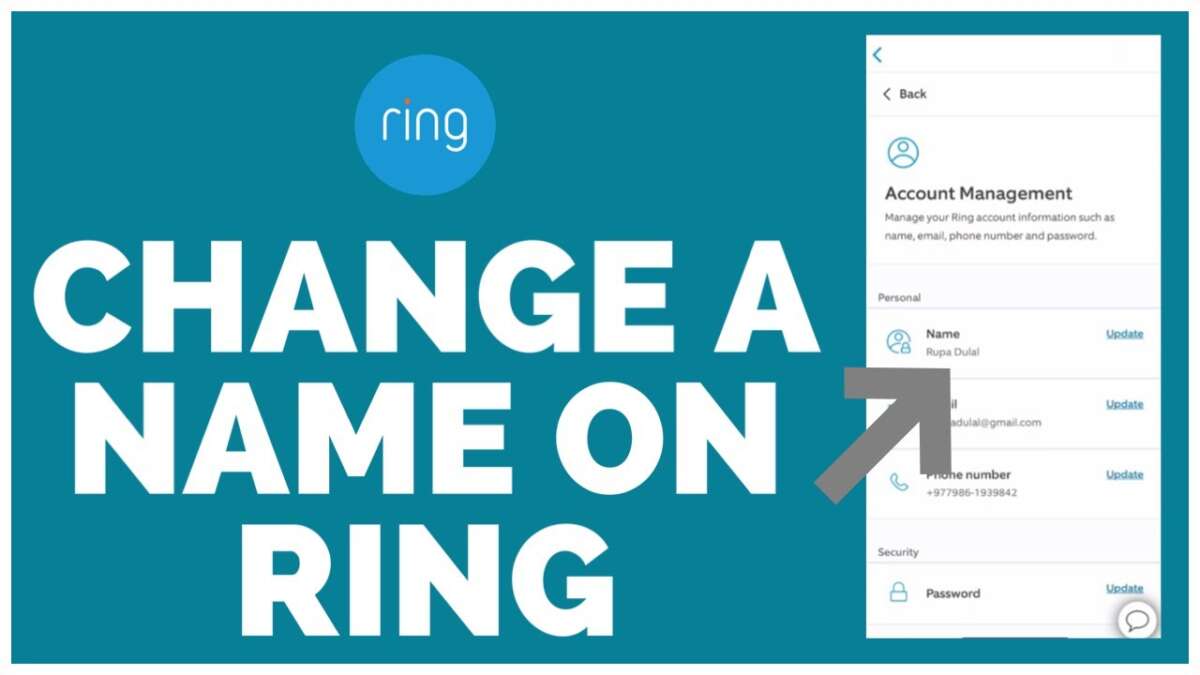
Open the Ring app, go to Device Settings, edit Device Name, and save.
If you are tired of cryptic device names like Front Door 2, you are in the right place. I have set up and managed dozens of Ring devices for homes and small offices. In this guide, I will show you how to change Ring camera name the right way, why it matters, and how to make sure that name syncs with Alexa, routines, and shared users without headaches.

Why renaming your Ring camera matters
Clear names save time, reduce stress, and help you act fast. When your phone buzzes at night, Front Porch Cam says much more than Ring Stick Up Cam. That is why learning how to change Ring camera name is a small tweak with a big payoff.
Renaming helps with:
- Faster voice commands with Alexa and groups. Alexa likes short and clear names.
- Cleaner notifications and event history for each device.
- Easier sharing, so family and coworkers know which camera they are viewing.
- Better routines and automations that trigger the right device.
I learned this while managing cameras in a two-story home and a detached garage. After standardizing names, false alarms dropped and everyone knew where to check video.

Quick steps to change a Ring camera name
You can do this in the Ring mobile app or on Ring.com. Below is how to change Ring camera name in a few taps.
On iPhone or Android:
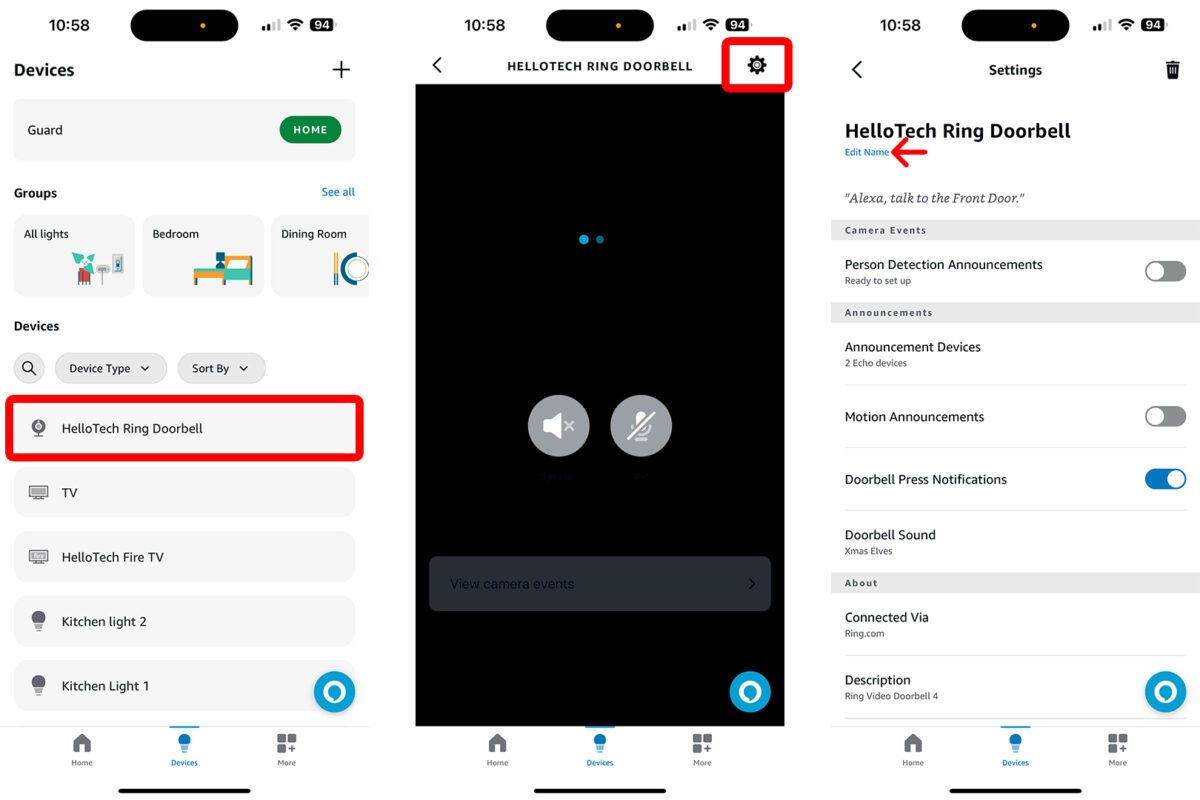
- Open the Ring app.
- Tap the camera you want to rename.
- Tap the gear icon for Device Settings.
- Tap General Settings, then Device Name. Some versions show Device Name right away.
- Enter the new name. Keep it short and clear.
- Tap Save.
On Ring.com web dashboard:
- Sign in to Ring.com.
- Open Dashboard, then select your device.
- Go to Settings or Device Settings.
- Edit Device Name and save.
Notes that help:
- Only the Device Owner can rename. Shared Users cannot.
- If you have multiple Properties, pick the right Property first.
- Avoid emojis and special symbols. Some services do not sync them well.
This is the fastest way I know how to change Ring camera name without breaking routines. It works even with older Ring app layouts.

Make names sync with Alexa and automations
Changing a device name is step one. Getting that name to show up in commands and routines is step two. If you use Alexa, here is how to change Ring camera name and sync it.
Do this after you rename in the Ring app:
- Open the Alexa app.
- Go to Devices, then Cameras.
- Pull down to refresh or tap Discover Devices.
- Check any Routines or Groups that mention the old name and update them.
Extra tips:
- Keep names simple for voice. Front Door, Driveway, Office Hall.
- Use Groups like Upstairs or Outside to trigger more than one camera.
- If you use IFTTT or other tools, update those applets or flows as well.
- Official Google Assistant support is limited. If you use any workaround, sync may vary.
In my tests, Alexa picks up new names in under a minute. If it does not, removing and re-linking the Ring skill forces a fresh sync.

Troubleshooting when a Ring camera will not rename
Most issues fall into a few buckets. Use these steps to fix them fast.
- Your role: Make sure you are the Device Owner, not a Shared User.
- App version: Update the Ring app. Old versions may not save settings well.
- Connection: Confirm the camera is online. Offline devices can delay changes.
- Property mismatch: Switch to the correct Property before editing.
- Cache and sync: Force close the app, reopen, and pull down to refresh.
- VPN and DNS: Turn off VPNs or private DNS that block Ring services.
- Sign out and back in: This clears stale tokens.
- Reinstall Ring app: Only if all else fails.
If your device has a cellular backup or a weak Wi‑Fi signal, the name may take a bit to show everywhere. Give it a few minutes, then refresh Alexa and any dashboards.
Knowing how to change Ring camera name is easy. Getting it to stick is about permissions and a clean sync.
Naming best practices that scale
Good names work today and still make sense next year. Here is what has worked best for me.
Use a clear pattern:
- Property or unit code first if you have more than one location. Example: HQ-Front Gate.
- Room or area next. Example: 2F Hall East, Garage North, Patio West.
- Keep it short for voice. Aim for two or three words.
Avoid:
- Personal data like children’s names or daily schedules.
- Duplicate names like Front Door and Front Door 2. Use directions or numbers that make sense.
- Emojis and special characters.
Pro tip: Plan names around how you talk. If you always say Check driveway, name it Driveway, not Exterior Camera 1. That one change made my family’s voice commands much smoother.
Using these rules is a smart way how to change Ring camera name with less future work.
Privacy and security after you rename
Renaming does not change video history or motion settings. It does change how alerts show for you and any Shared Users. Keep that in mind if you use names that reveal locations or patterns.
Practical steps:
- Pick names that do not reveal your routine or identity.
- Review Shared Users and adjust access if needed.
- Check your Event Timeline after renaming to confirm the new label appears.
- If you export clips, the device name can be part of the label in some tools. Keep it neutral.
This extra care makes how to change Ring camera name not only fast but also safe.
Frequently Asked Questions of how to change ring camera name
Can I rename all Ring devices the same way?
Yes. Cameras, doorbells, and chimes can be renamed in Device Settings. The steps are the same across most models.
Will renaming my camera delete any video history or settings?
No. Changing the name is cosmetic. Your event history, motion zones, and Wi‑Fi stay the same.
Why does the new name not show in Alexa right away?
Alexa may cache the old name. Refresh devices in the Alexa app or run Discover Devices to sync faster.
Do Shared Users see the new name?
Yes, Shared Users see the updated name in their app. They cannot rename devices themselves.
How often can I change a Ring camera name?
As often as you like. If you have many automations, update them after each change.
Can I rename from a computer instead of the app?
Yes. Sign in to Ring.com, open the device settings, and edit Device Name. Save and refresh.
Does changing the name affect my Ring Protect Plan?
No. Your subscription stays linked to the device, not the name. Billing and coverage do not change.
Conclusion
You now know how to change Ring camera name fast and without breaking your setup. Keep names short, clear, and consistent, then refresh Alexa and any routines to lock it in.
Spend five minutes now to prevent confusion later. Rename one camera today, test a voice command, and update your groups. Want more tips like this? Subscribe for new smart home guides or drop a comment with your setup and I will help you fine-tune it.

Jamie Lee is a seasoned tech analyst and writer at MyTechGrid.com, known for making the rapidly evolving world of technology accessible to all. Jamie’s work focuses on emerging technologies, product deep-dives, and industry trends—translating complex concepts into engaging, easy-to-understand content. When not researching the latest breakthroughs, Jamie enjoys exploring new tools, testing gadgets, and helping readers navigate the digital world with confidence.