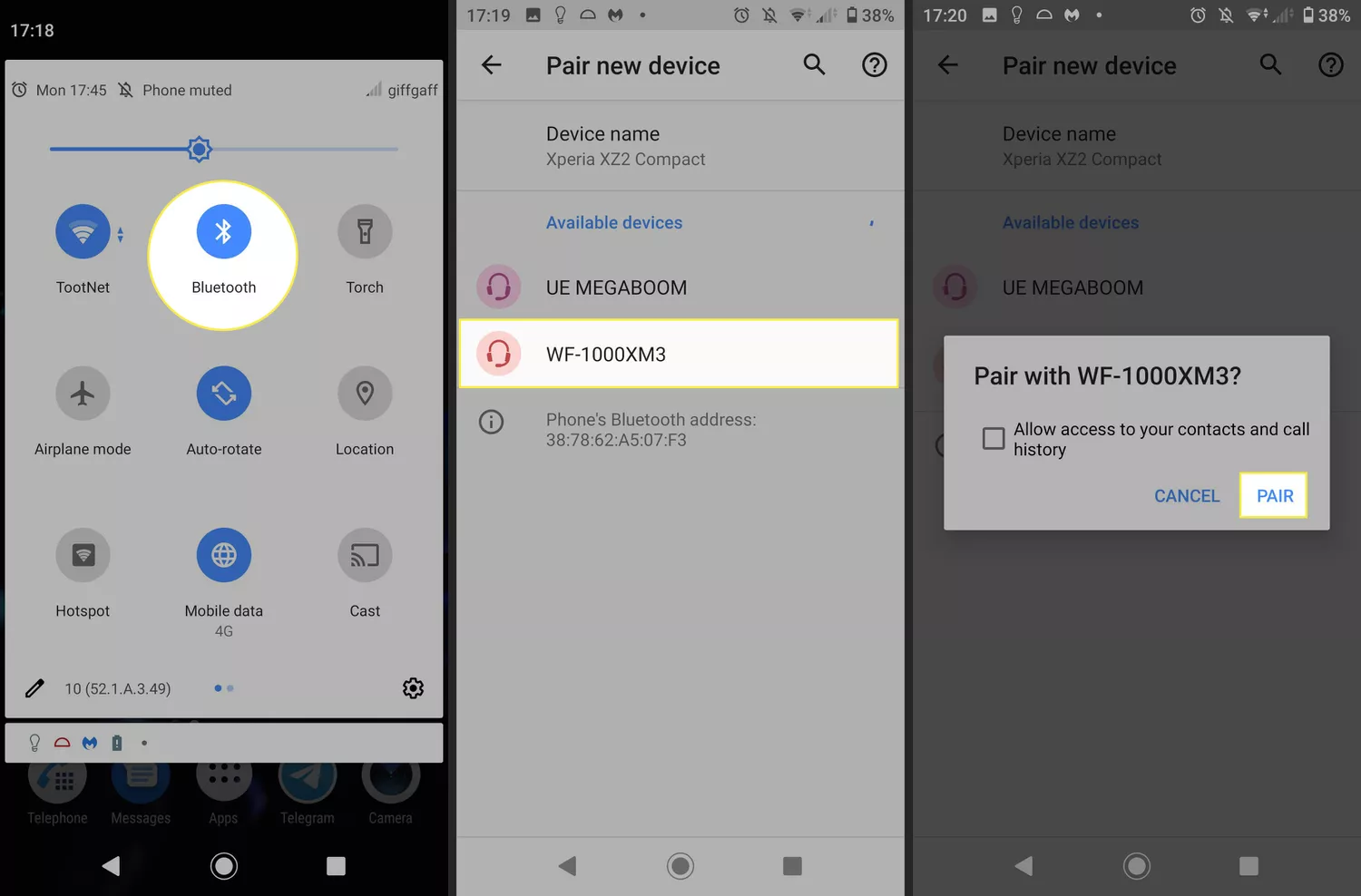
Turn on Bluetooth, put the Sony headphones in pairing mode, then select them from your device’s Bluetooth list.
I’ve paired dozens of Sony models over the years, from compact earbuds to over-ear noise-canceling cans. This guide walks you through clear, tested steps for how to pair sony headphones with phones, tablets, and computers, plus tips to fix common issues quickly.
Quick checklist before pairing
Start with a short checklist to save time.
Make sure your Sony headphones have charge. Low battery can block pairing.
Turn on Bluetooth on the device you want to pair.
If your headphones were paired before, clear old pairings if needed.
Close other nearby Bluetooth devices to avoid interference.

Step-by-step: how to pair sony headphones with phones, tablets, and PCs
Follow these simple steps for most Sony headphones. The exact button names vary by model, but the flow is the same.
- Charge and power on
- Charge the headphones until the battery icon stops flashing.
- Power them on using the power button. Short press for power on; hold to enter special modes on some models.
- Put the headphones in pairing mode
- For many Sony earbuds, open the case with earbuds inside or hold the power button until the LED flashes.
- For over-ear models, hold the power or Bluetooth button until the indicator blinks blue and red or only blue.
- If the model supports Sony Headphones Connect, the app can also trigger pairing.
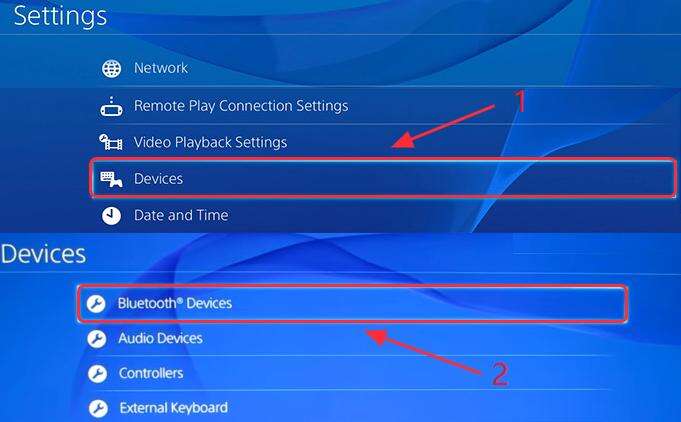
- Open Bluetooth on your device
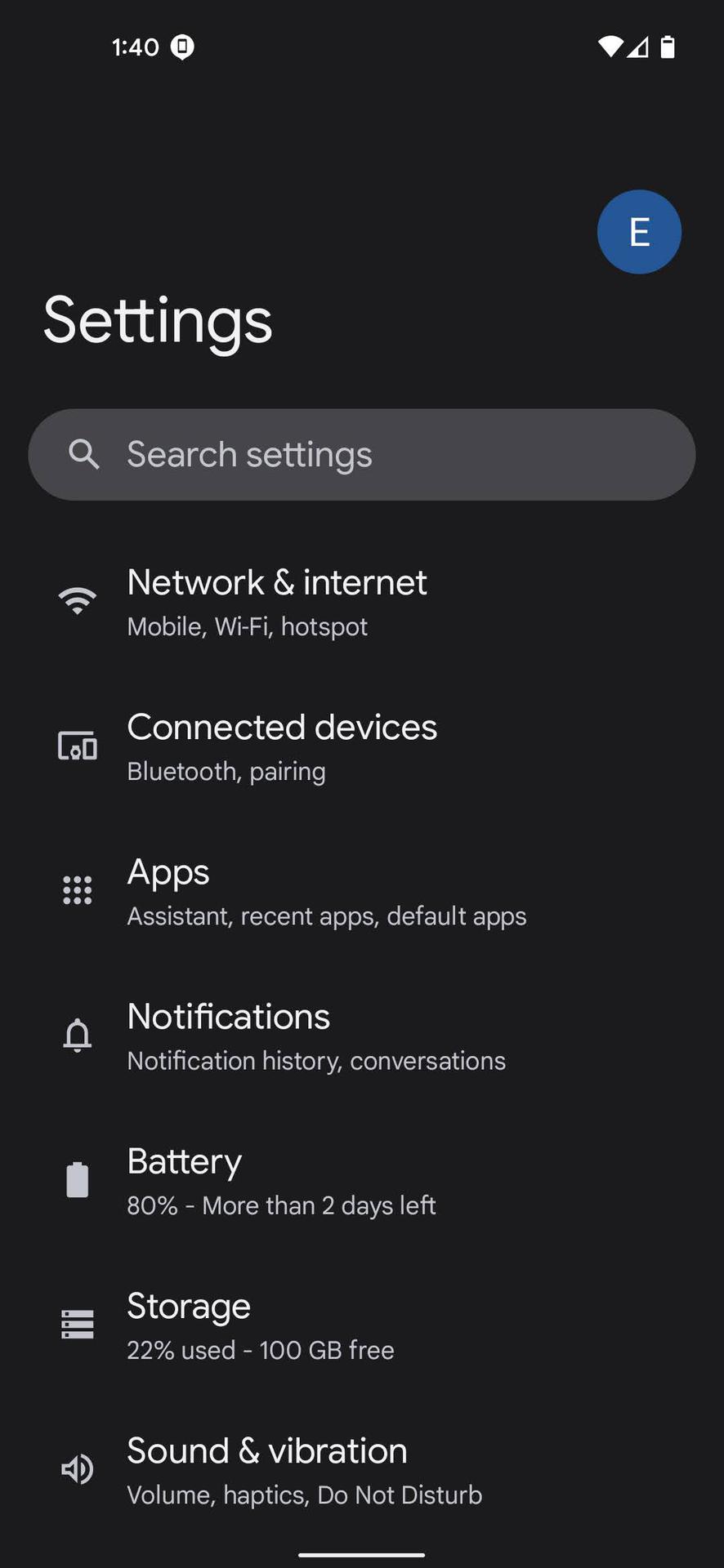
- On Android, go to Settings > Connected devices or Bluetooth. Turn Bluetooth on and tap “Pair new device.”
- On iPhone, go to Settings > Bluetooth and wait for the headphones to appear in “Other Devices.”
- On Windows, go to Settings > Bluetooth & devices > Add device > Bluetooth.
- On macOS, open System Settings > Bluetooth and look for the headset name.
- Select the Sony headphone name shown
- Tap or click the headphone name in the Bluetooth list.
- You may see model names like WF-1000XM4, WH-1000XM5, or WH-CH710N.
- Accept any pairing prompts. Most devices pair quickly.
- Confirm audio and settings
- Play audio to test connectivity.
- Use the Sony Headphones Connect app for EQ, firmware updates, and multipoint setup if supported.
how to pair sony headphones is often this straightforward. If pairing fails, try rebooting both devices and repeat the steps.
Pairing for popular Sony models
Different models have slightly different ways to enter pairing mode. Here are model-specific tips.
-
WF-1000XM4 and other Sony true wireless earbuds
- Put earbuds in the case, then open it. Hold the case button (or the earbuds' touch controls) until the LED blinks.
- Watch the device Bluetooth list and select the earbud name.
-
WH-1000XM4 and WH-1000XM5 over-ear headphones
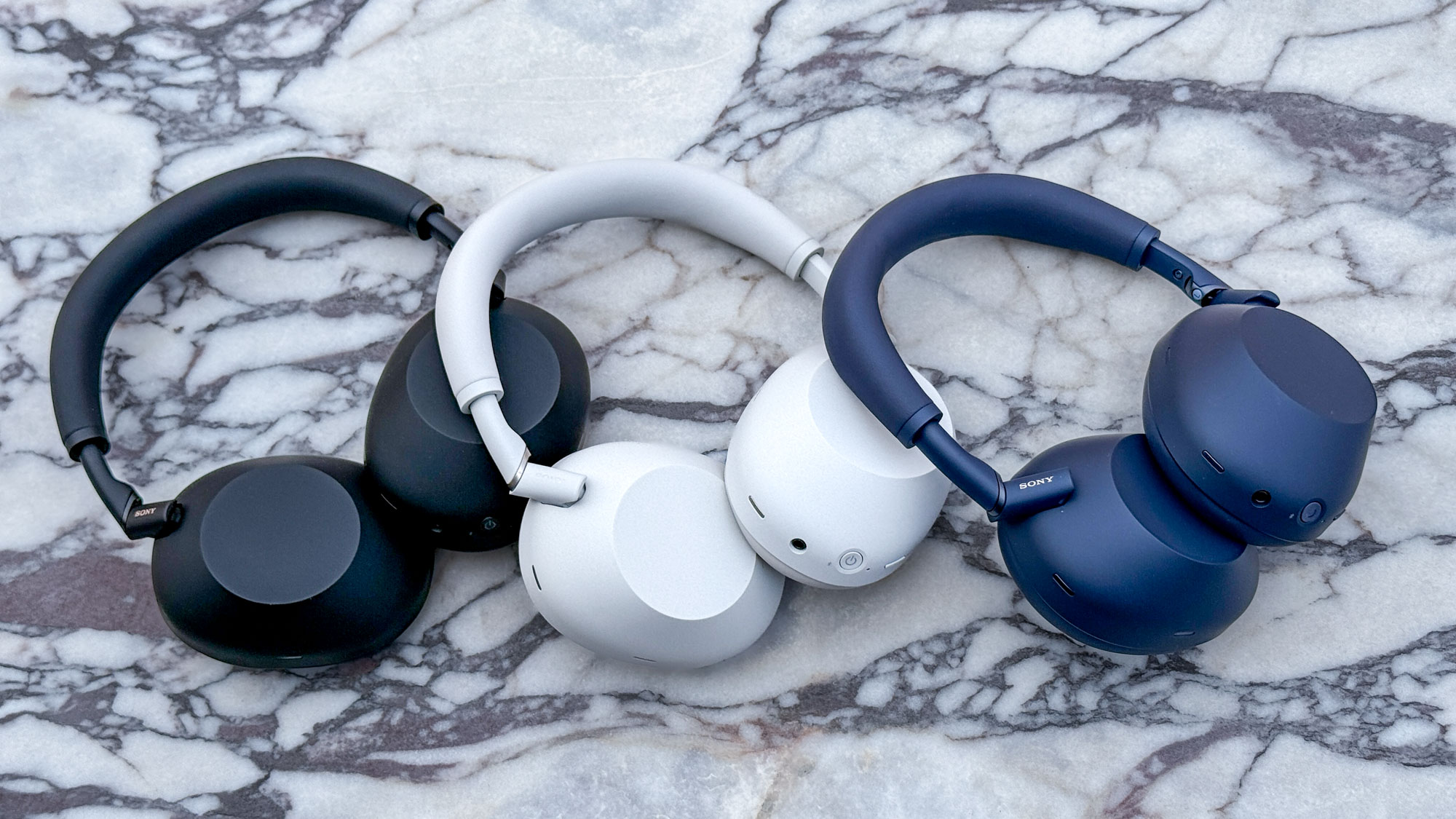
- Power on. Press and hold the power/Bluetooth button for about 7 seconds until you hear "Bluetooth pairing" or see the LED blink.
- The headphones may say the model name; select it on your device.
-
Sony Xperia phones and Android tips
- When using Sony phones, the device may show an on-screen prompt to pair faster. Enable NFC tap for quick pairing if your model supports it.
-
Multipoint-capable models
- Some Sony headphones support two-device simultaneous connections. Use the Sony Headphones Connect app to enable and manage multipoint.
- To switch devices, pause on one and play on the other or use the device’s Bluetooth menu.
I often keep a small checklist with model-specific steps. It speeds up how to pair sony headphones when switching between devices.

Troubleshooting common pairing issues
If pairing fails, try these fixes. I rely on these solutions when I test multiple devices each week.
-
Headphones not showing in Bluetooth list
- Turn headphones off and on. Reset by holding the power and Bluetooth buttons as the manual suggests.
- Clear Bluetooth cache on Android by going to Apps > Show system apps > Bluetooth > Storage > Clear cache.
-
Previously paired to another device
- Disconnect or forget the headphones on the old device. Some models automatically reconnect to the last device.
- Use the Sony Headphones Connect app to remove or manage paired devices.
-
Audio stutters or drops
- Move closer to the device. Bluetooth range and interference matter.
- Turn off Wi‑Fi or other wireless devices that may be causing interference.
-
One earbud not working
- Place both earbuds in the case and re-pair. Make sure firmware is up to date.
- Reset the earbuds to factory defaults if needed.
-
Pairing works but no sound
- Check device output. On phones and computers, select the Sony headphones as the audio output device.
- Reboot the playing app or restart the device.
These are practical steps I’ve used to solve real pairing problems. They shorten the time it takes to fix how to pair sony headphones in tricky situations.

Advanced tips and best practices
Use these advanced tips to get the best experience once you know how to pair sony headphones.
-
Keep firmware updated
- Use the Sony Headphones Connect app to update firmware. Updates can fix pairing bugs and improve sound.
-
Use the Sony Headphones Connect app
- The app gives EQ control, noise-canceling levels, and multipoint management. It also helps with model-specific pairing guides.
-
Use NFC for quick pairing (where available)
- Tap your phone to the NFC mark on the headphones or case to start pairing instantly.
-
Optimize Bluetooth codec settings
- For Android, enable LDAC in Developer Options for higher quality if supported. For iPhone, AAC is the default.
- Be aware higher-quality codecs can reduce range or increase battery use.
-
Reset as a last resort
- If all else fails, reset the headphones to factory settings. You’ll lose custom settings but often restore pairing reliability.
From testing many Sony models, I recommend routine firmware checks and using the official app. These small steps make how to pair sony headphones smoother and more consistent.
Frequently Asked Questions of how to pair sony headphones
How do I put my Sony headphones into pairing mode?
Press and hold the power or Bluetooth button until the LED flashes or you hear a voice prompt saying “Bluetooth pairing.” Exact timing varies by model.
Why won’t my phone find my Sony headphones?
Ensure the headphones are in pairing mode and not already connected to another device. Turn Bluetooth off and on and move closer to your phone.
Can I pair Sony headphones with two devices at once?
Some Sony models support multipoint for two devices. Use the Sony Headphones Connect app to enable multipoint and manage connections.
Do I need the Sony Headphones Connect app to pair?
No, you can pair without the app. The app adds firmware updates, EQ controls, and easier multipoint configuration.
How do I reset my Sony headphones if pairing fails?
Reset methods differ by model. Commonly, power off then hold the power and connect buttons, or use the app to perform a factory reset. Check the manual for model-specific steps.
Will updating firmware fix pairing issues?
Yes, firmware updates often fix bugs and improve Bluetooth stability. Use the Sony Headphones Connect app to check for updates.
Conclusion
Pairing Sony headphones is a simple process when you follow clear steps: charge, enter pairing mode, and select the device from your Bluetooth list. Use the Sony Headphones Connect app and firmware updates for the best experience, and try the troubleshooting tips if you run into trouble. Take a moment now to pair your headphones and test them—small checks now save time later. If this guide helped, try the app, leave a comment with your model, or subscribe for more device tips.

Everett Ashford is a tech reviewer at mytechgrid.com specializing in SSDs, cameras, TVs, earbuds, headphones, and other consumer electronics. He provides honest, data-driven reviews based on hands-on testing and real-world performance analysis. Everett simplifies complex tech details to help readers make smart, confident buying decisions.