Turn on Bluetooth pairing on the QC Ultra, enable Bluetooth on your device, then select "Bose QC Ultra" to pair.
I’ve guided dozens of people through Bluetooth hassles, and I’ll walk you step by step on how to pair Bose QC Ultra headphones with phones, laptops, and tablets. This guide blends clear instructions, troubleshooting, and real-world tips from my own testing so you can pair quickly and keep listening without stress. If you want a fast, reliable method for how to pair bose qc ultra headphones—and to fix the common hiccups—you’re in the right place.
Why pairing correctly matters
Pairing gets your headphones and device to talk to each other. Good pairing gives stable audio, active noise canceling, and access to app features. Incorrect pairing can cause audio dropouts, failure to connect, or missing controls.
I’ve seen people lose time because their device was in airplane mode or because another paired device grabbed the connection. Knowing how to pair bose qc ultra headphones the right way saves time and keeps sound quality high.
Quick checklist before you start
- Make sure your Bose QC Ultra has enough battery.
- Turn Bluetooth on for the device you want to pair.
- Move within 3 feet (1 meter) of your device for first-time pairing.
- Turn off or forget other nearby Bluetooth headphones if you have issues.
This checklist clears the common blockers that stop how to pair bose qc ultra headphones from working on the first try.

Step-by-step: How to pair Bose QC Ultra headphones (basic method)
- Power on the headphones.
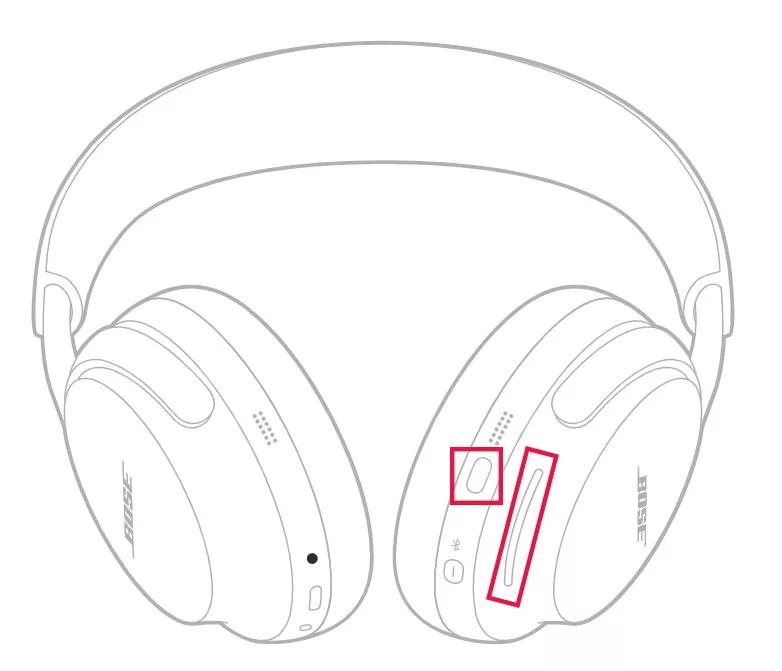
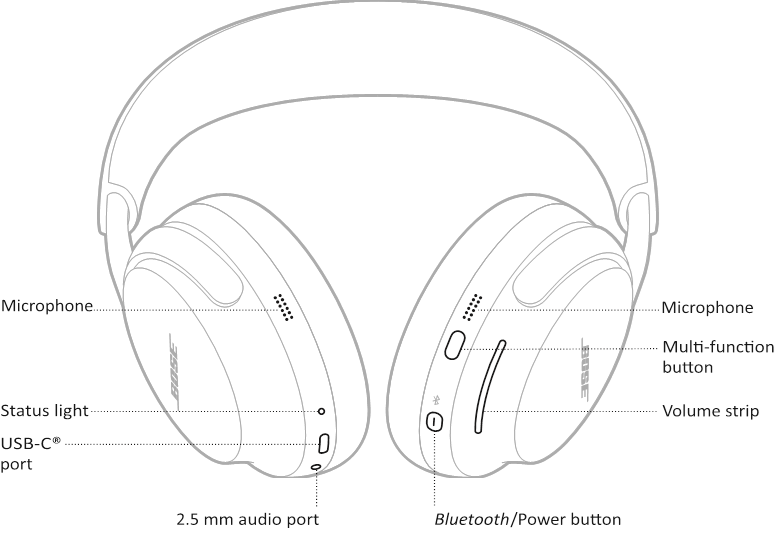
- Press and hold the power button for about 2–3 seconds until a voice prompt or LED shows power on.
- Enter pairing mode.
- Press and hold the power/Bluetooth button for about 5 seconds until the LED flashes blue or you hear “Ready to pair.”
- Open Bluetooth settings on your device.
- On phone/tablet: Settings > Bluetooth. On Mac: System Settings > Bluetooth. On Windows: Settings > Bluetooth & devices.
- Select the headphones from the list.
- Look for “Bose QC Ultra” and tap or click to connect.
- Confirm connection.
- You’ll hear “Connected” from the headphones or see “Connected” in your device’s Bluetooth list.
Follow these steps when learning how to pair bose qc ultra headphones for the first time. Keep the headphones near your device while pairing.

Pairing with an iPhone or iPad
- Open Settings > Bluetooth.
- With the headphones in pairing mode, find and tap “Bose QC Ultra.”
- If asked to allow requests or pair codes, accept or enter 0000 if prompted.
On iOS, pairing is usually fast and reliable. If you run into trouble when figuring out how to pair bose qc ultra headphones with an iPhone, restart Bluetooth and try again.
Pairing with Android devices
- Open Settings > Connections > Bluetooth.
- Turn on Bluetooth and scan for devices.
- Tap “Bose QC Ultra” when it appears.
Different Android skins look slightly different, but the core steps are the same. When learning how to pair bose qc ultra headphones on Android, use the Bose Music app for extra features like firmware updates.

Pairing with a Windows PC or Mac
- Windows: Settings > Bluetooth & devices > Add device > Bluetooth, then choose “Bose QC Ultra.”
- Mac: System Settings > Bluetooth, click “Connect” next to “Bose QC Ultra.”
If Windows fails to connect, remove the device from Bluetooth settings and try again. These tips help when you’re pairing for calls or remote work and need to know how to pair bose qc ultra headphones with a laptop.

Using the Bose Music app for setup and firmware
- Download the Bose Music app (iOS or Android).
- Open the app and follow the on-screen steps to add a new product.
- The app can push firmware updates and optimize settings.
The app makes how to pair bose qc ultra headphones smoother and lets you control noise canceling and sound modes. I always update firmware right after pairing to reduce bugs.

Multipoint pairing and switching devices
- Multipoint lets the headphones connect to two devices at once (phone and laptop).
- To pair a second device, put the headphones back in pairing mode and connect from the second device’s Bluetooth settings.
- To switch audio, select the Bose QC Ultra from the active device’s Bluetooth menu.
Multipoint behavior varies by device. If you’re learning how to pair bose qc ultra headphones for multipoint use, test audio switching between your devices to ensure expected behavior.
Troubleshooting common pairing problems
- Headphones won’t enter pairing mode
- Make sure you hold the correct button for the right time. Fully power off and try again.
- Device can’t find the headphones
- Turn Bluetooth off and on, restart the device, or move other Bluetooth devices away.
- Stuck connecting or keeps dropping
- Forget the headphones on your device and re-pair. Update headphone firmware via the Bose Music app.
- Connection to one device only
- Disable Bluetooth on the other device to check multipoint. Re-pair both devices if needed.
- Poor call quality
- Switch to the device’s call audio settings or use the phone’s built-in microphone if the headset mic is low.
I once spent 20 minutes debugging a laptop that kept prioritizing a second paired phone. Removing the phone from Bluetooth and re-pairing fixed it. These are the go-to fixes when how to pair bose qc ultra headphones doesn’t go smoothly.
Resetting and factory pairing reset
- Turn off the headphones.
- Press and hold the power button for about 10 seconds to reset (follow model instructions if different).
- Alternatively, use the Bose Music app to perform a factory reset if available.
Resetting helps when you’ve tried all other steps. It clears old pairings and gives a clean slate for how to pair bose qc ultra headphones again.
Best practices and real-world tips
- Keep firmware current to avoid pairing bugs.
- Use the Bose Music app for guided pairing and settings.
- Keep Bluetooth on only for the device you want to pair when first connecting.
- Avoid crowded Bluetooth environments during initial pairing.
- Label the headphones in your device’s Bluetooth list for easy recognition.
From testing, I learned that first-time pairing is fastest when the headphones and device are on the same surface and within inches of each other. This practical tip helps reduce time spent learning how to pair bose qc ultra headphones.
Security and privacy notes
- Bluetooth pairing is secure for everyday use but avoid pairing in public when entering sensitive accounts.
- Use device-level controls to forget or remove access when sharing or selling devices.
These steps keep your devices safe while you learn how to pair bose qc ultra headphones and manage multiple connections.
Frequently Asked Questions of how to pair bose qc ultra headphones
How do I put my Bose QC Ultra into pairing mode?
Press and hold the power/Bluetooth button for about 5 seconds until the LED flashes blue or you hear a prompt saying “Ready to pair.” Then search for “Bose QC Ultra” in your device’s Bluetooth settings.
My device can’t find Bose QC Ultra—what should I do?
Turn Bluetooth off and on, restart your device, and move closer to the headphones. If that fails, forget previous pairings on the device and try again.
Can I connect Bose QC Ultra to two devices at once?
Yes, many Bose models support multipoint. Put the headphones into pairing mode for the second device and connect; test audio switching between devices to confirm behavior.
Do I need the Bose Music app to pair?
No, you can pair via system Bluetooth settings, but the Bose Music app simplifies setup, firmware updates, and controls for features like noise canceling.
How do I reset my Bose QC Ultra if pairing fails?
Turn off the headphones, then press and hold the power button for about 10 seconds or follow reset instructions in the app. After reset, re-enter pairing mode and pair again.
Conclusion
You now have a clear, practical roadmap for how to pair bose qc ultra headphones with phones, tablets, and computers. Start with the basic pairing steps, use the Bose Music app for updates, and rely on the troubleshooting checklist if things go wrong. Try pairing once with your main device, then add a second device for multipoint use to get the full benefit. If you found this useful, leave a comment with your device and issue, subscribe for more headphone tips, or share this guide so others can pair confidently.

Everett Ashford is a tech reviewer at mytechgrid.com specializing in SSDs, cameras, TVs, earbuds, headphones, and other consumer electronics. He provides honest, data-driven reviews based on hands-on testing and real-world performance analysis. Everett simplifies complex tech details to help readers make smart, confident buying decisions.