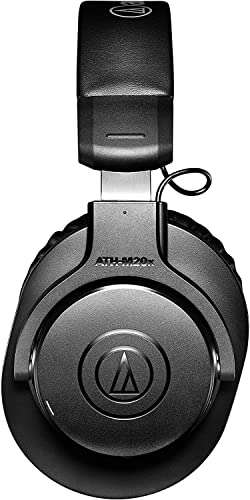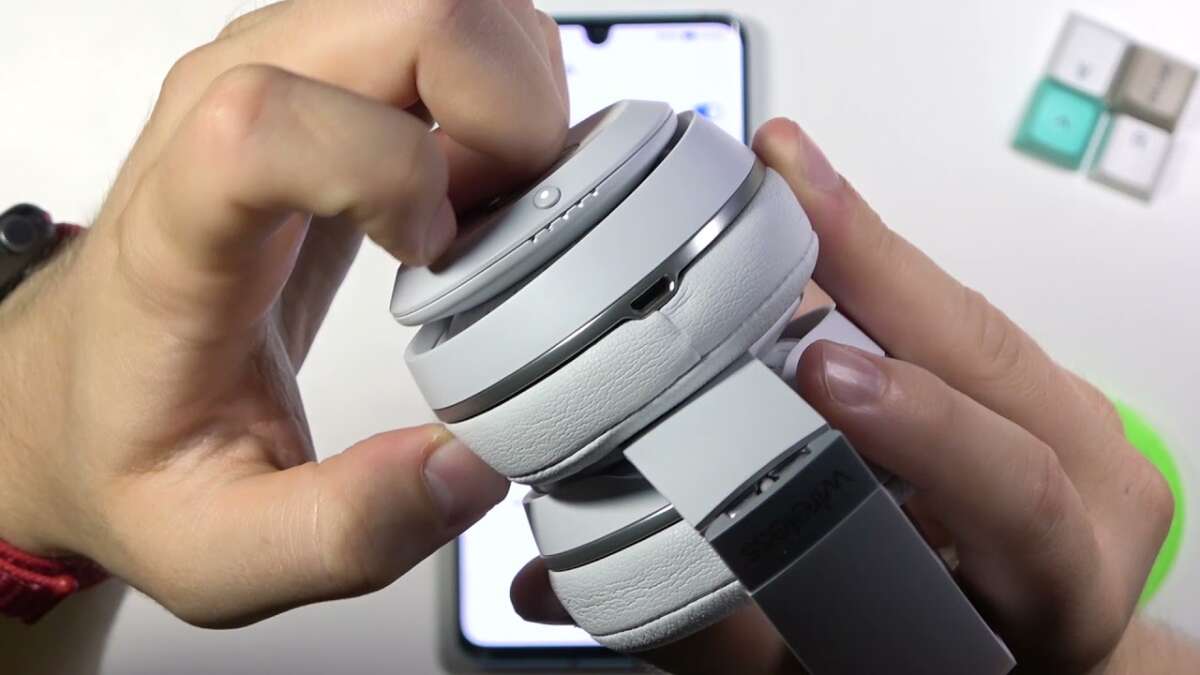
Press and hold the power and volume down buttons for about 10 seconds to reset Beats headphones.
I’ve fixed my share of audio headaches. In this guide I’ll walk you through exactly how to reset Beats headphones, why you might need to, and what to do afterward. You’ll get clear, model-specific steps, troubleshooting tips, and practical advice from real-world use so you can restore sound fast and avoid repeat problems.
Why reset Beats headphones?
Resetting your Beats headphones clears temporary glitches. It removes stuck Bluetooth pairings, fixes audio dropouts, and resets onboard settings back to factory defaults. When wireless audio stutters, the simplest fix is often a reset.
A reset is not always a fix for hardware damage. But for software and pairing issues, a reset is fast and effective. Knowing how to reset Beats headphones saves time and keeps your listening uninterrupted.
Common reasons to reset Beats headphones
- Bluetooth won’t pair or reconnect consistently.
- Audio cuts out, is distorted, or only plays on one side.
- Headphones don’t power on or respond to controls.
- Firmware update failed or left the device unstable.
- You want to give the headphones to someone else and clear pairings.
These problems are common. A reset often resolves them. If a reset doesn’t help, the issue may be a battery, physical damage, or required firmware update.

Before you reset: backup and prep
- Charge your headphones to at least 50 percent. A low battery can interrupt resets.
- Remove the headphones from the Bluetooth list on your phone, tablet, or PC. This avoids automatic reconnection problems after the reset.
- Note any custom settings you want to restore, such as sound profiles or noise-canceling preferences.
- Make sure you know the model name. Steps differ by model, and the right method matters.
Preparing first makes the reset smoother. It also speeds up re-pairing and reduces frustration.
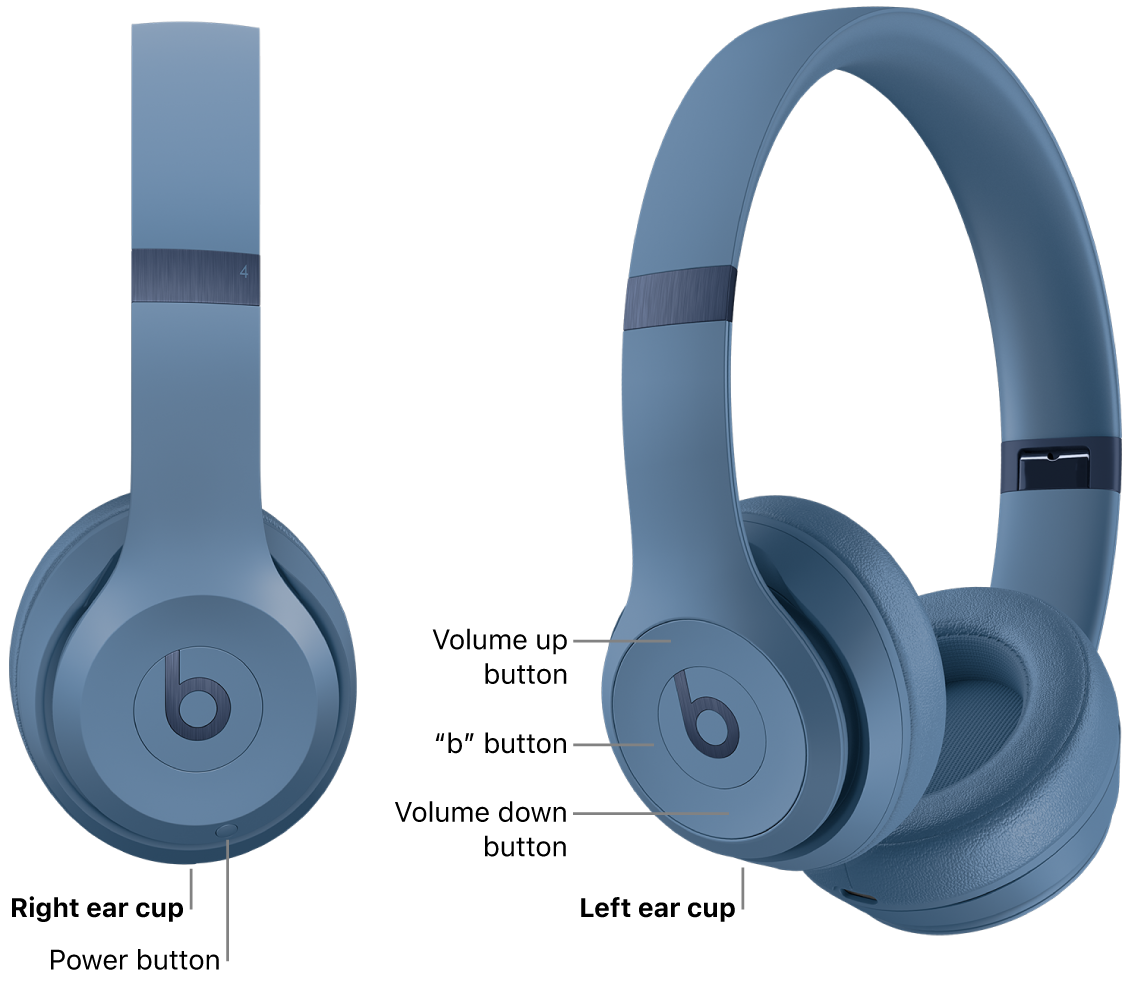
Step-by-step: How to reset Beats headphones (universal method)
The phrase how to reset Beats headphones covers a few easy actions that work for many models. Try this general method first:
- Turn off the headphones.
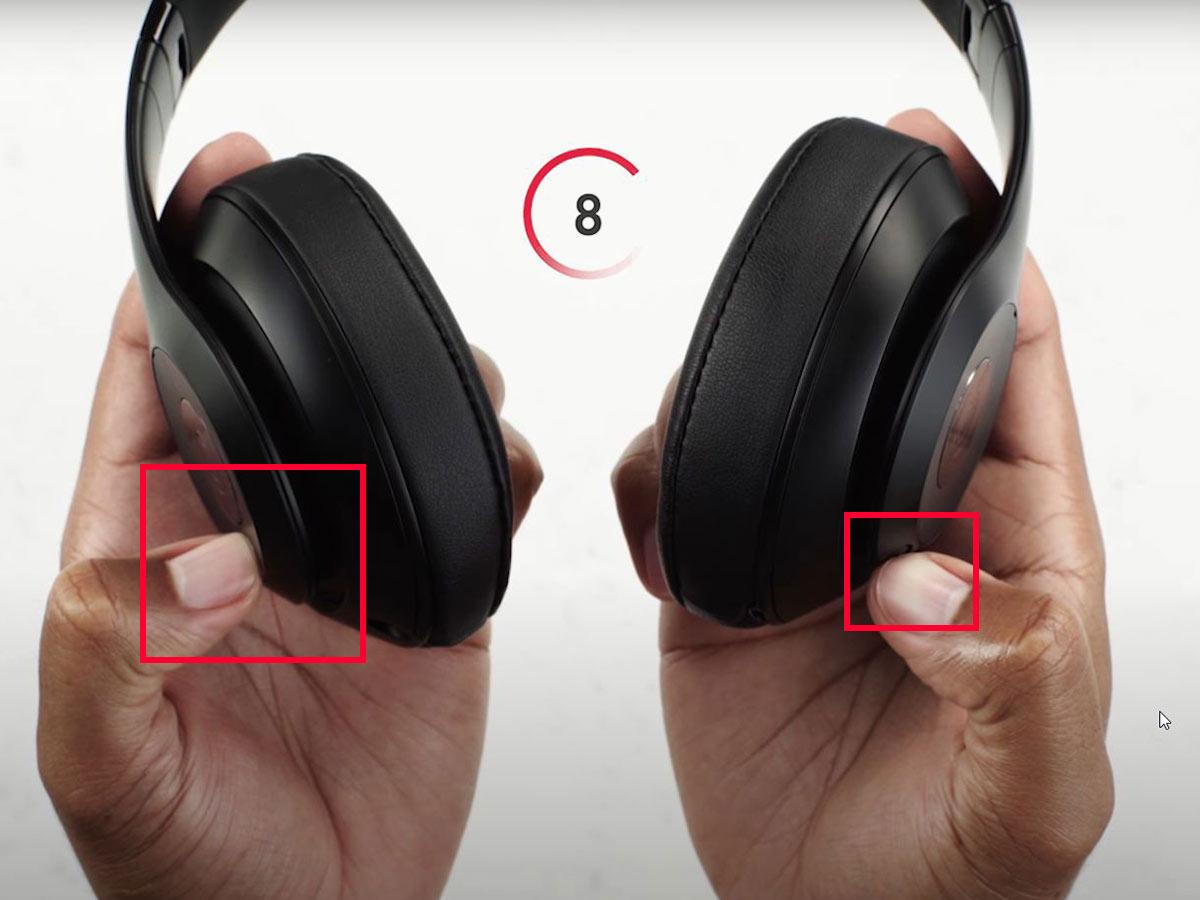
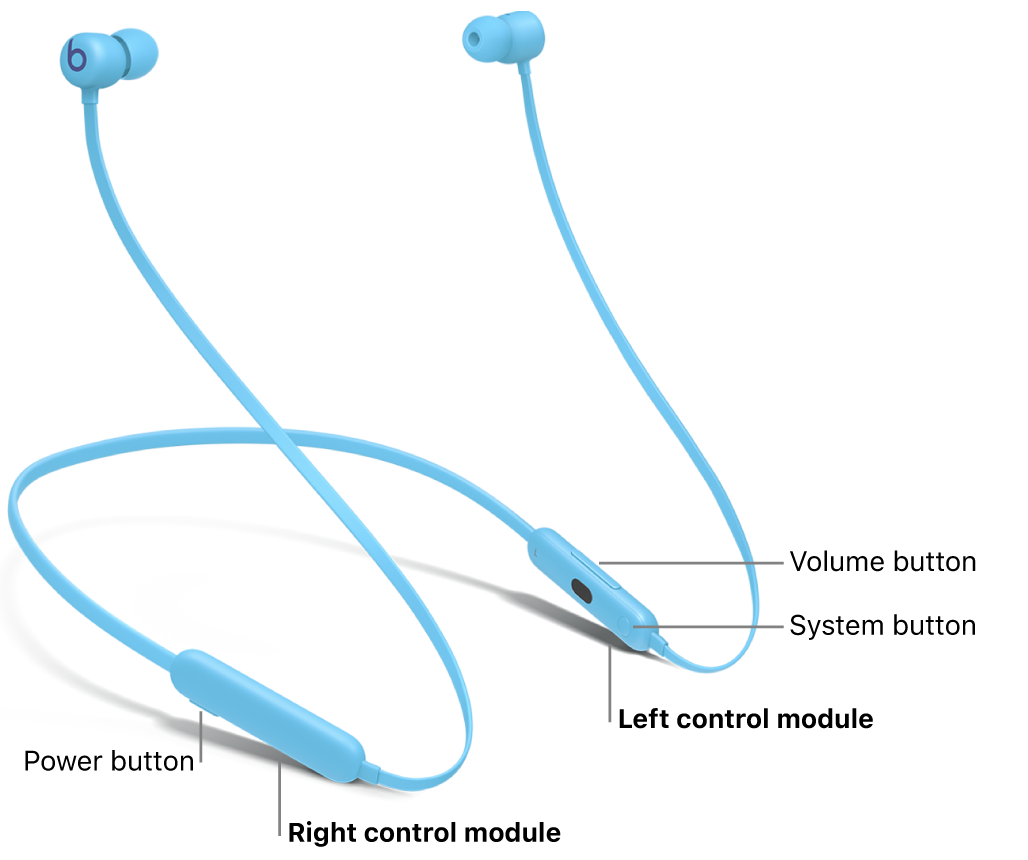
- Press and hold the power button and the volume down button at the same time.
- Hold both for about 10 seconds, until the LED indicator flashes or the device restarts.
- Release buttons and wait 10 seconds.
- Remove the headphones from your device’s Bluetooth list.
- Power the headphones on and re-pair with your device.
This simple sequence resolves most connection and control issues. Repeat once if the first attempt did not produce the LED flash or expected behavior.

Model-specific reset guides
Different Beats models have small differences. Here are concise, tested methods for popular models so you know exactly how to reset Beats headphones for each one.
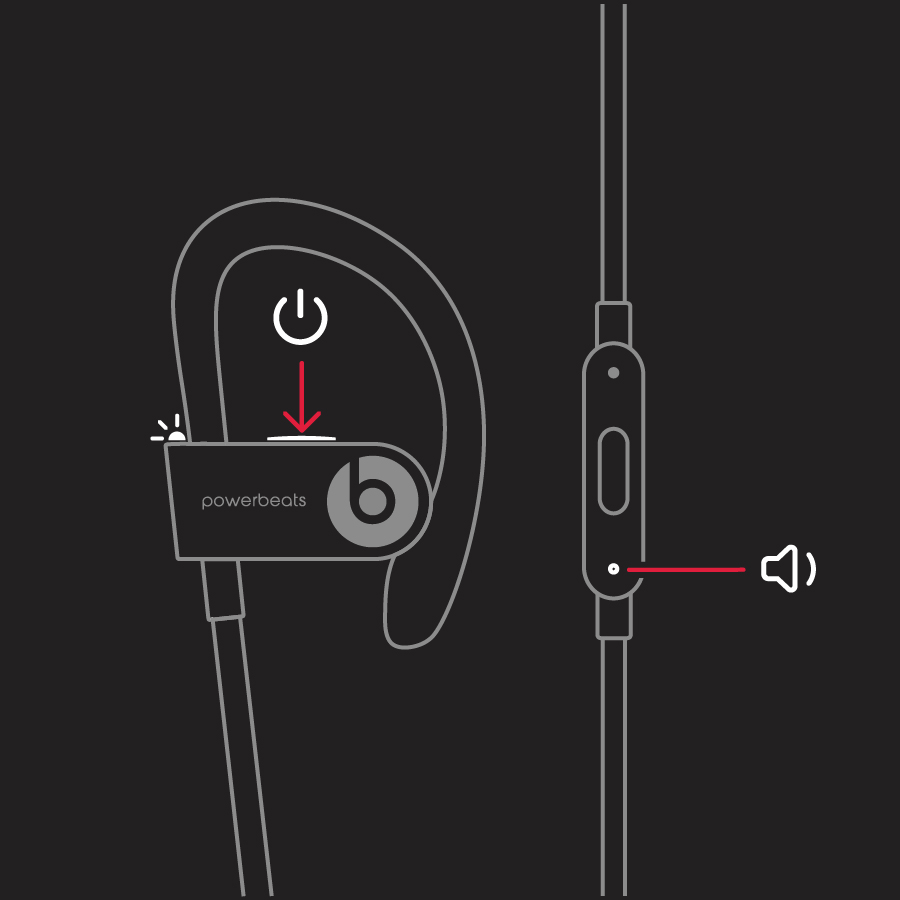
Beats Solo3, Solo Pro, Studio3, Solo2, Powerbeats3, BeatsX
- Turn off the headphones.
- Press and hold the power button and volume down button together for about 10 seconds.
- Release when the LED blinks. Remove from Bluetooth list and re-pair.
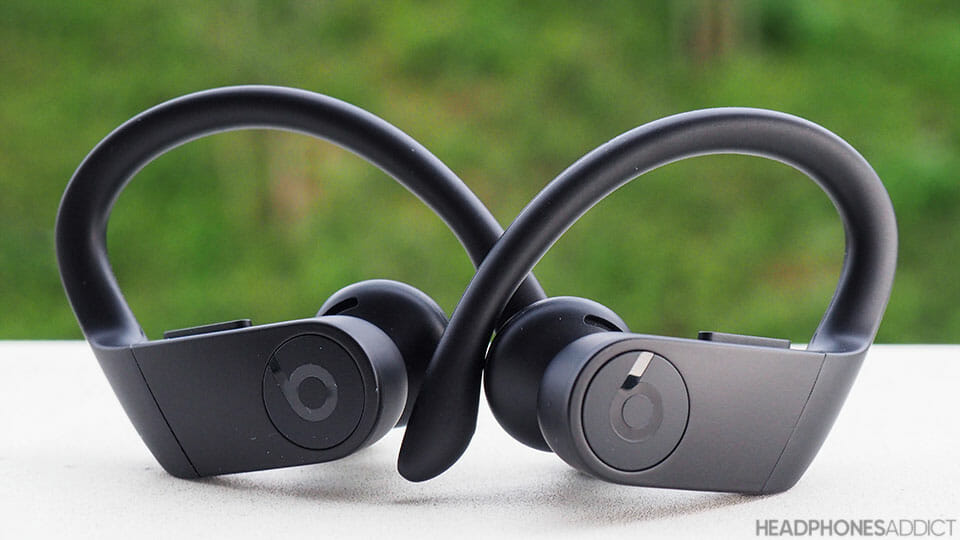
Powerbeats Pro
- Place both earbuds in the charging case.
- Leave the case open.
- Press and hold the system button on the case for about 15 seconds.
- The LED will flash red and white, then white. Remove from Bluetooth list and re-pair.
Beats Studio Buds
- With the earbuds in the case, leave the case open.
- Press and hold the button on the case for about 15 seconds.
- Wait for LED activity (flashing). Remove from Bluetooth list and re-pair.
Beats Pill+ and portable speakers
- Turn on the unit.
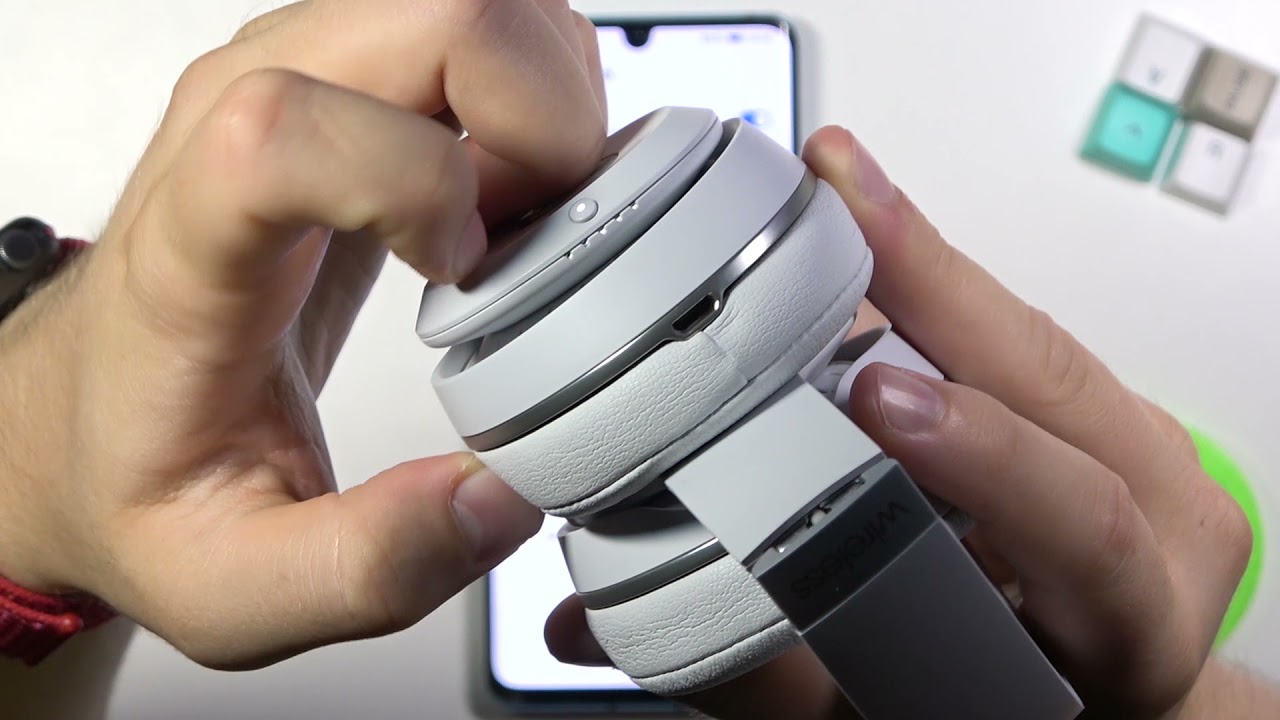
- Press and hold the power button and Bluetooth button together for about 10 seconds, or until the unit reboots or LEDs indicate a reset.
- Remove from Bluetooth list and re-pair.
If a model behaves differently, consult the manual or the support app. These techniques show how to reset Beats headphones across the lineup, but some legacy models vary slightly.

Troubleshooting after reset
If you’ve reset and still have issues, try these steps:
- Reboot your phone or computer. Many Bluetooth issues clear after a device restart.
- Update device OS and Beats firmware if available. Firmware fixes can resolve persistent bugs.
- Test with another device to isolate whether the problem is the headphones or the original device.
- If audio is one-sided, gently clean the earphone meshes. Dirt can muffle sound.
- If charging issues remain, try a different cable and charger.
If nothing helps, the problem may be hardware. Reach out to support for service or replacement options.
Common quick questions (PAA-style)
How long should I hold the buttons to reset Beats headphones?
Hold the buttons for about 10 seconds for most models. For earbuds in a case, hold the case button for 15 seconds.
Will resetting delete my warranty or personal data?
Resetting only clears Bluetooth pairings and settings. It does not void warranty or remove personal account details stored elsewhere.
Do I need to update firmware after a reset?
Not always. But checking for firmware updates after a reset is a good step to prevent future issues.
Personal experience, tips, and mistakes to avoid
I once tried to reset a pair of Studio3s before reading the manual. I held only the power button. The LED didn’t flash and the headphones never disconnected from my phone. Lesson learned: always hold the correct button combo until you see the LED indicator.
Tips from experience:
- Always remove the device from your phone’s Bluetooth list after reset. Skipping this prevents fresh pairing.
- If using iOS, turn Bluetooth off and on before pairing to clear caches.
- Don’t panic if a reset seems to fail. Try it twice, and ensure the battery has a good charge.
Avoid these mistakes:
- Resetting with low battery can leave firmware in a partial state.
- Assuming all Beats models reset the same way. Small differences matter.
Tips to avoid future issues with your Beats
- Keep firmware and phone OS updated.
- Store headphones in their case when not in use to protect settings.
- Avoid extreme temperatures that can harm batteries.
- Regularly clean ear pads and meshes to preserve sound quality.
- Re-pair devices intentionally; don’t keep dozens of active pairings.
These habits reduce the need to reset and lengthen the life of your Beats.
Frequently Asked Questions of how to reset beats headphones
How do I force a reset if the LED never flashes?
Try holding the buttons longer, up to 15 seconds. If that fails, fully charge the headphones and try again.
Will a reset fix battery drain issues?
A reset can help if drain is caused by software or stuck processes. If battery health is degraded, a reset won’t restore capacity.
Do I need the Beats app to reset my headphones?
No. Most resets are done with button combinations. The app can help update firmware and manage settings.
How do I re-pair after I reset Beats headphones?
Remove the device from Bluetooth on your phone, turn Bluetooth off and on, power the headphones on, and select them from the available devices list.
My Beats still won’t connect after reset. What next?
Test with another phone or tablet. If the headphones fail on multiple devices, contact support for repair or replacement.
Conclusion
Resetting your headphones is often the quickest way to fix connection, sound, or control issues. You now know multiple ways to reset Beats headphones, model-specific steps, and how to troubleshoot if a reset doesn’t solve the problem. Try the correct reset for your model, follow the prep steps, and re-pair cleanly. If you found this useful, try the steps now and leave a comment with your model if you need help. Subscribe for more practical audio tips and troubleshooting guides.

Everett Ashford is a tech reviewer at mytechgrid.com specializing in SSDs, cameras, TVs, earbuds, headphones, and other consumer electronics. He provides honest, data-driven reviews based on hands-on testing and real-world performance analysis. Everett simplifies complex tech details to help readers make smart, confident buying decisions.