No, you do not always need a camera in Defold, especially for simple fixed-screen 2D games.
Understanding whether you need a camera in Defold can save time and prevent extra code. Defold supports camera components, but the right choice depends on your game type, screen layout, movement, and render script. This guide explains when to use one, when to skip it, and how to set it up correctly.
Do you need a camera in Defold?
The short answer is no. You can build a basic Defold game without adding a camera component.
A camera becomes useful when you want to control what the player sees. It can move through a large level, follow a player, zoom in or out, or create a 3D view. For a small 2D game that stays on one screen, a camera may add no real value.
Think of the camera as a window. Your game world is the room, and the camera decides which part of that room appears on the screen.
Whether you need a camera in Defold depends on these factors:
• Your game may not need one if the play area always fits on one screen.
• You will likely need one if the player moves through a large world.
• A camera is important for most 3D games.
• A camera helps control zoom, view position, projection, and screen framing.
• Your render script must support the camera for it to affect what players see.
In many simple projects, developers add a camera because they assume every game requires one. That is not true. A camera is a tool, not a mandatory part of every Defold project.

When should you use a camera in Defold?
You should use a camera when the game view must change during play. This includes scrolling levels, moving characters, large maps, and games with different zoom levels.
For example, imagine a platform game with a player moving from left to right. The level may be 10,000 pixels wide, but the screen may show only 960 pixels at once. A camera lets the game reveal new parts of the level as the player moves.
Common reasons to use a camera include:
• Following a player or vehicle.
• Scrolling through a tile map.
• Zooming in during combat.
• Zooming out to show a full map.
• Supporting a large 2D world.
• Building a 3D scene.
• Creating split-screen multiplayer views.
• Applying camera shake after an explosion.
• Keeping the player inside a safe screen area.
The answer to do you need a camera in Defold becomes clearer when the screen must move independently from the game objects. If all objects remain fixed and the screen never scrolls, you may not need one.
A camera also helps separate world movement from screen movement. Instead of moving every enemy, platform, background, and effect, you move the camera. This is cleaner and usually easier to maintain.
Do you need a camera in Defold for a 2D game?
For a basic 2D game, you may not need a camera. A fixed puzzle game, menu scene, card game, or simple arcade game can often work with a static view.
In a fixed-screen game, you can place sprites at known coordinates. You can then design the scene around the project resolution. The render script displays the scene without needing complex camera movement.
However, a 2D camera is helpful when the game includes:
• Side-scrolling movement.
• Top-down exploration.
• Large tile maps.
• Dynamic zoom.
• Camera shake.
• Smooth player tracking.
• Multiple playable areas.
A common mistake is to move the player and the entire level at the same time. That approach can work in a tiny prototype, but it becomes hard to manage. A camera lets the world stay in place while the view changes.
In my Defold testing, the simplest projects were easier to debug without a camera. Once a level became larger than the screen, a camera quickly became the better choice. It reduced repeated position updates and made level design more natural.
So, do you need a camera in Defold for 2D? Not always. You need one when your 2D view must scroll, track, zoom, or transform.
How does the Defold camera component work?
The Defold camera component controls the view and projection used by the render system. You add it to a game object, then configure values such as projection type, zoom, field of view, and clipping planes.
The main camera settings include:
• Projection type: Choose orthographic for most 2D games or perspective for many 3D games.
• Orthographic zoom: Controls how much of a 2D world appears on screen.
• Field of view: Controls the visible angle in a perspective camera.
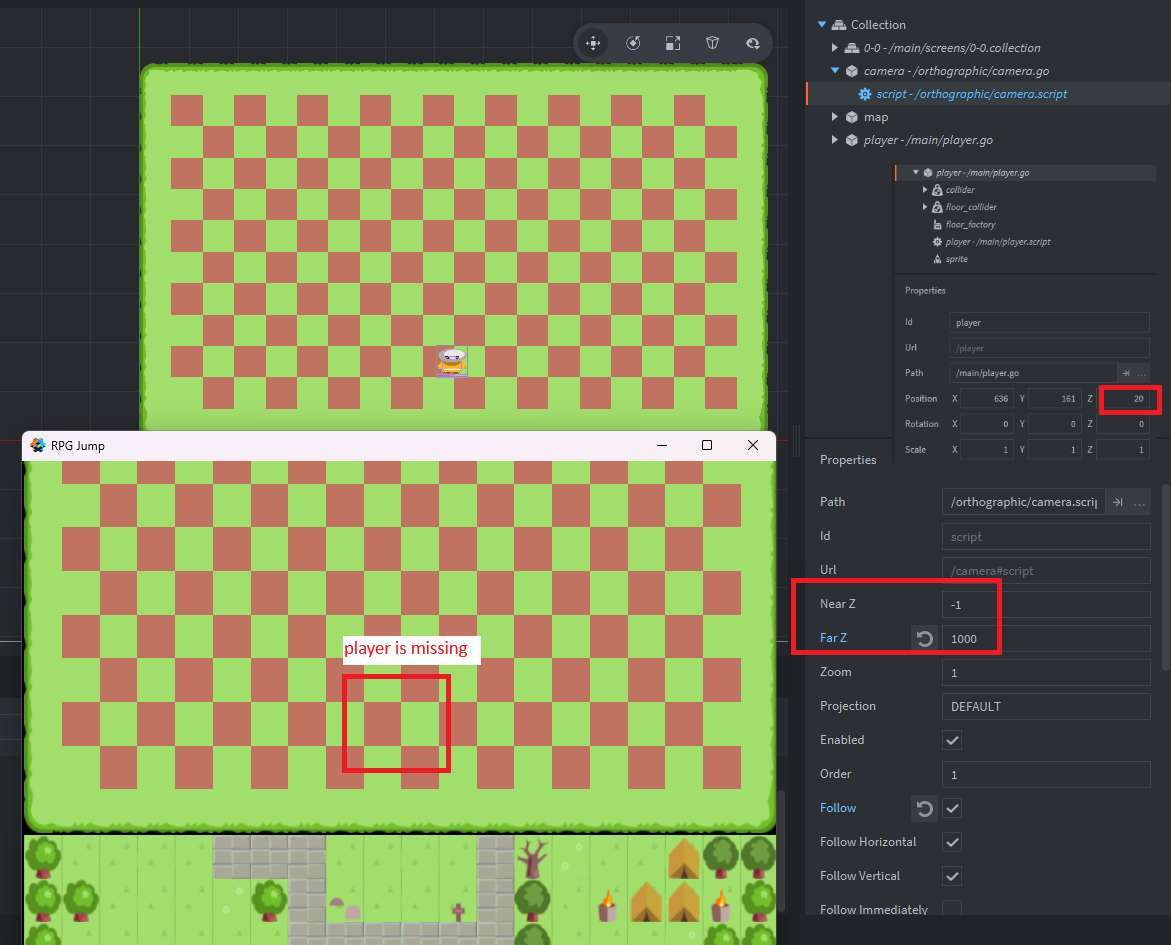
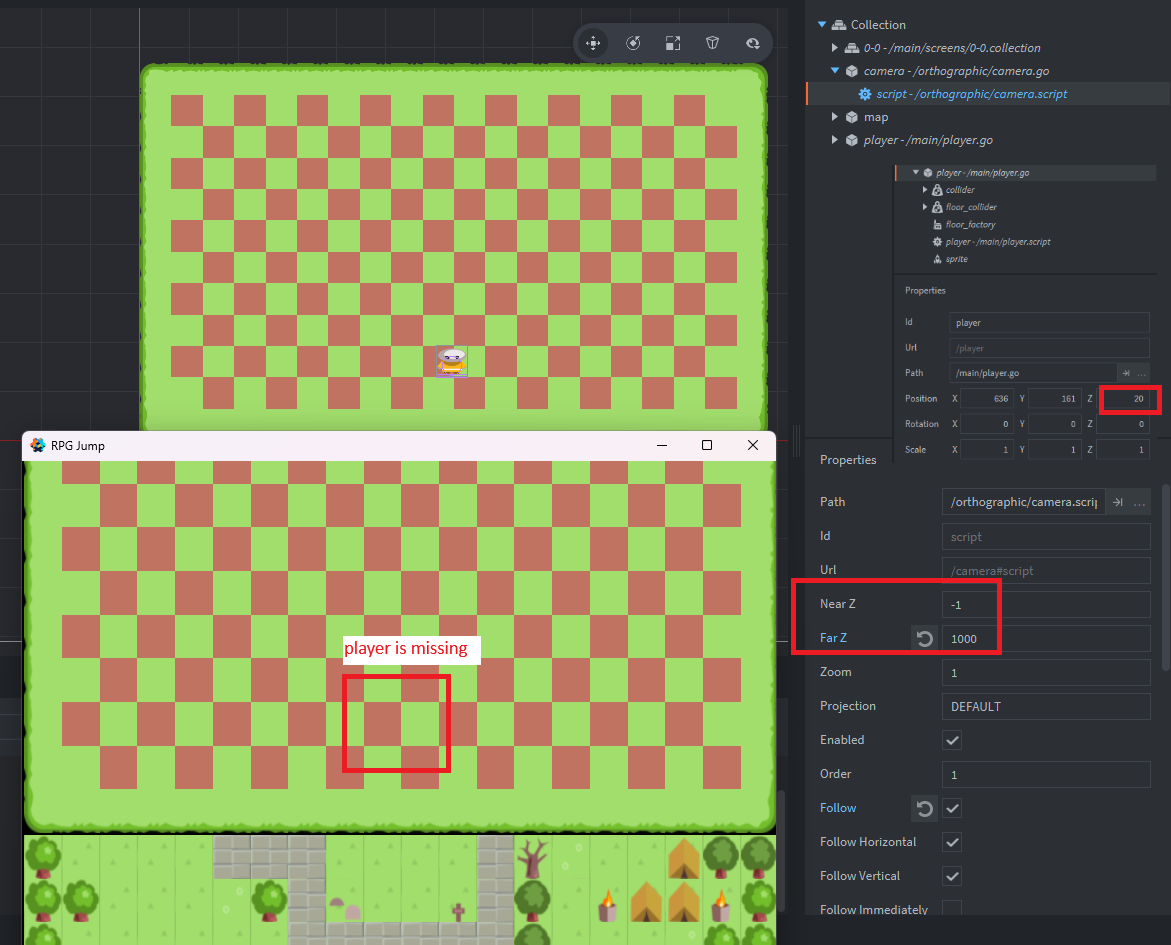
• Near Z: Sets the closest visible depth.
• Far Z: Sets the farthest visible depth.
• Auto aspect ratio: Helps the camera respond to different screen shapes.
A typical setup looks like this:
-
Create a game object named
camera. -
Add a camera component to the object.
-
Set the projection type.
-
Place the camera in the correct world position.
-
Make the camera active through the render script or camera system.
-
Test the view on different screen sizes.
The camera object can be moved like any other game object. You can also rotate it, though rotation is more common in 3D or stylized 2D games.
Adding a camera component alone may not be enough. The render script needs to use the camera view and projection. Defold projects often use messages such as acquire_camera_focus to tell the render system which camera should control the scene.
A simplified Lua example may look like this:
local camera_id = go.get_id("/camera")

msg.post("@render:", "acquire_camera_focus", {
    camera_id = camera_id
})
The exact setup can vary based on your Defold version, render script, and camera library. Always test the project template you are using instead of assuming that every render script behaves the same way.
Setting up a 2D camera in Defold
For a 2D game, an orthographic camera is usually the best starting point. Orthographic projection keeps objects the same apparent size as they move through depth.
Start with a camera game object in your main collection. Add a camera component and choose an orthographic projection. Then set the camera position so it points at the part of the world you want to display.
You can control a camera with a small script:
function update(self, dt)
    local player_position = go.get_position("/player")
    local camera_position = go.get_position()

    camera_position.x = player_position.x
    camera_position.y = player_position.y

    go.set_position(camera_position)
end
This basic example makes the camera follow the player. In a real game, you may want smoother movement:
function update(self, dt)
    local target = go.get_position("/player")
    local current = go.get_position()

    local speed = 5
    local amount = math.min(dt * speed, 1)

    local next_position = vmath.lerp(amount, current, target)
    go.set_position(next_position)
end
For a platform game, do not always follow the player on both axes. Many games keep the player near the center horizontally but allow free vertical movement. You can also create a dead zone so the camera moves only after the player reaches a screen boundary.
If you are asking do you need a camera in Defold for player tracking, the answer is usually yes. A camera is more efficient and easier to control than moving every object in the level.
Camera boundaries, zoom, and screen scaling
A camera that follows the player without limits can create unwanted empty space. The player may reach the edge of the map while the camera continues moving into an area with no level content.
Camera boundaries solve this problem. Before moving the camera, clamp its position to the level limits:
local function clamp(value, minimum, maximum)
    return math.max(minimum, math.min(value, maximum))
end

function update(self, dt)
    local target = go.get_position("/player")
    local position = go.get_position()

    position.x = clamp(target.x, self.left_limit, self.right_limit)
    position.y = clamp(target.y, self.bottom_limit, self.top_limit)

    go.set_position(position)
end
You should also test your camera on different aspect ratios. A wide phone screen may show more of the level than a tall phone screen. If the game depends on exact framing, this can expose gaps or reveal objects that should remain hidden.
Useful camera checks include:
• Test both portrait and landscape layouts.
• Check small phones and large monitors.
• Keep important objects away from the extreme screen edge.
• Use a safe area for user interface elements.
• Avoid placing hidden secrets just outside the intended view.
• Confirm that zoom does not reveal unfinished parts of the level.
Zoom can be changed during play, but sudden changes may feel uncomfortable. Smooth zoom transitions usually feel better. A short interpolation can create a clean effect during boss fights, map views, or special events.
This is another case where do you need a camera in Defold depends on the design. If the game needs smooth zoom or responsive framing, a camera gives you direct control.

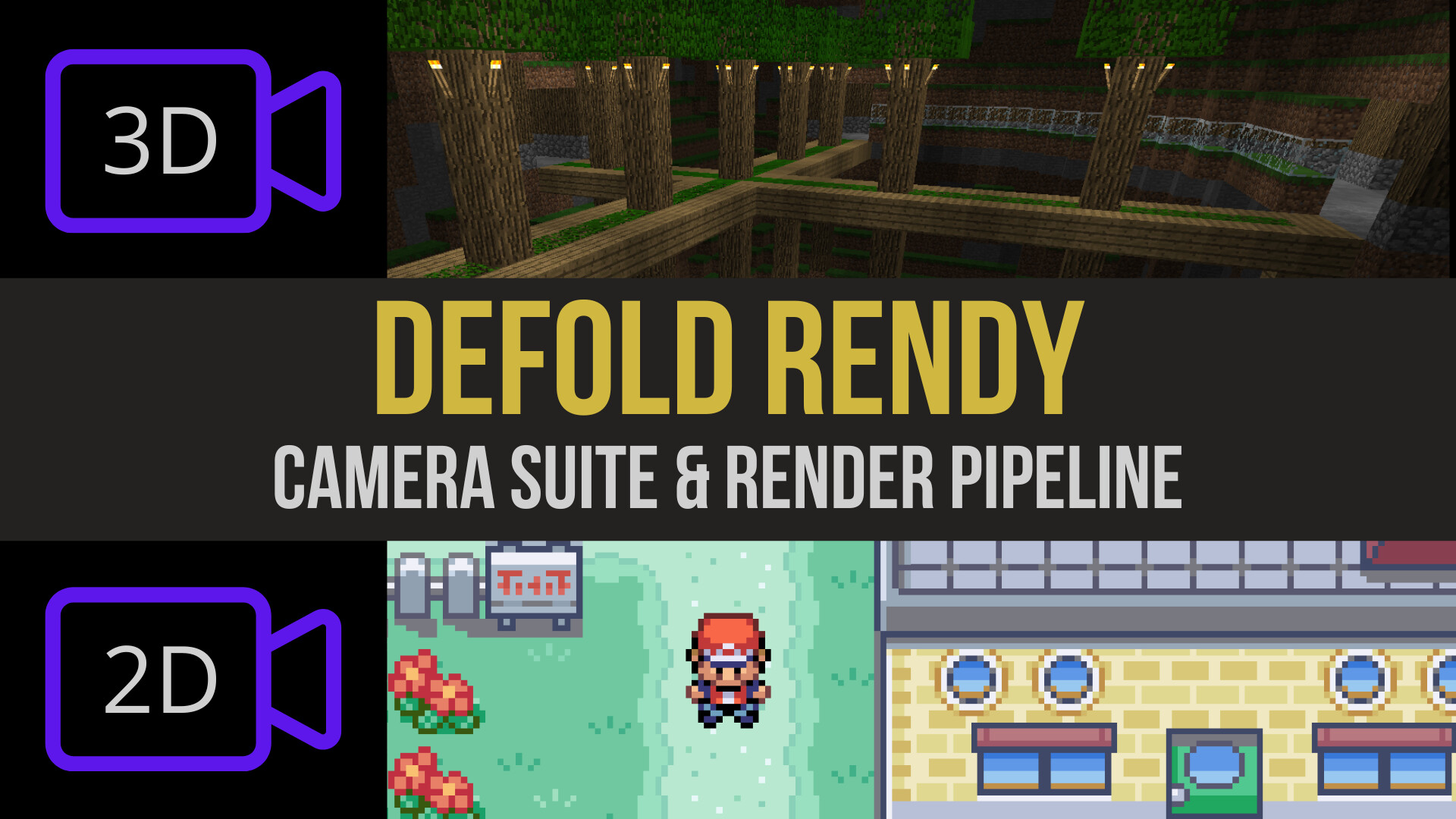
Do you need a camera in Defold for 3D?
For most 3D games, yes. A 3D camera is normally essential because it defines perspective, depth, visible distance, and the direction of the view.
Without a suitable camera, 3D objects may not appear correctly. They may be outside the view, clipped by the near or far plane, or displayed with the wrong projection.
A 3D camera usually needs:
• A perspective projection.
• A suitable field of view.
• Correct near and far clipping values.
• A position in the 3D world.
• A rotation that points toward the scene.
• A render script that uses the camera matrices.
Perspective projection makes distant objects look smaller. This creates the depth effect people expect in racing games, action games, and 3D exploration games.
The camera’s near and far values also matter. If the near clipping distance is too large, nearby objects may disappear. If the far clipping distance is too short, distant objects may vanish.
For a 3D prototype, start with simple values and adjust them while watching the scene. Do not set the far distance much higher than necessary, because a very large view range can increase rendering work.
When people ask do you need a camera in Defold for 3D, the practical answer is almost always yes. A 3D scene needs a controlled viewpoint to be useful to the player.

Common camera mistakes in Defold
Camera problems can be confusing because the game may run without errors while the screen still looks wrong. Most issues come from setup, projection, or coordinate mistakes.
Here are common mistakes to avoid:
• Adding a camera but never giving it focus.
• Using an orthographic camera when perspective is required.
• Placing the camera behind the scene.
• Setting near and far clipping values poorly.
• Forgetting to account for aspect ratio changes.
• Moving the camera without clamping it to the level.
• Parenting the camera to the wrong game object.
• Updating the camera before the player position is ready.
• Mixing screen coordinates and world coordinates.
• Using a custom render script without applying camera matrices.
One lesson I learned while testing camera-follow systems is that jitter often comes from update order. If the player moves in one script and the camera reads the old position in another, the camera can appear one frame behind.
You can reduce this effect by using a consistent update pattern. Store the desired camera target, calculate smoothing in one place, and avoid several scripts fighting over the same camera position.
Another useful habit is to test with visible guide markers. Add temporary crosshairs, borders, or colored shapes to show the camera center and level limits. These simple tools make camera bugs much easier to spot.

Camera versus moving the game world
There are two common ways to create scrolling.
The first method moves the camera through a stationary world. The second method keeps the camera fixed and moves the world in the opposite direction.
Both methods can work, but they are not equal in every project.
A camera-based system is often better when:
• The world is large.
• You use tile maps.
• Objects need stable world positions.
• You have physics or collision systems.
• You plan to add zoom or camera effects.
Moving the world instead may be useful when:
• The game is an endless runner.
• The play area is small.
• You need a simple arcade prototype.
• The camera never needs independent movement.
Moving every object can create more work. It can also cause problems with physics, particles, parallax layers, and object spawning. A camera keeps the world coordinates meaningful, which helps with enemy placement, level editing, and save data.
The answer to do you need a camera in Defold is not about following a rule. It is about choosing the system that keeps your game easy to expand. For a short prototype, either method may be fine. For a full game, a camera usually scales better.

A practical decision checklist
Use this checklist before adding a camera to your project.
You probably do not need a camera if:
• The entire game fits on one screen.
• The view never scrolls.
• The game uses a simple fixed layout.
• You do not need zoom, shake, or tracking.
• Your render script already provides the view you need.
You probably should use a camera if:
• The player explores a large level.
• The camera must follow a moving object.
• You need smooth screen movement.
• You want different zoom levels.
• You are building a 3D game.
• You need multiple views or split-screen play.
• You want camera shake, rotation, or cinematic framing.
When deciding do you need a camera in Defold, build the smallest working version first. Add a camera only when the game needs a moving or controlled viewpoint. This keeps the early prototype simple without limiting the final design.
Frequently Asked Questions
Do you need a camera in Defold for every game?
No. A fixed-screen 2D game can often work without a separate camera component. You need a camera when the view must move, zoom, rotate, or use 3D projection.
Do you need a camera in Defold for a tile map?
Not always. A small tile map that fits on one screen may not need one, but a scrolling tile map usually benefits from a camera that follows the player.
Can you move the camera with Lua in Defold?
Yes. A camera is attached to a game object, so Lua can change its position and rotation with functions such as go.set_position() and go.set_rotation(). You can also use camera APIs or a camera library for more advanced controls.
Why does my Defold camera not move?
The camera object may not have focus, or the render script may not be using its view and projection. Also check that another script is not resetting the camera position each frame.
Should a 2D Defold game use orthographic projection?
Usually, yes. Orthographic projection is a natural fit for most 2D games because objects keep a consistent size and do not shrink with depth.
Can you make a camera follow the player in Defold?
Yes. You can read the player position, calculate a target position, and move the camera toward that target. Smoothing, dead zones, and level boundaries can make the movement feel more polished.
Do you need a camera in Defold for UI elements?
Usually, UI is handled separately from the world camera. Many games use screen-space GUI nodes for menus and HUD elements so they stay fixed while the game camera moves.
Conclusion
You do not need a camera in Defold for every project. A simple fixed-screen 2D game can remain lightweight without one, while scrolling 2D games and nearly all 3D games benefit from a camera component.
Start by asking whether the player’s view must move, zoom, rotate, or change perspective. If the answer is yes, add a camera, connect it to the render system, and test its limits on several screen sizes.
Build a small prototype, check the camera behavior early, and add smoothing only after the basic view works. Explore Defold’s camera tools and share your own camera setup or questions in the comments.

Everett Ashford is a tech reviewer at mytechgrid.com specializing in SSDs, cameras, TVs, earbuds, headphones, and other consumer electronics. He provides honest, data-driven reviews based on hands-on testing and real-world performance analysis. Everett simplifies complex tech details to help readers make smart, confident buying decisions.