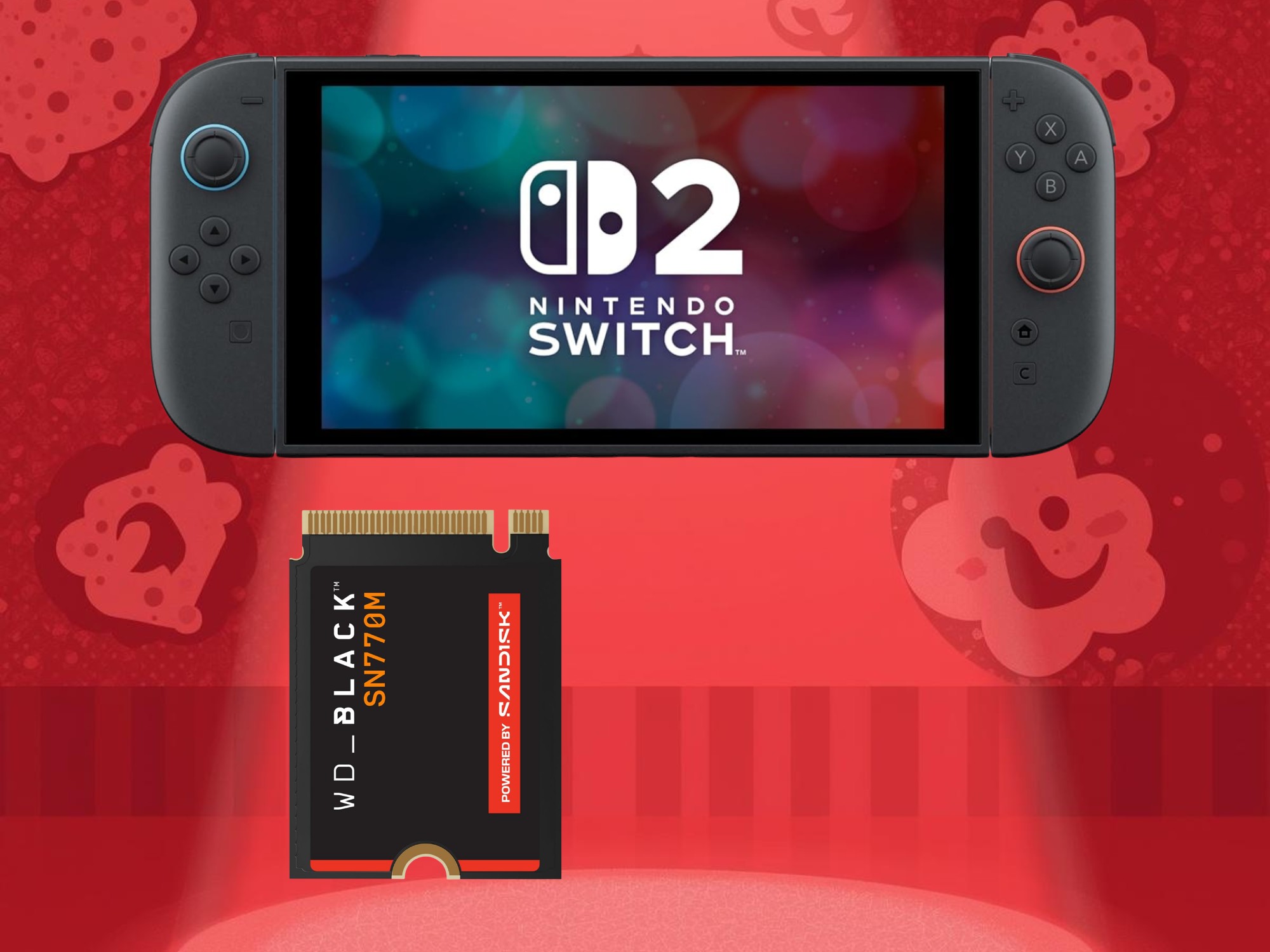
Yes, the Nintendo Switch 2 has built-in solid-state storage, but it does not use a traditional replaceable SSD like a gaming PC or PlayStation 5.
Nintendo lists the Switch 2’s internal storage as 256 GB of UFS storage. UFS is a type of flash storage designed for compact devices. It has no moving parts, so it is solid-state storage, but Nintendo does not describe it as an NVMe SSD or provide a user-accessible SSD slot.
For most players, the practical answer is simple: the Switch 2 has fast internal flash storage, but you cannot remove or upgrade it like an M.2 SSD.


What type of storage does the Switch 2 use?
The Nintendo Switch 2 uses 256 GB of UFS internal storage. UFS stands for Universal Flash Storage. It is common in phones, tablets, handheld systems, and other small devices because it offers fast access while using little space and power.
An SSD, or solid-state drive, is also flash-based storage. However, “SSD” often refers to a separate drive with a specific interface, such as SATA or NVMe. The Switch 2’s UFS storage is built into the system instead.
This distinction matters because the Switch 2 does not have:
- A removable internal SSD
- An M.2 drive bay
- A standard SATA drive connection
- A user-replaceable storage module
- An official internal storage upgrade path
Nintendo’s official Switch 2 technical specifications identify the internal storage as 256 GB UFS. That is the key documented fact behind the answer.
Is UFS the same as an SSD?
Not exactly, but both use flash memory and have no moving parts.
| Feature | Nintendo Switch 2 UFS storage | Typical NVMe SSD |
|---|---|---|
| Storage type | Flash memory | Flash memory |
| Moving parts | None | None |
| Built into the device | Yes | Usually no |
| User replaceable | No | Often yes |
| Common connection | UFS interface | PCIe/NVMe |
| Designed for | Compact electronics | Computers and consoles |
In everyday use, the Switch 2’s UFS storage performs the role that an internal SSD performs in another console: it stores the operating system, downloaded games, updates, save-related data, screenshots, and videos.


The main difference is not whether the storage is solid-state. The main difference is whether you can access and replace it.
The Switch 2 has solid-state internal storage, but calling it a “built-in SSD” can create the wrong expectation about upgrades.

How much usable storage does the Switch 2 have?
The Switch 2 has 256 GB of advertised internal storage, but the full amount is not available for games and personal files.
The system software and reserved data use part of that space. As with phones, computers, and other consoles, the usable amount shown in the storage menu will be lower than 256 GB.
The amount available for games can also change over time because of:
- System updates
- Game updates
- Downloadable content
- Screenshots and video clips
- Digital games
- Temporary installation data
- System-reserved space
A useful way to think about it is:
Available space = advertised storage − system data − your saved content
For example, if the console reports less than 256 GB as available, that does not mean the system is defective. The difference is expected.
Is 256 GB enough for Switch 2 games?
It depends on how you buy games.
The built-in storage may be enough for someone who mainly uses physical game cards and keeps only a few digital games installed. It may feel limited sooner for someone who buys large digital releases, downloads patches, or keeps many games installed at once.
Game sizes vary widely. A small independent game may use only a few gigabytes, while a large 3D game can use much more. Some physical releases may also require a download, so buying a game card does not always mean that every file is stored on the card.
Before buying a digital game, check its listed download size in the Nintendo eShop. Then leave extra room for updates and downloadable content.

Can you add more storage to the Switch 2?
Yes. The Switch 2 supports microSD Express cards for expanded storage.


A microSD Express card can store compatible digital games, downloadable content, updates, screenshots, and video captures. Nintendo’s support information says the Switch 2 supports microSD Express cards with capacities up to 2 TB.
The important detail is the word Express.
Does the Switch 2 work with a normal microSD card?
A standard microSD card from an original Nintendo Switch is not the correct choice for storing Switch 2 games.
The Switch 2 requires a microSD Express card for expanded game storage. A regular microSD, microSDHC, or microSDXC card may not work for storing or playing Switch 2 software.
Nintendo states that older microSD cards can still have limited uses, such as helping transfer screenshots and videos, but they are not the proper expansion option for Switch 2 game data. Check Nintendo’s microSD Express support page before buying a card, since card support and system requirements can change.
What should you check before buying a microSD Express card?
Look for these details on the package:
- The words microSD Express
- A capacity supported by the Switch 2
- A reputable brand and seller
- A return policy
- A stated warranty
- Authentic product packaging
Do not assume that a card is Express just because it says “high speed,” “gaming,” or “UHS.” Those labels do not mean the card uses the microSD Express standard.
Avoid unusually cheap cards from unknown sellers. Counterfeit memory cards can report a false capacity, lose data, or fail during downloads.
How do you install a microSD Express card?
Use this basic process:
- Turn off the Switch 2 completely.
- Open the microSD card slot.
- Insert the microSD Express card in the direction shown by the console.
- Turn the system on.
- Follow the on-screen setup or formatting instructions.
- Download or move compatible software to the card through the system’s data settings.
Formatting erases the card. Back up any files you need before the console formats it.
If the Switch 2 does not recognize the card, turn the console off and check that:
- The card is truly microSD Express.
- The card is fully inserted.
- The contacts are clean and undamaged.
- The card is not counterfeit.
- The console has the latest system update.
- The card is within the supported capacity range.
Do not force the card into the slot. A damaged slot or card can make the problem harder to fix.
Can you replace or upgrade the Switch 2 internal storage?
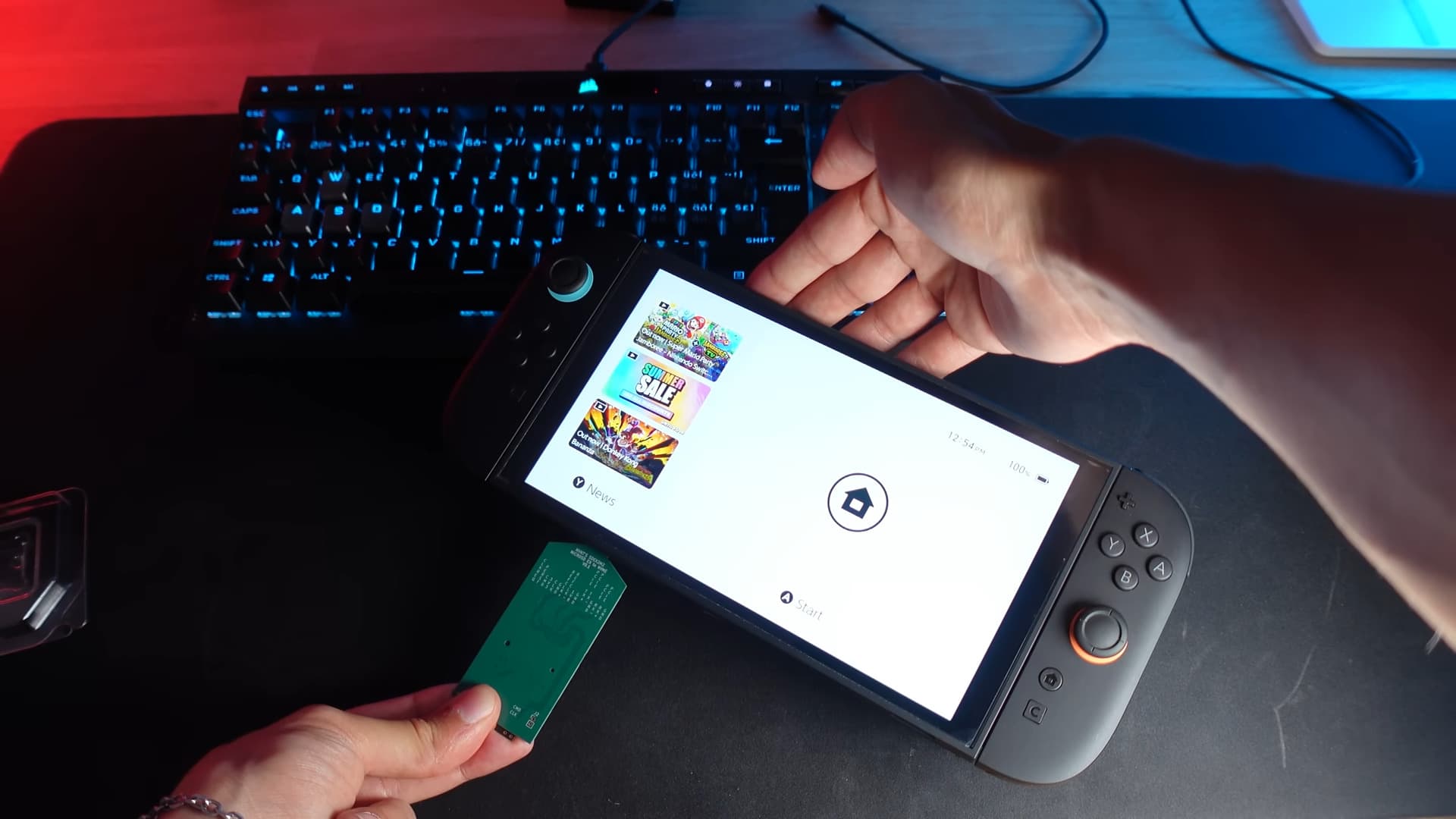
No official user upgrade exists for the Switch 2’s internal UFS storage.
Unlike a desktop computer, the Switch 2 does not provide an accessible drive bay. Replacing the internal flash chip would require specialized repair equipment and may damage the motherboard. It could also affect the warranty and system security.


For that reason, do not open the console just to add storage. Use a supported microSD Express card instead.
Can a repair shop install a larger internal SSD?
A repair shop may advertise internal storage modification, but that is not the same as an official upgrade. It can involve several risks:
- Loss of warranty coverage
- Permanent damage to the console
- Boot or software errors
- Data loss
- Problems with encryption or system pairing
- No reliable Nintendo support afterward
Nintendo’s official repair process is the safer route for internal storage faults. If the console reports serious storage errors, contact Nintendo Support rather than attempting a chip-level modification.
Can you use an external USB SSD?
The Switch 2’s USB ports are not a general replacement for internal game storage. A USB SSD may be useful for certain accessories or file-related tasks, but you should not expect to install and play Switch 2 games directly from a standard external USB drive.
For game expansion, use the supported microSD Express slot.

Does an SSD make the Switch 2 load games faster?
The Switch 2’s internal UFS storage is designed to provide fast access to system and game data. However, it would be misleading to assume that any product called an “SSD” will automatically make Switch 2 games load faster.
The system controls how storage is accessed. Game loading also depends on:
- Game software
- System updates
- File compression
- CPU and GPU processing
- Memory
- Whether data comes from internal storage or a game card
- The design of the game itself
A supported microSD Express card can expand storage without replacing the internal memory. It may offer suitable performance for Switch 2 software, but real-world loading times can vary by game and card.
Nintendo does not present the Switch 2 as having a user-upgradable NVMe SSD. Therefore, avoid buying a portable USB SSD or an M.2 drive expecting it to act as a plug-and-play game drive.
Internal storage vs. microSD Express: Which should you use?
Use internal storage for convenience and use microSD Express when you need more room.
| Storage option | Best for | Main limit |
|---|---|---|
| Built-in 256 GB UFS | Frequently played games and system data | Not replaceable |
| microSD Express | Digital game libraries and captures | Must meet the Express standard |
| Game card | Physical games that support the format | Some titles may still need downloads |
| External USB drive | Limited accessory or file uses | Not a normal game-storage replacement |
A good setup for many players is to keep frequently played games on internal storage and use a reliable microSD Express card for the rest of the library.
The best choice depends more on your buying habits than on the word “SSD.” Someone who buys mostly physical games may not need a large expansion card right away. Someone who buys digital games should plan for extra storage from the start.

Common mistakes to avoid
Several storage mistakes can cause confusion or wasted money.


Buying a regular microSD card
A fast-looking microSD card is not necessarily a microSD Express card. Confirm the exact standard before buying.
Expecting a 2 TB card to hold every game forever
A 2 TB card provides a lot of space, but game updates and new downloads still consume room. Keep some free space for patches and system operations.
Assuming every physical game is fully contained on the card
Some physical releases can require additional downloads. Check the game packaging and Nintendo eShop listing when storage matters.
Treating screenshots and game data as the same thing
Screenshots and video clips are personal media files. Games, updates, and downloadable content follow different storage rules. Deleting a screenshot will not free the same type of space as deleting an installed game.
Formatting a card without checking its contents
Formatting removes data. Copy important screenshots or videos elsewhere before formatting or moving a card.
Opening the console for an upgrade
The Switch 2 is not designed for a user-installed internal SSD. An unofficial modification can create more problems than it solves.

Frequently asked questions
Does Nintendo Switch 2 have an SSD?
The Switch 2 has built-in solid-state flash storage, but Nintendo identifies it as 256 GB UFS storage, not as a removable NVMe or SATA SSD.
Is the Switch 2 storage upgradeable?
The internal storage is not designed for user replacement. You can expand storage with a compatible microSD Express card.
Can I use my old Switch microSD card in the Switch 2?
An older standard microSD card is not the correct option for storing Switch 2 games. The Switch 2 requires microSD Express for expanded game storage. Older cards may have limited use for transferring screenshots or videos.
What is the largest microSD Express card the Switch 2 supports?
Nintendo lists support for microSD Express cards up to 2 TB. Confirm current compatibility with Nintendo’s support documentation before purchasing.
Will an external SSD work for Switch 2 games?
Do not treat a USB SSD as a replacement for internal storage or a microSD Express card. The supported expansion method for Switch 2 game storage is microSD Express.
Should I buy a microSD Express card immediately?
Buy one early if you plan to purchase many digital games or download large titles. If you mainly use physical game cards and keep a small library installed, the built-in storage may be enough at first.
Conclusion: The Switch 2 has flash storage, not a replaceable SSD
The Nintendo Switch 2 includes 256 GB of built-in UFS flash storage. That storage is solid-state and serves the same basic role as an internal SSD, but it is not a removable or user-upgradable SSD.
For more space, use a microSD Express card. Avoid regular microSD cards, external USB SSDs, and unofficial internal modifications when your goal is to store and play Switch 2 games.
The next step is to check your game-buying habits. If you mostly download games, choose a reputable microSD Express card. If you mainly buy physical games, start with the internal storage and add expansion only when your available space becomes low.

Everett Ashford is a tech reviewer at mytechgrid.com specializing in SSDs, cameras, TVs, earbuds, headphones, and other consumer electronics. He provides honest, data-driven reviews based on hands-on testing and real-world performance analysis. Everett simplifies complex tech details to help readers make smart, confident buying decisions.