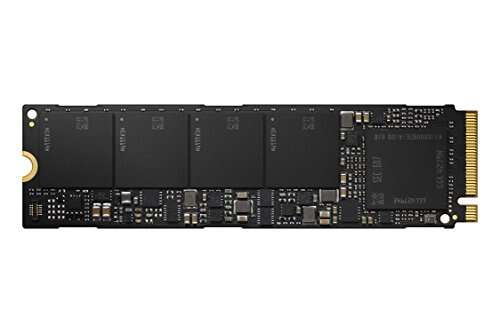
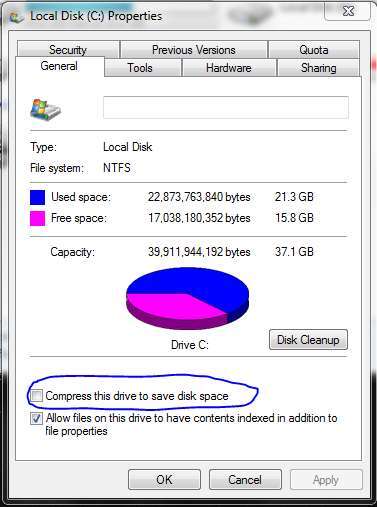
Open System Info or use a simple tool to view model, capacity, and interface.
I’ve spent years fixing PCs and upgrading laptops, so I’ll walk you through how to check what SSD I have step by step. This guide covers Windows, macOS, Linux, BIOS, and physical checks. You’ll learn how to identify model, capacity, form factor, interface, and firmware. I use clear steps, real tips from my own upgrades, and tools that work for most users.
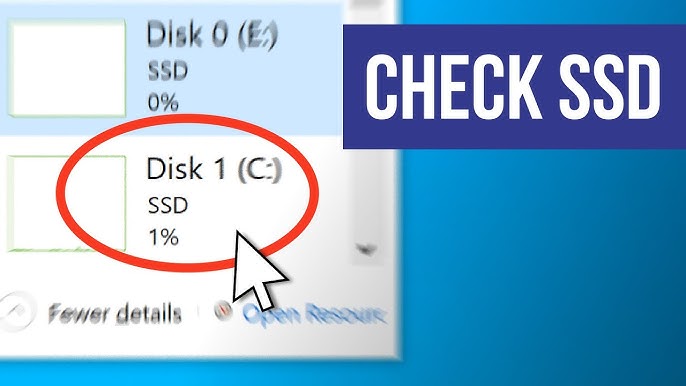
Why you should know how to check what SSD I have
Knowing how to check what SSD I have helps you make safe upgrades, troubleshoot slowdowns, and check warranty and firmware. It prevents buying the wrong drive or adapter. It also helps decide if you need more speed, capacity, or a firmware update.

Quick checklist: what information to look for
When you check what SSD I have, gather these key details:
- Model name and manufacturer
- Capacity (GB or TB)
- Form factor (2.5", M.2 2280, mSATA, PCIe add-in card)
- Interface and protocol (SATA III, PCIe NVMe, PCIe AHCI)
- Serial number and firmware version
- Health and SMART status
How to check what SSD I have on Windows
Follow these short steps to find SSD details on Windows.
- Use Device Manager
- Right‑click Start, choose Device Manager. Expand Disk drives to see model strings. This often shows manufacturer and model.
- Use Disk Management
- Right‑click Start, choose Disk Management. It shows capacity and partition layout. It does not always show model.
- Use System Information
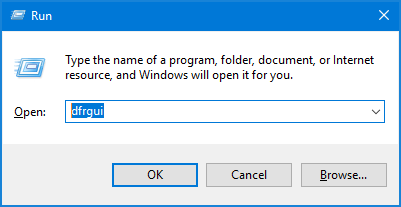
- Press Windows+R, type msinfo32 and press Enter. Go to Components > Storage > Disks to see detailed model and firmware in some cases.
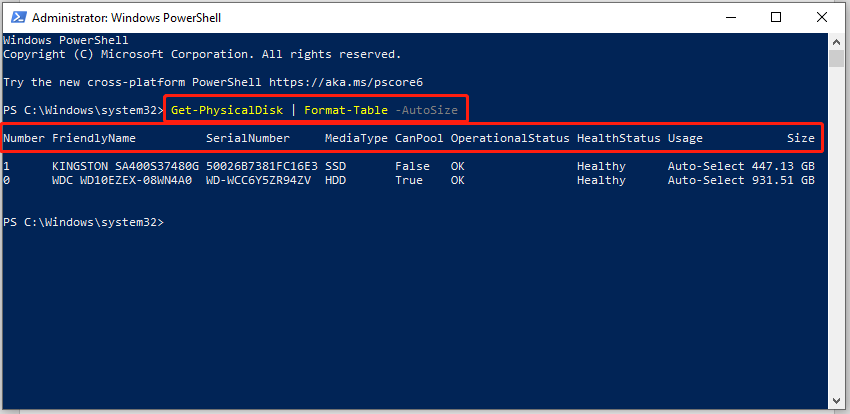
- Use PowerShell for detailed info
- Open PowerShell as admin and run: Get-PhysicalDisk or Get-StorageFirmwareInformation. These commands return model, size, and health.
- Use free tools for full detail
- Run CrystalDiskInfo or Speccy to see interface (NVMe vs SATA), firmware, temperature, and SMART attributes.
I use PowerShell and CrystalDiskInfo when I need full detail. They have helped me spot firmware mismatches before an upgrade.
How to check what SSD I have on macOS
macOS shows drive info quickly. Try these options:
- Use About This Mac
- Click Apple menu > About This Mac > System Report. Under SATA/SATA Express or NVMExpress you’ll see model, capacity, and firmware.
- Use Disk Utility
- Open Disk Utility, select the drive, then click Info for capacity and device ID. It won’t always show interface type.
- Use Terminal
- Run diskutil list for device names. Use ioreg -l | grep -i "NVMe" or system_profiler SPNVMeDataType to see NVMe drives and details.
I once found a hidden second NVMe slot on a MacBook Pro using system_profiler. It helped me add storage without an external dock.

How to check what SSD I have on Linux
Linux gives raw detail via commands. Use one of these:
- lsblk -o NAME,MODEL,SIZE,TYPE to list devices with models and sizes.
- sudo hdparm -I /dev/sdX for ATA/SATA drives to get model, serial, and capabilities.
- sudo nvme list and sudo nvme id-ctrl /dev/nvme0 for NVMe drives to see model, namespace, and firmware.
- smartctl -a /dev/sdX or /dev/nvme0n1 to read SMART data and health.
I use nvme-cli daily for NVMe diagnostics. It shows firmware and power states I can’t see elsewhere.
Check your BIOS or UEFI to identify the SSD
The BIOS or UEFI often lists installed drives and boot priority. Steps:
- Restart and press F2, Del, F12, or Esc to enter BIOS/UEFI.
- Look in Storage, Boot, or Advanced sections for drive model and capacity.
- Some UEFI screens show interface type like NVMe or SATA.
BIOS is helpful if your OS won’t boot. I’ve used BIOS to confirm a dead SSD and to find the correct M.2 slot for upgrades.

Physically inspecting the drive
If software won’t tell you, open the case or back panel. Safety first: power off and unplug.
- Laptop M.2 slot
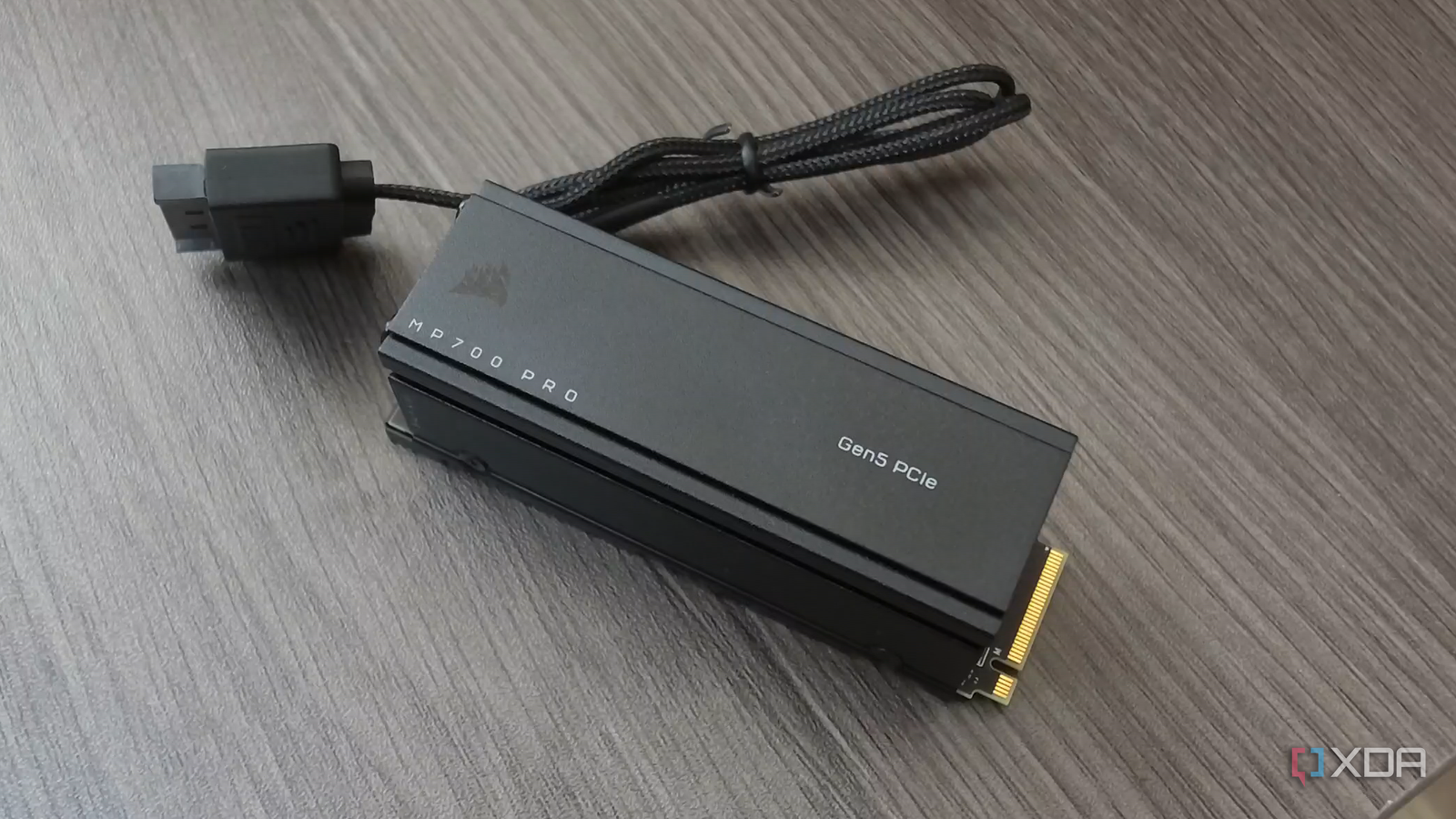
- Remove the back cover. The M.2 card usually has a label with model and capacity. Note the key notch shape (B, M, or B+M).
- 2.5" SATA drive
- The label lists model, serial, and firmware. Note SATA power and data connectors.
- PCIe add-in card
- Labels and stickers on the card show model and part number.
I once found a mismatched M.2 drive hidden under a bracket. Physical checks can save time.
How to interpret SSD labels and model names
SSD model names look like "Samsung SSD 970 EVO Plus 1TB" or "WD SN750 500GB". Key decoding tips:
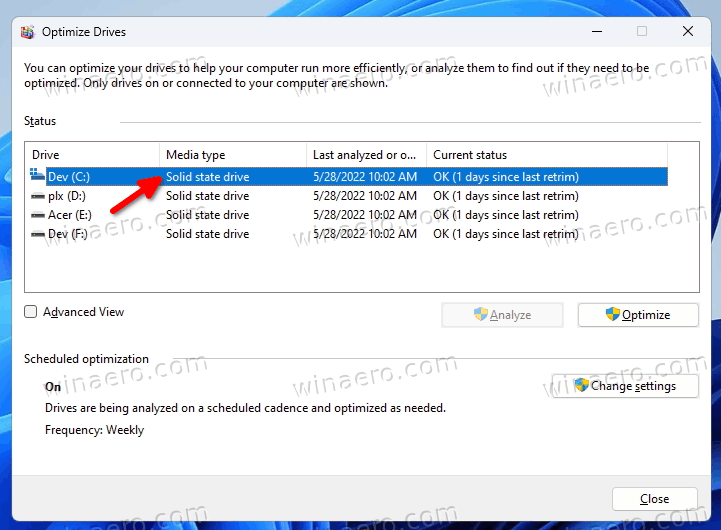
- Capacity is clearly in the model name (500GB, 1TB).
- EVO, Pro, or Plus are product lines showing performance tiers.
- NVMe models are often M.2 form factor and use PCIe lanes.
- SATA models are usually 2.5" or mSATA and use AHCI protocol.
Knowing how to check what SSD I have means you can match the drive to its datasheet online for exact specs.

Tools and apps I recommend
Use these trusted tools to verify details and health:
- CrystalDiskInfo — quick Windows SMART and interface info.
- Samsung Magician, Western Digital Dashboard — vendor utilities for firmware and tuning.
- nvme-cli and smartctl — command-line tools for deep info on Linux.
- Speccy or HWInfo — broad system detail on Windows.
I use vendor tools to update firmware and CrystalDiskInfo when troubleshooting SSD slowdowns.
Common issues and what they mean
When you check what SSD I have, you may find problems. Here are common findings and steps:
- Drive not detected
- Check cables or reseat the M.2 screw. Try another slot or SATA port.
- Performance lower than expected
- Verify interface: an NVMe drive in a SATA adapter will be slow. Check firmware and driver versions.
- SMART warnings
- Backup data immediately. Run vendor diagnostics and consider replacement under warranty.
I once ignored a SMART warning and later lost data. Backups are the best safety net.
PAA-style quick questions (embedded in content)
How do I tell if my SSD is NVMe or SATA?
- Check the interface in Device Manager, system profiler, or use nvme-cli. NVMe shows up as PCIe/NVMe while SATA appears under SATA or AHCI sections.
Can I upgrade from SATA to NVMe?
- Yes if your motherboard/laptop supports an M.2 NVMe slot and PCIe lanes. Confirm physical space and BIOS support before buying.
Does firmware matter for SSDs?
- Yes. Firmware can fix bugs and improve performance. Use vendor tools to check and install updates if available.
Personal tips, mistakes to avoid, and best practices
I’ve upgraded dozens of machines. Here are simple tips I learned the hard way:
- Always back up before inspecting or swapping drives. I once lost hours of work by skipping a backup.
- Check physical fit and thermal clearance. Some M.2 slots sit under heat shields or batteries.
- Update BIOS and storage drivers after installing a new SSD. This can unlock full speed.
- Keep a bootable USB with diagnostic tools. It saves time when OS tools can’t run.
These steps are practical. They help you avoid common pitfalls and get the most from your SSD.
Security and warranty checks
Before working on your SSD, check warranty and security:
- Record the serial number and model. This helps for RMA claims.
- Confirm any tamper stickers or warranty void markers before opening sealed laptops.
- Consider encryption needs: check if the SSD supports hardware encryption and whether your OS can use it.
I’ve dealt with RMAs where a serial number was the only proof of purchase. It pays to document details.
Frequently Asked Questions of how to check what ssd i have
How can I quickly see my SSD model on Windows?
Open Device Manager and expand Disk drives to view the drive model. Use CrystalDiskInfo for a faster, clearer readout including interface and firmware.
Will Disk Management tell me if my SSD is NVMe?
Disk Management shows capacity and partitions but not always the interface. Use System Information or Device Manager to confirm NVMe vs SATA.
Can I identify my SSD without opening my PC?
Yes. Use OS tools like System Information, Disk Utility, lsblk, or vendor apps to read model and interface without opening the case.
How do I check SSD health and SMART status?
Run CrystalDiskInfo on Windows or smartctl on Linux and macOS to read SMART attributes and health status. Vendor tools also show drive health and diagnostics.
What if my SSD is not detected by the system?
Check power and data cables, reseat the drive, try a different port, and update BIOS/UEFI. If still not detected, test the drive in another system or use vendor diagnostics.
Conclusion
Knowing how to check what SSD I have saves time, prevents mistakes, and helps you make smarter upgrades. Use the right tool for your OS, gather model, capacity, interface, and firmware details, and always back up before making changes. Try the steps that match your system today, and leave a note about what you found or questions you have. If this guide helped, subscribe for more clear, practical tech tips and share your SSD story in the comments.

Everett Ashford is a tech reviewer at mytechgrid.com specializing in SSDs, cameras, TVs, earbuds, headphones, and other consumer electronics. He provides honest, data-driven reviews based on hands-on testing and real-world performance analysis. Everett simplifies complex tech details to help readers make smart, confident buying decisions.