Installing an NVMe SSD in a PC takes a few careful steps: check compatibility, mount the drive, and set it up in Windows.
Learning how to install NVMe SSD in PC can make your computer feel much faster, especially when opening apps, loading games, or moving large files. I have installed NVMe drives in many desktop builds, and the process is simple once you know what to check before touching the motherboard. This guide covers compatibility, installation, BIOS settings, Windows setup, common mistakes, and ways to get the best performance from your new drive.

What Is an NVMe SSD?
An NVMe SSD is a fast solid-state drive that uses the PCIe bus to move data. Unlike older SATA SSDs, NVMe drives communicate more directly with the processor and motherboard. This gives them much higher bandwidth and lower delay.
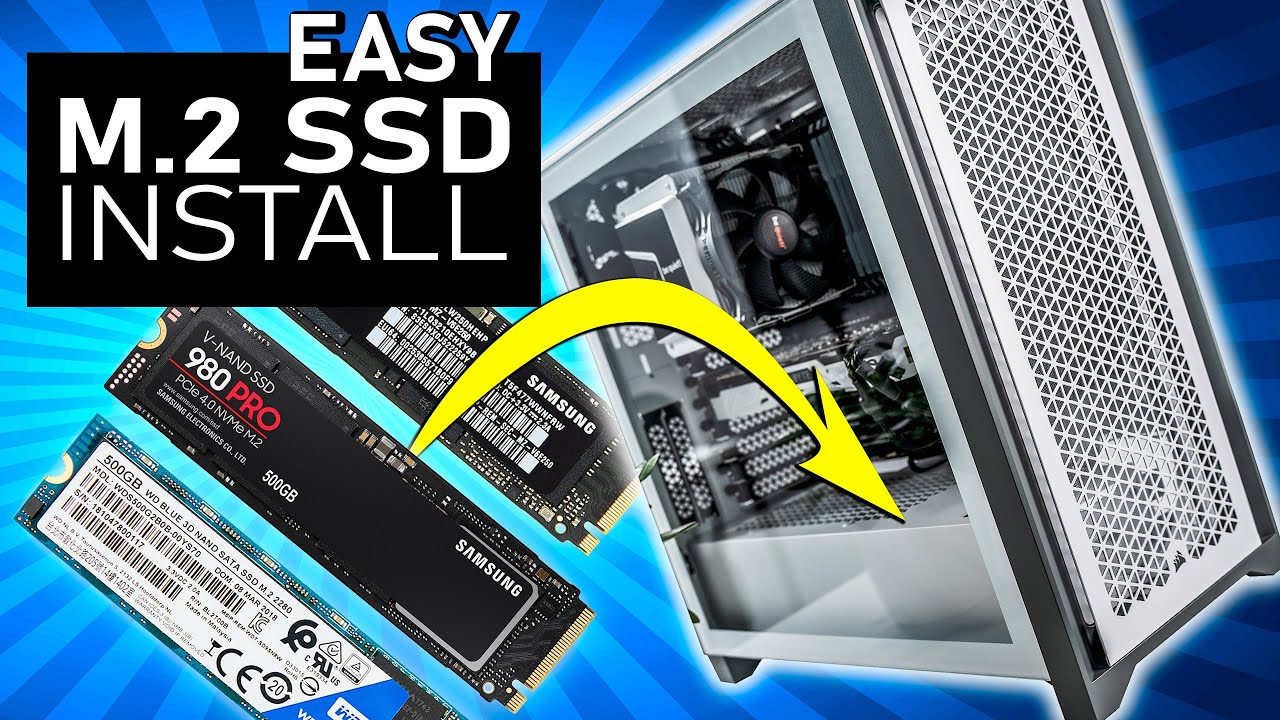
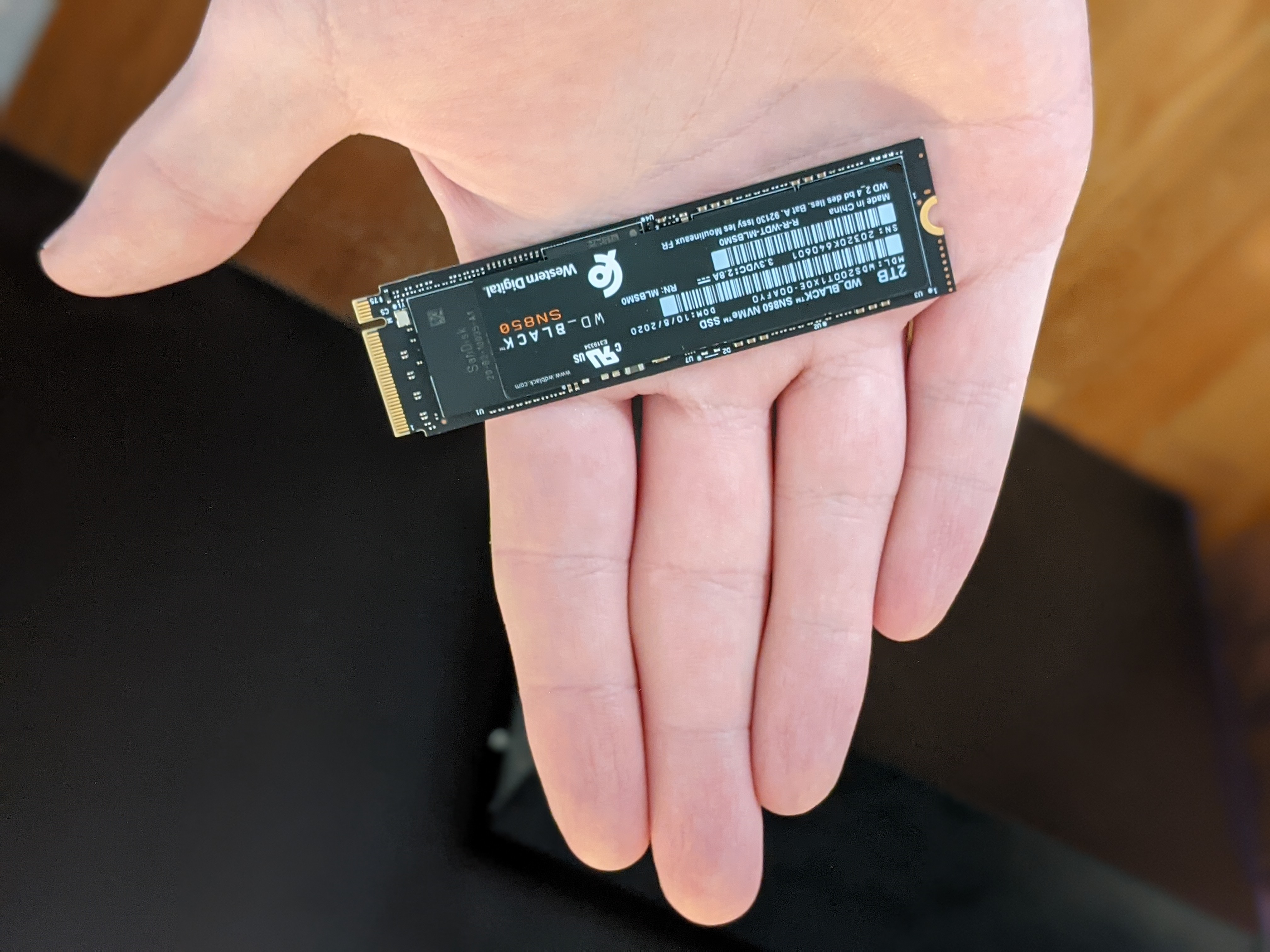
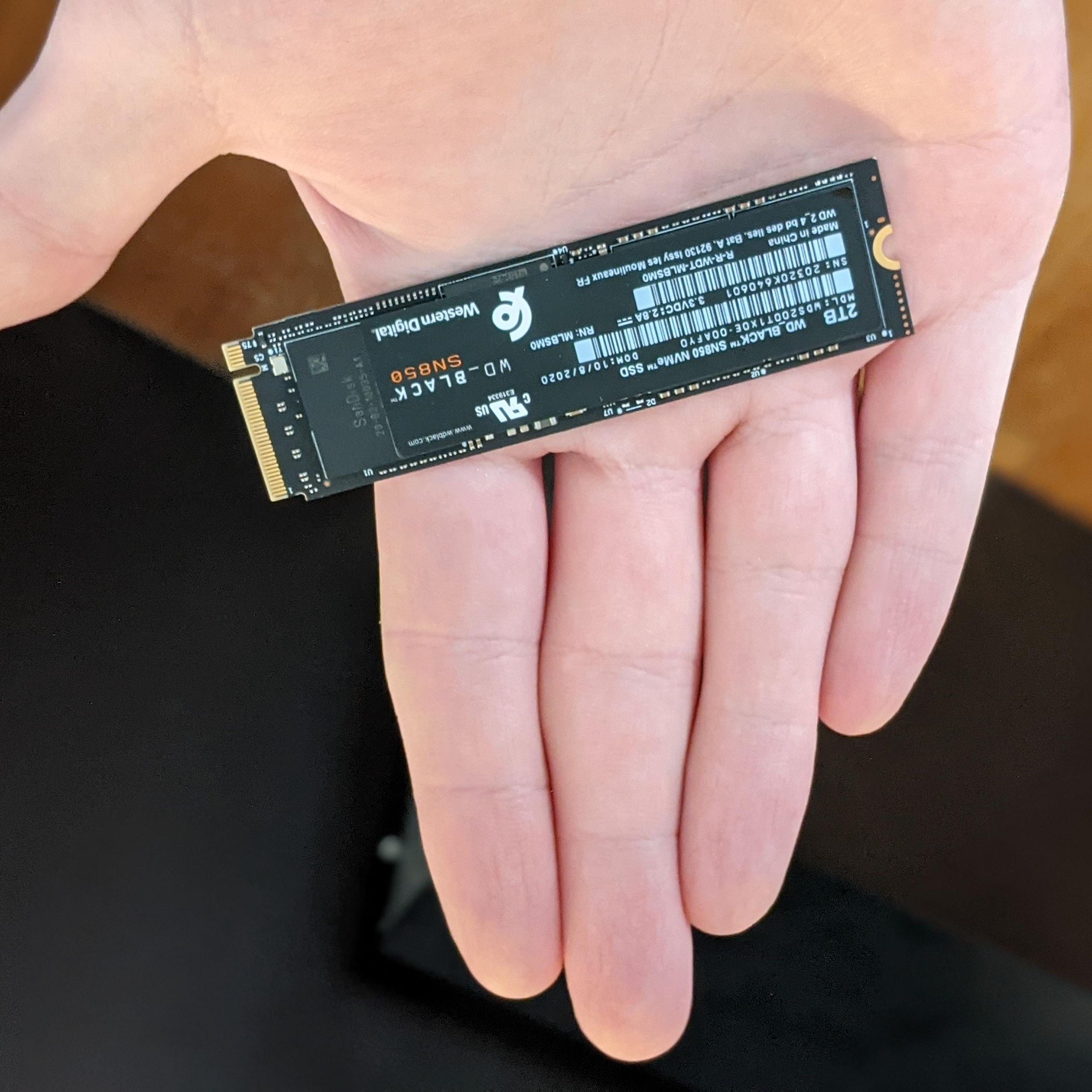
Most NVMe SSDs look like small circuit boards. They fit into an M.2 slot on the motherboard. The common size is M.2 2280, which means the drive is 22 millimeters wide and 80 millimeters long.
Typical NVMe SSD benefits include:
• Faster Windows startup
• Quicker game and app loading
• Better performance when moving large files
• Lower cable clutter inside the PC
• Lower power use than many older hard drives
A SATA SSD can still feel very fast for daily work. However, an NVMe SSD is often the better choice for video editing, gaming, large file transfers, and modern PC builds.
Check Compatibility Before You Install an NVMe SSD
Before learning how to install NVMe SSD in PC, confirm that your motherboard supports the drive. Most modern desktop motherboards have at least one M.2 slot, but not every M.2 slot supports NVMe.
Check your motherboard manual or the manufacturer’s specifications for these details:
• M.2 slot support
• PCIe or NVMe support
• Supported PCIe generation
• M.2 drive length
• Shared lanes with SATA ports or PCIe slots
• Whether the slot supports bootable storage
An M.2 slot may support SATA drives, NVMe drives, or both. The connector can look similar, but the electrical support is different. A motherboard with an M.2 SATA-only slot may not recognize an NVMe SSD.
Check the PCIe generation
NVMe drives use PCIe generations such as PCIe 3.0, PCIe 4.0, and PCIe 5.0. A PCIe 4.0 drive usually works in a PCIe 3.0 slot, but it will run at PCIe 3.0 speed.
The same backward compatibility often applies to newer drives in older slots. Still, the final speed depends on the motherboard, processor, slot, and drive. The slowest part sets the limit.
Check the physical size
Most desktop NVMe drives are M.2 2280 models. Some compact systems use shorter drives, such as 2242 or 2230 models.
Make sure your motherboard has a mounting post in the correct position. Never bend an SSD to make it fit. If the screw hole does not line up, stop and check the drive size.
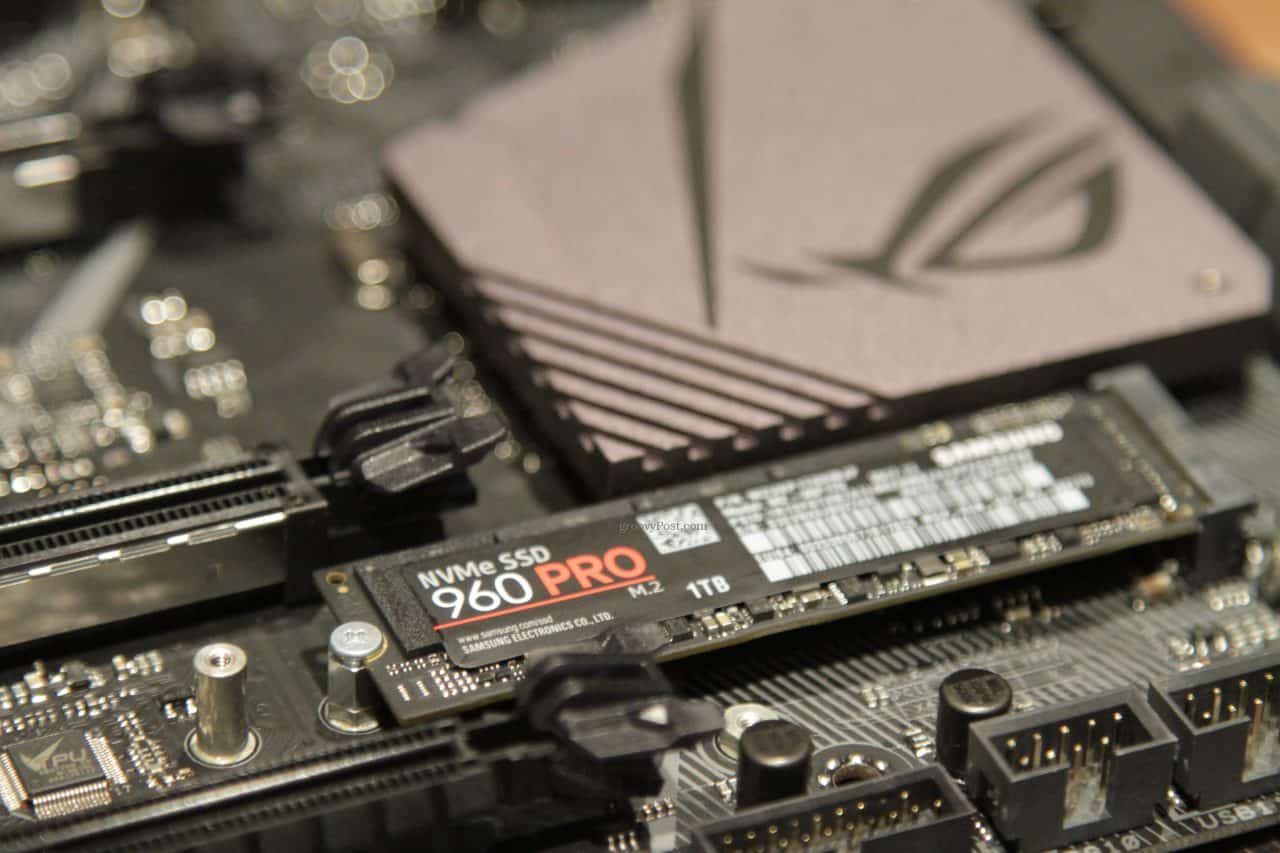
Check for an M.2 heatsink
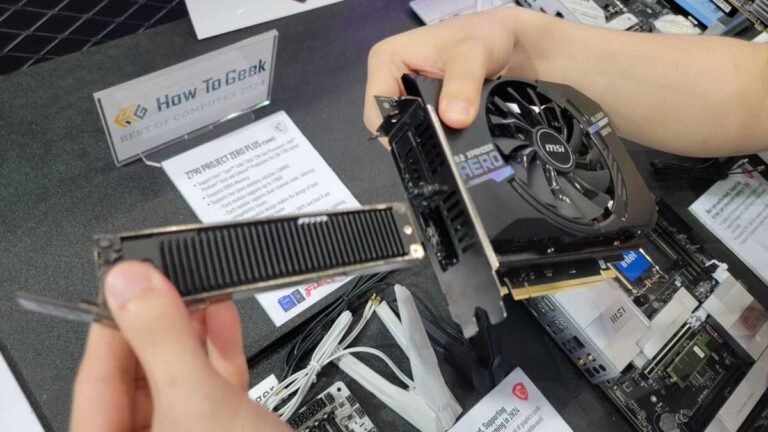
Many motherboards include a metal M.2 heatsink. It can help control heat during long file transfers or demanding workloads. If your board has one, remove the protective film from the thermal pad before reinstalling the cover.
In my experience, forgetting that plastic film is one of the most common installation mistakes. The drive may still work, but the heatsink will not transfer heat properly.
What You Need to Install an NVMe SSD
The installation does not require many tools. Prepare everything before opening the PC case.
You will usually need:
• The NVMe SSD
• A compatible desktop motherboard
• A small Phillips screwdriver
• The M.2 mounting screw or retention clip
• Your motherboard manual
• A clean, well-lit work area
• An anti-static wrist strap, if available
You may also need a USB flash drive if you plan to install Windows on the new SSD. A second storage drive may be useful if you want to clone your old installation.
Protect against static electricity
Static electricity can damage computer parts, even when the damage is not visible. Touch a bare metal part of the PC case before handling the drive, and avoid working on carpet.
For extra protection, use an anti-static wrist strap connected to the case. Keep the SSD in its anti-static packaging until you are ready to install it.
Back up your files
Always back up important files before changing storage hardware. The installation itself should not erase your current drive, but mistakes can happen when changing boot settings, cloning drives, or formatting partitions.
Save important documents, photos, game saves, and work files to another drive or a trusted cloud backup.

How to Install NVMe SSD in PC
Once compatibility is confirmed, you can install the drive. The process usually takes about 10 to 20 minutes.
1. Shut down the PC completely
Save your work and shut down Windows. Do not use sleep mode.
Turn off the power supply switch on the back of the PC, then unplug the power cable. Press the case power button for a few seconds to discharge leftover power.
Place the computer on a stable surface with good lighting. Remove the side panel so you can reach the motherboard.
2. Find the M.2 slot
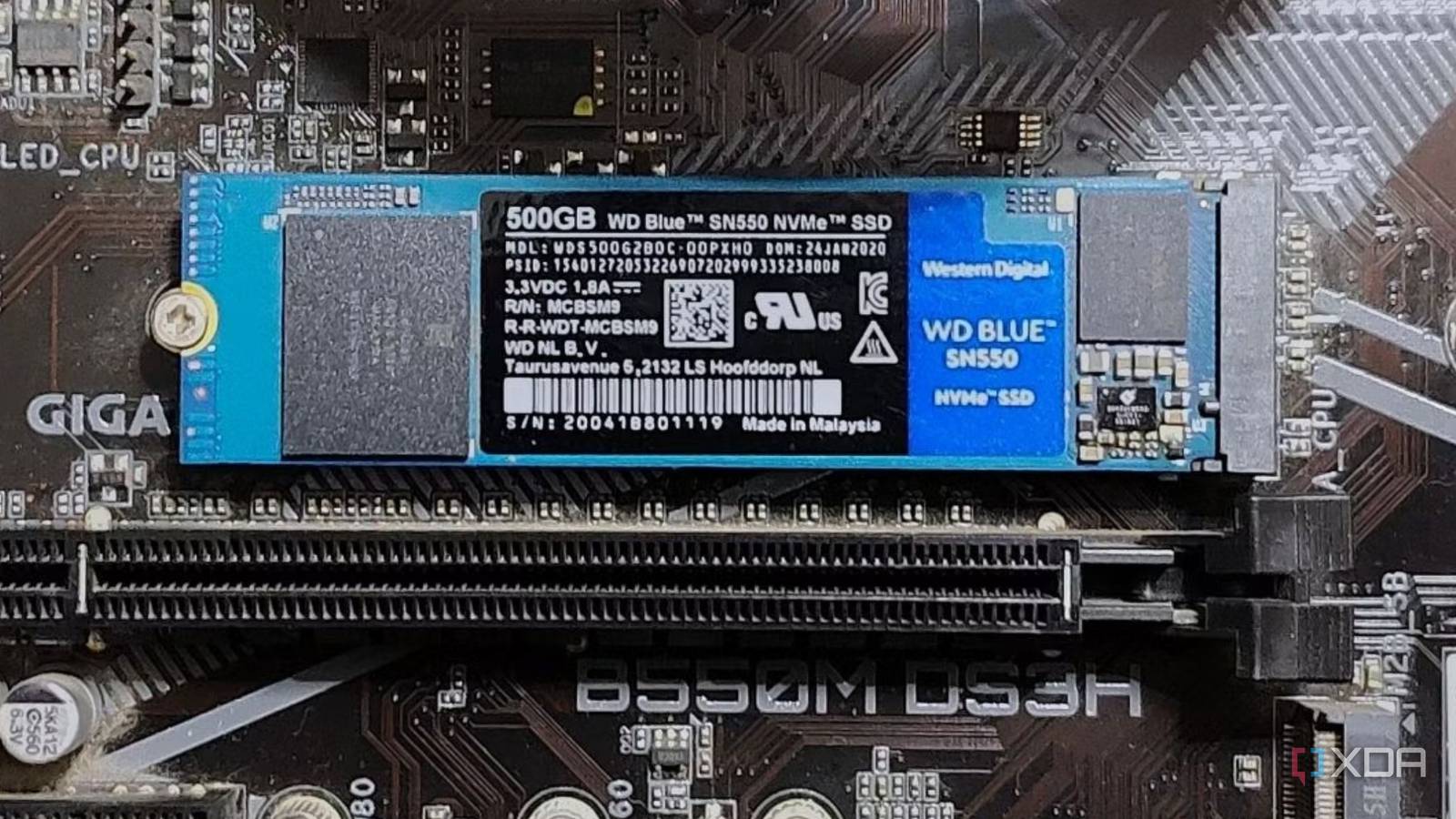
Look for a small slot on the motherboard labeled M.2, PCIe, or NVMe. It is usually near the processor socket or below the graphics card.
Some motherboards have more than one M.2 slot. The top slot, often located near the CPU, may offer the fastest connection. Your manual will show which slot is best for a boot drive.
If a graphics card blocks access, you may need to remove it. Take a photo of the cables and screws first so you can reconnect everything correctly.
3. Remove the M.2 heatsink
If the slot has a metal cover, remove its screw and lift the cover away. Set it aside safely.
Inspect the underside of the cover. If it has a thermal pad, remove the clear protective film. Do not remove the thermal pad itself.
4. Remove the M.2 screw or prepare the latch
Some boards use a tiny screw to hold the SSD. Others use a tool-free plastic latch or metal clip.
Remove the screw from the mounting post, but do not lose it. These screws are very small. I keep them in a small cup while working because dropping one inside the case can turn a quick upgrade into a frustrating search.
5. Insert the NVMe SSD
Hold the SSD by its edges. Avoid touching the gold contacts or small chips on the board.
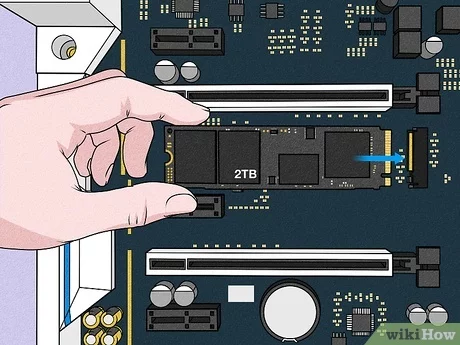
Line up the notch on the SSD connector with the key inside the M.2 slot. Insert the drive at a slight angle, usually around 20 to 30 degrees. It should slide in smoothly with light pressure.
If the drive does not fit, do not force it. Check the connector key, drive orientation, and slot support.
6. Secure the drive
After inserting the SSD, press its free end down toward the motherboard. The mounting hole should line up with the standoff.
Install the M.2 screw and tighten it until the drive is secure. Do not overtighten the screw. The SSD should lie flat, but the circuit board should not bend.
If your motherboard uses a retention latch, rotate or lock it into place according to the manual.
7. Reinstall the heatsink
Place the M.2 heatsink over the SSD and tighten its screw. Make sure the thermal pad touches the top of the drive.
Do not install a heatsink if it presses too hard on the SSD or prevents the drive from sitting flat. A little pressure is normal, but excessive pressure can damage the board.
8. Reinstall the side panel and reconnect power
Replace the side panel and reconnect the power cable. Turn on the power supply switch, then start the PC.
The physical part of how to install NVMe SSD in PC is now complete. The next step is checking whether the motherboard and Windows recognize the drive.
Check the NVMe SSD in BIOS or UEFI
Enter the BIOS or UEFI setup immediately after turning on the PC. The correct key varies by motherboard, but common options include Delete, F2, F10, and F12.
The startup screen or motherboard manual usually shows the correct key. Press it several times as soon as the computer starts.
Look for a menu such as:
• Storage
• NVMe configuration
• M.2 information
• Advanced storage settings
• Boot options
The exact menu name depends on the motherboard. You should see the SSD model and capacity if the installation worked.
If the SSD appears in BIOS
The motherboard recognizes the hardware. You can now boot into Windows and initialize the drive, or install an operating system on it.
If you plan to use the NVMe SSD as the Windows boot drive, place Windows Boot Manager for that drive at the top of the boot order after installation.
If the SSD does not appear in BIOS
Power off the PC and check the following:
• The SSD is fully inserted into the M.2 slot
• The connector notch matches the slot
• The mounting screw is holding the drive flat
• The motherboard supports NVMe in that slot
• A SATA port or PCIe slot is not disabling the M.2 slot
• The BIOS firmware is reasonably current
Some motherboards disable specific SATA ports when an M.2 slot is occupied. Your manual will explain which ports share bandwidth.
Set Up the NVMe SSD in Windows
A new NVMe SSD may not appear in File Explorer right away. Windows may need to initialize the drive and create a partition.
Initialize the drive
Follow these steps:
-
Start Windows and right-click the Start button.
-
Select Disk Management.
-
Find the new drive by matching its capacity.
-
If Windows asks to initialize it, choose GPT for modern UEFI systems.
-
Right-click the unallocated space.
-
Select New Simple Volume.
-
Follow the wizard to assign a drive letter and format the drive as NTFS.
-
Give the drive a clear name, such as Games or Projects.
Be very careful when selecting the disk. Formatting the wrong drive can erase your files. Compare the capacity and existing partitions before making changes.
Why choose GPT?
GPT, or GUID Partition Table, is the current partition standard for modern computers. It supports large drives and works well with UEFI firmware.
MBR is an older format. It may be useful for legacy systems, but GPT is normally the right choice for a new Windows installation on a modern PC.
Install Windows on the NVMe SSD
If the NVMe SSD will become your main boot drive, create a Windows installation USB using another computer or your current system.
Then:
-
Insert the Windows installation USB.
-
Restart the computer.
-
Open the boot menu.
-
Select the USB installer.
-
Choose Custom installation.
-
Select the NVMe SSD.
-
Delete old partitions on that SSD only, if needed.
-
Select the unallocated space and continue.
Windows will create the required system partitions automatically. Disconnecting other storage drives during installation can help prevent Windows from placing boot files on the wrong drive.
Clone your old drive
Cloning copies your current Windows installation, apps, settings, and files to the NVMe SSD. This can save time, but it requires careful software selection and enough space on the new drive.
The destination SSD must have enough usable capacity for the data being cloned. After cloning, shut down the PC and set the NVMe SSD as the first boot device in BIOS.
Keep the old drive untouched until you confirm that Windows boots correctly from the NVMe SSD. This gives you a safety net if something goes wrong.
Optimize and Test the New NVMe SSD
After Windows recognizes the drive, install the latest motherboard chipset drivers and SSD management software if recommended by the hardware maker.
Windows normally enables TRIM automatically for supported SSDs. TRIM helps the drive manage deleted data and maintain performance over time. You can check this with built-in Windows tools, but avoid running traditional disk defragmentation on an SSD.
Monitor temperatures
NVMe SSDs can become warm during long transfers. High temperatures may cause thermal throttling, which lowers speed to protect the drive.
Useful checks include:
• Confirming the M.2 heatsink is installed correctly
• Improving case airflow
• Keeping cables away from the M.2 area
• Checking temperatures with a trusted monitoring tool
• Updating SSD firmware when appropriate
A short temperature spike during a large file transfer is not automatically a problem. Sustained high temperatures, repeated performance drops, or system errors deserve further investigation.
Test real-world performance
Synthetic benchmark results can be useful, but daily use matters more. Test tasks that match your needs:
• Start Windows several times
• Open large applications
• Copy a large folder
• Load a demanding game
• Export a video project
Do not judge the drive only by its advertised sequential speed. Small file performance, system support, thermals, and workload type all affect the experience.
Common Mistakes to Avoid
Knowing how to install NVMe SSD in PC is not only about inserting the drive. Avoiding small mistakes is just as important.
Installing the drive backward
The notch must match the key in the M.2 slot. Never force the connector. If the drive does not slide in easily, remove it and check the orientation.
Forgetting the mounting screw
An unsecured SSD may lift away from the slot or lose contact. The screw also keeps the drive stable when the PC moves.
Leaving the heatsink film in place
The clear film protects the thermal pad during shipping. It must be removed before the heatsink touches the SSD.
Using the wrong M.2 slot
Some slots support only SATA M.2 drives. Others share lanes with storage ports or expansion slots. Read the motherboard manual before choosing a slot.
Formatting the wrong disk
Disk Management can show several drives with similar names. Always identify the correct drive by its capacity and partition layout.
Expecting advertised speed in every task
A PCIe 4.0 or PCIe 5.0 speed rating describes a best-case interface limit. Real performance changes with file size, drive temperature, firmware, CPU support, and available PCIe lanes.
Removing the old drive too soon
If you cloned Windows, keep the old drive until the new one boots and your files are available. Once everything works, you can format or reuse the old drive.
Troubleshooting NVMe SSD Installation Problems
The SSD is not visible in Windows
First, check Disk Management. The drive may be visible there but lack a partition or drive letter.
If it is missing from both Disk Management and BIOS, shut down the PC and reseat the drive. Then check motherboard compatibility, shared lanes, and BIOS settings.
The PC boots to the old drive
Enter BIOS and open the boot menu. Select Windows Boot Manager associated with the NVMe SSD.
If you cloned the old drive, temporarily disconnecting the old drive can help confirm that the new drive has the correct boot files.
Windows shows less storage than advertised
Drive makers use decimal units, while Windows reports capacity in a different way. A drive sold as 1 TB will show somewhat less usable capacity in Windows. Recovery partitions and formatting also use a small amount of space.
This difference is normal and does not mean the SSD is defective.
The drive is slower than expected
Check whether the SSD is installed in the correct PCIe slot. Confirm that the motherboard and processor support the advertised PCIe generation.
Also check temperature, available free space, firmware, and the type of test you are running. Large sequential transfers may show high speeds, while small random tasks may show lower numbers.
The PC freezes or shows errors
Update the motherboard BIOS, chipset drivers, and SSD firmware if stable updates are available. Check that the SSD is firmly secured and that the system has adequate cooling.
If errors continue, test the drive in another compatible slot or computer. Back up important data before performing further troubleshooting.
How NVMe SSDs Compare With SATA SSDs and Hard Drives
An NVMe SSD is usually the fastest option for a modern desktop, but it is not always the only sensible choice.
| Storage type | Main connection | Typical advantage |
|---|---|---|
| Hard drive | SATA | Low cost per terabyte |
| SATA SSD | SATA | Good daily speed and broad compatibility |
| NVMe SSD | PCIe through M.2 | High speed and low access delay |
For basic web browsing, office work, and media playback, a SATA SSD may already feel excellent. An NVMe SSD becomes more useful when you work with large files, use demanding software, or want fast game and application loading.
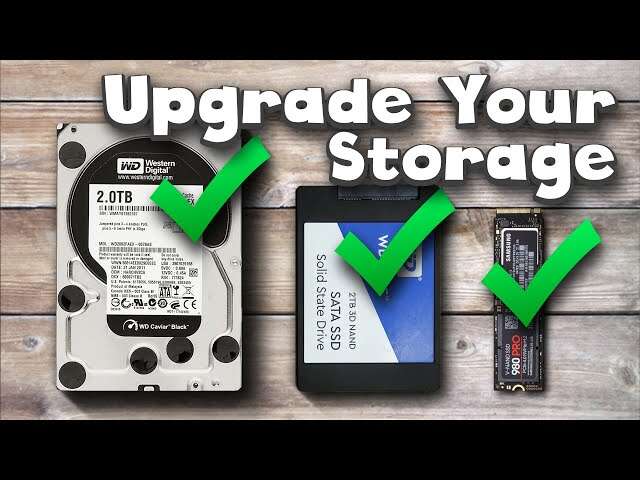
The best storage plan can combine drive types. For example, you might use a fast NVMe SSD for Windows and active projects, a larger SATA SSD for games, and a hard drive for backups.
Frequently Asked Questions About How to Install NVMe SSD in PC
Can I install an NVMe SSD in any PC?
No. The motherboard must have an M.2 slot that supports NVMe over PCIe. Check the motherboard manual or specifications before buying the drive.
Do I need to reinstall Windows after installing an NVMe SSD?
No, if you are adding the SSD as extra storage or cloning your existing Windows installation. You need a fresh installation only if you want to make the NVMe SSD your main boot drive without cloning.
Does an NVMe SSD need a heatsink?
An NVMe SSD can work without a heatsink, especially during light use. A motherboard heatsink can help reduce heat during long transfers and demanding workloads.
Why is my new NVMe SSD not showing in File Explorer?
The drive may need to be initialized, partitioned, and assigned a drive letter in Disk Management. If it is not visible there or in BIOS, check the installation, slot compatibility, and motherboard settings.
Can I use a PCIe 4.0 NVMe SSD in a PCIe 3.0 slot?
Usually, yes. The drive should operate at the slower PCIe 3.0 speed, provided the motherboard supports NVMe and the physical slot is compatible.
Is cloning better than a clean Windows installation?
Cloning is faster and keeps your apps and settings, but a clean installation can remove old drivers and software clutter. Choose cloning for convenience and a clean installation for a fresh start.
Conclusion
Installing an NVMe SSD in a PC is a manageable upgrade when you check compatibility first and work carefully. Confirm that the M.2 slot supports NVMe, install the drive at the correct angle, secure it with the proper screw, and check BIOS before setting it up in Windows.
Remember to back up your files, choose GPT for most modern systems, remove the heatsink film, and keep the old drive until the new one works properly. Follow these steps, and your PC can gain faster startup times, quicker application loading, and smoother large-file work.
Take a few minutes to review your motherboard manual before starting, then install your drive with confidence. If this guide helped, explore more PC upgrade guides or share your installation experience in the comments.

Everett Ashford is a tech reviewer at mytechgrid.com specializing in SSDs, cameras, TVs, earbuds, headphones, and other consumer electronics. He provides honest, data-driven reviews based on hands-on testing and real-world performance analysis. Everett simplifies complex tech details to help readers make smart, confident buying decisions.